

Bolt Integration Guide with Freemius
Follow this guide to integrate Freemius Checkout and monetization into your apps and SaaS built on Bolt.new with a single prompt to your AI agent.
The end result is:
- Integrated Pricing Page and Checkout: Your users will see the pricing you've configured at Freemius and be able to purchase your product through the Freemius checkout.
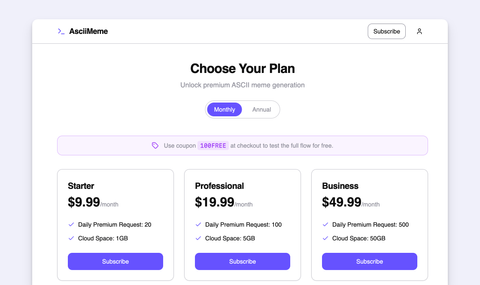
- Gated Premium Features: You can easily gate your premium features behind a paywall and allow access only to users who have purchased the product.
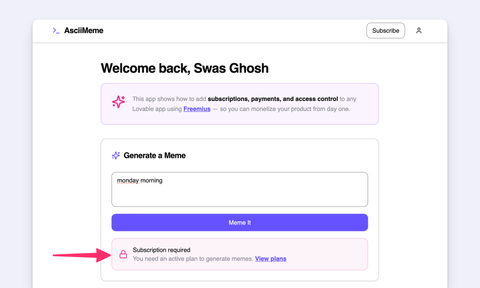
- Integrated Accounts Page: Show active subscriptions and payments directly within your app, and link to the Freemius Customer Portal for more advanced account management features.
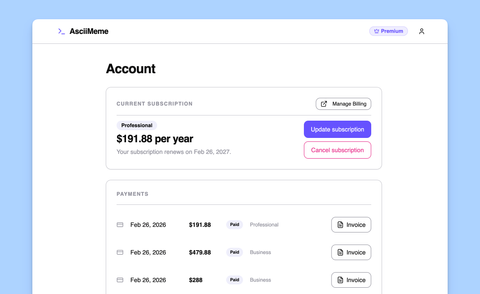
Continue reading to learn how to achieve this with a single prompt to Bolt.new's AI agent.
Set Up Your Product at Freemius
If you haven't already, register and create your product and plans at Freemius.
For this guide, create a few subscription-based plans, as shown below:

All plans have monthly and annual billing cycles with different pricing and features, as shown below:

Save Your Project Secrets
First, get your API keys from the Freemius Developer Dashboard.
Go to Product → Settings and, under the API & Keys tab, copy your API keys as shown below:

- Product ID: This will be referenced as
FREEMIUS_PRODUCT_ID. - Product Public Key: This will be referenced as
FREEMIUS_PUBLIC_KEY. - Product Secret Key: This will be referenced as
FREEMIUS_SECRET_KEY. - API Bearer Authorization Token: This will be referenced as
FREEMIUS_API_KEY.
Next, get your Bolt.new app URL. This will be referenced as LIVE_FRONTEND_URL as a secret.
To get this link, publish your app by clicking the Publish button in the top-right corner to get the production URL, then copy it as shown below:

While editing your Bolt.new project, add the keys to the Secrets manager under the Settings.
- Click the Settings button from the center view.

- Manually add each key and its value, then click the Create secret button.

Update Bolt.new Knowledge
Add custom instructions to Bolt.new's Knowledge Base so the AI agent knows how to integrate Freemius into your application.
-
Click Knowledge under the Settings button.
-
Copy and paste the following instructions into the textarea.
## Freemius MonetizationIntegrate Freemius end-to-end in this Bolt app using Supabase functions,shared backend utilities, and frontend paywall/account UX.### Integration GuidelinesWhen asked to integrate Freemius, follow the instructions from this URL:https://raw.githubusercontent.com/Freemius/freemius-ai/refs/heads/main/bolt-integration/subscription/prompt.md### Protect Premium Features with Paywall- To restrict any premium operations in the API routes that require an active subscription, use the shared `supabase/functions/_shared/freemius.ts` module's `getUserEntitlement` (for any plan) or `hasPlan` (specific plan) functions. Return a 403 response with `code: "subscription_required"` if the user doesn't have the required subscription.- On the frontend, handle the `subscription_required` error by reading the response body from `error.context.body` as a stream (since Supabase `functions.invoke` puts non-2xx response bodies there as a ReadableStream, not plain JSON). Show a lock-style paywall UI with a link to `/pricing`. You can disable relevant UI after the first failed attempt.- The front-end may also call the `functions/v1/get-entitlements` API route to check for active entitlements and show a paywall UI with a link to `/pricing` through a `Subscribe` button if there is no active subscription.- The front-end may also call the `functions/v1/get-entitlements` API route to check for active entitlements and show a paywall UI with a link to `/pricing` through a `Subscribe` button if there is no active subscription.- Correctly find the matching user and write the entitlement record. The getUserByEmail should read the correct field, `purchase.email`, to skip the silently returned null for every purchase.- The SDK's `freemius.entitlement.getActive()` throws a hard error if more than one active entitlement is found. With a real account that has been through multiple subscription cycles, switch to `freemius.entitlement.getActives()` (which returns an array) and then pick the most recently created one.--- -
Click the Save prompt button.

Do the Integration
Return to the Bolt.new editor and enter the following prompt:
Implement the Freemius integration based on the project's Knowledge saved.The AI agent will start working on the integration. Here's what will happen:
- The agent might ask you to enable the Bolt.new Database or to connect your Supabase project.
- The agent will ask you to create a new database table named
user_fs_entitlement—accept this. - Because the integration instructions are comprehensive, the agent will work through several steps. Once complete, it will output two URLs: one for checkout redirection and one for webhooks.

Set Up Checkout Redirection
Go to Plans → Customize and set the Checkout Success Redirection that the AI agent gave you.

This ensures the purchase is processed immediately by your app and users get instant access to benefits. Learn more in our documentation.
Set Up Webhooks
Go to Products → Webhooks → Listeners and add the webhook URL that the AI agent gave you.

Make sure to send the following event types:
- license.cancelled
- license.created
- license.deleted
- license.expired
- license.extended
- license.plan.changed
- license.quota.changed
- license.shortened
- license.updated
This ensures your application knows the status of a license. For example, when a subscription is renewed, your application will also update the expiry date. For more information about webhooks, see our documentation. For now, creating the webhook listener with the URL and event types is sufficient for the integration to work.
Test the Integration
Test the integration end-to-end to ensure everything works as expected.
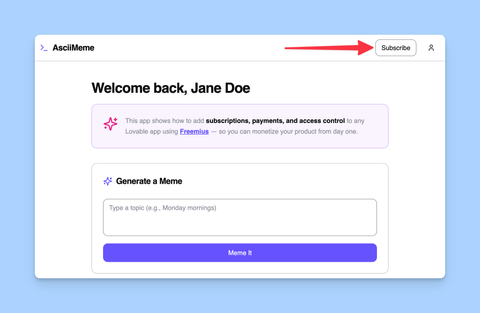
- You should now see a new Subscribe button in the app's navbar.
- Clicking the action button in the paywall will take you to the pricing page, which can look like this:
It will fetch all the plans, pricing, and features you have configured in Freemius in real time.
- Click the Subscribe button on any plan to test it further. This takes you to the Freemius Checkout page.
For this step, use a 100% discount coupon to test the checkout without making a production payment.
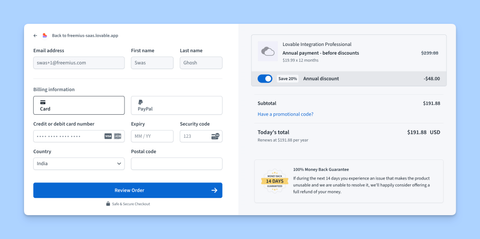
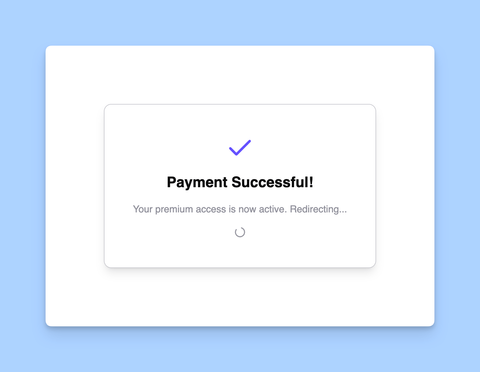
- After checkout completes, you'll see a confirmation that the payment was successful and be redirected back to the app.
The app should now show that you're subscribed and have access to premium features.
- The AI should have added or enhanced the
/accountspage, similar to this: - Click the Update Subscription button to go to the pricing page. This time, your current plan is highlighted, and the other plans are shown as upgrade or downgrade options.
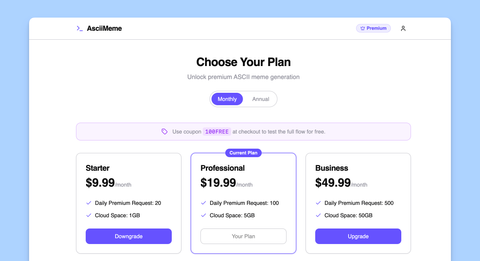
- To further test, click the Cancel Subscription button on the accounts page. You'll see the app cancel the subscription with Freemius, and the UI will update accordingly.
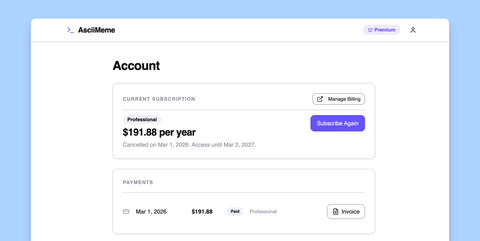
- Click Manage Billing to access the Freemius Customer Portal, where you can test other features such as changing plans or updating payment methods.
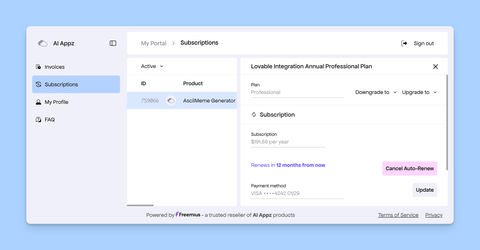
If all steps work as expected, you have successfully integrated Freemius monetization with your Bolt.new app.
You can also customize the UI further to match your app's design and branding.
Protect Features with Paywall
In your Knowledge settings, Bolt.new is already configured with instructions for maintaining the Freemius integration and paywall. You only need to tell the AI which UI elements and API routes to protect.
For example, to protect the meme generator feature on both the backend and frontend, use this prompt:
Add a paywall to the meme generation feature. Use guide from knowledgebase to protect the API route with `getUserEntitlement` and show a lock-style paywall UI with a link to `/pricing` on the frontend if the user doesn't have any active subscription. Disable the generate button after the first failed attempt.The end result will look like this:
To restrict a feature to a specific plan only—for example, Pro plan users for the meme generator—use hasPlan instead of getUserEntitlement like this:
Add a paywall to the meme generation feature. Use guide from knowledgebase to protect the API route with `hasPlan` for the `<planID>` and show a lock-style paywall UI with a link to `/pricing` on the frontend if the user doesn't have an active Pro subscription. Disable the generate button after the first failed attempt.Customize for Your Feature
Customize the prompt for your use case by specifying which UI elements and API routes to protect. The meme generator is just an example.
Additionally, if you're using the hasPlan function, you can find the <planID> from the Freemius Developer Dashboard under your product's plans, as shown below:

Update the Published App
After publishing, if the integration stops working, it is usually because the URLs have changed.
Copy the new URL from the App Publish button, update the LIVE_FRONTEND_URL secret, and ask the AI agent to verify the checkout redirection and webhook URLs and update them if necessary.
Troubleshooting
Thorough testing ensures everything works as expected. However, issues can still occur. Here are our recommendations and tips.
Getting Help from the AI Agent
If something breaks or does not work as expected, first ask the AI agent to fix it. For example, if checkout redirection is not working, ask the agent:
The checkout redirection is not working, check the redirection flow and make sure it works as expected.Make Sure the Webhooks and Checkout Redirections are Working
Webhooks and Checkout Redirection are the two most critical parts of the integration. If they do not work properly, the integration will fail. Test these parts thoroughly. You can ask the AI agent to verify them end-to-end. Freemius also sends email notifications if webhook processing fails.
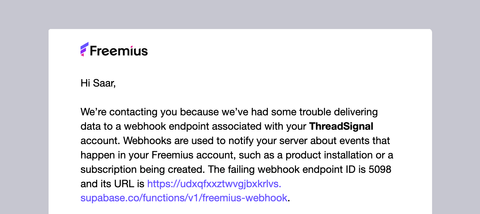
If this happens, copy the email content and ask the AI agent to fix the issue. For example:
I received the following email from Freemius about webhook processing failure:

{paste the email content here}

Please fix the issue and make sure the webhooks are working as expected.
Using One-off Purchases
Our integration guide is based on subscription plans and will not work for one-off purchases or lifetime access. While it is fully possible to integrate such purchase models with Freemius, it requires a different implementation approach. We recommend contacting our support team with your use case and requirements, and we can guide you through the best approach for your specific needs.
Contact Freemius Support
Our support team is here to help. Contact us at [email protected], and we will be happy to assist with integration and troubleshooting.