# Sell Directly from Your Website with Freemius Checkout Overlay
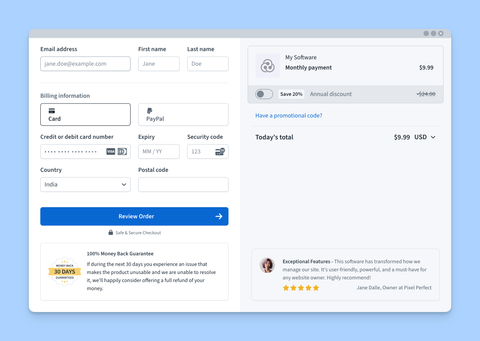
The **Overlay Checkout** is an embeddable checkout solution that allows you to sell your products directly from your website, without redirecting customers to an external page.
## Getting the Checkout Overlay Code[](#getting-the-checkout-overlay-code "Direct link to Getting the Checkout Overlay Code")
1. Go to the ***Plans*** section.
2. Click the **Get Checkout** button.
3. Click the **Overlay Code** button.
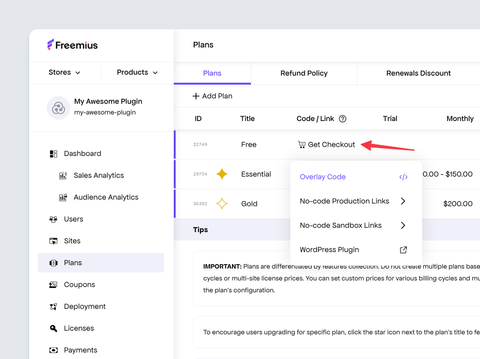
4. You'll get a ready-to-use simple JavaScript snippet that you can embed on any website.
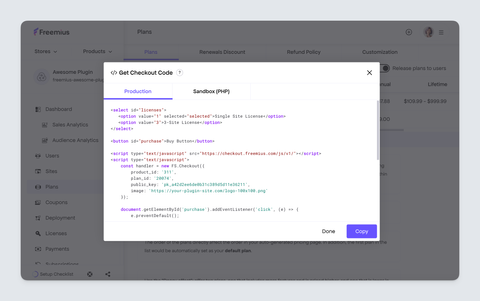
Just embed the code snippet into your website's HTML where you want the **Buy Button** to appear.
**[Click here](https://codepen.io/swas-freemius/pen/gbMRyRy)** to see a live demo of the Freemius Checkout Overlay integration with source code on CodePen.
## Step by Step Integration Guide[](#step-by-step-integration-guide "Direct link to Step by Step Integration Guide")
If you want to do advanced integration with more customization options, follow the steps below:
1. **Include the Freemius Checkout JS library** in your website's HTML `` section:
```
```
2. **Initialize the Checkout object** with your product details:
```
```
warning
Freemius will attempt to recover the sale when a checkout is abandoned using an out-of-the-box [Cart Abandonment Recovery](https://freemius.com/help/help/documentation/marketing-automation/cart-abandonment-recovery/.md) mechanism. For this mechanism to properly work, make sure that `new FS.Checkout()` is called right with the page loading. Otherwise, the links in the cart recovery email campaign won't automatically open the checkout in its saved state.
3. **Create a button or link** that will trigger the checkout overlay when clicked:
```
```
4. **Add an event listener** to the button or link to open the checkout overlay:
```
```
Here's a simple example of the checkout code will look like for a plan that offers 3 multi-site prices:
```
```
A more advanced example with multiple plans can be found in our **[CodePen Demo](https://codepen.io/swas-freemius/pen/gbMRyRy)**.
## Cross-Origin-Opener-Policy (COOP) Header[](#cross-origin-opener-policy-coop-header "Direct link to Cross-Origin-Opener-Policy (COOP) Header")
The Checkout Overlay may open payment flows, such as PayPal, in a popup window.
If your website sends the following header:
```
Cross-Origin-Opener-Policy: same-origin-allow-popups
```
The popup flow may not work correctly in Safari or other browsers.
Avoid setting this header on pages that embed Checkout. If you must set an explicit COOP header, use:
```
Cross-Origin-Opener-Policy: unsafe-none
```
## Customization & Callbacks[](#customization--callbacks "Direct link to Customization & Callbacks")
The Checkout Overlay can be customized using various options and you can also handle different events using callbacks.
You can find the full list of available options and callbacks in the [Checkout API Documentation](https://freemius.com/help/help/documentation/checkout/integration/freemius-checkout-buy-button/.md).
## Using with JavaScript Frameworks[](#using-with-javascript-frameworks "Direct link to Using with JavaScript Frameworks")
To install the Checkout JS library in your app, please refer to our [Checkout JS SDK Documentation](https://freemius.com/help/help/documentation/saas-sdk/checkout-js-sdk/.md). The guide provides detailed instructions on using the library via CDN and NPM. It also covers advanced use cases, such as [multi-plan and multi-site licenses](https://freemius.com/help/help/documentation/saas-sdk/checkout-js-sdk/usage/.md#advanced-examples).