# Tabs Navigation
If you are worried about cluttering the WordPress admin menu, you can easily change the default navigation by implementing navigational tabs at the top of your plugin settings page.

This is especially relevant when:
* Your plugin settings page is a submenu. e.g. Under the top-level **Settings** (`options-general.php`) WordPress menu item.
* You have multiple submenus for your plugin's parent menu item.
By default, Freemius pages are added as submenus under the plugin settings menu and if you have multiple active plugins with similar sub-pages then the menu could quickly become very unsightly.

## How to Enable Tabs[](#how-to-enable-tabs "Direct link to How to Enable Tabs")
To displays Freemius SDK pages as tabs instead of menu items, manually configure your plugin generated [SDK code snippet](https://freemius.com/help/help/documentation/wordpress-sdk/integration/integration-snippet/.md) to add `'navigation' => 'tabs',` to the configuration array.
This requires manual addition as the setting isn't automatically added when the SDK integration snippet is generated.
Important Note
Whenever your SDK integration code snippet is updated, add this change to the new snippet to ensure the tabs navigation remains enabled.

## Adding a Custom Tab[](#adding-a-custom-tab "Direct link to Adding a Custom Tab")
Using a little custom HTML, you can blend your plugin settings pages in with the Freemius tabs with a custom tab
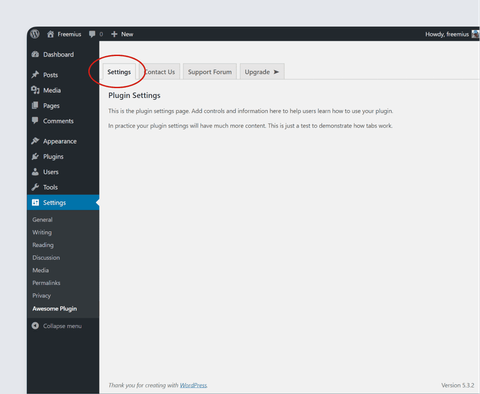
For the tabs to work correctly you need to make sure your plugin settings are contained in a `div.wrap` element, which is considered [standard practice](https://developer.wordpress.org/plugins/settings/custom-settings-page/).
1. Start by modifying your existing plugin settings markup to include the following HTML.
```
```
2. Some flexibility is needed to fit the tabs with your own styling. Add `fs-section fs-full-size-wrapper` classes to the `div.wrap` element to help blend in with Freemius tabs.
```
```
The final code snippet should look something like this:
* HTML
* CSS
* JavaScript
```
```
CSS (add as inline style or via style sheet)
```
h2.nav-tab-wrapper {
display: none;
}
```
JavaScript (enqueue in footer)
```
jQuery(document).ready(function ($) {
document.querySelector('h2.nav-tab-wrapper').style.display = 'block';
});
```
### Behavior of Tabs Navigation[](#behavior-of-tabs-navigation "Direct link to Behavior of Tabs Navigation")
When the tabs navigation is enabled, the following behavior is observed:
* No submenu is displayed for the main plugin settings page.
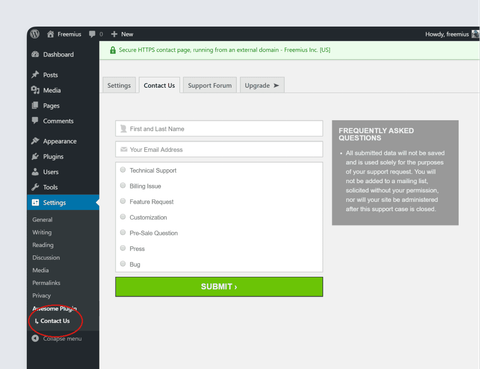
* When you click on a Freemius tab (e.g. **Contact Us**) a submenu item is displayed under the plugin settings menu to indicate which tab is currently visible.
* You might occasionally see a slight 'blip' when the tabs are rendered depending on the size and complexity of your plugin settings page.
The custom tab is rendered immediately whereas the Freemius tabs are added via JavaScript a few milliseconds later.
This is not normally an issue but if it's noticeable then you can try hiding the tabs initially with CSS, and displaying via JavaScript once the Freemius tabs have finished loading.
## Adding a Custom Tab Via JavaScript[](#adding-a-custom-tab-via-javascript "Direct link to Adding a Custom Tab Via JavaScript")
It's also possible to add a custom tab purely via JavaScript instead of HTML which has some inherent advantages, namely, it avoids the 'blip' issue completely.
Here's an example snippet to add a custom tab via JavaScript:
```
jQuery(document).ready(function ($) {
// Add the `fs-section fs-full-size-wrapper` to `div.wrap` classes to blend in with Freemius tabs
// add a 'Settings' tab via JS
const navTabWrapper = $('.nav-tab-wrapper');
const currentTabs = $('.nav-tab-wrapper a');
let activeTab = '';
if (!currentTabs.hasClass('nav-tab-active')) {
activeTab = ' nav-tab-active';
}
navTabWrapper.prepend(
// Replace the # placeholder link with a full link to your plugin settings page.
'Settings'
);
});
```
The JavaScript code should be enqueued to run in the page footer to ensure it runs after the Freemius tabs JavaScript. Restrict the code to run *only* on the plugin settings page and Freemius pages (Account, Contact Us, Upgrade).
tip
Use the [Freemius Menu Slugs](https://github.com/Freemius/wordpress-menu-slugs-plugin) plugin to find the menu slugs.
## Clearing the Freemius Cache[](#clearing-the-freemius-cache "Direct link to Clearing the Freemius Cache")
When editing custom tab code you might occasionally come across your tab changes not being updated as expected for core Freemius tab pages (Account, Contact Us, Upgrade, etc.).
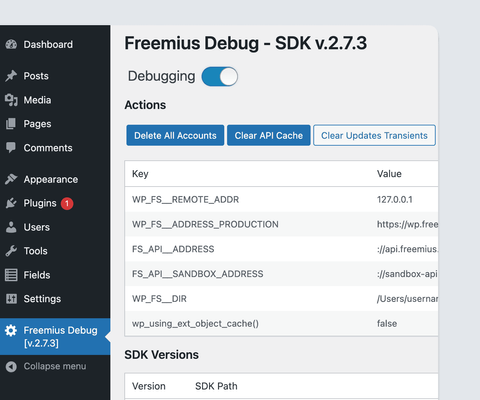
This is usually due to Freemius caching the page markup. To solve this simply clear the cache via the Freemius [debugging admin page](https://freemius.com/help/help/documentation/wordpress-sdk/debugging/.md).