

Exploring the Activation Screen
The Freemius SDK comes with an Activation screen which is displayed depending on the type of users, namely:
- Opt-in screen for free users
- License activation screen for premium users.
This screen is essential in the process to get consent for collecting information related to your product usage when installed on your customer's site.
License Activation Screen
The Freemius WordPress SDK displays a license activation screen for the premium version when the product is installed and activated.
This behavior is expected since the premium version requires a license key to be activated, and the screen is designed to prompt users to enter their license key to activate the premium features of the product.
After a license key is entered and the premium features of the product are activated, the screen will not appear again.
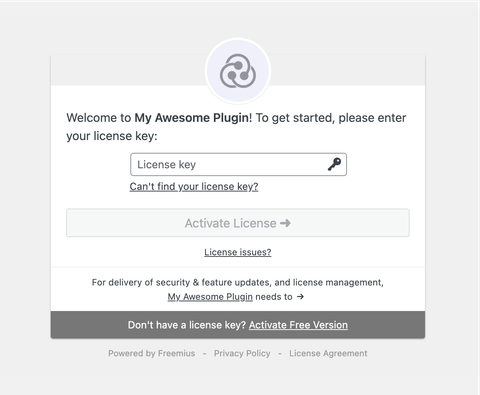
As the product owner, you can generate a license key for testing purposes by following the steps outlined in our Testing documentation.
Opt-In Screen
This is the default opt-in screen shown in the free version of your product.
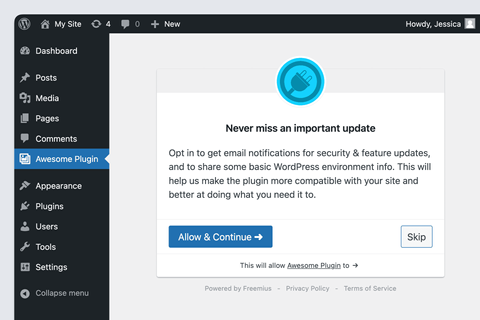
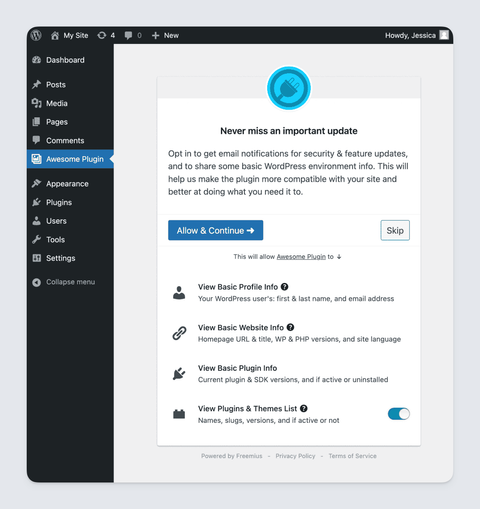
Users have the option to fully or partially skip sharing the information and to opt in to share data with Freemius. For this, the user can:
-
Fully Skip: sharing any info by clicking the "Skip" button.
-
Fully Allow: sharing all collected info by immediately clicking the "Allow & Continue" button. This includes information like their basic profile, website and product information plus info related to the themes and plugins on the site.
-
Partially Allow: sharing some collected info by clicking the "This will allow
{product name}to" link at the bottom of the dialog box. Toggle off some option, then click the "Allow & Continue" button.This will expand the screen revealing the options for information that will be shared. Only the information info related to the themes and plugins on the site can be toggled off.
Reset the Opt-In Screen
After opting in or skipping the process, the screen will not appear again.
Reset Opt-in via Plugins Page
Using the plugins page, users can opt-in and opt-out of Freemius at any time. These are Opt-in and Opt-out buttons that enable users to change their status.

When these links are clicked, the corresponding screen pops up again to allow users to change their opt-in status.

Alternatively, product users can also reset the opt-in screen to appear again by following the steps below:
Reset Opt-in after Opting in
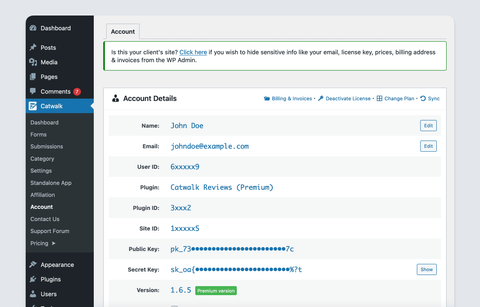
To display the opt-in screen after opting in initially, you will need to delete the installation from Freemius under the Account submenu item.
Reset Opt-in after Skipping
To display the opt-in screen after skipping it initially, follow these steps:
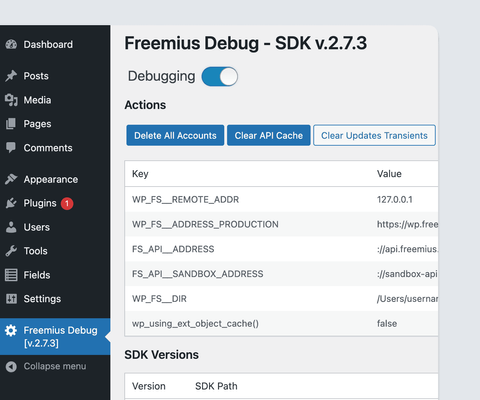
- Enable the Freemius debugging page.
- Then clear Freemius data in the admin dashboard by selecting the Delete All Accounts button.
Customizations
Since every plugin or theme is unique, you may want to customize the opt-in screen to better match your product's style/tone/brand and audience. You can leverage one or more of the opt-in actions and filters hooks for the customization of these screens documentation.