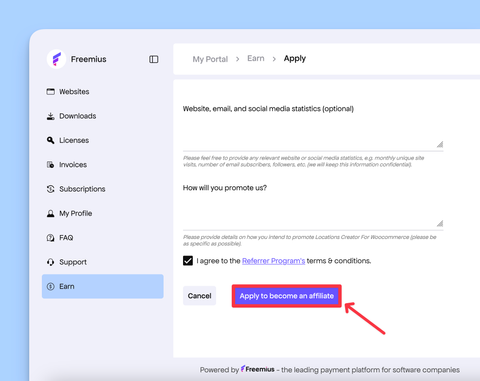
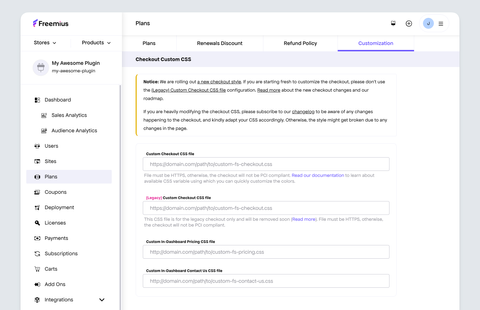
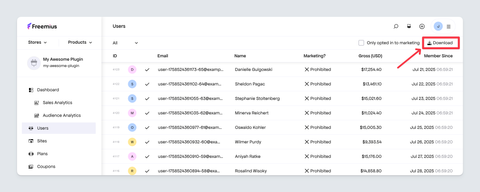
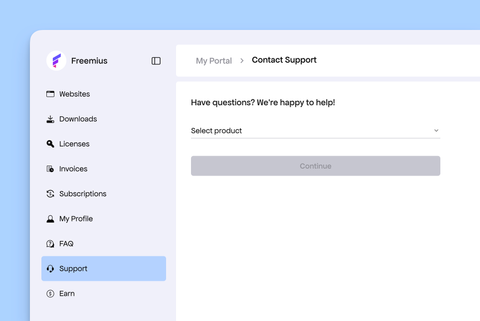
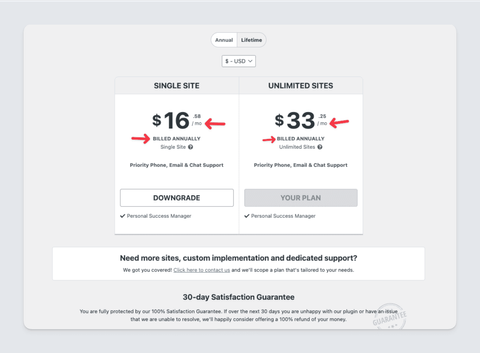
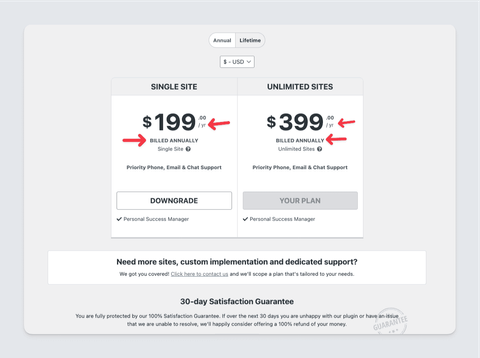
# Freemius Documentation ## help - [Affiliate Platform](https://freemius.com/help/documentation/affiliate-platform.md): Freemius offers a free, out-of-the-box affiliate solution for your sales needs. Check out the details here. - [Giving Coupons to Your Affiliates to Boost Promotions](https://freemius.com/help/documentation/affiliate-platform/affiliate-coupon.md): Learn how to create and assign coupons to your affiliates in the Freemius Developer Dashboard to help them promote your products effectively. - [Activating The Affiliate Program](https://freemius.com/help/documentation/affiliate-platform/affiliate-program-activation.md): Activate the affiliate program in your Freemius Dashboard with easy instructions. Learn more here. - [Affiliate Terms Customization](https://freemius.com/help/documentation/affiliate-platform/affiliate-terms-customization.md): Customize affiliate terms easily for each partner. Just scroll to the affiliate's details and toggle the Customize Terms switch. - [Known Affiliate Link Issues](https://freemius.com/help/documentation/affiliate-platform/known-affiliate-link-issues.md): Discover the common affiliate link issues and learn about the solutions here. - [Onboarding Affiliate Marketers](https://freemius.com/help/documentation/affiliate-platform/onboarding-affiliate-marketers.md): Learn how to onboard affiliate marketers manually in your Freemius Developer Dashboard. Get step-by-step instructions here. - [Paying Affiliates Commission](https://freemius.com/help/documentation/affiliate-platform/paying-affiliates-commission.md): Learn how to manage monthly affiliate commission payouts with Freemius. - [Sales and Usage Analytics with Freemius](https://freemius.com/help/documentation/analytics.md): Freemius comes with smart analytics bundled in to make your product development and marketing more efficient and logical. Learn more here. - [Audience Analytics](https://freemius.com/help/documentation/analytics/audience.md): Explore the Freemius Analytics Dashboard for user behavior and demographics data visualization. - [Calculating Churn Rate](https://freemius.com/help/documentation/analytics/calculating-churn-rate.md): Learn how to calculate churn rate effectively using data from Freemius using customer cancellations, optimize retention & subscription churn. - [Sales Analytics](https://freemius.com/help/documentation/analytics/sales.md): Discover the Freemius Analytics Dashboard for sales performance data visualization. - [User & Websites Data](https://freemius.com/help/documentation/analytics/user-data.md): Unlock data-driven decisions for your WordPress products with Freemius Insights advanced analytics. Learn more here. - [User Feedback](https://freemius.com/help/documentation/analytics/user-feedback.md): Freemius helps you understand your users' opinions with a user-friendly, non-intrusive deactivation feedback form. Now it's easier and cheaper to retain a user. - [Checkout](https://freemius.com/help/documentation/checkout.md): The Freemius Checkout is a secure, embeddable checkout solution crafted to help software makers sell their products effortlessly. Whether you are selling SaaS, WordPress plugins, desktop apps, or web browser extensions, Freemius offers a seamless and secure payment experience for your customers, accepting global payments without writing custom code. - [Applying CSS Customization](https://freemius.com/help/documentation/checkout/applying-css-customization.md): You can always write any custom CSS to modify the style of the checkout in any way you want. But the checkout has two layers of abstraction with CSS variables to help you do some easy modifications. - [How Automatic Discounts Work in the Checkout](https://freemius.com/help/documentation/checkout/automatic-discounts-in-checkout.md): The Freemius guide on how automatic discounts calculated dynamically based on product pricing and configurations are applied during checkout - [Showing a Dedicated UI for Changing the Billing Cycle](https://freemius.com/help/documentation/checkout/billing-cycle-selector-ui.md): Enable a dedicated billing cycle selector UI in Freemius Checkout to allow buyers to choose their preferred billing cycle during purchase. - [Customizing the After Purchase Confirmation Dialog](https://freemius.com/help/documentation/checkout/customizing-confirmation-dialog.md): Customize what is shown in the confirmation dialog after a successful purchase. - [Freemius Overlay Checkout JavaScript API](https://freemius.com/help/documentation/checkout/freemius-checkout-buy-button.md): Selling with Freemius is easy to configure. We provide you with a ready-to-use simple JavaScript snippet that you can embed on any website. - [Freemius Checkout GDPR and Privacy-Related Compliance](https://freemius.com/help/documentation/checkout/gdpr.md): Understand how Freemius Checkout complies with GDPR and related privacy regulations, and what measures are in place to protect user data. - [Generating License Renewal & Payment Method Update Links](https://freemius.com/help/documentation/checkout/generate-renewal-payment-method-update-link.md): Our platform provides a Customer Portal from where your customers can self-serve to renew expired licenses or update billing methods. - [Freemius Hosted Checkout](https://freemius.com/help/documentation/checkout/hosted-checkout.md): If you want your customers to be redirected to a specific URL to complete their purchase, Freemius Hosted Checkout makes this possible. - [Providing Prorated Discounts on Upgrades & Downgrades in Freemius Checkout](https://freemius.com/help/documentation/checkout/proration.md): How Freemius handles prorating upgrades and downgrades, simplifying billing for customers, and ensuring sellers receive the right value. - [Showing Reviews and Money-Back Guarantee in the Checkout](https://freemius.com/help/documentation/checkout/social-proofing-ui.md): Enhance sales conversion by displaying a featured review and a money-back guarantee in the Freemius checkout. - [Testing the Freemius Checkout via Sandbox](https://freemius.com/help/documentation/checkout/testing.md): Mimic the live production environment to test the checkout process before launching your product. - [Showing Annual, Lifetime, and Unlimited Upsell Toggles in the Checkout](https://freemius.com/help/documentation/checkout/upsell-toggles.md): Increase sales conversion by displaying upsell toggles for annual, lifetime, and unlimited plans in the Freemius checkout. - [Getting Started with Freemius](https://freemius.com/help/documentation/getting-started.md): Discover the essential steps to begin selling your WordPress plugins or themes on Freemius. Click here to get started. - [Advanced Topics](https://freemius.com/help/documentation/getting-started/advanced-topics.md): Once you've completed the integration process, you'll no doubt want to find out more about the advanced features available with Freemius. - [Creating an Account](https://freemius.com/help/documentation/getting-started/creating-an-account.md): Access the comprehensive documentation articles for Freemius, the leading payments platform for software makers. - [Explore the Developer Dashboard](https://freemius.com/help/documentation/getting-started/explore-the-developer-dashboard.md): The Developer Dashboard is your main portal to the Freemius platform. In it, you can track important statistics, such as product sales and user opt-ins, manage products, licenses, customers, and much more! - [Explore the Customer Portal](https://freemius.com/help/documentation/getting-started/explore-the-user-dashboard.md): One of the most important aspects of selling a plugin or theme is allowing your users to manage their relationship with you. - [Integrating your First product](https://freemius.com/help/documentation/getting-started/integrating-your-first-product.md): Integrating Freemius into your product is faster than you might expect. With our step-by-step workflow, you can sign up, integrate, and start selling—all in the same day. - [Making Your First Sale](https://freemius.com/help/documentation/getting-started/making-your-first-sale.md): Welcome to your first steps selling through Freemius! This guide will help you set up and test your checkout/buy button to ensure everything is working perfectly before going live. - [Our Pricing](https://freemius.com/help/documentation/getting-started/our-pricing.md): Get to know what it will cost to use Freemius before making your first sale. With Freemius’ revenue-sharing model, pay when you make your first sale - [WordPress Solution Pricing](https://freemius.com/help/documentation/getting-started/saas-vs-wordpress-pricing.md): Our pricing model is built around giving you the right tools for your needs. The base price of 4.7% covers core features for all software types. For WordPress, an extra 2.3% is added — not only to unlock specialized features, but also to cover ongoing compliance with the WordPress guidelines, and the server resources needed to handle software updates, usage tracking, audience analytics, and more. - [Where to Get Help](https://freemius.com/help/documentation/getting-started/where-to-get-help.md): Occasionally, everyone needs a little support. Here's a rundown of the best places to get help with any business challenges or technical aspects of using Freemius. - [3rd Party Integrations](https://freemius.com/help/documentation/integrations.md): Elevate your plugin’s potential with seamless integrations | Freemius documentation – your gateway to integration excellence - [AppSumo & Lifetime Deals](https://freemius.com/help/documentation/integrations/appsumo-lifetime-deals.md): Discover how to integrate AppSumo or any LTD partners with Freemius for exclusive opportunities. Get started with our comprehensive documentation today. - [Help Scout Integration](https://freemius.com/help/documentation/integrations/help-scout.md): Enhance customer support with Help Scout integration – simplify user interactions & streamline support processes with Freemius. Boost satisfaction today! - [MailChimp Integration](https://freemius.com/help/documentation/integrations/mailchimp-integration.md): Freemius MailChimp integration allows you to seamlessly connect your email marketing campaigns with your Freemius user base. Learn how here. - [Emails & Marketing Automation](https://freemius.com/help/documentation/marketing-automation.md): Elevate your strategy with marketing automation – explore powerful tools & techniques in Freemius's documentation. Boost conversions today! - [Cart Abandonment Recovery](https://freemius.com/help/documentation/marketing-automation/cart-abandonment-recovery.md): Freemius comes with a fully-featured Cart Abandonment Recovery mechanism. Find out how it works here. - [Dunning & Failed Payments](https://freemius.com/help/documentation/marketing-automation/dunning-failed-payments.md): Explore Freemius' failed payment approach, including dunning process, email alerts, and payment retry schedules for PayPal and credit card transactions. - [Email Deliverability](https://freemius.com/help/documentation/marketing-automation/email-deliverability.md): Freemius relies on SendGrid for transactional emails, ensuring exceptional deliverability. - [Customize Email Sender and Reply-To Addresses](https://freemius.com/help/documentation/marketing-automation/email-settings.md): Customize the sender and reply-to email addresses used in transactional emails sent to customers at both the store and product levels. - [Email Style Customization](https://freemius.com/help/documentation/marketing-automation/email-style-customization.md): The Email Styler is a powerful visual editor that allows you to fully customize the look and feel of transactional emails sent to your users and customers via Freemius. This tool ensures your emails reflect your unique brand identity, enhancing trust, recognition, and engagement. - [Ratings and Reviews](https://freemius.com/help/documentation/marketing-automation/reviews.md): Boost your conversions with user ratings and reviews. Freemius automates review collection with zero setup needed. - [Special Coupons & Discounts](https://freemius.com/help/documentation/marketing-automation/special-coupons-discounts.md): Enhance your subscription-based model with special discounts. Access four exclusive offers in the Freemius Developer Dashboard for a better commercial experience. - [Automated Emails Sent by Freemius](https://freemius.com/help/documentation/marketing-automation/transactional-emails.md): Explore Freemius automated user emails. While not currently customizable, we're planning to introduce templates for more control. - [Migration](https://freemius.com/help/documentation/migration.md): Easily migrate to Freemius and seamlessly transition your digital products from other platforms with our expert guidance. - [Migrating from CodeCanyon to Freemius](https://freemius.com/help/documentation/migration/migrating-from-codecanyon-to-freemius.md): Switch from CodeCanyon to Freemius with our step-by-step guide. Migrate customers and harness marketing automation. Make the transition today! - [Migrating from Easy Digital Downloads to Freemius](https://freemius.com/help/documentation/migration/migrating-from-edd-to-freemius.md): Easily migrate from EDD to Freemius. Streamline licensing, updates, and reduce server load today. - [Migrating from ThemeForest to Freemius](https://freemius.com/help/documentation/migration/migrating-from-themeforest-to-freemius.md): Effortlessly switch from ThemeForest to Freemius. Sell with confidence, migrate customers, and gain access to ultra-sophisticated features. - [Release Management](https://freemius.com/help/documentation/release-management.md): Explore Freemius Release Management documentation. Streamline your software updates with our comprehensive guide. - [Version Deployment](https://freemius.com/help/documentation/release-management/deployment.md): Freemius manages its repository for secure downloads and unified code management. Serving premium products while simplifying code for developers. - [Incremental Versions Support](https://freemius.com/help/documentation/release-management/incremental-update.md): The Incremental Versions Support (also known as Sequential or Staged Upgrades or Dependency Upgrade) feature allows to control the flow of the update process. When a version is marked as incremental, customers must first update to that version before they can update to any subsequent versions. - [Staged Rollouts](https://freemius.com/help/documentation/release-management/staged-rollouts.md): Elevate your software updates with Freemius Staged Rollouts. Safely release paid versions step by step for enhanced update confidence. - [Integrate Freemius with your SaaS Application using SDKs & Starter Kits](https://freemius.com/help/documentation/saas-sdk.md): Welcome to the Freemius SaaS SDKs & Starter Kits documentation! Freemius already provides straightforward Checkout Integration, a robust API, and a Webhook system, making it easy to integrate Freemius Monetization into your SaaS applications. - [Embed Overlay Checkout with the Checkout JavaScript SDK](https://freemius.com/help/documentation/saas-sdk/checkout-js-sdk.md): Learn how to integrate Freemius Checkout into your web applications using the JavaScript SDK. - [Freemius Checkout JS SDK Installation](https://freemius.com/help/documentation/saas-sdk/checkout-js-sdk/installation.md): Installation guide for the Freemius Checkout JavaScript SDK. - [Migration Guide](https://freemius.com/help/documentation/saas-sdk/checkout-js-sdk/migration.md): Migration guide for the Freemius Checkout JavaScript SDK version upgrade. - [Using the Freemius Checkout JS SDK to Embed the Overlay Checkout](https://freemius.com/help/documentation/saas-sdk/checkout-js-sdk/usage.md): Usage guide for the Freemius Checkout JavaScript SDK. - [Framework Integration Guide for SaaS Applications](https://freemius.com/help/documentation/saas-sdk/framework.md): A guide on how to integrate the Freemius JS/TS SDK with various frameworks - [Integrating with Express](https://freemius.com/help/documentation/saas-sdk/framework/express.md): Learn how to integrate Freemius with your Express server for seamless backend operations. - [Integrating with Fastify](https://freemius.com/help/documentation/saas-sdk/framework/fastify.md): Learn how to integrate Freemius with your Fastify server for seamless backend operations. - [Integrating with Hono](https://freemius.com/help/documentation/saas-sdk/framework/hono.md): Learn how to integrate Freemius with your Hono server for seamless backend operations. - [Next.js Integration Guide with JavaScript SDK & Starter Kit](https://freemius.com/help/documentation/saas-sdk/framework/nextjs.md): A comprehensive guide to building and monetizing a SaaS application using Next.js, Freemius JS/TS SDK, and the React Starter Kit - [Integrating with Nuxt](https://freemius.com/help/documentation/saas-sdk/framework/nuxt.md): Learn how to integrate Freemius with your Nuxt App for seamless operations and Checkout. - [JavaScript Software Development Kit for Freemius](https://freemius.com/help/documentation/saas-sdk/js-sdk.md): Freemius offers a JS SDK written in TypeScript to help you integrate Freemius into your SaaS applications built with Node.js, Bun etc. - [API Reference for the TypeScript Node.js SDK](https://freemius.com/help/documentation/saas-sdk/js-sdk/api.md): Comprehensive API reference for the Freemius TypeScript Node.js SDK, detailing all classes, methods, and types. - [Checkout with the TypeScript Node.js SDK](https://freemius.com/help/documentation/saas-sdk/js-sdk/checkout.md): Guide on how to implement and manage the checkout process using the Freemius TypeScript Node.js SDK. - [Implementing your own Customer Portal inside your SaaS with Freemius JS SDK](https://freemius.com/help/documentation/saas-sdk/js-sdk/customer-portal.md): Learn how to create a custom customer portal using the Freemius TypeScript Node.js SDK to manage subscriptions, licenses, and billing information. - [Installation Guide for the Freemius JS/TS SDK](https://freemius.com/help/documentation/saas-sdk/js-sdk/installation.md): This guide will help you install and set up the Freemius JavaScript SDK in your SaaS application. - [Integrating the Freemius JS SDK into Your Application](https://freemius.com/help/documentation/saas-sdk/js-sdk/integration.md): Guide on how to integrate the Freemius JavaScript SDK into your SaaS application following best practices and conventions. - [Managing Purchases with the JS SDK](https://freemius.com/help/documentation/saas-sdk/js-sdk/purchases.md): Guide on how to retrieve purchase information, purchase data, and subscriptions using the Freemius TypeScript Node.js SDK. - [Create API Endpoints needed for the React Starter Kit](https://freemius.com/help/documentation/saas-sdk/js-sdk/starter-kit-api-endpoints.md): Learn how to create the necessary API endpoints for the React Starter Kit using the Freemius SaaS SDK. - [Creating Webhook Listeners with Freemius JS SDK](https://freemius.com/help/documentation/saas-sdk/js-sdk/webhooks.md): Guide on how to implement and manage webhook listeners using the Freemius TypeScript Node.js SDK. - [React Starter Kit](https://freemius.com/help/documentation/saas-sdk/react-starter.md): A starter kit for building SaaS applications with React and integrating Freemius - [Various Components and Features](https://freemius.com/help/documentation/saas-sdk/react-starter/components.md): Various components for building SaaS applications with React and integrating with Freemius - [Installing the Starter Kit and Integrating with JS SDK](https://freemius.com/help/documentation/saas-sdk/react-starter/installation.md): A guide on how to install the React Starter Kit and integrate it with the Freemius JS/TS SDK - [Changing the Text or Language of the Components](https://freemius.com/help/documentation/saas-sdk/react-starter/localization.md): A guide on how to change the text or language of the React Starter Kit components - [Setup for SaaS and Apps](https://freemius.com/help/documentation/saas.md): Freemius makes it easy to monetize and license SaaS products, desktop apps, browser extensions, and other software. - [App Integration](https://freemius.com/help/documentation/saas/app-integration.md): This guide covers integrating an application that includes a license activation flow. Examples include desktop apps (macOS or Windows), Chrome extensions, Electron apps, and more. - [Customize License Unit Label](https://freemius.com/help/documentation/saas/customize-license-unit-label.md): Customize the units of measure for the digital product being sold for SaaS and Applications - [Events & Webhooks](https://freemius.com/help/documentation/saas/events-webhooks.md): Learn how to automate email marketing with Freemius events and webhooks. Find out more details here. - [Integrating License Key Activation](https://freemius.com/help/documentation/saas/integrating-license-key-activation.md): This example covers software like desktop apps (macOS or Win) and Chrome extensions that their activation is based on license keys and also any SaaS products that issue a license key to customers. - [iOS In-App Purchase Integration](https://freemius.com/help/documentation/saas/ios-in-app-purchase-integration.md): In this guide, you will learn how to use the Freemius Hosted Checkout to provide an in-app purchase experience from your iOS apps without using Apple Checkout. - [Integrating Freemius into Your SaaS Application](https://freemius.com/help/documentation/saas/saas-integration.md): A step-by-step guide to integrating Freemius into your SaaS application, covering checkout integration, license management, webhooks, and customer portal setup. - [SaaS and Apps Plans & Pricing](https://freemius.com/help/documentation/saas/saas-plans-pricing.md): In this guide we will learn how to configure pricing plans for your users, each with distinct billing cycles, prices, number of units (e.g., seats, devices, credits), currencies and feature sets. - [Setup Recommended Refund Policy for your SaaS or App](https://freemius.com/help/documentation/saas/setup-refund-policy.md): Set up a refund policy for your SaaS or App sold through Freemius. Explore our recommendations and available options. - [Security](https://freemius.com/help/documentation/security.md): Learn all about securing your Developer Dashboard account. - [Team Member & Role Management](https://freemius.com/help/documentation/security/team-member-role-management.md): Manage who can access a product and roles via the Team section in the Developer Dashboard. - [Two-Factor Authentication (2FA)](https://freemius.com/help/documentation/security/two-factor-authentication-2fa.md): Freemius Developer Dashboard supports Two-Factor Authentication (2FA) to protect your account against unauthorized access. - [Selling with Freemius](https://freemius.com/help/documentation/selling-with-freemius.md): Unlock the ultimate guide to secure and easy selling with Freemius. Your comprehensive solution for software product sales. - [Allowed & Prohibited Products](https://freemius.com/help/documentation/selling-with-freemius/allowed-prohibited-products.md): Freemius is exclusively focused on serving makers selling software like SaaS and downloadable software. We do not support the selling of physical goods or human services like consultations. We also don’t allow anything illegal, harmful, abusive, deceptive, or sketchy—our goal is to support trustworthy makers building real software businesses. - [How to Transfer a Product Between Different Stores](https://freemius.com/help/documentation/selling-with-freemius/change-product-store.md): Learn how to transfer products between different stores in Freemius without affecting subscriptions and licenses. - [Setting up Coupon Discounts with Configurable Segments, Types & Plans](https://freemius.com/help/documentation/selling-with-freemius/coupon-discount.md): Configure coupon discounts in Freemius: lifespan, types, renewals, plans, pricings, billing cycles, and eligibility. - [The License Renewals Mechanism](https://freemius.com/help/documentation/selling-with-freemius/license-renewals-mechanism.md): Learn about Freemius subscription renewals, automated dunning campaigns, and the renewal process, ensuring uninterrupted access to your product. - [Multi-Currency Pricing & Support](https://freemius.com/help/documentation/selling-with-freemius/multi-currency.md): Learn how to boost your plugin or theme sales with multi-currency pricing and support on Freemius. Discover how to customize your currency options. - [Product Retirement](https://freemius.com/help/documentation/selling-with-freemius/product-retirement.md): How to Retire a Product on Freemius - considerations and practices for retiring a product on Freemius. - [Refund Payment](https://freemius.com/help/documentation/selling-with-freemius/refund-payment.md): This document outlines the various refund options and procedures available to software makers using Freemius. - [How to Set up a Refund Policy for Your Product](https://freemius.com/help/documentation/selling-with-freemius/refund-policy.md): Learn how to configure a refund policy for your products sold through Freemius. Follow our step-by-step guide and explore recommended policies. - [How to Offer Trials With or Without Requiring a Payment Method](https://freemius.com/help/documentation/selling-with-freemius/set-up-trials.md): Learn how to configure trial periods in the Freemius Checkout to encourage more users to try your product before purchasing. - [So, what exactly does it do?](https://freemius.com/help/documentation/selling-with-freemius/so-what-does-freemius-do.md): Freemius is a merchant of record (MoR) specializing in selling software products. The Freemius platform offers in-depth analytics and marketing automation capabilities designed to maximize Average Sale Price (ASP) and conversion rates while minimizing churn. - [Supported Countries](https://freemius.com/help/documentation/selling-with-freemius/supported-countries.md): Freemius Checkout supports payments from nearly every country worldwide, as long as the region is not under U.S. sanctions. - [Getting Paid (Your Earnings)](https://freemius.com/help/documentation/selling-with-freemius/your-earnings.md): To check your current earnings status from your account and learn more about the manner how Freemius handles payouts to its partners, click here. - [Customer Portal](https://freemius.com/help/documentation/users-account-management.md): Freemius offers two ways for users and customers to manage their account: - [Applying CSS Customization to the Customer Portal](https://freemius.com/help/documentation/users-account-management/applying-css-customization.md): Learn how to customize the appearance of the Freemius Customer Portal using CSS. - [Cancellation Survey: Collect User Feedback on Subscription Cancellations](https://freemius.com/help/documentation/users-account-management/cancellation-survey.md): Gather feedback from users when they cancel a subscription in the customer portal. - [Downloads](https://freemius.com/help/documentation/users-account-management/downloads.md): Customer Portal - Software customers can find all the latest versions of the available downloadable software products on this page. - [Earn - Becoming an Affiliate](https://freemius.com/help/documentation/users-account-management/earn-becoming-an-affiliate.md): Freemius Makers have an affiliate program out of the box that enables their product users market the products they use and earn sales commission. - [License Security](https://freemius.com/help/documentation/users-account-management/license-security.md): The Customer Portal offers builders, like agencies and freelancers, who work on client projects greater protection of their data and license through a special LICENSE SECURITY section available for every license. - [Orders History](https://freemius.com/help/documentation/users-account-management/orders-history.md): As a product user, this section enables you to see all your previous orders and their details. - [Single Sign-On for WordPress](https://freemius.com/help/documentation/users-account-management/sso-single-sign-on-wordpress.md): If you are using WordPress to power your website and like to allow users and customers to login to your WordPress with their Freemius credentials, you can use our official Single Sign-On WordPress Plugin. - [Support Contact Form](https://freemius.com/help/documentation/users-account-management/support-contact-form.md): How to enable the Contact Form in the Customer Portal - [WordPress SDK](https://freemius.com/help/documentation/wordpress-sdk.md) - [Debugging](https://freemius.com/help/documentation/wordpress-sdk/debugging.md): Enable and use the Freemius WordPress SDK debugging features to troubleshoot and ensure a smooth integration process. - [Filters & Actions Hooks](https://freemius.com/help/documentation/wordpress-sdk/filters-actions-hooks.md): The Freemius SDK collection of filters and actions enables developers to customize and extend the functionality of their WordPress plugins or themes. - [Contributing to the Freemius SDK](https://freemius.com/help/documentation/wordpress-sdk/freemius-sdk-contribute.md): This guide is intended to help new Freemius SDK developers get up and running quickly. It contains step-by-step instructions on how to effectively contribute to the SDK via the git command line and GitHub. - [Misc Gists](https://freemius.com/help/documentation/wordpress-sdk/gists.md): Adding new permission to the opt-in - [Gutenberg Block Integration](https://freemius.com/help/documentation/wordpress-sdk/gutenberg-block-integration.md): Developing blocks for the Gutenberg editor is quite straightforward these days as the project continues to mature; and there are numerous tutorials available to help create almost any type of block you want. - [Integration & Configuration](https://freemius.com/help/documentation/wordpress-sdk/integrating-freemius-sdk.md): Integrating the Freemius SDK into your product is a quick step you need to complete in order to be able to take advantage of all the benefits that come with using Freemius. After completing these instructions your product will be all set up and ready to sell. - [Known License Activation Issues](https://freemius.com/help/documentation/wordpress-sdk/license-activation-issues.md): Understand and resolve some common license activation issues to avoid unexpected problems when activating your product. - [Opt-in Screen](https://freemius.com/help/documentation/wordpress-sdk/opt-in-message.md): The Freemius SDK comes with a default opt-in screen that has gone through many improvement iterations to maximize clarity and optimize conversion rate while adhering to the standard WP Admin UI styles. - [Safe Mode & Clone Resolution](https://freemius.com/help/documentation/wordpress-sdk/safe-mode-clone-resolution-duplicate-website.md): Upon license key activation, Freemius assigns a unique ID and pair of public/secret keys tied to the website's URL. These are used for securely extending the license expiration date after subscription renewals, checking if there are new plugin/theme updates, and allowing customers to execute other account-related remote (or local) actions that get synced back to a website (or Freemius). - [Handling Licensing](https://freemius.com/help/documentation/wordpress-sdk/software-licensing.md): Have your product support a licensing mechanism with Freemius. It's easy! Learn more about it how here. - [Tabs Navigation](https://freemius.com/help/documentation/wordpress-sdk/tabs-navigation.md): If you are worried about cluttering the WordPress admin menu, you can easily change the default navigation by implementing navigational tabs at the top of your plugin settings page. - [Testing your product before releasing to production](https://freemius.com/help/documentation/wordpress-sdk/testing.md): How to test your product with the Freemius WordPress SDK integrated before releasing a version of it to production - [Text & Strings Customization](https://freemius.com/help/documentation/wordpress-sdk/text-strings-customization.md): All the SDK's text and strings are customizable. Every string has its own unique key which you can use to override it. - [WP Admin Account](https://freemius.com/help/documentation/wordpress-sdk/wp-admin-account.md): By utilizing the WordPress SDK an account section will be automatically added to your plugin/theme settings right within the WP Admin dashboard. - [Setup for WordPress](https://freemius.com/help/documentation/wordpress.md): Integrating Freemius into your WordPress plugin or theme is fast and easy. - [Deployment Process](https://freemius.com/help/documentation/wordpress/deployment-process.md): With the integration process completed, you're ready to Deploy your plugin or theme to the Freemius Developer Dashboard. - [Offering Free Trials](https://freemius.com/help/documentation/wordpress/free-trials.md): Offering free trials in the Freemius WordPress SDK may help you increase your product's distribution and sales. Here's how to set it up. - [Freemius for WordPress](https://freemius.com/help/documentation/wordpress/freemius-for-wordpress.md): Freemius for WordPress is a powerful WordPress plugin that enables you to add Freemius Checkout to any button of your WordPress content using the block editor. This makes it easy to integrate Freemius payment processing into your WordPress site with minimal effort. - [Integration with SDK](https://freemius.com/help/documentation/wordpress/integration-with-sdk.md): The Freemius WordPress SDK contains an impressive set of features to help you sell your plugins and themes, and it's regularly updated with new features and improvements. - [License Recovery Tool for WordPress Customers](https://freemius.com/help/documentation/wordpress/license-recovery-tool.md): Enable self-service license key and download link recovery for WordPress plugin and theme customers using only their email address, reducing support tickets. - [License Utilization](https://freemius.com/help/documentation/wordpress/license-utilization.md): Find out more about software updates and distribution with Freemius. Explore how the WordPress SDK handles updates, who's eligible, and tips for multisite networks. - [Next Steps](https://freemius.com/help/documentation/wordpress/next-steps.md): You now have all the information needed to get started with Freemius! - [Selling Add-Ons / Extensions](https://freemius.com/help/documentation/wordpress/selling-add-ons-extensions.md): Freemius fully supports the add-ons business model, and the integration only takes a few minutes. You can sell add-ons for a plugin, and also for a theme! - [Selling Bundles & Memberships](https://freemius.com/help/documentation/wordpress/selling-bundles-and-memberships.md): Selling bundles and memberships on Freemius can be a game-changer for your business. Learn how to leverage these features here. - [WordPress Product Plans & Pricing](https://freemius.com/help/documentation/wordpress/setup-product-pricing-plans-refunds.md): Configure pricing plans for your users, each with distinct feature sets, billing cycles, prices, and number of licenses with Freemius. - [Setup Recommended Refund Policy for your WordPress Products](https://freemius.com/help/documentation/wordpress/setup-refund-policy.md): Set up a refund policy for your WordPress products sold through Freemius. Explore our recommendations and available options. - [Software Updates and Distribution](https://freemius.com/help/documentation/wordpress/software-updates-distribution.md): The WordPress SDK includes a complete software updates mechanism out-of-the-box, and is integrated with the Software Licensing engine, and the rest of Freemius suite of products. - [All](https://freemius.com/help/faq/all.md): Is Freemius a WordPress.org Compliant? - [Analytics & Insights](https://freemius.com/help/faq/analytics-insights.md): Can I use Insights in my Premium only plugin or theme? - [Emails](https://freemius.com/help/faq/emails.md): How can I send emails to my users and customers? - [Freemius SDK](https://freemius.com/help/faq/freemius-sdk.md): What languages is your WordPress SDK translated to? - [Licensing](https://freemius.com/help/faq/licensing.md): Can I upsell multi-site licenses? - [My Account](https://freemius.com/help/faq/my-account.md): Are there any additional fees for receiving payments through PayPal? - [Sales](https://freemius.com/help/faq/sales.md): What payment methods can I accept with Freemius? --- # Full Documentation Content # Affiliate Platform Freemius includes a fully-featured Affiliate Platform that you can use for free, right out of the box when selling with Freemius, to run your own Affiliate Program. Setting up an Affiliate Program can be a powerful, long-term investment that will help drive more sales, boost your SEO, and increase brand awareness. However, if not planned or executed correctly, it can become a significant drain on time and resources. If you are a solo maker just starting your software business journey, carefully weigh your options before diving into the world of affiliate marketing. tip We highly recommend reading [The Ultimate Guide To An Affiliate Program](https://freemius.com/blog/affiliate-program-wordpress-plugins-themes/) before setting up your program. While it is aimed at WordPress, the principles are highly relevant to any software maker. --- # Giving Coupons to Your Affiliates to Boost Promotions Creating coupons for your affiliates can help them promote your products more effectively. Freemius supports this natively through the affiliate program. To set this up: 1. Create a general coupon for the specific product. Follow [these steps](https://freemius.com/help/help/documentation/selling-with-freemius/coupon-discount/.md#how-to-create-a-discount-coupon). 2. Scroll down and select the Affiliate Program page. 3. Click the specific affiliate to open the advanced panel. 4. Scroll to the Affiliate Coupon section and enter the coupon name. 5. Select the desired coupon. Once saved, the affiliate can use that coupon code to drive and attribute discounted sales. ![](/help/assets/ideal-img/freemius-developer-dashboard-affiliate-coupon.210cf4a.480.png) note When a buyer uses an affiliate coupon the sale will be automatically attributed to the affiliate regardless if the buyer followed the affiliate link or not. This is a great way to implement affiliate promotions resisting cookie blockers. --- # Activating The Affiliate Program To activate your affiliate program, you need to activate for each of the products in your store individually. This means, *you can have some products supporting the affiliate program while ommitting others.* To get started: 1. Log in to your [Freemius Dashboard](https://dashboard.freemius.com/login/) 2. Select one of the products on offer by clicking the **Products** tab under the Freemius logo on the top left. 3. Click the ***Affiliation*** menu item which is only visible after [setting at least one paid plan](https://freemius.com/help/help/documentation/wordpress/setup-product-pricing-plans-refunds/.md). 4. Toggle the Activate Affiliation Program switch. ![](/help/assets/ideal-img/freemius-dashboard-affiliation-menu-item.92f373a.480.png) 5. Then follow the settings instructions to configure your Affiliation Program terms. note Activating the Affiliates program in any of the products, adds the **Earn** section for all your users in the User’s dashboard. ![](/help/assets/ideal-img/freemius-user-dashboard-earn-section-affilates.1ce760a.480.png) ## Sales Attribution[​](#sales-attribution "Direct link to Sales Attribution") By default, when a visitor clicks on an affiliate link of one product but purchases another, the sale won't be attributed to the affiliate. If you would like to attribute sales across your entire store, make sure to check the **Store-level Attribution** option. If you have multiple stores and would like to attribute sales across your entire account, make sure to check the **Account-level Attribution** option. ## Invite-Only Affiliate Program (Hide for other users)[​](#invite-only-affiliate-program-hide-for-other-users "Direct link to Invite-Only Affiliate Program (Hide for other users)") If none of your products have the program activated, the **Earn** section will not be shown in the User’s dashboard. However, you can activate the program and make it invite only. This can be done in the developer dashboard by disabling visibility for non-affiliate accounts. ![](/help/assets/ideal-img/freemius-user-dashboard-product-affilates-hide-non-affiliates.2055955.480.png) When you make the Program invite only, then the task is on the store manager/product owner to [onboard the affiliates manually](https://freemius.com/help/help/documentation/affiliate-platform/onboarding-affiliate-marketers/.md#adding-affiliates-manually). ## Deactivating the affiliate program[​](#deactivating-the-affiliate-program "Direct link to Deactivating the affiliate program") In the developer dashboard, simply toggle the **Deactivate Affiliate Program** under the ***Affiliation*** section for each product. ![](/help/assets/ideal-img/freemius-user-dashboard-product-affilates-deactivate.a4fdf7c.480.png) --- # Affiliate Terms Customization You can easily customize the affiliation terms for each affiliate. First, scroll to the bottom of the affiliate’s details and click the **Customize affiliation terms** switch: ![](/help/assets/ideal-img/freemius-dashboard-affiliation-affiliate-terms-customization-switch.305d462.480.png) If you click it, all the terms of the program will show up and you will be able to customize each detail, including the affiliate’s commission, cookie expiration period, whether or not the affiliate should be rewarded for subscriptions, and more. --- # Known Affiliate Link Issues If a substantial amount of the affiliate traffic (affiliated link clicks) is invalid due to an `EMPTY_REFERER` error, most likely, it’s related to one of the following issues: ## rel="noreferrer"[​](#relnoreferrer "Direct link to rel=\"noreferrer\"") Some content management systems or web editors, like WordPress, include a security feature that automatically adds a `rel="noreferrer"` attribute to all links. This directive instructs the browser not to share the referrer URL with the target page. If your Affiliate Program terms require a valid referrer and it’s missing, the traffic will be considered invalid. The fix is straightforward: ask your affiliates to remove the `noreferrer` tag from their affiliate links: * **Good:** ``` link label ``` * **Bad:** ``` link label ``` ## Inconsistent Protocol with Default Referrer Policy[​](#inconsistent-protocol-with-default-referrer-policy "Direct link to Inconsistent Protocol with Default Referrer Policy") When a [Referrer Policy](https://developer.mozilla.org/en-US/docs/Web/HTTP/Headers/Referrer-Policy) is not explicitly set on the linking site, the policy defaults to `no-referrer-when-downgrade`. This policy means that the referrer is only sent when the protocol security level remains the same. Therefore, if an affiliate link is HTTP and the page is loaded via HTTPS (or vice versa), the referrer won’t be sent due to the difference in protocol security levels. To avoid this issue, advise your affiliates to use links without specifying the protocol: * **Good:** ``` link label ``` * **Bad:** ``` link label ``` --- # Onboarding Affiliate Marketers ## Adding Affiliates Manually[​](#adding-affiliates-manually "Direct link to Adding Affiliates Manually") * Open the [Freemius Dashboard](https://dashboard.freemius.com/login/) * Choose the Product from the **Products** tab under the Freemius logo. * Click the ***Affiliation*** menu item. * Click the *Affiliates* tab item. * To add a new affiliate, click the **Add Affiliate** button ![](/help/assets/ideal-img/freemius-dashboard-affiliation-affiliates-tab.9893abf.480.png) * Enter the affiliate’s email, name, and the domains via which the affiliate will be marketing your product. ![](/help/assets/ideal-img/freemius-dashboard-affiliation-new-affiliate-form.51d3014.480.png) * The email address will be used for sending the affiliate their unique affiliate links, and for all future communications. * The name is used to personalize the emails sent to the affiliate. * The domain is used to validate that the affiliate is promoting your product from an approved domain. You can add multiple domains separated by commas. * You can also add additional optional information about the affiliate, such as their PayPal email (for payout purposes), promotional methods, stats description, and promotion method description. * Then, click **Add Affiliate** button to complete the entry. note Once you add an affiliate, they will automatically receive an email with a direct link to their Affiliate Dashboard and their custom affiliated links, which they can start using right away to promote your product. ![](/help/assets/ideal-img/freemius-affiliate-approval-email.002e068.480.png) > Since the URLs aren’t very pretty, for WordPress websites, we recommend that affiliates use a plugin like [Shortlinks](https://wordpress.org/plugins/pretty-link/) to map the links with pretty URLs and use them instead. ## Affiliates Application Form[​](#affiliates-application-form "Direct link to Affiliates Application Form") ### User Dashboard affiliate application form[​](#user-dashboard-affiliate-application-form "Direct link to User Dashboard affiliate application form") We provide a user account management platform that comes with a ready to use [affiliate sign up](https://freemius.com/help/help/documentation/users-account-management/earn-becoming-an-affiliate/.md) section. It has a form with required fields that need to be filled by the applicant. ![](/help/assets/ideal-img/freemius-user-dashboard-product-activate-affilates-apply-form.63675d8.480.png) Once the potential affiliate agrees to the terms and submits the form, an email will be sent to you for approval. Follow these steps to [activate the affiliate program](https://freemius.com/help/help/documentation/affiliate-platform/affiliate-program-activation/.md) in the user dashboard. ### Affiliates Application Form on Your Website[​](#affiliates-application-form-on-your-website "Direct link to Affiliates Application Form on Your Website") If you’d like to create an affiliates application form for your site, you can leverage our [API](https://docs.freemius.com/api/) and [PHP-SDK](https://github.com/freemius/php-sdk) to integrate your form with Freemius. Here's a backend PHP implementation: ``` Api("/plugins/{$productID}/aff/{$affiliateProgramTermsID}/affiliates.json", 'POST', array( 'name' => 'Full Name', 'email' => 'affiliate@email.com', 'paypal_email' => 'paypal@email.com', // Should not include an HTTP/S protocol. 'domain' => 'affiliate-main-site.com', // An optional param to include additional domains/sub-domains where the applicant will promote your product. 'additional_domains' => array('affiliate-2nd-site.com', 'affiliate-3rd-site.com'), // Optional comma-separated combination of the following: 'social_media' and 'mobile_apps'. // This is useful if by default you don't allow promoting through mobile or social, to manually (& optionally) create custom terms for the applicant after approval. 'promotional_methods' => 'social_media,mobile_apps', // An optional free text where an applicant can provide some stats data about their reach. 'stats_description' => '100k monthly PVs. 1,000 Instagram followers. I manage a FB group of 20,000 members.', // An optional free text when an applicant can explain how they are planning to promote your product. 'promotion_method_description' => 'I am going to write a review of your plugin and sharing through my social reach of 100k followers.', // An option applicant state. Defaults to 'active'. One of the following states: 'active', 'pending', 'rejected', 'suspended', 'blocked'. 'state' => 'pending', )); ``` * Go to the ***SDK Integration*** section, scroll to the submenu items selection and check the **Affiliation** option: ![](/help/assets/ideal-img/freemius-sdk-integration-affiliate-form-activation.ec046a4.480.png) * Checking the box will add a new parameter to the integration snippet: `'has_affiliation' => '', // - selected, customers, or all.` * Copy the updated snippet code and place it in your plugin/theme instead of the previous snippet. * Refresh the WP Admin and you should immediately see a new **Affiliation** submenu item which links to the affiliate program terms: ![](/help/assets/ideal-img/freemius-wp-sdk-wp-admin-affiliate-program-terms.6240e18.480.png) * Clicking the **Become an affiliate** will show the affiliate application form: ![](/help/assets/ideal-img/freemius-wp-sdk-wp-admin-affiliate-program-form.1440cfb.480.png) To increase the awareness about your Affiliate Program, the SDK will automatically trigger an admin notice after 30 days of your product usage: ![](/help/assets/ideal-img/freemius-wp-sdk-affiliation-admin-notice.1f256ce.480.png) If you set your Affiliate Program to only permit paying users to become your affiliates, the notice will only show up for your customers. You can disable the notice by including the following code: ``` // Replace “my_freemius” with your shortcode. my_freemius()->add_filter( 'show_affiliate_program_notice', '__return_false' ); ``` ## Next Steps[​](#next-steps "Direct link to Next Steps") When an affiliate submits the form, you’ll immediately receive an application email with the affiliate’s name, email, and information on where and how they will be promoting your product: ![](/help/assets/ideal-img/freemius-new-affiliate-application-email.4dbfc44.480.png) Scroll to the bottom of the email to get the direct link to the affiliate settings in the Freemius Dashboard where you will be able to approve or reject the affiliate’s application request: ![](/help/assets/ideal-img/freemius-dashboard-affiliation-affiliate-approval-rejection.e9041ba.435.png) If you approve the affiliate, they will get an email notification with a link to their Affiliate Dashboard, and the affiliated links they can use to promote your product. ![](/help/assets/ideal-img/freemius-affiliate-approval-email.002e068.480.png) If you reject the affiliate you’ll be prompted with a dialog box where you can add the rejection reason, which will be sent, together with the rejection email to the applicant. --- # Paying Affiliates Commission While we have the ability and the backend logic, at the moment, affiliates are not paid automatically by Freemius. Instead, this is something that you'll need to handle yourself. We do plan to eventually handle it, but it will take us some time to get there. ## Handling Monthly Affiliate Commission Payouts[​](#handling-monthly-affiliate-commission-payouts "Direct link to Handling Monthly Affiliate Commission Payouts") 1. Once a month, after the 10th and before the end of the month, go to the **Affiliation → Payouts (tab)**. 2. There, you'll see a list of pending commission payouts, including the balance and the affiliate's PayPal email address. 3. After paying an affiliate their commission, click the set as **Paid** button to indicate that the commission was sent and clear their balance. tip You may notice that a balance that's under $100 has a yellow color. Our recommendation is to make the payouts only when an affiliate's balance hits $100, or surpasses it. ## Multi-Product Affiliates[​](#multi-product-affiliates "Direct link to Multi-Product Affiliates") * When [store-level or account-level attribution](https://freemius.com/help/help/documentation/affiliate-platform/affiliate-program-activation/.md#sales-attribution) is enabled, the payout list for a product may include referrals from other products within the same store or account. This is expected behaviour and ensures affiliates are properly credited across products. * If you need to manage an affiliate account for those "foreign" products and the affiliate isn't enrolled in the current product's program, navigate to **Affiliation → Payouts (tab)** under the relevant product. --- # Sales and Usage Analytics with Freemius After you integrate Freemius into your product, data will automatically start flowing in and be filtered intelligently for you. You don't need to learn the ins and outs of Google Analytics to start making informed decisions about your product. Freemius comes with smart analytics built-in to make your product development and marketing more efficient and data-driven. ## Be Data-Driven, or Keep Guessing[​](#be-data-driven-or-keep-guessing "Direct link to Be Data-Driven, or Keep Guessing") Our analytics dashboard gives you both detailed **sales analytics for all kinds of products** and **usage analytics specifically for WordPress products**. For example: 1. You can see the net revenue, MRR, Avg. Order Value, conversion rates, and much more about your products' [sales performance](https://freemius.com/help/help/documentation/analytics/sales/.md). 2. For WordPress products, you can also see how many users are using which versions of WordPress and PHP, what languages they use, and [much more](https://freemius.com/help/help/documentation/analytics/audience/.md). ## Sharing your Analytics Data[​](#sharing-your-analytics-data "Direct link to Sharing your Analytics Data") Every chart comes with a share button that allows you to easily share the current view of the chart. ![](/help/assets/ideal-img/analytics-share-chart.bf2ed62.480.png) This is a great way to quickly share insights with your team or use it as a tool for build-in-public marketing. --- # Audience Analytics After you've integrated our [WordPress SDK](https://freemius.com/help/help/documentation/wordpress-sdk/.md) into your WordPress product, data from every active and [opted-in](https://freemius.com/help/help/documentation/wordpress-sdk/opt-in-message/.md) installation is captured and displayed on your Freemius dashboard. By keeping track of the important metrics and insights Freemius gathers from your users, you'll be able to know where you should focus your efforts to improve your product in a way that makes a positive difference for your user base and ultimately increases your customer retention rate. To get started, navigate to your [Freemius Developer Dashboard](https://dashboard.freemius.com/) and select the WordPress product you want to view the analytics for. Then click on the **Dashboard** → **Audience Analytics** tab from the left sidebar. ![](/help/assets/ideal-img/wp-audience-analytics.e744ae8.480.png) ## Filtering the Data[​](#filtering-the-data "Direct link to Filtering the Data") You can filter the data by choosing a custom or predefined date range at the top of your audience analytics dashboard. ![](/help/assets/ideal-img/wp-audience-analytics-filter.db3c6f6.480.png) Optionally, you can also set a comparison date range to see how your audience metrics have changed over time. ## Visualized Audience Data[​](#visualized-audience-data "Direct link to Visualized Audience Data") The following data is visualized and displayed for you to easily stay on top of: * **Effective Growth**: Visualize the difference between new activations and deactivations of your product over time. ![](/help/assets/ideal-img/audience-effective-growth-chart.da509f4.480.png) * **Audience Activities**: Shows new opt-ins, new users, and total installations over time. ![](/help/assets/ideal-img/audience-activity-chart.efe745d.480.png) * **Version Breakdowns**: Shows how many users are using which versions of your product, WordPress, PHP, and the SDK. ![](/help/assets/ideal-img/audience-version-chart.a017b5c.480.png) * **Location & Language**: Visualize where your users are located and what languages they use. Each of these metrics links to a filtered table that includes more data about the relevant sites and users. Hover over the charts to learn more about each segment. ![](/help/assets/ideal-img/audience-location-chart.cb1e4f8.480.png) You can use this information to make informed decisions about your product development and marketing strategies. For example: 1. If you notice a significant number of users are on an older version of your product, you might consider creating targeted campaigns to encourage them to update. 2. Additionally, if you see a significant percentage of users using Japanese as their installation language of choice, consider a complete translation of your product to make it more accessible to them. --- # Calculating Churn Rate Churn rate represents the percentage of customers who cancel their subscriptions within a given period. This guide will walk you through different approaches to calculating churn using data from Freemius. ## Churn as a Key Business Metric[​](#churn-as-a-key-business-metric "Direct link to Churn as a Key Business Metric") Understanding churn is critical for measuring the retention of your software subscribers. It is a key metric often evaluated during an acquisition process, as it helps potential buyers assess the health of a subscription-based business. High churn rates can indicate retention issues, while low churn suggests strong customer loyalty and sustainable growth. ## 1. Types of Churn[​](#1-types-of-churn "Direct link to 1. Types of Churn") There are different ways to define and measure churn. The most common types include: ### 1.1. Subscription Churn[​](#11-subscription-churn "Direct link to 1.1. Subscription Churn") Subscription churn measures the percentage of individual subscriptions that are canceled, regardless of whether the subscriber has other active subscriptions. This metric focuses on the total number of subscriptions lost rather than the number of unique subscribers lost. For example, if a customer has three subscriptions and cancels one, it contributes to subscription churn but not subscriber churn. ### 1.2. Customer Churn (or Subscriber Churn)[​](#12-customer-churn-or-subscriber-churn "Direct link to 1.2. Customer Churn (or Subscriber Churn)") Customer churn measures the percentage of subscribers lost over a specific period. * **Monthly Churn:** Percentage of subscribers lost in a given month. * **Annual Churn:** Percentage of subscribers lost over a 12-month period. * **Cohort-Based Churn:** Tracks churn based on when customers originally subscribed (e.g., tracking all subscriptions created in January 2024 and how many remain active after 12 months). ### 1.3. Revenue Churn[​](#13-revenue-churn "Direct link to 1.3. Revenue Churn") Revenue churn measures the percentage of recurring revenue lost due to cancellations, downgrades, or non-renewals. It is particularly useful for businesses with variable pricing models. ## 2. Formula for Customer Churn Rate The standard churn formula is:[​](#2-formula-for-customer-churn-rate-the-standard-churn-formula-is "Direct link to 2. Formula for Customer Churn Rate The standard churn formula is:") ![](/help/assets/ideal-img/freemius-revenue-churn-rate-lost-recurring-total-active-subscription.7334ac7.480.png) However, for subscription-based models, cohort-based churn analysis is often more insightful. ## 3. How to Calculate Churn Using Freemius Data[​](#3-how-to-calculate-churn-using-freemius-data "Direct link to 3. How to Calculate Churn Using Freemius Data") If you want to calculate annual churn for subscriptions created in January 2024, follow these steps: ### 3.1. Export Subscription Data[​](#31-export-subscription-data "Direct link to 3.1. Export Subscription Data") Go to your Freemius dashboard and export the **Subscriptions** report. ### 3.2. Identify Relevant Columns[​](#32-identify-relevant-columns "Direct link to 3.2. Identify Relevant Columns") `created` (subscription start date) `canceled\_at` (cancellation date) ### 3.3. Count Subscriptions Created in January 2024[​](#33-count-subscriptions-created-in-january-2024 "Direct link to 3.3. Count Subscriptions Created in January 2024") Using Google Sheets, you can count the number of subscriptions created in January 2024 using the following formula: `=COUNTIFS(A:A, ">=2024-01-01", A:A, "<=2024-01-31")` where **column A** represents `created_at` formatted as a date. ### 3.4. Count Canceled Subscriptions[​](#34-count-canceled-subscriptions "Direct link to 3.4. Count Canceled Subscriptions") To count how many of these subscriptions were canceled within 12 months, use: `=COUNTIFS(A:A, ">=2024-01-01", A:A, "<=2024-01-31", B:B, "<=2025-01-31")` where **column B** represents `canceled_at` formatted as a date. ### 3.5. Apply the Formula[​](#35-apply-the-formula "Direct link to 3.5. Apply the Formula") ![](/help/assets/ideal-img/freemius-revenue-churn-rate-lost-recurring-cancaled-jan-2025.4e1926e.480.png) ### 3.6. Calculate Average Annual Churn[​](#36-calculate-average-annual-churn "Direct link to 3.6. Calculate Average Annual Churn") * Repeat this calculation for each month (Feb, Mar, etc.). * Take the average of the monthly churn percentages to determine the overall annual churn. ## 4. Calculating Revenue Churn[​](#4-calculating-revenue-churn "Direct link to 4. Calculating Revenue Churn") Revenue churn measures the loss of recurring revenue over a specific period. The formula is: ![](/help/assets/ideal-img/freemius-revenue-churn-rate-lost-recurring-revenue-in-period.0980d41.480.png) To calculate revenue churn using Google Sheets: ### 4.1. Sum of Renewal Amounts at the Start of Period[​](#41-sum-of-renewal-amounts-at-the-start-of-period "Direct link to 4.1. Sum of Renewal Amounts at the Start of Period") `=SUMIFS(C:C, A:A, ">=2024-01-01", A:A, "<=2024-01-31")` where **column A** is `created_at` and **column C** is `renewal_amount`. ### 4.2. Sum of Lost Revenue Due to Cancellations[​](#42-sum-of-lost-revenue-due-to-cancellations "Direct link to 4.2. Sum of Lost Revenue Due to Cancellations") `=SUMIFS(C:C, A:A, ">=2024-01-01", A:A, "<=2024-01-31", B:B, "<=2025-01-31")` where **column B** represents `canceled_at`. ### 4.3. Apply the Formula[​](#43-apply-the-formula "Direct link to 4.3. Apply the Formula") ![](/help/assets/ideal-img/freemius-revenue-churn-rate-jan-2024.babaf2f.480.png) ## 5. Incorporating Trials into Churn Calculations[​](#5-incorporating-trials-into-churn-calculations "Direct link to 5. Incorporating Trials into Churn Calculations") Freemius provides a `trial_ends` column in the subscription export, which represents the expected first payment date for trial users (or ***null*** for subscriptions without a trial). This column can be used to track trial conversions and calculate churn more accurately by determining how many trials successfully converted to paid subscriptions. Trials can significantly impact churn calculations depending on how they are handled. There are two common approaches to incorporating trials into churn calculations: ### 5.1. Excluding Trials from Churn Calculations[​](#51-excluding-trials-from-churn-calculations "Direct link to 5.1. Excluding Trials from Churn Calculations") In this approach, only paid subscriptions are considered. Churn is calculated based on users who have paid at least once. This method is useful when trials have a low conversion rate and could distort churn figures. ### 5.2. Including Trials in Churn Calculations[​](#52-including-trials-in-churn-calculations "Direct link to 5.2. Including Trials in Churn Calculations") This method treats trial users as part of the subscriber base. If a user starts a trial and does not convert, they are counted as churned. This approach gives a more comprehensive view of user retention but can inflate churn rates. ## 6. Industry Churn Benchmarks[​](#6-industry-churn-benchmarks "Direct link to 6. Industry Churn Benchmarks") Understanding how your churn rates compare to industry standards can provide valuable insights. ### 6.1. Monthly Churn Benchmarks[​](#61-monthly-churn-benchmarks "Direct link to 6.1. Monthly Churn Benchmarks") #### SaaS Monthly Churn Benchmarks[​](#saas-monthly-churn-benchmarks "Direct link to SaaS Monthly Churn Benchmarks") * SaaS businesses typically see monthly churn rates between **3% and 8%**. * High-performing SaaS businesses aim for churn rates **below 3%**. * Consumer-oriented subscriptions often experience higher churn rates, sometimes exceeding **10%**. #### WordPress-Specific Monthly Churn Benchmarks[​](#wordpress-specific-monthly-churn-benchmarks "Direct link to WordPress-Specific Monthly Churn Benchmarks") * The average annual churn rate for monthly licenses of WordPress plugins is **10.32%**. * The average annual churn rate for monthly licenses of WordPress add-ons is **10.46%**. * The average annual churn rate for monthly licenses of WordPress themes is **13.16%**. * The average annual churn rate for monthly licenses of WordPress bundles is **9.03%**. ### 6.2. Annual Churn Benchmarks[​](#62-annual-churn-benchmarks "Direct link to 6.2. Annual Churn Benchmarks") #### SaaS Annual Churn Benchmarks[​](#saas-annual-churn-benchmarks "Direct link to SaaS Annual Churn Benchmarks") * The average annual churn rate for SaaS businesses is **30-50%**. * Businesses with strong retention strategies maintain churn rates **below 20%**. * Enterprise SaaS tends to have lower churn rates, often in the **5-15%** range. #### WordPress-Specific Annual Churn Benchmarks[​](#wordpress-specific-annual-churn-benchmarks "Direct link to WordPress-Specific Annual Churn Benchmarks") * The average annual churn rate for annual licenses of WordPress plugins is **29%**. * The average annual churn rate for annual licenses of WordPress add-ons is **30.2%**. * The average annual churn rate for annual licenses of WordPress themes is **29.3%**. * The average annual churn rate for annual licenses of WordPress bundles is **31.1%**. ## Conclusion[​](#conclusion "Direct link to Conclusion") Churn analysis is an essential metric for understanding user retention and improving your subscription strategy. By regularly analyzing churn rates using Freemius data, you can identify trends, optimize your renewal processes, and improve customer retention. --- # Sales Analytics Once you add Freemius to your product, data from every purchase is captured and displayed on your Freemius dashboard. To see the sales analytics for your product, navigate to your [Freemius Developer Dashboard](https://dashboard.freemius.com/), select the product you want to view the analytics for, and then click on the **Analytics** tab from the left sidebar. ![](/help/assets/ideal-img/saas-analytics.c385e57.480.png) Depending on the type of the product you may also see a dedicated **Sales Analytics** tab. ![](/help/assets/ideal-img/wp-sales-analytics.458bfe7.480.png) ## Filtering the Data[​](#filtering-the-data "Direct link to Filtering the Data") At the top of your sales analytics dashboard, you can filter the data that has been gathered so far to display it by customized **specific dates**. ![](/help/assets/ideal-img/sales-analytics-filter.0da9b9b.480.png) In addition, you can also filter the data by specific plans, billing cycles, number of licenses, currency, etc. tip We support selecting an **FX** or Foreign Exchange currency to view your sales data in. This is especially useful for developers who sell in multiple currencies and want to see their sales data consolidated in one currency. ## Visualized Sales Data[​](#visualized-sales-data "Direct link to Visualized Sales Data") Throughout the page, you'll see a visualization of your important data that's related to your product's sales performance and conversion rate: ![](/help/assets/ideal-img/sales-subscription-charts.af7331c.480.png) * **Net Revenue**: The total revenue generated from your product sales including 1st payments, renewals and lifetime or one-off purchases, after deducting refunds and chargebacks. * **Revenue**: Various charts including Gross volume, Average Order Value, Refunds, Chargebacks, Payments etc. * **Subscriptions**: Various charts including MRR (Monthly Recurring Revenue), Churned revenue, growth, new subscriptions, cancellations etc. * **Trials**: Various charts including trial to paid conversion rate, new trials, trial cancellations etc. ![](/help/assets/ideal-img/sales-revenue-charts.0f3f98a.480.png) In addition, there's also a small table with a summary of your billing cycles and payments to help you keep track at a glance, without always having to dig deep. ![](/help/assets/ideal-img/sales-distribution-table.a3a2330.480.png) We also show a **Payments distribution by Country** chart, to help you understand where your customers are coming from. ![](/help/assets/ideal-img/sales-payments-chart.31df777.480.png) --- # User & Websites Data If you’ve been developing for WordPress.org for a while, you probably know that there’s almost no data about your users that’s available for you to use. Now, finally, WordPress developers can make data-driven decisions about their products, using the Freemius Insights advanced analytics! After following the instructions and [integrating the Freemius SDK](https://freemius.com/help/help/documentation/wordpress-sdk/integrating-freemius-sdk/.md) into your product - Freemius Insights will automatically become operational, and begin to capture data from your product’s users. Data from every user that opts-in will be saved and displayed on your Freemius dashboard in a way that facilitates recognizing any tendencies/behaviors among your users, as well as identify any issues your users may be having with your product. Here are some examples of the things you will be able to learn about your users right out of the gate: ## Your Users[​](#your-users "Direct link to Your Users") When a user opts-in you are immediately able to see the following details about them on your ‘Users’ table: * Email address + Gravatar (if they have one) * Whether or not they’ve verified their email address * Their name * Any payments they’ve made * Registration date ![](/help/assets/ideal-img/fs-users.d53d78b.480.png) You can easily **dive deeper** into each user’s profile and learn even more about them, as well as edit their data. Learning who is using your product is crucial for your product’s growth and improvement. Knowing who’s using your product enables you to aim better when trying to increase their user experience, or maybe even reset your means, if you discover your users are completely different than the ones you initially thought would find your product useful. Click the user’s name to inspect their page. You’ll be able to: * See & edit name + email address + location * See details about their websites, licences and versions * All events & webhooks which were triggered by them. You will also be able to [retry those webhooks](https://freemius.com/help/help/documentation/saas/events-webhooks/.md), if necessary. * See all user related keys (public / secret) ## Your Sites[​](#your-sites "Direct link to Your Sites") Under the ‘Sites’ tab you can see a table containing a list of the websites your plugin/theme was installed and activated on. You’ll be able to see the following: * The website’s URL * Their chosen plan * Date of installation * License type (with a link to more details) * Plugin/theme version * Payments from this website * Premium or free tip You can choose to filter the table to have it **not display** any local environments by checking the **Only Production** checkbox. ![](/help/assets/ideal-img/fs-sites.184b972.480.png) You can easily **dive deeper** into each website to learn even more about them, as well as control their registered data. Just click the website’s address to inspect their page. On each custom website page you’re be able to: * See website plan + product version * Change the site status: *deactivated / activated / uninstalled* * Edit site URL and add a title to the site (for easier management) * View WordPress version / PHP version / Product version / Country / Language / Charset ![](/help/assets/ideal-img/site-details.94b1f85.480.png) * Site owner details such as: email / name * License and plan details * Trial period data * Upgrade or downgrade manually * See all website related keys (public / secret) * All events & webhooks which were triggered by them. You will also be able to retry those webhooks, if necessary. ![](/help/assets/ideal-img/site-events.cdf9def.480.png) --- # User Feedback ## Deactivation Feedback Form[​](#deactivation-feedback-form "Direct link to Deactivation Feedback Form") It’s much easier & cheaper to retain a user than to acquire one. If a user decides to abandon your product - you'd better know **who** that user is and **what evoked** their decision, so you can do something about it and keep your product relevant for the long run. Today, when a user uninstalls a WordPress plugin or switches to a different theme, nothing happens. You just lose the user and have no clue why. note 20% of the users that install your WordPress product will abandon it after less than 15 min. Freemius can help you understand what your users are thinking when they uninstall your product by collecting their opinions with a user-friendly, non-intrusive, **deactivation feedback form**, and segmenting them for your easy access, so you can improve your offering, get them back onboard, and reduce abandon rate with future users. ![](/help/assets/ideal-img/deactivation-feedback-form.33d5f40.480.png) note 82% of those who uninstall, share the uninstallation reason. That's 8 out of each 10 people! ## Analyze Users by Their Feedback[​](#analyze-users-by-their-feedback "Direct link to Analyze Users by Their Feedback") Here is how you can filter your users by their uninstall reasons: 1. Go to your [Freemius developer dashboard](https://dashboard.freemius.com/). 2. Click on your product. 3. Click on the **Users** tab. 4. Click on the dropdown and **Uninstalls** 5. Click on the **All Uninstall Reason** dropdown and select the reason you want to filter by. ![](/help/assets/ideal-img/freemius-developer-dashboard-uninstalls-reasons-light.72b84c3.480.png) You can easily dive deeper into this segmentation and perform any action you like. For example, users who uninstalled your product due to a lacuna of any specific feature would probably like to know if at some point you decided to add that feature, after all. tip An easy way to bring them back onboard would be to simply email this entire list of people to let them know about your feature update. tip If you notice that many of your users choose to tell you that they **did not understand how your product works** then maybe consider having a short 'onboarding' process or a walk-through of the product for new users, to help them get around. --- # Checkout The **Freemius Checkout** is a secure, embeddable checkout solution crafted to help software makers sell their products effortlessly. Whether you are selling SaaS, WordPress plugins, desktop apps, or web browser extensions, Freemius offers a seamless and secure payment experience for your customers, accepting global payments without writing custom code. This section helps you to explore how to set up and optimize the Freemius Checkout experience to drive more conversions and boost your sales. ![](/help/assets/ideal-img/freemius-overlay-checkout.51413e6.480.png) ## Using the Freemius Checkout[​](#using-the-freemius-checkout "Direct link to Using the Freemius Checkout") The Freemius Checkout provides multiple ways for customers to purchase your product, including: * [Checkout Overlay](https://freemius.com/help/help/documentation/checkout/freemius-checkout-buy-button/.md) * [Hosted Checkout](https://freemius.com/help/help/documentation/checkout/hosted-checkout/.md) * [In-Dashboard Upgrading in WP Admin](https://freemius.com/help/help/documentation/getting-started/making-your-first-sale/.md#in-dashboard-upgrading-in-wp-admin) note Unlike the Checkout Overlay and Hosted Checkout options, the In-Dashboard Upgrading is available only for WordPress plugins and themes. Redirection After a Successful Purchase If you want to redirect customers to another page after a successful purchase, use the Hosted Checkout option and set the redirect URL in your product settings. The redirect includes query parameters containing the purchase details. Learn more about it [here](https://freemius.com/help/help/documentation/checkout/hosted-checkout/.md#redirection-after-a-successful-purchase). You can embed Freemius Checkout in your website, email marketing, and social media using: * The generated checkout links [](/help/videos/freemius-dashboard-checkout-link.mp4) * Or the [Freemius for WordPress plugin](https://freemius.com/help/help/documentation/wordpress/freemius-for-wordpress/.md) if your customer-facing site is built on WordPress. ## Key Capabilities[​](#key-capabilities "Direct link to Key Capabilities") ### Payment Methods[​](#payment-methods "Direct link to Payment Methods") Securely accept credit cards and PayPal with full SCA and 3DS 2.0 compliance for European markets. ### Subscription Billing with Dunning[​](#subscription-billing-with-dunning "Direct link to Subscription Billing with Dunning") Supports full subscription management, auto-renewals, and [failed-payment recovery mechanisms](https://freemius.com/help/help/documentation/marketing-automation/dunning-failed-payments/.md) that help stabilize recurring revenue streams. ### One-off or Lifetime Purchases[​](#one-off-or-lifetime-purchases "Direct link to One-off or Lifetime Purchases") Sell one-time or lifetime purchases alongside subscriptions. Useful to sell lifetime licenses for installable software or consumable units for SaaS products. ### Easy Upgrades & Downgrades[​](#easy-upgrades--downgrades "Direct link to Easy Upgrades & Downgrades") Freemius Checkout supports [proration](https://freemius.com/help/help/documentation/checkout/proration/.md) out of the box, allowing customers to upgrade or downgrade their plans seamlessly. ### Global-Ready Features[​](#global-ready-features "Direct link to Global-Ready Features") * [Multi-currency](https://freemius.com/help/help/documentation/selling-with-freemius/multi-currency/.md) supporting USD, EUR, and GBP. * Available in multiple languages, including English, Spanish, German, French, Italian, and Dutch. * Automated tax compliance: UK and EU VAT, US sales tax based on the buyer's geo-location. * Various payment methods: Credit Cards, PayPal, and iDeal (Netherlands). ### Conversion Optimization Tools[​](#conversion-optimization-tools "Direct link to Conversion Optimization Tools") To improve conversion rates, the checkout includes the following features: * [Cart abandonment recovery](https://freemius.com/help/help/documentation/marketing-automation/cart-abandonment-recovery/.md) * [Exit-intent coupons](https://freemius.com/help/help/documentation/marketing-automation/special-coupons-discounts/.md#exit-intent-coupon--1-hour-fomo) * [Upsells UI](https://freemius.com/help/help/documentation/checkout/upsell-toggles/.md) * [Social-proofing UI](https://freemius.com/help/help/documentation/checkout/social-proofing-ui/.md) ### Developer-Friendly & Customizable[​](#developer-friendly--customizable "Direct link to Developer-Friendly & Customizable") * [Customizable features](https://freemius.com/help/help/documentation/checkout/customizing-confirmation-dialog/.md) to match your approach. * Supports [advanced tracking and analytics integrations](https://freemius.com/help/help/documentation/checkout/freemius-checkout-buy-button/.md#tracking-purchases-with-google-analytics-and-facebook). * Style the checkout to match your brand via [custom CSS](https://freemius.com/help/help/documentation/checkout/applying-css-customization/.md). * Feature-rich [Buy Button API](https://freemius.com/help/help/documentation/checkout/freemius-checkout-buy-button/.md) for advanced use cases. ### Security & Compliance[​](#security--compliance "Direct link to Security & Compliance") * GDPR-ready and PCI compliant. * Accessibility baked in out of the box. --- # Applying CSS Customization You can always write any custom CSS to modify the style of the checkout in any way you want. But the checkout has two layers of abstraction with CSS variables to help you do some easy modifications. Please use the devTool and inspect the `:root` (html) element to discover the variables. ![](/help/assets/ideal-img/freemius-checkout-all-vars.cc6aa62.480.png) Below, we give you some quick introductions. ## Layer One - Color Palettes[​](#layer-one---color-palettes "Direct link to Layer One - Color Palettes") * `--fs-ds-freemius-*`: These are the Freemius brand colors and are used by default as primary and accent colors. * `--fs-ds-blue-*`: These colors are used as complementary colors or replacements as primary in the SDK embedded checkout. * `--fs-ds-neutral-*`: Used for text, background, border, separator, etc. Majority of the components of the checkout use colors from this palette. * `--fs-ds-green-*`: Colors for success related components. * `--fs-ds-yellow-*`: Colors for warning related components. * `--fs-ds-red-*`: Colors for error related components. * `--fs-ds-white-*`: Colors for the main background. You will find that most variables come with a shade, for example `--fs-ds-yellow-**100**`, `--fs-ds-yellow-**200**`, etc. While replacing the colors, please try to keep the lightness at a similar level to the original color to make sure the contrast does not suffer. For example, if you want to use the blue-gray color palette from the material design spec, you would want to write CSS like this: ``` :root { --fs-ds-neutral-10: #eceff1; --fs-ds-neutral-100: #cfd8dc; --fs-ds-neutral-200: #b0bec5; --fs-ds-neutral-300: #90a4ae; --fs-ds-neutral-400: #78909c; --fs-ds-neutral-500: #607d8b; --fs-ds-neutral-600: #546e7a; --fs-ds-neutral-700: #455a64; --fs-ds-neutral-800: #37474f; --fs-ds-neutral-900: #263238; } ``` Please note that it is important to override the `:root` directly for the color change to take effect. ## Layer Two - Theme colors[​](#layer-two---theme-colors "Direct link to Layer Two - Theme colors") In the next layer of abstraction, we can define themes for different components. Search for CSS variables like **`--fs-ds-theme-*`** and you will find we define different combinations for different components you see on the page. ![](/help/assets/ideal-img/freemius-checkout-theme-vars.4cec6e0.480.png) These variables always use values from the palettes, but you are free to modify them in any way you wish. This set of variables gives you the most flexibility to “theme” different components as you see fit. For example, if you wish to change the primary color of the form to purple, just the following change in CSS is enough. ``` :root { --fs-ds-theme-primary-accent-color: #673ab7; --fs-ds-theme-primary-accent-color-hover: #512da8; } ``` Just like before, please make sure to use the `:root` selector. ## Other Variables[​](#other-variables "Direct link to Other Variables") Apart from the major two types of variables, we also have the following: * `--fs-ds-appearance-*`: Controls component height, radius, animation, gutter, etc. * `--fs-ds-typography-*`: Controls page typography, for eg, font size, line height, weight, etc. * `--fs-ds-box-shadow-*`: Different box shadows used by different components. We hope this information helps you to create a scalable CSS modification for your checkout which would guarantee minimum breakage when we update our system. Please feel free to contact us if you have any queries. ## Styling SDK embedded Checkout[​](#styling-sdk-embedded-checkout "Direct link to Styling SDK embedded Checkout") To style the embedded checkout from our WP SDK, apply your theme related variables directly to the `.dashboard-mode` selector. For example ``` .dashboard-mode { --fs-ds-theme-primary-accent-color: #673ab7; --fs-ds-theme-primary-accent-color-hover: #512da8; } ``` This will make the colors purple only when the checkout is loaded from the WP SDK. ## Adding your custom CSS from the Developer Dashboard[​](#adding-your-custom-css-from-the-developer-dashboard "Direct link to Adding your custom CSS from the Developer Dashboard") Once you have readied the CSS, you need to host it on your server with a https (secure) link. ![](/help/assets/ideal-img/freemius-dev-dashboard-adding-custom-css.3b7edc2.480.png) Then go to **Plans** → **Customization** and put the URL under the **Custom Checkout CSS file** field. --- # How Automatic Discounts Work in the Checkout Freemius Checkout is highly optimized for upsells. For example, if you're selling both monthly and annual subscriptions, our Checkout will automatically upsell the annual pricing to your customers. The checkout performs the upsell by automatically calculating the discounts when upgrading from a single unit monthly pricing and displaying the discount in the UI. Below is an example of how the checkout will display both annual discount and multi-site discount. ![](/help/assets/ideal-img/checkout-various-discount.db709ca.480.png) These discounts are calculated automatically; no additional setup is required from your side. Understanding how these discounts are calculated can help you better price your products and explain value to users. There are three main types of automatic discounts: * Annual Discount * Multi-unit Discount * Bundle Discount note A unit is the measure of primary entitlement of licenses you sell through Freemius. For SaaS, it could be credits; for Apps, it could be activations; for WordPress products, it is a Site. Freemius allows you to [customize the unit label in the product settings](https://freemius.com/help/help/documentation/saas/customize-license-unit-label/.md). ## Annual Discount[​](#annual-discount "Direct link to Annual Discount") This discount applies when your product is available in both monthly and annual billing cycles. ![](/help/assets/ideal-img/freemius-checkout-annual-discount-1.d0330a7.480.png) If your product has a monthly price set, Freemius multiplies that monthly price by 12 (to represent a full year). Then, it compares that amount to your actual annual price. If the annual price is lower, the difference is shown to the customer as a discount. ``` Annual Discount = (Single Unit Monthly Price × 12 - Single Unit Annual Price) × Number of Licenses ``` ### Example[​](#example "Direct link to Example") Let's say a product has the following pricing: ![](/help/assets/ideal-img/freemius-sample-product-pricing-automatic-discount.386dadb.480.png) | Units | Monthly Price | Annual Price | | ----- | ------------- | ------------ | | 1 | $10 | $100 | | 3 | $25 | $250 | | 5 | $40 | $400 | The table below shows the annual discount for different numbers of licenses. | Number of Units (Licenses) | Calculation | Annual Discount | | -------------------------- | ------------------- | --------------- | | 1 | (10 × 12 − 100) | $20 | | 3 | (10 × 12 − 100) × 3 | $60 | note Notice that when purchasing multiple units (licenses), we do not take the monthly and annual price of that pricing into account. This allows us to show multi-unit discounts separately. ### Disabling the Annual Discount[​](#disabling-the-annual-discount "Direct link to Disabling the Annual Discount") * You can set the `annual_discount` setting to `false` in the [JS SDK](https://freemius.com/help/help/documentation/checkout/freemius-checkout-buy-button/.md#annual_discount) to disable the annual discount. * If you're using the [Hosted Checkout](https://freemius.com/help/help/documentation/checkout/hosted-checkout/.md), simply pass `annual_discount=0` to the checkout URL as a query parameter. ## Multi-unit Discount[​](#multi-unit-discount "Direct link to Multi-unit Discount") This applies when a customer selects more than one license unit, e.g., a 5-unit license (excluding unlimited licenses). Freemius calculates what the total would cost if each license was priced individually (based on the current billing cycle), and then compares that to the actual price shown for the multi-license purchase. ![](/help/assets/ideal-img/freemius-checkout-multi-unit-discount.75521ac.480.png) ``` Multi-unit Discount = (Single License Price × Number of Licenses) - Current Price ``` ### Example[​](#example-1 "Direct link to Example") For the same pricing configuration as above, the table below shows the multi-unit discount for different numbers of licenses. | Billing Cycle | Number of Licenses | Calculation | Multi-unit Discount | | ------------- | ------------------ | --------------- | ------------------- | | Monthly | 3 | (10 × 3) − 25 | $5 | | Annual | 3 | (100 × 3) − 250 | $50 | | Monthly | 5 | (10 × 5) − 40 | $10 | | Annual | 5 | (100 × 5) − 400 | $100 | ### Disabling the Multi-unit Discount[​](#disabling-the-multi-unit-discount "Direct link to Disabling the Multi-unit Discount") * You can set the `multisite_discount` setting to `false` in the [JS SDK](https://freemius.com/help/help/documentation/checkout/freemius-checkout-buy-button/.md#multisite_discount) to disable the multi-unit discount. * If you're using the [Hosted Checkout](https://freemius.com/help/help/documentation/checkout/hosted-checkout/.md), simply pass `multisite_discount=0` to the checkout URL as a query parameter. note When the annual discount is disabled, the multi-unit discount is calculated based on the current billing cycle price and not the monthly price. ## Bundle Discount[​](#bundle-discount "Direct link to Bundle Discount") This applies when your product is part of a bundle of multiple products like plugins, themes, or add-ons. ![](/help/assets/ideal-img/freemius-checkout-bundle-discount.2dca10c.480.png) * We calculate the sum of individual prices of all child products in the bundle. Let's call this the *base price*. * The annual and multi-unit discounts are calculated based on the bundle's pricing. * The remaining discount, after deducting the annual and multi-unit discounts, is attributed to the bundle discount. ### Base Price Calculation Modes[​](#base-price-calculation-modes "Direct link to Base Price Calculation Modes") The base price (undiscounted price) is calculated based on the [`bundle_discount`](https://freemius.com/help/help/documentation/checkout/freemius-checkout-buy-button/.md#bundle_discount) setting. | `bundle_discount` | What Freemius Uses | | -------------------- | ------------------------------------------------------------------------ | | `maximize` (default) | Single Unit Monthly Price of each child × current months × license count | | `true` | Current Unit and Current Billing Cycle Price of each child | #### Example[​](#example-2 "Direct link to Example") Let's say we have two plugins, A and B, with the following pricing: | | Plugin A | Plugin B | | ------------- | -------- | -------- | | Monthly price | $10 | $20 | | Annual price | $100 | $200 | In such a scenario, the bundle discount will be calculated as follows: #### With `bundle_discount` set to `maximize`[​](#with-bundle_discount-set-to-maximize "Direct link to with-bundle_discount-set-to-maximize") * Child sum = (10 + 20) × 12 = $360 * Bundle price = $260 * Bundle discount = $360 − $260 = $100 #### With `bundle_discount` set to `true`[​](#with-bundle_discount-set-to-true "Direct link to with-bundle_discount-set-to-true") * Child sum (annual) = 100 + 200 = $300 * Bundle price = $260 * Bundle discount = $300 − $260 = $40 note When `bundle_discount` is not set to `maximize`, we intentionally do not show the Annual Discount percentage in the UI, because the breakdown price of the individual product changes based on the billing cycle itself. ### Disabling the Bundle Discount[​](#disabling-the-bundle-discount "Direct link to Disabling the Bundle Discount") * You can set the `bundle_discount` setting to `false` in the [JS SDK](https://freemius.com/help/help/documentation/checkout/freemius-checkout-buy-button/.md#bundle_discount) to disable the bundle discount. * If you're using the [Hosted Checkout](https://freemius.com/help/help/documentation/checkout/hosted-checkout/.md), simply pass `bundle_discount=0` to the checkout URL as a query parameter. That covers everything about automatic discounts in Freemius Checkout. Based on these discounts, Freemius Checkout will automatically display various upsells to customers. Let us know if you have questions or would like to optimize your pricing setup! --- # Showing a Dedicated UI for Changing the Billing Cycle The billing selector UI is a feature that provides buyers with more flexibility to select their preferred billing cycle at the time of purchase. ![](/help/assets/ideal-img/freemius-checkout-billing-selector-ui.ecf93a4.480.png) This feature is particularly useful for makers using Freemius Checkout directly, without a dedicated pricing page. ## Activation[​](#activation "Direct link to Activation") **The billing selector UI is not enabled by default**. To activate it, add the following URL parameter to your Checkout URL: ``` ?billing_cycle_selector=responsive_list ``` Alternatively, if you’re using the Checkout JS SDK, you can enable it with the following configuration: ``` const handler = new Checkout({ billing_cycle_selector: 'responsive_list', }); ``` note Enabling the billing cycle UI will automatically disable [annual](https://freemius.com/help/help/documentation/checkout/upsell-toggles/.md#annual-upsell) and [lifetime](https://freemius.com/help/help/documentation/checkout/upsell-toggles/.md#one-off-or-lifetime-upsell) upsells. ## Configuration Options[​](#configuration-options "Direct link to Configuration Options") The `billing_cycle_selector` parameter accepts the following values: 1. `responsive_list` which displays billing cycles in a smart list that adapts to available space. 2. `list` which works similar as `responsive_list` above will display the options **vertically**. 3. `dropdown` which shows a dropdown UI, allowing buyers to select their preferred billing cycle. ### Rendering a Responsive List[​](#rendering-a-responsive-list "Direct link to Rendering a Responsive List") Use the `responsive_list` option to display all available billing cycles upfront. If only two billing cycles are available, they will appear in a horizontal layout to save space. ![](/help/assets/ideal-img/freemius-checkout-responsive-list-billing-ui.a6df47a.480.png) If you prefer a vertical list, you can use `list` instead of `responsive_list`. ![](/help/assets/ideal-img/freemius-checkout-billing-cycle-list.00555fe.480.png) ### Rendering a Dropdown UI[​](#rendering-a-dropdown-ui "Direct link to Rendering a Dropdown UI") If you want to minimize vertical space usage, set the parameter to `dropdown`. This will render a single item that buyers can click to open a dropdown menu for selection. ![](/help/assets/ideal-img/freemius-checkout-billing-cycle-dropdown-open.9f2610d.480.png) tip Our recommendation is to use the `responsive_list` option. You can do so by setting the parameter value to `responsive_list` or simply `true`. --- # Customizing the After Purchase Confirmation Dialog By default, Freemius provides a straightforward confirmation dialog after a successful purchase. ![](/help/assets/ideal-img/freemius-checkout-default-confirmation-dialog.32458a2.480.png) It displays a generic message that is relevant to most use cases. However, you can customize the content of this dialog to better fit your product and audience. ## Customizing the Confirmation Dialog[​](#customizing-the-confirmation-dialog "Direct link to Customizing the Confirmation Dialog") Go to the **Plans** → **Customization** tab in your [Freemius Developer Dashboard](https://dashboard.freemius.com/). From there, find the **Checkout Confirmation Dialog** section and enable the **Customize after-purchase-dialog** switch to reveal the customization options. ![](/help/assets/ideal-img/freemius-checkout-confirmation-dialog-customization.2a3c540.480.png) You can now customize the following options: * **Title**: The main title of the dialog. This will replace the **Subscription was successful** text. * **Message**: The main message of the dialog. You can use some formatting and special placeholders. See the Developer Dashboard UI for all available options. * **Button Text**: Customize the text of the button that closes the dialog. By default, it is **Got it**. * **Button Link**: You can optionally set a URL that the button will link to. This is useful if you want to direct users to a specific page after purchase, such as a welcome page or a download page. Redirecting Buyers If you are using the [Hosted Checkout](https://freemius.com/help/help/documentation/checkout/hosted-checkout/.md), you can set a redirect URL. In this case, the entire dialog will be skipped, and the user will be redirected to the specified URL immediately after purchase. ## Skipping the Dialog in Overlay Mode[​](#skipping-the-dialog-in-overlay-mode "Direct link to Skipping the Dialog in Overlay Mode") You also have the option to completely skip the confirmation dialog in [Overlay Mode](https://freemius.com/help/help/documentation/checkout/freemius-checkout-buy-button/.md). Under the same configuration section, enable the **Skip confirmation dialog after purchase** option. ![](/help/assets/ideal-img/freemius-checkout-skip-confirmation-dialog.76355ef.480.png) Once this option is enabled, the dialog will be skipped, and the user will be returned to your website immediately after purchase. You must hook into the `success` event of the Checkout to process the purchase. ``` checkout.open({ success(data) { console.log('Purchase was successful!', data); // Handle the successful purchase here, for example show some confirmation UI. }, }); ``` If you want to display a confirmation dialog for some purchases but not for others, you can use the `show_confirmation_dialog` option when opening the checkout. ``` checkout.open({ show_confirmation_dialog: true, }); ``` We recommend enabling this option in the UI for the majority of your purchases and only disabling it for specific cases where you want to handle the confirmation differently. --- # Freemius Overlay Checkout JavaScript API ![](/help/assets/ideal-img/freemius-overlay-checkout.51413e6.480.png) Selling with Freemius from any website takes just a few minutes to configure. Once you have your product's plans and pricing set up within the Freemius Dashboard; 1. Go to the ***Plans*** section. 2. Click the **Get Checkout Code** button. 3. Click the **Overlay Code** button. ![](/help/assets/ideal-img/freemius-dashboard-checkout-code.7371734.480.png) 4. You'll get a ready-to-use simple JavaScript snippet that you can embed on any website. ![](/help/assets/ideal-img/freemius-dashboard-copy-the-javascript-checkout-code.d34fa59.480.png) Here's a simple example of the checkout code will look like for a plan that offers 3 multi-site prices: ``` ``` warning Freemius will attempt to recover the sale when a checkout is abandoned using an out-of-the-box [Cart Abandonment Recovery](https://freemius.com/help/help/documentation/marketing-automation/cart-abandonment-recovery/.md) mechanism. For this mechanism to properly work, make sure that `new FS.Checkout()` is called right with the page loading. Otherwise, the links in the cart recovery email campaign won't automatically open the checkout in its saved state. Advanced Usage To install the Checkout JS library in your app, please refer to our [Checkout JS SDK Documentation](https://freemius.com/help/help/documentation/saas-sdk/checkout-js-sdk/.md). The guide provides detailed instructions on using the library via CDN and NPM. It also covers advanced use cases, such as [multi-plan and multi-site licenses](https://freemius.com/help/help/documentation/saas-sdk/checkout-js-sdk/usage/.md#advanced-examples). ## Arguments[​](#arguments "Direct link to Arguments") We will now go over all arguments you can pass to the `FS.Checkout` constructor and the `open()` method. We will divide it into two categories, options and callbacks. ### Checkout Options[​](#checkout-options "Direct link to Checkout Options") `product_id`[](#product_id "Direct link to product_id") number|string REQUIRED Required product ID (whether it's a plugin, theme, add-on, bundle, or SaaS). `id`[](#id "Direct link to id") string An optional ID to set the `id` attribute of the checkout's `` HTML element. This argument is particularly useful if you have multiple checkout instances that need to have a slightly different design or visibility of UI components. You can assign a unique ID for each instance and customize it differently using the CSS stylesheet that you can attach through the *Plans -> Customization* in the Developer Dashboard. `title`[](#title "Direct link to title") string OPTIONAL Default: `{{ productTitle }} {{ planTitle }}` An optional string to override the checkout’s title when buying a new license. `image`[](#image "Direct link to image") string OPTIONAL Default: `The product’s title set within the Freemius dashboard.` An optional icon that loads at the checkout and will override the product’s icon uploaded to the Freemius Dashboard. **Use a secure path to the image over HTTPS.** While the checkout will remain PCI compliant, credit-card automatic prefill by the browser will not work. `plan_id`[](#plan_id "Direct link to plan_id") number OPTIONAL Default: `The cheapest visible plan.` The ID of the plan that will load with the checkout. When selling multiple plans you can set the param when calling the `open()` method. `licenses`[](#licenses "Direct link to licenses") number OPTIONAL Default: `1` A multi-site `licenses` prices that will load immediately with the checkout. A developer-friendly param that can be used instead of the `pricing_id`. To specify **unlimited** licenses prices, use one of the following values: `0`, `null`, or `'unlimited'`. `disable_licenses_selector`[](#disable_licenses_selector "Direct link to disable_licenses_selector") boolean OPTIONAL Default: `false` Set this param to `true` if you like to disable the licenses selector when the product is sold with multiple license activation options. `hide_licenses`[](#hide_licenses "Direct link to hide_licenses") boolean OPTIONAL Default: `false` Set this param to `true` if you like to entirely hide the 3rd row in the header with the license selector. `pricing_id`[](#pricing_id "Direct link to pricing_id") number OPTIONAL Default: `The plan’s single-site prices ID.` **Use the [licenses](#licenses) param instead.**
An optional ID of the exact multi-site license prices that will load once the checkout opened. `billing_cycle`[](#billing_cycle "Direct link to billing_cycle") string OPTIONAL Default: `'annual'` Allowed Values: `'monthly'` | `'annual'` | `'lifetime'` An optional billing cycle that will be auto selected when the checkout is opened. `currency`[](#currency "Direct link to currency") string OPTIONAL Allowed Values: `'usd'` | `'eur'` | `'gbp'` | `'auto'` `auto` lets the checkout automatically choose the currency based on the geolocation of the user. With the `auto` option, you may also want to dynamically show the prices on your pricing page according to the user’s geo. Therefore, we created [checkout.freemius.com/geo.json](https://checkout.freemius.com/geo.json) to allow you to identify the browser’s geo and currency that the checkout will use by default. `default_currency`[](#default_currency "Direct link to default_currency") string OPTIONAL Default: `usd` You could use this when the `currency` param is set to `auto`. In this case, if the auto-detected currency is not associated with any pricing, this will be the fallback currency. To set the default currency of the pricing page and checkout within the WP Admin dashboard, use the [default\_currency](https://freemius.com/help/help/documentation/wordpress-sdk/filters-actions-hooks/.md#default_currency) filter. `coupon`[](#coupon "Direct link to coupon") string OPTIONAL An optional coupon code to be automatically applied on the checkout immediately when opened. `hide_coupon`[](#hide_coupon "Direct link to hide_coupon") boolean OPTIONAL Default: `false` Set this param to `true` if you pre-populate a coupon and like to hide the coupon code and coupon input field from the user. `maximize_discounts`[](#maximize_discounts "Direct link to maximize_discounts") boolean OPTIONAL DEPRECATED Default: `true` *This has been deprecated in favor of [bundle\_discount](#bundle_discount).* Set this param to `false` when selling a bundle and you want the discounts to be based on the closest licenses quota and billing cycle from the child products. Unlike the default discounts calculation which is maximized by basing the discounts on the child products single-site prices. Learn [how the automatic discounts work](https://freemius.com/help/help/documentation/checkout/automatic-discounts-in-checkout/.md#annual_discount) `trial`[](#trial "Direct link to trial") boolean|string OPTIONAL Default: `false` Allowed Values: `true` | `false` | `'free'` | `'paid'` When set to `true`, it will open the checkout in a trial mode and the trial type (free vs. paid) will be based on the plan’s configuration. This will only work if you’ve activated the [Free Trial functionality](https://freemius.com/help/help/documentation/selling-with-freemius/set-up-trials/.md) in the plan configuration. If you configured the plan to support a trial that doesn’t require a payment method, you can also open the checkout in a trial mode that requires a payment method by setting the value to `'paid'`. `license_key`[](#license_key "Direct link to license_key") string OPTIONAL An optional param to pre-populate a license key for license renewal, license extension and more. `hide_license_key`[](#hide_license_key "Direct link to hide_license_key") boolean OPTIONAL Default: `false` Set this param to `true` if you like to hide the option to manually enter a license key during checkout for existing license renewal. `is_payment_method_update`[](#is_payment_method_update "Direct link to is_payment_method_update") boolean OPTIONAL Default: `false` An optional param to load the checkout for a payment method update. When set to `true`, the `license_key` params must be set and associated with a non-canceled subscription. Generating Payment Method Update Flow from the API Instead of generating the configuration manually you can check our [API documentation](https://docs.freemius.com/api/licenses/generate-upgrade-link) or [JS SDK documentation](https://freemius.com/help/help/documentation/saas-sdk/js-sdk/checkout/.md#handling-upgrade-flow) to automate the flow. `user_email`[](#user_email "Direct link to user_email") string OPTIONAL An optional string to prefill the buyer’s email address. `user_firstname`[](#user_firstname "Direct link to user_firstname") string OPTIONAL An optional string to prefill the buyer’s first name. `user_lastname`[](#user_lastname "Direct link to user_lastname") string OPTIONAL An optional string to prefill the buyer’s last name. `readonly_user`[](#readonly_user "Direct link to readonly_user") boolean OPTIONAL Set this parameter to `true` to make the user details (name and email) readonly. This is useful for SaaS integration where you are loading the user email and their first and last name from your own DB. `affiliate_user_id`[](#affiliate_user_id "Direct link to affiliate_user_id") number OPTIONAL An optional user ID to associate purchases generated through the checkout with their affiliate account. `language | locale`[](<#language | locale> "Direct link to language | locale") string OPTIONAL If given the Checkout will load in the selected language and would also show an UI for the user to switch language. The value of the `language` or `locale` parameter could be one of the followings: * **locale**: It can be a fully qualified locale code, for example: `en_US`, `de_DE` etc. * **language**: It can be just the language code, for example: `en`, `de` or `fr` etc. If we have more than two locales available for a language, then we have a system in place where we define the preferred language by popularity. If you are unsure about it, then please use the fully qualified locale code instead. * **auto** (recommended): The system will try to guess the language of your user by looking into the browser and then the geo-location respectively. However, this won’t select languages that are marked as AI-translated or beta for the time being. If we identify a locale that we don’t support right now, we’ll keep showing the English language. However we will still show the language selector UI. * **auto-beta**: Same as above, but will also select a language marked as beta. When a language marked as beta is selected, the UI will also show a “BETA” tag near it. tip Our Checkout will always display the language selector UI to the buyer. If you wish to automatically load the Checkout in the buyer’s preferred language, please use the `auto` value. `user_token`[](#user_token "Direct link to user_token") string OPTIONAL An optional token which if present, would pre-populate the checkout with user’s personal and billing data (for example, the name, email, country, vat ID etc). [Learn more…](#user_token_in_checkout) `layout`[](#layout "Direct link to layout") string OPTIONAL Default: `null` Allowed Values: `'vertical'` | `'horizontal'` | `'null'` Specify the layout of the form on a larger screen. This cannot be horizontal in cases like payment method updates or free plans. If set to `null` the system will automatically choose the best default for the current checkout mode. `form_position`[](#form_position "Direct link to form_position") string OPTIONAL Default: `left` Allowed Values: `'left'` | `'right'` Specifies the position of the form in horizontal layout. `fullscreen`[](#fullscreen "Direct link to fullscreen") boolean OPTIONAL Default: `false` If set to `true`, the Checkout dialog will take the entire screen when opened. `show_upsells`[](#show_upsells "Direct link to show_upsells") boolean OPTIONAL Default: `false` Whether or not to show the upsell toggles. `show_reviews`[](#show_reviews "Direct link to show_reviews") boolean OPTIONAL Default: `false` Whether or not to show the featured reviews in the checkout. By default it will be shown if the checkout page is loaded directly, without any JS snippet (iFrame) integration call. `review_id`[](#review_id "Direct link to review_id") number OPTIONAL When showing the review UI in the checkout, you can specify which review you want to show with its ID. By default the latest featured review will be shown. `show_refund_badge`[](#show_refund_badge "Direct link to show_refund_badge") boolean OPTIONAL Default: `false` Whether or not to show the Refund Policy UI in the checkout. By default it will be shown if the checkout page is loaded directly, without any JS snippet (iFrame) integration call. `refund_policy_position`[](#refund_policy_position "Direct link to refund_policy_position") string OPTIONAL Default: `dynamic` Allowed Values: `'below_form'` | `'below_breakdown'` | `'dynamic'` Use the parameter to position the refund policy badge when showing the form in horizontal layout. By default with the `'dynamic'` value, it will be positioned either below the form or the breakdown column. `annual_discount`[](#annual_discount "Direct link to annual_discount") boolean OPTIONAL Default: `true` Determines whether the annual discount will be shown in the checkout. Learn [how the automatic discounts work](https://freemius.com/help/help/documentation/checkout/automatic-discounts-in-checkout/.md) `show_monthly`[](#show_monthly "Direct link to show_monthly") boolean OPTIONAL Default: `false` Switching to the monthly billing cycle is disabled when the Checkout is loaded with annual billing cycle. Use this parameter to show it. * Having a `true` value may not show the upsell toggle UI. It will show up only if the annual pricing has some discount associated with it. In case your single unit pricing doesn’t have a monthly price set, you would need to disable the multisite discount by using `multisite_discount=false` for the system to calculate the annual discount from currently selected license units instead of the single license unit . * If you are using the `billing_cycle_selector` UI then `show_monthy` will always show the monthly option regardless of any discount associated with it. Learn [how the automatic discounts work](https://freemius.com/help/help/documentation/checkout/automatic-discounts-in-checkout/.md) `multisite_discount`[](#multisite_discount "Direct link to multisite_discount") boolean|string OPTIONAL Default: `'auto'` Allowed Values: `true` | `false` | `'auto'` Determines whether the multi-site discount will be shown. When the value is `'auto'`, the discount will only be shown if the single license pricing difference does not exceed 10 times more than the current pricing. Learn [how the automatic discounts work](https://freemius.com/help/help/documentation/checkout/automatic-discounts-in-checkout/.md#multi_unit_discount) `bundle_discount`[](#bundle_discount "Direct link to bundle_discount") boolean|string OPTIONAL Default: `'maximize'` Allowed Values: `true` | `false` | `'maximize'` Determines whether the bundle discount will be shown. The bundle discount itself depends on the compound price of its children. By default with maximize, we try to take the compound price from the lowest billing cycle and license. But with the value of true, we take it from the closest billing cycle and licenses. Learn [how the automatic discounts work](https://freemius.com/help/help/documentation/checkout/automatic-discounts-in-checkout/.md#bundle_discount) `show_inline_currency_selector`[](#show_inline_currency_selector "Direct link to show_inline_currency_selector") boolean OPTIONAL Default: `true` Set it to `false` to hide the inline currency selector from the "Today’s Total" line. `cancel_url`[](#cancel_url "Direct link to cancel_url") string OPTIONAL When the checkout is loaded in `page` you can specify a cancel URL to be used for the back button. By default if you link Freemius Checkout from your website, it will be picked up from the `Referer` header (if present). Using this option you can override the URL as needed. `cancel_icon`[](#cancel_icon "Direct link to cancel_icon") string OPTIONAL By default the website icon (also known as favicon) will be rendered alongside the cancel button. If you want to use any other icon image, please specify the link to the icon using this parameter. `always_show_renewals_amount`[](#always_show_renewals_amount "Direct link to always_show_renewals_amount") boolean OPTIONAL Default: `false` When set to `true`, a small line mentioning the total renewal price per billing cycle will shown below the total. By default, it only shows up when there is a renewal discount involved. `is_bundle_collapsed`[](#is_bundle_collapsed "Direct link to is_bundle_collapsed") boolean OPTIONAL Default: `true` Determines whether the products in a bundle appear as hidden by default. Is applicable only to bundles. `billing_cycle_selector`[](#billing_cycle_selector "Direct link to billing_cycle_selector") string OPTIONAL Default: `null` Allowed Values: `'list'` | `'responsive_list'` | `'dropdown'` If present, it will show the billing cycle selector UI in the Checkout. Read more about it [here](https://freemius.com/help/help/documentation/checkout/billing-cycle-selector-ui/.md). `show_confirmation_dialog`[](#show_confirmation_dialog "Direct link to show_confirmation_dialog") boolean OPTIONAL Default: `true` Determines whether or not to show the confirmation dialog after a successful purchase. Learn more about it [here](https://freemius.com/help/help/documentation/checkout/customizing-confirmation-dialog/.md). `sandbox`[](#sandbox "Direct link to sandbox") {token: string; ctx: string;} OPTIONAL Default: `1` If you want to test the checkout in the sandbox environment, you need to provide a `sandbox` object with the `token` and `ctx` values. You can generate these values from the Freemius Dashboard. Learn more about it [here](https://freemius.com/help/help/documentation/saas-sdk/checkout-js-sdk/usage/.md#sandbox-testing). `gdpr`[](#gdpr "Direct link to gdpr") string OPTIONAL Default: `default` Allowed Values: `'default'` | `'opt_out'` | `'hidden'` Determines whether to show the marketing consent UI in the checkout and, if shown, its default state. Learn more [here](https://freemius.com/help/help/documentation/checkout/gdpr/.md). tip All the parameters can be preset when creating the checkout using `new FS.Checkout({ /* options */ })`. If you need to set different param values based on the user's selection, you can set all the params except `product_id` when executing the `checkout.open()` method. ### Callbacks[​](#callbacks "Direct link to Callbacks") `cancel`[](#cancel "Direct link to cancel") callable OPTIONAL A callback handler that will execute once a user closes the checkout by clicking the close icon. This handler only executes when the checkout is running in a `dialog` mode. `purchaseCompleted`[](#purchaseCompleted "Direct link to purchaseCompleted") callable(data: Object) OPTIONAL An after successful purchase/subscription completion callback handler. The structure of the argument is detailed [here](#user--purchase-data-in-callbacks). **Notice:** When the user subscribes to a recurring billing plan, this method will execute upon a successful subscription creation. It doesn’t guarantee that the subscription’s initial payment was processed successfully as well. If you’d like to leverage this method for the in-dashboard/WP-Admin checkout, you’ll need to utilize a special filter named `checkout/purchaseCompleted` as in [this example](https://gist.github.com/vovafeldman/a19a6c92838dcaa416ec7063a01dc6c9). `success`[](#success "Direct link to success") callable(data: Object) OPTIONAL An optional callback handler, similar to `purchaseCompleted` but only triggered after the [confirmation dialog](https://freemius.com/help/help/documentation/checkout/customizing-confirmation-dialog/.md) is closed. The structure of the argument is detailed [here](#user_purchase_data_in_callbacks). The main difference is that this callback will only execute after the user clicks the **"Got It"** button that appears in the after purchase screen as a declaration that they successfully received the after purchase email. This callback is obsolete when the checkout is running in a `dashboard` mode. `track`[](#track "Direct link to track") callable(event: String, data: Object) OPTIONAL An optional callback handler for advanced tracking, which will be called on multiple checkout events such as updates in the currency, billing cycle, licenses #, etc. ## User & Purchase Data in Callbacks[​](#user--purchase-data-in-callbacks "Direct link to User & Purchase Data in Callbacks") If you're hooking into the `success` or `purchaseCompleted` callbacks for advanced integrations, you can retrieve purchase and user information from the first argument passed to your callback. For example: ``` checkout.open({ success(data) { // Get the user console.log(data.user); // Get the purchase console.log(data.purchase); // Get the free trial console.log(data.trial); }, }); ``` ### The `user` Object[​](#the-user-object "Direct link to the-user-object") Contains details about the user who completed the purchase: * `email`: Buyer's email address * `first`: First name * `last`: Last name * `id`: Freemius user ID ### The `purchase` Object[​](#the-purchase-object "Direct link to the-purchase-object") The `purchase` object differs depending on whether the transaction is a subscription or a one-off payment. Key properties include: * `plan_id`: ID of the purchased plan * `license_id`: ID of the license created or updated * `subscription_id`: ID of the subscription (only present for subscriptions) * `billing_cycle`: Subscription billing frequency (only present for subscriptions) The full structure is documented in our [repository](https://github.com/Freemius/freemius-checkout-js/blob/main/src/lib/contracts/CheckoutResponse.ts). If you're using the [@freemius/checkout](https://www.npmjs.com/package/@freemius/checkout) package, you'll get full IDE type intellisense support. ### The `trial` Object[​](#the-trial-object "Direct link to the-trial-object") The `trial` object is only present if the purchase includes a free trial. It contains the following important properties: * `license_id`: The ID of the license associated with the trial * `trial_ends_at`: The date-time indicating when the trial period ends Just like the `purchase` object, the full structure of the `trial` object is documented in our [repository](https://github.com/Freemius/freemius-checkout-js/blob/main/src/lib/contracts/CheckoutResponse.ts). ## Tracking purchases with Google Analytics and Facebook[​](#tracking-purchases-with-google-analytics-and-facebook "Direct link to Tracking purchases with Google Analytics and Facebook") The easiest way to track purchase conversions with external analytics and conversion tracking tools like Google Analytics is by leveraging the `purchaseCompleted` callback. Here is an implementation example: ``` checkout.open({ // ... purchaseCompleted: function (response) { // This code is for paid trial only. To track free trials, you can check for response.trial object. var isTrial = null != response.purchase.trial_ends, isSubscription = null != response.purchase.initial_amount, total = isTrial ? 0 : (isSubscription ? response.purchase.initial_amount : response.purchase.gross ).toString(), productName = 'Product Name', storeUrl = 'https://your-site.com', storeName = 'Store Name'; // Facebook Pixel tracking code. if (typeof fbq !== 'undefined') { fbq('track', 'Purchase', { currency: response.purchase.currency.toUpperCase(), value: total, }); } // The new GA4 gtag based tracking code. if (typeof gtag !== 'undefined') { gtag('event', 'purchase', { transaction_id: response.purchase.id.toString(), // Transaction ID. Required. affiliation: storeName, // Affiliation or store name. value: total, // Grand Total. shipping: 0, // Shipping. tax: 0, // Tax. currency: response.purchase.currency.toUpperCase(), // Currency. items: [ { item_id: response.purchase.plugin_id.toString(), // SKU/code. item_variant: response.purchase.plan_id.toString(), // SKU/code. item_name: productName, // Product name. Required. item_category: 'Plugin', // Category or variation. price: total, // Unit price. quantity: 1, // Quantity currency: response.purchase.currency.toUpperCase(), // Currency. }, ], }); gtag('event', 'page_view', { page_title: '/purchase-completed/', page_location: storeUrl + '/purchase-completed/', }); } }, // ... }); ``` tip If you’d like to leverage this method for the in-dashboard/WP-Admin checkout, you’ll need to utilize a special filter named checkout/purchaseCompleted as in [this example](https://gist.github.com/vovafeldman/a19a6c92838dcaa416ec7063a01dc6c9). ## Advanced Event Tracking[​](#advanced-event-tracking "Direct link to Advanced Event Tracking") You can leverage the `track` callback handler to act upon different checkout actions taken by the user. Here's how you can use it including the list of the currently supported events: ``` checkout.open({ // ... track: function( event, data ) { const product = data.product; const user = data.user; switch (event) { case 'load': // Checkout loaded. break; case 'currency-changed': // Currency changed. break; case 'licenses-inc': // Licenses # increased. break; case 'licenses-dec': // Licenses # decreased. break; case 'billing-cycle-updated': // Billing cycle update. break; case 'email-updated': // Email address set or updated. break; case 'coupon-updated': // Coupon set or updated. break; case 'paypal-express-checkout': // PayPal express checkout started. break; case 'review-order': // User moved to review mode, i.e., they already filled up their payment method details and ready to confirm the purchase. break; case 'cooling-off-waiver-toggled': // Cooling-off waiver toggled (only relevant for EU buyers). break; case 'complete': // Purchase completed. break; case 'exit-intent-shown': // Exit intent shown. break; case 'exit-intent-promotion-ended': // Exit intent promotion ended. break; case 'exit-intent-discount-applied': // Exit intent discount applied. break; case 'exit-intent-discount-canceled': // Exit intent discount denied. break; } }, // ... }); ``` ## User Token in Checkout[​](#user-token-in-checkout "Direct link to User Token in Checkout") This feature lets you load the Freemius Checkout app where the user's name, email, VAT, country, Zip Code/Postal Code etc are already prepopulated, in a safe and secure way. The pre-requisites are: 1. You must know the Freemius User ID of the user going through the checkout. 2. You must make a Freemius API call in the context of the same plugin/product for which you are loading the checkout. 3. The token must be used immediately while loading the checkout. The lifespan of the token is 1 minutes. #### High-level process[​](#high-level-process "Direct link to High-level process") 1. When the user clicks on the purchase button, make a call to YOUR backend. 2. Your backend will figure out the ID of the user and the ID of the product they are trying to purchase. 3. The backend will call Freemius API to generate a token. 4. The token would be given back to the JavaScript application which intercepted the "click". 5. The JavaScript application will then `open` the Freemius checkout while passing in the generated token as `user_token` in the configuration. Code example is given for both your backend (using PHP and [Freemius PHP SDK](https://github.com/Freemius/freemius-php-sdk)) and JavaScript app. **checkout-app.js** This is a sample JavaScript code that you can use to initialize the checkout on your website. ``` ``` **generate-user-token.php** This is a sample backend code to which the JS code would make a request to get the token. ``` Api("plugins/{$plugin_id}/users/{$user_id}/tokens/checkout.json"); // Send the token back to your JS application. echo json_encode(array( 'token' => $result['token'], )); ``` warning Please generate the `user_token` right before opening the checkout and open the checkout as soon as the token is generated. The token has a short life-span and you must not generate it before hand. --- # Freemius Checkout GDPR and Privacy-Related Compliance As a [Merchant of Record](https://freemius.com/merchant-of-record/), we (Freemius) take GDPR and privacy compliance seriously. The Freemius Checkout exposes the following user interfaces (UI) to help you comply with applicable regulations when using our services. note Please note that the UIs will display only when required based on the buyer's location or billing details. ## Marketing Consent UI[​](#marketing-consent-ui "Direct link to Marketing Consent UI") ![](/help/assets/ideal-img/checkout-gdpr-marketing-consent-ui.cd7a459.480.png) This interface is designed to obtain explicit consent from users for marketing communications. The information is saved in Freemius, and you can view it in the Developer Dashboard under the specific user's profile. ![](/help/assets/ideal-img/gdpr-consent-status-freemius-developer-dashboard.ee63301.480.png) By default, the UI will be shown to all EU-based buyers and buyers from other countries where similar privacy regulations are in place. The UI does not include any default selection, meaning all new users must explicitly opt in to receive marketing communications. For existing buyers, we populate the radio button based on their previous consent status. If the buyer has already opted in, we do not display the UI to streamline the checkout process. The behavior of this UI can be customized using the [`gdpr`](https://freemius.com/help/help/documentation/checkout/freemius-checkout-buy-button/.md#gdpr) parameter of the Checkout. It supports the following values: * `default`: Show the UI only to new buyers from applicable regions. The radio button will have no default value. * `opt_out`: Same as `default`, but the radio button will be pre-selected to `No` for new buyers. This helps reduce friction during checkout while still complying with regulations. The trade-off is that you will likely see lower opt-in rates for marketing communications. * `hidden`: Hide the UI completely; for new buyers, their marketing consent will not have any value (set to `null`). Use this option when you do ***not*** want Freemius to collect marketing consent from your buyers at all. Example of Customizing the GDPR Parameter ``` checkout.open({ gdpr: 'hidden', }); ``` ## EU 14-Day Cooling-Off Waiver UI[​](#eu-14-day-cooling-off-waiver-ui "Direct link to EU 14-Day Cooling-Off Waiver UI") ![](/help/assets/ideal-img/checkout-eu-cooling-off-waiver-ui.9035072.480.png) This interface informs EU-based buyers about the [14-day cooling-off period](https://en.wikipedia.org/wiki/Cooling-off_period_\(consumer_rights\)) waiver for digital products (both SaaS and downloadable software such as WordPress products). It ensures that buyers are aware of their rights and the implications of purchasing digital goods. Due to regulatory requirements, this UI cannot be customized and will show up automatically for EU-based buyers unless your product's refund policy exceeds the regulatory requirement. How Refund Policy Affects This UI The text automatically adjusts based on your product type and configured [refund policy](https://freemius.com/help/help/documentation/selling-with-freemius/refund-policy/.md). Specifically, if you have configured a [Double Guarantee](https://freemius.com/help/help/documentation/selling-with-freemius/refund-policy/.md#flexible---double-guarantee) refund policy for more than 14 days, this UI will be automatically hidden since your policy provides buyers with greater protection than the 14-day minimum. ## Cart Reminder Notice UI[​](#cart-reminder-notice-ui "Direct link to Cart Reminder Notice UI") ![](/help/assets/ideal-img/checkout-cart-consent-ui.1a36e44.480.png) This interface is shown to buyers from regulatory regions and allows them to opt out of [cart reminder emails](https://freemius.com/help/help/documentation/marketing-automation/cart-abandonment-recovery/.md) sent by Freemius on behalf of merchants. In certain locations, depending on local regulations, the cart is disabled by default and buyers must explicitly opt in to enable it. --- # Generating License Renewal & Payment Method Update Links Our platform provides a [Customer Portal](https://freemius.com/help/help/documentation/users-account-management/.md) from where your customers can self-serve to renew expired licenses or update billing methods. ![](/help/assets/ideal-img/freemius-customer-portal-license-renewal.8715951.480.png) However, sometimes sharing a direct link helps in quicker conversion. ## No Code Link Generation[​](#no-code-link-generation "Direct link to No Code Link Generation") To help you quickly generate such links without any code: 1. Log in to the [Freemius Developer Dashboard](https://dashboard.freemius.com/). 2. Navigate to the **Products** tab and select your product. 3. Go to the ***Licenses*** section. 4. Search for the relevant license using the customer's license ID or key. 5. Scroll horizontally to license row and click the 3-dot option icon to expose the available actions. 6. Click on the **Copy Renewal Link** button that will copied to your clipboard. 7. Share the link with your customer. ![](/help/assets/ideal-img/freemius-developer-dashboard-license-renewal-generation.17fc968.480.png) When the customer clicks the link, a secure page will open the checkout with the license key prefilled for the customer to renew their license or update their payment method. ## Generate Links with API[​](#generate-links-with-api "Direct link to Generate Links with API") You can automate the link generation using the API. There are a variety of parameters with which you can specify new plans, quota or billing cycles (See the [API endpoint](https://docs.freemius.com/api/licenses/generate-upgrade-link) documentation). If you skip all those parameters, then a manual renewal link will be generated instead. Using our JS SDK? If you're using our [JS SDK](https://freemius.com/help/help/documentation/saas-sdk/js-sdk/.md), please check the [retrieving upgrade authorization](https://freemius.com/help/help/documentation/saas-sdk/js-sdk/api/.md#retrieving-upgrade-authorization) method. --- # Freemius Hosted Checkout If you want your customers to be redirected to a specific URL to complete their purchase, Freemius Hosted Checkout makes this possible. In addition to the [JavaScript Buy Button API](https://freemius.com/help/help/documentation/checkout/freemius-checkout-buy-button/.md), this features makes your Checkout more robust with simple links that you can share anywhere, including: * Your own website * Social media platforms * Emails and in-app notifications Here is an [example](https://checkout.freemius.com/product/16423/plan/27409/?hide_licenses=true\&billing_cycle=monthly\&title=My%20Software\&show_reviews=true\&show_refund_badge=true\&s_ctx_ts=1736411534\&sandbox=ffb191fd7ac2dd20bf29a717ffc13d06\&cancel_url=https%3A%2F%2Ffreemius.com%2Fcheckout%2F). ![](/help/assets/ideal-img/freemius-hosted-checkout.76f9ae8.480.png) ## Setting Up Hosted Checkout[​](#setting-up-hosted-checkout "Direct link to Setting Up Hosted Checkout") The redirection URL is required for this feature to work properly. It determines where customers are taken after completing a successful purchase. ### Generating Checkout Links[​](#generating-checkout-links "Direct link to Generating Checkout Links") 1. Start by going to the ***Plans*** page. 2. Click the **Get Checkout Code** button. 3. Click the **Overlay Code** button. 4. Hover over the **No-code Production Link**. You'll find several links depending on how you've configured your plan. ![](/help/assets/ideal-img/freemius-generate-checkout-links.8b66030.480.png) #### Generate Freemius Checkout Links for Pricing Options[​](#generate-freemius-checkout-links-for-pricing-options "Direct link to Generate Freemius Checkout Links for Pricing Options") You can also set different pricing options inside an individual plan page. If you want a link to a specific pricing option: 1. Under the ***Plans*** page. Select the desired plan by clicking its name under the *Title* column. 2. Scroll down to the **Pricing** section. 3. Click the **Checkout Link** button on the specific pricing box. ![](/help/assets/ideal-img/freemius-generate-checkout-pricing-links.538e198.480.png) #### Hosted Checkout URL Schema[​](#hosted-checkout-url-schema "Direct link to Hosted Checkout URL Schema") If you want to programmatically generate Checkout URLs for your product, here is the URL schema ``` https://checkout.freemius.com/product/{product_id}/plan/{plan_id}/[licenses/{number|'unlimited'}]/[currency/{'usd'|'eur'|'gbp'}] ``` Given your product ID is `1234` and plan ID is `5678`, here are some valid examples: * Pre-select the single license pricing: ``` https://checkout.freemius.com/product/1234/plan/5678/ ``` * Preselect the 10 licenses pricing: ``` https://checkout.freemius.com/product/1234/plan/5678/licenses/10/ ``` * Preselect the EUR pricing of single license: ``` https://checkout.freemius.com/product/1234/plan/5678/currency/eur/ ``` * Preselect the EUR pricing of 10 licenses: ``` https://checkout.freemius.com/product/1234/plan/5678/licenses/10/currency/eur/ ``` Additionally every configuration you see in the [Buy Button API](https://freemius.com/help/help/documentation/checkout/freemius-checkout-buy-button/.md) can be passed as URL query parameters. For example: ``` https://checkout.freemius.com/product/1234/plan/5678/?title=Awesome%20Product ``` warning Make sure to url-encode the parameter values. tip To add a coupon to a URL, so your customers automatically arrive to the Freemius Checkout page with a coupon activated, all you need to do is add `?coupon=12345` to the end of the URL. `12345` should be replaced with the coupon code. ### Configuring the Back Button[​](#configuring-the-back-button "Direct link to Configuring the Back Button") ![](/help/assets/ideal-img/freemius-checkout-back-button.965c49c.480.png) A back button can be shown to a hosted Checkout. Here's how it works: * If a valid `cancel_url=...` is set in the URL query parameters, Checkout will use that URL. * If the above is not present but there’s a valid HTTP referrer, it will be used. * If neither of the above is available and you've set a **Website / Marketing Page URL** under your product settings, that URL will be used instead. ![](/help/assets/ideal-img/freemius-checkout-marketing-pricing-page.6ba3c97.480.png) The button's icon is generated automatically from the favicon of the website. However, you can customize it by passing a valid image URL using the `cancel_icon` parameter. Here’s an example of a Checkout URL with both parameters: ``` https://checkout.freemius.com/product/{product_id}/plan/{plan_id}/?cancel_url=https%3A%2F%2Fexample.com&cancel_icon=https%3A%2F%2Fexample.com%2Flogo.png ``` ## Redirection After a Successful Purchase[​](#redirection-after-a-successful-purchase "Direct link to Redirection After a Successful Purchase") You can configure a redirection URL after a successful purchase via the Developer Dashboard. 1. Go to **Plans → Customization**. 2. Enable the **Redirect Checkout to a custom URL** toggle. 3. Then, enter a valid HTTPS URL in the input field. ![](/help/assets/ideal-img/freemius-checkout-redirection-url.53c71c4.480.png) After a successful purchase (including license or payment method updates), buyers will be redirected to the specified URL. The following purchase data will be appended as query parameters: * `user_id` – The ID of the buyer. * `plan_id` – The ID of the purchased plan. * `email` – The buyer's email address. * `pricing_id` – The ID of the pricing (not present for one-off purchases). * `currency` – The currency code associated with payment (e.g., `usd`, `eur`, `gbp`). * `subscription_id` – The ID of the subscription (not present for one-off purchases). * `billing_cycle` – The subscription billing frequency (not present for one-off purchases). * `amount` – The net amount paid by buyer. * `tax` – The tax amount paid by buyer. * `payment_id` – The ID of the one-time payment (only for one-off purchases). * `license_id` – The ID of the associated license. * `expiration` – The license expiration date (not present for one-off purchases). * `quota` – The quota associated with the license. * `action` – The type of action that was performed. It can be `purchase`, `license_update`, `payment_method_update` or `trial` . * `trial` – In case of a trial, this will have value either `free` or `paid` explaining the type of the trial. * `trial_ends_at` – In case of a trial, this will have a `YYYY-MM-DD HH:MM:SS` date explaining when the trial ends. * `signature` – A hashed value to verify the authenticity of the request (see the [verification instructions below](#verifying-the-data)). ### Verifying the Data[​](#verifying-the-data "Direct link to Verifying the Data") When redirecting to the success URL, Freemius Checkout appends a `signature` query parameter that allows you to verify the authenticity of the request. **Here's the algorithm to verify the signature:** 1. Take the full absolute URL. 2. Remove the `&signature=...` from the end of the URL. 3. Calculate the SHA-256 hash of the resulting string. 4. Compare it with the value of the signature parameter. Below you can find examples of how to implement this in different programming languages. * JS SDK * PHP ``` const currentUrl = somehowGetTheCurrentUrl(); // e.g., request.url const redirectInfo = await freemius.checkout.processRedirect(currentUrl); if (redirectInfo) { // Handle successful checkout console.log('Redirect Info:', redirectInfo); } else { // Handle errors or incomplete checkout console.error('Invalid or missing redirect info'); } ``` For more information check our [JavaScript SDK Documentation](https://freemius.com/help/help/documentation/saas-sdk/js-sdk/checkout/.md#processing-redirects). ``` const FS_PRODUCT_SECRET_KEY = 'sk_productSecretKey'; // Get the current absolute URL $protocol = (!empty($_SERVER['HTTPS']) && $_SERVER['HTTPS'] !== 'off') ? "https" : "http"; $host = $_SERVER['HTTP_HOST']; $current_url = $protocol . "://" . $host . $_SERVER['REQUEST_URI']; // Remove the "&signature=..." part using string slicing $signature_pos = strpos($current_url, '&signature='); $clean_url = substr($current_url, 0, $signature_pos); // Calculate the HMAC hash $calculated_signature = hash_hmac('sha256', $clean_url, FS_PRODUCT_SECRET_KEY); // Compare the calculated signature with the provided one $signature = $_GET['signature'] ?? null; if ($signature && hash_equals($calculated_signature, $signature)) { echo "✅ Signature is valid."; } else { echo "❌ Invalid signature."; } ``` warning Please make sure the URL you enter does not redirect in your server. Otherwise the signature validation will fail following the algorithm. Also if you want to redirect to the root of the server, kindly add a `/`, for example `https://example.com/`, as browsers will do that when URL parameters are added. ## Next Steps[​](#next-steps "Direct link to Next Steps") You're now ready to start sharing your hosted checkout links! To go further: * Learn how to [customize the Checkout style](https://freemius.com/help/help/documentation/checkout/applying-css-customization/.md) to match with your brand * Integrate the [JavaScript Buy Button](https://freemius.com/help/help/documentation/checkout/freemius-checkout-buy-button/.md) for an embedded purchase flow * Explore [Webhooks](https://freemius.com/help/help/documentation/saas/events-webhooks/.md) for post-purchase automation If you run into any issues or have questions, don't hesitate to contact our support by clicking the Help button on the bottom right of the screen. --- # Providing Prorated Discounts on Upgrades & Downgrades in Freemius Checkout By default, Freemius *prorates* plan updates (upgrades or downgrades). ![](/help/assets/ideal-img/freemius-checkout-proration-compressed.9a2484a.480.png) Unlike the commonly used *prorating* implementations which preserve the renewal payment processing time, Freemius’ *proration* works slightly different and will restart the billing date based on the time of the plan update. This methodology simplifies understanding the discount for the customers and also benefits the sellers who will receive the initial worth of the new plan (minus the discounts) for the full billing period right away. See below for more details on how Freemius *prorates* plan updates. ## Proration from a Subscription (Monthly or Annual)[​](#proration-from-a-subscription-monthly-or-annual "Direct link to Proration from a Subscription (Monthly or Annual)") Customers who are updating a plan that was purchased as a subscription will receive a *proration* discount, based on the unused portion of their previous plan: ``` remaining_period = (1 - number_of_days_past_from_the_old_plan_last_payment / number_of_days_in_past_billing_cycle ) ``` ``` proration_discount = max(0, remaining_period x old_plan_last_payment ) ``` **Examples:** * If a user purchased a single-site monthly pro package for $10 per month and after 2 months and 15 days upgrades to the annual billing cycle of the same single-site pro plan for $100 per year - the customer will have already paid $10, and will have used half of their current billing cycle. Therefore, the initial *prorated* amount will be $95 ($100 - $10 / 2). * If a user subscribed to a single-site annual pro license for $100 per year and after 3 months decides to downgrade to a single-site annual starter plan for $80 per year - the customer will already have paid $100, and have used only a quarter of the current billing cycle. Therefore, the *proration* discount for the remaining period will be $75, and the initial price for the single-site annual starter plan will be $5 ($80 - $75). The first renewal payment will be scheduled for a year from the downgrade date and will cost $80. ## Proration from a Lifetime License[​](#proration-from-a-lifetime-license "Direct link to Proration from a Lifetime License") Customers who purchased a lifetime plan will be eligible for a *proration* discount only if they update their plan within 30 days from the time of purchase. The *proration* discount is calculated as follows: ``` proration_discount = min(prev_lifetime_payment, new_lifetime_price) ``` **Examples:** * If a user purchased a single-site lifetime pro license for $300 and after 3 days upgrades to a 5-site lifetime pro license for $600, they are only charged $300 for the upgrade. * If a user purchased a single-site lifetime starter license for $150 and after 6 days upgrades to a single-site lifetime business plan for $400, they are only charged $250 for the upgrade. * If a user purchased a single-site lifetime pro license for $300 and after 2 months upgrades to a 5-site lifetime pro plan for $600, they are charged the full $600. To understand why lifetime upgrades aren't just calculated as the difference in price, regardless of how long ago the original purchase was, the following two scenarios may help: Long-Term Lifetime Upgrade Fairness A customer purchases a lifetime license for $300. Then, after 5 years (intentionally exaggerated time for emphasis) decides to upgrade for a higher $500 plan. If you discount them with $300 it basically means that they’ve used your product/license/support for free for 5 years. If a different customer purchase that same lifetime plan for $500 at the same time the other user upgrades from the $300 to the $500 plan, they both end up paying the exact same amount in total ($500), yet, the 1st customer already been using the product for 5 years. Car Upgrade Analogy Or another example, to drive it home (pun intended!). Let’s say you buy a car and then after 5 years decide to buy a more expensive one from the same brand. Would you expect to get your money back? No, because you’ve already used the product, which is analogous to receiving support (aka warranty). Therefore, we have the 30-day time limit in place to protect from this edge case. ### Customizing the 30-Day Period for Lifetime Licenses[​](#customizing-the-30-day-period-for-lifetime-licenses "Direct link to Customizing the 30-Day Period for Lifetime Licenses") While we recommend keeping the 30-day period as is, you can customize it in the [Developer Dashboard](https://dashboard.freemius.com/). 1. Navigate to the desired product. 2. Go to the **Plans** → **Prorated Discount** tab. 3. Update the **Lifetime License Proration Period** to your desired number of days. You can also set it to **Unlimited** to always provide a proration discount for lifetime plan updates. ![](/help/assets/ideal-img/customize-lifetime-license-proration.4362391.480.png) ## Proration with Coupons[​](#proration-with-coupons "Direct link to Proration with Coupons") When updating a plan with a percentage-based coupon, the *proration* discount will be calculated first, and the coupon discount will apply to the discounted price as the last discount. ## In-Dashboard Plan Update[​](#in-dashboard-plan-update "Direct link to In-Dashboard Plan Update") When a customer updates their plan within their WP Admin on a website where they’ve already activated it, the license will automatically be recognized by the checkout, and the user will be presented with the following options: ![](/help/assets/ideal-img/freemius-dashboard-checkout-upgrade-type.1406bb3.480.png) If the 1st option is selected, the purchase will be *prorated*, as described in the *proration* algorithm above. warning If the account owner of the installed product is different than the license owner, there’s no way to update the plan and the only option is to purchase another license! ## Freemius Checkout Plan Update[​](#freemius-checkout-plan-update "Direct link to Freemius Checkout Plan Update") When a customer is trying to update their plan from your website, the loaded checkout will include the following label: ![](/help/assets/ideal-img/freemius-checkout-license-input.d7d6dfd.480.png) This option will enable the customer to enter their license key. Once the license key is verified, the purchase will be *prorated* as described in the *proration* algorithm above. [](/help/videos/freemius-checkout-license-input.mp4) --- # Showing Reviews and Money-Back Guarantee in the Checkout To improve sales conversion, the checkout includes two social proofing UI components: * **Money-back guarantee**, which displays the product's [refund policy](https://freemius.com/help/help/documentation/selling-with-freemius/refund-policy/.md). * **Featured Review**, which displays a [featured review](https://freemius.com/help/help/documentation/marketing-automation/reviews/.md#how-to-make-featured-reviews). ![](/help/assets/ideal-img/freemius-checkout-social-proofing-ui.db4e32a.480.png) When the checkout opens as a standalone page or as the [Hosted Checkout](https://freemius.com/help/help/documentation/getting-started/making-your-first-sale/.md#hosted-checkout), both components appear automatically. However, in the [Checkout Overlay](https://freemius.com/help/help/documentation/checkout/freemius-checkout-buy-button/.md), you must explicitly enable them using the [show\_reviews](https://freemius.com/help/help/documentation/checkout/freemius-checkout-buy-button/.md#show_reviews) and [show\_refund\_badge](https://freemius.com/help/help/documentation/checkout/freemius-checkout-buy-button/.md#show_refund_badge) settings. ## Displaying Reviews or Testimonials[​](#displaying-reviews-or-testimonials "Direct link to Displaying Reviews or Testimonials") To display reviews or testimonials, ensure that you have at least one review to feature. Here's how to manually add a featured review to your product: 1. Go to your product in the [Freemius Dashboard](https://dashboard.freemius.com/). 2. Click on the **Reviews** tab. 3. Click the **Add Review** button to add a new review, or select an existing review to edit. 4. Fill in the review details, including the reviewer's name, content, rating, and any other relevant information. 5. Select the **Featured** checkbox to mark the review as featured. 6. Click the **Save** button to save your changes. ![](/help/assets/ideal-img/freemius-developer-dashboard-managing-reviews.130bfab.480.png) If you have multiple featured reviews, the most recently added one will display. Showing a specific review You can also specify a particular review to display in the checkout using the [`review_id`](https://freemius.com/help/help/documentation/checkout/freemius-checkout-buy-button/.md#review_id) setting. ## Displaying the Money-Back Guarantee[​](#displaying-the-money-back-guarantee "Direct link to Displaying the Money-Back Guarantee") To display the money-back guarantee component, first set up the refund policy in the product "Plans" settings. Here is how to [configure the refund policy](https://freemius.com/help/help/documentation/selling-with-freemius/refund-policy/.md#configure-the-refund-policy). If the refund policy is set to "No Refunds," the money-back guarantee component will not appear in the checkout. In overlay mode, set the [`show_refund_badge`](https://freemius.com/help/help/documentation/checkout/freemius-checkout-buy-button/.md#show_refund_badge) setting to `true` to display the money-back guarantee component in the checkout. --- # Testing the Freemius Checkout via Sandbox You can use the Freemius Checkout in Sandbox mode to test your product's checkout process before going live. This mimics exactly how the live production environment works, allowing you to verify that everything functions as expected without processing real payments. For example, you can use the Overlay Checkout's [callback](https://freemius.com/help/help/documentation/checkout/freemius-checkout-buy-button/.md#callbacks) functions or Hosted Checkout's [redirect](https://freemius.com/help/help/documentation/checkout/hosted-checkout/.md#redirection-after-a-successful-purchase) after a successful purchase to ensure your integration is working correctly. In addition, our system will also create sandbox licenses, subscriptions, and payments and fire relevant [webhooks](https://freemius.com/help/help/documentation/saas/events-webhooks/.md) to help you test your license management and subscription handling processes. ![](/help/assets/ideal-img/freemius-overlay-checkout-sandbox-mode.107b968.480.png) Learn below about the different methods to generate a sandbox environment and how to test payments within it. ## Quick Sandbox Testing[​](#quick-sandbox-testing "Direct link to Quick Sandbox Testing") The easiest way to test the Freemius Checkout in Sandbox mode is to use the generated [hosted](https://freemius.com/help/help/documentation/checkout/hosted-checkout/.md) sandbox link from the Freemius Developer Dashboard. 1. Log in to the [Freemius Developer Dashboard](https://dashboard.freemius.com/) for your product. 2. Navigate to the **Plans** page. 3. Click the **Get Checkout** button next to the desired plan. ![](/help/assets/ideal-img/freemius-developer-dashboard-generating-sandbox-no-code-link.0e3a062.480.png) 4. Hover over the **No-code Sandbox Links** option. 5. Select the **Checkout Link** option. Click the copy icon to copy the generated URL, or click the link to open the Checkout in a new tab. warning This generates a link that will work with your login. So you can test this while being logged in to your Freemius account. Others, however, will not be able to access the sandbox environment using this link. To generate a proper sandbox token that can be accessed by anyone, please read on. ## Generating Sandbox Tokens[​](#generating-sandbox-tokens "Direct link to Generating Sandbox Tokens") To generate sandbox tokens programmatically you can use the following methods. * JS * PHP See [JS SDK](https://freemius.com/help/help/documentation/saas-sdk/js-sdk/checkout/.md#generating-sandbox-links-or-options) for more details. Here's a quick example: ``` import { Freemius } from '@freemius/sdk'; const freemius = new Freemius({ productId: process.env.FREEMIUS_PRODUCT_ID!, apiKey: process.env.FREEMIUS_API_KEY!, secretKey: process.env.FREEMIUS_SECRET_KEY!, publicKey: process.env.FREEMIUS_PUBLIC_KEY!, }); const sandboxParams = await freemius.checkout.getSandboxParams(); ``` ``` $product_id = getenv('FREEMIUS_PRODUCT_ID'); $product_public_key = getenv('FREEMIUS_PUBLIC_KEY'); $product_secret_key = getenv('FREEMIUS_SECRET_KEY'); $ctx = time(); // Or any random unique string $sandbox_token = md5( $ctx . $product_id . $product_secret_key . $product_public_key . 'checkout' ); $sandbox_params = array( 'token' => $sandbox_token, 'ctx' => $ctx, ); ``` The methods above will generate an object with the following shape: ``` { "token": "generated_sandbox_token", "ctx": "generated_context_string" } ``` Now you can pass this object to the Checkout to open it in Sandbox mode. ### Overlay Checkout[​](#overlay-checkout "Direct link to Overlay Checkout") Use the [sandbox](https://freemius.com/help/help/documentation/checkout/freemius-checkout-buy-button/.md#sandbox) option when opening the Overlay Checkout. ``` checkout.open({ sandbox: sandboxParams, }); ``` The object matches the shape returned from the methods above. ### Hosted Checkout[​](#hosted-checkout "Direct link to Hosted Checkout") If you're using the Hosted Checkout then you need to pass the generated sandbox parameters in the checkout URL as query parameters. * `sandbox` - The generated sandbox token. * `s_ctx_ts` - The generated context string. Here are some sample code snippets for different languages: * JS * PHP ``` // Build the base checkout URL const baseUrl = `https://checkout.freemius.com/product/${productId}/${planId}/`; // Add sandbox parameters as query strings const sandboxToken = encodeURIComponent(sandboxParams.token); const sandboxContext = encodeURIComponent(sandboxParams.ctx); // Construct the final checkout URL const checkoutUrl = `${baseUrl}?sandbox=${sandboxToken}&s_ctx_ts=${sandboxContext}`; ``` ``` // Build the base checkout URL $base_url = "https://checkout.freemius.com/product/{$product_id}/{$plan_id}/"; // Add sandbox parameters as query strings $sandbox_token = urlencode($sandbox_params['token']); $sandbox_context = urlencode($sandbox_params['ctx']); // Construct the final checkout URL $checkout_url = "{$base_url}?sandbox={$sandbox_token}&s_ctx_ts={$sandbox_context}"; ``` ## Sandbox Payments[​](#sandbox-payments "Direct link to Sandbox Payments") When the checkout is opened in Sandbox mode, you can test payments using test credit card numbers and PayPal sandbox accounts. ![](/help/assets/ideal-img/freemius-checkout-sandbox-prefill.e29d578.480.png) Clicking the **Prefill Form (Only visible in Sandbox Mode)** link item in the sandbox checkout allows you to quickly populate the checkout form with test data, making it easier to test the checkout process without manually entering information each time. However, you can also manually enter any of the test credit card numbers and PayPal sandbox accounts listed below. ### Testing credit cards[​](#testing-credit-cards "Direct link to Testing credit cards") | Card Number | Card Type | | ------------------------ | -------------------- | | 4242 4242 4242 4242 4242 | Visa | | 4000 0566 5566 5556 | Visa (debit) | | 5555 5555 5555 4444 | MasterCard | | 5200 8282 8282 8210 | MasterCard (debit) | | 5105 1051 0510 5100 | MasterCard (prepaid) | | 3782 8224 6310 005 | American Express | | 6011 1111 1111 1117 | Discover | | 3056 9309 0259 04 | Diners Club | | 3530 1113 3330 0000 | JCB | ### Testing PayPal accounts[​](#testing-paypal-accounts "Direct link to Testing PayPal accounts") To test PayPal payments in the Freemius Sandbox environment, first you need to choose the PayPal option in the checkout, then click the "Continue to PayPal" button. Use one of the following credentials in the new pop-up to log in: | Type | Email | Password | | -------- | ------------------------------------------- | -------- | | Personal | | freemius | | Business | | freemius | To see the account activity, use the same credentials from above to log in to a [PayPal Sandbox](https://www.sandbox.paypal.com/home). ## WordPress In-Dashboard Purchases[​](#wordpress-in-dashboard-purchases "Direct link to WordPress In-Dashboard Purchases") To test payments for WordPress products embedded with the Freemius WordPress SDK in Sandbox mode, please refer to our [WP SDK Testing](https://freemius.com/help/help/documentation/wordpress-sdk/testing/.md#sandbox-payments) guide. --- # Showing Annual, Lifetime, and Unlimited Upsell Toggles in the Checkout Based on the [automatic discounts](https://freemius.com/help/help/documentation/checkout/automatic-discounts-in-checkout/.md), the Freemius Checkout automatically displays relevant upsells to customers. These upsells are strategically positioned to gently nudge customers to upgrade to a higher plan, helping maximize conversion. ![](/help/assets/ideal-img/freemius-checkout-upsell.88543db.480.png) tip If you want a dedicated UI for changing the billing cycle, use the [Billing Cycle Selector UI](https://freemius.com/help/help/documentation/checkout/billing-cycle-selector-ui/.md). ## Annual Upsell[​](#annual-upsell "Direct link to Annual Upsell") The annual upsell is displayed when a customer selects a monthly billing cycle and an annual billing cycle is available that offers a discount compared to the monthly plan. Read about setting up [annual discounts](https://freemius.com/help/help/documentation/checkout/automatic-discounts-in-checkout/.md#annual-discount). ![](/help/assets/ideal-img/freemius-checkout-annual-upsell.134bc93.480.png) When the checkout loads in the annual billing cycle, the annual upsell toggle is not displayed, effectively preventing downgrades from annual to monthly. You can however control this behavior using the [`show_monthly`](https://freemius.com/help/help/documentation/checkout/freemius-checkout-buy-button/.md#show_monthly) setting. ## One-off or Lifetime Upsell[​](#one-off-or-lifetime-upsell "Direct link to One-off or Lifetime Upsell") This upsell requires lifetime pricing to be configured for your product. The toggle is shown only when the lifetime billing cycle price is higher than the current billing cycle price. ![](/help/assets/ideal-img/freemius-checkout-lifetime-oneoff-upsell.416c0ef.480.png) ## Unlimited Upsell[​](#unlimited-upsell "Direct link to Unlimited Upsell") The Unlimited Unit upsell is shown only when the unlimited unit price exceeds the price of the currently selected unit. ![](/help/assets/ideal-img/freemius-checkout-unlimited-upsell.1f0407b.480.png) ## How to Disable Upsells[​](#how-to-disable-upsells "Direct link to How to Disable Upsells") To disable all upsells, use the [`show_upsells`](https://freemius.com/help/help/documentation/checkout/freemius-checkout-buy-button/.md#show_upsells) setting. This global setting applies to both unlimited and lifetime upsells. To disable the annual upsell only, use the [`annual_discount`](https://freemius.com/help/help/documentation/checkout/freemius-checkout-buy-button/.md#annual_discount) setting. --- # Getting Started with Freemius Please accept our warmest welcome to Freemius! You're probably here because you're interested in selling software products such as SaaS, WordPress plugins or themes through Freemius. Our goal is to help your business grow as much as possible by eliminating all the complexities of licensing, payments, subscriptions, and more from selling your software products, leaving you with more time to focus on product development and marketing. We believe in our platform 200% and are extremely proud of the results we achieve for various software businesses. Many of the makers on our platform end up seeing 2X (or greater) increases in revenue within just one year after starting to sell with Freemius because of all the automated tools we offer in the Developer Dashboard, like [Cart Abandonment Recovery](https://freemius.com/help/help/documentation/marketing-automation/cart-abandonment-recovery/.md) (which is just the tip of the iceberg!). We constantly optimize all aspects of the platform to maximize conversion rates and increase your sales, so you don't have to! Why? We only make money when you make money, so we genuinely care about the success of your business, and we do our best to help you increase your sales. This guide is intended to quickly get you up to speed getting started with Freemius and integrating our SDK into your software. ## Freemius Slack[​](#freemius-slack "Direct link to Freemius Slack") When you're ready, feel free to join our Freemius Slack community. You'll find an invitation waiting in the Developer Dashboard after [signing up for an account](https://dashboard.freemius.com/register/) and adding your first product. This Freemius Slack is an invite-only community of 1,800+ of other product makers just like you who are all learning and sharing ideas about the best practices for growing their product businesses. You can tap into the `#integration` and `#community-support` channels to ask questions about integrating your product and using the platform. We are also always here to help, so if you ever get stuck, just [reach out](mailto:support@freemius.com) and we'll get you back on track as soon as possible! You might get your answer faster in the `#community-support` channel of the Freemius Slack though, as there are many active makers on a daily basis. ## Useful Resources[​](#useful-resources "Direct link to Useful Resources") Here are some useful links to Freemius resources you can use for reference. * [Freemius FAQ](https://freemius.com/help/help/faq/all/.md) * [Documentation Home](https://freemius.com/help/help) * [SaaS SDK](https://freemius.com/help/help/documentation/saas-sdk/.md) * [WordPress SDK](https://github.com/Freemius/wordpress-sdk) * [PHP API Client](https://github.com/Freemius/freemius-php-sdk) * [System Status](https://status.freemius.com/) * [Freemius API reference](https://docs.freemius.com/api) * [Freemius on GitHub](https://github.com/Freemius) Come find us on social media and say hello! * [YouTube](https://www.youtube.com/freemius) * [X / Twitter](https://x.com/freemius) * [LinkedIn](https://www.linkedin.com/company/freemius/) * [Facebook](https://www.facebook.com/freemius) * [Instagram](https://instagram.com/freemius/) ## A Final Word[​](#a-final-word "Direct link to A Final Word") **We're here to help**. If you're still struggling and in need of assistance, then please [let us know](mailto:support@freemius.com). Help us keep improving this guide for you and other Freemius makers. We want you to get the most out of Freemius, and we hope this guide helps you take that first step. We're confident that Freemius will enable you to grow your software products business in new and exciting ways. Welcome to the start of a fantastic new journey! --- # Advanced Topics Once you've completed the integration process, you'll no doubt want to find out more about the advanced features available with Freemius. This section covers some common advanced topics likely to be of interest. ## Updating the WordPress SDK[​](#updating-the-wordpress-sdk "Direct link to Updating the WordPress SDK") Freemius is continuously (and rapidly) evolving with new features being added all the time. Just take a look at the WordPress SDK [release archive](https://github.com/Freemius/wordpress-sdk/releases) to see how much has been added in recent versions. However, this means that the core Freemius WordPress SDK included with your plugin or theme will be out of date when new versions get released. It's not always critical that you update immediately, but it's good practice to keep an eye on the release schedule and update as necessary. If there are urgent security upgrades or bug fixes, we will usually send an email suggesting you to update your product as soon as possible. You’ll want to maintain your product with the latest WordPress SDK to ensure that you and your users can take advantage of all the new features that become available. When a new SDK version is released, you can easily update your WordPress product by swapping out the **freemius** folder with the [latest version](https://github.com/Freemius/wordpress-sdk/releases) that is always available on GitHub. ## Debugging[​](#debugging "Direct link to Debugging") [Debugging](https://freemius.com/help/help/documentation/wordpress-sdk/debugging/.md) is an essential part of any project, and Freemius makes it as easy as possible to identify integration issues. To enable debugging, simply add a new constant to your WordPress config file: `define( 'WP_FS__DEV_MODE', true );` This adds a new **Freemius Debug** admin menu item located directly underneath the **Settings** menu in the WP Admin. Click this to go to the Freemius debug page to discover any issues going on with the SDK and/or your integration ![](/help/assets/ideal-img/freemius-debug-in-the-wordpress-admin.6cf3386.480.png) Sometimes, issues can be solved just by clearing the Freemius API cache, which you can do via the debug page. If you don't have debugging enabled, then you can reach this page by manually navigating to: ``` /wp-admin/admin.php?page=freemius ``` ## Freemius API[​](#freemius-api "Direct link to Freemius API") The Developer Dashboard provides you with a comprehensive product, license, and customer management interface. However, there are still times when you might need to interact with the powerful Freemius API directly. We've developed two dedicated SDKs to help you interact with the API more easily. You can check them out here: * **[PHP SDK](https://github.com/Freemius/freemius-php-sdk)** - For interacting with the Freemius API via PHP. * **[Node SDK](https://github.com/Freemius/freemius-node-sdk) (in beta)** - For interacting with the Freemius API via JavaScript / Node. ## Selling Add-ons & Extensions[​](#selling-add-ons--extensions "Direct link to Selling Add-ons & Extensions") Freemius fully supports the selling of add-ons or extensions for core products. Please review our documentation about [Selling Add-ons / Extensions](https://freemius.com/help/help/documentation/wordpress/selling-add-ons-extensions/.md) for details. ## Affiliate Platform[​](#affiliate-platform "Direct link to Affiliate Platform") Setting up an [Affiliate program](https://freemius.com/blog/affiliate-program-wordpress-plugins-themes/index.md) is a great way to boost sales for your WordPress products. Freemius includes a fully featured [Affiliate Platform](https://freemius.com/help/help/documentation/affiliate-platform/.md) out-of-the-box. There are no setup fees whatsoever, as it's all included in the Freemius revenue share [pricing](https://freemius.com/help/help/documentation/getting-started/our-pricing/.md). ## 3rd Party Integrations[​](#3rd-party-integrations "Direct link to 3rd Party Integrations") Freemius offers out-of-the-box [3rd party integrations](https://freemius.com/help/help/documentation/integrations/.md) with some very useful tools such as Help Scout and Mailchimp. Other 3rd party integrations can be easily set up using Custom Webhooks with platforms like Zapier, HubSpot, customer.io, segment.io, and many other solutions. Integrating these platforms can help take your business to the next level! --- # Creating an Account The first step to selling your software product with Freemius is to [create an account](https://dashboard.freemius.com/register/) through the [Developer Dashboard](https://dashboard.freemius.com/register/). It's **completely free** to get started! ![](/help/assets/ideal-img/register-for-a-freemius-account.58bad4c.480.png) After creating an account, the next step is to integrate your product into Freemius. --- # Explore the Developer Dashboard The Developer Dashboard is your main portal to the Freemius platform. In it, you can track important statistics, such as product sales and user opt-ins, manage products, licenses, customers, and much more! Because you'll be managing many aspects of your software business in the Developer Dashboard, we recommend taking some time to familiarize yourself with it as much as possible so as to feel comfortable navigating around the various pages. Each of your products has its own dedicated Dashboard. To access each one, click the small arrow to the right of the ***Products*** tab underneath the Freemius logo on the top left corner, as seen here: [](/help/videos/freemius-dashboard-switch-between-products.mp4) For most products, one of the most visited pages is the main ***Dashboard*** page, which gives you a birds-eye view of your product metrics. Here you can see a breakdown of recent sales and activity, as well as other useful insights. ![](/help/assets/ideal-img/freemius-dashboard-analytics-and-insights.3c88b54.480.png) Navigate to the ***Sales Analytics*** to have a closer look at your sales performance: ![](/help/assets/ideal-img/freemius-dashboard-sales-analytics.4ba8e2b.480.png) Navigate to the ***Audience Analytics*** to have an in-depth look of your users and websites breakdown: ![](/help/assets/ideal-img/freemius-dashboard-audience-analytics.82e88b9.480.png) warning Important: To unlock all of the menu items and features of the Developer Dashboard, you’ll need to have made at least one sale of your product through Freemius. Before making a sale, your product is considered to be on the **FREE** plan. After you’ve made a sale, it’ll automatically be upgraded to the **REVENUES** plan. If you take a look at the left-hand menu for each plugin dashboard, you'll notice that there are a lot of pages. [](/help/videos/freemius-dashboard-analytics-and-insights.mp4) Don't be overwhelmed by all these menu items and features. Here’s a breakdown of what each page does: * ***Dashboard*** - Birds-eye view of your product performance. * ***Sales Analytics*** - See all product sales related data. * ***Audience Analytics*** - See Users data related to how your product is used e.g installations, locales and product versions. * ***Users*** - Lists all the customers who have purchased the product and all users opted-in to your free version. * ***Sites*** - Lists all the sites that are using the free or premium plugin. * ***Plans*** - Manage pricing plans and features. * ***Coupons*** - Create and manage product coupon codes. * ***Deployment*** - Deploy your premium product and download your free/premium versions. * ***Licenses*** - View product licenses for all purchased plans. * ***Payments*** - List all payments for a specified time period. * ***Subscriptions*** - List all subscriptions for a given time. period, and status (active, expired etc.). * ***Carts*** - Details of shopping cart activity on your checkout page. * ***Add Ons*** - View active add-ons for your product. * ***Integrations*** - View 3rd party integrations for Help Scout, Mailchimp, and webhooks. * ***Reviews*** - View customer reviews of your product. * ***Affiliation*** - View details about and manage your affiliate program if enabled. * ***Emails*** - View admin email addresses used for various support requests. Can define different emails for different roles (general, sales, technical etc.). * ***Events Log*** - Detailed list of all product webhook activity. * ***SDK Integration*** - Instructions for setting up your product with the WordPress SDK. * ***Team*** - Create, List and role management of the product team members. * ***Settings*** - Update product settings such as title, slug, icon, team members etc. Finally, to access your account profile information, notifications, and overall earnings for each product, click your profile picture at the top right of the Developer Dashboard. ![](/help/assets/ideal-img/freemius-dashboard-account-profile-and-store-details.1aec585.480.png) --- # Explore the Customer Portal One of the most important aspects of selling a plugin or theme is allowing your users to manage their relationship with you. Freemius provides a fully-featured Customer Portal that can easily be embedded on your site using a custom [plugin](https://github.com/Freemius/freemius-users-dashboard/) from Freemius. For instructions on how to set up the Customer Portal on your site, click [here](https://freemius.com/help/help/documentation/users-account-management/.md) for details. The Customer Portal provides access to multiple useful features. Once logged in, customers can: * Download their purchased products. * Access license keys (upgrade/downgrade plans) * Update payment information. * View order history (including invoices). * Edit their personal profile. * View renewals and billing information. ![](/help/assets/ideal-img/freemius-user-dashboard.9b78d3a.480.png) The Customer Portal can help reduce the number of support requests for common tasks relating to downloading products, accessing license keys, invoices, updating payment information, etc. This is a huge time saver for any plugin or theme business. You can explore all the [Customer Portal features here](https://freemius.com/help/help/documentation/users-account-management/.md). --- # Integrating your First product Integrating Freemius into your product is faster than you might expect. With our step-by-step workflow, you can sign up, integrate, and start selling—all in the same day. Once you've repeated the process a few times, it will become almost second nature. Let’s walk through the first step: adding your initial plugin, theme, or SaaS product to the Freemius Developer Dashboard. ## Add a new product[​](#add-a-new-product "Direct link to Add a new product") After creating your Freemius account and logging into the [Developer Dashboard](https://dashboard.freemius.com/login/), start by adding your first software product. Click the **Add product / bundle** menu link on the left-hand side of the page to begin adding a new product. ![](/help/assets/ideal-img/freemius-dashboard-add-new-plugin-theme-or-bundle.bd9c992.480.png) Choose the type of product. you would like to sell. You can even create [bundle or membership](https://freemius.com/help/help/documentation/wordpress/selling-bundles-and-memberships/.md) type products too. Enter a product title and optionally upload a product icon, although this doesn't have to be done right away. You can update the icon at any time in the product's settings later on. Click the **Get Started** button to finish. ![](/help/assets/ideal-img/freemius-dashboard-add-new-product.58262ba.480.png) ## Set up a paid plan[​](#set-up-a-paid-plan "Direct link to Set up a paid plan") Now that your product is added to the dashboard, it’s time to define how you'll make money from it. Freemius gives you complete flexibility to create pricing plans tailored to your business model—whether it’s a one-time payment, subscription, license-based access, or a combination. The exact setup process varies depending on your product type. Choose the guide that matches your product: * **SaaS, Apps, and Desktop Software:** See how to set up monthly/yearly plans, add trials, and set up your checkout flow in our [SaaS Plans & Pricing Guide](https://freemius.com/help/help/documentation/saas/saas-plans-pricing/.md) * **WordPress Plugin or Theme:** Learn how to configure pricing, add support channels, and configure your features free trials in our [WordPress Plans & Pricing Guide](https://freemius.com/help/help/documentation/wordpress/setup-product-pricing-plans-refunds/.md) > You can start with a single plan and expand later. Many software makers begin with a simple monthly + annual offering, then introduce additional tiers based on user demand and feature segmentation. --- # Making Your First Sale Welcome to your first steps selling through Freemius! This guide will help you set up and test your checkout/buy button to ensure everything is working perfectly before going live. Freemius offers multiple ways for users to purchase your product: * Hosted Checkout * Checkout Overlay * In-Dashboard Upgrading in WP Admin ## Hosted Checkout[​](#hosted-checkout "Direct link to Hosted Checkout") Freemius provides direct checkout links to our hosted checkout, offering a no-code integration method. ### Access Checkout Links[​](#access-checkout-links "Direct link to Access Checkout Links") 1. In the **Plans** section of your Developer Dashboard. 2. Click the **Get Checkout** button next to each configured plan. 3. Select the **Production Link** option. [](/help/videos/freemius-dashboard-checkout-link.mp4) ### Choose the Appropriate Link[​](#choose-the-appropriate-link "Direct link to Choose the Appropriate Link") You'll see options for testing and live payments. * **Sandbox Link:** Ideal for simulating purchases to ensure everything functions correctly. * **Production Link:** Use this when you're ready to start accepting real payments. ### Use Cases for Checkout Links[​](#use-cases-for-checkout-links "Direct link to Use Cases for Checkout Links") These checkout links are handy for many reasons. Here are a few ways you can use them: * **Testing:** The testing link is the easiest way to test your checkout process. * **Direct Sales:** Send custom plan links to specific customers. * **Social Promotion:** Share checkout links directly on social platforms to streamline the buying process. * **Plan Management:** Provide customers direct links for upgrades or renewals by combining [querystring parameters](https://freemius.com/help/help/documentation/checkout/freemius-checkout-buy-button/.md) to specify the license key, target update plan, and billing cycle. ## Checkout Overlay Dialog[​](#checkout-overlay-dialog "Direct link to Checkout Overlay Dialog") For a native and seamless user experience, embed the checkout as an overlay on your website. ### Get the Buy Button Checkout Code[​](#get-the-buy-button-checkout-code "Direct link to Get the Buy Button Checkout Code") 1. In the **Plans** section. 2. Click **Get Checkout** button next to the desired plan. 3. Select the **Overlay Code** option. ![](/help/assets/ideal-img/freemius-dashboard-checkout-code.af1eb34.480.png) ### Embed the JavaScript Snippet[​](#embed-the-javascript-snippet "Direct link to Embed the JavaScript Snippet") Copy the provided JavaScript code and paste it into your website's HTML where you want the Buy Button to appear. ![](/help/assets/ideal-img/freemius-dashboard-copy-the-javascript-checkout-code.d34fa59.480.png) tip You can share this code with partners to place a Buy Button for your product directly on their site, reducing the steps to purchase. tip The overlay checkout snippet is platform-agnostic and can be used on any website. So, for example, even if you sell WordPress plugins, it doesn’t mean you have to use WordPress for your website to sell them. One major advantage of using the Buy Button is how simple it is to create a fully functional eCommerce experience for any software product. If your product is growing and needs a dedicated site, just build your new website using any platform or technology you prefer and embed the Freemius checkout code. That’s it! You now have a complete eCommerce solution, including licensing, payments, subscriptions, and more, all seamlessly integrated into your new site. In contrast, other eCommerce solutions for WordPress products, like [WooCommerce](https://freemius.com/freemius-vs-woocommerce/) or [Easy Digital Downloads](https://freemius.com/freemius-vs-edd/), require running WordPress and their plugins on your site. This setup also stores all data in your WordPress site’s database, making it challenging and time-consuming to move a specific product to a new site. Freemius offers greater flexibility, freeing you from these limitations and allowing you to integrate eCommerce functionality wherever you choose. ## In-Dashboard Upgrading in WP Admin[​](#in-dashboard-upgrading-in-wp-admin "Direct link to In-Dashboard Upgrading in WP Admin") When you [integrate Freemius’ WordPress SDK](https://freemius.com/help/help/documentation/wordpress/integration-with-sdk/.md) into your plugin or theme, the free version automatically includes a pricing table and a purchase button, enabling customers to purchase directly from their WP Admin dashboard. We call this *In-Dashboard Upgrading*. The pricing and features on this table automatically sync with what you’ve configured in the **Plans** section of your Developer Dashboard, keeping everything up-to-date and consistent. ![](/help/assets/ideal-img/freemius-in-dashboard-upgrading.dd8ff05.480.png) tip If you’d like to hide a plan from the WP Admin pricing table, you can do so by toggling the **Is Hidden** switch in the **Plans** section. [](/help/videos/freemius-dashboard-hide-pricing-plan.mp4) For more information, check out the [complete Checkout API documentation](https://freemius.com/help/help/documentation/checkout/freemius-checkout-buy-button/.md) to explore additional customization options, like hiding the coupon section, loading the checkout with a specific billing cycle, and much more. --- # Our Pricing Before we get to making your first sale, it’s important to know what it will cost to use Freemius. Even if you've already reviewed our [Pricing](https://freemius.com/pricing/) page, we want to ensure everything is crystal clear. ## No upfront fees[​](#no-upfront-fees "Direct link to No upfront fees") You only start paying when you start earning. With Freemius’ revenue-sharing model, **you won’t pay a dime until you make your first sale.** ## Transparent pricing that grows with you[​](#transparent-pricing-that-grows-with-you "Direct link to Transparent pricing that grows with you") Our SaaS and Software solution is offered at a competitive rate of **4.7% per successful transaction**. ### No hidden fees[​](#no-hidden-fees "Direct link to No hidden fees") Unlike some other payment solutions, Freemius is committed to complete transparency: * We don’t charge any setup or monthly fees. * We don't apply our revenue share to the sales tax/VAT. * We don’t add extra fees on subscription payments. * We don’t charge any fees on payouts. * We don’t charge extra fees on payments recovered through cart recovery. * We don’t charge extra fees on payments recovered with dunning (failed renewals recovery). * We don’t charge extra fees on payments generated from affiliates. * We don’t charge extra fees on PayPal transactions. * We don’t charge fees for currency conversion. Instead, you can receive payouts in the native currency in which they were processed. If you sell in USD, EUR, and GBP, you can receive payouts in 3 separate currencies to 3 different bank accounts. ## WordPress Solution[​](#wordpress-solution "Direct link to WordPress Solution") If you're selling a WordPress plugin or theme, our dedicated WordPress solution eliminates the hassles of setup, maintenance, and server hosting, so you can jump straight to selling and focusing on growth. This service comes at a modest **additional cost of 2.3%**. Explore our detailed [WordPress Solution Pricing](https://freemius.com/help/help/documentation/getting-started/saas-vs-wordpress-pricing/.md) to discover all the features and benefits and determine if it’s the right fit for you. ## Gateway processing fees[​](#gateway-processing-fees "Direct link to Gateway processing fees") Gateway fees may vary, but thanks to the high transaction volumes processed on Freemius, we’re consistently negotiating the best possible rates with Stripe and PayPal. The current average effective rate is 3.5%. As we grow, we’re committed to reducing these fees, and we want to be clear that Freemius does not take any portion of the processing fees. ## High-volume rates[​](#high-volume-rates "Direct link to High-volume rates") We offer complete transparency even as you scale — ensuring you understand exactly how our collaboration evolves without the need for the exhausting, time-consuming negotiations that you’d typically have to initiate with other payment providers. This approach gives you peace of mind, allowing you to focus on growing your business. When your monthly gross sales exceed $50,000, you qualify for our Growth Pricing. With this plan, the revenue share progressively decreases as you scale, dropping to as little as 0.5% on sales beyond $100,000 per month. | Monthly gross | Progressive rev-share | | ------------------ | --------------------- | | 0-$50,000 | 4.7% | | $50,001 - $60,000 | 4.5% | | $60,001 - $70,000 | 4.0% | | $70,001 - $80,000 | 3.0% | | $80,001 - $90,000 | 2.0% | | $90,001 - $100,000 | 1.0% | | $100,000+ | 0.5% | For example, if you earn $67k in a given month, the first $50k is subject to a 4.7% share, the next $10k to a 4.5% share, and the remaining $7k to a 4.0% share. ## Freemius vs. Others[​](#freemius-vs-others "Direct link to Freemius vs. Others") Let’s examine an example breakdown of a $100 PayPal subscription from a French consumer, including a 20% VAT. ### Freemius fees breakdown[​](#freemius-fees-breakdown "Direct link to Freemius fees breakdown") | Description | Amount | | -------------------------------------- | ----------------------------------------- | | Product price | $100 | | VAT | $20 | | **Total transaction** | **$120** | | Freemius rev-share (4.7%) | $4.7 (4.7% applies only to product price) | | Gateway fee (3.5% avg. effective rate) | $4.2 | | **Total fees** | **$8.9** | ### Competing Merchant of Record fees breakdown[​](#competing-merchant-of-record-fees-breakdown "Direct link to Competing Merchant of Record fees breakdown") | Description | Amount | | --------------------------------- | ----------------------------------------------------------------------------------------------------------------------------- | | Product price | $100 | | VAT | $20 | | **Total transaction** | **$120** | | Transaction fee (5% + 50¢) | $6.5 | | International card (+1.5%) | $1.8 | | Subscription payment (+0.5%) | $0.6 | | PayPal payment (+1.5%) | $1.8 | | Payout currency conversion (2-4%) | $2.4 - $4.8 Applies if your country’s currency doesn’t match the payout currency. E.g., if you’re from the UK selling in USD. | | Payout fee (Up to 3%) | $0 - $3.6 Vary based on payout method and your country. | | **Total fees** | **$10.7 to $19.1** $8.9 to $17.3 for credit card subscription | | **Effective rate** | **10.7%-19.1%** $8.9%-17.3% for credit card subscription | ### Stripe standard fees breakdown[​](#stripe-standard-fees-breakdown "Direct link to Stripe standard fees breakdown") | Description | Amount | | -------------------------------------- | --------------------------------------------------------------------------------------------------------------------------- | | Product price | $100 | | VAT | $20 | | **Total transaction** | **$120** | | Transaction fee (2.9% + 30¢) | $3.78 | | International card (+1.5%) | $1.8 | | Subscription payment (+0.7%) | $0.84 | | Invoice issuing (+0.4%) | $0.48 | | Tax calculation and monitoring (+0.5%) | $0.6 | | Fraud protection | $0.2 | | Payout currency conversion (2-4%) | $0 - $4.8 Applies if your country’s currency doesn’t match the payout currency. E.g., if you’re from the UK selling in USD. | | **Total fees** | **$7.7 to $12.5** | | **Effective rate** | **7.7%-12.5%** | ### PayPal Standard Fees Breakdown[​](#paypal-standard-fees-breakdown "Direct link to PayPal Standard Fees Breakdown") While PayPal may appear more affordable, it is actually the most expensive solution. It lacks essential billing features, such as invoicing and sales tax calculation/monitoring, which means you’ll need to invest in additional services to cover those gaps. | Description | Amount | | --------------------------------- | ----------------------------------------------------------------------------------------------------------------------------- | | Product price | $100 | | VAT | $20 | | **Total transaction** | **$120** | | Transaction fee (3.49% + 49¢) | $4.678 | | International card (+1.5%) | $1.8 | | Payout currency conversion (2-4%) | $2.4 - $4.8 Applies if your country’s currency doesn’t match the payout currency. E.g., if you’re from the UK selling in USD. | | **Total fees** | **$8.878 to $11.278** | | **Effective rate** | **8.88%-11.28%** | ## Refunds[​](#refunds "Direct link to Refunds") You can issue full or partial refunds, and our revenue share will be returned proportionally. However, Stripe and PayPal do not refund their processing fees. ## Dispute and Chargeback fees[​](#dispute-and-chargeback-fees "Direct link to Dispute and Chargeback fees") We handle disputes and chargebacks on your behalf, achieving astoundingly high winning rates: 29.6% for credit card disputes, and nearly all PayPal disputes resolved in our favor. Keep in mind that a dispute fee of $15 to $20 is deducted directly by payment processors from your balance, if the dispute is lost. --- # WordPress Solution Pricing Our pricing model is built around giving you the right tools for your needs. The base price of 4.7% covers core features for all software types. For WordPress, an extra 2.3% is added — not only to unlock specialized features, but also to cover ongoing compliance with the WordPress guidelines, and the server resources needed to handle software updates, usage tracking, audience analytics, and more. **Here's a list of noticeable WordPress-specific features:** * [Software licensing](https://freemius.com/help/help/documentation/wordpress-sdk/software-licensing/.md) * Multi-site licenses * [Automatic updates](https://freemius.com/help/help/documentation/wordpress/software-updates-distribution/.md) * [Release management](https://freemius.com/help/help/documentation/release-management/.md) * [Beta versions](https://freemius.com/blog/multi-currency-beta-program-selling-bundles/index.md#release_cycle_management_beta_program) * [Staged rollouts](https://freemius.com/help/help/documentation/release-management/staged-rollouts/.md) * [Single sign-on with WordPress](https://freemius.com/help/help/documentation/users-account-management/sso-single-sign-on-wordpress/.md) - Sell from WP Admin Dashboard - [Sell add-ons](https://freemius.com/help/help/documentation/wordpress/selling-add-ons-extensions/.md) & [bundles](https://freemius.com/help/help/documentation/wordpress/selling-bundles-and-memberships/.md) - [Opt-in & usage tracking](https://freemius.com/help/help/documentation/analytics/user-data/.md) - [Audience analytics](https://freemius.com/help/help/documentation/analytics/audience/.md) - [Deactivation feedback](https://freemius.com/help/help/documentation/analytics/user-feedback/.md) - [WP.org compliant GPL SDK](https://freemius.com/help/help/documentation/wordpress-sdk/.md) - [WP.org review automation](https://freemius.com/help/help/documentation/marketing-automation/reviews/.md) ## Choosing between solutions[​](#choosing-between-solutions "Direct link to Choosing between solutions") Just like in programming, abstractions let you work faster by taking care of lower-level challenges. The WordPress plan removes many of the technical and operational hassles so you can focus on growing your business, but it comes with reduced customization flexibility and higher costs. We understand that software makers have different styles, so choosing the right level really depends on you. ### Choose WordPress solution if:[​](#choose-wordpress-solution-if "Direct link to Choose WordPress solution if:") * You want a full-featured solution that handles everything from licensing and automatic updates to compliance with wp.org guidelines. * You prefer to avoid the hassle of integrating and managing your own fulfillment and release management system, software updates, and server maintenance. * You want to maximize your plugin or theme 5-star reviews on wp.org with an automated process. * You value the power and increase in conversion of a frictionless upgrade flow within the WP Admin without the need to go through your site. * You want to grow your email list with a high-converting opt-in mechanism for your free product., usage tracking and uninstall feedback collection to battle abandonment rate. * You prefer to go with a proven, robust licensing system to reduce the risk of unauthorized use without needing to develop your own custom solution. * You prefer to delegate compliance with the latest WordPress releases and developments (like Playground) and [WordPress.org guidelines](https://developer.wordpress.org/plugins/wordpress-org/detailed-plugin-guidelines/) to WordPress experts with connections to the leadership driving the project, keeping your plugin or theme updated as standards change. * Your plugin or theme has a free version, and you prefer to manage a single code base for both the free and paid features with an automated deployment solution to strip the paid logic out before distributing the free version to the wp.org repository. ### Choose SaaS & software solution if:[​](#choose-saas--software-solution-if "Direct link to Choose SaaS & software solution if:") * You've already built a custom licensing solution or want to integrate unique functionalities that don't necessarily need to align with standard WordPress practices. * You're comfortable with servers and prefer setting up your own fulfillment and release management system, handling software updates by yourself, and don't mind the extra effort to integrate it with [Freemius licensing](https://freemius.com/help/help/documentation/saas/integrating-license-key-activation/.md) using the API. * Sales analytics is sufficient for you and you don't care about gathering data like the WordPress versions and languages of sites using your products. * You don't offer a free version, so collecting emails from free users isn't a thing. * Your product is freemium, and you don't mind maintaining two separate code bases for the free and paid version. * You're actively involved in the WordPress community and stay up-to-date with all the [WordPress guidelines](https://developer.wordpress.org/plugins/wordpress-org/detailed-plugin-guidelines/) changes, so handling compliance with the latest requirements is a piece of cake for you. By choosing the WordPress solution, you're investing in a solution that not only brings additional features but also takes care of technical hassles, allowing you to concentrate on what matters most. --- # Where to Get Help Occasionally, everyone needs a little support. Here's a rundown of the best places to get help with any business challenges or technical aspects of using Freemius. ## Documentation[​](#documentation "Direct link to Documentation") The [Freemius Docs](https://freemius.com/help/help) (which you’re reading right now) covers almost every aspect of integration, deployment, and using Freemius. It’s regularly updated with new topics and features, making it an invaluable resource for new and experienced makers alike. We highly recommend setting aside some time to explore the documentation in depth. For new users, it’s an excellent way to get up to speed quickly. For experienced users, it serves as a reliable reference guide whenever you need it. ## Email Support[​](#email-support "Direct link to Email Support") For guaranteed support, you can email us directly at . This is the best way to get prompt, definitive answers to any issues you may encounter with Freemius. ## Freemius Slack[​](#freemius-slack "Direct link to Freemius Slack") Our [Freemius Slack community](https://freemiusdev.slack.com/) is a great place to connect with like-minded makers who have extensive experience using Freemius. Many founders here have been on the platform for years, sharing valuable tips and tricks. ### Top Channels[​](#top-channels "Direct link to Top Channels") * [#general](https://freemiusdev.slack.com/archives/C0T8FQYA3) Introductions, major ecosystem topics, and Freemius highlights and general questions. For supported-related questions, please use [#community-support](https://freemiusdev.slack.com/archives/CHW7SSTQD). * [#community-support](https://freemiusdev.slack.com/archives/CHW7SSTQD) For technical support on anything Freemius-related. The Freemius team checks this channel Sun-Thurs, 9-5 pm CET. For prioritized support, please email . * [#integration](https://freemiusdev.slack.com/archives/C0YNUEMJP) For questions about integrating the [checkout](https://freemius.com/help/help/documentation/checkout/freemius-checkout-buy-button/.md) and [WordPress SDK](https://github.com/Freemius/wordpress-sdk). * [#product-launches](https://freemiusdev.slack.com/archives/CL77PL2BF) Share new product launches for maximum exposure. Join #upvoters-mafia for ongoing community-driven product promotion. * [#marketing](https://freemiusdev.slack.com/archives/CL4MHETPY) Actionable marketing discussions. Get advice from our marketing experts Goran, Scott and Zee. * [#feature-requests](https://freemiusdev.slack.com/archives/C121257T6) Share your ideas and feedback for Freemius! We're always listening and reviewing suggestions. Check out our [feature requests board](https://freemius.nolt.io/). * [#upvoters-mafia](https://freemiusdev.slack.com/archives/CHG0CB0MS) A group for social amplification! Share links for ProductHunt upvotes, re-posts on X/Twitter, competition votes, and more. * [#give-get-feedback](https://freemiusdev.slack.com/archives/C015D5LJBS8) Give and receive constructive feedback on websites, products, marketing strategies, and more to help each other grow. * [#general-dev](https://freemiusdev.slack.com/archives/C9VCHUABV) For development-related topics unrelated to Freemius. * [#changelog](https://freemiusdev.slack.com/archives/C04CZ8JMA81) Stay updated with our product improvements from the [official changelog](https://changelog.freemius.com). ## Freemius Blog, YouTube, and Podcast[​](#freemius-blog-youtube-and-podcast "Direct link to Freemius Blog, YouTube, and Podcast") We frequently release educational content through our [blog](https://freemius.com/blog/), [YouTube channel](https://www.youtube.com/freemius), and [podcast](https://plugin.fm/podcast/). Topics range from pricing and business models to marketing strategies, subscriptions, feature selection, and more—designed to help you maximize your success with Freemius and beyond! --- # 3rd Party Integrations Freemius integrates with [Help Scout](https://freemius.com/help/help/documentation/integrations/help-scout/.md) and [MailChimp](https://freemius.com/help/help/documentation/integrations/mailchimp-integration/.md) out of the box. However, you can also leverage our [webhooks](https://freemius.com/help/help/documentation/saas/events-webhooks/.md) and REST API to integrate with any 3rd-party tool, automating workflows using the data Freemius gathers and segments about your software users and customers. For instance, you can use webhooks to push user data to your favorite CRM and mailing platforms like ConvertKit or Customer.io. --- # AppSumo & Lifetime Deals Before you get started with AppSumo or any similar LTD (Lifetime Deal) partners, we highly recommend reading [this in-depth article](https://freemius.com/blog/appsumo-lifetime-deals-selling-plugins/index.md). It will guide you through the pros and cons of running an LTD, as well as the nitty-gritty unit economics shared by Puneet on his experience running a deal with AppSumo. If you are considering selling on the *AppSumo Marketplace*, [check out Nicole's experience](https://freemius.com/blog/appsumo-marketplace-plugin-developers/) with her plugin, Studiocart. ## Do I need to share any revenue with Freemius when running a LTD through AppSumo?[​](#do-i-need-to-share-any-revenue-with-freemius-when-running-a-ltd-through-appsumo "Direct link to Do I need to share any revenue with Freemius when running a LTD through AppSumo?") First, it's important to understand that whether a transaction is processed through Freemius or not, the product licenses still need to be managed for activations, deactivations, etc. If you for example sell 10,000-lifetime licenses, we'll need to support 10,000 customers of yours forever both on the resource side of things and support when necessary. Since we don't have usage-based pricing yet and need to cover our expenses, a 7% revenue share applies to your gross sales after deducting the LTD partner commission. For example, if you sell a redemption code for $30 and AppSumo takes a 70% commission, your gross revenue is $9, and our revenue share would be $0.63. Considering that these deals are already heavily discounted and structured for lifetime commitments, we typically lose rather than make money in these cases. With the context of the $30 license example, even if we end up with one support ticket per \~60 licenses you sell, we still lose money on support resources (not even counting the computing, storage, and bandwidth costs). The only reason we handle LTDs not transacted through Freemius is their potential value for your business growth and reputation. As your monetization partner, we want to support this need. ## How to run an LTD while selling through Freemius?[​](#how-to-run-an-ltd-while-selling-through-freemius "Direct link to How to run an LTD while selling through Freemius?") Most LTD-focused websites will require you to send them a list of “Redemption codes”. When a customer purchases from AppSumo, they actually buy a redemption code they can use in order to get access to the paid plugin or theme and premium license key. There are several approaches to handling this with Freemius. Our first recommendation is to generate bulk license keys using our [PHP SDK](https://github.com/Freemius/freemius-php-sdk) then send these to your LTD partner as redemption codes. note The benefit of this approach over using coupons is that it avoids storing multiple unnecessary coupon records, since licenses will be needed eventually. Your API permissions need to be elevated to generate bulk licenses and your IP needs to be whitelisted to avoid any unexpected rate-limit restrictions. After you agree to our terms of sale, we will manually adjust the settings on our end and send you a PHP snippet to generate bulk licenses. In order for buyers to redeem their codes, you'll need to create a redemption page on your website. You need to collect their name, email, and redemption code (license key) and optionally collect the user's consent for promotional offers. If you do, we recommend adding a an opt-in checkbox with the following label: **"Send me security & feature updates, educational content and offers."** Here's a short snippet that showcases the backend implementation of a license redemption using the API: ``` Api("/plugins/{$plugin_id}/licenses.json", 'PUT', array( 'license_key' => urlencode($license_key), 'email' => $email, 'name' => $name 'is_marketing_allowed' => $is_marketing_allowed, )); if (is_object($license) && !empty($license->user_id) && is_numeric($license->user_id)) { // Successful activation, email sent. Redirect the user to the success page or show some message. } else if (!empty($license->error)) { $error = $license->error->message; } else { // Unexpected message. } ``` tip If you prefer to use a ready-made solution, our awesome partners at [Stackable](https://wpstackable.com/) created [this nifty little plugin](https://github.com/gambitph/Freemius-x-AppSumo-Redemption-Page) that adds a complete redemption page for AppSumo Codes for Freemius. ![](/help/assets/ideal-img/freemius-license-key-activation-email.666c5d5.480.png) [![](/help/assets/ideal-img/screenshot.8fdbd82.480.jpg)](https://github.com/gambitph/Freemius-x-AppSumo-Redemption-Page) Upon successful redemption, the redeemed license is associated with the buyer's details, and the buyer will receive an email message with their secure download link, license key, and account login information: ![](/help/assets/ideal-img/freemius-license-key-activation-email.666c5d5.480.png) --- # Help Scout Integration ## Help Scout Custom App[​](#help-scout-custom-app "Direct link to Help Scout Custom App") Getting your *Help Scout* dynamic app to load your customer information which was captured by Freemius takes only a few minutes: 1. Login to your [Freemius dashboard](https://dashboard.freemius.com/) 2. Go to ***Integrations*** → **Help Scout**: ![](/help/assets/ideal-img/freemius-dashboard-help-scout-integrations-menu-item.dfdb22d.480.png) 3. Using this direct link: , open a new tab in your browser to create a custom dynamic app on **Help Scout**. 4. Click the **Create App** button. ![](/help/assets/ideal-img/help-scout-integration-custom-app-creation.1765cd2.381.png) 5. Name the app **Customer Details (FS)** (or any other descriptive name), and set the *Content Type* to be *Dynamic Content*. 6. Now, copy the Callback Url and Secret Key from Freemius and choose the mailboxes for which you want to have the extra information to appear on the sidebar: ![](/help/assets/ideal-img/freemius-help-scout-api-integration-keys-details.b3a3505.480.png) 7. Save the changes. Check any relevant ticket to see if the relevant customer information is loaded. The output in the sidebar should look something like this: ![](/help/assets/ideal-img/freemius-helpscout-app-sidenav.d41c34c.381.png) ## Help Scout Docs[​](#help-scout-docs "Direct link to Help Scout Docs") If you manage your Knowledge Base using Help Scout Docs, you can easily integrate it with the [Support Contact Form](https://freemius.com/help/help/documentation/users-account-management/support-contact-form/.md) available for your customers in User Dashboard. This integration will automatically displaysurface up to the three most relevant docs before ticket submission, reducing your support load and saving time for customers. [](/help/videos/freemius-user-dashboard-contact-form-helpscout-docs.mp4) All you need to do to enable the integration of the contact form with your Help Scout Docs byis heading to ***Integrations*** → **Help Scout** in the Developer Dashboard, and set your Docs API Key: ![](/help/assets/ideal-img/freemius-user-dashboard-contact-form-help-scout-docs-integration-api-key.0c011ab.480.png) --- # MailChimp Integration The *MailChimp* integration allows syncing user and/or customer emails directly with your *MailChimp* lists whenever certain events occur within your plugin or theme. Syncing the emails with your *MailChimp* is super easy! It doesn’t require any coding and only takes a few minutes: 1. Login to your [Freemius dashboard](https://dashboard.freemius.com/). 2. Navigate to **Integrations → MailChimp**: ![](/help/assets/ideal-img/freemius-dashboard-integrations-menu-item.a93b9a6.480.png) 3. Connect your Freemius plugin or theme with your MailChimp account: ![](/help/assets/ideal-img/freemius-mailchimp-connect.8f9f287.480.png) 4. Click on **Create New Rule**. 5. Tick the event types with which you would like to trigger the emails sync: ![](/help/assets/ideal-img/freemius-mailchimp-event-selection.5a49d9f.480.png) You can access the documentation of the [events collection here](https://freemius.com/help/help/documentation/saas/events-webhooks/.md). 6. Select the MailChimp list you’d like to sync the emails to. 7. If you prefer to sync the emails with any specific group, choose the group category and group. 8. Choose whether you’d like the rule to add the email to the list or remove it from the list: ![](/help/assets/ideal-img/freemius-mailchimp-action.c3fc29e.480.png) 9. Finally, don't forget to click save. ## MailChimp in the Prism of GDPR[​](#mailchimp-in-the-prism-of-gdpr "Direct link to MailChimp in the Prism of GDPR") Freemius automatically manages a special property ( `is_marketing_allowed`) for each user (per product) to determine whether the user given their consent to receive marketing and promotional emails. When an email is added to your MailChimp through the Freemius integration, this property is synced too using a radio *merge field* named `FS_GDPR`: ![](/help/assets/ideal-img/freemius-mailchimp-gdpr-merge-field.5b8aa85.480.png) Here’s how it looks like on MailChimp’s subscriber profile of a list: ![](/help/assets/ideal-img/MailChimp-subscriber-profile.e2799f1.480.png) When you’re setting up your next promotional marketing campaign, make sure that you create a proper segment where you only target subscribers that have their “Freemius GDPR” field set to `yes`: ![Freemius MailChimp GDPR-based segmentation](/help/assets/images/freemius-mailchimp-gdpr-based-segmentation-147ebd71840d84d29f005a700822b486.gif) Keep in mind that while you are not allowed to send pure marketing offers (e.g. seasonal discounts) to subscribers who’ve not opted-in (their `FS_GDPR` field is not equal to `'yes'`), you can still email product-related announcements, security-related messages, and other non-promotional emails. **Important:** The marketing flag sync is one-directional. Updates in Freemius will be reflected inside MailChimp, but not the other way around. So if a user unsubscribes from your MailChimp list, Freemius will not be aware of that! To achieve a bidirectional sync, you can leverage MailChimp’s webhooks mechanism to trigger corresponding calls to [our API](https://docs.freemius.com/api/). ## MailChimp + Freemius Best Practices[​](#mailchimp--freemius-best-practices "Direct link to MailChimp + Freemius Best Practices") MailChimp's pricing is based on the number of subscribers in all lists combined. When the same email address is included in multiple lists, it counts as **multiple subscribers**. Therefore, whether you are selling a single plugin/theme, or have a shop with multiple products, in most cases, setting up a single list for all of your subscribers is good enough and a great way to save some money. Then, you can leverage MailChimp's groups and categories to associate the subscribers with their respective prodct(s) and target your email marketing campaigns at the right people. ### A Step-By-Step List and Groups Configuration[​](#a-step-by-step-list-and-groups-configuration "Direct link to A Step-By-Step List and Groups Configuration") 1. Go to [MailChimp](https://mailchimp.com/) and login. 2. Create a list named `My WordPress Shop` (or any other name). 3. Under the list management, go to **Manage Contacts → Groups**, and click **Create Groups**. 4. Use your product's name for the **Group Category** (e.g. `My Awesome Plugin`). 5. Then, add the following **Group names**: `Active`, `Inactive`, `Paying`, `Customers`, `Uninstalled`, `Trial Period`. It should look something like this: ![](/help/assets/ideal-img/mailchimp-recommended-groups.c86fd55.480.png) 6. Lastly, click **Save**. 7. Repeat steps 3-6 for every different product that you sell through Freemius. ### The Freemius-recommended MailChimp Rules[​](#the-freemius-recommended-mailchimp-rules "Direct link to The Freemius-recommended MailChimp Rules") Login to your [Freemius dashboard](https://dashboard.freemius.com/) and go to **Integrations → MailChimp**. Start creating the following rules: 1. Add email to `My WordPress Shop/My Awesome Plugin/Active` after `install.installed`, `install.activated`, or `install.user.opt_in`. 2. Add email to `My WordPress Shop/My Awesome Plugin/Paying` after `payment.created`. 3. Add email to `My WordPress Shop/My Awesome Plugin/Customers` after `plan.lifetime.purchase`, `subscription.created`, or `license.extended`. 4. Add email to `My WordPress Shop/My Awesome Plugin/Trial Period` after `install.trial.started` or `install.trial.extended`. 5. Add email to `My WordPress Shop/My Awesome Plugin/Inactive` after `install.deactivated`. 6. Add email to `My WordPress Shop/My Awesome Plugin/Uninstalled` after `install.uninstalled`. 7. Remove email from `My WordPress Shop/My Awesome Plugin/Active` after `install.deactivated`, `install.uninstalled`, `install.deleted`, or `install.user.opt_out`. 8. Remove email from `My WordPress Shop/My Awesome Plugin/Paying` after `license.expired` or `license.cancelled`, or `install.user.opt_out`. 9. Remove email from `My WordPress Shop/My Awesome Plugin/Trial Period` after `install.trial.cancelled`, `install.trial.expired`, or `install.user.opt_out`. 10. Remove email from `My WordPress Shop/My Awesome Plugin/Inactive` after `install.installed`, `install.activated`, or `install.user.opt_out`. 11. Remove email from `My WordPress Shop/My Awesome Plugin/Uninstalled` after `install.installed`, `install.activated`, or `install.user.opt_out`. --- # Emails & Marketing Automation --- # Cart Abandonment Recovery Based on studies, 7 out of 10 people who start a checkout process will abandon it before completing the transaction. A common technique to recover some of these lost customers is a Cart Abandonment Recovery emails campaign. Freemius comes with a fully-featured Cart Abandonment Recovery mechanism that will work for you automatically, and out of the box. ## How Does it work?[​](#how-does-it-work "Direct link to How Does it work?") ### Capture email addresses via the SDK's opt-in or as they're typed on your checkout page[​](#capture-email-addresses-via-the-sdks-opt-in-or-as-theyre-typed-on-your-checkout-page "Direct link to Capture email addresses via the SDK's opt-in or as they're typed on your checkout page") Freemius keeps track of your checkout page and captures the email address of visitors as soon as it’s typed into the email address field. If the visitor opened the checkout within the WP Admin and they opted-in before, an imediate tracking of the checkout will start once the page loads. This maximizes the number of abandoned carts that are tracked, emailed, and recovered! ### Send an automated email campaign to abandoning visitors[​](#send-an-automated-email-campaign-to-abandoning-visitors "Direct link to Send an automated email campaign to abandoning visitors") Once an email address is captured, a 60-minute countdown begins. If the visitor completes their checkout, Freemius just marks them as a normal completed checkout and takes no further action. But if the visitor does not complete their purchase - we trigger an automated email campaign designed to bring them back to your site (or their WP Admin) to complete the purchase. Freemius will send up to 3 conversion optimized emails following best practices and **taking into consideration the specific product's refund policy, trial period, coupons, and more**: ![](/help/assets/ideal-img/freemius-cart-recovery-promotions.79f23de.480.png) Freemius will also optimize the timing in which it sends out the recovery emails: #### 1st Recovery Email[​](#1st-recovery-email "Direct link to 1st Recovery Email") * Sent 60 minutes after the last checkout visit. * Will include the cart and your refund policy, if you have set one. #### 2nd Recovery Email[​](#2nd-recovery-email "Direct link to 2nd Recovery Email") * Sent 24 hours after the checkout was initiated. * Will include the cart, your refund policy, and an alternative option to start a trial. #### 3rd Recovery Email[​](#3rd-recovery-email "Direct link to 3rd Recovery Email") * Sent 3 days after the 2nd recovery email. * Will include the cart, your refund policy, a discount code, and an alternative option to start a trial. ## Low-level cart tracking[​](#low-level-cart-tracking "Direct link to Low-level cart tracking") See the details on every single session that occurs on your checkout page, providing you with a new level of insight into your conversion and cart abandonment: ![](/help/assets/ideal-img/freemius-dashboard-carts.e0ed0e1.480.png) --- # Dunning & Failed Payments Freemius provides a built-in payment recovery system, commonly known as "dunning," to handle failed payments for subscriptions and one-time purchases. This system automatically retries failed payments and notifies customers about the status of their payments via email. ![](/help/assets/ideal-img/dunning-email-credit-card.ccff065.480.png) Customers have an easy option to update their payment details directly from the email notifications they receive, which helps reduce churn and improve customer retention. ![](/help/assets/ideal-img/dunning-checkout-state.57e286e.480.png) Depending on the payment method used and the type of purchase, the dunning process may vary slightly. Below is an overview of how Freemius handles dunning for different scenarios. ## Subscriptions[​](#subscriptions "Direct link to Subscriptions") ### Initial Payment[​](#initial-payment "Direct link to Initial Payment") When a user subscribes to a paid plan for a plugin or theme, Freemius immediately attempts to process the initial payment. If the initial payment cannot be processed for any reason, the checkout will fail and the user will receive a corresponding message. ### Renewals[​](#renewals "Direct link to Renewals") If a renewal payment fails, Freemius will retry PayPal and credit card payments according to the following schedule: **1st failed attempt:** * Send a failure email to the customer. * Retry 1 day after the 1st failed attempt. **2nd failed attempt:** * Send a failure email to the customer. * Retry 3 days after the previous failed attempt. **3rd failed attempt:** * Send a failure email to the customer. * Retry 5 days after the previous failed attempt. **4th failed attempt and final:** * Cancel the subscription. * Cancel the associated license. * Send a cancellation email to the customer. * Happens 5 days after the 3rd attempt. ## One-Time Purchase[​](#one-time-purchase "Direct link to One-Time Purchase") When a user purchases a plugin or theme using Freemius, the system immediately attempts to process the payment. If the payment cannot be processed for any reason, the checkout will fail and the user will receive a corresponding message. ## Customizing Payment Method Update Links[​](#customizing-payment-method-update-links "Direct link to Customizing Payment Method Update Links") Emails sent to customers now include a direct link to the Freemius Checkout application. Some buyers may find it confusing to receive an email from your brand or website and yet are redirected to a third-party domain, this could be mistaken for phishing. To avoid this, you can set a custom recovery URL on your own website. To do so, 1. Go to the **Plans** → **Customization** tab in your Freemius dashboard. 2. Enable the **Customize Payment Recovery URL** option. 3. Then, enter the URL of your website where you want to redirect customers for payment recovery. ![](/help/assets/ideal-img/enable-freemius-custom-dunning-url.9e8a420.480.png) Be sure to include the following script on the page you set as the custom recovery URL: ``` ``` Now, our system will send customers to your custom URL instead of the default Freemius Checkout URL when they need to update their payment details. warning If you do not include the script tag in your custom recovery URL, the Freemius Checkout modal will not work, and customers will not be able to update their payment details. This will lead to a poor user experience and result in lost revenue. ### Listening for Events[​](#listening-for-events "Direct link to Listening for Events") To listen for events related to the payment recovery process, you can add the event listeners to the `window.FS.paymentMethodUpdateEvents` object **before adding the script tag**. ``` ``` All [official event listeners](https://freemius.com/help/help/documentation/checkout/freemius-checkout-buy-button/.md#tracking_purchases_with_google_analytics_and_facebook) are supported. tip If you're using the npm package to bundle the Freemius JS SDK within your application, then please refer to our documentation at [GitHub](https://github.com/Freemius/freemius-checkout-js/?tab=readme-ov-file#payment-update-flow-or-dunning). --- # Email Deliverability Freemius uses SendGrid for sending all the transactional emails to users and customers. While their deliverability performance is outstanding, from time to time, emails may fail to get delivered to your users’ mailbox for various reasons like: * The user’s email server flags a message as spam * The user’s WP Admin email is an invalid email address * The user’s mailbox is full * The user’s email address has a typo ## Increasing Emails Deliverability[​](#increasing-emails-deliverability "Direct link to Increasing Emails Deliverability") ### DomainKeys Identified Mail (DKIM)[​](#domainkeys-identified-mail-dkim "Direct link to DomainKeys Identified Mail (DKIM)") > [DKIM](https://sendgrid.com/blog/what-is-dkim/) stands for DomainKeys Identified Mail which was designed to help ISPs prevent malicious email senders by validating email from specific domains. We highly recommend authenticating your domain using DKIM to minimize email deliverability issues. 1. Login to the [Developer Dashboard](https://dashboard.freemius.com). 2. Navigate to the ***Emails*** section. 3. Click the **Authenticate Domain with DKIM** button to initiate the authentication process. 4. Fill in the domain you intend to send emails from and click **Authenticate**: ![](/help/assets/ideal-img/freemius-dashboard-dkim-auth-dialog.300f3df.480.png) 5. SendGrid will create a set of CNAME records you'll need to add to your host's DNS section: ![](/help/assets/ideal-img/freemius-dashboard-dkim-auth-dns-records.8368d5f.480.png) 6. Once all records are added, check the "I've added these records" checkbox and click **Verify**. ## Handling Deliverability Issues[​](#handling-deliverability-issues "Direct link to Handling Deliverability Issues") If you receive an email from a customer saying they have just upgraded their license and haven’t received their license key plus download link. Here’s what you need to do in such a scenario: 1. Open the [Freemius dashboard](https://dashboard.freemius.com) and go to ***Users***. 2. Search for the email address of the customer. tip If you can’t find a user with that address, ask the customer to confirm the email address they used for the upgrade. If they’ve upgraded from within their WP Admin, ask them for the email address that is associated with their WP user and search for that address. 3. Once you find the user, open their profile by clicking their email address. 4. Scroll to the **Emails Log** section. Click the dropdown icon to expand the section while loading the emails activity log: ![](/help/assets/ideal-img/freemius-dashboard-user-profile-fetch-email-logs.d00e58b.480.png) warning SendGrid’s email activity logs are stored only for 30 days. If you get an empty email logs list, it means that there were no attempts to send any emails during the past 30 days. 5. After the emails log loads you’ll notice a status column. If the status of the messages is `delivered` then the emails were successfully delivered to the user: ![](/help/assets/ideal-img/freemius-dashboard-user-profile-delivered-email-logs.631ec83.480.png) Ask the customer to search their mailbox and check their spam folder. If the status is different like in the image below: ![](/help/assets/ideal-img/freemius-dashboard-user-profile-not-delivered-email-logs.f4095ad.480.png) Click the **Action** button next to it and wait for the bounce logs to load. 6. Once the dialog is loaded, you will see the deliverability failure reasons: ![](/help/assets/ideal-img/freemius-dashboard-user-profile-bounce-emails-log.c2661ec.480.png) If the issue is related to the customer’s email server, contact the customer to let them know about the issue so that they can contact their email provider for a solution. 7. After confirming with the customer that the deliverability issue was resolved, hit the **Resend Message** to remove the address from the "Blocked" list. 8. Direct the customer to recover their license key and secure download link using the [License Recovery Self-Service tool](https://freemius.com/help/help/documentation/wordpress/license-recovery-tool/.md#product-specific-license). --- # Customize Email Sender and Reply-To Addresses Freemius allows developers to customize the sender and reply-to email addresses used in transactional emails sent to customers. These settings can be configured at both the store level and the product level within the Freemius Developer Dashboard. This guide provides instructions for configuring email settings and invoice details to reflect your brand appropriately. ## Customizing Email Addresses[​](#customizing-email-addresses "Direct link to Customizing Email Addresses") ### Store-Level Email Settings[​](#store-level-email-settings "Direct link to Store-Level Email Settings") When configured at the store level, the custom email addresses will be applied to all products under the selected store by default. Here is how to customize the email addresses: 1. Log in to your [Freemius Developer Dashboard](https://dashboard.freemius.com). 2. From the top-left menu, select the relevant Store under the Freemius logo. 3. Scroll down in the sidebar and select the Emails panel. 4. Fill in the required details for label and email address. The details are automatically saved once you focus out of the field. [](/help/videos/freemius-developer-dashboard-store-level-email-settings.mp4) ### Product-Level Email Settings[​](#product-level-email-settings "Direct link to Product-Level Email Settings") If you wish to override the store-level settings for a specific product, you can configure email addresses at the product level. Here is how to customize the email addresses: 1. Log in to your [Freemius Developer Dashboard](https://dashboard.freemius.com). 2. From the top-left menu, select the relevant Product. 3. Scroll down and click on the Emails panel. 4. Fill in the required details for label and email address. The details are automatically saved once you focus out of the field. [](/help/videos/freemius-developer-dashboard-store-level-email-settings.mp4) note Make sure you setup [DKIM](https://freemius.com/help/help/documentation/marketing-automation/email-deliverability/.md#domainkeys_identified_mail_dkim) to verify your custom email addresses so as to [minimize delivery issues](https://freemius.com/help/help/documentation/marketing-automation/email-deliverability/.md). Otherwise Freemius [will fallback](#fallback-sender-behavior-for-transactional-emails) to using its own email addresses for sending transactional emails. ## Understanding Different Email Configurations[​](#understanding-different-email-configurations "Direct link to Understanding Different Email Configurations") ![](/help/assets/ideal-img/freemius-custom-email-addresses.2572281.480.png) Freemius uses the following configuration for various emails: ### General System Address[​](#general-system-address "Direct link to General System Address") Primarily used for all commerce-related transactional emails, such as purchase receipts, subscriptions, renewals, license expirations, and similar notifications. We strongly recommend customizing this email address to reflect your brand. ### Don't Reply Address[​](#dont-reply-address "Direct link to Don't Reply Address") Used as the `reply-to` address for transactional (e.g., payments, subscriptions, trials, and licenses) and other system emails where replies are not expected. However, if monitoring customer replies is desired, configure this field with an address that is regularly reviewed. If you do not set this, your account's email address will be used instead. ### Developer Personal Assistance[​](#developer-personal-assistance "Direct link to Developer Personal Assistance") This email address is used as the sender for specific customer cancellation actions; for example, when a trial is canceled or when a user immediately uninstalls a product. ### General Support[​](#general-support "Direct link to General Support") Used as the: * Reply-To address for [cart recovery emails](https://freemius.com/help/help/documentation/marketing-automation/cart-abandonment-recovery/.md) sent to customers. * Recipient of [contact form submissions](https://freemius.com/help/help/documentation/users-account-management/support-contact-form/.md) from the Customer Portal. ## Fallback Sender Behavior for Transactional Emails[​](#fallback-sender-behavior-for-transactional-emails "Direct link to Fallback Sender Behavior for Transactional Emails") While the above configuration customizes the sender and reply-to addresses, Freemius will apply a fallback to ensure deliverability in the following situations: * Your domain is not authenticated with DKIM. * The sender email does not belong to the authenticated domain. * You are using a common email provider like Gmail or Outlook. In these cases: * The sender address will be `pay@freemius.com`. * The sender name will be `{{ productTitle }} via Freemius` (e.g., "Awesome Product via Freemius"). * The `reply-to` address will remain the email address configured in the Developer Dashboard. This fallback ensures reliable delivery of important transactional commerce emails. You can configure custom addresses and [authenticate your domain](https://freemius.com/help/help/documentation/marketing-automation/email-deliverability/.md#domainkeys_identified_mail_dkim) to avoid this fallback behavior. --- # Email Style Customization The **Email Styler** is a powerful visual editor that allows you to fully customize the look and feel of transactional emails sent to your users and customers via Freemius. This tool ensures your emails reflect your unique brand identity, enhancing trust, recognition, and engagement. ![](/help/assets/ideal-img/freemius-developer-dashboard-email-styler.3d863d1.480.png) This **WYSIWYG Email Styler** gives you granular control to create branded, professional transactional emails that feel native to your business. This tool enables you to customize all visual elements of your emails, including: * **Logo**: Upload your brand logo. * **Colors**: Customize the background, text, link, and button colors. * **Fonts**: Select font family, size, weight, style, and more. * **Headings and Body Text**: Set styles for headings and paragraph content. * **Buttons**: Adjust button color, border-radius, font styling, and spacing. * **Email Footer**: Now redesigned with a cleaner, subtler legal signature and no branded borders. All changes are reflected in a **real-time preview**, and edits are automatically saved as you go, making it fast and easy to get your design just right. note The Email customization editor does **not** support editing the inset content but rather adding your brand style and voice to the existing content blocks in our transactional emails. ## Accessing the Email Styler[​](#accessing-the-email-styler "Direct link to Accessing the Email Styler") You can access the Email Styler by: * Logging into the [Freemius Developer Dashboard](https://dashboard.freemius.com). * Choose the relevant option from the **Stores** Navigation Tab menu under the Freemius Logo. * Navigate to the ***Emails*** Page. * Select the **Customization** Tab. [](/help/videos/freemius-developer-dashboard-email-styler.mp4) ## Customizing your Tone[​](#customizing-your-tone "Direct link to Customizing your Tone") Choose between two email tone presets: * **Playful**: A casual tone that may include emojis and informal greetings. * **Professional**: A more formal and polished tone with standard greetings and no emojis. ## Ensuring Email Deliverability[​](#ensuring-email-deliverability "Direct link to Ensuring Email Deliverability") To reduce the risk of your emails being flagged as spam: * Ensure your **logo image is hosted on the same subdomain or domain** from which your emails are sent. * Make sure your domain is properly [authenticated with DKIM](https://freemius.com/help/help/documentation/marketing-automation/email-deliverability/.md#domainkeys_identified_mail_dkim). This helps mail servers trust the email source and increases the chances of reaching your recipients’ inboxes directly. --- # Ratings and Reviews A proven practice for improving conversion rates is showing user ratings and reviews. Freemius helps you gather reviews automatically, out of the box and with zero setup. ![](/help/assets/ideal-img/freemius-developer-dashboard-reviews-section.311300e.480.png) ## Managing Reviews[​](#managing-reviews "Direct link to Managing Reviews") Your product reviews can be managed via the *Reviews* section of the Developer Dashboard: All the review rows are clickable. To edit the contents of a particular review, click on its review row of the review to reveal the editing panel. ![](/help/assets/ideal-img/freemius-developer-dashboard-managing-reviews.ca20a09.480.png) ## Reviews Collection[​](#reviews-collection "Direct link to Reviews Collection") ### Verified Buyer Reviews[​](#verified-buyer-reviews "Direct link to Verified Buyer Reviews") A week after a purchase is made, Freemius will automatically send an MAP (Mail After Purchase) email to the customer, asking them to review your plugin or theme. To make it as easy as possible for customers to provide feedback, we use a technique that embeds the review form directly in the email. ![](/help/assets/ideal-img/freemius-mail-after-purchase-software-review-request.2bc8336.480.png) This lets customers review your plugin/theme without leaving their inbox, which is proven to increase conversion rates for reviews by more than 100%. note If for any reason you’d like to turn off the automated review request emails, you can do so in the **Notifications** center in the Developer Dashboard. If the customer only submits a partial review from their email, they’ll be forwarded to a review form to complete the required details: ![](/help/assets/ideal-img/freemius-2-column-software-review-request.cf9859d.480.png) No feedback will fall through the cracks, and you’ll be notified via email every time a customer leaves a review. tip By replying to the email notification, you can easily engage with a reviewer to thank them or ask for follow-up details. note This is yet another feature that you receive for free! If you shop around, you’ll find that other services charge hundreds of dollars a month for this functionality. ### WordPress.org Reviews[​](#wordpressorg-reviews "Direct link to WordPress.org Reviews") If your product has a free version available on WordPress.org, verified reviewers who left a 5-star review will receive a personalized automated email. The purpose is to encourage them to copy their review and re-post it on WordPress.org, which will have a huge [impact on search ranking](https://freemius.com/blog/seo-on-new-plugin-repository/). ![](/help/assets/ideal-img/freemius-wp-org-review-request.f9e1d68.480.png) In addition, Freemius will automatically import your most powerful recent reviews once a week from your wordpress.org plugin reviews. This helps you manage your best reviews from one centralized place. ## Featuring Reviews[​](#featuring-reviews "Direct link to Featuring Reviews") You can flag your best reviews as ‘featured’. This will include them in a testimonials carousel on your in-dashboard pricing page. ![](/help/assets/ideal-img/freemius-in-dashboard-pricing-page-testimonials-carousel.6606fb6.480.png) ### How to make Featured Reviews[​](#how-to-make-featured-reviews "Direct link to How to make Featured Reviews") 1. Click on a particular review row to reveal the editing panel. 2. Toggle the **Is Featured** button to enable the feature for the review. ![](/help/assets/ideal-img/freemius-developer-dashboard-managing-reviews.ca20a09.480.png) note In future, we also plan to include featured reviews in certain transactional emails (e.g. [Cart Abandonment Recovery](https://freemius.com/help/help/documentation/marketing-automation/cart-abandonment-recovery/.md) emails). ## Shareable Cards for Social Media[​](#shareable-cards-for-social-media "Direct link to Shareable Cards for Social Media") Received an awesome review? That’s great! Next to every review is a *Sharable Card* button that creates an image card. You can share these on your social media channels to spread the love received from your customers. ![](/help/assets/ideal-img/freemius-sharable-review-card-example.a4ace09.480.png) ## FAQ[​](#faq "Direct link to FAQ") ### Can I manually add reviews?[​](#can-i-manually-add-reviews "Direct link to Can I manually add reviews?") Yes! Simply hit the *\[+ Add Review]* button at the top of your product reviews list to add new reviews. ### Can I edit reviews?[​](#can-i-edit-reviews "Direct link to Can I edit reviews?") Only manually added reviews, or reviews imported from WordPress.org, are editable. For integrity, verified buyer reviews collected from customers can only be edited by their reviewers. ### Do we need to ask for permission to use verified buyer reviews publicly?[​](#do-we-need-to-ask-for-permission-to-use-verified-buyer-reviews-publicly "Direct link to Do we need to ask for permission to use verified buyer reviews publicly?") Verified buyer reviews are meant to be used publicly. When a customer reviews your product, they are effectively consenting for it to be made public after submission. ### How can I send a "thank you" to a customer who left a review?[​](#how-can-i-send-a-thank-you-to-a-customer-who-left-a-review "Direct link to How can I send a \"thank you\" to a customer who left a review?") When a customer submits a review, you'll receive an email notification with the review's rating and content. The notification's `replyTo` email header is set to the customer's email address, so you can easily hit the reply button to message the customer. note If you are replying from a support system, some of them strip the `replyTo` header, so make sure to verify the address is not before sending the message. ### Can I automate a "thank you" email to customers who leave a review?[​](#can-i-automate-a-thank-you-email-to-customers-who-leave-a-review "Direct link to Can I automate a \"thank you\" email to customers who leave a review?") The easiest way to automate a "thank you" message to customers who leave a review is by leveraging your email client's filtering capabilities by setting an autoresponder template. If for some reason, your email provider doesn't support this functionality, you configure a [webhook](https://freemius.com/help/help/documentation/saas/events-webhooks/.md), listen to the `review.created` event, and trigger any programmatic logic you wish. --- # Special Coupons & Discounts A subscriptions-based model thrives on conversions and renewals and dies by churn rate. To ensure you fall into the former category, we’ve implemented special contextual discounts to improve the commercial experience for your users and customers. You can access our four special discounts in the Developer Dashboard by navigating to ***Coupons*** and clicking on the **Special Coupons** tab. There, you can set four types of special discounts using coupons: * [Cart Abandonment Recovery Coupon](#cart_abandonment_recovery_coupon) * [Exit Intent Coupon (+ 1 Hour FOMO)](#exit_intent_coupon_1_hour_fomo) * [Subscription Cancellation Coupon](#subscription_cancellation_coupon) * [Manual Subscription Renewal Recovery Coupon](#manual_subscription_renewal_recovery_coupon) ![](/help/assets/ideal-img/freemius-dashboard-special-coupons-nav.69cc212.480.png) note All special coupons require a discount coupon to be created. [Click here](https://freemius.com/help/help/documentation/selling-with-freemius/coupon-discount/.md) to learn how to create discount coupons with various configurations like lifespan, types, renewals, plans, pricings, billing cycles, and eligibility. ## Cart Abandonment Recovery Coupon[​](#cart-abandonment-recovery-coupon "Direct link to Cart Abandonment Recovery Coupon") This special coupon integrates with the [Cart Abandonment Recovery](https://freemius.com/help/help/documentation/marketing-automation/cart-abandonment-recovery/.md) mechanism. In addition to surfacing your money-back guarantee and encouraging users to subscribe for a trial (if you have one), you can offer a discount as an extra incentive to encourage more prospects to complete the checkout they've abandoned. Simply create a coupon with the preferred discount. Then, switch to the ***Coupons*** → **Special Coupons** tab and choose the coupon you’ve created: [](/help/videos/freemius-cart-abandonment-recovery-discount-to-reduce-customer-churn.mp4) tip Since the search is based on the coupon codes, we recommend using a code that includes `CART_RECOVERY` in it when you create one. Once the coupon is selected, a discount is offered in the third cart abandonment recovery email automatically as a final attempt to win the customer: ![](/help/assets/ideal-img/Freemius-Cart-Abandonment-Recovery-Email-With-Discount-to-Reduce-Customer-Churn.dcdf0c2.480.jpg) The special discounts logic was built on top of our coupons infrastructure to give you control of whether the discount applies to the first payment or the first payment and subscription renewals. Clicking the purchase button opens the checkout with the context of the saved cart and automatically applies the discount without revealing the coupon’s code: ![](/help/assets/ideal-img/freemius-cart-abandonment-recovery-mechanism-click-to-complete-checkout-with-coupon.c6e1064.480.png) ## Exit Intent Coupon (+ 1 Hour FOMO)[​](#exit-intent-coupon--1-hour-fomo "Direct link to Exit Intent Coupon (+ 1 Hour FOMO)") An average of 69% of online checkouts are left incomplete. Capturing abandoned carts is one of the biggest opportunities to meaningfully impact revenue because the prospect has already shown intent to purchase. While we do address abandoned carts through an email campaign, an email [Cart Abandonment Recovery mechanism](https://freemius.com/help/help/documentation/marketing-automation/cart-abandonment-recovery/.md) is fully dependent on the user entering their email address before abandoning. This makes an exit intent discount a highly effective complementary method of recovering abandoned carts, there and then. In the ***Coupons*** → **Special Coupons** tab, select the checkout exit intent coupon: [](/help/videos/freemius-exit-intent-discount-to-reduce-customer-churn.mp4) Once set, every person who indicates an exit intent before filling out their email address will be prompted with a FOMO (Fear of Missing Out) 60-minute timer — where they can choose to apply the coupon. If the coupon is applied, a FOMO countdown timer appears right next to the coupon row: ![](/help/assets/ideal-img/freemius-developer-dashboard-special-coupons-exit-intent-coupon-counter.ee22c4f.480.png) tip We recommend starting with a symbolic 5% coupon and tracking the change in sales. If 5% doesn’t have any meaningful impact, try bumping up the discount by 5% increments until you get to 20%. Depending on your profit margin, you can test with even larger discounts. If you’re concerned about potentially devaluing your offering by applying this coupon, consider assessing it from a financial perspective. Acquiring a user through paid ads or affiliate marketing for 5%, 10%, or even 20% of their total payment makes financial sense. This coupon serves as a direct means of converting new users into customers, essentially becoming part of your customer acquisition cost. ## Subscription Cancellation Coupon[​](#subscription-cancellation-coupon "Direct link to Subscription Cancellation Coupon") This special coupon helps to maximize subscription renewals and reduce churn rate. Simply create a coupon with the preferred discount. tip To leverage this coupon to its potential, we recommend defining a 20% to 30% subscription cancellation discount. Then, switch to the ***Coupons*** → **Special Coupons** tab and choose the coupon you’ve created: [](/help/videos/freemius-developer-dashboard-coupon-renewal-manual.mp4) Once the coupon is set, a promo is offered to customers when they initiate a subscription cancellation process by clicking the ‘Cancel auto-renew’ button in the User Dashboard. Customers can apply the promo with a single click and there’s no need to collect the payment method again. ### Important to Note[​](#important-to-note "Direct link to Important to Note") 1. You can't modify this setting once a customer applies the subscription cancellation promo discount. Therefore, if you’d like to change the coupon's behavior on future renewals, you'll need to create a new coupon and use it as a special coupon (instead of the previous one). 2. A subscription cancellation discount can only be applied once per license. It means that once a customer has received a cancellation discount for a given license, they won't see the offer for that license again. 3. The only properties in use for this special coupon are the discount (absolute or %) and whether it should be applied on the next renewal or all future subscription renewals. The redemptions limit, plans, licenses, and billing cycles are all ignored. Effectively — even if you’ve configured the coupon to only apply for a five-site license — the promo will also be shown when a customer initiates cancellation of a single-site license. tip If you are running a BFCM (Black Friday Cyber Monday) promotion that applies to previous customers too, some who subscribed last year would likely want to cancel and re-subscribe to secure a lower price. By deploying this coupon, you can mitigate subscription churn, discourage cancellation, and generate more revenue by offering a slightly lower subscription renewal discount. For example, if your BFCM promotion is set at 30%, you can offer a 15-20% discount to canceling customers. warning Due to PayPal API limitations, if you offer a discount that is over 16% only for the next renewal (not all renewals), then a customer with an active PayPal subscription will only be offered a 16% discount. ## Manual Subscription Renewal Recovery Coupon[​](#manual-subscription-renewal-recovery-coupon "Direct link to Manual Subscription Renewal Recovery Coupon") To retain customers who have cancelled their subscriptions, configure a manual subscription renewal discount as an incentive: ![](/help/assets/ideal-img/freemius-developer-dashboard-manual-subscription-renewal-coupons.cee8887.480.png) Once set, the discount is incorporated into the [manual renewal recovery email campaign](https://freemius.com/help/help/documentation/selling-with-freemius/license-renewals-mechanism/.md) automatically. This helps to capture customers who are on the fence about renewing before their license expires. ![](/help/assets/ideal-img/freemius-renewal-recovery-coupon.a459619.480.png) Clicking the button opens the checkout with the discount applied (without revealing the coupon’s code). A countdown is displayed to encourage users to take action, clearly informing them that the discount will expire when the license expires: ![](/help/assets/ideal-img/freemius-checkout-special-coupon-manual-renewal-discount.33cbc84.480.png) Unlike the automatic renewal discount that you can configure in the ***Plans*** → **Renewals Discount** section (which discounts renewals for active subscriptions), this coupon serves the exact opposite purpose. Freemius does not endorse [discounting automatic renewals](https://freemius.com/blog/renewals-discount-for-wordpress-plugins-and-themes/), and businesses have since shifted away from this practice. If you do not offer a discount for automatic renewals, we strongly recommend utilizing this coupon to win customers back into an active subscription. tip If you already offer a discount for automatic renewals, we recommend avoiding the manual renewal discount. This is because we already emphasize that subscription cancellation will cause the loss of the automatic renewals discount, so offering a discount for a manual renewal will contradict that message. If you choose to offer both, we recommend using the same discount. --- # Automated Emails Sent by Freemius Below is a list of all the emails Freemius automatically sends to users of a plugin or theme. Our emails are currently not customizable but we are planning to introduce a templates engine to give more control. Please feel free to request features on our [public Features board](https://freemius.nolt.io/). ## Purchase, Payment, and Subscription Emails[​](#purchase-payment-and-subscription-emails "Direct link to Purchase, Payment, and Subscription Emails") * After subscription / purchase confirmation * Payment * Refund * Subscription cancellation * Annual subscription renewal reminder (30 days before an upcoming renewal) ## Trial Emails[​](#trial-emails "Direct link to Trial Emails") * Trial started * Trial about to expire (sent 2 days before expiration) * Trial expired * Trial cancelled ## Marketing Automation Emails[​](#marketing-automation-emails "Direct link to Marketing Automation Emails") * [Cart abandonment recovery - 3 emails](https://freemius.com/help/help/documentation/marketing-automation/cart-abandonment-recovery/.md) * [Manual license renewal - 4 emails](https://freemius.com/help/help/documentation/selling-with-freemius/license-renewals-mechanism/.md) (if license migrated from another platform or subscription was canceled) * [Dunning - 4 emails](https://freemius.com/help/help/documentation/marketing-automation/dunning-failed-payments/.md) * Immediate uninstall feedback (if user opted-in and then uninstalled in less than 60 min without providing an uninstall reason) * Review request - sent to customers a week after the purchase ## Misc[​](#misc "Direct link to Misc") * Email confirmation after a user opts-in * Installation ownership change tip Custom sender and reply-to email addresses can be set up in the ***Emails*** section of the Freemius Developer Dashboard. To minimize any email deliverability issues, please be sure to [read the documentation](https://freemius.com/help/help/documentation/marketing-automation/email-deliverability/.md) on implementing SPF and/or DKIM records for your domain. ## Email Notification Customization[​](#email-notification-customization "Direct link to Email Notification Customization") While many of the email notifications are mandatory to inform the maker/users of purchases and deductions made to customers' cards and banks, several email notifications can be disabled/enabled by toggling a checkbox. These can be related to the: * [Affiliate program](https://freemius.com/help/help/documentation/affiliate-platform/.md) * [Trial subscriptions](https://freemius.com/help/help/documentation/wordpress/free-trials/.md) * [Ratings & reviews](https://freemius.com/help/help/documentation/marketing-automation/reviews/.md) * Weekly reports and many more options. To access the controls to enable/disable the notifications: 1. Log in to the [Developer Dashboard](https://dashboard.freemius.com). 2. Click the profile icon on the top right corner of the screen. ![](/help/assets/ideal-img/freemius-developer-dashboard-profile-options-button.89a320c.480.png) 3. Select Notifications from the dropdown options. ![](/help/assets/ideal-img/freemius-developer-dashboard-profile-popup.4f6d9ac.480.png) 4. Toggle the checkbox to disable/enable sending of the optional notification. ![](/help/assets/ideal-img/freemius-developer-dashboard-email-notification-customization-options.819633f.480.png) tip As a maker, you can further customize the notifications emails by disabling their default configuration and how they are sent to utilize our [events and webhooks](https://freemius.com/help/help/documentation/saas/events-webhooks/.md) system. --- # Migration If you're already in the plugins and/or themes market, selling your digital products for some time using a different service - here's what you need to know to successfully migrate your products into Freemius. --- # Migrating from CodeCanyon to Freemius With the help of our partners who migrated from CodeCanyon to Freemius, we managed to develop a very simple and proven migration process that anyone can follow. ## Step I - Start to sell with Freemius[​](#step-i---start-to-sell-with-freemius "Direct link to Step I - Start to sell with Freemius") Follow the [getting started guide](https://freemius.com/help/help/documentation/getting-started/.md) to... * [Create an account](https://freemius.com/help/help/documentation/getting-started/creating-an-account/.md) * [Create the theme on Freemius](https://freemius.com/help/help/documentation/getting-started/integrating-your-first-product/.md#add-a-new-product) * [Configure its plans and prices](https://freemius.com/help/help/documentation/wordpress/setup-product-pricing-plans-refunds/.md) * [Integrate the theme with our SDK](https://freemius.com/help/help/documentation/wordpress/integration-with-sdk/.md) * [Update your site’s buy buttons to trigger the Freemius checkout](https://freemius.com/help/help/documentation/getting-started/making-your-first-sale/.md#hosted-checkout) ## Step II - Migrating CodeCanyon customers to Freemius[​](#step-ii---migrating-codecanyon-customers-to-freemius "Direct link to Step II - Migrating CodeCanyon customers to Freemius") If you want to migrate your CodeCanyon customers, you’ll need to take the following steps: * Choose a transition date * Using [this WordPress plugin](https://github.com/Freemius/codecanyon-to-freemius-license-converter/tree/develop) in order to create a page on your WP site where a customer can enter their Envato purchase code & email address to receive a Freemius license key. We recommend setting the license expiration with an additional 3 months and allowing customers whose license key has expired to get a Freemius key that expires in 3 months. The benefits are that you give a grace period to existing customers and also move non-paying customers to Freemius, which comes with a bunch of marketing automations that can help you convert them back to a paid subscription. warning Creating users via the API is disabled by default. Therefore, for the WordPress plugin to work properly, please get in touch with our team via with your plugin details and ask to elevate your account's permissions for the migration. * Add an admin notice to the plugin hosted on CodeCanyon notifying your users about the upcoming transition with a link to the page where they can convert their license to a Freemius license. * Push an update to the plugin to notify customers about the upcoming change. * Integrate the Freemius SDK into the CodeCanyon plugin and remove any previous updates & licensing mechanisms. * Customers that will upgrade will be prompted to activate their Freemius license key. * Done! --- # Migrating from Easy Digital Downloads to Freemius With over a decade of experience, we have perfected the migration of software companies from Easy Digital Downloads (EDD) to Freemius. Our efficient and robust two-step process ensures a seamless transition: 1. **Data Import:** Transfer all relevant data from EDD to Freemius. 2. **Ongoing Renewals Syncing:** For stores with active, auto-renewing subscriptions, we connect your payment processors to Freemius via webhooks. This ensures that every renewal of a migrated subscription prompts Freemius to extend the corresponding license expiry date. warning **Important:** If your store has a small number of active subscriptions or the potential renewal volume is low (below $1,000), setting up ongoing renewal syncing might be more effort than the potential benefits. In these cases, the migration will primarily involve the export and import of customer and license data from EDD to Freemius, without the ongoing renewal syncing setup. ### Preliminary Assessment[​](#preliminary-assessment "Direct link to Preliminary Assessment") Each EDD store is unique, featuring various extensions, customizations, and specific needs. To tailor the migration perfectly to your requirements, we begin with a preliminary assessment. Here’s what we need from you: 1. Which version of EDD are you currently using? 2. What EDD extensions and their versions are you using? 3. Are you migrating freemium products, premium-only, or both? 4. What types of products are you dealing with? (e.g., SaaS, plugins, themes, add-ons) 5. Do you have a licensing system in place? If yes, please provide an example of a license key and confirm if it is stored in the WordPress database upon activation. 6. Should customers be able to activate expired licenses post-migration, or would you prefer to enforce valid license activation for usage? 7. How many active subscriptions with auto-renewal do you have, and what are the associated payment processors? (e.g., Stripe, PayPal) 8. Are there any specific access restrictions on your site? E.g., pages that are only accessible for active license holders? 9. How urgent is your migration timeline? 10. What is your average monthly sales volume? This helps us determine eligibility for high-volume pricing. Your detailed responses will help ensure your transition to Freemius is as frictionless as possible. ### Migration Kick-off[​](#migration-kick-off "Direct link to Migration Kick-off") To start the process of migration, reach out to us at with: 1. The link(s) to the EDD purchase/pricing page(s) of the product(s) to be migrated. 2. A short description of the product(s). 3. And the detailed answers to the [preliminary assessment above](#preliminary-assessment). Then a dedicated migration lead will be assigned to your project, who will follow up typically within 72 hours. Upon receiving all necessary information, we will develop a detailed, step-by-step migration plan, usually delivered within three business days. ### Migration Execution[​](#migration-execution "Direct link to Migration Execution") Depending on the complexity of your migration and available technical resources, you should be able to follow the provided steps and execute the migration with our guidance. If you prefer a more hands-on approach from our team, just let us know! We will provide a symbolic quote for the required time and resources. This amount will be credited back to you as a fee waiver against the revenue sharing once you begin actively selling through Freemius, effectively making the migration cost-neutral. ### Migrations Queue[​](#migrations-queue "Direct link to Migrations Queue") Due to the tailored nature of each migration, the process requires the dedicated attention of a specialized migrations engineer. Our team continuously receives migration requests, resulting in a managed queue. The timing of your migration will depend on the current queue status, which means there might be a brief waiting period. To expedite your migration, we encourage you to provide all necessary information as soon as possible. The more promptly we receive your complete details, the sooner we can schedule and begin your migration. Rest assured, our team is committed to handling each request with the utmost efficiency and care to minimize any delays and ensure a smooth transition to Freemius. ### Automatic License Activation[​](#automatic-license-activation "Direct link to Automatic License Activation") To streamline the transition for your customers, we offer a little [code snippet](https://gist.github.com/vovafeldman/f554174b8c68e2ce8a764b8801231a27#file-fs-migrated-license-auto-activation-php) that automatically activates migrated EDD licenses from the WordPress Database. This prevents any need for your customers to re-enter their license keys after updating the product to the newest version with Freemius licensing. ### EDD Migration FAQ[​](#edd-migration-faq "Direct link to EDD Migration FAQ") #### Will Freemius take a cut of renewals for subscriptions migrated from EDD?[​](#will-freemius-take-a-cut-of-renewals-for-subscriptions-migrated-from-edd "Direct link to Will Freemius take a cut of renewals for subscriptions migrated from EDD?") No, we do not take a cut from renewals processed through your legacy payment gateways. #### How would I handle refunds of EDD payments?[​](#how-would-i-handle-refunds-of-edd-payments "Direct link to How would I handle refunds of EDD payments?") Freemius cannot process refunds or manage disputes for EDD originated transactions. These must be handled directly through your original payment processors like Stripe and PayPal. #### Will Freemius issue invoices for renewals?[​](#will-freemius-issue-invoices-for-renewals "Direct link to Will Freemius issue invoices for renewals?") We do not issue invoices for renewals of legacy subscriptions initiated through EDD. However, we will issue invoices for transactions processed directly through Freemius. #### Will Freemius handle VAT and sales tax after the migration?[​](#will-freemius-handle-vat-and-sales-tax-after-the-migration "Direct link to Will Freemius handle VAT and sales tax after the migration?") Freemius automatically manages global sales tax for all purchases and subscriptions processed through our platform. However, for subscription renewals managed through your original payment gateways, the responsibility for handling VAT and sales tax remains with you. #### Can Freemius process renewals of subscriptions initially created via EDD?[​](#can-freemius-process-renewals-of-subscriptions-initially-created-via-edd "Direct link to Can Freemius process renewals of subscriptions initially created via EDD?") By default, renewal payments of subscriptions initiated through EDD are synchronized with Freemius but are not directly processed by us. If you wish for Freemius to manage these renewals, there are additional steps to transition active subscriptions from your payment processors to ours. This service is available with processors like Stripe but is not supported by PayPal. Once subscriptions are successfully migrated to our payment processros, we take responsibility for managing renewals, including handling taxes, security, refunds, and disputes. Please note, the revenue-sharing will be applicable to such renewals. #### Can I migrate my active Stripe subscriptions to Freemius?[​](#can-i-migrate-my-active-stripe-subscriptions-to-freemius "Direct link to Can I migrate my active Stripe subscriptions to Freemius?") Yes! While not mandatory, we can help you migrate your Stripe subscriptions to Freemius. #### Can I migrate my active PayPal subscriptions to Freemius?[​](#can-i-migrate-my-active-paypal-subscriptions-to-freemius "Direct link to Can I migrate my active PayPal subscriptions to Freemius?") Unfortunately, PayPal does not support migrating subscriptions to other accounts. #### Do I need to continue using EDD after the migration is complete?[​](#do-i-need-to-continue-using-edd-after-the-migration-is-complete "Direct link to Do I need to continue using EDD after the migration is complete?") No. Once the migration to Freemius is fully completed, there is no further need for EDD or its extensions. This transition allows you to streamline your operations and focus exclusively on your products and customers. Additionally, you have the flexibility to sell from a static website, eliminating the need to run the WordPress engine, thereby simplifying your digital storefront. #### Can I close my Stripe and PayPal accounts after the migration?[​](#can-i-close-my-stripe-and-paypal-accounts-after-the-migration "Direct link to Can I close my Stripe and PayPal accounts after the migration?") It is advisable to keep your Stripe and PayPal accounts active as long as you have subscriptions that continue to auto-renew under these platforms. Additionally, we recommend maintaining these accounts for at least six months post-migration to address any needs that may arise for processing refunds or handling disputes associated with payments made through your legacy payment processors. This ensures a safety net during the transition period. --- # Migrating from ThemeForest to Freemius With the help of our partners who migrated from ThemeForest to Freemius, we managed to develop a very simple and proven migration process that anyone can follow. ## Step I - Start to sell with Freemius[​](#step-i---start-to-sell-with-freemius "Direct link to Step I - Start to sell with Freemius") Follow the [getting started guide](https://freemius.com/help/help/documentation/getting-started/.md) to... * [Create an account](https://freemius.com/help/help/documentation/getting-started/creating-an-account/.md) * [Create the theme on Freemius](https://freemius.com/help/help/documentation/getting-started/integrating-your-first-product/.md#add-a-new-product) * [Configure its plans and prices](https://freemius.com/help/help/documentation/wordpress/setup-product-pricing-plans-refunds/.md) * [Integrate the theme with our SDK](https://freemius.com/help/help/documentation/wordpress/integration-with-sdk/.md) * [Update your site’s buy buttons to trigger the Freemius checkout](https://freemius.com/help/help/documentation/getting-started/making-your-first-sale/.md#hosted-checkout) ## Step II - Migrating ThemeForest customers to Freemius[​](#step-ii---migrating-themeforest-customers-to-freemius "Direct link to Step II - Migrating ThemeForest customers to Freemius") If you want to migrate your ThemeForest customers, you’ll need to take the following steps: * Choose a transition date * Using [this WordPress plugin](https://github.com/Freemius/codecanyon-to-freemius-license-converter/tree/develop) in order to create a page on your WP site where a customer can enter their Envato purchase code & email address to receive a Freemius license key. We recommend setting the license expiration with an additional 3 months and allowing customers whose license key has expired to get a Freemius key that expires in 3 months. The benefits are that you give a grace period to existing customers and also move non-paying customers to Freemius, which comes with a bunch of marketing automations that can help you convert them back to a paid subscription. warning Creating users via the API is disabled by default. Therefore, for the WordPress plugin to work properly, please get in touch with our team via with your theme details and ask to elevate your account's permissions for the migration. * Add an admin notice to the theme hosted on ThemeForest notifying your users about the upcoming transition with a link to the page where they can convert their license to a Freemius license. * Push an update to the theme to notify customers about the upcoming change. * Integrate the Freemius SDK into the ThemeForest theme and remove any previous updates & licensing mechanisms. * Customers that will upgrade will be prompted to activate their Freemius license key. * Done! --- # Release Management ## Semantic Versioning[​](#semantic-versioning "Direct link to Semantic Versioning") Freemius supports a variation of [Semantic Versioning 2.0.0](https://semver.org/): `major.minor[.patch[-pre_major[.pre_minor[.pre_patch]]]][+metadata]` Given a version number `major.minor.patch`, increment the: * `major` version when you make incompatible API changes, * `minor` version when you add functionality in a backwards compatible manner, and * `patch` version when you make backwards compatible bug fixes. * A pre-release version may be denoted by appending a hyphen (`-`) and a series of dot separated identifiers immediately following the patch version. Identifiers **must** comprise only ASCII alphanumerics and hyphens `[0-9A-Za-z-]`. Identifiers **must not** be empty. Numeric identifiers **must not** include leading zeroes. Pre-release versions have a lower precedence than the associated normal version. A pre-release version indicates that the version is unstable and might not satisfy the intended compatibility requirements as denoted by its associated normal version. Examples: * `1.0.0-alpha`, * `1.0.0-alpha.1`, * `1.0.0-0.3.7`, * `1.0.0-x.7.z.92`. * Build `metadata` **must** comprise only ASCII alphanumerics and hyphens `[0-9A-Za-z-]`. Valid version examples: * `1.2.7-alpha` * `1.2.7-alpha.1` * `1.2.7-beta` * `1.2.7-rc.2` * `1.2.7` * `1.2.8-rc.1+20210411` Important versions hirerachy: * `1.2-beta` < `1.2` < `1.2.0` < `1.2.1` < `1.2.2` < `1.2.10` * `1.2.7-alpha` < `1.2.7-alpha.1` < `1.2.7-beta` < `1.2.7-rc.2` < `1.2.7` * `1.2+20210411` == `1.2+whatever` * `1.2.7-RC` < `1.2.7.rc` ([ASCII('UPPERCASE') < ASCII('lowercase')](http://www.asciitable.com/)) --- # Version Deployment There are two main reasons why Freemius manages its own repository and deployment process: 1. To be able to securely serve paid plugin/theme downloads and updates to customers who own a valid license. 2. To simplify code management by allowing developers to maintain only one code base which contains all of their plugin/theme functionality. A free, WordPress.org compliant version is automatically generated for them, using a custom PHP Preprocessor. ## Deploying to Freemius[​](#deploying-to-freemius "Direct link to Deploying to Freemius") ### Manual Deployment[​](#manual-deployment "Direct link to Manual Deployment") 1. Login to your **Freemius Dashboard** and head over to the ***Deployment*** section. 2. Zip your plugin's or theme’s root folder and upload it by clicking the **\[ + Add New Version]** button, located at the top. ### Deployment Automation[​](#deployment-automation "Direct link to Deployment Automation") **[deploy-on-freemius](https://github.com/marketplace/actions/deploy-on-freemius)**: a GitHub action for deployment and releasing a new product version via Freemius. > **Credits:** Created & maintained by [Jasper Vriends / Buttonizer](https://github.com/buttonizer) **[freemius-suite](https://github.com/CodeAtCode/freemius-suite)**: a Python based Bash library for packaging, deployment, and releasing a new product version via Freemius. > **Credits:** Created & maintained by [Daniele Scasciafratte](https://github.com/Mte90) **[gulp-freemius-deploy](https://www.npmjs.com/package/gulp-freemius-deploy)**: a niffty Gulp NPM library for packaging and deploying a new product version via Freemius. > **Credits:** Created & maintained by [James Kemp](https://github.com/jamesckemp) **[Freemius API](https://github.com/Freemius/freemius-php-sdk/blob/master/tests/deployment-test.php)**: a PHP example of how to deploy programatically using Freemius [REST API](https://docs.freemius.com/api). ### What Happens When You Deploy: Free + Paid Packages[​](#what-happens-when-you-deploy-free--paid-packages "Direct link to What Happens When You Deploy: Free + Paid Packages") The processor will auto-generate **two versions** of your plugin/theme: 1. **A paid version**: One that's identical to your uploaded version, which includes all of the code. Will be available for download ONLY for customers with a valid license (paid or trial). 2. **A free version**: The same code, stripped from all of your paid features. This stripped down version is what your users will be able to download first. In case your original plugin/theme is compatible with the official [WordPress.org guidelines](https://wordpress.org/plugins/about/guidelines/) - the free version, will also be compatible, as all paid code was stripped. warning The paid version will not be available for download or update for your customers until you change the release status to **Released**. If you have a beta program, you can also flag the release as **Beta release** to make it only available for customers who are part of the beta program. tip If you already developed free and paid versions that are fundamentally different, you can either [merge the versions into a single code base](https://freemius.com/help/help/documentation/wordpress-sdk/gists/.md#merging-different-free-and-premium-product-versions-into-one-with-freemius) or ignore the free version generated by Freemius. If you go with the 2nd option, make sure also to integrate the SDK into your free version and set the `is_premium` flag to `false` to indicate the SDK that it is running in the scope of the free version. ## Free Version Auto Generation / Paid Logic Stripping / PHP Preprocessor[​](#free-version-auto-generation--paid-logic-stripping--php-preprocessor "Direct link to Free Version Auto Generation / Paid Logic Stripping / PHP Preprocessor") The deployment PHP Preprocessor will automatically strip out any paid code - based on the following rules: ### Stripping Paid Only PHP Logic[​](#stripping-paid-only-php-logic "Direct link to Stripping Paid Only PHP Logic") All logic within the `if` statements containing usage of license related methods with the `__premium_only` suffix will automatically be stripped from the free version. ``` // This IF block will be auto removed from the Free version. if ( my_fs()->is__premium_only() ) { // This IF will be executed only if the user is in trial mode or has a valid license. if ( my_fs()->can_use_premium_code() ) { // ... premium only logic ... } } // This "if" block will be auto removed from the Free version. if ( my_fs()->is_plan__premium_only('starter') ) { // ... logic related to starter plan and higher plans ... } ``` ### Stripping Paid Only CSS & JavaScript Logic[​](#stripping-paid-only-css--javascript-logic "Direct link to Stripping Paid Only CSS & JavaScript Logic") Simply wrap the code you'd like to exclude with the following meta comments: ``` (function ($) { /*! */ // ... my premium only code ... /*! */ })(jQuery); ``` In the future, we'll provide a richer JavaScript SDK which will handle license-related logic in a similar manner to how our PHP SDK does it. #### Developing a Gutenberg or JavaScript driven plugin with webpack?[​](#developing-a-gutenberg-or-javascript-driven-plugin-with-webpack "Direct link to Developing a Gutenberg or JavaScript driven plugin with webpack?") To preserve Freemius meta comments from being stripped by [webpack's uglifyjs](https://www.npmjs.com/package/uglifyjs-webpack-plugin#preserve-comments), configure `webpack.config.js` as follows: ``` module.exports = { optimization: { minimizer: [ new UglifyJsPlugin({ uglifyOptions: { output: { comments: /<\/?fs_premium_only>/i, }, }, extractComments: true, }), ], }, }; ``` ### Stripping Paid Only PHP Functions[​](#stripping-paid-only-php-functions "Direct link to Stripping Paid Only PHP Functions") To add a function which will only be available in your paid version, simply add the `__premium_only` suffix to the function’s name. Make sure that all lines that call that method either directly, or by using hooks, are also wrapped in the **premium only** logic: ``` class My_Plugin { function init() { ... // This "if" block will be auto removed from the free version. if ( my_fs()->is__premium_only() ) { // Init premium version. $this->admin_init__premium_only(); add_action( 'admin_init', array( &$this, 'admin_init_hook__premium_only' ) ); } ... } // This method will be only included in the paid version. function admin_init__premium_only() { ... } // This method will be only included in the paid version. function admin_init_hook__premium_only() { ... } } ``` ### Stripping Paid Only Files/Folders[​](#stripping-paid-only-filesfolders "Direct link to Stripping Paid Only Files/Folders") There are two ways to exclude files from your **free version**: 1. Add `__premium_only` just before the file extension. For example: `functions__premium_only.php` will only be included in the premium plugin/theme version. *This works for all type of files, not only for PHP.* 2. For **plugins**, add `@fs_premium_only` (a special meta tag) to the plugin's main PHP file header. Example: ``` [](/help/videos/freemius-dashboard-staged-rollout-release-exposure-growth.mp4) 2. Then, choose how you’d like to limit the rollout – you can either specify an exact number of websites or choose to limit by percentage. Whichever method you choose, we recommend the initial rollout to be no less than 100 websites. ![](/help/assets/ideal-img/freemius-dashboard-staged-rollout-dialog.5efba71.480.png) 3. Give it a few days while watching the number of served updates and closely monitoring support tickets and complaints related to the release. [](/help/videos/freemius-dashboard-deployment-version-release.mp4) 4. If you discover a bug related to the release: 1. Patch it asap 2. Deploy a new version 3. Release it again as a Staged Rollout while limiting the update exposure to the same limit as your prev staged release. warning **Important:** Don't change the state of the prev staged release to make sure the new patched version will first go to websites that have already been exposed to the staged buggy release. 5. As you build confidence in the release, increase the release exposure by clicking the edit icon next to the release limit and setting a higher limit. ![](/help/assets/ideal-img/freemius-dashboard-staged-rollout-update-release-exposure.d972178.480.png) 6. Every time you discover a bug, repeat step #4. 7. Keep increasing the exposure and releasing patches as needed until you get to a stable release that eventually gets exposed to everyone. --- # Integrate Freemius with your SaaS Application using SDKs & Starter Kits Welcome to the Freemius SaaS SDKs & Starter Kits documentation! Freemius already provides straightforward [Checkout Integration](https://freemius.com/help/help/documentation/checkout/.md), a [robust API](https://docs.freemius.com/api), and a [Webhook](https://freemius.com/help/help/documentation/saas/events-webhooks/.md) system, making it easy to integrate Freemius Monetization into your SaaS applications. However, to further simplify the integration process, we offer a variety of SDKs and Starter Kits designed to help you get up and running quickly. Here you will find step‑by‑step walkthrough of backend checkout generation, secure purchase validation, local entitlement storage, webhook‑driven license lifecycle syncing, and feature gating logic. You can either start with one of our [Framework Integration Guides](https://freemius.com/help/help/documentation/saas-sdk/framework/.md) or get straight to our [JavaScript SDK](https://freemius.com/help/help/documentation/saas-sdk/js-sdk/.md) and the [React Starter Kit](https://freemius.com/help/help/documentation/saas-sdk/react-starter/.md). --- # Embed Overlay Checkout with the Checkout JavaScript SDK The Freemius Checkout JavaScript SDK is a front-end library that enables embedding the [Freemius Overlay Checkout](https://freemius.com/help/help/documentation/checkout/.md) into your web applications. [](/help/videos/freemius-checkout-advanced-simple-pricing-page.mp4) Freemius provides a CDN-hosted version of the SDK for quick integration; alternatively, you can install it via package managers such as npm or Yarn for modern development workflows. The sections below include integration and usage examples. * [Installation Guide](https://freemius.com/help/help/documentation/saas-sdk/checkout-js-sdk/installation/.md) - Get started with the Freemius Checkout JS SDK by learning how to include it in your project. * [Usage Guide](https://freemius.com/help/help/documentation/saas-sdk/checkout-js-sdk/usage/.md) - Learn how to utilize the features of the Checkout JS SDK to create a seamless checkout experience. ## Contributing[​](#contributing "Direct link to Contributing") This project is open source, and we welcome contributions. See the [contribution guide](https://github.com/Freemius/freemius-checkout-js/blob/main/CONTRIBUTING.md). --- # Freemius Checkout JS SDK Installation There are two primary ways to include the Checkout JS SDK in your project: ## Using the hosted CDN[​](#using-the-hosted-cdn "Direct link to Using the hosted CDN") This is the quickest and recommended way to get started. It requires no build steps and you automatically get the latest version of the SDK. Start by including the script tag in your HTML: ``` ``` The script exposes a global `FS.Checkout` class that you can instantiate. ``` const checkout = new FS.Checkout({ product_id: '1234', }); ``` ### Loading the script asynchronously[​](#loading-the-script-asynchronously "Direct link to Loading the script asynchronously") You can load the script using the `async` or `defer` attribute on the script tag. ``` ``` This ensures that the script does not block HTML parsing, improving page-load performance. note With asynchronous loading, any API calls must be made only after the script finishes executing. To ensure this, hook into the `load` event of `window` or use `window.onload`. Example using the `async` or `defer` attribute ``` ``` ## Bundling using the npm package[​](#bundling-using-the-npm-package "Direct link to Bundling using the npm package") Install the official [npm](https://www.npmjs.com/package/@freemius/checkout) package, and use a bundler such as [Vite](https://vite.dev/) or [Webpack](https://webpack.js.org/) to manage your application. * npm * Yarn * pnpm * Bun ``` npm i @freemius/checkout ``` ``` yarn add @freemius/checkout ``` ``` pnpm add @freemius/checkout ``` ``` bun add @freemius/checkout ``` The main class exported by the package is `Checkout`. ``` import { Checkout } from 'freemius-checkout-js'; // instantiate const checkout = new Checkout({ product_id: '0001', }); ``` *** To learn how to use the SDK, proceed to the [Usage Guide](https://freemius.com/help/help/documentation/saas-sdk/checkout-js-sdk/usage/.md). --- # Migration Guide This guide applies to you only if you're using the legacy version of the Checkout JS SDK, using the following script to include it: ``` ``` There are two ways to migrate your existing code to the new version: ## Direct Migration (recommended)[​](#direct-migration-recommended "Direct link to Direct Migration (recommended)") This approach requires some code changes, but it is the recommended way to migrate to the new version. ### Instructions:[​](#instructions "Direct link to Instructions:") 1. In your existing code, locate the following scripts that might be used to include the Checkout SDK: ``` ``` 2. Remove the jQuery script tag if you are not using jQuery. 3. Replace the checkout script with the new one. ``` ``` 4. Change `FS.Checkout.configure()` to `new FS.Checkout()`: ``` - // Legacy checkout code - const handler = FS.Checkout.configure({ + // New checkout code + const handler = new FS.Checkout({ plugin_id: '1234', plan_id: '5678', public_key: 'pk_xxxxxxxxxxxxxxxxx', image: 'https://your-plugin-site.com/logo-100x100.png', }); ``` The rest of the code will continue to work exactly as it is, with no changes. Optionally, you can also change `plugin_id` to `product_id`. Both are supported (with preference given to `product_id` if both are set), and we do not plan to remove `plugin_id` in the near future. Your event listener code will remain the same: ``` document.querySelector('#purchase').addEventListener('click', (e) => { handler.open({ name: 'My Awesome Plugin', licenses: getSelectedLicenses(), // You can consume the response for after purchase logic. purchaseCompleted: function (response) { // The logic here will be executed immediately after the purchase confirmation. // alert(response.user.email); }, success: function (response) { // The logic here will be executed after the customer closes the checkout, after a successful purchase. // alert(response.user.email); }, }); e.preventDefault(); }); ``` ### Adding Multiple Checkouts[​](#adding-multiple-checkouts "Direct link to Adding Multiple Checkouts") If you need to add a checkout for a different configuration on the same page, create a new checkout instance: ``` const anotherHandler = new FS.Checkout({ product_id: '4321', plan_id: '9876', public_key: 'pk_xxxxxxxxxxxxxxxxx', image: 'https://your-plugin-site.com/logo-100x100.png', }); ``` Now, add another event listener that opens the new checkout: ``` document .querySelector('#another-purchase-button') .addEventListener('click', (e) => { anotherHandler.open({ name: 'My Awesome Plugin', licenses: getSelectedLicenses(), purchaseCompleted: function (response) { //... }, success: function (response) { //... }, }); e.preventDefault(); }); ``` ### Upgrading from the Singleton Interface[​](#upgrading-from-the-singleton-interface "Direct link to Upgrading from the Singleton Interface") If you have been using the `FS.Checkout` singleton interface like ``` FS.Checkout.open({ plugin_id: '1234', // ... }); ``` Adjust your code to call the methods on the instance instead of the singleton. ``` const handler = new FS.Checkout({ plugin_id: '1234', // ... }); handler.open({ // ... }); ``` ## Migration Adapter (not recommended)[​](#migration-adapter-not-recommended "Direct link to Migration Adapter (not recommended)") We have also introduced a compatibility layer that you can use as a quick path to migrate to the new Checkout JS without making changes to your checkout code. However, this approach has the following limitations: * It may stop working in a future version. * It uses a singleton pattern, which can be confusing when configuring multiple products on the same page. * Using the adapter will add extra bytes. ### Instructions:[​](#instructions-1 "Direct link to Instructions:") 1. Look for the checkout script: ``` ``` 2. Remove the jQuery script tag if you are not using jQuery. 3. Replace the checkout script with the new one. ``` ``` Now all your existing code should work as is. ``` const handler = FS.Checkout.configure({ plugin_id: '1234', plan_id: '5678', public_key: 'pk_xxxxxxxxxxxxxxxxx', image: 'https://your-plugin-site.com/logo-100x100.png', }); document.querySelector('#purchase').addEventListener('click', (e) => { handler.open({ name: 'My Awesome Plugin', licenses: getSelectedLicenses(), // You can consume the response for after purchase logic. purchaseCompleted: function (response) { // The logic here will be executed immediately after the purchase confirmation. // alert(response.user.email); }, success: function (response) { // The logic here will be executed after the customer closes the checkout, after a successful purchase. // alert(response.user.email); }, }); e.preventDefault(); }); ``` --- # Using the Freemius Checkout JS SDK to Embed the Overlay Checkout This guide covers basic and advanced usage of the Freemius Checkout JavaScript SDK. ## Basic Usage[​](#basic-usage "Direct link to Basic Usage") First, ensure that you've already [installed the SDK](https://freemius.com/help/help/documentation/saas-sdk/checkout-js-sdk/installation/.md) and have the `checkout` instance ready. Quick refresher on how to create the instance * CDN * NPM ``` ``` ``` import { Checkout } from '@freemius/checkout'; const checkout = new Checkout({ product_id: '1234', }); ``` Here is an example where we open the checkout popup when a user clicks a button. Starting with a simple HTML button: ``` ``` Add the JavaScript code to handle the button click and open the checkout popup: ``` function getSelectedLicenses() { return document.querySelector('#licenses').value; } document.querySelector('#purchase').addEventListener('click', (e) => { e.preventDefault(); checkout.open({ name: 'My Awesome Product', licenses: getSelectedLicenses(), purchaseCompleted: (response) => { console.log('Purchase completed:', response); }, success: (response) => { console.log('Checkout closed after successful purchase:', response); }, }); }); ``` This will open the Freemius Checkout popup when the user clicks the "Buy Button", using the selected number of licenses. [](/help/videos/freemius-checkout-advanced-simple-pricing-page.mp4) The exact code can be found under the [Advanced Examples](#advanced-examples) section below. ## API[​](#api "Direct link to API") Both the constructor and the `open` method accept the official [set of options](https://freemius.com/help/help/documentation/checkout/freemius-checkout-buy-button/.md) supported by Freemius. You can also pass [additional options](#additional-options) as needed. ### The `open` method[​](#the-open-method "Direct link to the-open-method") To display the checkout popup, use `checkout.open();`. ``` checkout.open({ // plan plan_id: 9999, // number of sites licenses: 1, // billing cycles billing_cycle: 'annual', }); ``` The `open()` method returns a `Promise` that resolves when the popup actually opens. In most use cases, this is immediate, but if you call `open()` when `document.body` is not yet available (for example, directly from a script in the head), it will wait for the DOM to be ready before opening the popup. tip If you need to perform an action immediately after the popup opens, you can `await` the promise: ``` async function main() { await checkout.open({ plan_id: 9999, licenses: 1, billing_cycle: 'annual', }); console.log('Checkout popup is now open'); } ``` ### The `close` method[​](#the-close-method "Direct link to the-close-method") To close the checkout popup programmatically, use `checkout.close();`. Here's an example of closing the popup when navigating away in a single-page application (SPA) using some router: ``` $router.on('beforeRouteLeave', (to, from, next) => { checkout.close(); next(); }); ``` For backward compatibility, we also have a `destroy` method that behaves the same as `close`. ### Additional options[​](#additional-options "Direct link to Additional options") In addition to the [standard options](https://freemius.com/help/help/documentation/checkout/freemius-checkout-buy-button/.md#arguments), which are performed on the side of Freemius, the SDK also supports additional options that affect the behavior of the SDK itself. `afterOpen`[](#afterOpen "Direct link to afterOpen") () => void Optional callback to execute when the iFrame opens. `afterClose`[](#afterClose "Direct link to afterClose") () => void An optional callback to execute when the iFrame closes. `onExitIntent`[](#onExitIntent "Direct link to onExitIntent") () => void Optional callback to trigger on exit intent. This is called only when the checkout iFrame is shown, not on global exit intent. `loadingImageUrl`[](#loadingImageUrl "Direct link to loadingImageUrl") string The URL of the image to display while the checkout is loading. By default a loading indicator from Freemius will be used. `loadingImageAlt`[](#loadingImageAlt "Direct link to loadingImageAlt") string The alt text for the loading image. By default 'Loading Freemius Checkout' will be used. ## Sandbox Testing[​](#sandbox-testing "Direct link to Sandbox Testing") To test the Freemius Checkout JavaScript SDK in the sandbox development environment, you need to generate a [`sandbox`](https://freemius.com/help/help/documentation/checkout/freemius-checkout-buy-button/.md#sandbox) object. These values authenticate your requests in the sandbox environment. To generate the required values: 1. Go to the [Freemius Developer Dashboard](https://dashboard.freemius.com/). 2. Under ***Plans***, click the "Get Checkout" button. 3. Choose the "Overlay code" option. 4. Open the **Sandbox** tab. 5. Copy the code to generate the `sandbox` object and output them for the JavaScript to use. ![](/help/assets/ideal-img/freemius-developer-dashboard-sandbox-testing-scripts.f5f1d29.480.png) Now you can use the generated `sandbox` object when creating the `Checkout` instance or calling the `open` method. ``` import { Checkout } from '@freemius/checkout'; const sandbox = await fetchSandboxObjectSomehow(); const checkout = new Checkout({ product_id: '0001', sandbox, // <-- pass the sandbox object here }); ``` note Use this only during development, and never publish the token and context in production. You can use an `.env` file to store sandbox data. Using the [JS SDK](https://freemius.com/help/help/documentation/saas-sdk/js-sdk/.md)? You can use the [`generateSandboxParams`](https://freemius.com/help/help/documentation/saas-sdk/js-sdk/checkout/.md#retrieving-sandbox-parameters) method to generate the sandbox object easily. ## Payment Update Flow (Dunning)[​](#payment-update-flow-dunning "Direct link to Payment Update Flow (Dunning)") If you have enabled [custom URL for the Payment Recovery Flow](https://freemius.com/help/help/documentation/marketing-automation/dunning-failed-payments/.md) from the Developer Dashboard, call the `restoreDunningIfPresent()` function to restore the dunning flow if it was previously initiated. ``` import { restoreDunningIfPresent } from '@freemius/checkout'; restoreDunningIfPresent(); ``` tip Call `restoreDunningIfPresent()` as early as possible, typically on page load, to ensure the dunning flow is restored when needed. The method returns a Promise that resolves to the `Checkout` instance if the dunning flow was restored, or `null` if there was no dunning flow to restore. note If you are using the hosted CDN version, the dunning flow is automatically restored for you, so you do not need to call this function manually. ### Listening for payment method update events[​](#listening-for-payment-method-update-events "Direct link to Listening for payment method update events") The `restoreDunningIfPresent` function accepts an optional object with event handlers: ``` import { restoreDunningIfPresent } from '@freemius/checkout'; restoreDunningIfPresent({ track(event, data) { console.log('Payment Method Update Event:', data, event); }, success(data) { console.log('Payment Method Update Success:', data); }, }); ``` If you are using the hosted CDN version, you can use the `paymentMethodUpdateEvents` property on the `FS` global object, for example: ``` window.FS.paymentMethodUpdateEvents = { track(event, data) { console.log('Payment Method Update Event:', data, event); }, success(data) { console.log('Payment Method Update Success', data); }, }; ``` All the events from the [CheckoutPopupEvents](https://github.com/Freemius/freemius-checkout-js/blob/main/src/lib/contracts/CheckoutPopupOptions.ts) are supported. note Set this property before including the CDN script. ``` ``` ## Example usage with React[​](#example-usage-with-react "Direct link to Example usage with React") You can use our official [React Starter Kit](https://freemius.com/help/help/documentation/saas-sdk/react-starter/components/.md#checkout-provider) to integrate the Checkout JS SDK into your React applications. Alternatively, you can manually integrate the SDK into your React app as follows: Start by creating a small React hook, assuming the `product_id` is available in [some environment variable](https://vite.dev/guide/env-and-mode). checkout.ts ``` import { Checkout, CheckoutOptions } from '@freemius/checkout'; import { useState, useEffect } from 'react'; export const checkoutConfig: CheckoutOptions = { product_id: import.meta.env.VITE_FS_PLUGIN_ID as string, }; export function useCheckout() { // create a Checkout instance once const [checkout] = useState(() => new Checkout(checkoutConfig)); useEffect(() => { // close and destroy the DOM related stuff on unmount return () => { checkout.destroy(); }; }, [checkout]); return checkout; } ``` Now, use it in your component. App.tsx ``` import React from 'react'; import { useCheckout } from './checkout.ts'; export default function App() { const checkout = useCheckout(); return ( ); } ``` ## Advanced Examples[​](#advanced-examples "Direct link to Advanced Examples") Here are some advanced usage examples: Buy Button Code for a Multi-Plans Pricing Table [](/help/videos/freemius-checkout-advanced-simple-pricing-page.mp4) * HTML * JavaScript * CSS ```
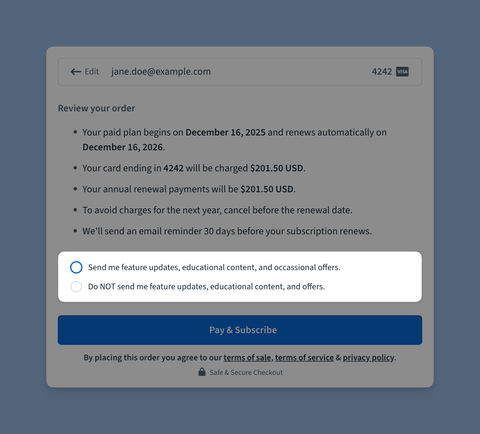
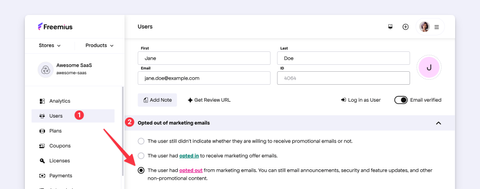
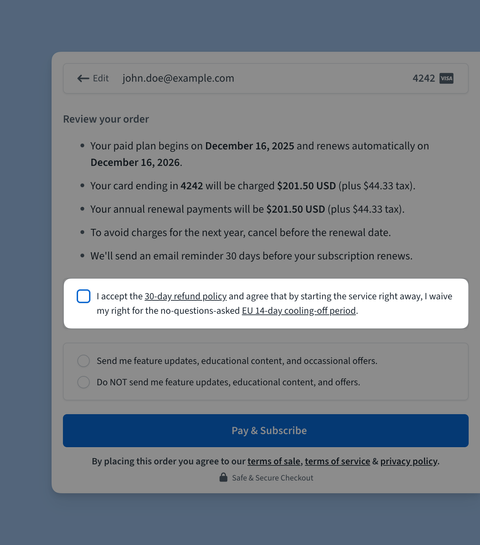
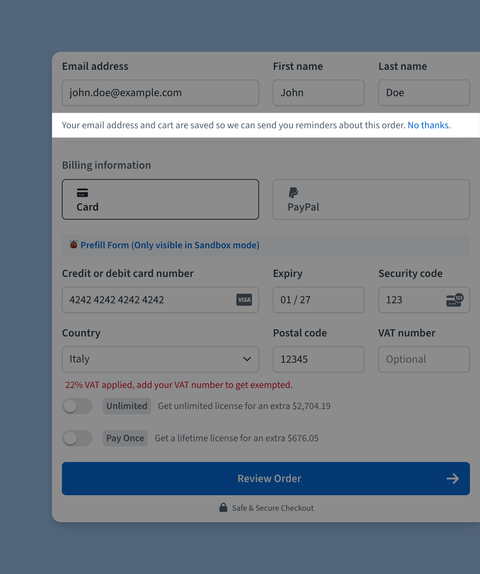
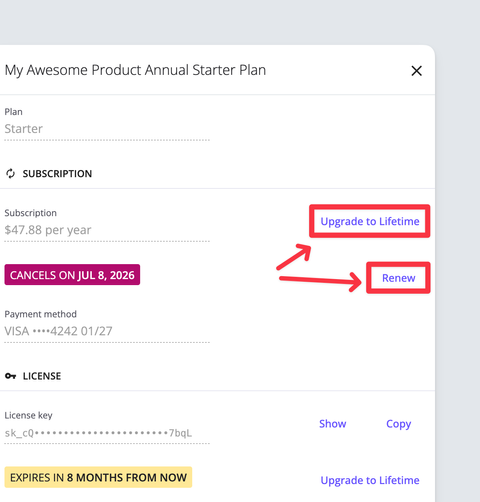
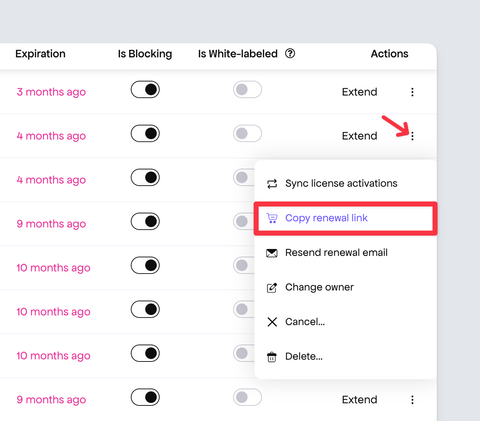
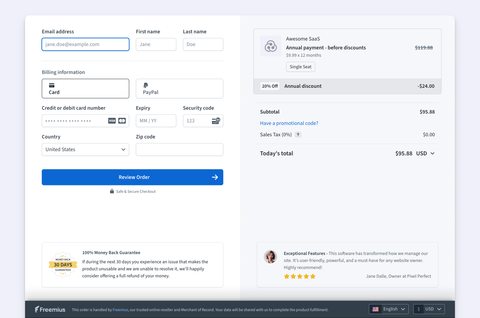
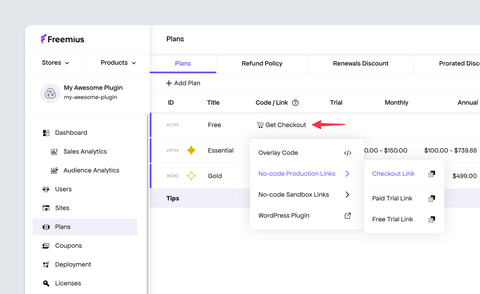
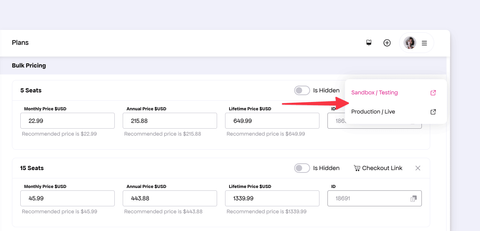
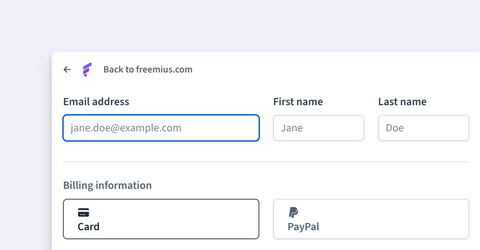
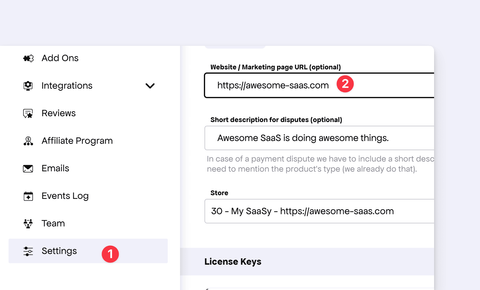
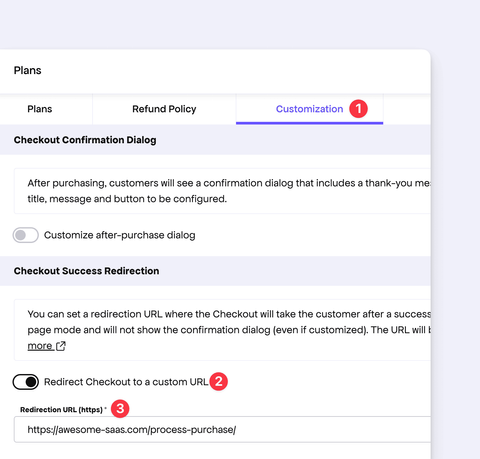
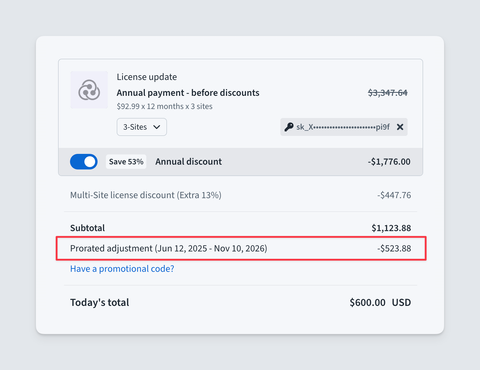
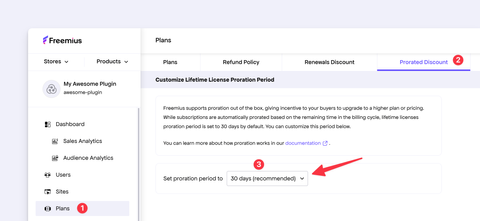
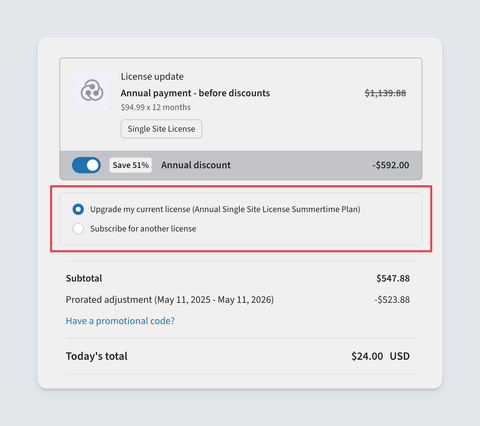
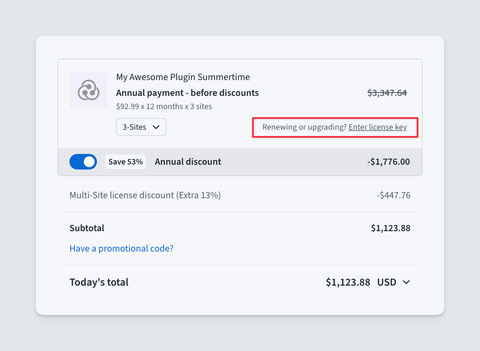
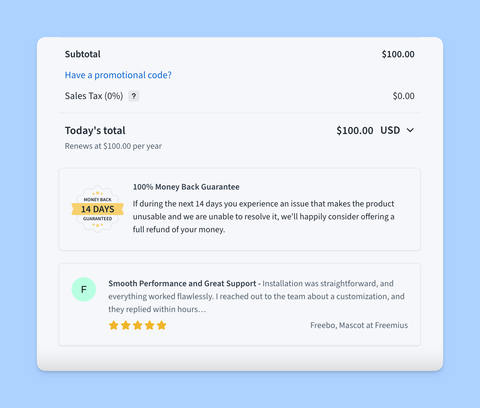
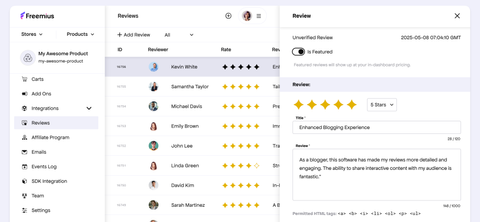
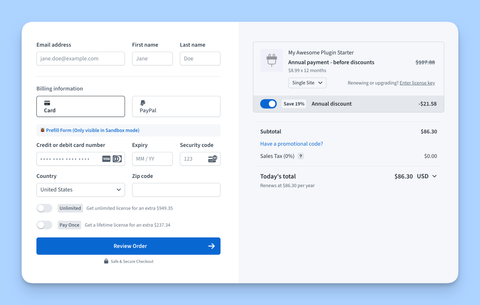
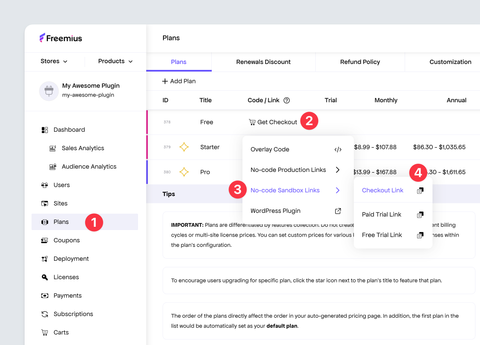
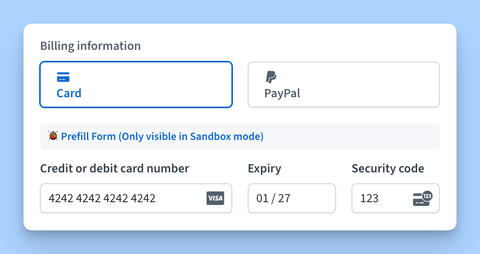
Simple Pricing

Choose the plan that works best for you

Starter

from
$8.99
per month
  • Basic features
  • Email support
  • Community access

Pro

from
$12.99
per month
  • Advanced features
  • Priority support
  • API access

Business

from
$30.00
per month
  • All features
  • 24/7 support
  • Dedicated account
``` ``` const checkout = new FS.Checkout({ product_id: '2', }); const licenseSelect = document.getElementById('license-select'); document.querySelectorAll('.plan-button').forEach((button) => { button.addEventListener('click', function (e) { e.preventDefault(); const planId = this.getAttribute('data-plan-id'); const licenses = licenseSelect.value; checkout.open({ plan_id: planId, licenses: licenses, billing_cycle: 'monthly', }); }); }); ``` ``` :root { --e-global-color-primary: #6753ff; --e-global-color-secondary: #902af5; --e-global-color-text: #0e0e0e; --e-global-color-accent: #e62a97; --e-global-color-scale: #6753ff; --e-global-color-scale-light: #8491ff; --e-global-color-grow: #902af5; --e-global-color-launch: #e62a97; --e-global-color-cloud: #b4d2ff; --e-global-color-mint: #b7ffe1; --e-global-color-lovely: #fed6ff; --e-global-color-banana: #ffe896; --e-global-color-ice: #ffffff; --e-global-color-fog: #f0f0fa; --e-global-color-rain: #c6c6d0; --e-global-color-shark: #94949c; --e-global-color-grey: #4f4f4f; --e-global-color-darker: #393940; --e-global-color-darkest: #202024; --e-global-color-night: #0e0e0e; } * { margin: 0; padding: 0; box-sizing: border-box; } body { font-family: -apple-system, BlinkMacSystemFont, 'Segoe UI', Roboto, sans-serif; background: linear-gradient( 135deg, var(--e-global-color-fog) 0%, var(--e-global-color-ice) 100% ); padding: 60px 20px; min-height: 100vh; color: var(--e-global-color-text); } .container { max-width: 1000px; margin: 0 auto; } h1 { text-align: center; font-size: 2.5rem; margin-bottom: 20px; color: var(--e-global-color-text); font-weight: 300; } .subtitle { text-align: center; color: var(--e-global-color-shark); margin-bottom: 60px; font-size: 1.1rem; } .pricing-grid { display: grid; grid-template-columns: repeat(auto-fit, minmax(300px, 1fr)); gap: 30px; } .plan { background: white; padding: 40px 30px; border-radius: 12px; box-shadow: 0 2px 12px rgba(0, 0, 0, 0.08); transition: all 0.3s ease; text-align: center; } .plan:hover { box-shadow: 0 8px 24px rgba(103, 83, 255, 0.2); transform: translateY(-4px); } .plan-name { font-size: 1.4rem; font-weight: 500; margin-bottom: 15px; color: var(--e-global-color-text); } .plan-price { font-size: 2.5rem; font-weight: 300; color: var(--e-global-color-primary); margin-bottom: 5px; } .plan-period { color: var(--e-global-color-shark); font-size: 0.9rem; margin-bottom: 30px; } .plan-features { list-style: none; margin-bottom: 30px; text-align: left; } .plan-features li { padding: 10px 0; color: var(--e-global-color-grey); border-bottom: 1px solid var(--e-global-color-fog); font-size: 0.95rem; } .plan-features li:last-child { border-bottom: none; } .plan-button { width: 100%; padding: 14px 24px; background: linear-gradient( 135deg, var(--e-global-color-primary) 0%, var(--e-global-color-secondary) 100% ); color: white; border: none; border-radius: 8px; font-size: 1rem; font-weight: 500; cursor: pointer; transition: all 0.3s ease; } .plan-button:hover { transform: scale(1.02); box-shadow: 0 4px 12px rgba(103, 83, 255, 0.4); } .plan-button:active { transform: scale(0.98); } .license-section { text-align: center; margin-bottom: 40px; } .license-label { display: block; margin-bottom: 12px; font-size: 1rem; font-weight: 500; color: var(--e-global-color-text); } .license-select { padding: 10px 16px; border: 2px solid var(--e-global-color-fog); border-radius: 8px; font-size: 1rem; color: var(--e-global-color-text); background-color: white; cursor: pointer; transition: border-color 0.3s ease; } .license-select:hover { border-color: var(--e-global-color-primary); } .license-select:focus { outline: none; border-color: var(--e-global-color-primary); box-shadow: 0 0 0 3px rgba(103, 83, 255, 0.1); } ``` Selling Multiple Products ``` ``` --- # Framework Integration Guide for SaaS Applications Our [JS SDK](https://freemius.com/help/help/documentation/saas-sdk/js-sdk/.md) is written in a framework-agnostic way using standard APIs such as [Request](https://developer.mozilla.org/en-US/docs/Web/API/Request) and [Response](https://developer.mozilla.org/en-US/docs/Web/API/Response). This makes the SDK compatible with modern frameworks and runtimes such as [Next.js](https://nextjs.org/), [Hono](https://hono.dev/), [Deno](https://docs.deno.com/runtime/fundamentals/http_server/), and [Bun](https://bun.com/docs/api/http), as well as serverless platforms like [Vercel](https://vercel.com/docs/concepts/functions/serverless-functions) and [Cloudflare Workers](https://developers.cloudflare.com/workers/). Refer to the [integration guide](https://freemius.com/help/help/documentation/saas-sdk/js-sdk/integration/.md) for a general overview of how to integrate the SDK with your SaaS application. We also provide a [React Starter Kit](https://freemius.com/help/help/documentation/saas-sdk/react-starter/.md) that includes components for checkout, pricing tables, and customer portals etc. note Other Node.js frameworks such as Express, Koa, and Fastify can also be used with the SDK. However, they may require additional polyfills or middleware to fully support the web standard APIs used by the SDK. We plan to add adapters for these frameworks in the future. In this section, we provide specific guides for integrating the SDK with popular frameworks. Each guide covers the necessary steps to: 1. Set up the SDK and the Starter Kit 2. Protect or paywall features in your SaaS application 3. Implement common use cases such as creating checkouts, rendering the customer portal, and handling webhooks ## Common Integration Patterns[​](#common-integration-patterns "Direct link to Common Integration Patterns") Every integration guide will cover the following common patterns: 1. Two API endpoints at `/api/checkout` and `/api/portal` to facilitate checkout and customer portal operations 2. One webhook listener endpoint at `/webhook` to handle incoming webhook requests from Freemius 3. Starter Kit component to create paywalls and render pricing tables 4. Starter Kit component to render the customer portal At the end of every guide, you will have a fully monetized SaaS application with Freemius. Framework Not Listed? We recommend checking out the [General Integration Guide](https://freemius.com/help/help/documentation/saas-sdk/js-sdk/integration/.md), [Starter Kit API Endpoints](https://freemius.com/help/help/documentation/saas-sdk/js-sdk/starter-kit-api-endpoints/.md) and [React Starter Kit](https://freemius.com/help/help/documentation/saas-sdk/react-starter/.md) documentation to help you integrate the SDK with your preferred framework. --- # Integrating with Express Our [JS SDK](https://freemius.com/help/help/documentation/saas-sdk/js-sdk/.md) is framework-agnostic and works smoothly with any Node.js server, including Express. We do not currently provide an official Express adapter. However, you can follow the [basic integration steps](https://freemius.com/help/help/documentation/saas-sdk/js-sdk/integration/.md) and adapt the examples to your Express routes and middleware. If there’s enough demand, we may create a dedicated Express adapter or guide in the future. You can let us know by upvoting the feature request on our [public suggestion board](https://freemius.nolt.io/). --- # Integrating with Fastify Our [JS SDK](https://freemius.com/help/help/documentation/saas-sdk/js-sdk/.md) is framework-agnostic and can be easily integrated into your Fastify application. While we don’t yet provide an official Fastify adapter, you can use the [basic integration steps](https://freemius.com/help/help/documentation/saas-sdk/js-sdk/integration/.md) and adjust them to Fastify’s plugin and route system. We may consider offering a dedicated Fastify adapter or guide based on community demand. If this interests you, please upvote the feature request on our [public suggestion board](https://freemius.nolt.io/). --- # Integrating with Hono Our [JS SDK](https://freemius.com/help/help/documentation/saas-sdk/js-sdk/.md) is framework-agnostic and fully supports the Fetch API (`Request` and `Response`). Since Hono is Fetch-based, integration is straightforward, and you can simply follow our [basic integration guide](https://freemius.com/help/help/documentation/saas-sdk/js-sdk/integration/.md) without requiring a dedicated adapter. If Hono adoption grows within our community, we may publish an official Hono-specific guide in the future. You can express your interest by upvoting the feature request on our [public suggestion board](https://freemius.nolt.io/). --- # Next.js Integration Guide with JavaScript SDK & Starter Kit In this guide, we will walk you through the steps to build and monetize an application (or SaaS) using [Next.js](https://nextjs.org/), the [Freemius JavaScript SDK](https://freemius.com/help/help/documentation/saas-sdk/js-sdk/.md), and our [React Starter Kit](https://freemius.com/help/help/documentation/saas-sdk/react-starter/.md). By the end of this guide, your application will include the following features: 1. **Paywall and Pricing Tables**: To protect features and display pricing options to users. 2. **Purchase Processing**: To handle purchases securely through Freemius. 3. **Customer Portal**: To allow users to manage their subscriptions and account details. 4. **Webhook Handling**: To process events from Freemius such as license updates and cancellations. ## Video Tutorial and Advanced Example[​](#video-tutorial-and-advanced-example "Direct link to Video Tutorial and Advanced Example") You can view the complete sample application built in this guide in our [GitHub repository](https://github.com/Freemius/ai-chat-nextjs-example). The example also demonstrates a credit-based system where users can spend credits to access certain features. ## Prerequisites[​](#prerequisites "Direct link to Prerequisites") Please make sure you have the following prerequisites before starting this guide: ### Installing the Freemius SDK[​](#installing-the-freemius-sdk "Direct link to Installing the Freemius SDK") We only ask that you have installed and configured the [Freemius JavaScript SDK](https://freemius.com/help/help/documentation/saas-sdk/js-sdk/installation/.md) and have reviewed the common [integration guide](https://freemius.com/help/help/documentation/saas-sdk/js-sdk/integration/.md) before starting this guide. * npm * Yarn * pnpm * Bun ``` npm install @freemius/sdk @freemius/checkout zod ``` ``` yarn add @freemius/sdk @freemius/checkout zod ``` ``` pnpm add @freemius/sdk @freemius/checkout zod ``` ``` bun add @freemius/sdk @freemius/checkout zod ``` If you are in a hurry, you can use the following code snippet to create a basic `freemius` instance in your Next.js application. Show Quick Integration Guide Make sure to set the [environment variables](https://freemius.com/help/help/documentation/saas-sdk/js-sdk/installation/.md#retrieving-keys-from-the-developer-dashboard) with your actual Freemius credentials. ./src/lib/freemius.ts ``` import { Freemius } from '@freemius/sdk'; export const freemius = new Freemius({ productId: process.env.FREEMIUS_PRODUCT_ID!, apiKey: process.env.FREEMIUS_API_KEY!, secretKey: process.env.FREEMIUS_SECRET_KEY!, publicKey: process.env.FREEMIUS_PUBLIC_KEY!, }); ``` You will also need a database table to store the user's license information. You can create a `UserFsEntitlement` table with the following model: ./prisma/schema.prisma ``` model UserFsEntitlement { id String @id @default(cuid()) userId String User User @relation(fields: [userId], references: [id], onDelete: Cascade) // The following matches the PurchaseDBData from Freemius Node SDK. // You can also use these fields as BigInt if you prefer, and in that case you will need to convert the String to BigInt in your application. fsLicenseId String @unique fsPlanId String fsPricingId String fsUserId String type FsEntitlementType expiration DateTime? isCanceled Boolean createdAt DateTime // Add the index to optimize queries filtering by type (as needed for the JS SDK). @@index(type) @@map("user_fs_entitlement") } ``` ### Setting Up the Starter Kit[​](#setting-up-the-starter-kit "Direct link to Setting Up the Starter Kit") You need to install the [React Starter Kit](https://freemius.com/help/help/documentation/saas-sdk/react-starter/installation/.md) in your Next.js application. * npm * Yarn * pnpm * Bun ``` npx shadcn@latest add https://shadcn.freemius.com/all.json ``` ``` yarn dlx shadcn@latest add https://shadcn.freemius.com/all.json ``` ``` pnpm dlx shadcn@latest add https://shadcn.freemius.com/all.json ``` ``` bun x shadcn@latest add https://shadcn.freemius.com/all.json ``` This will install all available components from the Starter Kit. It uses [shadcn/ui](https://ui.shadcn.com/) under the hood, so make sure you have it set up in your project. The theme is inherited from your Tailwind CSS configuration. For the remainder of this guide, we will assume: 1. You have a `freemius` instance configured with your credentials and is available at `./src/lib/freemius.ts`. 2. You have the necessary database tables to create the entitlement related functions (as described in our [integration guide](https://freemius.com/help/help/documentation/saas-sdk/js-sdk/integration/.md#creating-the-entitlement-table)). We will be giving examples for a [prisma](https://www.prisma.io/docs/getting-started/quickstart-prismaPostgres) database client, but you can use any database client of your choice. 3. You have a basic user management and authentication system in place. For the sake of this guide, we will assume you are using [better-auth](https://www.better-auth.com/) and have the relevant `users` table. Additionally, you will need the public URL of the Next.js application. Conventionally, it can be set using the following environment variable: ./.env.local ``` NEXT_PUBLIC_APP_URL=http://localhost:3000 ``` ## Creating Entitlement Functions[​](#creating-entitlement-functions "Direct link to Creating Entitlement Functions") Next, we will create the following functions in the `./src/lib/user-entitlement.ts` file to facilitate entitlement operations: * A `processPurchaseInfo` function to process purchase information and update the user's entitlement in our database. * A `getUserEntitlement` function to retrieve the user's entitlement from our database and validate it with the Freemius SDK. * A `getFsUser` function to retrieve the Freemius user associated with our app user. The implementation will differ based on your database and user management system. Below is a sample implementation using a [prisma](https://www.prisma.io/docs/getting-started/quickstart-prismaPostgres) database client and the `better-auth` user system. ./src/lib/user-entitlement.ts ``` import { PurchaseInfo, UserRetriever } from '@freemius/sdk'; import { freemius } from './freemius'; import { prisma } from '@/lib/prisma'; import { UserFsEntitlement, User } from '@generated/prisma'; import { auth } from '@/lib/auth'; /** * Process the purchase info and update the local database. * * This function is called when a purchase happens with Freemius. */ export async function processPurchaseInfo( fsPurchase: PurchaseInfo ): Promise { const user = await getUserByEmail(fsPurchase.email); if (!user) { // User not found, cannot process the purchase. Alternately you can create a new user here. return; } await prisma.userFsEntitlement.upsert({ where: { fsLicenseId: fsPurchase.licenseId, }, update: fsPurchase.toEntitlementRecord(), create: fsPurchase.toEntitlementRecord({ userId: user.id }), }); } /** * Get the user's entitlement. * * @returns The user's active entitlement or null if the user does not have an active entitlement. */ export async function getUserEntitlement( userId: string ): Promise { const entitlements = await prisma.userFsEntitlement.findMany({ where: { userId, type: 'subscription' }, }); return freemius.entitlement.getActive(entitlements); } /** * Get the Freemius user for the current session. * * This is used by the Freemius SDK to identify the user. * * @returns The Freemius user or null if the user is not logged in. */ export const getFsUser: UserRetriever = async () => { const session = await auth.api.getSession({ headers: await headers(), }); const entitlement = session ? await getUserEntitlement(session.user.id) : null; const email = session?.user.email ?? undefined; return freemius.entitlement.getFsUser(entitlement, email); }; ``` The most important part of the above code is the `processPurchaseInfo` function, which is called whenever a purchase is made. It updates the local `userFsEntitlement` table with the latest license information from Freemius. Later, in your SaaS application, you can use the `getUserEntitlement` function to retrieve the user's entitlement and check if they have access to certain features (by comparing it with the `fsPlanId` or `fsPricingId`). The `getUserEntitlement` function also validates the license with the Freemius SDK to ensure that the license is still valid and has not expired or been canceled. The Concept of Entitlement In Freemius and SaaS applications, an **entitlement** is the set of rights or permissions a user gets based on their purchase or subscription. It defines what features or services the user can access. For example, if you have three plans—Basic, Pro, and Enterprise—each offers different feature access. A Pro subscriber is entitled to all Pro features, while a Basic subscriber only gets Basic features. The recommended way to check entitlements is to map the `fsPricingId` from Freemius to the features in your app. This lets you verify access by comparing the user’s `fsPricingId` with the required one for a feature. Example: ``` export function canAccessFeatureX( entitlement: UserFsEntitlement | null ): boolean { if (!entitlement) return false; // No entitlement → no access const allowedPricingIdsForFeatureX = ['pricing_id_1', 'pricing_id_2']; return allowedPricingIdsForFeatureX.includes(entitlement.fsPricingId); } ``` You can find pricing IDs in the [Freemius Developer Dashboard](https://dashboard.freemius.com/). ![](/help/assets/ideal-img/finding-pricing-id-from-freemius-dashboard.545ffd5.480.png) *Go to **Plans → Select a Plan**, and you’ll see the IDs for the different pricing options.* Integration is 50% Complete These are the only SaaS specific code you needed to create. For the rest of the integration we will see how the [JS SDK](https://freemius.com/help/help/documentation/saas-sdk/js-sdk/.md) and the [React Starter Kit](https://freemius.com/help/help/documentation/saas-sdk/react-starter/.md) can be used to quickly add the necessary endpoints and components to your Next.js application so that you can start charging your users. ## Creating Checkouts and Processing Purchases[​](#creating-checkouts-and-processing-purchases "Direct link to Creating Checkouts and Processing Purchases") Now, we will see how to create [Overlay Checkout](https://freemius.com/help/help/documentation/checkout/freemius-checkout-buy-button/.md) in any part of your application and process purchases. The integration works as follows: 1. We will have a Pricing table UI on the front-end which will open the Overlay Checkout when clicked. 2. The Checkout will be configured to call a Next.js API endpoint when the purchase is completed. 3. The API endpoint will process the purchase information and update the user's license in our database. ### Creating the Checkout API Endpoint[​](#creating-the-checkout-api-endpoint "Direct link to Creating the Checkout API Endpoint") Let's create and endpoint at `api/checkout` by using Next.js's [App Router](https://nextjs.org/docs/app/getting-started/route-handlers-and-middleware#route-handlers). ./src/app/api/checkout/route.ts ``` /** * This route handles the Purchase actions and sync actions coming from the Freemius React Starter Kit. */ import { freemius } from '@/lib/freemius'; import { processPurchaseInfo } from '@/lib/user-entitlement'; const processor = freemius.checkout.request.createProcessor({ onPurchase: processPurchaseInfo, }); export { processor as GET, processor as POST }; ``` More information about what the various option does can be found [here](https://freemius.com/help/help/documentation/saas-sdk/js-sdk/starter-kit-api-endpoints/.md#setting-up-the-checkout-endpoint). ### Creating the Checkout Provider[​](#creating-the-checkout-provider "Direct link to Creating the Checkout Provider") The React Starter Kit comes with a `CheckoutProvider` [component](https://freemius.com/help/help/documentation/saas-sdk/react-starter/components/.md#checkout-provider) that you can use to wrap your application or any part of it where you want to use the Checkout. The component requires two props: * `checkout`: The checkout object created using the `freemius.checkout.create` method. * `endpoint`: The API endpoint that will handle the purchase and sync actions. In our case, it is `/api/checkout`. To save us from configuring the Checkout multiple times, we will create a simple wrapper component called `AppCheckoutProvider` that will create the checkout object and wrap the `CheckoutProvider` component. ./src/components/app-checkout-provider.tsx ``` 'use client'; import { CheckoutProvider } from '@/react-starter/components/checkout-provider'; import { type CheckoutSerialized } from '@freemius/sdk'; import * as React from 'react'; import { toast } from 'sonner'; import { useRouter } from 'next/navigation'; export default function AppCheckoutProvider(props: { children: React.ReactNode; checkout: CheckoutSerialized; }) { const router = useRouter(); const onAfterSync = React.useCallback(() => { toast.success( `Successfully updated your subscription! Now you can continue using the app.` ); router.refresh(); }, [router]); return ( {props.children} ); } ``` Notice that we're also using the `onAfterSync` prop to show a success message and refresh the page after a successful purchase or sync action. You will need to adjust this based on your application's requirements. ### Creating the Pricing Table[​](#creating-the-pricing-table "Direct link to Creating the Pricing Table") Now we will use the `Subscribe` component from the React Starter Kit to create a pricing table. The `Subscribe` component will display all the plans that support subscriptions. In this example, we have a `/purchase` page where we will display the pricing table. ./src/app/purchase/page.tsx ``` import { auth } from '@/lib/auth'; import { headers } from 'next/headers'; import { redirect } from 'next/navigation'; import { freemius } from '@/lib/freemius'; import AppCheckoutProvider from '@/components/app-checkout-provider'; import { Subscribe } from '@/react-starter/components/subscribe'; export default async function PurchasePage() { const session = await auth.api.getSession({ headers: await headers(), }); if (!session) { redirect('/login'); } const checkout = await freemius.checkout.create({ user: session?.user, isSandbox: process.env.NODE_ENV !== 'production', }); return ( ); } ``` This will create a pricing table displaying only the plans that support subscriptions, as shown below. ![](/help/assets/ideal-img/checkout-susbcription-pricing-table.ecf3b83.480.png) 🎊 A complete example that triggers a confetti animation after a successful purchase can be found [here](https://github.com/Freemius/freemius-js/blob/main/packages/saas-kit/src/app/purchase/page.tsx). If you want to create a pricing table displaying one-off purchases, you can use the `Topup` component instead of the `Subscribe` component. ./src/app/purchase/page.tsx ``` import { auth } from '@/lib/auth'; import { headers } from 'next/headers'; import { redirect } from 'next/navigation'; import { freemius } from '@/lib/freemius'; import { CheckoutProvider } from '@/react-starter/components/checkout-provider'; import { Topup } from '@/react-starter/components/topup'; export default async function PurchasePage() { const session = await auth.api.getSession({ headers: await headers(), }); if (!session) { redirect('/login'); } const checkout = await freemius.checkout.create({ user: session?.user, isSandbox: process.env.NODE_ENV !== 'production', }); return ( ); } ``` ![](/help/assets/ideal-img/checkout-topup-pricing-table.49ece97.480.png) note The term `Unit` is configurable from the [Freemius Developer Dashboard](https://freemius.com/help/help/documentation/saas/customize-license-unit-label/.md). Once your application users click the button, they will see the Overlay Checkout as shown below. ![](/help/assets/ideal-img/overlay-checkout.f85daea.480.png) The checkout will be prepopulated with the user's billing information obtained from your app's session. After the purchase, the `processPurchaseInfo` function we created earlier will be called to update the user's license in your database. ### Creating a Paywall[​](#creating-a-paywall "Direct link to Creating a Paywall") There are also use cases where you want to show a paywall to promote certain features of your application. The usual idea behind a paywall is that the UI of such features is not hidden, but when interacted with, a paywall is shown to the user. The [Freemius React Starter Kit](https://freemius.com/help/help/documentation/saas-sdk/react-starter/components/.md#paywall) makes it very easy to create such functionality. We will use the `Paywall` component and the `usePaywall` hook. ![](/help/assets/ideal-img/checkout-paywall.a7e3870.480.png) In this [simple example](https://github.com/Freemius/freemius-js/blob/main/packages/saas-kit/src/app/paywall/page.tsx), we have two buttons that trigger different paywalls. The first button triggers a paywall for a missing subscription or purchase, while the second button triggers a one-off purchase paywall useful for top-ups. ./src/app/dashboard/paywall-demo.tsx ``` 'use client'; import { Button } from '@/components/ui/button'; import { Paywall, usePaywall } from '@/react-starter/components/paywall'; export default function PaywallDemo() { const { state, showNoActivePurchase, showInsufficientCredits, hidePaywall } = usePaywall(); return ( <> ); } ``` Please note that you must wrap the component with the `CheckoutProvider` as shown in the previous section for the paywall to work. Real World Implementation In a real-world implementation, you would likely make an API call when a certain feature is triggered to check if the user has access to that feature. If not, you would then show the paywall. You can find a real use case of this in our [sample application](https://github.com/Freemius/freemius-js/blob/main/packages/saas-kit/src/app/chat/ai-app.tsx). In this example, we have a simple AI chat application. The API call checks whether the user has an active subscription and, if so, whether there are sufficient credits to make the AI call. Depending on the response, the appropriate paywall is shown if necessary. ### Using the Hosted Checkout[​](#using-the-hosted-checkout "Direct link to Using the Hosted Checkout") If, for any reason, you do not want to use the [Overlay Checkout](https://freemius.com/help/help/documentation/checkout/freemius-checkout-buy-button/.md) component and prefer the [Hosted Checkout](https://freemius.com/help/help/documentation/checkout/hosted-checkout/.md), then you need to do the following: #### Create Function to Process Redirects[​](#create-function-to-process-redirects "Direct link to Create Function to Process Redirects") In the `user-entitlement.ts` file, create a function called `processRedirect`. ./src/lib/user-entitlement.ts ``` import { CheckoutRedirectInfo } from '@freemius/sdk'; export async function processRedirect( info: CheckoutRedirectInfo ): Promise { const purchaseInfo = await freemius.purchase.retrievePurchase( info.license_id ); if (purchaseInfo) { await processPurchaseInfo(purchaseInfo); } } ``` #### Modify the Checkout API Endpoint[​](#modify-the-checkout-api-endpoint "Direct link to Modify the Checkout API Endpoint") Now, modify the endpoint to handle the redirection. ./src/app/api/checkout/route.ts ``` import { freemius } from '@/lib/freemius'; import { processPurchaseInfo, processRedirect } from '@/lib/user-entitlement'; const processor = freemius.checkout.request.createProcessor({ onPurchase: processPurchaseInfo, proxyUrl: process.env.NEXT_PUBLIC_APP_URL!, onRedirect: processRedirect, }); export { processor as GET, processor as POST }; ``` #### Set up the Redirection from the Freemius Developer Dashboard[​](#set-up-the-redirection-from-the-freemius-developer-dashboard "Direct link to Set up the Redirection from the Freemius Developer Dashboard") Finally, you need to set up the redirection URL by following our guide [here](https://freemius.com/help/help/documentation/checkout/hosted-checkout/.md#redirection-after-a-successful-purchase). In the redirection URL you need to specify the endpoint: ``` https://my-app.com/api/checkout ``` ![](/help/assets/ideal-img/checkout-redirect-config.4458076.480.png) The SDK will take care of the rest. It will verify the signature and call the `processRedirect` function to update the user's license in your database. Once a purchase is processed, it will redirect back to the `proxyUrl` you specified in the endpoint. Controlling action after redirection If you wish to return a different response or redirect to a custom URL after processing the Checkout redirection, please read our guide [here](https://freemius.com/help/help/documentation/saas-sdk/js-sdk/starter-kit-api-endpoints/.md#managing-responses-after-redirection). ## Embedding the Customer Portal[​](#embedding-the-customer-portal "Direct link to Embedding the Customer Portal") The Freemius React Starter Kit and JavaScript SDK come with a prebuilt [Customer Portal](https://freemius.com/help/help/documentation/saas-sdk/react-starter/components/.md#customer-portal-component) component, which you can easily embed in your application. The Customer Portal allows your users to manage their subscriptions, view invoices, update billing information, and more. ![](/help/assets/ideal-img/customer-portal.9ac7488.480.png) You can find the conceptual overview of the Customer Portal in our [JavaScript SDK Documentation](https://freemius.com/help/help/documentation/saas-sdk/js-sdk/customer-portal/.md). Here, we will see how to create the necessary API endpoint and embed the component in your Next.js application. ### Creating the Customer Portal API Endpoint[​](#creating-the-customer-portal-api-endpoint "Direct link to Creating the Customer Portal API Endpoint") We will create a new API endpoint at `/api/portal` to handle Customer Portal requests. ./src/app/api/portal/route.ts ``` import { freemius } from '@/lib/freemius'; import { getFsUser, processPurchaseInfo } from '@/lib/user-entitlement'; const processor = freemius.customerPortal.request.createProcessor({ getUser: getFsUser, portalEndpoint: process.env.NEXT_PUBLIC_APP_URL! + '/api/portal', isSandbox: process.env.NODE_ENV !== 'production', onRestore: freemius.customerPortal.createRestorer(processPurchaseInfo), }); export { processor as GET, processor as POST }; ``` More information about what the various options do can be found [here](https://freemius.com/help/help/documentation/saas-sdk/js-sdk/starter-kit-api-endpoints/.md#setting-up-the-customer-portal-endpoint). ### Creating the Customer Portal On the Front-end[​](#creating-the-customer-portal-on-the-front-end "Direct link to Creating the Customer Portal On the Front-end") With the endpoint set, let's create a new `/billing` page to embed the Customer Portal component. ./src/app/billing/page.tsx ``` import { auth } from '@/lib/auth'; import { freemius } from '@/lib/freemius'; import { headers } from 'next/headers'; import { redirect } from 'next/navigation'; import { CustomerPortal } from '@/react-starter/components/customer-portal'; import AppCheckoutProvider from '@/components/app-checkout-provider'; export default async function Billing() { const session = await auth.api.getSession({ headers: await headers(), }); if (!session) { redirect('/login'); } const checkout = await freemius.checkout.create({ user: session?.user, isSandbox: process.env.NODE_ENV !== 'production', }); return ( ); } ``` And that's it. Now you have a fully functional Customer Portal embedded in your application. Real World Example Please see our example app in the [GitHub Repository](https://github.com/Freemius/freemius-js/blob/main/packages/saas-kit/src/app/billing/page.tsx) for a more real-world implementation. ## Configuring Webhooks[​](#configuring-webhooks "Direct link to Configuring Webhooks") Now that your Next.js application has monetization built in, you need to synchronize the license information in your database with Freemius. This is important because certain events, such as subscription renewals, subscription cancellations, payment failures, and license expirations, will happen outside of your application. By configuring webhooks, Freemius will notify your application of such events, and you can then update your database accordingly. First, we will create the callbacks needed for the webhooks. ./src/lib/user-entitlement.ts ``` import { prisma } from '@/lib/prisma'; export async function syncEntitlementFromWebhook( fsLicenseId: string ): Promise { const purchaseInfo = await freemius.purchase.retrievePurchase(fsLicenseId); if (purchaseInfo) { await processPurchaseInfo(purchaseInfo); } } export async function deleteEntitlement(fsLicenseId: string): Promise { await prisma.userFsEntitlement.delete({ where: { fsLicenseId: fsLicenseId }, }); } ``` Note that it uses the `processPurchaseInfo` function we already created to update the license information in your database. Now, create the `/webhook` API endpoint to handle webhook requests. ./src/app/webhook/route.ts ``` import { freemius } from '@/lib/freemius'; import { deleteEntitlement, syncEntitlementFromWebhook, } from '@/lib/user-entitlement'; const listener = freemius.webhook.createListener(); listener.on( [ 'license.created', 'license.extended', 'license.shortened', 'license.updated', 'license.cancelled', 'license.expired', 'license.plan.changed', ], async ({ objects: { license } }) => { if (license && license.id) { await syncEntitlementFromWebhook(license.id); } } ); listener.on('license.deleted', async ({ data }) => { await deleteEntitlement(data.license_id); }); const processor = freemius.webhook.createRequestProcessor(listener); export { processor as POST }; ``` Finally, you need to set up the webhook in the [Freemius Developer Dashboard](https://freemius.com/help/help/documentation/saas/events-webhooks/.md). The webhook URL will be: ``` https://your-app.com/webhook ``` Please make sure you select all the relevant events we are listening for in the above code. ![](/help/assets/ideal-img/setup-webhook-dashboard.a361198.480.png) And that's it. Now your local entitlement information is kept in sync with Freemius. Real World Implementation Please see our example app in the [GitHub Repository](https://github.com/Freemius/freemius-js/blob/main/packages/saas-kit/src/app/webhook/route.ts) for a more real-world implementation. --- # Integrating with Nuxt Our [JS SDK](https://freemius.com/help/help/documentation/saas-sdk/js-sdk/.md) is framework-agnostic and fully supports the Fetch API (`Request` and `Response`). This means integration with Nuxt (which is Fetch-based) is simple, and you can directly follow our [basic integration guide](https://freemius.com/help/help/documentation/saas-sdk/js-sdk/integration/.md) without needing a Nuxt-specific adapter. If community demand grows, we may consider creating a dedicated Nuxt guide or adapter in the future. You can express your interest by upvoting the feature request on our [public suggestion board](https://freemius.nolt.io/). --- # JavaScript Software Development Kit for Freemius Freemius offers a JavaScript (JS) SDK written in TypeScript to help you integrate Freemius into your SaaS applications. At a glance it has the following features: * **API Client**: A fully typed API client to interact with the [Freemius API](https://docs.freemius.com/api). * **Checkout**: Easily create and manage Checkout [options](https://freemius.com/help/help/documentation/checkout/freemius-checkout-buy-button/.md) and [links](https://freemius.com/help/help/documentation/checkout/hosted-checkout/.md) for your application. Also has convenience methods to process redirections from the [Hosted Freemius Checkout](https://freemius.com/help/help/documentation/checkout/hosted-checkout/.md#redirection-after-a-successful-purchase). * **Webhooks**: Create webhook listners for specific events and process incoming [webhook requests](https://freemius.com/help/help/documentation/saas/events-webhooks/.md) from Freemius. * **Pricing**: Easily retrieve data for custom pricing tables within your software. * **Purchase**: Securely process and manage purchases made through Freemius. The SDK works for any JavaScript runtime platform including [Node.js](https://nodejs.org/en), [Bun](https://bun.com/), [Deno](https://deno.com/) etc. Please read the guides to get started. Backend Use Only The Freemius JS/TS SDK is intended for **backend use only**. It should not be used in frontend or client-side applications (browsers), as it requires access to sensitive credentials such as the Secret Key and Bearer Token. Exposing these credentials in a client-side environment can lead to security vulnerabilities and unauthorized access to your Freemius account. --- # API Reference for the TypeScript Node.js SDK The `freemius.api` provides access to the full range of [API operations](https://docs.freemius.com/api) available on the Freemius platform. This includes methods for managing licenses, subscriptions, users, and more. note Checkout the [installation guide](https://freemius.com/help/help/documentation/saas-sdk/js-sdk/installation/.md) if you haven't set up the SDK yet. ## Common Interfaces[​](#common-interfaces "Direct link to Common Interfaces") Every API operation available under `freemius.api`—for example, `freemius.api.license`, `freemius.api.subscription`, and others—shares a common set of interfaces for filtering, pagination, and sorting. * `retrieve(entityId: number)`: Retrieve a single entity by its ID. * `retrieveMany(filter?: FilterOptions, pagination?: PaginationOptions)`: Retrieve multiple entities with optional filtering, and pagination. * `iterateAll(filter?: FIlterOptions, pageSize: number = 50)`: An async generator to iterate over all entities, handling pagination automatically. ### Pagination[​](#pagination "Direct link to Pagination") The `PaginationOptions` interface has the following properties: 1. `count` (number): The number of items to return per page. The maximum value is 50, which is also the default if not specified. 2. `offset` (number): The number of items to skip before starting to collect the result set. The default is 0. Here's an example of using the `retrieveMany` method with filtering and pagination: ``` const subscriptions = await freemius.api.subscription.retrieveMany( { billing_cycle: 12 }, { count: 20, offset: 20 } ); ``` ### Filtering[​](#filtering "Direct link to Filtering") The `FilterOptions` interface depends on the entity type. You can use any TypeScript IDE or editor with IntelliSense support to explore the available filtering options. ![](/help/assets/ideal-img/intellisense-fs-node-sdk-api.bbdbd4a.480.png) ## Managing Licenses[​](#managing-licenses "Direct link to Managing Licenses") Use the `freemius.api.license` namespace to manage licenses. Licenses are the primary entitlement mechanism in Freemius. Once a buyer makes a purchase, a license is created for them. Each Freemius license has its own expiration date and quota, depending on the purchased plan and pricing. You will need licenses in order to: * Verify the purchase and the associated user, along with the plan and pricing. * Check the license status (active, expired, canceled, etc.). * Manage associated subscriptions. tip If you want to build a custom dashboard, consider using the [React Starter Kit](https://freemius.com/help/help/documentation/saas-sdk/react-starter/.md) which comes with pre-built UI components and backend integration. The following methods are available for license management: ### Retrieval of Licenses[​](#retrieval-of-licenses "Direct link to Retrieval of Licenses") To retrieve a single license by its ID, use the `retrieve` method. ``` const license = await freemius.api.license.retrieve(licenseId); ``` To retrieve multiple licenses, use the `retrieveMany` method. ``` const licenses = await freemius.api.license.retrieveMany(filter, pagination); ``` You can also provide optional filtering and pagination parameters. To fetch all licenses with automatic pagination, you can use the convenience method `iterateAll`. ``` const allLicenses = []; for await (const entity of freemius.api.license.iterateAll({ filter: 'active', })) { allLicenses.push(entity); } console.log('Total active licenses:', allLicenses.length); console.table(allLicenses); ``` ### Retrieving Subscription Associated with a License[​](#retrieving-subscription-associated-with-a-license "Direct link to Retrieving Subscription Associated with a License") ``` const subscription = await freemius.api.license.retrieveSubscription(licenseId); ``` This method returns the [subscription associated with the license](https://docs.freemius.com/api/licenses/retrieve-latest-subscription), if any. If the license belongs to a one-off purchase, it will return `null`. ### Retrieving Upgrade Authorization[​](#retrieving-upgrade-authorization "Direct link to Retrieving Upgrade Authorization") Freemius Checkout provides a built-in upgrade path for buyers to move from one plan or pricing to another. To facilitate this, you can retrieve an [upgrade authorization](https://docs.freemius.com/api/licenses/generate-upgrade-link) for a specific license. ``` const authorization = await freemius.api.license.retrieveCheckoutUpgradeAuthorization(12345); ``` You can now use it with [Freemius Checkout JS](https://freemius.com/help/help/documentation/checkout/freemius-checkout-buy-button/.md). ``` checkout.open({ license_id: licenseId, authorization: authorization, }); ``` Optionally, you can also leverage [`freemius.checkout`](https://freemius.com/help/help/documentation/saas-sdk/js-sdk/checkout/.md#handling-upgrade-flow) to build the Checkout options from the backend. ``` const options = (await freemius.checkout.create({ licenseId: 12345 })) // Or .getLink() .getOptions(); ``` The SDK will automatically include the upgrade authorization in the generated options. You can now safely pass the options to the frontend and use them with [Freemius Checkout JS](https://freemius.com/help/help/documentation/checkout/freemius-checkout-buy-button/.md). ## Managing Subscriptions[​](#managing-subscriptions "Direct link to Managing Subscriptions") You can use the `freemius.api.subscription` namespace to manage subscriptions. Subscriptions are recurring payments that provide ongoing access to your product. ### Retrieval of Subscriptions[​](#retrieval-of-subscriptions "Direct link to Retrieval of Subscriptions") To retrieve a single subscription by its ID, use the `retrieve` method. ``` const subscription = await freemius.api.subscription.retrieve(subscriptionId); ``` Similarly, to retrieve multiple subscriptions, use the `retrieveMany` method. ``` const subscriptions = await freemius.api.subscription.retrieveMany( filtering, pagination ); ``` You can also use the `iterateAll` method to fetch all subscriptions with automatic pagination. ``` const allSubscriptions = []; for await (const subscription of freemius.api.subscription.iterateAll( { filter: 'active' }, 20 )) { allSubscriptions.push(subscription); } console.log('Total active subscriptions:', allSubscriptions.length); console.table(allSubscriptions); ``` ### Apply Cancellation Coupon to a Subscription[​](#apply-cancellation-coupon-to-a-subscription "Direct link to Apply Cancellation Coupon to a Subscription") Freemius offers setting up [subscription cancellation coupon](https://freemius.com/help/help/documentation/marketing-automation/special-coupons-discounts/.md#subscription-cancellation-coupon). Our SaaS Starter Kit will automatically prompt users with the coupon when they attempt to cancel their subscription. If you are creating a custom cancellation flow, you can retrieve the coupon code associated with a subscription and apply it during the cancellation process. ``` const coupon = await freemius.api.product.retrieveSubscriptionCancellationCoupon(); const result = await freemius.api.subscription.applyRenewalCoupon( subscriptionId, coupon[0].id!, true ); ``` ### Cancel a Subscription[​](#cancel-a-subscription "Direct link to Cancel a Subscription") To cancel a subscription, please use the following method: ``` const cancellation = await freemius.api.subscription.cancel( subscriptionId, 'Log cancellation reason from SDK', reasonIds ); ``` The `reasonId` parameter is a `number[]` and can be one or more of the following values: * `1`: I want to control when I pay. * `2`: I'm not sure I want to keep it. * `3`: I never/seldom use it. * `4`: It was too difficult to set up. * `5`: It didn't have the features I was looking for. * `6`: It was too slow and/or buggy. * `7`: The cost was too high. ## Managing Users[​](#managing-users "Direct link to Managing Users") The `freemius.api.user` namespace allows you to manage users associated with your products. ### Retrieval of Users[​](#retrieval-of-users "Direct link to Retrieval of Users") To retrieve a single user by their ID, use the `retrieve` method. ``` const user = freemius.api.user.retrieve(123); console.log(user); ``` To retrieve multiple users, use the `retrieveMany` method. ``` const users = await freemius.api.user.retrieveMany(filter, pagination); console.log(users); ``` You can also use the `iterateAll` method to fetch all users with auto pagination. ``` const allUsers = []; for await (const user of freemius.api.user.iterateAll({ filter: 'paying' })) { allUsers.push(user); } console.table(allUsers); ``` ### Searching User by Email[​](#searching-user-by-email "Direct link to Searching User by Email") When creating an integration with your SaaS or app, you might want to search for a user by their email address. This is especially useful if the purchase happens outside of your product and you did not have any redirection or webhook to capture the license or user ID. ``` const userByEmail = await freemius.api.user.retrieveByEmail('xyz@example.com'); ``` If the user has ever purchased your product, the API will return the user object; otherwise, it will return `null`. ### Manage User's Billing Information[​](#manage-users-billing-information "Direct link to Manage User's Billing Information") The Freemius API allows you to manage a user's billing information, including retrieving and updating their billing details. Billing information is primarily used for payments and invoices. When users make a purchase, Freemius creates a billing profile for them. ``` // Retrieve billing const billing = await freemius.api.user.retrieveBilling(123); console.log(billing); // Update billing const updatedBilling = await freemius.api.user.updateBilling(123, { business_name: 'Foo Inc', tax_id: '12345', }); ``` Please refer to type IntelliSense or the [API documentation](https://docs.freemius.com/api/users/update-or-create-billing) to see the full set of updatable fields. ### Retrieve User's Purchase Information[​](#retrieve-users-purchase-information "Direct link to Retrieve User's Purchase Information") You can use the following methods to retrieve a user's purchase information, including their licenses, subscriptions, and payments. ``` const userLicenses = await freemius.api.user.retrieveLicenses(123); console.table(userLicenses); const userSubscriptions = await freemius.api.user.retrieveSubscriptions(123); console.table(userSubscriptions); const userPayments = await freemius.api.user.retrievePayments(123); console.table(userPayments); ``` You can use this information to build a custom dashboard or for customer support purposes. tip If you want to build a custom dashboard, consider using the [React Starter Kit](https://freemius.com/help/help/documentation/saas-sdk/react-starter/.md) which comes with pre-built UI components and backend integration. ## Managing Payments[​](#managing-payments "Direct link to Managing Payments") The `freemius.api.payment` namespace allows you to manage payments associated with your products. ### Retrieval of Payments[​](#retrieval-of-payments "Direct link to Retrieval of Payments") To retrieve a single payment by its ID, use the `retrieve` method. ``` const payment = await freemius.api.payment.retrieve(123); console.log(payment); ``` To retrieve multiple payments, use the `retrieveMany` method. ``` const payments = await freemius.api.payment.retrieveMany({ filter: 'not_refunded', }); console.table(payments); ``` You can also use the `iterateAll` method to fetch all payments with automatic pagination. ``` const allPayments = []; for await (const payment of freemius.api.payment.iterateAll({ filter: 'not_refunded', })) { allPayments.push(payment); } console.table(allPayments); ``` ### Retrieve Payment Invoice[​](#retrieve-payment-invoice "Direct link to Retrieve Payment Invoice") You can directly retrieve the invoice PDF (in blob format) for a specific payment using the following method: ``` const invoiceId = 123; // Replace with a valid payment ID that has an invoice const pdf = await freemius.api.payment.retrieveInvoice(invoiceId); const response = new Response(pdf, { headers: { 'Content-Type': 'application/pdf', 'Content-Disposition': `inline; filename="invoice_${invoiceId}.pdf"`, }, }); console.log(response); ``` note Our [React Starter Kit](https://freemius.com/help/help/documentation/saas-sdk/react-starter/.md) comes with pre-built UI components and backend integration to display users' payments and invoices. ## Pricing Information[​](#pricing-information "Direct link to Pricing Information") The `freemius.api.product` namespace allows you to access product and pricing information. This is useful when you want to use Freemius as the single source of truth for pricing data. ### Retrieve Pricing Data[​](#retrieve-pricing-data "Direct link to Retrieve Pricing Data") You can retrieve product and pricing information using the following methods: ``` const pricingData = await freemius.api.product.retrievePricingData(); console.log(pricingData); ``` You can use this data to create pricing tables or other marketing pages on your website. The [React Starter Kit](https://freemius.com/help/help/documentation/saas-sdk/react-starter/.md) comes with pre-built UI components to display pricing data in a beautiful pricing table component. ### Retrieve Subscription Cancellation Coupon[​](#retrieve-subscription-cancellation-coupon "Direct link to Retrieve Subscription Cancellation Coupon") If you have set up a [subscription cancellation coupon](https://freemius.com/help/help/documentation/marketing-automation/special-coupons-discounts/.md#subscription-cancellation-coupon), you can retrieve it using the following method: ``` const cancellationCoupon = await freemius.api.product.retrieveSubscriptionCancellationCoupon(); console.log(cancellationCoupon); ``` --- # Checkout with the TypeScript Node.js SDK The `freemius.checkout` namespace is designed to facilitate various methods for producing checkout options and links from the backend. It provides a set of methods to create and manage checkout processes for your product, supporting the generation of checkout links, overlay options, sandbox testing, and processing redirects. ## Creating Checkout Options or Links[​](#creating-checkout-options-or-links "Direct link to Creating Checkout Options or Links") Use the `freemius.checkout.create` method to start creating a checkout option or link. The `create` method includes several convenient configuration options. For example: ``` const checkout = await freemius.checkout.create({ user: { email: 'jane@example.com', name: 'Jane Doe' }, planId: '1234', }); ``` This returns a `Checkout` instance, which you can further customize. ``` checkout.setAffiliate(1234).setTrial('paid').setCoupon({ code: 'SAVE10' }); const link = checkout.getLink(); console.log('Customized Checkout Link:', link); ``` ### Generating Checkout Options[​](#generating-checkout-options "Direct link to Generating Checkout Options") Use the `getOptions` method to generate checkout options for embedding in your application. ``` const options = checkout.getOptions(); console.log('Checkout Options:', options); ``` The checkout options are configuration objects that can be passed directly to the [Freemius Overlay Checkout](https://freemius.com/help/help/documentation/checkout/freemius-checkout-buy-button/.md). Here is an example demonstrating how to use them in frameworks like Next.js with our `CheckoutProvider` component, which is included in the [React Starter Kit](https://freemius.com/help/help/documentation/saas-sdk/react-starter/.md). pages/checkout.tsx (Server Component) ``` import { CheckoutProvider } from '@/saas-starter/components/checkout-provider'; import { CheckoutPricingTable } from '@/components/checkout-pricing-table'; import { freemius } from '@/lib/freemius'; export default async function CheckoutPage() { const checkout = await freemius.checkout.create({ user: { email: 'jane@example.com', name: 'Jane Doe' }, planId: '1234', }); // Pass the options to the client component return ( ); } ``` components/checkout-pricing-table.tsx (Client Component) ``` 'use client'; import { useCheckout } from '@/saas-starter/hooks/checkout'; export function CheckoutPricingTable() { const checkout = useCheckout(); return ; } ``` warning Please be mindful of how you pass the configuration object from the backend to the front end. The Freemius SDK holds sensitive information that should not be exposed to the client side. Always use the `.serialize()` method to filter out any sensitive data before passing it to the client. ### Generating Checkout Links[​](#generating-checkout-links "Direct link to Generating Checkout Links") You can also generate a [direct checkout link](https://freemius.com/help/help/documentation/checkout/hosted-checkout/.md) using the `getLink` method: ``` const link = checkout.getLink(); console.log('Checkout Link:', link); ``` ## Generating Sandbox Links or Options[​](#generating-sandbox-links-or-options "Direct link to Generating Sandbox Links or Options") When testing your checkout flow, you can use sandbox mode to simulate transactions without affecting your live environment. To enable sandbox mode, use the `isSandbox` option in the `create` method. ``` const checkout = await freemius.checkout.create({ isSandbox: true, user: { email: 'test@example.com', name: 'Test User' }, planId: '1234', }); console.log('Sandbox Checkout Options:', checkout.getOptions()); ``` ### Retrieving Sandbox Parameters[​](#retrieving-sandbox-parameters "Direct link to Retrieving Sandbox Parameters") For more advanced testing, you can retrieve sandbox parameters directly using the `getSandboxParams` method. This method generates a secure token for sandbox transactions. ``` const sandboxParams = await freemius.checkout.getSandboxParams(); checkout.setSandbox(sandboxParams); console.log('Sandbox Link:', checkout.getLink()); ``` note Sandbox mode is intended for testing purposes only and should not be used in production environments. ## Processing Redirects[​](#processing-redirects "Direct link to Processing Redirects") If you use the [hosted checkout](https://freemius.com/help/help/documentation/checkout/hosted-checkout/.md), you can use redirects to return users to your application after they complete the checkout process. The Freemius SDK provides an easy way to handle these redirects using the `processRedirect` method. This method verifies the redirect URL and extracts relevant information about the checkout session. ``` const redirectInfo = await freemius.checkout.processRedirect(currentUrl); if (redirectInfo) { console.log('Redirect Info:', redirectInfo); // Handle successful checkout } else { console.error('Invalid or missing redirect info'); // Handle errors or incomplete checkout } ``` The method will return a `RedirectInfo` object only when it is able to verify the signature and URL parameters. The object will contain a `licenseId` property, which you can use to fetch the full [purchase details](https://freemius.com/help/help/documentation/saas-sdk/js-sdk/purchases/.md). ### Fixing Proxy URLs[​](#fixing-proxy-urls "Direct link to Fixing Proxy URLs") In most Node.js applications, the app itself typically uses URLs like `http://localhost:3000`, while it is served to the end user as `https://yourdomain.com` through some type of proxy. As a result, the app always sees its own URL as `http://localhost:3000` and not the actual URL the user is viewing. This can cause issues when trying to verify redirects. Freemius signs the `https://yourdomain.com` URL, but your app is trying to verify the `http://localhost:3000` URL. To solve this, the `processRedirect` method accepts an optional second parameter where you can pass the proxy URL. Here are some examples of how to do this in different frameworks. * Express * Next.js (App Router) ``` app.get('/process-purchase', function (req, res) { const currentUrl = `${req.protocol}://${req.get('host')}${req.originalUrl}`; const proxyUrl = 'https://yourdomain.com'; // The actual URL seen by the user const redirectInfo = await freemius.checkout.processRedirect( currentUrl, proxyUrl ); if (redirectInfo) { console.log('Redirect Info:', redirectInfo); // Handle successful checkout } else { console.error('Invalid or missing redirect info'); // Handle errors or incomplete checkout } }); ``` ``` export async function GET(request: Request) { const currentUrl = request.url; const proxyUrl = 'https://yourdomain.com'; // The actual URL seen by the user const redirectInfo = await freemius.checkout.processRedirect( currentUrl, proxyUrl ); if (redirectInfo) { console.log('Redirect Info:', redirectInfo); // Handle successful checkout } else { console.error('Invalid or missing redirect info'); // Handle errors or incomplete checkout } } ``` Under-the-hood the SDK takes care of parsing the URL and verifying the signature for you. ## Handling Upgrade Flow[​](#handling-upgrade-flow "Direct link to Handling Upgrade Flow") Once users have an active subscription, you may want to provide an upgrade path to a higher‑tier plan. To do this, you need to create an authorized checkout instance that includes the user's existing `licenseId`. You can generate an upgrade checkout link or options by supplying the associated `licenseId` when creating the checkout instance. ``` // Get the stored entitlement of the user which would have the licenseId const entitlement = getUserEntitlement(); const checkoutUpgrade = await freemius.checkout.create({ licenseId: entitlement.licenseId, planId: 'upgraded-plan-id', }); const upgradeLink = checkoutUpgrade.getLink(); ``` This opens Freemius Checkout in the context of an upgrade, allowing the user to seamlessly upgrade the existing subscription. ![](/help/assets/ideal-img/checkout-upgrade-flow.33b62b7.480.png) Notice that, when upgrading, Checkout automatically handles proration and billing adjustments based on the user's current subscription. It also no longer asks for user details such as email or name, since these are already known from the existing subscription. note By default, Freemius restricts users to a single active subscription (unless you configure [otherwise](https://freemius.com/help/help/documentation/saas/saas-integration/.md#restricting-or-relaxing-single-subscription-per-user)). Using the React Starter Kit? The [React Starter Kit](https://freemius.com/help/help/documentation/saas-sdk/react-starter/.md) includes a [Customer Portal](https://freemius.com/help/help/documentation/saas-sdk/react-starter/components/.md#customer-portal-component) the comes with built-in support for handling upgrades. ## Getting Pricing Information[​](#getting-pricing-information "Direct link to Getting Pricing Information") To retrieve the pricing information for your product, you can use the `freemius.pricing` namespace. This is useful for displaying pricing tables or options on your site. ``` async function fetchPricing() { return await freemius.pricing.retrieve(); } ``` The [React Starter Kit](https://freemius.com/help/help/documentation/saas-sdk/react-starter/components/.md#subscription-plans-table) can be fed this data to display a pricing table. --- # Implementing your own Customer Portal inside your SaaS with Freemius JS SDK Freemius JS SDK comes with built-in capability to help you create your own customer portal inside your SaaS application. This allows your customers to manage their subscriptions, billing information and download invoices directly from your platform. note If you're looking for a pre-built UI and front-end application that you can simply drop into your SaaS, check out our [React Starter Kit](https://freemius.com/help/help/documentation/saas-sdk/react-starter/.md). It includes all the logic and UI components you need to get started quickly. ![](/help/assets/ideal-img/customer-portal.9ac7488.480.png) **It also uses shadcn to install components, so you can easily customize them.** You can also follow our [Starter Kit API Endpoing Guide](https://freemius.com/help/help/documentation/saas-sdk/js-sdk/starter-kit-api-endpoints/.md) to learn more. In this guide, we will show you how to implement your own version using the Freemius JS SDK. This is useful if your front-end stack is not React, or if you want full control over the UI and UX of your customer portal. ## How the Customer Portal Works[​](#how-the-customer-portal-works "Direct link to How the Customer Portal Works") The process works as follows: 1. You already know the Freemius User ID of the customer (e.g., from [processing a purchase](https://freemius.com/help/help/documentation/saas-sdk/js-sdk/purchases/.md)). 2. You have an **API endpoint** in your SaaS application that listens for requests from the customer portal. 3. You call the `freemius.customerPortal.retrieveData` method with the User ID and the endpoint URL. 4. The SDK returns data with secure signed URLs that the customer portal can use to fetch additional data (e.g., invoices, licenses, subscriptions). ## Retrieving Customer Data[​](#retrieving-customer-data "Direct link to Retrieving Customer Data") The `freemius.customerPortal` namespace provides methods to retrieve customer data, such as subscriptions, licenses, and invoices. ``` const userId = '5723112'; // Replace with your actual user ID const primaryLicenseId = '1770522'; // Replace with your actual primary license ID if needed const portalData = await freemius.customerPortal.retrieveData({ userId, endpoint: 'https://my-saas.com/api/portal', primaryLicenseId, sandbox: true, // Optional; set to true if you want to use the sandbox environment }); console.log('Portal Details:', portalData); ``` Here is what the options mean: 1. `userId`: The Freemius ID of the user whose data you want to retrieve. This is a required field. 2. `endpoint`: The API endpoint for which secure, authenticated signed URLs will be created. The customer portal will send requests to this endpoint to fetch additional data (e.g., invoices, licenses, subscriptions). This should be an endpoint in your SaaS application that you implement to handle these requests. 3. `primaryLicenseId`: (Optional) The ID of the primary license, in case your software has a pricing model that supports multiple active subscriptions. If not provided, the first active subscription will be used instead. 4. `sandbox`: (Optional) Set to `true` if you want to use the sandbox environment for testing purposes. Defaults to `false`. Additionally, you can use the `retrieveDataByEmail` method to fetch data using the customer's email address instead of their user ID. ``` const portalData = await freemius.customerPortal.retrieveData({ email: 'jane@example.com', endpoint: 'https://my-saas.com/api/portal', }); console.log('Portal Details:', portalData); ``` warning It is not recommended to fetch user information by `email`, as it is slower. You already store the Freemius User ID while [processing purchase information](https://freemius.com/help/help/documentation/saas-sdk/js-sdk/purchases/.md), so use that instead. ## Implementing the API Endpoint[​](#implementing-the-api-endpoint "Direct link to Implementing the API Endpoint") Using `freemius.customerPortal.request`, you can implement the API endpoint that the customer portal will use to fetch additional data. Here is an example for a Next.js API route: app/api/portal/route.ts ``` const processor = freemius.customerPortal.request.createProcessor({ getUser: getFsUser, // A function that returns the Freemius User ID of the currently logged-in user portalEndpoint: process.env.NEXT_PUBLIC_APP_URL! + '/api/portal', }); export { processor as GET, processor as POST }; ``` The `createProcessor` method returns a function that you can use as the handler for both `GET` and `POST` requests to your API endpoint. For other fetch-compliant environments (e.g., Cloudflare Workers), you can use the `process` method instead: workers/portal.ts ``` export default { async fetch(request: Request): Promise { return await freemius.customerPortal.request.process( { getUser: getFsUser, // A function that returns the Freemius User ID of the currently logged-in user portalEndpoint: 'https://my-saas.com/api/portal', }, request ); }, }; ``` note Compatibility layers for other environments (e.g., Express, Koa, etc.) are coming soon. ## Rendering the UI[​](#rendering-the-ui "Direct link to Rendering the UI") We will update our documentation with detailed guides on how to create a custom UI based on the portal data. In the meantime, we recommend checking out our [React Starter Kit](https://freemius.com/help/help/documentation/saas-sdk/react-starter/.md), which provides a complete implementation of the customer portal UI using React and shadcn components. You can use it as a reference to implement your own UI in your preferred front-end framework. --- # Installation Guide for the Freemius JS/TS SDK This installation guide will help you get up and running with the Freemius TypeScript/JavaScript SDK in your SaaS application. ## Prerequisites[​](#prerequisites "Direct link to Prerequisites") * Node.js, version 20 or higher or other platforms like Deno or Bun. * A package manager: npm, yarn, or pnpm We also recommend using TypeScript for type safety and an improved development experience; however, you can use the SDK in plain JavaScript projects as well. You will also need to have a Freemius account and a product set up. If you have not done so already, please follow the [getting started guide](https://freemius.com/help/help/documentation/saas/saas-plans-pricing/.md). note Support for Bun and Deno is experimental. Please [report any issues](https://github.com/Freemius/freemius-js/issues) you encounter. ## Installation[​](#installation "Direct link to Installation") Depending on your preferred package manager, run one of the following commands in your project directory: * npm * Yarn * pnpm * Bun ``` npm install @freemius/sdk @freemius/checkout zod ``` ``` yarn add @freemius/sdk @freemius/checkout zod ``` ``` pnpm add @freemius/sdk @freemius/checkout zod ``` ``` bun add @freemius/sdk @freemius/checkout zod ``` note * [`@freemius/checkout`](https://github.com/Freemius/freemius-checkout-js/) is required for the checkout generation feature. You can also use it on your frontend to render the checkout modal. * [`zod`](https://zod.dev/) is required for schema validation. ## Retrieving Keys from the Developer Dashboard[​](#retrieving-keys-from-the-developer-dashboard "Direct link to Retrieving Keys from the Developer Dashboard") Next, please head over to the [Developer Dashboard](https://dashboard.freemius.com/) and navigate to the **Settings** page for your product and selec the **API & Keys** tab. ![](/help/assets/ideal-img/retrieve-keys-for-sdk.3f8d713.480.png) Now scroll down to the **Usage examples**, copy the code snippet written in the `.env` format. ![](/help/assets/ideal-img/retrieve-env-file-snippet.b9f9643.480.png) You will need these keys to configure the SDK in your application. We recommend storing them in environment variables using the standard `.env` file format. Keep Your Keys Secure Make sure to keep your Secret Key and Bearer Token secure and do not expose them in client-side code or public repositories. ## Configuration[​](#configuration "Direct link to Configuration") We recommend creating an instance of the Freemius SDK in a separate module and exporting it for use throughout your application. src/lib/freemius.ts ``` import { Freemius } from '@freemius/sdk'; export const freemius = new Freemius({ productId: process.env.FREEMIUS_PRODUCT_ID!, apiKey: process.env.FREEMIUS_API_KEY!, secretKey: process.env.FREEMIUS_SECRET_KEY!, publicKey: process.env.FREEMIUS_PUBLIC_KEY!, }); ``` To use it, simply import the `freemius` instance from the module you created. src/app.ts ``` import { freemius } from './lib/freemius'; async function main() { const pricing = await freemius.pricing.retrieve(); console.log(pricing); } ``` Please continue reading to learn more about the different features of the SDK and how to use them in your application. --- # Integrating the Freemius JS SDK into Your Application Most SaaS applications have unique stacks and architectures. However, after analyzing common integration patterns, we have developed a straightforward guide that should work for the majority of applications. In this integration guide, we will: 1. Create a local database table to store Freemius purchase information (in an entitlement table). 2. Demonstrate how to create Checkout Options in the backend to easily generate checkouts in the frontend. 3. Process a purchase and store the relevant information in your local database. 4. Synchronize license updates via [webhooks](https://freemius.com/help/help/documentation/saas/events-webhooks/.md). note Refer to the [installation guide](https://freemius.com/help/help/documentation/saas-sdk/js-sdk/installation/.md) if you have not set up the SDK yet. This guide does not assume any specific framework or architecture. * We use TypeScript, but you can easily adapt the examples to JavaScript. * We use a generic `db` object to represent database operations. Replace it with your actual database library or ORM, such as Prisma or Drizzle. We provide examples for popular ORMs. * We use a generic `fetch`-based API to illustrate how to create API endpoints. You can substitute this with your framework's routing and request handling mechanism, such as Express, Next.js, or Fastify. tip Using Next.js? See our [Next.js integration guide](https://freemius.com/help/help/documentation/saas-sdk/framework/nextjs/.md) for a more tailored approach. ## Creating the Entitlement Table[​](#creating-the-entitlement-table "Direct link to Creating the Entitlement Table") A license is the primary entitlement in Freemius. It represents a purchase made by a customer for a specific product, plan and pricing. A license may be associated with a subscription, which defines the billing cycle and renewal terms. For one-time purchases, the license will not be linked to any subscription. We recommend creating a local `user_fs_entitlement` table in your database to store relevant information about each license. Below is an example schema: * SQL * Prisma * Drizzle ``` -- First create the enum type CREATE TYPE fs_entitlement_type AS ENUM ('subscription', 'lifetime'); -- Then create the table CREATE TABLE user_fs_entitlement ( id TEXT PRIMARY KEY, "userId" TEXT NOT NULL, "fsLicenseId" TEXT NOT NULL UNIQUE, "fsPlanId" TEXT NOT NULL, "fsPricingId" TEXT NOT NULL, "fsUserId" TEXT NOT NULL, type fs_entitlement_type NOT NULL, expiration TIMESTAMP(3) WITHOUT TIME ZONE, "isCanceled" BOOLEAN NOT NULL, "createdAt" TIMESTAMP(3) WITHOUT TIME ZONE NOT NULL, CONSTRAINT fk_user FOREIGN KEY ("userId") REFERENCES "User"(id) ON DELETE CASCADE ); -- Index on type for faster filtering CREATE INDEX idx_user_fs_entitlement_type ON user_fs_entitlement (type); ``` ``` // For the sake of this example, we are using a single active subscription license per user. // But the schema can handle multiple licenses per user. model UserFsEntitlement { id String @id @default(cuid()) userId String User User @relation(fields: [userId], references: [id], onDelete: Cascade) // The following matches the PurchaseDBData from Freemius Node SDK. // You can also use these fields as BigInt if you prefer, and in that case you will need to convert the String to BigInt in your application. fsLicenseId String @unique fsPlanId String fsPricingId String fsUserId String type FsEntitlementType expiration DateTime? isCanceled Boolean createdAt DateTime // Add the index to optimize queries filtering by type (as needed for the JS SDK). @@index(type) @@map("user_fs_entitlement") } ``` ``` import { pgTable, text, boolean, timestamp, index, pgEnum, } from 'drizzle-orm/pg-core'; import { users } from './user'; // your User table // Enum type export const fsEntitlementType = pgEnum('fs_entitlement_type', [ 'subscription', 'lifetime', ]); // Table export const userFsEntitlements = pgTable( 'user_fs_entitlement', { id: text('id').primaryKey(), userId: text('userId') .notNull() .references(() => users.id, { onDelete: 'cascade' }), fsLicenseId: text('fsLicenseId').notNull().unique(), fsPlanId: text('fsPlanId').notNull(), fsPricingId: text('fsPricingId').notNull(), fsUserId: text('fsUserId').notNull(), type: fsEntitlementType('type').notNull(), expiration: timestamp('expiration', { withTimezone: false, precision: 3 }), isCanceled: boolean('isCanceled').notNull(), createdAt: timestamp('createdAt', { withTimezone: false, precision: 3, }).notNull(), }, (table) => ({ typeIdx: index('idx_user_fs_entitlement_type').on(table.type), }) ); ``` ## Creating Checkouts[​](#creating-checkouts "Direct link to Creating Checkouts") We recommend using the backend to create checkouts. This allows you to easily scope the checkout to a specific user, pre-fill customer information, and apply discounts or trials. ``` const checkout = await freemius.checkout.create({ user: session?.user, isSandbox: process.env.NODE_ENV !== 'production', }); ``` Here, we assume you have a `session` object that contains the authenticated user's information. The `user` property should include at least the `email`, and `name` or `firstName` and `lastName` fields. ![](/help/assets/ideal-img/checkout-readonly-user.5217dbd.480.png) With the `isSandbox` flag set to `true`, the checkout is created in sandbox mode, which is useful for testing. In production, you should set it to `false`. For more information, please refer to the [checkout documentation](https://freemius.com/help/help/documentation/saas-sdk/js-sdk/checkout/.md). Use the following method to generate the checkout options: ``` const options = checkout.getOptions(); const link = checkout.getLink(); ``` We also provide a convenient `serialize` method that returns both: ``` const { options, link } = checkout.serialize(); ``` You can then pass `options` and `link` to the frontend using your framework's preferred method, such as embedding them in the HTML, using a global JavaScript variable, or passing them as props to a React component. They are used to create either the overlay or hosted checkout in the frontend. ### Using the Overlay Checkout[​](#using-the-overlay-checkout "Direct link to Using the Overlay Checkout") The overlay checkout opens the checkout in a modal overlay on top of your application. This provides a seamless user experience without redirecting users away from your site. For the sake of this example, we will assume that the `options` object is now available in the frontend as `window.__FS_CHECKOUT_OPTIONS__`. You can now use it to create a [checkout](https://freemius.com/help/help/documentation/checkout/freemius-checkout-buy-button/.md) in the frontend: ``` // Front-end code import { Checkout } from '@freemius/checkout'; const checkout = new Checkout(window.__FS_CHECKOUT_OPTIONS__); checkout.open({ success: (data) => { console.log('Purchase completed:', data); }, }); ``` info Please note that the example above uses the [Freemius Checkout JS SDK](https://github.com/Freemius/freemius-checkout-js/), which should not be confused with the Freemius JS SDK. The **Checkout SDK** is designed specifically to handle the checkout process in the frontend, while the Freemius JS SDK is used for backend operations such as creating checkout options, managing licenses, and handling subscriptions. ### Using Hosted Checkout[​](#using-hosted-checkout "Direct link to Using Hosted Checkout") Hosted Checkout are direct links that take users to a dedicated Freemius-hosted checkout page. Again, for the sake of this example, we will assume that the `link` variable is now available in the frontend as `window.__FS_CHECKOUT_LINK__`. ``` Subscribe Now ``` ## Sending Purchase Data to the Backend[​](#sending-purchase-data-to-the-backend "Direct link to Sending Purchase Data to the Backend") Next, we want to send purchase data to the backend to store it in the local database. First, we will create a convenient function, `processPurchaseInfo`, to process the purchase data and store it in the local database. user-entitlement.ts As a convention, let's create all entitlement related functions in a file named `user-entitlement.ts`. src/lib/user-entitlement.ts ``` import { type PurchaseInfo } from '@freemius/sdk'; import { freemius } from './freemius'; // our freemius instance import { db } from './db'; // our database instance export async function findUserByEmail(email: string) { // Replace with your actual user lookup logic return db.user.findUnique({ where: { email } }); } export async function processPurchaseInfo(purchase: PurchaseInfo) { const user = await findUserByEmail(purchase.email); // We exit if the user hasn't registered to our application yet. // Alternatively, you can register the user automatically here if desired. if (!user) { return; } // Insert or update the purchase in our local database await db.userFsEntitlement.upsert({ where: { fsLicenseId: fsPurchase.licenseId, }, update: fsPurchase.toEntitlementRecord(), create: fsPurchase.toEntitlementRecord({ userId: user.id }), }); } ``` In the previous steps, we covered both the overlay and hosted checkout methods. How you send the purchase data to the backend depends on which method you are using. ### Overlay Checkout[​](#overlay-checkout "Direct link to Overlay Checkout") For the overlay checkout, use the `success` callback. ``` checkout.open({ success: async (data) => { console.log('Purchase completed:', data); await fetch('/api/purchase', { method: 'POST', headers: { 'Content-Type': 'application/json', }, body: JSON.stringify(data), }); }, }); ``` On the backend, create an API endpoint to handle this request. The exact implementation depends on your framework, but here is a generic example: src/api/purchase.ts ``` import { freemius } from './lib/freemius'; // our freemius instance import { processPurchaseInfo } from './lib/user-entitlement'; export default { async fetch(request: Request) { if (request.method !== 'POST') { return new Response('Method Not Allowed', { status: 405 }); } const purchaseData = await request.json(); // Validate the purchase data if (!purchaseData.purchase?.license_id || !purchaseData.trial?.license_id) { return new Response('Bad Request: Missing licenseId', { status: 400 }); } try { // Retrieve the full purchase details from Freemius const licenseId = purchaseData.purchase?.license_id ?? purchaseData.trial?.license_id; const purchase = await freemius.purchase.retrievePurchase(licenseId); await processPurchaseInfo(purchase); return new Response('Purchase recorded', { status: 200 }); } catch (error) { console.error('Error processing purchase:', error); return new Response('Internal Server Error', { status: 500 }); } }, }; ``` The example above shows a serverless function that uses the Fetch API. You can adapt it to your framework's routing and request handling mechanism. Using the React Starter Kit? You can just implement the needed endpoints and use the pre-built UI components. See the [Starter Kit API Endpoints guide](https://freemius.com/help/help/documentation/saas-sdk/js-sdk/starter-kit-api-endpoints/.md) for more details. ### Hosted Checkout[​](#hosted-checkout "Direct link to Hosted Checkout") When using the hosted checkout method, you typically set up a [success redirection](https://freemius.com/help/help/documentation/checkout/hosted-checkout/.md#redirection-after-a-successful-purchase) to return users to your application after they complete the checkout process. In the success redirection handler, you can extract the purchase information from the query parameters, similar to the overlay checkout method. First, we will create a function, `processRedirect`, to handle the redirect information and process the purchase in the backend. src/lib/user-entitlement.ts ``` export async function processRedirect( info: CheckoutRedirectInfo ): Promise { const purchaseInfo = await freemius.purchase.retrievePurchase( info.license_id ); if (purchaseInfo) { await processPurchaseInfo(purchaseInfo); } } ``` Now let’s create the redirection handler endpoint: src/api/process-purchase.ts ``` import { freemius } from './lib/freemius'; // our freemius instance import { processRedirect } from './lib/user-entitlement'; const PROXY_URL = 'https://yourdomain.com'; // The actual URL seen by the user export default { async fetch(request: Request) { if (request.method !== 'GET') { return new Response('Method Not Allowed', { status: 405 }); } try { const currentUrl = request.url; const redirectInfo = await freemius.checkout.processRedirect( currentUrl, PROXY_URL ); await processRedirect(redirectInfo); return new Response('Purchase recorded', { status: 200 }); } catch (error) { console.error('Error processing purchase:', error); return new Response('Internal Server Error', { status: 500 }); } }, }; ``` The code automatically authenticates the redirection URL, extracts the information, and calls the backend function. To learn more about handling redirects, please refer to the [checkout documentation](https://freemius.com/help/help/documentation/saas-sdk/js-sdk/checkout/.md#processing-redirects). ## Using Entitlement Logic[​](#using-entitlement-logic "Direct link to Using Entitlement Logic") Finally, create a function to check if a user has an active entitlement. src/lib/user-entitlement.ts ``` import { freemius } from './lib/freemius'; // our freemius instance import { db, type UserFsEntitlement } from './lib/db'; // our database instance // ... Existing code ... /** * Get the user's entitlement. * * @returns The user's active entitlement or null if the user does not have an active entitlement. */ export async function getUserEntitlement( userId: string ): Promise { const entitlements = await db.userFsEntitlement.findMany({ where: { userId, type: 'subscription' }, }); return freemius.entitlement.getActive(entitlements); } ``` The `entitlement.getActive` method will check if the license is still valid, not expired, and not canceled. If the license is valid, it will return the license data; otherwise, it will return `null`. You can read more about it in the [purchase documentation](https://freemius.com/help/help/documentation/saas-sdk/js-sdk/purchases/.md). Now you can use this function to check if a user has an active entitlement and grant or restrict access to your product accordingly. We recommend using the `fsPricingId` field to determine the level of access, as it is unique for each pricing plan. ``` export function hasAccessToFeatureX( entitlement: UserFsEntitlement | null ): boolean { if (!entitlement) { return false; } const requiredPricingId = 'your_required_pricing_id_here'; return entitlement.fsPricingId === requiredPricingId; } ``` ## Handling License Updates via Webhooks[​](#handling-license-updates-via-webhooks "Direct link to Handling License Updates via Webhooks") We need to handle license updates that may occur outside of our application, such as cancellations, renewals, or expirations. For this, we will use webhooks. Do not avoid setting up webhooks If you do not set up webhooks, your application will not be able to update the license's expiration date or cancellation status when they change in Freemius. This may lead to users losing access to your product even though they have an active subscription. We will set up a webhook listener at `/api/webhook` to process incoming webhook events from Freemius. src/api/webhook.ts ``` import { freemius } from './lib/freemius'; // our freemius instance import { type LicenseEntity, type WebhookEventType } from '@freemius/sdk'; import { processPurchaseInfo } from './lib/user-entitlement'; async function syncEntitlementFromWebhook(licenseId: string) { const purchaseInfo = await freemius.purchase.retrievePurchase(licenseId); if (purchaseInfo) { await processPurchaseInfo(purchaseInfo); } } export default { async fetch(request: Request) { if (request.method !== 'POST') { return new Response('Method Not Allowed', { status: 405 }); } const listener = freemius.webhook.createListener(); const licenseEvents: WebhookEventType[] = [ 'license.created', 'license.extended', 'license.shortened', 'license.updated', 'license.cancelled', 'license.expired', 'license.plan.changed', ]; listener.on(licenseEvents, async ({ objects: { license } }) => { if (license && license.id) { await syncEntitlementFromWebhook(license.id); } }); return await freemius.webhook.processFetch(listener, request); }, }; ``` This will automatically synchronize the license information in your local database whenever a relevant event occurs in Freemius. From the Freemius [Developer Dashboard](https://dashboard.freemius.com/), you can also delete licenses, which will trigger the `license.deleted` event. To listen for this event, you can add the following code to the entitlement file and webhook listener: src/lib/user-entitlement.ts ``` // ... Existing code ... export async function deleteEntitlement(fsLicenseId: string) { await db.userFsEntitlement.delete({ where: { fsLicenseId }, }); } ``` And update the webhook listener: src/api/webhook.ts ``` // ... Existing code ... export default { async fetch(request: Request) { // ... const listener = freemius.webhook.createListener(); // ... Existing event listeners ... listener.on('license.deleted', async ({ data} }) => { await deleteEntitlement(data.license_id); }); return await freemius.webhook.processFetch(listener, request); }, }; ``` Notice that the data structure for the `license.deleted` event is different from the other events, so we need to handle it separately. Finally, configure the webhook URL in the [Freemius Developer Dashboard](https://freemius.com/help/help/documentation/saas/events-webhooks/.md#how-to-create-a-webhook). ## What's next?[​](#whats-next "Direct link to What's next?") You have now fully integrated Freemius into your SaaS application. You can explore different features of the SDK to create even richer experiences for your users. If you are looking for pre-made UI components for Checkout, Paywall, Customer Portal, Pricing Table, and more, please take a look at our [React Starter Kit](https://freemius.com/help/help/documentation/saas-sdk/react-starter/.md). The starter kit requires setting up two API endpoints, which you can implement using the examples provided [in this guide](https://freemius.com/help/help/documentation/saas-sdk/js-sdk/starter-kit-api-endpoints/.md). --- # Managing Purchases with the JS SDK The `freemius.purchase` namespace in the Freemius JS SDK provides methods for retrieving and managing purchase-related data, including detailed purchase information, and subscription details. You may want to use this service to: 1. Verify and retrieve detailed information about a specific purchase using a license ID. 2. Retrieve all purchases for a user by their user ID or email. 3. Retrieve all active subscriptions for a user by their user ID or email. With Freemius, a purchase can be either a one-off purchase or a subscription. This guide covers both scenarios. tip One-off purchases are ideal for selling consumables in a SaaS application, such as credits or tokens. Subscriptions are best suited for recurring billing models. ## Retrieving Purchase Information[​](#retrieving-purchase-information "Direct link to Retrieving Purchase Information") The `retrievePurchase` method fetches detailed information about a purchase based on a license ID. This includes user details, plan information, expiration dates, and more. ``` const purchase = await freemius.purchase.retrievePurchase(123456); console.log('Purchase:', purchase); ``` This is useful when verifying purchase details after a successful checkout. For example, the [overlay checkout](https://freemius.com/help/help/documentation/checkout/freemius-checkout-buy-button/.md) passes data such as `purchase.license.license_id` to the host application (your SaaS). You can then use this ID to retrieve the full purchase details. More information can be found in the [Integration Guide](https://freemius.com/help/help/documentation/saas-sdk/js-sdk/integration/.md). ### Serializable Purchase Data[​](#serializable-purchase-data "Direct link to Serializable Purchase Data") In environments like Next.js, where you may need to send purchase data to the client side, you can use the `toData` method to convert the purchase object into a format suitable for serialization. ``` const purchaseData = purchase.toData(); ``` Alternatively, the SDK provides a `retrievePurchaseData` method that directly returns serializable data: ``` const purchaseData = await freemius.purchase.retrievePurchaseData(123456); ``` You can also use this to stream data from server to client components while using frameworks like Next.js. ``` export default async function Page() { // We do not want to `await` the promise here, as we want to stream the data to the client component. const purchaseData = freemius.purchase.retrievePurchaseData(123456); return ( Loading...}> ); } ``` In the client component, leverage the `use` hook to resolve the promise. ``` 'use client'; import { use } from 'react'; export function PurchaseDetails({ purchaseData, }: { purchaseData: Promise; }) { const data = use(purchaseData); if (!data) { return
No purchase data found.
; } return (

Purchase Details

License ID: {data.licenseId}

User Email: {data.email}

{/* Render other purchase details as needed */}
); } ``` ## Retrieving Active Subscriptions of a User[​](#retrieving-active-subscriptions-of-a-user "Direct link to Retrieving Active Subscriptions of a User") For most SaaS use cases, you might only be interested in active subscriptions. There are two ways to retrieve only active subscriptions: 1. Use the `retrieveSubscriptions` method if you already have the Freemius User ID. 2. Use the `retrieveSubscriptionsByEmail` method if you only have the user's email address. ``` const subscriptionByUserId = await freemius.purchase.retrieveSubscriptions(78910); console.log('Subscriptions by User ID:', subscriptionByUserId); const subscriptionsByEmail = await freemius.purchase.retrieveSubscriptionsByEmail('jane@example.com'); console.log('Purchases by Email:', subscriptionsByEmail); ``` ## Retrieving All Purchases for a User[​](#retrieving-all-purchases-for-a-user "Direct link to Retrieving All Purchases for a User") If you want to retrieve all purchases made by a user, you have two options: 1. If you already have the Freemius User ID available, use the `retrievePurchases` method. 2. If you only have the user's email address, use the `retrievePurchasesByEmail` method. ``` const purchasesByUserId = await freemius.purchase.retrievePurchases(1234); console.log('Purchases by User ID:', purchasesByUserId); const purchasesByEmail = await freemius.purchase.retrievePurchasesByEmail('jane@example.com'); console.log('Purchases by Email:', purchasesByEmail); ``` This will retrieve all purchases associated with the user, including both one-off purchases and subscriptions. You can also pass pagination parameters to handle large datasets. ## Storing the Purchase Data on your local Database[​](#storing-the-purchase-data-on-your-local-database "Direct link to Storing the Purchase Data on your local Database") Regardless of how you choose to build the integration, you might want to store the purchase data in your own database. This approach provides easy access to determine whether a user has an active subscription, without needing to call the Freemius API on every request. Integration Guide Do not forget to check out our [Integration Guide](https://freemius.com/help/help/documentation/saas-sdk/js-sdk/integration/.md) for more details on how to integrate the SDK with your SaaS application that covers the recommended approach to store purchase information and work with entitlements. The rest of the guide will show some code snippets that you can use as a reference for custom implementations. The recommended data structure for storing purchase data is as follows: ``` export interface PurchaseEntitlementData { /** * The unique identifier of the user in the Freemius system. */ fsLicenseId: string; /** * The unique identifier of the plan in the Freemius system. */ fsPlanId: string; /** * The unique identifier of the pricing in the Freemius system. */ fsPricingId: string; /** * The unique identifier of the user in the Freemius system. */ fsUserId: string; /** * The type of entitlement, which can be either 'subscription' or 'oneoff'. */ type: PurchaseEntitlementType; /** * The expiration date of the entitlement. If `null`, the entitlement does not expire. * If you are passing a string, then it must of the format "YYYY-MM-DD HH:mm:ss" in UTC. */ expiration: Date | null | string; /** * The date when the entitlement was created. This is useful for record-keeping and auditing purposes. */ createdAt: Date | string; /** * Indicates whether the entitlement has been canceled. */ isCanceled: boolean; } ``` We do not have any strong recommendations regarding your choice of database or ORM. However, the `PurchaseInfo` object returned by the SDK has a `toEntitlementRecord` method that converts the object into a plain data structure that is easy to store in any database. Here is an example of how you might store it in a [Prisma model](https://www.prisma.io/docs/orm/overview/introduction/what-is-prisma): ``` enum FsEntitlementType { subscription oneoff } // For the sake of this example, we are using a single active subscription license per user. // But the schema can handle multiple licenses per user. model UserFsEntitlement { id String @id @default(cuid()) userId String User User @relation(fields: [userId], references: [id], onDelete: Cascade) // The following matches the PurchaseDBData from Freemius Node SDK. // You can also use these fields as BigInt if you prefer, and in that case you will need to convert the String to BigInt in your application. fsLicenseId String @unique fsPlanId String fsPricingId String fsUserId String type FsEntitlementType expiration DateTime? isCanceled Boolean createdAt DateTime // Add the index to optimize queries filtering by type (as needed for the JS SDK). @@index(type) @@map("user_fs_entitlement") } ``` In your application code, you can upsert the purchase data as follows: ``` // Retrieve the local user from your database const localUserId = getLocalUserIdSomehow(); // Fetch the purchase from Freemius const fsPurchase = await freemius.purchase.retrievePurchase(123456); // Upsert the purchase data into your database await prisma.userFsEntitlement.upsert({ where: { fsLicenseId: fsPurchase.licenseId, }, update: fsPurchase.toEntitlementRecord(), create: fsPurchase.toEntitlementRecord({ userId: user.id }), }); ``` You will notice that we are storing the `expiration` and `isCanceled` fields. When retrieving the user's purchase data from your database, you can use these fields to determine whether the user has an active subscription. ``` const entitlement = await prisma.userFsEntitlement.findUnique({ where: { fsLicenseId: fsPurchase.licenseId }, }); const hasEntitlement = entitlement && (!entitlement.expiration || entitlement.expiration > new Date()) && !entitlement.isCanceled; ``` However, our SDK also provides a convenience method. ``` const entitlement = await freemius.entitlement.getActive( prisma.userFsEntitlement.findMany({ where: { userId, type: 'subscription' } }) ); // Will be `null` if not valid. const hasEntitlement = null !== entitlement; ``` Next, you can use this `hasEntitlement` boolean to gate access to premium features in your SaaS application. If you have a more advanced integration where features depend on the subscribed plan, you can use the `entitlement.fsPricingId` to determine which plan the user is subscribed to. --- # Create API Endpoints needed for the React Starter Kit After properly [integrating licensing and entitlements](https://freemius.com/help/help/documentation/saas-sdk/js-sdk/integration/.md) into your JavaScript application, you can now explore how to create the necessary API endpoints for the [React Starter Kit](https://freemius.com/help/help/documentation/saas-sdk/react-starter/.md). The React Starter Kit allows you to quickly set up Checkouts, Paywalls, and the Customer Portal in your React application. However, to accomplish this, you need to create a few API endpoints that will handle communication between your frontend and the Freemius servers. ## Setting Up the Checkout Endpoint[​](#setting-up-the-checkout-endpoint "Direct link to Setting Up the Checkout Endpoint") ![](/help/assets/ideal-img/checkout-paywall.a7e3870.480.png) You need to create an endpoint at `/api/checkout` to handle Checkout processing. The responsibilities of this endpoint include: 1. Provide a backend API for the [Overlay Checkout](https://freemius.com/help/help/documentation/checkout/freemius-checkout-buy-button/.md) to process the purchase immediately. 2. Provide a redirection endpoint for the [Hosted Checkout](https://freemius.com/help/help/documentation/checkout/hosted-checkout/.md#redirection-after-a-successful-purchase) to process the purchase and redirect the user back to our application. 3. Provide API endpoint for data retrieval for various [Pricing Table](https://freemius.com/help/help/documentation/saas-sdk/react-starter/components/.md#subscription-plans-table) components. For this, you will need a method named `processRedirect` that calls the relevant functions from the SDK to retrieve authenticated purchase information and update the user's entitlement in your database. Place this method in the same `user-entitlement.ts` file you created earlier. ./src/lib/user-entitlement.ts ``` import { CheckoutRedirectInfo } from '@freemius/sdk'; export async function processRedirect( info: CheckoutRedirectInfo ): Promise { const purchaseInfo = await freemius.purchase.retrievePurchase( info.license_id ); if (purchaseInfo) { await processPurchaseInfo(purchaseInfo); } } ``` Once you have that, you can create the actual endpoint. Below is an example of how to do this in a serverless function using the Fetch API. You can adapt it to your framework's routing and request handling mechanism. ``` /** * This route handles the Purchase actions and sync actions coming from the Freemius React Starter Kit. */ import { freemius } from '@/lib/freemius'; // our freemius instance import { processPurchaseInfo, processRedirect } from '@/lib/user-entitlement'; export default { async fetch(request: Request) { return await freemius.checkout.request.process( { onPurchase: processPurchaseInfo, proxyUrl: process.env.PUBLIC_AP_URL!, onRedirect: processRedirect, afterProcessUrl: process.env.PUBLIC_AP_URL! + '/billing', }, request ); }, }; ``` This endpoint will now handle both Overlay Checkout and Hosted Checkout redirections. Here are the details about the options passed to the `freemius.checkout.request.process` method: * `onPurchase`: A callback function that is called when a purchase is made through the Overlay Checkout. Pass your `processPurchaseInfo` function to handle the purchase information and update the user's license in your database. The [React Starter Kit](https://freemius.com/help/help/documentation/saas-sdk/react-starter/.md) calls this endpoint with the appropriate data when a purchase is made through the Overlay Checkout. * `proxyUrl`: The public URL of your application. Read more about it [here](https://freemius.com/help/help/documentation/saas-sdk/js-sdk/checkout/.md#fixing-proxy-urls). * `onRedirect`: A callback function that is called when a user is redirected back to your application after a purchase through the [Hosted Checkout](https://freemius.com/help/help/documentation/checkout/hosted-checkout/.md#redirection-after-a-successful-purchase). * `afterProcessUrl`: The URL where the user will be redirected after the purchase has been processed. In this case, users are redirected to the `/billing` page of your application. ### Managing Responses After Redirection[​](#managing-responses-after-redirection "Direct link to Managing Responses After Redirection") The SDK also allows you to customize the response after processing the Hosted Checkout redirection. You can do this by returning a `Promise` from the `onRedirect` callback function. Here is an example: ``` export async function processRedirect( info: CheckoutRedirectInfo ): Promise { const purchaseInfo = await freemius.purchase.retrievePurchase( info.license_id ); if (purchaseInfo) { await processPurchaseInfo(purchaseInfo); } // Redirect the user to the billing page after processing the purchase return Response.redirect(process.env.PUBLIC_AP_URL! + '/billing', 302); } ``` Now, you do not need to specify the `afterProcessUrl` option in the `freemius.checkout.request.process` method since you are handling the redirection yourself. Using the same approach, you can also render a custom HTML response or return JSON data if needed. ## Setting Up the Customer Portal Endpoint[​](#setting-up-the-customer-portal-endpoint "Direct link to Setting Up the Customer Portal Endpoint") ![](/help/assets/ideal-img/customer-portal.9ac7488.480.png) You will need another endpoint at `/api/portal` to handle Customer Portal access. The [React Starter Kit](https://freemius.com/help/help/documentation/saas-sdk/react-starter/.md) includes an embeddable Customer Portal component, allowing you to display the Customer Portal directly within your application without redirecting users to a different page. The component requires a backend API to retrieve data and process various actions. The responsibilities of this endpoint include: 1. Retrieve the currently logged in user's purchase data. 2. Provide secure links for various actions such as: 1. Downloading invoices. 2. Updating payment methods. 3. Canceling subscriptions. 4. Updating billing information. 3. Provide a way to restore purchases if needed. To implement this endpoint, you need a method in your application that informs the Freemius JS SDK about the currently logged-in user. Create a method named `getFsUser` that returns the user's email address, Freemius User ID, and other relevant information. This is important because the Customer Portal needs to know which user's data to retrieve and manage. Place this method in the same `user-entitlement.ts` file, and use the `getUserEntitlement` method you created earlier to obtain the user's entitlement information. Your application will typically have its own authentication and user management system, so the exact code may differ. In this example, the application uses [better-auth](https://www.better-auth.com/), and the [methods](https://www.better-auth.com/docs/basic-usage#server-side-authentication) provided by it. ./src/lib/user-entitlement.ts ``` import { auth } from '@/lib/auth'; import { UserRetriever } from '@freemius/sdk'; /** * Get the Freemius user for the current session. * * This is used by the Freemius SDK to identify the user. * * @returns The Freemius user or null if the user is not logged in. */ export const getFsUser: UserRetriever = async () => { const session = await auth.api.getSession({ headers: await headers(), }); const entitlement = session ? await getUserEntitlement(session.user.id) : null; const email = session?.user.email ?? undefined; return freemius.entitlement.getFsUser(entitlement, email); }; ``` Now you can create the actual endpoint. Below is an example of how to do this in a serverless function using the Fetch API. You can adapt it to your framework's routing and request handling mechanism. ``` import { freemius } from '@/lib/freemius'; import { getFsUser, processPurchaseInfo } from '@/lib/user-entitlement'; export default { async fetch(request: Request) { return await freemius.customerPortal.request.process( { getUser: getFsUser, portalEndpoint: process.env.NEXT_PUBLIC_APP_URL! + '/api/portal', isSandbox: process.env.NODE_ENV !== 'production', onRestore: freemius.customerPortal.createRestorer(processPurchaseInfo), }, request ); }, }; ``` The following options are available for the `freemius.customerPortal.request.process` method: * `getUser`: A function that returns the currently logged-in Freemius user. The SDK uses this to identify which user's data to retrieve and manage. Pass your `getFsUser` function here. * `portalEndpoint`: The public URL of your Customer Portal endpoint. The SDK uses this to create authenticated links for various actions within the Customer Portal. * `isSandbox`: A boolean indicating whether the application is running in a sandbox (development) environment. This is useful for testing purposes. * `onRestore`: A callback function that is called when a user attempts to restore their purchases. Here, we use the helper method `freemius.customerPortal.createRestorer` to create a restorer function that uses our existing `processPurchaseInfo` method to update the user's license in our database. This covers everything you need to set up the required API endpoints to use the React Starter Kit in your application. You can now proceed to implement the frontend components as described in the [React Starter Kit guide](https://freemius.com/help/help/documentation/saas-sdk/react-starter/.md). Framework Guide If you are using a specific framework, please check our dedicated [Framework Guides](https://freemius.com/help/help/documentation/saas-sdk/framework/.md) for more tailored instructions and examples. ### How the Purchase Restorer Works[​](#how-the-purchase-restorer-works "Direct link to How the Purchase Restorer Works") ![](/help/assets/ideal-img/restore-purchase.a433e3a.480.png) If the `getFsUser` function returns only an email address (for example, in cases where you do not have any Freemius license or purchase information in your local database), the Customer Portal will display a "Restore Purchases" button. When the user clicks this button, the `onRestore` callback function is triggered. This function accepts a callback that can process an array of `PurchaseInfo` objects. Behind the scenes, the SDK will query the [Freemius API](https://freemius.com/help/help/documentation/saas-sdk/js-sdk/purchases/.md#retrieving-all-purchases-for-a-user) to fetch all purchases associated with the provided email address. Using this information, you can then update your local database with the relevant license and purchase details. In our example, we use the existing `processPurchaseInfo` method to handle this. Since `processPurchaseInfo` handles a single `PurchaseInfo` object, we use the helper method `freemius.customerPortal.createRestorer`, which takes care of iterating over the array of purchases and calling our method for each one. ## What's Next?[​](#whats-next "Direct link to What's Next?") Please head over to the [React Starter Kit guide](https://freemius.com/help/help/documentation/saas-sdk/react-starter/.md) to learn how to use the React components provided in the kit to create Checkouts, Paywalls, and the Customer Portal in your application. Or continue with this series to learn more about different functionalities of the SDK. --- # Creating Webhook Listeners with Freemius JS SDK The Freemius SDK provides a robust system to listen and process webhook events from the Freemius platform. This guide explains how to set up, configure, and process webhooks in various environments, including Next.js, Node.js, and serverless platforms. note Check out the [installation guide](https://freemius.com/help/help/documentation/saas-sdk/js-sdk/installation/.md) if you haven't set up the SDK yet. ## Create a Webhook Listener[​](#create-a-webhook-listener "Direct link to Create a Webhook Listener") To create a webhook listener, use the `freemius.webhook.createListener` method. ``` const listener = freemius.webhook.createListener(); ``` You can create multiple listeners if you want to handle different sets of events separately. However for most use cases, a single listener is sufficient. ## Register Event Handlers[​](#register-event-handlers "Direct link to Register Event Handlers") The `listener` object exposes an `on` method to register event handlers for specific Freemius events. Each handler receives the event data as a parameter. ``` listener.on('license.created', async ({ objects: { license } }) => { await syncLicenseFromWebhook(license); console.log('License created:', license); }); listener.on( 'subscription.renewal.failed', async ({ objects: { subscription } }) => { await sendRenewalFailureEmail(subscription); console.log('Subscription renewal failed:', subscription); } ); ``` The payload of the callback function will be strictly typed based on the event type, providing you with full TypeScript support. You can register multiple handlers for the same event if needed. tip You can use TypeScript IntelliSense to explore all available methods on the `listener` object. Handling Multiple Events For events that has same payload, you can pass an array of event names to register the same handler for multiple events: ``` listener.on( [ 'license.created', 'license.extended', 'license.shortened', 'license.updated', 'license.cancelled', 'license.expired', 'license.plan.changed', ], async ({ objects: { license } }) => { await syncLicenseFromWebhook(license); console.log('License updated/activated/deactivated:', license); } ); ``` ## Process Webhook Requests[​](#process-webhook-requests "Direct link to Process Webhook Requests") Once the listener is set up and handlers are registered, you need to process incoming webhook requests. The SDK provides two methods for this: `processFetch` for environments that support the Fetch API (like Next.js or Cloudflare Workers), and `processNodeHttp` for Node.js HTTP servers. #### Using the Fetch API (e.g., Next.js, Cloudflare Workers)[​](#using-the-fetch-api-eg-nextjs-cloudflare-workers "Direct link to Using the Fetch API (e.g., Next.js, Cloudflare Workers)") The `processFetch` method processes requests in environments that support the Fetch API: ``` export async function POST(request: Request): Promise { return await webhookService.processFetch(listener, request); } ``` You can use it in Next.js API routes, serverless functions, or any environment that supports the Fetch API. Easy Next.js Integration In Next.js, you can reduce boilerplate by using the `createRequestProcessor` method: ``` const processor = freemius.webhook.createRequestProcessor(listener); export { processor as POST }; ``` For a more framework-specific example, see the [full Next.js integration guide](https://freemius.com/help/help/documentation/saas-sdk/framework/nextjs/.md). #### Using Node.js HTTP[​](#using-nodejs-http "Direct link to Using Node.js HTTP") The `processNodeHttp` method processes requests in a Node.js HTTP server: ``` import { createServer } from 'http'; const server = createServer(async (req, res) => { if (req.url === '/webhook') { await webhookService.processNodeHttp(listener, req, res); } else { res.statusCode = 404; res.end('Not Found'); } }); server.listen(3000, () => { console.log('Server running on http://localhost:3000'); }); ``` ## Authentication of Webhook Requests[​](#authentication-of-webhook-requests "Direct link to Authentication of Webhook Requests") The SDK automatically verifies the [authenticity of incoming webhook requests](https://freemius.com/help/help/documentation/saas/events-webhooks/.md#validating-webhook-signatures) using the signature sent in the `x-signature` header. This ensures that both the integrity and origin of the requests are validated. However, in some environments—especially managed serverless platforms—the platform may not provide direct access to the raw request body, which is required for signature verification. In such cases, you can use the alternative authentication method by verifying the request against the Freemius API. ``` import { WebhookAuthenticationMethod } from '@freemius/sdk'; // This will use the Freemius API to authenticate the webhook request const listener = freemius.webhook.createListener({ authenticationMethod: WebhookAuthenticationMethod.Api, }); ``` When using this authentication method, we recommend implementing additional security measures, such as providing a secret token in the webhook URL and validating it in your listener. Here is an example of how to implement this: ``` export async function POST(request: Request): Promise { const url = new URL(request.url); const secretToken = url.searchParams.get('token'); // Validate the secret token if (secretToken !== process.env.WEBHOOK_SECRET_TOKEN) { return new Response('Unauthorized', { status: 401 }); } return await webhookService.processFetch(listener, request); } ``` Make sure to configure the webhook in the Freemius Dashboard using the URL with the token: ``` https://your-domain.com/webhook?token=your_secret_token ``` Note that the alternative authentication method may introduce additional latency due to the API call; use it only when necessary. --- # React Starter Kit The React Starter Kit gives software makers a head start with production-grade billing, subscription, and customer portal features—so you can launch, monetize, and scale your SaaS in minutes, not months. Built with shadcn/ui and Tailwind CSS, this starter kit provides a various components for your SaaS application. * **Checkout**: With the `CheckoutProvider` component, you can easily add the Freemius Checkout at any point in your React application. * **Pricing Tables**: The `Subscribe` and `Topup` components allow you to display dynamic pricing tables and handle subscriptions and top-ups seamlessly. * **Customer Portal**: The `CustomerPortal` component provides a secure way for your customers to manage their subscriptions and billing information. ![](/help/assets/ideal-img/checkout-paywall.a7e3870.480.png) All actions performed by the components are securely handled by the Freemius JS/TS SDK on your backend, ensuring that sensitive operations are not exposed to the client side. --- # Various Components and Features The React Starter Kit includes the following components. Please note that in all `import` statements, we assume you have set up the `@` [path alias](https://ui.shadcn.com/docs/components-json#aliases) in your project. ## Checkout Components[​](#checkout-components "Direct link to Checkout Components") You can use the following components to monetize your application with subscriptions or one-off purchases from Freemius. ![](/help/assets/ideal-img/overlay-checkout.f85daea.480.png) ### Checkout Provider[​](#checkout-provider "Direct link to Checkout Provider") All Checkout-related components, as well as the Customer Portal component, must be wrapped in the `CheckoutProvider` component, which provides the necessary context. The component requires two props: * The [endpoint](https://freemius.com/help/help/documentation/saas-sdk/react-starter/installation/.md#setting-up-the-required-api-endpoints) from which to obtain the checkout data. * The [configuration options](https://freemius.com/help/help/documentation/checkout/freemius-checkout-buy-button/.md#arguments) to pass to Freemius Checkout. ``` import { type CheckoutOptions } from '@freemius/checkout'; import { CheckoutProvider } from '@/react-starter/components/checkout-provider'; const endpoint = process.env.PUBLIC_URL + '/api/checkout'; // @note - The `checkout` object must not change between renders to avoid unnecessary re-renders of the context provider. const checkout: CheckoutSerialized = { options: { product_id: process.env.PUBLIC_FREEMIUS_PRODUCT_ID! }, link: `https://checkout.freemius.com/${process.env.PUBLIC_FREEMIUS_PRODUCT_ID}/`, }; export default function App() { return ( {/* Your app components */} ); } ``` Using the [JavaScript SDK](https://freemius.com/help/help/documentation/saas-sdk/js-sdk/checkout/.md#generating-checkout-options), you can also create the `checkout` object on your backend and pass it to your frontend. In the example below, we show how to use `freemius.checkout` to create options on the server with user data. ``` import { freemius } from '@/lib/freemius'; import { auth } from '@/lib/auth'; export async function getServerSideProps() { const session = await auth.api.getSession({ headers: await headers(), }); const checkout = await freemius.checkout.create({ user: session?.user, isSandbox: process.env.NODE_ENV !== 'production', }); return { props: { checkout: checkout.serialize(), }, }; } ``` To use Checkout anywhere in your application, you can leverage the `useCheckout` hook, which returns a [Freemius Checkout](https://github.com/Freemius/freemius-checkout-js/?tab=readme-ov-file#instantiate-the-class) object. ``` import { useCheckout } from '@/react-starter/hooks/checkout'; export default function SomeComponent() { const checkout = useCheckout(); return ; } ``` Customization The `CheckoutProvider` component accepts various props to customize its behavior. See this [implementation example](https://github.com/Freemius/freemius-js/blob/main/packages/saas-kit/src/components/checkout-with-confetti-provider.tsx), which displays confetti on successful checkout. Once the checkout is successful, the component will automatically send the post-purchase data to the backend, and your API handler can process it accordingly. ![](/help/assets/ideal-img/processing-purchase-ui.addde4f.480.png) note All of the components below must be used within the `CheckoutProvider` component. ### Paywall[​](#paywall "Direct link to Paywall") The `Paywall` component allows you to easily place a feature behind a paywall. The idea is that the UI responsible for the feature is not blocked, but when the user tries to use it, the paywall is displayed. With the `Paywall` component, you can display an attractive pricing table tailored to subscriptions or one-off purchases. The component will appear in an overlay, allowing the user to either subscribe or top up their account. ![](/help/assets/ideal-img/checkout-paywall.a7e3870.480.png) Here's how to use it: ``` import { Button } from '@/components/ui/button'; import { Paywall, usePaywall } from '@/react-starter/components/paywall'; export default function PaywallDemo() { const { state, showNoActivePurchase, showInsufficientCredits, hidePaywall } = usePaywall(); return ( <> ); } ``` While the example above shows how to trigger the paywall, a more real-world use case can be [found here](https://github.com/Freemius/freemius-js/blob/main/packages/saas-kit/src/app/chat/ai-app.tsx). ### Subscription Plans Table[​](#subscription-plans-table "Direct link to Subscription Plans Table") The `Subscribe` component allows you to display a dynamic pricing table for subscription plans. It fetches the available plans from the backend and manages the subscription process. ![](/help/assets/ideal-img/checkout-susbcription-pricing-table.ecf3b83.480.png) ``` import { Subscribe } from '@/react-starter/components/subscribe'; export default function PricingPage() { return ; } ``` ### One-off Purchase Table[​](#one-off-purchase-table "Direct link to One-off Purchase Table") If you are selling consumable units (such as credits) or one-off purchases, you can use the `Topup` component to display a dynamic pricing table for those. ![](/help/assets/ideal-img/checkout-topup-pricing-table.49ece97.480.png) ``` import { Topup } from '@/react-starter/components/topup'; export default function PricingPage() { return ; } ``` ### Creating Custom Checkout Buttons[​](#creating-custom-checkout-buttons "Direct link to Creating Custom Checkout Buttons") After wrapping your application with the `CheckoutProvider`, you can create custom checkout buttons using the `useCheckout` hook. The example below shows two buttons: one opens the overlay in trial mode, and the other opens it in purchase mode: ``` export default function PurchasePage() { const checkout = useCheckout(); return (
-
); } ``` Full list of options that can be passed to the `checkout.open()` method can be found [here](https://freemius.com/help/help/documentation/checkout/freemius-checkout-buy-button/.md). ![](/help/assets/ideal-img/custom-checkout-buttons.acdb8dc.480.png) For a more comprehensive example like the screenshot above, refer to this [example implementation](https://github.com/Freemius/freemius-js/blob/main/packages/saas-kit/src/app/custom-checkout/checkout-demo.tsx). ## Customer Portal Component[​](#customer-portal-component "Direct link to Customer Portal Component") The `CustomerPortal` component provides a secure way for your customers to manage their subscriptions and billing information. It offers the following features: 1. Display current active subscriptions. 2. Manage payment methods. 3. Upgrade or downgrade subscriptions. 4. Cancel subscriptions. The mechanism includes a cancellation survey and feedback form, and also provides an option to reduce churn by offering a discount. 5. Manage billing information. 6. Download invoices. ![](/help/assets/ideal-img/customer-portal.9ac7488.480.png) Cancellation Coupon To reduce churn, we recommend offering a [discount coupon](https://freemius.com/help/help/documentation/marketing-automation/special-coupons-discounts/.md#subscription-cancellation-coupon). The Customer Portal will automatically offer to apply the coupon when a user tries to cancel their subscription. Using the component is straightforward. It only requires an [`endpoint`](https://freemius.com/help/help/documentation/saas-sdk/react-starter/installation/.md#setting-up-the-required-api-endpoints) prop, which is the API endpoint that serves the Customer Portal data. ``` import { CustomerPortal } from '@/react-starter/components/customer-portal'; import { CheckoutProvider } from '@/react-starter/components/checkout-provider'; import { type CheckoutOptions } from '@freemius/checkout'; const checkoutEndpoint = process.env.PUBLIC_URL + '/api/checkout'; const checkoutOptions: CheckoutOptions = { product_id: process.env.PUBLIC_FREEMIUS_PRODUCT_ID!, }; const portalEndpoint = process.env.PUBLIC_URL + '/api/portal'; export default function AccountPage() { return ( ); } ``` Please note that you must wrap the `CustomerPortal` component within the `CheckoutProvider` component to provide the necessary context. ### Subscription & Upgrade Flow[​](#subscription--upgrade-flow "Direct link to Subscription & Upgrade Flow") The **Current Subscription** section displays the currently active subscription for the user. ![](/help/assets/ideal-img/customer-portal-current-subscription.120b3ff.480.png) Single Subscription Per User Freemius allows you to [limit a single active subscription per user](https://freemius.com/help/help/documentation/saas/saas-integration/.md#restricting-or-relaxing-single-subscription-per-user), providing a better experience for your customers. The UI allows the user to upgrade or downgrade the subscription to another plan. ![](/help/assets/ideal-img/customer-portal-update-subscription.591784a.480.png) ### Cancellation Flow[​](#cancellation-flow "Direct link to Cancellation Flow") When the user clicks the **Cancel subscription** button, a wizard is displayed to guide the user through the cancellation process. It starts with a disclaimer: ![](/help/assets/ideal-img/cancel-subscription-step-1.670b5ef.480.png) If a discount coupon is configured for cancellations, the user is offered the option to apply it: ![](/help/assets/ideal-img/cancel-subscription-step-2-coupon.8cde293.480.png) Finally, the user is asked to provide feedback on why they are cancelling: ![](/help/assets/ideal-img/cancel-subscription-step-3-survey.2353f52.480.png) The last step is optional, and the user can skip the feedback and cancel the subscription directly. Once the cancellation is confirmed, the subscription is canceled immediately, but the license remains active until the end of the current billing cycle. The UI also displays the canceled subscription with the end date: ![](/help/assets/ideal-img/customer-portal-cancelled-subscription.dfac25c.480.png) ### Billing Information[​](#billing-information "Direct link to Billing Information") The component includes a built-in billing information UI. ![](/help/assets/ideal-img/customer-portal-billing-form.6be04c9.480.png) Your customers can update their billing information directly from the Customer Portal by clicking the **Update** button. ![](/help/assets/ideal-img/customer-portal-billing-edit-form.66b5971.480.png) The changes are reflected in their invoice. ### Payments and Invoices[​](#payments-and-invoices "Direct link to Payments and Invoices") The last section of the portal displays all the payments the customer has made. ![](/help/assets/ideal-img/customer-portal-payments.bdfa2cf.480.png) They can click the **Invoice** button to download the invoice for each payment. --- # Installing the Starter Kit and Integrating with JS SDK The Freemius React Starter Kit is built with [shadcn/ui](https://ui.shadcn.com/) and [Tailwind CSS](https://tailwindcss.com/). It provides a variety of components to help you quickly set up billing, subscriptions, and customer portal features in your SaaS application. ## Installing the React Starter Kit Components[​](#installing-the-react-starter-kit-components "Direct link to Installing the React Starter Kit Components") To get started, make sure you have already installed and configured shadcn/ui in your application. Detailed instructions are available [here](https://ui.shadcn.com/docs/installation). Once you have shadcn/ui set up, you can install the React Starter Kit components using the package manager of your choice. * npm * Yarn * pnpm * Bun ``` npx shadcn@latest add https://shadcn.freemius.com/all.json ``` ``` yarn dlx shadcn@latest add https://shadcn.freemius.com/all.json ``` ``` pnpm dlx shadcn@latest add https://shadcn.freemius.com/all.json ``` ``` bun x shadcn@latest add https://shadcn.freemius.com/all.json ``` This command will install all necessary components and dependencies. Since the components are based on shadcn/ui, you will receive the actual component files, which you can customize as needed. The installed files can be found in the `react-starter` directory of your project. ``` react-starter/ ├─ components/ ├─ hooks/ ├─ icons/ └─ utils/ ``` The installation process will also add the [Freemius JavaScript SDK](https://freemius.com/help/help/documentation/saas-sdk/js-sdk/installation/.md) and the [Freemius Checkout JS](https://freemius.com/help/help/documentation/checkout/freemius-checkout-buy-button/.md) libraries as dependencies. Decoupling Application Logic Currently, various pieces of application logic are written directly in the `hooks` and some of the `components`. In the future, we will release a more decoupled version in which the application logic will be separated from the UI components. This will allow you to use your own components while still leveraging the underlying functionality provided by the React Starter Kit. ## Setting Up the Required API Endpoints[​](#setting-up-the-required-api-endpoints "Direct link to Setting Up the Required API Endpoints") The React Starter Kit components rely on two specific API endpoints—`/api/checkout` and `/api/portal`—to function properly. These endpoints are used to load data and perform actions securely on the backend. The [Freemius JavaScript SDK](https://freemius.com/help/help/documentation/saas-sdk/js-sdk/.md) makes it very easy to set up these endpoints. Please follow the instructions in the [JS SDK documentation](https://freemius.com/help/help/documentation/saas-sdk/js-sdk/starter-kit-api-endpoints/.md) to complete the initial setup. Framework Integration If you are using a specific framework, such as Next.js, please refer to our [Framework Integration](https://freemius.com/help/help/documentation/saas-sdk/framework/.md) guide for tailored instructions. You are not required to create the endpoints at the exact paths mentioned above; however, if you choose to use different paths, you will need to update the `CheckoutProvider` and `CustomerPortal` components to point to the correct endpoints. ## Using the Components[​](#using-the-components "Direct link to Using the Components") Now, various [components](https://freemius.com/help/help/documentation/saas-sdk/react-starter/components/.md) are available for you to use in your application. You can import and use them as needed. ``` import { type CheckoutSerialized } from '@freemius/checkout'; import { CheckoutProvider } from '@/react-starter/components/checkout-provider'; import { Subscribe } from '@/react-starter/components/subscribe'; const endpoint = process.env.PUBLIC_URL + '/api/checkout'; const checkout: CheckoutSerialized = { options: { product_id: process.env.PUBLIC_FREEMIUS_PRODUCT_ID! }, link: `https://checkout.freemius.com/${process.env.PUBLIC_FREEMIUS_PRODUCT_ID}/`, }; export default function PricingPage() { return ( ); } ``` --- # Changing the Text or Language of the Components All React Starter Kit components use a `LocaleProvider` context to manage the text they display. You can find the provider in the `react-starter/utils/locale.tsx` file ([source code](https://github.com/Freemius/freemius-js/blob/main/packages/saas-kit/registry/saas-kit/utils/locale.tsx)). We recommend the following approach to change the text or language of the components: ## Wrap your app with the `LocaleProvider`[​](#wrap-your-app-with-the-localeprovider "Direct link to wrap-your-app-with-the-localeprovider") ``` import { LocaleProvider, type LocaleType, defaultLocale, } from '@/react-starter/utils/locale'; const overrides: Partial = { checkout: { ...defaultLocale.checkout, processing: () => <>Processing... Please wait., }, }; export default function App() { return ( {/* Your app components */} ); } ``` This way, you can use the default locale and override only the strings or fragments you want to change. tip You will notice that most locale strings are JSX elements (e.g., `React.ReactNode`), not just plain strings. This allows for greater flexibility, such as adding links or formatting. ## Using a Translation Library[​](#using-a-translation-library "Direct link to Using a Translation Library") Because the locale strings are JSX elements, you can easily integrate any translation library of your choice. Here are examples with the popular [lingui](https://lingui.dev/tutorials/react/) and [react-i18next](https://react.i18next.com/getting-started) libraries. * lingui * react-18next ``` import { Trans } from '@lingui/react/macro'; import { LocaleProvider, type LocaleType, defaultLocale, } from '@/react-starter/utils/locale'; const overrides: Partial = { checkout: { ...defaultLocale.checkout, processing: () => Processing... Please wait., }, }; ``` Now you can use the `lingui` CLI tools to [extract](https://lingui.dev/ref/cli#extract) and manage your translations. For the react-i18next example, you can use the `useTranslation` hook to get the `t` function and translate the strings. Note that we use the `useMemo` hook to avoid unnecessary re-renders. ``` import { useTranslation } from 'react-i18next'; import * as React from 'react'; import { LocaleProvider, type LocaleType, defaultLocale, } from '@/react-starter/utils/locale'; export default function App() { const { t } = useTranslation(); const overrides: Partial = React.useMemo( () => ({ checkout: { ...defaultLocale.checkout, processing: () => <>{t('Processing... Please wait.')}, }, }), [t, defaultLocale] ); return ( {/* Your app components */} ); } ``` ## Editing the Component Source Code[​](#editing-the-component-source-code "Direct link to Editing the Component Source Code") warning This approach is not recommended, as it will make it more difficult to update the components in the future. If, for some reason, you cannot use the `LocaleProvider`, you can edit the source code of the components directly. The starter kit is based on [shadcn/ui](https://ui.shadcn.com/), so you will receive the actual component files that you can customize as needed. --- # Setup for SaaS and Apps Freemius makes it easy to monetize and license SaaS products, desktop apps, browser extensions, and other software. This section walks you through the full setup: creating products and plans, and integrating Freemius into your software, pricing, and billing. For apps and downloadable software, you’ll also learn how license keys are generated and managed to protect your product and give customers a smooth experience. Whether you’re launching your first SaaS or migrating from another provider, this section gives you the steps to get started with confidence. --- # App Integration This guide covers integrating an application that includes a license activation flow. Examples include desktop apps (macOS or Windows), Chrome extensions, Electron apps, and more. ## Initial Steps[​](#initial-steps "Direct link to Initial Steps") ![](/help/assets/ideal-img/create-app.6a89fcd.480.png) 1. [Sign up for Freemius](https://dashboard.freemius.com/register/) 2. Create a new App product 3. Configure your [plans and pricing](https://freemius.com/help/help/documentation/wordpress/setup-product-pricing-plans-refunds/.md) in the Plans section tip The unit label is customizable. [Learn more](https://freemius.com/help/help/documentation/saas/customize-license-unit-label/.md) ## Checkout Integration[​](#checkout-integration "Direct link to Checkout Integration") There are multiple ways to integrate Checkout within your marketing page or directly within your app. ### Marketing or Pricing Page[​](#marketing-or-pricing-page "Direct link to Marketing or Pricing Page") Use the Freemius [Checkout JavaScript SDK](https://freemius.com/help/help/documentation/checkout/freemius-checkout-buy-button/.md) or [Buy Button](https://freemius.com/help/help/documentation/checkout/freemius-checkout-buy-button/.md) to embed the checkout. The flow is as follows: 1. Buyers purchase from your website. 2. Freemius sends them a license key. 3. They use the license key to activate your app. ### In-App Purchase[​](#in-app-purchase "Direct link to In-App Purchase") If your app is web-based, you can use the same [Buy Button API](https://freemius.com/help/help/documentation/checkout/freemius-checkout-buy-button/.md). We also provide an [NPM package](https://www.npmjs.com/package/@freemius/checkout) to load the Checkout. For other cases, you can open the [Freemius Checkout directly](https://freemius.com/help/help/documentation/checkout/hosted-checkout/.md). To generate checkout links, go to the Plans page and click on the "**Get Checkout**" button. Here’s an example link: ``` https://checkout.freemius.com/app/{product_id}/plan/{plan_id}/ ``` ### Testing Checkout Integration[​](#testing-checkout-integration "Direct link to Testing Checkout Integration") Freemius allows you to make sandbox purchases. If you just want to make a purchase: ![](/help/assets/ideal-img/sandbox-link.a1e91a9.480.png) 1. Go to Plans and click on "Get Checkout" button. 2. Select the Sandbox link. 3. Fill the form and use any [test card](https://freemius.com/help/help/documentation/wordpress-sdk/testing/.md#testing-credit-cards) or [test PayPal account](https://freemius.com/help/help/documentation/wordpress-sdk/testing/.md#testing-paypal). 4. Make sure to use an email address you have access to. 5. Once the purchase is made you will receive an email with a license key in it. If you want to test sandbox payments within your application, then you can use the following logic to generate the sandbox token. ``` import crypto from 'crypto'; const productId = '<>'; const planId = '<>'; const productPublicKey = '<>'; const productSecretKey = '<>'; const timestamp = Math.floor(Date.now() / 1000); const sandboxToken = crypto .createHash('md5') .update( `${timestamp}${productId}${productSecretKey}${productPublicKey}checkout` ) .digest('hex'); // If using direct links const checkoutLink = `https://checkout.freemius.com/app/${productId}/plan/${planId}/?sandbox=${sandboxToken}&s_ctx_ts=${timestamp}`; console.log(checkoutLink); // If using the Buy Button API fsCheckout.open({ sandbox: { token: sandboxToken, ctx: timestamp, }, }); ``` ### Integrating Users[​](#integrating-users "Direct link to Integrating Users") If you already have the user's email address from your app or website, pass the following parameters in the Buy Button SDK: 1. `user_email`: The user's email address 2. `readonly_user`: true For a direct checkout link, add these parameters as query strings: ``` https://checkout.freemius.com/app/{product_id}/plan/{plan_id}/?user_email={email}&readonly_user=true ``` The checkout will enforce the provided email address when the user makes a purchase. ## License Activation[​](#license-activation "Direct link to License Activation") ![](/help/assets/ideal-img/license-key-email.a109e23.480.png) Upon purchase, Freemius sends the buyer a license key via email. * If using in-app Checkout integration, you can auto-activate the license after purchase. * Otherwise, provide a UI for users to enter their license key manually. Once the key is entered, follow [this guide](https://freemius.com/help/help/documentation/saas/integrating-license-key-activation/.md) to learn how to activate and manage licenses from your app. * [License activation](https://freemius.com/help/help/documentation/saas/integrating-license-key-activation/.md#license-activation) * [License deactivation](https://freemius.com/help/help/documentation/saas/integrating-license-key-activation/.md#license-deactivation) * [License validation](https://freemius.com/help/help/documentation/saas/integrating-license-key-activation/.md#license-validation) ## Synchronizing Application State with Freemius[​](#synchronizing-application-state-with-freemius "Direct link to Synchronizing Application State with Freemius") When a license is activated, Freemius creates an `Install` entity and increases the license’s activation counter by 1. The `Install` entity contains several useful properties that you can update from your application to keep it synchronized with Freemius. Keeping these details up to date allows Freemius to display accurate analytics in the Developer Dashboard. ### Updatable Properties[​](#updatable-properties "Direct link to Updatable Properties") You can update the following properties of the `Install` entity: * **`version`** – The version of your application. * **`title`** – A descriptive identifier for the activation, such as `user-foo@example.com - Windows 10`. * **`country_code`** – A two-letter ISO 3166-1 alpha-2 country code. * **`language`** – The language in which your application is used, e.g., `en-GB`. * **`platform_version`** – The platform version, preferably in semantic versioning format. For example, in the case of Chrome: `134.0.6998`. * **`sdk_version`** – If your app uses an SDK, you can track its version here using semantic versioning. * **`programming_language_version`** – If your app depends on the client’s programming language version (e.g., Node.js for a CLI app), specify it here. * **`is_beta`** - Indicates whether the user has agreed to install a beta version of your app. Use this to determine whether to push beta or stable updates. ### Updating Install Properties via API[​](#updating-install-properties-via-api "Direct link to Updating Install Properties via API") To update these properties, you need the `install_id` and `install_api_token` received when the license was first [activated from your app](https://freemius.com/help/help/documentation/saas/integrating-license-key-activation/.md#license-activation). Make a `PUT` request to the Freemius API with a JSON body containing the updated properties. Use the `install_api_token` as the Bearer authentication token. ``` PUT /v1/installs/{install_id}.json Host: api.freemius.com Content-Type: application/json Authorization: Bearer {install_api_token} { "version": "1.2.3", "title": "user-foo@example.com - Windows 10", "country_code": "US", "language": "en-US", "platform_version": "134.0.6998", "sdk_version": "2.1.0", "programming_language_version": "18.16.0" } ``` To avoid hitting rate limits, ensure responsible API usage. We recommend updating the Install entity **once a day** or only when a significant event occurs, such as a new version installation. ## Handling License Upgrades[​](#handling-license-upgrades "Direct link to Handling License Upgrades") Freemius allows your users to upgrade their plan or quota at any time. The upgrade process will go through Freemius Checkout again, which collects up-to-date information and, once successful, updates the existing license. There are two methods for generating license upgrade links: ### Upgrade link using the License Key[​](#upgrade-link-using-the-license-key "Direct link to Upgrade link using the License Key") If your app stores the license key, generating the upgrade link is straightforward. The URL structure is: ``` https://checkout.freemius.com/product/{product_id}/plan/{new_plan_id}/?license_key={license_key}&pricing_id={pricing_id} ``` You can use either the same or a different plan ID when generating the URL. Make sure to URL-encode any query parameters. You can find the plan and pricing IDs in the **Developer Dashboard** → **Plans** page. ### Upgrade link via the Freemius API[​](#upgrade-link-via-the-freemius-api "Direct link to Upgrade link via the Freemius API") To get upgrade links from Freemius API, you'll need to make one authenticated request. Our recommended approach is: 1. Have your app send a request to your server with the license information to generate the upgrade link. 2. Your server makes an API call to Freemius and sends the upgrade URL back to your app. 3. Your app then opens the upgrade link in a browser or an integrated modal. Below is the API endpoint and an example of how to call it: ``` POST /v1/products/{product_id}/licenses/{license_id}/checkout/link.json HTTP/1.1 Host: api.freemius.com Content-Type: application/json Accept: application/json Authorization: Bearer 123 Content-Length: 127 { "plan_id": "planID", "billing_cycle": "annual", "quota": 1, "currency": "usd" } ``` The API will return an object with a `url` property — the link to [Freemius Checkout](https://freemius.com/help/help/documentation/checkout/hosted-checkout/.md) — and a `settings` property containing the [modal Checkout configuration](https://freemius.com/help/help/documentation/checkout/freemius-checkout-buy-button/.md). Once the upgrade is complete, you can leverage the webhook mechanism to synchronise the license. ## Webhook Integration (Optional)[​](#webhook-integration-optional "Direct link to Webhook Integration (Optional)") For more advanced workflows you can integrate with Freemius’ [Webhook](https://freemius.com/help/help/documentation/saas/events-webhooks/.md). There are endless number of things you can do with webhooks, here are a few examples: ### Auto activate license[​](#auto-activate-license "Direct link to Auto activate license") 1. A user makes a purchase from your application. 2. Your webhook receives a `license.created` event with the license and buyer details. 3. Your webhook sends a push to the relevant connected application. 4. The application gets and activates the license. ### Sync license with application[​](#sync-license-with-application "Direct link to Sync license with application") 1. Your webhook receives a `license.plan.changed`, `license.extended`, `license.shortened`, `license.expired`, `license.deleted`, `license.cancelled` event. 2. It sends a push to the relevant connected application. 3. The application synchronises the license. ### Send payment notification[​](#send-payment-notification "Direct link to Send payment notification") 1. Your webhook receives a `payment.created` event. 2. It sends a relevant push notification to your app. 3. Your app shows a notification to your user that a payment was received. Here’s some sample integration code that you can use to make your own workflow. ``` import crypto from 'crypto'; import express from 'express'; import bodyParser from 'body-parser'; const app = express(); const PRODUCT_SECRET_KEY = ''; app.post('/webhook', bodyParser.raw({ type: '*/*' }), (req, res) => { const input = req.body.toString('utf8'); const hash = crypto .createHmac('sha256', PRODUCT_SECRET_KEY) .update(input) .digest('hex'); const signature = (req.headers['x-signature'] as string) || ''; // Verify the signature and authenticity of the webhook event. const isValid = crypto.timingSafeEqual(Buffer.from(hash, 'hex'), Buffer.from(signature, 'hex')); if (!isValid) { res.status(200).send(); return; } const fsEvent = JSON.parse(input); processEvent(fsEvent); }); app.listen(3000, () => { console.log('Server is listening on port 3000'); }); function processEvent(fsEvent) { let appInstances; switch (fsEvent.type) { case 'license.created': appInstances = myApp().findByExternalUser(fsEvent.objects.user); // Send push to the app to auto activate the license myApp().pushService(appInstances).sendActivationNotice( fsEvent.objects.license ); break; // Synchronize license case 'license.plan.changed': case 'license.extended': case 'license.shortened': case 'license.expired': case 'license.deleted': case 'license.cancelled': appInstances = myApp().findByExternalLicenseId(fsEvent.objects.license.id); myApp().pushService(appInstances).sendSyncSignal(); break; case 'payment.created': appInstances = myApp().findByExternalLicenseId(fsEvent.data.license_id); // Send push to the app to update the payment status myApp().pushService(appInstances).sendPaymentNotice(fsEvent.objects.payment); break; } } ``` Using a JavaScript Environment? Do check our [JS SDK Webhooks Documentation](https://freemius.com/help/help/documentation/saas-sdk/js-sdk/webhooks/.md) for an easier integration. ## Other Integrations[​](#other-integrations "Direct link to Other Integrations") * For Customer Portal, see [this guide](https://freemius.com/help/help/documentation/users-account-management/.md). * To customize the style of the Checkout please follow [this guide](https://freemius.com/help/help/documentation/checkout/applying-css-customization/.md). ![](/help/assets/ideal-img/setup-checklist.afc4e7a.480.png) You can always navigate to the **Setup Checklist** page to find out what you need to do next to set up your application. If you have any questions, please feel free to contact our support. --- # Customize License Unit Label SaaS and Applications have specific words to reference the units of measure (primary entitlement) for the digital product being sold, e.g. * A SaaS product might sell “Seats”. * Applications might sell “Activations”. Freemius empowers SaaS and Application makers to customize the license unit label accordingly. To configure this: 1. Log in to the [Developer Dashboard](https://dashboard.freemius.com). 2. Navigate to the relevant product’s ***Settings*** page. 3. Locate the **Selling Unit** Label option and input the singular form of the unit (e.g., “Seat” or “Activation”). Our system will handle the rest. ![](/help/assets/ideal-img/freemius-custom-unit-label.bb7142b.480.png) The new label will be reflected in the checkout when customers are making purchases in the checkout dropdown. ![](/help/assets/ideal-img/custom-unit-label-checkout.6d15b5d.480.png) Similarly, in the purchase confirmation email sent to the customer after a successful checkout. ![](/help/assets/ideal-img/custom-unit-label-email.a3fcabb.480.png) note Our system will always include the custom unit label in emails for Applications that require license activation by default. However, for SaaS products, this depends on whether you have chosen to [expose the license key to users](https://freemius.com/help/help/documentation/saas/integrating-license-key-activation/.md#revealing-license-keys-to-customers). --- # Events & Webhooks At Freemius, we offer a robust **webhooks mechanism** that allows Makers to stay in sync with important platform activities. Webhooks enable real-time communication between Freemius and your backend systems whenever key actions occur—such as a new sale, a license deactivation, or a refund. This system empowers you to automate workflows, sync data, trigger notifications, and more. ## What is an Event?[​](#what-is-an-event "Direct link to What is an Event?") An **event** is a specific, predefined action or change that takes place within the Freemius platform. Events reflect meaningful occurrences in your product’s lifecycle—like a user completing a purchase, a subscription being canceled, or a license being activated. Each event is uniquely named (e.g., `subscription.canceled`, `license.activated`) and carries structured metadata relevant to that action. Events are the **triggers** that initiate webhook callouts. Whenever a monitored event occurs, Freemius generates a corresponding callout to your configured endpoint. ## What is a Webhook?[​](#what-is-a-webhook "Direct link to What is a Webhook?") A **webhook** is a URL endpoint that you configure to receive HTTP `POST` requests from Freemius when certain events occur. webhoo When an event is triggered, Freemius performs a **webhook callout**—sending a signed payload with all relevant event data to your webhook endpoint. This enables your system to programmatically react to the event, such as updating a database, triggering an internal workflow, or notifying your team. In short: * The **webhook** is the URL endpoint you provide. * The **webhook callout** is the actual HTTP request Freemius makes to that endpoint. ## How to create a Webhook?[​](#how-to-create-a-webhook "Direct link to How to create a Webhook?") 1. Go to the ***Integrations*** section then choose **Webhooks** 2. Click the **Add Webhook** button. 3. A popup with a form will appear. Add your custom URL that will receive the event callback. 4. Select whether to receive all event types or specific ones on the Callback URL. 5. Choose to immediately make the webhook active or deactivate for a future time. [](/help/videos/freemius-create-events-webhook.mp4) tip The Webhook can be edited later to change the url and other options. See all the [available webhooks](#types-of-events) ## How to Test Event's Payload?[​](#how-to-test-events-payload "Direct link to How to Test Event's Payload?") If you'd like to understand the payload of a specified `event.type` follow these steps: 1. Head to the **Events Log** section in the dashboard. 2. Filter the events based on that `event.type`. 3. Copy the ID of the 1st event shown in the filtered view. 4. Leverage the API to [fetch the event's data](https://docs.freemius.com/api/events). 5. The result's schema from the API is identical to the payload's schema you'll get by the webhook once `event.type` will be processed. ## Validating Webhook Signatures[​](#validating-webhook-signatures "Direct link to Validating Webhook Signatures") To ensure the authenticity of incoming webhook requests, Freemius includes a signature in the `x-signature` header of each request. You can validate this signature using your product's secret key. Here are the steps to validate the signature: 1. Get the `x-signature` header from the incoming request. 2. Get the raw request body (the payload). 3. Compute the HMAC SHA256 hash of the raw body using your product's secret key. 4. Compare the computed hash with the signature from the header. Here are some code examples in different languages: * Node.js * PHP ``` import crypto from 'crypto'; const PRODUCT_SECRET_KEY = ''; // IMPORTANT: Ensure you have access to the raw request body const rawBody = req.rawBody; const signature = req.headers['x-signature']; const hash = crypto.createHmac('sha256', PRODUCT_SECRET_KEY).update(rawBody).digest('hex'); let isValid = false; try { isValid = crypto.timingSafeEqual(Buffer.from(hash, 'hex'), Buffer.from(signature, 'hex')); } catch { // Ignore errors } if (isValid) { // Process the webhook } else { // Invalid signature } ``` ``` const PRODUCT_SECRET_KEY = ''; $signature = $_SERVER['HTTP_X_SIGNATURE'] ?? ''; $rawBody = file_get_contents('php://input'); $calculatedSignature = hash_hmac('sha256', $rawBody, PRODUCT_SECRET_KEY); $isValid = hash_equals($calculatedSignature, $signature); if ($isValid) { // Process the webhook } else { // Invalid signature } ``` Using a JavaScript Environment? Do check our [JS SDK Webhooks Documentation](https://freemius.com/help/help/documentation/saas-sdk/js-sdk/webhooks/.md) for an easier integration. ## Types of Events[​](#types-of-events "Direct link to Types of Events") This is a list of all the types of events we currently send. We may add more at any time, so you shouldn't rely on only these types existing in your code. You'll notice that these events follow a pattern: `resource.event`. Our goal is to design a consistent system that makes things easier to anticipate and code against. **NOTE:** Events that occur on "sub" resources like `payment.dispute.created` do not trigger the parent's `update` event. ### Affiliate Program[​](#affiliate-program "Direct link to Affiliate Program") `affiliate.approved`[](#affiliate-approved "Direct link to affiliate.approved") Occurs whenever an affiliate is approved. `affiliate.blocked`[](#affiliate-blocked "Direct link to affiliate.blocked") Occurs whenever an affiliate is blocked. `affiliate.created`[](#affiliate-created "Direct link to affiliate.created") Occurs whenever an affiliate is created. `affiliate.deleted`[](#affiliate-deleted "Direct link to affiliate.deleted") Occurs whenever an affiliate is deleted. `affiliate.payout.pending`[](#affiliate-payout-pending "Direct link to affiliate.payout.pending") Occurs once per month when our system calculates affiliate payouts. Triggered only for affiliates eligible for a payout after crossing the $100 threshold. `affiliate.paypal.updated`[](#affiliate-paypal-updated "Direct link to affiliate.paypal.updated") Occurs whenever there’s an update of an affiliate's PayPal details. `affiliate.rejected`[](#affiliate-rejected "Direct link to affiliate.rejected") Occurs whenever an affiliate is rejected. `affiliate.suspended`[](#affiliate-suspended "Direct link to affiliate.suspended") Occurs whenever an affiliate is suspended. `affiliate.unapproved`[](#affiliate-unapproved "Direct link to affiliate.unapproved") Occurs whenever an affiliate state is changed from approved to pending. `affiliate.updated`[](#affiliate-updated "Direct link to affiliate.updated") Occurs whenever there’s an update of an affiliate's details. ### Card[​](#card "Direct link to Card") `card.created`[](#card-created "Direct link to card.created") Occurs whenever a new credit or debit card is added to a user’s account. `card.updated`[](#card-updated "Direct link to card.updated") Occurs whenever a user’s credit or debit card details have been updated. ### Cart[​](#cart "Direct link to Cart") `cart.abandoned`[](#cart-abandoned "Direct link to cart.abandoned") Occurs whenever a cart session has been abandoned. `cart.completed`[](#cart-completed "Direct link to cart.completed") Occurs whenever a ‘sale’ has been completed, but the payment hasn’t necessarily been completed yet. `cart.created`[](#cart-created "Direct link to cart.created") Occurs whenever a cart session has been initiated. `cart.recovered`[](#cart-recovered "Direct link to cart.recovered") Occurs whenever an abandoned cart session has been recovered and converted into a ‘sale’. `cart.recovery.deactivated`[](#cart-recovery-deactivated "Direct link to cart.recovery.deactivated") Occurs when the cart recovery feature has been deactivated in the Developer Dashboard. `cart.recovery.email_1_sent`[](#cart-recovery-email_1_sent "Direct link to cart.recovery.email_1_sent") Occurs when the first cart recovery email has been sent. `cart.recovery.email_2_sent`[](#cart-recovery-email_2_sent "Direct link to cart.recovery.email_2_sent") Occurs when the second cart recovery email has been sent. `cart.recovery.email_3_sent`[](#cart-recovery-email_3_sent "Direct link to cart.recovery.email_3_sent") Occurs when the third (and final) cart recovery email has been sent. `cart.recovery.reactivated`[](#cart-recovery-reactivated "Direct link to cart.recovery.reactivated") Occurs when the cart recovery feature has been reactivated in the Developer Dashboard. `cart.recovery.subscribed`[](#cart-recovery-subscribed "Direct link to cart.recovery.subscribed") Occurs when the prospect re-subscribes to the cart abandonment recovery campaign. `cart.recovery.unsubscribed`[](#cart-recovery-unsubscribed "Direct link to cart.recovery.unsubscribed") Occurs when the prospect unsubscribes from the cart abandonment recovery campaign. `cart.updated`[](#cart-updated "Direct link to cart.updated") Occurs when the cart contents have been updated. ### Coupons & Discounts[​](#coupons--discounts "Direct link to Coupons & Discounts") `coupon.created`[](#coupon-created "Direct link to coupon.created") Occurs whenever a coupon is created. `coupon.deleted`[](#coupon-deleted "Direct link to coupon.deleted") Occurs whenever a coupon is deleted. `coupon.updated`[](#coupon-updated "Direct link to coupon.updated") Occurs whenever a coupon is updated. ### Buyer Email Tracking[​](#buyer-email-tracking "Direct link to Buyer Email Tracking") `email.clicked`[](#email-clicked "Direct link to email.clicked") Occurs when a link is clicked by a user. Email link click tracking is only included in cart abandonment recovery and trial-related emails. `email.opened`[](#email-opened "Direct link to email.opened") Occurs when an email has been opened by a user. Email open tracking is only included in cart abandonment recovery, trial-related, and subscription renewal reminder emails. ### Installation (Downloadable Software)[​](#installation-downloadable-software "Direct link to Installation (Downloadable Software)") In the context of downloadable software (like plugins or desktop apps), an installation represents a specific copy of your product that has been installed and is running on a particular device or site. The following webhook events let you track changes to each installation—covering its state, version, plan, platform details, and more. `install.activated`[](#install-activated "Direct link to install.activated") Occurs whenever a user is opted-in, and after reactivation of a product. `install.deactivated`[](#install-deactivated "Direct link to install.deactivated") Occurs whenever a product's installation is being deactivated. `install.deleted`[](#install-deleted "Direct link to install.deleted") Occurs whenever a product is being uninstalled. `install.connected`[](#install-connected "Direct link to install.connected") Occurs whenever a user opts in for sharing basic device/website info after previously opting out from it. `install.disconnected`[](#install-disconnected "Direct link to install.disconnected") Occurs whenever a user opts out from sharing basic device/website info after previously sharing it. `install.installed`[](#install-installed "Direct link to install.installed") Occurs whenever a product is being installed (triggered before `install.activated`). `install.language.updated`[](#install-language-updated "Direct link to install.language.updated") Occurs whenever an installation language is updated. `install.plan.changed`[](#install-plan-changed "Direct link to install.plan.changed") Occurs whenever an installation plan is changed. `install.plan.downgraded`[](#install-plan-downgraded "Direct link to install.plan.downgraded") Occurs whenever an installation plan is downgraded to the default plan. `install.platform.version.updated`[](#install-platform-version-updated "Direct link to install.platform.version.updated") Occurs whenever an installation platform version is updated (e.g., WP version; iOS version). `install.premium.activated`[](#install-premium-activated "Direct link to install.premium.activated") Occurs whenever the paid product version is activated. `install.premium.deactivated`[](#install-premium-deactivated "Direct link to install.premium.deactivated") Occurs whenever the paid product version is deactivated. `install.programming_language.version.updated`[](#install-programming_language-version-updated "Direct link to install.programming_language.version.updated") Occurs whenever an installation PHP version is updated. `install.sdk.version.updated`[](#install-sdk-version-updated "Direct link to install.sdk.version.updated") Occurs whenever a product installation is updated with a new Freemius SDK version. `install.title.updated`[](#install-title-updated "Direct link to install.title.updated") Occurs whenever an installation’s device/site title is updated. `install.trial.cancelled`[](#install-trial-cancelled "Direct link to install.trial.cancelled") Occurs when a trial is cancelled. `install.trial.expired`[](#install-trial-expired "Direct link to install.trial.expired") Occurs when a trial is expired. `install.trial_expiring_notice.sent`[](#install-trial_expiring_notice-sent "Direct link to install.trial_expiring_notice.sent") Occurs when an email has been sent to the user notifying them the trial period is about to end. `install.trial.extended`[](#install-trial-extended "Direct link to install.trial.extended") Occurs whenever a trial is manually extended. `install.trial.plan.updated`[](#install-trial-plan-updated "Direct link to install.trial.plan.updated") Occurs whenever a trial plan is updated. `install.trial.started`[](#install-trial-started "Direct link to install.trial.started") Occurs when a free trial is started on an existing product install. `install.uninstalled`[](#install-uninstalled "Direct link to install.uninstalled") Occurs whenever the product is uninstalled. `install.updated`[](#install-updated "Direct link to install.updated") Occurs whenever an installation data is updated (in addition to specific install update events). `install.url.updated`[](#install-url-updated "Direct link to install.url.updated") Occurs whenever an installation’s home URL is updated. `install.version.downgrade`[](#install-version-downgrade "Direct link to install.version.downgrade") Occurs whenever the product is downgraded to a lower version (not related to the plan). `install.version.upgraded`[](#install-version-upgraded "Direct link to install.version.upgraded") Occurs whenever the product is upgrade to a newer version (not related to the plan). ### Licensing[​](#licensing "Direct link to Licensing") `license.activated`[](#license-activated "Direct link to license.activated") Occurs whenever a license is activated (also triggered automatically after a successful plan upgrade). `license.cancelled`[](#license-cancelled "Direct link to license.cancelled") Occurs when a license is cancelled. `license.created`[](#license-created "Direct link to license.created") Occurs whenever a license is created. `license.deactivated`[](#license-deactivated "Direct link to license.deactivated") Occurs whenever a license is deactivated. `license.deleted`[](#license-deleted "Direct link to license.deleted") Occurs when a license has been deleted in the Developer Dashboard. `license.expired`[](#license-expired "Direct link to license.expired") Occurs when a license expires. `license.expired_notice.sent`[](#license-expired_notice-sent "Direct link to license.expired_notice.sent") Occurs when a license expired email notice has been sent to the user. `license.extended`[](#license-extended "Direct link to license.extended") Occurs whenever a license is extended by the developer from the dashboard. `license.ownership.changed`[](#license-ownership-changed "Direct link to license.ownership.changed") Occurs whenever a license ownership is changed by the developer from the dashboard. `license.quota.changed`[](#license-quota-changed "Direct link to license.quota.changed") Occurs whenever a license quota is changed by the developer from the dashboard. `license.renewal_reminder.sent`[](#license-renewal_reminder-sent "Direct link to license.renewal_reminder.sent") Occurs when a license renewal reminder email has been sent to the user. `license.shortened`[](#license-shortened "Direct link to license.shortened") Occurs when a license has been shortened in the User/Developer Dashboard. `license.trial_expiring_notice.sent`[](#license-trial_expiring_notice-sent "Direct link to license.trial_expiring_notice.sent") Occurs when a courtesy trial expiration reminder email has been sent to the user. `license.updated`[](#license-updated "Direct link to license.updated") Occurs whenever a license is updated (in addition to specific license update events). ### Payment[​](#payment "Direct link to Payment") `payment.created`[](#payment-created "Direct link to payment.created") Occurs whenever a successful payment is created. `payment.refund`[](#payment-refund "Direct link to payment.refund") Occurs whenever a payment refund is processed. `payment.dispute.created`[](#payment-dispute-created "Direct link to payment.dispute.created") Occurs whenever we notified about a payment disputed by a customer. `payment.dispute.closed`[](#payment-dispute-closed "Direct link to payment.dispute.closed") Occurs whenever a payment dispute is closed by refunding the disputed payment. `payment.dispute.lost`[](#payment-dispute-lost "Direct link to payment.dispute.lost") Occurs whenever a payment dispute is closed in favor of the customer. `payment.dispute.won`[](#payment-dispute-won "Direct link to payment.dispute.won") Occurs whenever a payment dispute is closed in your/seller’s favor. ### Product Team[​](#product-team "Direct link to Product Team") `member.created`[](#member-created "Direct link to member.created") Occurs whenever a developer is added as a team member. `member.deleted`[](#member-deleted "Direct link to member.deleted") Occurs whenever a member is removed from a team. `member.updated`[](#member-updated "Direct link to member.updated") Occurs whenever a team member role is updated. ### Plans, Pricing and Features[​](#plans-pricing-and-features "Direct link to Plans, Pricing and Features") `plan.created`[](#plan-created "Direct link to plan.created") Occurs whenever a plan is created. `plan.deleted`[](#plan-deleted "Direct link to plan.deleted") Occurs whenever a plan is deleted. `plan.lifetime.purchase`[](#plan-lifetime-purchase "Direct link to plan.lifetime.purchase") Occurs whenever a user purchases a lifetime package (doesn’t matter which plan). `plan.updated`[](#plan-updated "Direct link to plan.updated") Occurs whenever a plan details are updated. `pricing.created`[](#pricing-created "Direct link to pricing.created") Occurs whenever a new pricing is added to a plan. `pricing.deleted`[](#pricing-deleted "Direct link to pricing.deleted") Occurs whenever one of the plan pricing is deleted. `pricing.updated`[](#pricing-updated "Direct link to pricing.updated") Occurs whenever a plan pricing is updated. ### Reviews[​](#reviews "Direct link to Reviews") `review.created`[](#review-created "Direct link to review.created") Occurs when a new review has been created. `review.deleted`[](#review-deleted "Direct link to review.deleted") Occurs when a review has been deleted in the Developer Dashboard. `review.requested`[](#review-requested "Direct link to review.requested") Occurs when a new review request email has been sent to the user. `review.updated`[](#review-updated "Direct link to review.updated") Occurs when a new review has been updated in the Developer Dashboard. ### Subscription[​](#subscription "Direct link to Subscription") `subscription.cancelled`[](#subscription-cancelled "Direct link to subscription.cancelled") Occurs whenever a subscription is cancelled. `subscription.created`[](#subscription-created "Direct link to subscription.created") Occurs whenever a subscription is created. `subscription.renewal_reminder.sent`[](#subscription-renewal_reminder-sent "Direct link to subscription.renewal_reminder.sent") Occurs whenever an annual renewal reminder email is sent (30 days before the automatic renewal). `subscription.renewal_reminder.opened`[](#subscription-renewal_reminder-opened "Direct link to subscription.renewal_reminder.opened") Occurs whenever an annual renewal reminder email is opened. `subscription.renewal.failed`[](#subscription-renewal-failed "Direct link to subscription.renewal.failed") Occurs whenever a renewal payment processing is failed. `subscription.renewal.failed.last`[](#subscription-renewal-failed-last "Direct link to subscription.renewal.failed.last") Occurs when the latest subscription renewal attempt has failed. `subscription.renewal.failed_email.sent`[](#subscription-renewal-failed_email-sent "Direct link to subscription.renewal.failed_email.sent") Occurs whenever a failure renewal processing email is sent to the buyer. `subscription.renewal.retry`[](#subscription-renewal-retry "Direct link to subscription.renewal.retry") Occurs whenever a renewal payment retry is processed. `subscription.renewals.discounted`[](#subscription-renewals-discounted "Direct link to subscription.renewals.discounted") Occurs whenever a special subscription cancellation promo is applied. ### Store[​](#store "Direct link to Store") `store.created`[](#store-created "Direct link to store.created") Occurs when a new store has been created (e.g. when a new Freemius account has been created). `store.dashboard_url.updated`[](#store-dashboard_url-updated "Direct link to store.dashboard_url.updated") Occurs when the store’s dashboard URL is updated. `store.plugin.added`[](#store-plugin-added "Direct link to store.plugin.added") Occurs when a product is added to a store. `store.plugin.removed`[](#store-plugin-removed "Direct link to store.plugin.removed") Occurs when a product is removed from a store. `store.url.updated`[](#store-url-updated "Direct link to store.url.updated") Occurs when a store’s URL is updated. ### User[​](#user "Direct link to User") `user.beta_program.opted_in`[](#user-beta_program-opted_in "Direct link to user.beta_program.opted_in") Occurs when a user has opted into a product's beta program. `user.beta_program.opted_out`[](#user-beta_program-opted_out "Direct link to user.beta_program.opted_out") Occurs when a user has opted out of a product's beta program. `user.billing.updated`[](#user-billing-updated "Direct link to user.billing.updated") Occurs whenever a customer billing information is updated (e.g. address, VAT ID, company name). `user.billing.tax_id.updated`[](#user-billing-tax_id-updated "Direct link to user.billing.tax_id.updated") Occurs whenever the tax ID associated with the user’s billing is changed. `user.card.created`[](#user-card-created "Direct link to user.card.created") Occurs whenever a new card is added to a user’s account. `user.created`[](#user-created "Direct link to user.created") Occurs whenever a new user is created. `user.email.changed`[](#user-email-changed "Direct link to user.email.changed") Occurs whenever a user update their email address. `user.email.verified`[](#user-email-verified "Direct link to user.email.verified") Occurs when a user email is verified (usually via email confirmation). `user.email_status.bounced`[](#user-email_status-bounced "Direct link to user.email_status.bounced") Occurs when a transactional email sent to a user bounces, which also changes the user’s email\_status property to 'bounced'. `user.email_status.delivered`[](#user-email_status-delivered "Direct link to user.email_status.delivered") Occurs when a transactional email sent to a user is successfully delivered and only if the user’s previous deliverability state (aka the email\_status property) was not empty before. `user.email_status.dropped`[](#user-email_status-dropped "Direct link to user.email_status.dropped") Occurs when a transactional email sent to a user is dropped, which also changes the user’s email\_status property to 'dropped'. `user.marketing.opted_in`[](#user-marketing-opted_in "Direct link to user.marketing.opted_in") Occurs when a user has opted to receive marketing material (emails). `user.marketing.opted_out`[](#user-marketing-opted_out "Direct link to user.marketing.opted_out") Occurs when a user has opted out of a receiving marketing material (emails). `user.marketing.reset`[](#user-marketing-reset "Direct link to user.marketing.reset") Occurs when a user’s marketing status has been reset. `user.name.changed`[](#user-name-changed "Direct link to user.name.changed") Occurs whenever a user update their name. `user.support.contacted`[](#user-support-contacted "Direct link to user.support.contacted") Occurs when a user submits a support ticket via the contact form in the Customer Portal. `user.trial.started`[](#user-trial-started "Direct link to user.trial.started") Occurs when a user registers for a trial. ### Webhook[​](#webhook "Direct link to Webhook") `webhook.created`[](#webhook-created "Direct link to webhook.created") Occurs whenever a webhook is created. `webhook.deleted`[](#webhook-deleted "Direct link to webhook.deleted") Occurs whenever a webhook is deleted. `webhook.updated`[](#webhook-updated "Direct link to webhook.updated") Occurs whenever a webhook is updated. ### WordPress[​](#wordpress "Direct link to WordPress") `addon.free.downloaded`[](#addon-free-downloaded "Direct link to addon.free.downloaded") Occurs whenever a free version of an add-on is downloaded. `addon.premium.downloaded`[](#addon-premium-downloaded "Direct link to addon.premium.downloaded") Occurs whenever a premium version of an add-on is downloaded. `install.extensions.opt_in`[](#install-extensions-opt_in "Direct link to install.extensions.opt_in") Occurs whenever a user opts in for sharing a website’s plugins & themes list after previously opting out from it. `install.extensions.opt_out`[](#install-extensions-opt_out "Direct link to install.extensions.opt_out") Occurs whenever a user opt-out from sharing a website’s plugins & themes list after previously sharing it. `install.ownership.candidate.confirmed`[](#install-ownership-candidate-confirmed "Direct link to install.ownership.candidate.confirmed") Occurs whenever an account ownership transfer candidate confirms the transfer. `install.ownership.completed`[](#install-ownership-completed "Direct link to install.ownership.completed") Occurs whenever an account ownership transfer is complete. `install.ownership.initiated`[](#install-ownership-initiated "Direct link to install.ownership.initiated") Occurs whenever an account ownership transfer is initiated. `install.ownership.owner.confirmed`[](#install-ownership-owner-confirmed "Direct link to install.ownership.owner.confirmed") Occurs whenever an account ownership transfer is confirmed by the current installation account owner. `install.site.opt_in`[](#install-site-opt_in "Direct link to install.site.opt_in") Occurs whenever a user opts in for sharing basic website after previously opting out from it. `install.site.opt_out`[](#install-site-opt_out "Direct link to install.site.opt_out") Occurs whenever a user opts out from sharing basic website after previously sharing it. `install.user.opt_in`[](#install-user-opt_in "Direct link to install.user.opt_in") Occurs whenever a user opts in for sharing their basic profile info after previously opting out from it. `install.user.opt_out`[](#install-user-opt_out "Direct link to install.user.opt_out") Occurs whenever a user opts out from sharing their basic profile info after previously sharing it. `license.site.blacklisted`[](#license-site-blacklisted "Direct link to license.site.blacklisted") Occurs when a site has been blacklisted in the Customer Portal. `license.blacklisted_site.deleted`[](#license-blacklisted_site-deleted "Direct link to license.blacklisted_site.deleted") Occurs when a blacklisted site has been removed in the Customer Portal. `license.site.whitelisted`[](#license-site-whitelisted "Direct link to license.site.whitelisted") Occurs when a site has been whitelisted in the Customer Portal. `license.whitelisted_site.deleted`[](#license-whitelisted_site-deleted "Direct link to license.whitelisted_site.deleted") Occurs when a whitelisted site has been removed in the Customer Portal. `plugin.free.downloaded`[](#plugin-free-downloaded "Direct link to plugin.free.downloaded") Occurs whenever a free product version is downloaded. `plugin.premium.downloaded`[](#plugin-premium-downloaded "Direct link to plugin.premium.downloaded") Occurs whenever a paid product version is downloaded. `plugin.version.deleted`[](#plugin-version-deleted "Direct link to plugin.version.deleted") Occurs whenever a deployed version is deleted. `plugin.version.deployed`[](#plugin-version-deployed "Direct link to plugin.version.deployed") Occurs whenever a new product version is deployed to Freemius. `plugin.version.released`[](#plugin-version-released "Direct link to plugin.version.released") Occurs whenever a version is set as released. `plugin.version.beta.released`[](#plugin-version-beta-released "Direct link to plugin.version.beta.released") Occurs whenever a version is released as beta. `plugin.version.release.suspended`[](#plugin-version-release-suspended "Direct link to plugin.version.release.suspended") Occurs whenever a deployment release is suspended. `plugin.version.updated`[](#plugin-version-updated "Direct link to plugin.version.updated") Occurs whenever an existing version is re-deployed to Freemius. `pricing.visit`[](#pricing-visit "Direct link to pricing.visit") Occurs when a user has visited the pricing table via the WordPress admin or popup checkout modal. --- # Integrating License Key Activation This example covers software like desktop apps (macOS or Win) and Chrome extensions that their activation is based on license keys and also any SaaS products that issue a license key to customers. warning If you are integrating Freemius with a WordPress plugin, theme, or add-on, please follow the [WordPress SDK integration guide](https://freemius.com/help/help/documentation/wordpress/integration-with-sdk/.md). ## Initial steps[​](#initial-steps "Direct link to Initial steps") 1. [Sign up to Freemius](https://dashboard.freemius.com/register/). 2. Create a new SaaS or App product tailored to your needs. 3. Go to the Plans and [configure the plans and prices](https://freemius.com/help/help/documentation/wordpress/setup-product-pricing-plans-refunds/.md). For pre-purchase registration, see the [Checkout integration section](https://freemius.com/help/help/documentation/saas/saas-integration/.md#checkout-integration) in the [SaaS Integration doc](https://freemius.com/help/help/documentation/saas/saas-integration/.md). ## Revealing License Keys to Customers[​](#revealing-license-keys-to-customers "Direct link to Revealing License Keys to Customers") note This configuration is only relevant for SaaS products. For [**Apps**](https://freemius.com/help/help/documentation/saas/app-integration/.md) license keys are always shown to the buyers. Go to the ***Settings*** and turn on the switch to show license keys to customers: ![](/help/assets/ideal-img/freemius-dashboard-license-keys-setting.488ec05.480.png) ## Checkout integration[​](#checkout-integration "Direct link to Checkout integration") [Integrate the checkout](https://freemius.com/help/help/documentation/checkout/freemius-checkout-buy-button/.md) with your buy buttons as a modal dialog triggered using JavaScript, or by using direct checkout links. If you require registration prior to purchasing, check the ***Checkout integration*** section in the [SaaS Integration doc](https://freemius.com/help/help/documentation/saas/saas-integration/.md). ## License Key Integration[​](#license-key-integration "Direct link to License Key Integration") Create a license form in your app to validate the key. ### License Activation[​](#license-activation "Direct link to License Activation") To activate a license key via the API: ``` POST https://api.freemius.com/v1/products/{product_id}/licenses/activate.json?uid={uuid}&license_key={license_key} ``` * `{uuid}` – Must be replaced with a unique 32-char identifier (you need to generate it). * You can use `crypto.randomUUID().replace(/-/g, '')` with JavaScript, which is now standard on all modern browsers and JS runtimes. Make sure to store it in the local storage where the license is activated (for Chrome extension use [chrome.storage](https://developer.chrome.com/docs/extensions/reference/api/storage)). * `{license_key}` – The entered license key If the license key is valid, the endpoint will return an object with `install_id`, `install_api_token` and other useful properties. * Make sure you store it in the local storage where the license is activated as you'll need it for license validation and deactivation (for Chrome extension use [chrome.storage](https://developer.chrome.com/docs/extensions/reference/api/storage)). * The `install_api_token` is a bearer token which can be used to update the properties of the `Install` entity. More information can be found [here](https://freemius.com/help/help/documentation/saas/app-integration/.md#synchronizing-application-state-with-freemius). ### License Deactivation[​](#license-deactivation "Direct link to License Deactivation") To deactivate a license via the API: ``` POST https://api.freemius.com/v1/products/{product_id}/licenses/deactivate.json?uid={uuid}&install_id={install_id}&license_key={license_key} ``` * `{uuid}` – Must be replaced with the stored install’s uuid * `{install_id}` – Must be replaced with the stored install’s ID * `{license_key}` – Must be replaced with the stored license key ### License Validation[​](#license-validation "Direct link to License Validation") To validate a license, first fetch the activated license: ``` GET https://api.freemius.com/v1/products/{product_id}/installs/{install_id}/license.json?uid={uuid}&license_key={license_key} ``` * `{uuid}` – Must be replaced with the stored install’s uuid * `{install_id}` – Must be replaced with the stored install’s ID * `{license_key}` – Must be replaced with the stored license key If the license is indeed activated on the specified install, the endpoint returns a `License` object, which has the `expiration` and `is_cancelled` properties (among others). If `is_cancelled` is `true`, then it means the license was canceled from the Developer Dashboard, and therefore, the license is invalid. If the license wasn’t canceled, then the `expiration` will hold the license expiration date formatted as `Y-m-d H:i:s` (it can also be equal to `null` for lifetime licenses). URL encode query params for GET requests When sending any query parameter with a GET request, for example the license key or the UUID, please make sure to encode the values. For example: * PHP * JavaScript ``` $url = "https://api.freemius.com...?license_key=" . url_encode($license_key); ``` ``` const url = `https://api.freemius.com...?license_key=${encodeURIComponent(licenseKey)}`; ``` --- # iOS In-App Purchase Integration In this guide, you will learn how to use the Freemius Hosted Checkout to provide an in-app purchase experience from your iOS apps without using Apple Checkout. ## Getting Started[​](#getting-started "Direct link to Getting Started") To get started with Freemius Checkout integration, you need to do the following: * [Register to Freemius](https://dashboard.freemius.com/register/) as a maker. * Created an [App product](https://freemius.com/help/help/documentation/getting-started/integrating-your-first-product/.md). * Configure your [plans and pricing](https://freemius.com/help/help/documentation/wordpress/setup-product-pricing-plans-refunds/.md) from the Dashboard. ![](/help/assets/ideal-img/create-new-app.5d13179.480.png) ## Integration with No-Code Checkout Links[​](#integration-with-no-code-checkout-links "Direct link to Integration with No-Code Checkout Links") The easiest way to integrate Freemius Checkout with your app is by using the links generated from the Freemius Developer Dashboard. 1. Navigate to the **Plans** tab of your product. 2. Select the **Plan** you want to use. 3. Next to each **Pricing**, click the **Checkout Link** button and copy the **Production/Live** link. ![](/help/assets/ideal-img/no-code-checkout-links-freemius-pricing.05d9801.480.png) You can then use your preferred method to open the link in your app, such as using a `WKWebView` or opening it in Safari. For more advanced integrations, continue reading the sections below. ## Prerequisites for iOS Checkout Integration[​](#prerequisites-for-ios-checkout-integration "Direct link to Prerequisites for iOS Checkout Integration") * You have all the IDs of your plans. You can find them in the Freemius dashboard under the **Plans** tab of your product. * You have the [Bearer Token Auth](https://docs.freemius.com/api/section/bearer-token-auth) for communicating with the Freemius API. * You have created a [Webhook Listener](https://freemius.com/help/help/documentation/saas/events-webhooks/.md#how-to-create-a-webhook). ## Checkout Integration Using WebView[​](#checkout-integration-using-webview "Direct link to Checkout Integration Using WebView") We will use the [Freemius Hosted Checkout](https://freemius.com/help/help/documentation/checkout/hosted-checkout/.md) links to provide an in-app purchase experience to your buyers without using Apple Checkout. At any point in your app, you can use the following high-level flow to open the Freemius Hosted Checkout link: 1. **Generate the Checkout URL**: Use your `productID`, `planID`, and `currency` to [construct the URL](https://freemius.com/help/help/documentation/checkout/hosted-checkout/.md#hosted-checkout-url-schema). 2. **Create a Button**: Add a button to your app's UI that triggers the checkout process. 3. **Open the URL in a WebView**: When the button is tapped: * Create a `WKWebView`. * Load the `checkoutURL` in the WebView. Additionally, you can also use the [Freemius Checkout SDK](https://freemius.com/help/help/documentation/checkout/freemius-checkout-buy-button/.md) to create a pricing page on your website and open your own pricing page from your app. ## Scoping the Checkout to Your Authenticated User[​](#scoping-the-checkout-to-your-authenticated-user "Direct link to Scoping the Checkout to Your Authenticated User") If your app collects the user's email address or has a user account system, you can scope the checkout to the authenticated user by passing additional parameters to the checkout URL. We recommend including the following parameters: * `user_email`: The email address of the authenticated user. * `user_firstname`: The first name of the authenticated user. * `user_lastname`: The last name of the authenticated user. * `readonly_user`: Set to `true` to prevent the user from changing their email address during checkout. Here is an example of a checkout URL with these parameters: ``` https://checkout.freemius.com/product//plan//?user_email=&user_firstname=&user_lastname=&readonly_user=true ``` ## Setting Up Redirects[​](#setting-up-redirects "Direct link to Setting Up Redirects") ![](/help/assets/ideal-img/custom-redirection-freemius-checkout.d017adc.480.png) To ensure a smooth user experience, you need to set up redirects for the Freemius Hosted Checkout links. 1. Go to the Freemius Developer Dashboard and under the **Plans** page, go to the **Customization** tab. 2. Enable the **Checkout Success Redirection** and enter a URL that will handle the success response from Freemius. 3. From the URL you provided, you can do post-processing and finally redirect the user to your application (for example, using a [deep link](https://developer.apple.com/documentation/xcode/allowing-apps-and-websites-to-link-to-your-content/)). Please read more about [Redirects](https://freemius.com/help/help/documentation/checkout/hosted-checkout/.md#redirection-after-a-successful-purchase) in the Hosted Checkout documentation. ## Syncing Purchases and Subscriptions[​](#syncing-purchases-and-subscriptions "Direct link to Syncing Purchases and Subscriptions") Once the user has completed the purchase, you might want to: 1. Activate the license in your app. 2. Sync the purchase with your backend. To do this, please [create a webhook listener](https://freemius.com/help/help/documentation/saas/events-webhooks/.md#how-to-create-a-webhook) from the Freemius Developer Dashboard. We recommend using the `license.*` events to sync the purchase with your backend. Then your backend can send the license information to your app using a [push notification](https://developer.apple.com/documentation/usernotifications/setting_up_a_remote_notification_server/sending_notification_requests_to_apns) or any other method you prefer. ![](/help/assets/ideal-img/create-webhook-freemius.868a993.480.png) We are giving an example below with a simple backend using Node.js and Express: ``` import crypto from 'crypto'; import express from 'express'; import bodyParser from 'body-parser'; const app = express(); const PRODUCT_SECRET_KEY = ''; app.post('/webhook', bodyParser.raw({ type: '*/*' }), (req, res) => { const input = req.body.toString('utf8'); const hash = crypto .createHmac('sha256', PRODUCT_SECRET_KEY) .update(input) .digest('hex'); const signature = (req.headers['x-signature'] as string) || ''; // Verify the signature and authenticity of the webhook event. if (hash !== signature) { res.status(200).send(); return; } const fsEvent = JSON.parse(input); processEvent(fsEvent); }); app.listen(3000, () => { console.log('Server is listening on port 3000'); }); function processEvent(fsEvent) { let appInstances; switch (fsEvent.type) { case 'license.created': appInstances = myApp().findByExternalUser(fsEvent.objects.user); // Send push to the app to auto-activate the license myApp().pushService(appInstances).sendActivationNotice( fsEvent.objects.license ); break; // Synchronize license case 'license.plan.changed': case 'license.extended': case 'license.shortened': case 'license.expired': case 'license.deleted': case 'license.cancelled': appInstances = myApp().findByExternalLicenseId(fsEvent.objects.license.id); myApp().pushService(appInstances).sendSyncSignal(); break; } } ``` Here, the `myApp()` is a placeholder for your app's backend service. More information about the webhook listener can be found [here](https://freemius.com/help/help/documentation/saas/app-integration/.md#webhook-integration-optional). ## License Activation Through UI[​](#license-activation-through-ui "Direct link to License Activation Through UI") After the purchase, Freemius will send an email to the buyer with the license key. From your app, you can also provide a UI to enter the license key and activate it. ![](/help/assets/ideal-img/license-key-email.a109e23.480.png) Our API provides several endpoints to activate licenses and check their status. Please refer to the [License Key Activation](https://freemius.com/help/help/documentation/saas/integrating-license-key-activation/.md) guide for more details. ## Advanced Concepts[​](#advanced-concepts "Direct link to Advanced Concepts") Here are some advanced concepts you might want to consider: ### Dynamically Listing Plans[​](#dynamically-listing-plans "Direct link to Dynamically Listing Plans") If you want to dynamically list the plans available for your product, you can use the [Freemius API](https://docs.freemius.com/api) to fetch the plans and their details. The API endpoints are protected by authentication, so we recommend using a server-side proxy to fetch the plans and then send them to your app. ``` const PRODUCT_ID = ''; const BEARER_TOKEN = ''; app.get('/api/plans', async (req, res) => { try { // Fetch plans from Freemius API const response = await fetch( `https://api.freemius.com/v1/products/${PRODUCT_ID}/plans`, { headers: { Authorization: `Bearer ${BEARER_TOKEN}`, }, } ); if (!response.ok) { return res .status(response.status) .json({ error: 'Failed to fetch plans' }); } const data = await response.json(); // Extract plan ID and title const plans = data.plans.map((plan) => ({ id: plan.id, title: plan.title, })); res.json(plans); } catch (error) { console.error('Error fetching plans:', error); res.status(500).json({ error: 'Internal server error' }); } }); ``` Now, from your iOS app, you can call this endpoint to get the list of plans and their details. Please find the [API reference](https://docs.freemius.com/api/plans/list) for more details. ### License Upgrade Flow[​](#license-upgrade-flow "Direct link to License Upgrade Flow") If your buyer has purchased a license already, you can use the Freemius API to generate upgrade links. 1. Your app should call your backend to generate the upgrade link. 2. Your app will send the authenticated user ID and the license ID to your backend. 3. Your backend will call the Freemius API to generate the upgrade link. Here is an example of how to generate the upgrade link: ``` app.get('/api/upgrade-link/:licenseId/:planId', async (req, res) => { const { licenseId, planId } = req.params; // Get authenticated user from the session or token const { userId } = getAuthenticatedUser(req); // IMPORTANT: Authorize the request to ensure that the user has access to this license. userLicenseGatekeeper(userId, licenseId); try { // Fetch the upgrade link from Freemius API const response = await fetch( `https://api.freemius.com/v1/products/${PRODUCT_ID}/licenses/${licenseId}/checkout/link.json`, { method: 'POST', headers: { Authorization: `Bearer ${BEARER_TOKEN}`, }, } ); if (!response.ok) { return res .status(response.status) .json({ error: 'Failed to fetch upgrade link' }); } const data = await response.json(); res.json(data.url); } catch (error) { console.error('Error fetching upgrade link:', error); res.status(500).json({ error: 'Internal server error' }); } }); ``` This will return the URL of the hosted checkout page, which you can open in your app. More information can be found in the [API reference](https://docs.freemius.com/api/licenses/generate-upgrade-link). ## Next Steps[​](#next-steps "Direct link to Next Steps") You have now successfully integrated Freemius Checkout links into the iOS app. From here, you can explore more about: 1. [Freemius Checkout SDK](https://freemius.com/help/help/documentation/checkout/freemius-checkout-buy-button/.md) to create a pricing page on your website. 2. [App Integration](https://freemius.com/help/help/documentation/saas/app-integration/.md) to learn deeply about various integration methods. 3. [Checkout Customization](https://freemius.com/help/help/documentation/checkout/applying-css-customization/.md) to customize the checkout with your own branding. 4. [Freemius API](https://docs.freemius.com/api) - Reference to our REST API. If you have any questions, please feel free to reach out to us using the Help button in the bottom right corner of this page. --- # Integrating Freemius into Your SaaS Application This guide will walk you through the essential steps to integrate Freemius into your SaaS application. It covers everything from setting up the checkout process to managing user licenses and subscriptions, setting up webhooks for real-time updates, and providing a customer portal for your users. **Are you building a SaaS application using Next.js?** You can **skip this** and check out our [Next.js SaaS Starter Guide](https://freemius.com/help/help/documentation/saas-sdk/framework/nextjs/.md) for a complete walkthrough and starter repository on integrating with Freemius. You can also check our [JavaScript SDK](https://freemius.com/help/help/documentation/saas-sdk/js-sdk/.md) or [Framework Integration Guide](https://freemius.com/help/help/documentation/saas-sdk/framework/.md) for **other popular frameworks**. Read on to learn the core concepts that apply to any technology stack! ## Initial Steps[​](#initial-steps "Direct link to Initial Steps") 1. [Sign-up to Freemius](https://dashboard.freemius.com/register/) 2. Create a new SaaS product 3. Go to the Plans and [configure the plans and prices](https://freemius.com/help/help/documentation/saas/saas-plans-pricing/.md) 4. Optionally customize the [unit label](https://freemius.com/help/help/documentation/saas/customize-license-unit-label/.md) ## Checkout Integration[​](#checkout-integration "Direct link to Checkout Integration") You can integrate the Checkout as a [modal dialog triggered using JavaScript](https://freemius.com/help/help/documentation/checkout/freemius-checkout-buy-button/.md), or by using [direct checkout links](https://freemius.com/help/help/documentation/checkout/hosted-checkout/.md). Regardless of the method you choose, ensure that you set [`user_email`](https://freemius.com/help/help/documentation/checkout/freemius-checkout-buy-button/.md#user_email) to the logged-in user’s email. To enforce the purchase is made with the same customer email as in your system, you can direct the checkout to set the email input as read-only by setting [`readonly_user`](https://freemius.com/help/help/documentation/checkout/freemius-checkout-buy-button/.md#readonly_user) to `true`. Here’s an example of a direct checkout link: ``` https://checkout.freemius.com/product/{product_id}/plan/{plan_id}/?user_email={email}&readonly_user=true ``` When `readonly_user` is set in a direct link, the checkout will auto redirect to ``` https://checkout.freemius.com/product/{product_id}/plan/{plan_id}/ ``` to ensure the user can’t easily tinker with the email address. If you’re using the hosted Checkout, we recommend setting up a [redirection URL](https://freemius.com/help/help/documentation/checkout/hosted-checkout/.md#redirection-after-a-successful-purchase) so your app can immediately process the purchase information. If you're using the modal integration, use the [`success`](https://freemius.com/help/help/documentation/checkout/freemius-checkout-buy-button/.md#success) or [`purchaseCompleted`](https://freemius.com/help/help/documentation/checkout/freemius-checkout-buy-button/.md#purchaseCompleted) callback handler to receive the purchase data. note Please be sure to [URL encode](https://developer.mozilla.org/en-US/docs/Glossary/Percent-encoding) the email address and other parameters when constructing the URL. Here is an example: * JavaScript * PHP ``` function generateCheckoutLink(productId, planId, email, otherParams = {}) { const baseUrl = `https://checkout.freemius.com/product/${productId}/plan/${planId}/`; const params = new URLSearchParams({ user_email: email, readonly_user: 'true', ...otherParams, }); return `${baseUrl}?${params.toString()}`; } ``` ``` function generateCheckoutLink($productId, $planId, $email, $otherParams = []) { $baseUrl = "https://checkout.freemius.com/product/{$productId}/plan/{$planId}/"; $params = array_merge([ 'user_email' => $email, 'readonly_user' => 'true', ], $otherParams); $queryString = http_build_query($params); return "{$baseUrl}?{$queryString}"; } ``` ## Restricting or Relaxing Single Subscription Per User[​](#restricting-or-relaxing-single-subscription-per-user "Direct link to Restricting or Relaxing Single Subscription Per User") Please note that by default, for SaaS products, users can have only one active subscription at a time. You can relax this limitation if needed by going to **Settings** and disabling the **Restrict Single Subscription Per User** toggle. ![](/help/assets/ideal-img/freemius-developer-dashboard-one-subscription-config.00e873f.480.png) To learn how to facilitate upgrades, please [continue reading](#handling-license-or-subscription-upgrades). tip If you don't envision supporting multiple subscriptions per user, we recommend keeping the restriction enabled. This approach simplifies your integration, provides better experience to your customers, and reduces potential support requests and disputes. Find our [case study](https://freemius.com/blog/freemius-release-notes-april-2025/#block_duplicate_subscriptions_with_a_simple_toggle). ## Database Updates[​](#database-updates "Direct link to Database Updates") Your database likely have a `user` table with the following columns: * `id` * `email` * … To store the entitlement mapping between your users and Freemius, we recommend creating a new `user_fs_entitlement` table in your database with the following columns: * `id` - The primary key. * `user_id` - A foreign key referencing your `user` table. * `fs_license_id` - A unique identifier for the Freemius license (text/string). * `fs_plan_id` - The Freemius plan ID (text/string). * `fs_pricing_id` - The Freemius pricing ID (text/string). * `fs_user_id` - The Freemius user ID (text/string). * `type` - The entitlement type (e.g., `subscription`, `lifetime`, etc.). * `expiration` - The license expiration timestamp (nullable). * `is_canceled` - A boolean flag indicating if the license is canceled. * `created_at` - Timestamp when the record was created. This table will hold the mapping between your user entities and their corresponding Freemius licenses, plans, and entitlements. With Freemius, a user’s `License` is what governs their account level, providing you with significant flexibility. This setup allows you to maintain feature access even if a subscription is canceled mid-term, or restrict access even if a subscription remains active. To effectively manage user account levels, ensure that your webhook is configured to handle license-related events (a webhook implementation can be found [below](#creating-a-webhook-listener)). If you prefer not to store canceled or deleted licenses, you can remove the `is_canceled` column and instead add a `license_id` column to the `user` table, establishing a 1:1 relationship. For the purposes of this example, however, we'll assume that you want to preserve the entire license history. ## Saving Purchase Information[​](#saving-purchase-information "Direct link to Saving Purchase Information") When a user completes a purchase, you will receive the purchase data either through the [redirection URL](https://freemius.com/help/help/documentation/checkout/hosted-checkout/.md#redirection-after-a-successful-purchase) (hosted Checkout) or the [callback function](https://freemius.com/help/help/documentation/checkout/freemius-checkout-buy-button/.md#success) (modal Checkout). You should then save the relevant information in your `user_fs_entitlement` table. Our recommendation is to capture the `license_id` from the purchase data, [query the Freemius API](https://docs.freemius.com/api/licenses/retrieve) to retrieve the complete license details, and then store the necessary fields in your database. Here is an example of how to achieve this: * JavaScript * PHP ``` const licenseId = request.query.license_id as string; // Or retrieve it from the modal callback data // @see https://docs.freemius.com/api/licenses/retrieve const license = await getLicenseFromFreemiusApi(licenseId); // @see https://docs.freemius.com/api/users/retrieve const user = await getUserFromFreemiusApi(license.user_id); const localUserId = getLocalUserIdByEmail(user.email); await storeOrUpdateUserFsEntitlement({ user_id: localUserId, fs_license_id: license.id, fs_plan_id: license.plan_id, fs_pricing_id: license.pricing_id, fs_user_id: license.user_id, type: license.type, expiration: license.expiration, is_canceled: license.is_canceled, }); ``` ``` $license_id = $_GET['license_id']; // Or retrieve it from the modal callback data // @see https://docs.freemius.com/api/licenses/retrieve $license = getLicenseFromFreemiusApi($license_id); // @see https://docs.freemius.com/api/users/retrieve $user = getUserFromFreemiusApi($license->user_id); $local_user_id = getLocalUserIdByEmail($user->email); storeOrUpdateUserFsEntitlement([ 'user_id' => $local_user_id, 'fs_license_id' => $license->id, 'fs_plan_id' => $license->plan_id, 'fs_pricing_id' => $license->pricing_id, 'fs_user_id' => $license->user_id, 'type' => $license->type, 'expiration' => $license->expiration, 'is_canceled' => $license->is_canceled, ]); ``` Another and more reliable way to capture this information is by setting up a webhook listener (see [below](#creating-a-webhook-listener)). This method ensures that you receive all purchase events, even if the user does not complete the redirection process after checkout. ## Checking User’s Plan[​](#checking-users-plan "Direct link to Checking User’s Plan") To determine the account level of a logged-in user, search for an active/non-canceled license associated with the user. Ensure the license has not expired (via `expiration`) to confirm the user is on the right plan and pricing indicated by `user_fs_entitlement.fs_plan_id` or `user_fs_entitlement.fs_pricing_id`. We recommend using the `pricing_id` for more granular control, especially if you have multiple quotas for the same plan. * JavaScript * PHP ``` function getUserPlanId(userId) { const license = loadLicense({ userId: userId, isCanceled: false, }); if (!license) { return null; } // In case you want to support a concept of non-expiring licenses, you can set their expiration to `null`. if (license.expiration === null) { return true; } const expiration = new Date(license.expiration); const now = new Date(); return now < expiration ? license.fs_plan_id : null; } ``` ``` function getUserPlanId($userId) { $license = loadLicense([ "user_id" => $userId, "is_canceled" => false, ]); if (!is_object($license)) { return null; } // In case you want to support a concept of non-expiring licenses, you can set their expiration to `null`. if (is_null($license->expiration)) { return true; } $expiration = new DateTime($license->expiration); $now = new DateTime("now"); return $now < $expiration ? $license->fs_plan_id : null; } ``` **How to Get the Plan ID or Pricing ID?** To get the plan ID, simply navigate to the **Plan** page under your SaaS product in the [Freemius Developer Dashboard](https://dashboard.freemius.com/). ![](/help/assets/ideal-img/getting-plan-id.ca74888.480.png) The ID of the plan is displayed next to the plan name. To get the pricing ID, click on the specific plan to view its details. The pricing ID is listed next to each pricing option within the plan. ![](/help/assets/ideal-img/getting-pricing-id.2b78810.480.png) note Freemius includes a built-in [dunning mechanism](https://freemius.com/help/help/documentation/marketing-automation/dunning-failed-payments/.md). If a subscription renewal fails, the system will automatically attempt to process the payment through a series of emails sent over several days following the original renewal date. The subscription will remain active during this period, even though the license may expire, until the recovery process is complete or the subscription is eventually canceled. ## Handling License or Subscription Upgrades[​](#handling-license-or-subscription-upgrades "Direct link to Handling License or Subscription Upgrades") Freemius allows your users to upgrade the plan or license quota of their subscription. The upgrade process goes through our Checkout again, which collects up-to-date information from the user. After a successful purchase, the license object will be updated with the new information. The flow involves: 1. Sending an API request from your app with the `license_id` to generate the upgrade Checkout URL. 2. Passing the URL to your user or triggering the modal Checkout (depending on your integration). 3. Synchronizing your SaaS with the up-to-date information. Below is the API endpoint and an example of how to call it: ``` POST /v1/products/{product_id}/licenses/{license_id}/checkout/link.json HTTP/1.1 Content-Type: application/json Accept: application/json Authorization: Bearer 123 Host: api.freemius.com Content-Length: 127 { "plan_id": "planID", "billing_cycle": "annual", "quota": 1, "currency": "usd" } ``` The API will return an object with three properties: * `url` - The upgrade link of the hosted checkout that you can share. * `settings` - Configuration parameter that you can use with the modal Checkout. * `expires` - Expiration date of the link. You will need to use a [Bearer Token](https://docs.freemius.com/api/section/bearer-token-auth) to authenticate the request from your backend. More information about our REST API is available [here](https://docs.freemius.com/api/). Once the upgrade is complete, depending on your integration, the Checkout will either redirect to the success URL on your SaaS website or pass the data through the modal integration. From there, you can update your own system to reflect the changes in real time. ## Creating a Webhook Listener[​](#creating-a-webhook-listener "Direct link to Creating a Webhook Listener") We strongly recommend setting up [webhooks](https://freemius.com/help/help/documentation/saas/events-webhooks/.md) to ensure your backend reliably receives upgrade and license change notifications, even if the user's browser fails to complete the redirect or if network interruptions occur during the Checkout process. * JavaScript * PHP ``` // Example Express-style handler (ensure raw body is available!) // For Express, configure a raw body parser middleware to set req.rawBody. const crypto = require('crypto'); function handleFreemiusWebhook(req, res) { const body = (req.rawBody || '').toString('utf8'); const hash = crypto .createHmac('sha256', '') .update(body) .digest('hex'); const signature = req.headers['x-signature'] || ''; if (hash !== signature) { // Invalid signature, don't expose any data to attackers. return res.status(200).end(); } const fs_event = JSON.parse(body); function loadUser(fsUser) { // Query your local database to find the user ID by email. const localUser = findUserByEmail(fsUser.email); if (localUser) return localUser; // You can choose to create the user here if they don't exist. return registerUser(fsUser.email, fsUser.first, fsUser.last); } function loadLicense(fsLicense) { // Query your local database to find the license by fs_license_id. return loadUserFsEntitlement(fsLicense.id); } function createUserLicense(fsUser, fsLicense) { const localUser = loadUser(fsUser); // Insert or update the user's entitlement in your local database. storeOrUpdateUserFsEntitlement({ user_id: localUser.id, fs_license_id: fsLicense.id, fs_plan_id: fsLicense.plan_id, fs_pricing_id: fsLicense.pricing_id, fs_user_id: fsLicense.user_id, type: fsLicense.type, expiration: fsLicense.expiration, is_canceled: fsLicense.is_canceled, }); } function updateUserLicense(fsUser, fsLicense) { let license = loadLicense(fsLicense); if (!license) { // Likely the 'license.created' event failed processing. createUserLicense(fsUser, fsLicense); } else { license.plan_id = fsLicense.plan_id; license.pricing_id = fsLicense.pricing_id; license.expiration = fsLicense.expiration; license.is_canceled = fsLicense.is_canceled; license.update(); } // You can also notify the user of the plan change or grant additional entitlements. return license; } switch (fs_event.type) { case 'license.created': createUserLicense(fs_event.objects.user, fs_event.objects.license); break; case 'license.extended': case 'license.shortened': case 'license.updated': case 'license.cancelled': case 'license.expired': case 'license.plan.changed': updateUserLicense(fs_event.objects.user, fs_event.objects.license); break; } return res.status(200).end(); } ``` ``` "); $signature = $_SERVER["HTTP_X_SIGNATURE"] ?? ""; if (!hash_equals($hash, $signature)) { // Invalid signature, don't expose any data to attackers. http_response_code(200); exit(); } $fs_event = json_decode($input); function loadUser($fsUser) { // Query your local database to find the user ID by email. $local_user = findUserByEmail($fsUser->email); if ($local_user) { return $local_user; } // You can choose to create the user here if they don't exist. return registerUser($fsUser->email, $fsUser->first, $fsUser->last); } function loadLicense($fsLicense) { // Query your local database to find the license by fs_license_id. return loadUserFsEntitlement($fsLicense->id); } function createUserLicense($fsUser, $fsLicense) { $local_user = loadUser($fsUser); // Insert or update the user's entitlement in your local database. storeOrUpdateUserFsEntitlement([ "user_id" => $local_user->id, "fs_license_id" => $fsLicense->id, "fs_plan_id" => $fsLicense->plan_id, "fs_pricing_id" => $fsLicense->pricing_id, "fs_user_id" => $fsLicense->user_id, "type" => $fsLicense->type, "expiration" => $fsLicense->expiration, "is_canceled" => $fsLicense->is_canceled, ]); } function updateUserLicense($fsUser, $fsLicense) { $license = loadLicense($fsLicense); if (!is_object($license)) { // Likely the 'license.created' event failed processing. createUserLicense($fsUser, $fsLicense); } else { $license->plan_id = $fsLicense->plan_id; $license->pricing_id = $fsLicense->pricing_id; $license->expiration = $fsLicense->expiration; $license->is_canceled = $fsLicense->is_canceled; $license->update(); } // You can also do other stuff like notifying the user of the plan change or give additional entitlements etc. return $license; } switch ($fs_event->type) { case "license.created": createUserLicense($fs_event->objects->user, $fs_event->objects->license); break; case "license.extended": case "license.shortened": case "license.updated": case "license.cancelled": case "license.expired": case "license.plan.changed": updateUserLicense($fs_event->objects->user, $fs_event->objects->license); break; } http_response_code(200); ``` To trigger custom emails for specific subscription events, you can handle events such as `subscription.created` and `subscription.canceled`. Using a JavaScript Environment? Do check our [JS SDK Integration Doc](https://freemius.com/help/help/documentation/saas-sdk/js-sdk/integration/.md) for an easier integration. ## Customer Portal[​](#customer-portal "Direct link to Customer Portal") Freemius comes with a self-service [customer dashboard](https://freemius.com/help/help/documentation/users-account-management/.md) out-of-the-box. Allowing your customers to easily access their order history, subscriptions, billing information, license keys, and more. They can change plans, update payment methods, and cancel subscriptions, putting control directly in their hands. Alternately if your front-end is using React, you can integrate the [Customer Portal Component](https://freemius.com/help/help/documentation/saas-sdk/react-starter/components/.md#customer-portal-component) directly into your SaaS application. However you’d like to implement your own, within your SaaS, here are the API endpoints that will help you out: **[Payments history](https://docs.freemius.com/api/users/list-payments)** ``` GET https://api.freemius.com/v1/products/{product_id}/users/{user_id}/payments.json ``` When selling add-ons: ``` GET https://api.freemius.com/v1/stores/{store_id}/users/{user_id}/payments.json ``` **Invoice download** ``` GET https://api.freemius.com/v1/products/{product_id}/users/{user_id}/payments/{payment_id}/invoice.pdf ``` **[Payment method update](https://docs.freemius.com/api/licenses/generate-upgrade-link)** ``` POST https://api.freemius.com/v1/products/{product_id}/licenses/{license_id}/checkout/link.js Content-Type: application/json Accept: application/json Authorization: Bearer 123 Host: api.freemius.com Content-Length: 127 { "is_payment_method_update": true } ``` **[Plan change](https://docs.freemius.com/api/licenses/generate-upgrade-link)** ``` POST https://api.freemius.com/v1/products/{product_id}/licenses/{license_id}/checkout/link.js Content-Type: application/json Accept: application/json Authorization: Bearer 123 Host: api.freemius.com Content-Length: 127 { "plan_id": "newPlanID” } ``` **[Get subscription by license](https://docs.freemius.com/api/licenses/retrieve-latest-subscription)** ``` GET https://api.freemius.com/v1/products/{product_id}/licenses/{license_id}/subscription.json ``` **[Get subscriptions](https://docs.freemius.com/api/users/list-subscriptions)** ``` GET https://api.freemius.com/v1/products/{product_id}/users/{user_id}/subscriptions.json ``` **[Cancel subscription by license](https://docs.freemius.com/api/licenses/cancel-current-subscription)** ``` DELETE https://api.freemius.com/v1/products/{product_id}/licenses/{license_id}/subscription.json ``` **[Cancel subscription](https://docs.freemius.com/api/subscriptions/cancel)** ``` DELETE https://api.freemius.com/v1/products/{product_id}/subscriptions/{subscription_id}.json ``` **[Get licenses](https://docs.freemius.com/api/users/list-licenses)** ``` GET https://api.freemius.com/v1/products/{product_id}/users/{user_id}/licenses.json ``` When selling add-ons: ``` GET https://api.freemius.com/v1/stores/{store_id}/users/{user_id}/licenses.json ``` --- # SaaS and Apps Plans & Pricing In this guide we will learn how to configure pricing plans for your users, each with distinct billing cycles, prices, number of units (e.g., seats, devices, credits), currencies and feature sets. ![](/help/assets/ideal-img/freemius-developer-dashboard-saas-plans-view.cfba193.480.png) ## Setting up plans[​](#setting-up-plans "Direct link to Setting up plans") To create your first plan: 1. Log in to the [Developer Dashboard](https://dashboard.freemius.com). 2. Navigate to the ***Plans*** page. 3. Click the **Add Plan** button to create a new plan. ![](/help/assets/ideal-img/freemius-developer-dashboard-saas-plans.ebaf481.480.png) 4. Then insert a specify a title and unique name e.g., 'Pro' and 'pro'. 5. Enter information about the plan such as pricing for the **Single Unit** option. ![](/help/assets/ideal-img/freemius-developer-dashboard-saas-plan-pricing.61ba776.480.png) tip * You can create pricing options for plans that offer more than 1 unit. To do this click **Add Bulk** and select the number of units, then enter the relevant pricing options. * Similarly, you can add pricing in other currencies. This is done by clicking **Add Currency** and select the number of units, then enter the relevant pricing options. ![](/help/assets/ideal-img/freemius-developer-dashboard-saas-plan-trial-bulk-pricing-setting.8d683fa.480.png) The pricing plans will be displayed in the [Freemius Checkout](https://freemius.com/help/help/documentation/checkout/freemius-checkout-buy-button/.md) when customers purchase your product, as seen here: ![](/help/assets/ideal-img/freemius-developer-dashboard-saas-plans-checkout.36f9770.480.png) ## Plans Customization[​](#plans-customization "Direct link to Plans Customization") There are other settings you can fill out to customize your plans, such as: * [Additional currencies](https://freemius.com/help/help/documentation/selling-with-freemius/multi-currency/.md) * [Free and Paid Trials](#free-and-paid-trials) * [Features](#configure-a-plans-features) * [Refund Policy](https://freemius.com/help/help/documentation/saas/setup-refund-policy/.md) * [Checkout Confirmation Dialog](#checkout-confirmation-dialog) * [Checkout Success Redirection](#checkout-success-redirection) * [Customize License Unit Label](https://freemius.com/help/help/documentation/saas/customize-license-unit-label/.md) * [Checkout CSS](https://freemius.com/help/help/documentation/checkout/applying-css-customization/.md) ### Free and Paid Trials[​](#free-and-paid-trials "Direct link to Free and Paid Trials") Freemius enables you to easily offer free trials for your users, with or without requiring a payment method. Offering a free trial may help you increase your product’s distribution and sales. See the [supported trial types](https://freemius.com/help/help/documentation/wordpress/free-trials/.md). ### Configure a Plan's Features[​](#configure-a-plans-features "Direct link to Configure a Plan's Features") You can set up the features for each plan. ![](/help/assets/ideal-img/freemius-developer-dashboard-saas-plan-features-setting.dfd3b88.480.png) These can be set up by: 1. Navigating to ***Plans*** page. 2. Click the relevant plan to edit its details. 3. Scroll down to the **Features** section. 4. Add the respective feature details. Type the name of the feature and click the “+” button or press enter to add it to the plan. Repeat this step until you've added all the required features. tip These features can be accessed later using the [Features API endpoint](https://docs.freemius.com/api/products/list-features). ### Checkout Confirmation Dialog[​](#checkout-confirmation-dialog "Direct link to Checkout Confirmation Dialog") After purchasing, customers will see a confirmation dialog that includes a thank-you message and a close button. The custom dialog allows the title, message and button to be configured. It is accessible via the **Customization** tab, under the **Plans** page. [Learn more](https://freemius.com/help/help/documentation/checkout/customizing-confirmation-dialog/.md). ![](/help/assets/ideal-img/freemius-developer-dashboard-saas-plans-customization-confirmation-dialog.301f0ee.480.png) ### Checkout Success Redirection[​](#checkout-success-redirection "Direct link to Checkout Success Redirection") Under the **Plans** page, via the **Customization** tab, you can set a redirection URL where the Checkout will take the customer after a successful purchase. It will work only for Checkouts opened in page mode and will not show the confirmation dialog (even if customized). The URL will be automatically populated with purchase data. [Learn more](https://freemius.com/help/help/documentation/checkout/hosted-checkout/.md#redirection-after-a-successful-purchase). ![](/help/assets/ideal-img/freemius-developer-dashboard-saas-plans-checkout-redirection.1dd75be.480.png) note Click [here](https://freemius.com/help/help/documentation/wordpress/setup-product-pricing-plans-refunds/.md) to set up WordPress and other products pricing. --- # Setup Recommended Refund Policy for your SaaS or App You can tailor the refund policy for your SaaS or App products sold through Freemius to help build trust with your customers and reduce purchase anxiety. The refund policy settings are accessible via the **Plans** page. Click the **Refund Policy** tab to reveal the settings. ![](/help/assets/ideal-img/freemius-developer-dashboard-saas-plans-refund-policy.c0f3c6b.480.png) To learn more about the available refund policy options visit our [Refund Policy Guide](https://freemius.com/help/help/documentation/selling-with-freemius/refund-policy/.md). Here are our recommendations for your product: ## For SaaS Makers[​](#for-saas-makers "Direct link to For SaaS Makers") Refund policies for SaaS should reflect **how and when value is delivered**, as well as whether the usage has a real, irreversible cost. ### Traditional SaaS (Low or No Usage-based Costs)[​](#traditional-saas-low-or-no-usage-based-costs "Direct link to Traditional SaaS (Low or No Usage-based Costs)") Examples include analytics tools, form builders, CRMs, subscription apps, and other services where user activity does not meaningfully increase your operating costs. For these products, we generally recommend offering a **[money-back guarantee](https://freemius.com/help/help/documentation/selling-with-freemius/refund-policy/.md#strict---money-back-guarantee) of 14 to 30 days**. This aligns with common SaaS buyer expectations, reduces purchase hesitation, and typically results in higher conversion rates with limited abuse. The exact refund period should be determined by how quickly new users can realistically experience value. Simpler, self-serve products can often use a shorter window, while more complex tools may benefit from a longer one. Refunds are typically limited to the first billing cycle. ### SaaS with Ongoing, Usage-based Features[​](#saas-with-ongoing-usage-based-features "Direct link to SaaS with Ongoing, Usage-based Features") These include AI-assisted tools, chatbots, monitoring services, or platforms where value accumulates over time and depends on continued use. In these cases, a **shorter [money-back guarantee](https://freemius.com/help/help/documentation/selling-with-freemius/refund-policy/.md#strict---money-back-guarantee) refund window of 7 to 14 days** can still be effective, especially when paired with clear usage boundaries. Many makers choose to limit refunds to **[unused credits](https://freemius.com/help/help/documentation/selling-with-freemius/refund-policy/.md#consumptive-usage)** only, or make refunds conditional on reasonable usage during the refund period. This approach helps maintain buyer confidence while protecting the business from excessive or abusive usage. ### SaaS with One-off or Consumptive Usage[​](#saas-with-one-off-or-consumptive-usage "Direct link to SaaS with One-off or Consumptive Usage") Examples include AI content generation, video or image processing, data exports, or any service where value is delivered instantly and cannot be undone. For these products, we generally **do not recommend offering refunds for consumed usage**. Once the service has been used and the output has been delivered, it is difficult to prevent abuse. Instead of refunds, consider offering: * A free preview or limited free tier * Watermarked or partial outputs * A small amount of trial credits If a refund policy is offered at all, it should be limited to **[unused credits only](https://freemius.com/help/help/documentation/selling-with-freemius/refund-policy/.md#consumptive-usage)**, and clearly state that no refunds are available once usage has occurred. ## For App Makers (Downloadable Software)[​](#for-app-makers-downloadable-software "Direct link to For App Makers (Downloadable Software)") This category includes desktop and mobile applications that are **downloaded and installed locally**, such as macOS, Windows, or Linux apps, as well as packaged mobile apps sold outside of app stores. For most downloadable apps, we generally recommend offering a **limited [money-back guarantee](https://freemius.com/help/help/documentation/selling-with-freemius/refund-policy/.md#strict---money-back-guarantee) of 7 to 14 days**. This gives users enough time to install the app, test compatibility with their system, and evaluate core functionality, while keeping the refund window short enough to reduce abuse. That said, refunds may **not be appropriate** for apps that: * Deliver their full value immediately upon download or first use * Are designed for one-time or short-term use * Allow easy copying, exporting, or offline reuse after installation Examples include license unlockers, media conversion tools, utilities with instant output, or software where continued access does not depend on an ongoing service. In such cases, many app makers choose a **no-refund policy** and instead rely on: * Free trials or feature-limited demo versions * Watermarked exports or restricted functionality * Clear system requirements and preview materials This approach helps set expectations upfront while minimizing the risk of refund abuse. Disputes & Chargebacks In the event, the buyer disputes a charge, see how we handle [disputes and chargebacks](https://freemius.com/help/help/documentation/selling-with-freemius/refund-policy/.md#disputes--chargebacks). --- # Security Learn all about securing your Developer Dashboard account. --- # Team Member & Role Management You can easily manage who can access a product via the **Team** section in the Developer Dashboard. 1. Log in to the [Freemius Developer Dashboard](https://dashboard.freemius.com/). 2. Click the **Products** tab under the Freemius logo on the top left. 3. Choose the product you wish to manage. 4. Navigate to **Team** in the menu on the left. ![](/help/assets/ideal-img/freemius-developer-dashboard-team-management.baaf76c.480.png) ### Adding a Team Member[​](#adding-a-team-member "Direct link to Adding a Team Member") 1. Click the **Add Member...** button. If your team member doesn't have a Freemius account, they first need to [create an account](https://dashboard.freemius.com/register/) as a preliminary step before you can add them. 2. Fill in the new member’s email address. 3. Select to confirm the suggested member. 4. Click **Yes - Add** button to add the member. [](/help/videos/freemius-developer-dashboard-add-team-member.mp4) ### Removing a Team Member[​](#removing-a-team-member "Direct link to Removing a Team Member") 1. Click the role next to the team member you want to remove and choose the **Remove member** option from the list. 2. Confirm the removal action. [](/help/videos/freemius-developer-dashboard-remove-team-member.mp4) ## Managing the team member roles[​](#managing-the-team-member-roles "Direct link to Managing the team member roles") ### Roles Overview[​](#roles-overview "Direct link to Roles Overview") These are the different roles that Freemius currently supports. | Roles | Permissions | | ---------- | --------------------------------------------------------------------------------------------- | | Owner | Has full access to all platform features and settings and can change product ownership. | | Admin | Has full access to all platform features and settings but cannot change product ownership. | | Developer | Focuses on product development and has access to development tools. | | Support | Assists users with queries and issues, plus having access to support tools and user accounts. | | Accountant | Manages financial aspects, including invoicing and payments. | ### Changing a Team Member’s Role[​](#changing-a-team-members-role "Direct link to Changing a Team Member’s Role") Click the role of the member and choose the new role you’d like to assign them. [](/help/videos/freemius-developer-dashboard-changing-team-roles.mp4) ### Assigning a New Owner[​](#assigning-a-new-owner "Direct link to Assigning a New Owner") Click the role of the member and choose the **Owner** role. [](/help/videos/freemius-developer-dashboard-change-ownership.mp4) --- # Two-Factor Authentication (2FA) Freemius Developer Dashboard supports Two-Factor Authentication (2FA) to protect your account against unauthorized access. ## How to activate 2FA?[​](#how-to-activate-2fa "Direct link to How to activate 2FA?") We recommend the Google Authenticator or Microsoft Authenticator app from the Google Play Store or App Store. * Go to your [Profile](https://dashboard.freemius.com/#!/profile/) (top-right menu). * Under the *Security* section, turn on the *Activate the two-step authentication*. * Follow the on-screen instructions. ![](/help/assets/ideal-img/Activate-2FA-Freemius-Developer-Dashboard.8e70f34.480.png) Please also save the generated backup code somewhere safe. The backup code is used to recover your account in case the authenticator app is not accessible anymore: ![](/help/assets/ideal-img/Saving-2FA-backup-code.51c8758.480.png) ## How to deactivate 2FA?[​](#how-to-deactivate-2fa "Direct link to How to deactivate 2FA?") You will need the authenticator app to deactivate 2FA. * Go to the profiles page again. * Simply click on the *Deactivate two-step authentication* toggle and follow the on-screen instruction. ![](/help/assets/ideal-img/Deactivate-2FA-Freemius-Developer-Dashboard.27edb86.480.png) ## What if I lose my Authenticator app?[​](#what-if-i-lose-my-authenticator-app "Direct link to What if I lose my Authenticator app?") When you register for 2FA, you would be given a backup code. Please use the backup code while logging in to reset the 2FA authentication. After a successful login, please enable 2FA again. ![](/help/assets/ideal-img/Freemius-Login-use-backup-code.3eec2b2.480.png) ## What if I lose my backup code?[​](#what-if-i-lose-my-backup-code "Direct link to What if I lose my backup code?") So as long as you have access to the authenticator app, you can re-generate backup codes. * Go to the profiles page. * Click on *generate a backup code* and follow the on-screen instruction. ![](/help/assets/ideal-img/2FA-Regenerate-code.5908cff.480.png) If you have lost both your authenticator app and the backup code, please contact us directly through our support. We will use additional validation method to have your account recovered. --- # Selling with Freemius Welcome to Freemius! If we have to guess - you’re probably here because you’re looking for a comprehensive, secure and easy solution that will enable you to sell your digital product. If that’s the case - then you’re in the right place, because that’s exactly what Freemius does best. If that’s not the case - you’re welcome to keep on reading this documentation but it might not be very useful for you. In case you’re still not sure if Freemius is right for your needs, let’s quickly walk through some of the major features & solutions that Freemius offers for plugin & theme authors. --- # Allowed & Prohibited Products Freemius is exclusively focused on serving makers selling software like SaaS and downloadable software. We do not support the selling of physical goods or human services like consultations. We also don’t allow anything illegal, harmful, abusive, deceptive, or sketchy—our goal is to support trustworthy makers building real software businesses. ## Acceptable Products[​](#acceptable-products "Direct link to Acceptable Products") We support three main software categories: * **SaaS (Software-as-a-Service)** Cloud-based software accessed via the web. *Examples: Analytics tools, REST APIs, design platforms, productivity apps, AI-powered services, web-based games.* * **Downloadable Software** Software that users install on their devices or servers after purchase. *Examples: WordPress plugins & themes, desktop and mobile apps and games, browser extensions, developer tools.* * **Static Software** Code-based products that don’t require back-end servers or dynamic processing. *Examples: Boilerplates, starter kits, themes, HTML templates, code libraries, dashboard templates, template kits.* Modern software often blends these categories—for example, SaaS products may include downloadable components for easy integrations, and apps can offer cloud-based features through connected services. We fully support these combinations, as long as the core product remains software. ## Prohibited Products[​](#prohibited-products "Direct link to Prohibited Products") warning **Important:** If you violate our [Vendor Terms of Service](https://freemius.com/terms/vendor/) or attempt to sell prohibited products, your account may be restricted, placed under review, or suspended without notice—especially if we determine your business to be deceptive, fraudulent, high-risk, or low quality with excessive risk of refunds or chargebacks. ### Non-Software Products[​](#non-software-products "Direct link to Non-Software Products") * Physical goods or services requiring physical delivery. * Human services like SEO, marketing, design, development, consulting, or support. * SaaS products requiring fulfillment through human services or physical delivery. * Hosting services. * Marketplaces selling third-party products via Freemius. ### Illegal or Restricted by Law[​](#illegal-or-restricted-by-law "Direct link to Illegal or Restricted by Law") * Any product violating any law or government regulation. * Adult and other age-restricted products. * Gambling-related products. ### Intellectual Property Violations[​](#intellectual-property-violations "Direct link to Intellectual Property Violations") Products that infringe on, or facilitate the infringement of, trademarks, copyrights, terms of service, or trade secrets. This includes, but is not limited to: * IPTV services. * Illicit streaming services. * Streaming downloaders. * Media burning software used to copy or distribute protected content. ### Unlicensed or Resale-Restricted Products[​](#unlicensed-or-resale-restricted-products "Direct link to Unlicensed or Resale-Restricted Products") Products you didn’t create or don’t fully own the rights to, including, but not limited to: * Products for which you lack proper licenses or original intellectual property rights. * Private Label Rights (PLR) or Master Resell Rights (MRR) products. * Any resold product, even with a reseller certificate. ### Payment Processing Restrictions[​](#payment-processing-restrictions "Direct link to Payment Processing Restrictions") * Products listed on [Stripe’s restricted businesses](https://stripe.com/legal/restricted-businesses). * Products listed on [PayPal’s prohibited list](https://www.paypal.com/us/legalhub/paypal/acceptableuse-full). * Products that violate rules set by Card Brand Networks (e.g., Visa or MasterCard). ### Unauthorized Access & Hacking Tools[​](#unauthorized-access--hacking-tools "Direct link to Unauthorized Access & Hacking Tools") Products or services that enable unauthorized access to systems, data, or devices belonging to others, including but not limited to: * Spyware * Keyloggers * Phone or device unlocking services * Hacking tools or exploits * Password recovery or cracking tools ### Deceptive, Risky, or Harmful[​](#deceptive-risky-or-harmful "Direct link to Deceptive, Risky, or Harmful") * Sexually-oriented or pornographic content, including NSFW chatbots. * Products threatening Freemius' or our partners’ reputation. * Products that cause, or pose a significant risk of, chargebacks, refunds, fines, damages, or other liabilities. warning We reserve the right to update this list at any time. ## FAQ[​](#faq "Direct link to FAQ") ### Can I sell a subscription that includes access to support?[​](#can-i-sell-a-subscription-that-includes-access-to-support "Direct link to Can I sell a subscription that includes access to support?") Yes, you can—**as long as the subscription unlocks real product features**. Support can be part of the value you offer, but the core of what you're selling must be your software. In open-source ecosystems—like WordPress—it’s common to include premium support as part of a paid license. That’s totally fine, provided there are tangible features beyond just access to support. If you stop providing support and we receive valid claims from buyers—with evidence—that they’re not getting the help they paid for, we’ll reach out to you first. If the issue isn’t resolved, we may be forced to issue refunds to protect the buyer experience and maintain trust. ### Can I use Freemius to sell my product on behalf of someone else?[​](#can-i-use-freemius-to-sell-my-product-on-behalf-of-someone-else "Direct link to Can I use Freemius to sell my product on behalf of someone else?") No. You must be the creator or legal rights holder of the product. Freemius is designed for makers selling their own software, not as a platform for reselling others' products. ### Can I sell software related to crypto or blockchain?[​](#can-i-sell-software-related-to-crypto-or-blockchain "Direct link to Can I sell software related to crypto or blockchain?") Crypto-related products fall under restricted categories due to high risk. Some may be allowed on a case-by-case basis, but they require additional review. Please contact us to discuss before selling anything blockchain-related. ### Why can’t I sell services like support or product customization?[​](#why-cant-i-sell-services-like-support-or-product-customization "Direct link to Why can’t I sell services like support or product customization?") We get it—paid customizations and dedicated support plans often go hand-in-hand with software. While we plan to support service-based add-ons in the future, right now, offering services through Freemius brings compliance, legal, and risk challenges we’re not equipped to handle: * **Tax & Legal Complexity:** Services are taxed differently than software, and handling that properly requires separate systems and processes. Plus, the legal documents we generate—like Buyer Terms and the EULA—are designed for software sales and would need major adjustments to cover services. * **Fulfillment Risks:** As your Merchant of Record, we’re responsible for the transaction. If a customer claims "Service not as described", we have no way to verify delivery, which could force us to issue refunds—sometimes for thousands of dollars. Moreover, Freemius is built from the ground up for selling software. From license key management to automated software updates and software-focused workflows, our platform is tailored to digital products—not services. ### Can I sell pre-launch orders or charge for early access before my product is ready?[​](#can-i-sell-pre-launch-orders-or-charge-for-early-access-before-my-product-is-ready "Direct link to Can I sell pre-launch orders or charge for early access before my product is ready?") Usually, no. Pre-orders and paid waitlists are considered high-risk for us. If the product or service isn’t delivered as promised, buyers may demand refunds or file disputes, exposing both you and Freemius to financial and reputational risk. That said, we do make exceptions in high-trust cases—but trust is key. Here’s when we might allow it: * If you have a proven track record with Freemius, supported by solid historical payment data. * If you have other actively selling products on Freemius, where existing income can serve as collateral. In these cases, pre-orders may be allowed, but we may need to adjust your payout terms—holding some or all funds until fulfillment is verified. --- # How to Transfer a Product Between Different Stores In Freemius, you have the flexibility to move products between different stores. This is particularly useful when reorganizing for better operational clarity or adjusting ownership. ## Transferring Products Across Stores[​](#transferring-products-across-stores "Direct link to Transferring Products Across Stores") To move a product from one store to another, follow these steps: 1. Log in to the [Developer Dashboard](https://dashboard.freemius.com/). 2. Navigate to the ***Settings*** page of the relevant product. 3. Open the store selection dropdown in the **Information** tab near the bottom. 4. Choose the target store from the dropdown. 5. Click the "Update" button at the bottom of the page to complete the process. ![](/help/assets/ideal-img/freemius-developer-dashboard-change-product-store.50b6e28.480.png) ## Effects of the Product Transfer[​](#effects-of-the-product-transfer "Direct link to Effects of the Product Transfer") When you move a product from one store to another, the process is seamless and customers are not affected. All historical and customer data, including purchases, licenses, product settings, and configurations, remains intact and associated with the product. --- # Setting up Coupon Discounts with Configurable Segments, Types & Plans Coupons are a powerful marketing tool that allow you to offer discounts to customers, incentivizing them to make a purchase or renew their subscription. With Freemius, you can easily create and manage discount coupons directly from the [Developer Dashboard](https://dashboard.freemius.com). ## How to create a discount coupon[​](#how-to-create-a-discount-coupon "Direct link to How to create a discount coupon") A coupon can be created at both the **store** and **product** levels. If a coupon is created at the store level, it can be applied to any product within that store. If a coupon is created at the product level, it will only be applicable to that specific product. Follow these steps to create a new coupon: 1. Log in to your [Freemius Developer Dashboard](https://dashboard.freemius.com/). 2. Select the store or product where you want to create the coupon. 3. Navigate to the **Coupons** page in the Developer Dashboard. 4. Select the **Coupons** tab. 5. Click the **Add Coupon** button. 6. A settings panel will open with options such as the coupon name, [lifespan](#lifespan), [discount type](#discount-type), [number of redemptions](#redemptions), [who can redeem the coupon](#who-can-redeem-the-coupon), and [where to apply it](#where-to-apply-the-coupon). 7. After configuring the coupon, scroll to the bottom of the panel and click **Create**. The new coupon will then appear in the coupons table. ![](/help/assets/ideal-img/freemius-developer-dashboard-creating-coupon.c15048b.480.png) note You can also duplicate or delete existing coupons from the coupons table by clicking the **Duplicate** or **Delete** buttons next to each coupon. To edit a coupon, click the item in the table and the settings panel will open for editing. ## Customizing coupons[​](#customizing-coupons "Direct link to Customizing coupons") You can create multiple coupons with different settings to cater to various marketing strategies and customer segments. The different settings include: ### Lifespan[​](#lifespan "Direct link to Lifespan") When creating a coupon, set the period during which it will be active by selecting the start and (optionally) end dates in the **Effective date range** section. ![](/help/assets/ideal-img/freemius-coupon-effective-date-range.39aa607.480.png) For ongoing (forever, until deleted) coupons, leave the end date empty. You can also activate or deactivate the coupon using the toggle button. ### Discount Type[​](#discount-type "Direct link to Discount Type") You can configure the type of discount the coupon will provide. There are two main categories: #### Renewal cycle:[​](#renewal-cycle "Direct link to Renewal cycle:") * **First payment only**: The coupon will apply only to the initial payment. * **First payment and renewals**: The coupon will apply to the initial payment and all future renewals. #### Value:[​](#value "Direct link to Value:") * **Percentage**: The coupon will apply a percentage discount to the payment amount. * **Fixed amount**: The coupon will apply a fixed monetary discount to the payment amount. ![](/help/assets/ideal-img/freemius-developer-dashboard-coupon-discount-renewals.37abb5f.480.png) ### Redemptions[​](#redemptions "Direct link to Redemptions") You can limit the number of times a coupon can be redeemed. This is useful for creating exclusive offers or managing overall usage. Limits can be set per user or as a total number of redemptions across all users. ### Who Can Redeem the Coupon[​](#who-can-redeem-the-coupon "Direct link to Who Can Redeem the Coupon") You can specify which group of users is eligible to redeem the coupon. This allows you to target specific customer segments with tailored discounts. Coupons can be applied to: * All users: Everyone can use the coupon. * New customers only: Only users who have never made a purchase can use the coupon. * Previous customers only: Only users who have made a purchase in the past can use the coupon. * Current customers only: Only users with an active subscription can use the coupon. * Current and previous customers only: Only users who have made a purchase in the past or have an active subscription can use the coupon. * Migrated customers only: Only users who have been migrated from another platform and have not yet made a purchase through Freemius can use the coupon. ### Where to Apply the Coupon[​](#where-to-apply-the-coupon "Direct link to Where to Apply the Coupon") You can choose to apply the coupon to specific plans/tiers and billing cycles. This allows you to create targeted discounts for particular offerings (e.g., monthly or yearly subscriptions or one-off purchases). ![](/help/assets/ideal-img/freemius-developer-dashboard-coupon-plans-billing-cycle.64d4942.480.png) ## Configuring Store-level Coupons[​](#configuring-store-level-coupons "Direct link to Configuring Store-level Coupons") Store-level coupons require you to select the specific products within the store where the coupon will be applicable, or you can select all products. ![](/help/assets/ideal-img/freemius-coupon-store-config.11937d8.480.png) You can configure the same options as for product-level coupons, including lifespan, discount type, redemptions, who can redeem the coupon, and where to apply it. note Go to the **Store** → **Coupons** page in the Freemius Developer Dashboard to create and manage store-level coupons. ## Creating Same Coupon with Discounts for Different Plans[​](#creating-same-coupon-with-discounts-for-different-plans "Direct link to Creating Same Coupon with Discounts for Different Plans") Freemius allows you to create coupons with the same code but different settings. This is useful for running multiple promotions simultaneously or targeting different plan and pricing segments with tailored discounts. For example, you might want to create two coupons with the same code that give: * A 20% discount for the Professional plan. * A 10% discount for other plans. To do this, create two coupons with the same code but different settings under "Where to apply the coupon." ![](/help/assets/ideal-img/freemius-complex-coupon.8cf434e.480.png) warning This type of advanced coupon setup is only available for plans, licenses, and billing cycles. You cannot create different coupons for different types of users. *** Offering discounts and special coupons is an effective way to boost conversions and reduce churn. To learn more, visit the [Special Coupons & Discounts](https://freemius.com/help/help/documentation/marketing-automation/special-coupons-discounts/.md) page. You can also assign coupons to affiliates to help them promote your products. To learn more, visit the [Assigning Affiliate Coupons](https://freemius.com/help/help/documentation/affiliate-platform/affiliate-coupon/.md) page. --- # The License Renewals Mechanism All Freemius subscriptions are automatically renewed. When a renewal payment is successfully processed, the associated license will automatically be extended, based on the billing cycle. In case there's a delay with the renewal payment processing the license will be set to `Expired` mode until the renewal is processed. When there's an issue processing the renewal payment, an [Automated Emails Dunning Campaign](https://freemius.com/help/help/documentation/marketing-automation/dunning-failed-payments/.md) will be triggered in order to recover the failed payment. If the subscription is canceled prior to the automatic renewal, an automated emails campaign will be triggered, before the license expiration, using the following schedule: * 30 days before license expiration * 7 days before license expiration * 2 days before license expiration * 1 day after license expiration Each email contains a secure direct link to renew the license. If the customer renews the license prior to the expiration date, the license will be extended for an additional 30 or 365 days (based on their selected billing period). For example, if the license was renewed 5 days prior to the expiration, and the customer has chosen an annual billing cycle, the license will expire 370 days after the renewal date (5 days + 365 days). ## Manual License Renewal[​](#manual-license-renewal "Direct link to Manual License Renewal") There's also an option to send a license renewal email manually from within the Freemius Developer dashboard. This can be done in two ways: ### Sending renewal email from Freemius[​](#sending-renewal-email-from-freemius "Direct link to Sending renewal email from Freemius") * Go to the ***Licenses*** in the Developer Dashboard. * Change the filter from *Active* to *All*. [](/help/videos/freemius-developer-dashboard-license-change-active-to-all.mp4) * Search for the relevant license key (using the license key or ID). * Scroll horizontally to the preferred license and click the option icon (3 vertical dots) to get the options dropdown. * Click the **Resend renewal email**. The process will be initiated to send the email to the customer from Freemius. [](/help/videos/freemius-developer-dashboard-license-send-manual-renewal.mp4) note We only allow sending email for licenses: * which are about to expire in 30 days and are associated with a subscription * for expired licenses (These licenses must not be canceled i.e. the subscription is still active) * for expired licenses with an active subscription. This can happen if the payment method for the subscription has failed. ### Manually share renewal link[​](#manually-share-renewal-link "Direct link to Manually share renewal link") Instead of the option above, * Choose the **Copy renewal link** text to get the renewal URL into your clipboard. ![](/help/assets/ideal-img/freemius-developer-dashboard-copy-license-renewal-link.b6d354e.480.png) * Paste the renewal link on your preferred communication platform, then send the license owner for renewal. --- # Multi-Currency Pricing & Support Freemius infrastructure fully supports multi-currency transactions. Currently, we support 3 currencies: * `USD`: `$` U.S. Dollars (Default) * `EUR`: `€` Euros * `GBP`: `£` British Pounds note More currencies will be added based on demand. If you are processing high volumes from a specific geolocation that uses a particular currency currently not supported, please contact our [support](mailto:support@freemius.com). ## Who can benefit from multi-currency the most?[​](#who-can-benefit-from-multi-currency-the-most "Direct link to Who can benefit from multi-currency the most?") Accepting multiple currencies is particularly valuable for European sellers, who generally have a major chunk of their customers based in Europe. It may not be the best decision for developers that get their earnings paid in `USD`, due to the additional FX conversion rate costs from `EUR`/`GBP` to `USD`, however, accepting your customers’ local currency can have a positive impact on conversion rates, so the trade-off there is your decision. ## How to start accepting multiple currencies?[​](#how-to-start-accepting-multiple-currencies "Direct link to How to start accepting multiple currencies?") 1. Log in to the [Developer Dashboard](https://dashboard.freemius.com). 2. Open any of your paid plans that you’d like to offer in an additional currency. 3. In the plan’s config you’ll find a new dropdown labeled *Add Currency*. 4. Click it and select the desired currency: [](/help/videos/freemius-dashboard-plan-multi-currency.mp4) This will replicate the `USD` prices, which then you can change as you desire. ## Multi-Currency FAQ[​](#multi-currency-faq "Direct link to Multi-Currency FAQ") ### How to automatically open the checkout with a non-USD currency?[​](#how-to-automatically-open-the-checkout-with-a-non-usd-currency "Direct link to How to automatically open the checkout with a non-USD currency?") We introduced a new `currency` parameter to the [Freemius Checkout JavaScript API](https://freemius.com/help/help/documentation/checkout/freemius-checkout-buy-button/.md) (the API behind our Buy Button). When set, the checkout will be opened with the selected currency. ### Can users change the currency during the checkout process?[​](#can-users-change-the-currency-during-the-checkout-process "Direct link to Can users change the currency during the checkout process?") After setting up multiple currencies in the Developer Dashboard, corresponding prices will automatically appear as a dropdown in the WP Admin Dashboard pricing: [](/help/videos/freemius-sdk-pricing-currency-switcher.mp4) Additionally, a dropdown overlay appears at the top right corner of the checkout page: [](/help/videos/freemius-checkout-currency-switcher.mp4) ### Are there any additional fees/costs for selling with non-USD currencies?[​](#are-there-any-additional-feescosts-for-selling-with-non-usd-currencies "Direct link to Are there any additional fees/costs for selling with non-USD currencies?") We don’t take any additional fees for processing foreign currency transactions. On the contrary, we’ve structured the Freemius platform to minimize the cost of gateway fees by opening bank accounts in Europe, making it even cheaper than it would be for most plugin sellers in some cases. For example, the gateway fee for `EUR` transactions processed with a European credit card is now only 1.4% + €0.25. That said, if you like to get paid in `USD`, there are naturally going to be Foreign Exchange conversion costs involved since we’ll need to convert the `EUR` earnings into `USD`. We can provide those details at the time of payout, upon request, but the bottom line is that we don’t profit from foreign exchange in any way. ### Can I get my earnings in multiple currencies?[​](#can-i-get-my-earnings-in-multiple-currencies "Direct link to Can I get my earnings in multiple currencies?") Yes you can! If, for example, you are selling your product(s) both with `USD` and `EUR` you can get your `USD` earnings into one account and `EUR` earnings into another (both accounts must be owned by the same legal entity). If you are interested in that option and already processing more than $3k per month through Freemius, please contact our support and we’ll help you set it up. ### Can the currency be automatically selected based on geolocation?[​](#can-the-currency-be-automatically-selected-based-on-geolocation "Direct link to Can the currency be automatically selected based on geolocation?") You could set the `currency` parameter's value to `'auto'` to let the checkout automatically choose the currency based on the geolocation of the user. More information on this, including how to dynamically show the prices on your pricing page according to the user’s geo, is available in our [Freemius Checkout JavaScript API](https://freemius.com/help/help/documentation/checkout/freemius-checkout-buy-button/.md) documentation. ### Is it possible to set a non-USD currency as the default for my plugin or theme?[​](#is-it-possible-to-set-a-non-usd-currency-as-the-default-for-my-plugin-or-theme "Direct link to Is it possible to set a non-USD currency as the default for my plugin or theme?") To set the default currency of the pricing page and checkout within the WP Admin dashboard, use the `'default_currency'` filter. More information on this, including an example block of code, is available in our [Freemius Checkout JavaScript API](https://freemius.com/help/help/documentation/checkout/freemius-checkout-buy-button/.md) documentation. --- # Product Retirement End-of-life (EOL) is a natural part of a product’s lifecycle. Whatever the reason, a product should be retired gracefully and with respect to your customers. Below are some considerations and practices for retiring a product on Freemius. ## Alternatives to Retiring[​](#alternatives-to-retiring "Direct link to Alternatives to Retiring") If you don’t have the time and resources or simply don’t wish to keep/manage your product, you can consider selling it, giving your product up for adoption to another developer, or open-sourcing the assets. These options would enable continued use and value for your users and customers. Feel free to contact and we’ll try to help you find a new home for your product. ## How to Retire a Product on Freemius?[​](#how-to-retire-a-product-on-freemius "Direct link to How to Retire a Product on Freemius?") ### Stop the Sales[​](#stop-the-sales "Direct link to Stop the Sales") Obviously, you would need to stop sales and charging for the product you’re about to retire. You can move your features to a free plan or find another option as best fits your product. ### Notify Customers[​](#notify-customers "Direct link to Notify Customers") Some users, or their clients, may rely and depend on your product for their business. Make sure you provide at least 90 days for your customers to prepare for the change and find an alternative (preferably by recommending one to them). The announcement should include even those users not eligible to receive support. ### Release a New Version of the Product[​](#release-a-new-version-of-the-product "Direct link to Release a New Version of the Product") Push an update of your product with a non-dismissible WP Admin notice about the EOL, making sure the admins of websites using your product can’t miss it, even if they miss the email announcement. The notice should specify the scheduled retirement date, preferably with a link to a page on your website or a public Google Doc that covers all of the details about the product retirement. Commit to improving the page as you get more questions during the grace period to address concerns. ### Continued Service During the Announcement Period[​](#continued-service-during-the-announcement-period "Direct link to Continued Service During the Announcement Period") **Please note:** in the case that you have paying customers, you are still under obligation to provide services (support, critical updates, or others based on your Terms/SLA) until the official EOL date. You will likely encounter additional support requests and questions during this period. ### Remove Feature Blocking[​](#remove-feature-blocking "Direct link to Remove Feature Blocking") 1. Mark the plans as non-blocking: ![](/help/assets/ideal-img/Blocking-features.5f294eb.480.png) 2. Contact support to flag existing licenses as non-blocking (in case they are blocking). ### Make Sure Users Can Access and Export Their Data[​](#make-sure-users-can-access-and-export-their-data "Direct link to Make Sure Users Can Access and Export Their Data") In case your product is storing any user/customer data, make sure to provide them with an option to retrieve and save their data. ### Cancel All Active Subscriptions[​](#cancel-all-active-subscriptions "Direct link to Cancel All Active Subscriptions") Of course, it wouldn’t be fair to keep charging for an EOL product with no updates and support. Cancel the subscriptions and keep the existing licenses active. ### Review Your Terms and the EULA[​](#review-your-terms-and-the-eula "Direct link to Review Your Terms and the EULA") To avoid any legal liability, ensure that all cases, offers, and promises are covered in your product retirement plan and transition. ### Don’t Delete the Product[​](#dont-delete-the-product "Direct link to Don’t Delete the Product") Avoid deleting the product on Freemius for at least 12 months after the retirement date. It’s hard to predict all of the potential edge cases, so you never know when you’ll need to have access to the product’s data. ## FAQs[​](#faqs "Direct link to FAQs") ### Do I need to refund customers?[​](#do-i-need-to-refund-customers "Direct link to Do I need to refund customers?") Not necessarily, except for those that are in the refund period, as provisioned by the EULA. However, as a courtesy, it is recommended to refund those that purchased longer-term licenses in the period of up to 30 days before the announcement to retire the product. ### Do I need to offer support forever for lifetime customers?[​](#do-i-need-to-offer-support-forever-for-lifetime-customers "Direct link to Do I need to offer support forever for lifetime customers?") No. This is covered by the EULA. --- # Refund Payment This document outlines the various refund options and procedures available to software makers using Freemius. We empower software makers to issue refunds for product purchases and subscriptions, offering the following options: * Full refunds * Partial refunds * [VAT refunds](#how-to-refund-vat) * [US sales tax refunds](#how-to-refund-us-sales-tax) Additionally, full refunds can be processed, excluding fees, helping makers avoid losses on refunded payments. ## How to process a refund[​](#how-to-process-a-refund "Direct link to How to process a refund") 1. As a software maker, log in to the Developer Dashboard. 2. Choose the relevant product. 3. Navigate to the ***Payments*** section. 4. Locate the relevant payment and click the **Refund** button under the `Action` column. ![](/help/assets/ideal-img/freemius-developer-dashboard-tax-refund-on-payments.69ae41c.480.png) 5. Select the preferred refund option. This could be partial or full. ![](/help/assets/ideal-img/freemius-developer-dashboard-refund-payments-popup.1a68f11.480.png) 6. You can optionally modify the behavior of the license post-processing the refund. ![](/help/assets/ideal-img/freemius-developer-dashboard-refund-payments-popup-associated-license-options.90a2cc9.480.png) 7. Proceed with making a refund note. ![](/help/assets/ideal-img/freemius-developer-dashboard-refund-payments-popup-note.559fabd.480.png) note All team members, except the product owner, **must** provide a reason for the refund. This note adds context to the refund, ensuring relevant team members are informed. However, this step is optional for the product owner. 8. Next, click the “Yes - Refund & Cancel” button to initiate the refund. ## Tax Refunds[​](#tax-refunds "Direct link to Tax Refunds") Our system also enables makers to provide VAT and sales tax refunds while retaining the rest of the payment. I.e, a maker can make a refund on only the tax and keep the rest of the payment. note The tax refund option ONLY appears for payments with tax. note Upon tax refunds of subscription payments, the subscription will be automatically updated to exempt VAT/Sales tax for future renewals. ### How to refund VAT[​](#how-to-refund-vat "Direct link to How to refund VAT") This pertains to instances where customers did not provide their VAT number in the designated tax field during checkout. 1. Start with steps 1-4 in [how to process a refund](#how-to-process-a-refund) above. 2. Select the **Tax refund** option. 3. Insert the business’ valid VAT number in the appropriate field. ![](/help/assets/ideal-img/freemius-developer-dashboard-eu-uk-vat-refund-on-payments-popup.b43b92a.480.png) 4. Click the **“Yes - Refund”** button to initiate the refund. note Our system will process a full refund of the original payment and create a new payment, excluding VAT charges. The new reverse charge invoice can be sent to the customer for accounting purposes. ### How to refund US Sales Tax[​](#how-to-refund-us-sales-tax "Direct link to How to refund US Sales Tax") Currently, our checkout does not support submitting an exemption certification number for tax-exempt entities. To receive an exemption, the purchase must first be made with tax applied, after which the product’s team can issue a refund via the Developer Dashboard. 1. Start with steps 1-4 in [how to process a refund](#how-to-process-a-refund) above. 2. Select the **"Tax refund"** option. 3. Insert the tax exemption certificate number. ![](/help/assets/ideal-img/freemius-developer-dashboard-us-sales-tax-refund-payments-popup.53f17a3.480.png) 4. Read and acknowledge the certificate disclaimer. 5. Click **“Yes - Refund”** to initiate the refund process. ## Refund Processing Timeline[​](#refund-processing-timeline "Direct link to Refund Processing Timeline") * PayPal refunds are processed immediately. * A credit card refund may take 5-10 business days to reflect in the buyer’s account. ## Difference in Amount of Partial Refunds[​](#difference-in-amount-of-partial-refunds "Direct link to Difference in Amount of Partial Refunds") For **full refunds**, the buyer is reimbursed the exact amount paid and in the same currency, regardless of any subsequent currency fluctuations. **Partial refunds** are handled differently. When a buyer makes a purchase using a credit card or a PayPal account that involves currency conversion, exchange rate fluctuations may affect the refunded amount. For example, if a German buyer with a settlement currency of EUR purchases a $20 product at a conversion rate of 0.9 EUR per 1 USD, the amount charged in EUR is 18 EUR. Later, if a partial refund of $10 is issued when the conversion rate has shifted to 0.85 EUR per 1 USD, the refund will amount to 8.5 EUR. This results in a discrepancy of 0.5 EUR due to the change in the exchange rate. ## General Refund Policies[​](#general-refund-policies "Direct link to General Refund Policies") * Once a partial refund is processed, there’s no way to process another one for the same payment. * PayPal payments can be refunded for up to 180 days. * Credit card payments can be refunded for up to 365 days. --- # How to Set up a Refund Policy for Your Product Upon creating a new product on Freemius, please choose one of the 4 available refund policies that suits your product and customers best from: * [No Refunds Policy](#no-refunds-policy) * [Strict - "Money Back Guarantee"](#strict---money-back-guarantee) * [Moderate - "Satisfaction Guarantee"](#moderate---satisfaction-guarantee) * [Flexible - "Double Guarantee"](#flexible---double-guarantee) tip A clear refund policy can help build trust with your customers and reduce purchase anxiety. ## Configure the Refund Policy[​](#configure-the-refund-policy "Direct link to Configure the Refund Policy") To set up the refund policy for your product, follow these steps: 1. Go to your product in the [Freemius Dashboard](https://dashboard.freemius.com/). 2. Click on the **Plans** Page. 3. Then select the **Refund Policy** tab. 4. Set a **Refund Time Period**. 5. Choose one of the available **Refund Policy** option in the dropdown field. 6. Click away to autosave the changes. ![](/help/assets/ideal-img/freemius-dashboard-plans-refund-policy.2052552.480.png) ## Consumptive Usage[​](#consumptive-usage "Direct link to Consumptive Usage") If your product includes **one-off or consumptive usage**, such as AI content generation, video or image processing, data exports, API calls, or any service where value is delivered instantly and cannot be undone, we strongly recommend enabling the following option in your refund policy settings: ![](/help/assets/ideal-img/consumptive-refund-policy.d1c510a.480.png) note This option is currently available for SaaS products only. If you have a different product type that includes consumptive usage, please contact our support team for assistance. When this option is enabled: * Any instance of the text *“full refund of the Purchase price”* will be adjusted to *“refund of the Purchase price only for any unused credits”* in the buyer-facing terms. * An additional clarification will be automatically added to the purchase terms, making the refund boundaries explicit for buyers. The following disclaimer will be added to the refund policy text shown to buyers: > For clarity, once credits are consumed, they are non-refundable, as the underlying service has already been delivered. This includes, for example, executing an AI-powered action, generating content, processing data, or any other one-time or consumptive operation that uses credits. This setting helps protect your business from abuse while keeping the refund policy fair and transparent for legitimate customers. ## Our Recommendation[​](#our-recommendation "Direct link to Our Recommendation") Here are our recommendations depending on the type of product you offer: * [SaaS and Apps](https://freemius.com/help/help/documentation/saas/setup-refund-policy/.md). * [WordPress Plugins and Themes](https://freemius.com/help/help/documentation/wordpress/setup-refund-policy/.md). ## Available Refund Policies[​](#available-refund-policies "Direct link to Available Refund Policies") Freemius supports several refund policy types, designed to fit different product models and risk profiles. Each policy determines what buyers see at checkout, how refund requests are handled, and how much flexibility you retain as a seller. ### No Refunds Policy[​](#no-refunds-policy "Direct link to No Refunds Policy") A conservative refund policy that limits refunds to very specific cases and leaves most refund decisions at your discretion. #### What it means for you (the seller)?[​](#what-it-means-for-you-the-seller "Direct link to What it means for you (the seller)?") ##### SaaS[​](#saas "Direct link to SaaS") Refunds are only expected if the buyer requests them within 14 days before accessing or using the service. Once the service has been accessed, any refund request becomes discretionary. You can review the case, check usage, and decide whether to approve or decline the refund. This policy works best for SaaS products where onboarding is immediate and value is delivered quickly. ##### Consumable Credits[​](#consumable-credits "Direct link to Consumable Credits") This policy is well suited for credit-based or usage-based products. Once credits are used, you are under no obligation to refund. Requests made before any usage can be approved, but anything after consumption is fully at your discretion. ##### Downloadable Software (e.g. plugins)[​](#downloadable-software-eg-plugins "Direct link to Downloadable Software (e.g. plugins)") Refunds are only expected if the buyer has not downloaded or accessed the software. Once downloaded, refund requests can be declined unless you choose otherwise. This helps reduce abuse for easily copyable or one-time-use software. tip If you're using our [WordPress solution](https://freemius.com/help/help/documentation/wordpress/.md), you can verify whether a plugin or theme was downloaded by checking the customer's events and looking for the `plugin.premium.downloaded` event. #### Fine Print[​](#fine-print "Direct link to Fine Print") ``` If You change Your mind about your Purchase and have not yet downloaded, used or otherwise accessed the paid Software, then, upon Your request within 14 days from the Purchase date, we will issue a full refund of the Purchase price. Refund requests made after downloading, using or otherwise accessing the service (but before expiry of 14 days from the Purchase date) are handled on a case by case basis and are issued at our sole discretion. ``` ### Strict - "Money Back Guarantee"[​](#strict---money-back-guarantee "Direct link to Strict - \"Money Back Guarantee\"") A defect-based refund policy focused on product stability, not subjective satisfaction. #### TLDR[​](#tldr "Direct link to TLDR") Refund when the product had a bug/problem you couldn't resolve. #### What will the buyer see?[​](#what-will-the-buyer-see "Direct link to What will the buyer see?") > If during the next `{{ period }}` you experience an issue that makes the product unusable and we are unable to resolve it, we'll happily consider offering a full refund of your money. #### What it means for you (the seller)?[​](#what-it-means-for-you-the-seller-1 "Direct link to What it means for you (the seller)?") ##### SaaS[​](#saas-1 "Direct link to SaaS") Refunds are only required when a verified defect makes the service’s core functionality unusable and your support team cannot resolve it within the refund period. Feature gaps, unmet expectations, or third-party conflicts are not grounds for refunds. This policy works well for mature SaaS products with stable infrastructure and clear documentation. ##### Consumable Credits[​](#consumable-credits-1 "Direct link to Consumable Credits") Refunds should generally apply only if a defect prevents the credits from being used at all. Once credits are successfully consumed, refunds are typically not applicable, even if the buyer is unhappy with the outcome. ##### Downloadable Software (e.g. plugins)[​](#downloadable-software-eg-plugins-1 "Direct link to Downloadable Software (e.g. plugins)") Refunds apply only when a defect renders the software unusable and cannot be fixed with reasonable support. Incompatibilities with third-party themes, plugins, or environments are excluded. #### Fine print[​](#fine-print-1 "Direct link to Fine print") ``` If, during the first `{{ refundPeriod }}` days following the purchase date, You experience a defect that makes the Software's material functions unusable, and following Your cooperation with our support team we are unable to resolve it, then following Your request we will issue a full refund of the Purchase price or provide you with replacement, non-defective product. For clarity, any defect or lack of use arising from a conflict or incompatibility with a third party product, software or services, is not covered by this policy, and nor are missing Software features. ``` ### Moderate - "Satisfaction Guarantee"[​](#moderate---satisfaction-guarantee "Direct link to Moderate - \"Satisfaction Guarantee\"") A balanced refund policy that covers both defects and reasonable dissatisfaction, while still requiring an attempt to resolve issues. #### TLDR[​](#tldr-1 "Direct link to TLDR") Refund when missing a feature, didn't work as expected, or had a problem you couldn't resolve (including 3rd party issues). #### What will the buyer see?[​](#what-will-the-buyer-see-1 "Direct link to What will the buyer see?") > If over the next `{{ refundPeriod }}` days you are unhappy with our product or have an issue that we are unable to resolve, we'll happily consider offering a 100% refund of your money. #### What it means for you (the seller)?[​](#what-it-means-for-you-the-seller-2 "Direct link to What it means for you (the seller)?") ##### SaaS[​](#saas-2 "Direct link to SaaS") Refunds may be requested for missing features, usability issues, or defects, as long as the buyer has worked with your support team to try to resolve them. This policy gives you a chance to save the customer before a refund is issued. It is a good fit for growing SaaS products where onboarding and expectations still vary. ##### Consumable Credits[​](#consumable-credits-2 "Direct link to Consumable Credits") Refunds may apply only if credits could not reasonably be used due to product issues. Once credits are consumed successfully, refunds are generally not expected, even if the buyer is dissatisfied with the results. ##### Downloadable Software (e.g. plugins)[​](#downloadable-software-eg-plugins-2 "Direct link to Downloadable Software (e.g. plugins)") Refunds may be granted for defects or incompatibilities, including third-party conflicts, provided the issue cannot be resolved with support. This is more generous than the Strict policy and may slightly increase refund volume. #### Fine print[​](#fine-print-2 "Direct link to Fine print") ``` If, during the first `{{ refundPeriod }}` days following the Purchase date, You are not satisfied with the Software due to missing features or due to a defect that makes the Software’s functions unusable (including defects arising from a conflict or incompatibility with a third party product, software or services), and following Your cooperation with our support team we are unable to resolve the issue, then following Your request we will issue a full refund of the Purchase price. ``` ### Flexible - "Double Guarantee"[​](#flexible---double-guarantee "Direct link to Flexible - \"Double Guarantee\"") The most buyer-friendly refund policy, designed to maximize conversions and reduce purchase anxiety. #### One liner[​](#one-liner "Direct link to One liner") Risk free, no questions asked refund. #### What will the buyer see?[​](#what-will-the-buyer-see-2 "Direct link to What will the buyer see?") > If you don't like our product over the next `{{ refundPeriod }}` days, we'll happily refund 100% of your money. **No questions asked.** #### What it means for you (the seller)?[​](#what-it-means-for-you-the-seller-3 "Direct link to What it means for you (the seller)?") Any refund request made within the refund period should be honored, regardless of usage or reason. ##### SaaS[​](#saas-3 "Direct link to SaaS") This policy is best suited for SaaS products with low marginal costs and strong onboarding, where refunds are rare in practice. ##### Consumable Credits[​](#consumable-credits-3 "Direct link to Consumable Credits") This policy should be used with caution for credit-based products. Many sellers pair it with limitations such as refunds for unused credits only, or disable it entirely for consumptive use cases to prevent abuse. ##### Downloadable Software (e.g. plugins)[​](#downloadable-software-eg-plugins-3 "Direct link to Downloadable Software (e.g. plugins)") Refunds are expected on request within the refund period, even after download. This policy can significantly improve conversion rates, but may also increase refund volume, especially for one-time-use plugins. #### Fine print[​](#fine-print-3 "Direct link to Fine print") ``` If, during the first `{{ refundPeriod }}` days following the Purchase date, You are not satisfied with the Software for any reason whatsoever (no questions asked) and notify us that You would like to cancel Your Purchase, we will issue a full refund of the Purchase price. ``` ## Refunds don't have to end the relationship[​](#refunds-dont-have-to-end-the-relationship "Direct link to Refunds don't have to end the relationship") After processing a refund, consider reaching out and asking for feedback. While refunds are rarely anyone's favorite outcome, handling them quickly and respectfully can leave a positive impression and even build long-term loyalty. For more ideas on turning refunds into learning opportunities, see [How to Win Customer Loyalty with Your Refund Process](https://returngo.ai/improve-customer-loyalty-with-returns/#:~:text=Process%20Returns%20Quickly\&text=If%20the%20returns%20process%20is,returns%20will%20improve%20customer%20loyalty). ## Disputes & Chargebacks[​](#disputes--chargebacks "Direct link to Disputes & Chargebacks") A clear refund policy helps reduce disputes, but it cannot fully eliminate them. Setting the right refund policy is an important step in protecting your business. However, some customers may still choose to dispute a payment through PayPal, their bank, or their credit card provider, regardless of the refund policy you've defined. In those cases, [dispute or chargeback fees](https://freemius.com/help/help/documentation/getting-started/our-pricing/.md#dispute-and-chargeback-fees) may apply, and Freemius may need to step in to review and handle the case. Each dispute is evaluated individually, based on the circumstances, the selected refund policy, and the evidence available. --- # How to Offer Trials With or Without Requiring a Payment Method The Freemius Checkout allows you to set up trial periods for your products, enabling potential customers to experience your product before committing to a purchase. Selling WordPress Plugins and Themes? Offering a free trial can help increase your product’s distribution and sales. Check out [The Ultimate Guide To Free Trials For Premium WordPress Plugins And Themes](https://freemius.com/blog/trials-premium-wordpress-plugins-themes/). ## How to Activate and Use Trials[​](#how-to-activate-and-use-trials "Direct link to How to Activate and Use Trials") Trials must be set up in each plan's configuration settings. To configure a trial period for your product, follow these steps: 1. Log in to your [Freemius Dashboard](https://dashboard.freemius.com/). 2. Navigate to the **Products** section and select the product you want to configure. 3. Go to the **Plans** page. 4. Select the desired plan and scroll to the **Trial** section. 5. Specify the duration of the trial period (e.g., 7 days, 14 days). This setting is saved automatically when you select the duration. 6. Choose whether to require a payment method. ![](/help/assets/ideal-img/activating-trial-option-freemius-plan.170a44b.480.png) note Trials are available for all product types using the Freemius Checkout. ## Supported Trial Types[​](#supported-trial-types "Direct link to Supported Trial Types") Freemius supports two types of trials based on whether a payment method is required: ### Free Trial — Without a Payment Method[​](#free-trial--without-a-payment-method "Direct link to Free Trial — Without a Payment Method") When customers sign up for this option, they are not asked for a payment method. To set up this trial option in your plan settings, toggle **OFF** the “Require Credit Card or PayPal” option. ### Paid Trial — Requiring a Payment Method[​](#paid-trial--requiring-a-payment-method "Direct link to Paid Trial — Requiring a Payment Method") When customers sign up for this option, a payment method is required. To set up this option in your plan settings, toggle **ON** the “Require Credit Card or PayPal” option. ![](/help/assets/ideal-img/setup-paid-trial-requiring-payment-method-freemius.fecc558.480.png) note Requiring payment details means that the user will be charged automatically when the trial period ends unless they cancel beforehand. Customers will be notified via email before the trial ends to remind them of the upcoming charge. ## Share Trial Links With Customers[​](#share-trial-links-with-customers "Direct link to Share Trial Links With Customers") After activating trials in your Freemius Dashboard, you can make trial option links available to your customers. These links can direct users to start a trial for your product. For example: ### Simple HTML Buy Buttons[​](#simple-html-buy-buttons "Direct link to Simple HTML Buy Buttons") You can create simple HTML buy buttons that include the trial option. You can obtain these from the Freemius Dashboard as explained in [Generating Freemius Checkout Buy Buttons](https://freemius.com/help/help/documentation/getting-started/making-your-first-sale/.md#get-the-buy-button-checkout-code). ![](/help/assets/ideal-img/plan-page-no-code-checkout-link.e945d7d.480.png) ### Checkout Links With the Trial[​](#checkout-links-with-the-trial "Direct link to Checkout Links With the Trial") You can also create [direct checkout links](https://freemius.com/help/help/documentation/checkout/hosted-checkout/.md#generating-checkout-links) that lead users to start a trial for your product. Do this by adding the [trial parameter](https://freemius.com/help/help/documentation/checkout/freemius-checkout-buy-button/.md#trial) to your pricing page URL. ``` https://checkout.freemius.com/product/{your-product-id}/?trial={true|false|free|paid} ``` ### Integration With the Freemius WordPress SDK[​](#integration-with-the-freemius-wordpress-sdk "Direct link to Integration With the Freemius WordPress SDK") If you prefer customers to purchase from the WordPress dashboard, integrate the Freemius WordPress SDK into your WordPress products. See how to [leverage trials in your free product version with the Freemius WordPress SDK](https://freemius.com/help/help/documentation/wordpress/free-trials/.md). --- # So, what exactly does it do? Freemius is a merchant of record (MoR) specializing in selling software products. The Freemius platform offers in-depth analytics and marketing automation capabilities designed to maximize Average Sale Price (ASP) and conversion rates while minimizing churn. With Freemius, makers can sell SaaS (Software as a Service) and downloadable software, including WordPress plugins and themes, as well as desktop applications. Freemius empowers software makers to start selling online within minutes by offering several flexible options: 1. [**Freemius Checkout / Buy Button**](https://freemius.com/help/help/documentation/checkout/freemius-checkout-buy-button/.md): Sell from any webpage by embedding a simple JavaScript code snippet. 2. [**No-code Checkout Links**](https://freemius.com/help/help/documentation/getting-started/making-your-first-sale/.md#access-checkout-links): Sell from virtually anywhere, including social networks (Facebook, X/Twitter), emails, and more. 3. [**In-Dashboard Checkout**](https://freemius.com/help/help/documentation/getting-started/making-your-first-sale/.md#in-dashboard-upgrading-in-wp-admin): Sell freemium products directly within the WP Admin dashboard. These methods can be used individually or in combination, with no additional setup required on your part. These are the different services offered by Freemius: ## Freemius handles Global Sales Tax Compliance[​](#freemius-handles-global-sales-tax-compliance "Direct link to Freemius handles Global Sales Tax Compliance") Freemius allows product owners to focus on enhancing their products by taking care of global sales tax management, including US sales tax, EU VAT, and UK VAT. Our robust checkout system captures tax details and processes payments to facilitate deductions and exemptions for your customers while ensuring taxes are remitted to the appropriate authorities. Read more about: * [US Sales Tax](https://freemius.com/us-sales-tax-and-economic-nexus/) * [UK & EU VAT](https://freemius.com/eu-vat-uk-vat-europe/) --- # Supported Countries At Freemius, we power software sales around the globe. Whether you're a maker building a software business or a buyer looking to make a purchase, here's how we support you across countries. ## Where Freemius Checkout Works (Payment Processing)[​](#where-freemius-checkout-works-payment-processing "Direct link to Where Freemius Checkout Works (Payment Processing)") Freemius Checkout supports payments from nearly every country worldwide, as long as the region is not under U.S. sanctions. Freemius supports payment processing globally, except for countries with US sanctions, which are listed as [unsupported countries](#unsupported-countries). ## Where We Can Pay You (Payouts for Makers)[​](#where-we-can-pay-you-payouts-for-makers "Direct link to Where We Can Pay You (Payouts for Makers)") We work with software makers in 190+ countries and territories, who can receive payouts via: * PayPal * Bank transfer (SWIFT/IBAN) * Wise (formerly TransferWise) * Payoneer ### Supported Countries for Payouts[​](#supported-countries-for-payouts "Direct link to Supported Countries for Payouts") This means you can sell with Freemius if you live or operate your business from any of these supported countries: note This list includes all countries where at least one payout method is available. * Aland Islands * Albania * Algeria * American Samoa * Andorra * Angola * Anguilla * Antarctica * Antigua & Barbuda * Argentina * Armenia * Aruba * Australia * Austria * Azerbaijan * Bahamas * Bahrain * Bangladesh * Barbados * Belgium * Belize * Benin * Bermuda * Bhutan * Bolivia * Bosnia & Herzegovina * Botswana * Bouvet Island * Brazil * British Indian Ocean Territory * British Virgin Islands * Brunei * Brunei Darussalam * Bulgaria * Burkina Faso * Burundi * Cambodia * Cameroon * Canada * Cape Verde * Caribbean Netherlands * Cayman Islands * Chad * Channel Islands * Chile * China * Christmas Island * Cocos Islands * Colombia * Comoros * Cook Islands * Costa Rica * Crimea * Croatia * Côte d'Ivoire * Curacao * Cyprus * Czech Republic * Côte d'Ivoire * Democratic Republic of the Congo * Denmark * Djibouti * Dominica * Dominican Republic * Ecuador * Egypt * El Salvador * Equatorial Guinea * Estonia * Ethiopia * Falkland Islands * Faroe Islands * Fiji * Finland * France * French Guiana * French Polynesia * French Southern Territories * Gabon * Gambia * Georgia * Germany * Ghana * Gibraltar * Greece * Greenland * Grenada * Guadeloupe * Guatemala * Guernsey * Guinea * Guyana * Honduras * Hong Kong * Hungary * Iceland * India * Indonesia * Ireland * Isle of Man * Israel * Italy * Jamaica * Japan * Jersey * Jordan * Kazakhstan * Kenya * Kiribati * Kosovo * Kuwait * Kyrgyz Republic * Kyrgyzstan * Laos * Latvia * Lesotho - Liechtenstein - Lithuania - Luxembourg - Macao - Macedonia - Madagascar - Malawi - Malaysia - Maldives - Malta - Marshall Islands - Martinique - Mauritania - Mauritius - Mayotte - Mexico - Micronesia - Moldova - Monaco - Mongolia - Montenegro - Montserrat - Morocco - Namibia - Nauru - Nepal - Netherlands - Netherlands Antilles - New Caledonia - New Zealand - Nicaragua - Niger - Nigeria - Niue - Norfolk Island - Northern Mariana Islands - Norway - Oman - Pacific Islands - Pakistan - Palau - Panama - Papua New Guinea - Paraguay - Peru - Philippines - Pitcairn Islands - Poland - Portugal - Qatar - Reunion - Romania - Rwanda - Saint Barthelemy - Saint Helena - Saint Kitts and Nevis - Saint Lucia - Saint Pierre & Miquelon - Saint Pierre and Miquelon - Saint Vincent's & Grenadines - Saint Vincents & Grenadines - Samoa - San Marino - Sao Tome and Principe - Saudi Arabia - Senegal - Serbia - Sevastapol - Seychelles - Sierra Leone - Singapore - Sint Maarten - Slovakia - Slovenia - Solomon Islands - South Georgia and the South Sandwich Islands - South Korea - Spain - Sri Lanka - Suriname - Svalbard and Jan Mayen - Swaziland - Sweden - Switzerland - Syria - Taiwan - Tajikistan - Tanzania - Thailand - Timor Leste - Togo - Tokelau - Tonga - Trinidad & Tobago - Tunisia - Turkey - Turkmenistan - Turks and Caicos - Tuvalu - Uganda - Ukraine (non-sanctioned regions) - United Arab Emirates - United Kingdom - United States - Uruguay - Uzbekistan - Vanuatu - Vatican - Venezuela - Vietnam - Wallis & Futuna - Western Sahara - Zambia - Zimbabwe Since availability may change, here are the official links to check the most current list of supported countries per payout method: * [PayPal-supported countries](https://www.paypal.com/uk/webapps/mpp/country-worldwide) * [Wise supported countries](https://wise.com/help/articles/2571942/what-countriesregions-can-i-send-to) * [Bank wires/SWIFT/IBAN supported countries](https://support.mercury.com/hc/en-us/articles/28773219548180-Sending-international-payments) * Payoneer does not publish a public list of supported countries. You’ll be able to see if your country is supported during the sign-up process at [payoneer.com](https://www.payoneer.com). ## Unsupported Countries[​](#unsupported-countries "Direct link to Unsupported Countries") Due to international regulations and compliance with OFAC (Office of Foreign Assets Control), we **do *not*** support makers from, or process payments from customers located in, the following countries and regions: * Afghanistan * Belarus * Central African Republic * Congo * Cuba * North Korea * Eritrea * Guinea-Bissau * Haiti * Iran * Iraq * Lebanon * Liberia - Libya - Mali - Mozambique - Myanmar (Burma) - North Korea - Russia - Somalia - South Sudan - Sudan - Ukraine (sanctioned regions) - Venezuela - Yemen note This list may change as global sanctions are updated: [Official OFAC list](https://ofac.treasury.gov/sanctions-programs-and-country-information) --- # Getting Paid (Your Earnings) ## How Freemius handles payout to its partners (sellers).[​](#how-freemius-handles-payout-to-its-partners-sellers "Direct link to How Freemius handles payout to its partners (sellers).") To see your current *earnings* status, click to toggle the menu at top right hand side of the screen and head over to the **My Earnings** screen from anywhere on your Freemius account. [](/help/videos/freemius-developer-dashboard-my-earnings.mp4) In the **My Earnings** screen, you can see your payable earnings amount, according to your accumulated monthly sales. ![](/help/assets/ideal-img/freemius-developer-dashboard-my-earnings.591b147.480.png) ## How Freemius transfers your earnings to you:[​](#how-freemius-transfers-your-earnings-to-you "Direct link to How Freemius transfers your earnings to you:") * Your earnings are automatically calculated on the 1st of each month. * Payout is made on the 10th of each month, with a $100 minimum threshold. In case your monthly earnings are below the minimum threshold, those earnings will automatically be added to your balance for next month. * For the sake of a 30-day period refunds (that is, refunds to clients who purchase your plugin/theme), the earnings for month `X` are calculated on the 1st of month `X + 2`. For example, if your gross income between 01/01 - 01/31 was $1,000 and at the same time you had to process $500 of gross refunds between 01/01 - 29/02 (for payments during January), your earnings on March 1st will be $1,000 - $500 = $500 (minus commission). If that number surpasses the minimum threshold ($100), which in this case - it does, the payout will be processed on the 10th of March. This system allows us to refrain from connecting directly to your bank, your PayPal or your credit-card, and still enables us to make sure that you are good to cover any refunds in case your clients request them. note For any clarifications on the subject of your earnings - please feel free to [contact us](mailto:support@freemius.com)! ## FAQ[​](#faq "Direct link to FAQ") ### Is it possible to expedite the payout this month?[​](#is-it-possible-to-expedite-the-payout-this-month "Direct link to Is it possible to expedite the payout this month?") We understand that timely payouts are important, and we strive to process them as quickly as possible. To provide some transparency, here’s an overview of how our payout process works. On the 1st of each month, we run a script to calculate the exact payout amounts and how they should be distributed. To optimize for the best foreign exchange (FX) conversion rates, we use multiple payout channels. This FX optimization can save you as much as 4% on conversions, which is a significant amount. Additionally, we work to minimize payout transfer costs by using the most efficient payment methods, such as ACH for USD payouts within the US and a UK bank for GBP payouts. Once the calculations are complete, we initiate transfers to fund the necessary accounts. Payouts are then processed as soon as the funds arrive. Depending on the payout channel and source of funding, this process can take 3-6 business days. Please note that weekends and holidays may occasionally cause delays, as banks do not process transfers during these times. Our team also takes a well-deserved break on weekends, which can impact the processing speed. While we currently cannot expedite the payout process, we have designed it to be as efficient as possible while ensuring you benefit from the best FX conversion rates and minimized transfer costs. ### Why is the refunds amount in the *Dashboard* different from the refunds amount shown in the *My Earnings* section?[​](#why-is-the-refunds-amount-in-the-dashboard-different-from-the-refunds-amount-shown-in-the-my-earnings-section "Direct link to why-is-the-refunds-amount-in-the-dashboard-different-from-the-refunds-amount-shown-in-the-my-earnings-section") The refunds amount shown in the ***Dashboard*** represents the $-value of the refunds processed during the selected date range. On the other hand, the refunds amount shown in the earnings for `month(X)` is the $-value of: * Refunds processed during `month(X)` and `month(X+1)` of payments received during `month(X)`; Plus * *Late refunds* processed during `month(X)` of payments that were received before `month(X-2)` This process protects against *refunds abuse* where an attacker can purchase many licenses (e.g., $100,000 worth of licenses) on `month(X)` and then refund all of the payments on `month(X+1)`. If we ignore the refunds of `month(X+1)` when calculating the earnings for `month(X)`, the attacker can steal money that way. --- # Customer Portal Freemius offers two ways for users and customers to manage their account: 1. [WP Admin Product Account page](https://freemius.com/help/help/documentation/wordpress-sdk/wp-admin-account/.md) 2. External Customer Portal also known as the **"Members Dashboard"**. Freemius automatically generates an external “Customer Portal” which will be accessible for users and customers of your products and store. Customers will receive their login credentials after their first purchase, and for security reasons, will have to update their auto-generated password upon their first login. ![](/help/assets/ideal-img/freemius-user-dashboard.be129f1.480.png) ## Adding a Link to The Customer Portal on Your Store[​](#adding-a-link-to-the-customer-portal-on-your-store "Direct link to Adding a Link to The Customer Portal on Your Store") If you have a website, we recommend adding a direct link to the portal to make it easier for your customers to access their account. The URL to your portal is: `https://users.freemius.com/store/` You can find your store ID under the **Stores** settings; accessible in your Freemius Developer dashboard by: 1. Clicking **Stores** in the top-left panel under the Freemius logo. 2. Choose your store by name. 3. Scroll to the bottom of the menu on the left and select the **Settings**. 4. In the keys section (you might need to click the dropdown arrow to expose the keys), you will find the store ID. [](/help/videos/freemius-dashboard-my-store-menu.mp4) ## Embedding The Customer Portal In Your Store[​](#embedding-the-customer-portal-in-your-store "Direct link to Embedding The Customer Portal In Your Store") Alternatively, you can embed the portal directly on your site. We invested a lot of resources designing the customer portal to work for that exact use-case to keep the user on your store and make the portal “native” on your store. ### Embedding Into a WordPress Website[​](#embedding-into-a-wordpress-website "Direct link to Embedding Into a WordPress Website") 1. Install and activate [this plugin](https://github.com/Freemius/freemius-users-dashboard/). 2. Create a new page on your website. We recommend using one of the following slugs: `users`, `account`, `members`. 3. Go to the **Stores** settings. Scroll to the Customer Portal section. [](/help/videos/freemius-dashboard-my-store-menu-user-dashboard-settings.mp4) 4. Paste the URL address of the page that you created in step 2 above into the *Customer Portal URL* setting. Make sure that the protocol (HTTP or HTTPS) is accurate, otherwise, the portal will not load! ![](/help/assets/ideal-img/freemius-dashboard-store-dashboard-url.c4595bc.480.png) 5. Copy and replace the `` with your store ID, `` with your store’s public key, and `` with your site’s header height in the following shortcode: ``` [fs_members store_id="" public_key="" position="fixed" left="0" right="0" top="px" bottom="0"] ``` If your site’s header height is responsive, you can customize the dashboard’s position with media queries by styling the iframe’s `
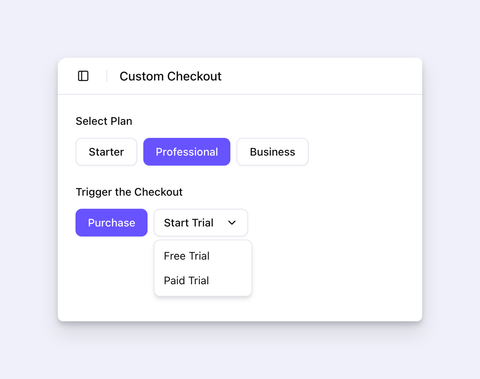
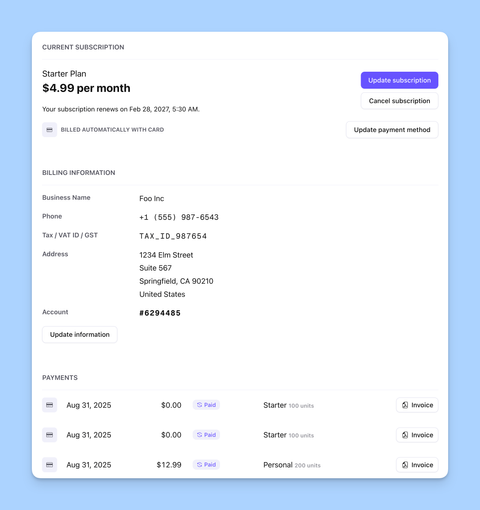
` container as follows: ``` #fs_dashboard_container { top: {headerDesktopHeight}px; } @media screen and(max-width: 600px) { #fs_dashboard_container { top: {headerMobileHeight}px; } } ``` 6. Add the new shortcode to your newly created page. ### Disabling Redirect to WordPress Login Page[​](#disabling-redirect-to-wordpress-login-page "Direct link to Disabling Redirect to WordPress Login Page") A user might be redirected to the default WordPress login page when they log out of the embedded Customer Portal. To disable this behavior, add this code snippet to the bottom of your active theme's `functions.php` file: ``` function my_fs_members_dashboard_config( $config ) { $config = str_replace( 'window.location.href', '// window.location.href', $config ); return $config; } add_filter( 'fs_members_dashboard', 'my_fs_members_dashboard_config' ); ``` ## Customizing The Customer Portal Appearance[​](#customizing-the-customer-portal-appearance "Direct link to Customizing The Customer Portal Appearance") For up-to-date instructions on customizing the Customer Portal appearance with CSS, see [Applying CSS Customization](https://freemius.com/help/help/documentation/users-account-management/applying-css-customization/.md). --- # Applying CSS Customization to the Customer Portal You can customize the appearance of the Freemius Customer Portal with CSS to match your brand and site design. The portal supports custom style sheets and CSS variable overrides for flexible theming. ## How CSS Customization Works[​](#how-css-customization-works "Direct link to How CSS Customization Works") * The Customer Portal is embedded via an iframe or direct link, and you can apply custom CSS by specifying a style sheet URL in the Freemius Developer Dashboard. * The portal uses CSS variables for colors, typography, and layout. Overriding these variables makes theme adjustments easy. ## Overriding CSS Variables[​](#overriding-css-variables "Direct link to Overriding CSS Variables") Inspect the portal's root element using your browser's developer tools to discover available CSS variables. ![](/help/assets/ideal-img/chrome-devtool-for-customer-portal.c432cd3.480.png) Common variable groups include: * `--fs-ds-theme-*`: Theme colors for major components * `--fs-ds-typography-*`: Font families, sizes, and weights * `--fs-ds-appearance-*`: Border radius, sizing, etc. For example, to change the primary color and font family, add the following CSS: ``` :root { --fs-ds-theme-primary: #6753ff; --fs-ds-typography-font-family: 'Open Sans', sans-serif; } ``` ## Adding Your Custom CSS[​](#adding-your-custom-css "Direct link to Adding Your Custom CSS") 1. Host your CSS file on a secure (HTTPS) server. 2. In the Freemius Developer Dashboard, go to **Stores > Settings > Customer Portal**. 3. Paste your stylesheet URL into the **Customer Portal CSS stylesheet** field. ![](/help/assets/ideal-img/freemius-dashboard-store-custom-user-dashboard-stylesheet-url.4a9fadf.480.png) Your styles will then load and apply to the portal. ## Tips[​](#tips "Direct link to Tips") * Always use the `:root` selector for global variable overrides. * Monitor changes in the Customer Portal HTML to avoid breaking your custom styles. * For advanced theming, combine variable overrides with custom CSS rules targeting portal elements. warning Major portal updates may affect your custom styles; review changes after each update. If you have questions or need help with advanced customization, contact Freemius Support. --- # Cancellation Survey: Collect User Feedback on Subscription Cancellations Sometimes, users cancel their subscriptions for reasons that can be addressed to improve your product or service. Understanding these reasons helps enhance customer retention and reduce churn. The Freemius Customer Portal includes a built-in cancellation survey displayed when a customer cancels a subscription. This survey runs as part of the cancellation flow and requires no additional setup, gathering valuable feedback from users. ![](/help/assets/ideal-img/freemius-customer-portal-subscription-cancellation-survey.3f7c56a.480.png) ## Accessing the Feedback[​](#accessing-the-feedback "Direct link to Accessing the Feedback") You can access cancellation reasons via [events and webhooks](https://freemius.com/help/help/documentation/saas/events-webhooks/.md#subscription-cancelled) and process the data programmatically using the [API endpoint](https://docs.freemius.com/api/events/retrieve). Additionally this information is also available in the transactional email sent to you when a subscription is canceled by a customer. ![](/help/assets/ideal-img/cancellation-reasons-in-freemius-email.e9b5aaf.480.png) Reducing Cancellations Freemius has out-of-the-box automation features that help reduce churn. You can also use [special coupons and discounts](https://freemius.com/help/help/documentation/marketing-automation/special-coupons-discounts/.md#subscription_cancellation_coupon) as an additional strategy to combat cancellations --- # Downloads Find all the latest versions of the available downloadable software products on this page. You can get the composer scripts if your prefer to use composer as a package manager for product versioning. ![](/help/assets/ideal-img/freemius-user-dashboard-product-available-downloads.35baadd.480.png) --- # Earn - Becoming an Affiliate Freemius Makers have an affiliate program out of the box that enables their product users market the products they use and earn sales commission. ![](/help/assets/ideal-img/freemius-user-dashboard-product-affilates.fe5843a.480.png) note By default this is disabled for each product. The product maker needs to [activate the Affiliate program](https://freemius.com/help/help/documentation/affiliate-platform/affiliate-program-activation/.md) for their users to earn. If you do not see this section in your dashboard consider talking to the product maker to enable this for you. ## How do you join the program[​](#how-do-you-join-the-program "Direct link to How do you join the program") There are multiple ways to sign up/apply to join the program via: ### Customer Portal affiliate application form[​](#customer-portal-affiliate-application-form "Direct link to Customer Portal affiliate application form") * Inside your account dashboard, look for the ***Earn*** section on the side menu on the left. * Click the **Become an Affiliate** button. ![](/help/assets/ideal-img/freemius-user-dashboard-earn-section-affilates.166f0c8.480.png) * Submit your application to the program by filling in the required details. ![](/help/assets/ideal-img/freemius-user-dashboard-product-activate-affilates-apply-form.c96d025.480.png) * Agree to the terms. ![](/help/assets/ideal-img/freemius-user-dashboard-product-activate-affilates-apply.b7b7ff2.480.png) ### The product maker's website affiliate application form[​](#the-product-makers-website-affiliate-application-form "Direct link to The product maker's website affiliate application form") On the product page/website, the maker might have an embedded form which you can use to apply. ### The WP Admin Dashboard Affiliates Application Form[​](#the-wp-admin-dashboard-affiliates-application-form "Direct link to The WP Admin Dashboard Affiliates Application Form") If a product maker has inserted the application form in their product, a form like this might be available. ![](/help/assets/ideal-img/freemius-wp-sdk-wp-admin-affiliate-program-form.1440cfb.480.png) Submit your application to the program by filling in the required details and agree to the terms. Your application will be reviewed by the product maker and approved if appropriate. You can now start selling as an affiliate. note Your commission will be calculated and remitted after the 10th and before the end of the month to the payment email provided. --- # License Security The Customer Portal offers builders, like agencies and freelancers, who work on client projects greater protection of their data and license through a special **LICENSE SECURITY** section available for every license. ![](/help/assets/ideal-img/freemius-customer-portal-license-security-url-whitelisting.6c7416e.480.png) ## White Label Mode[​](#white-label-mode "Direct link to White Label Mode") By flagging a license as "White Labeled", license owners can easily hide confidential information about their account and license: ![](/help/assets/ideal-img/license-security-and-url-whitelisting.ac10f28.480.png) This means that account details normally shown in the *Account* tab in the WP Admin will not appear after checking the “This license is activated on my client(s) site(s)” box. Here’s what will be hidden when a license is set as white-labeled: * User information * Billing details and invoices * License key * Pricing page * Add-on prices (if you sell add-ons) * Contact Us page ## URL Whitelisting (aka "License Firewall")[​](#url-whitelisting-aka-license-firewall "Direct link to URL Whitelisting (aka \"License Firewall\")") Freemius comes with a License Firewall, empowering license owners to control the websites that can activate their license or continue receiving updates. ![](/help/assets/ideal-img/url-whitelisting.ed75d5c.480.png) [](/help/videos/freemius-customer-portal-license-security-url-whitelisting.mp4) --- # Orders History As a product user, this section enables you to see all your previous orders and their details. ![](/help/assets/ideal-img/freemius-user-dashboard-orders-history.8e87f10.480.png) ## Generate a printable invoice[​](#generate-a-printable-invoice "Direct link to Generate a printable invoice") Freemius always sends a post-purchase invoice to the customer's email on product makers behalf. However, sometimes users cannot find the purchase email via their inbox. If the product user desires to get a printable invoice for their accounting purposes at a later time, they can always generate one by clicking on the **Invoice** button to get a downloadable/printable invoice. ![](/help/assets/ideal-img/freemius-user-dashboard-orders-history-invoice.cfad4f9.480.png) --- # Single Sign-On for WordPress If you are using WordPress to power your website and like to allow users and customers to login to your WordPress with their Freemius credentials, you can use our official [Single Sign-On WordPress Plugin](https://github.com/Freemius/freemius-wordpress-sso). This plugin bridges the gap between WordPress and the Freemius API. When a user logs in with their Freemius credentials and there is no matching user in WordPress, a new user with the same email address and password will be created in WordPress. When [embedding the Customer Portal](https://freemius.com/help/help/documentation/users-account-management/.md) on your site using our [Customer Portal WordPress plugin](https://github.com/Freemius/freemius-users-dashboard), a logged-in user will be automatically logged into their Freemius Customer Portal without the need to log in again. This structure offers a much better user experience to your users. ## How to restrict content from non-paying customers?[​](#how-to-restrict-content-from-non-paying-customers "Direct link to How to restrict content from non-paying customers?") The SSO (Single Sign-On) plugin comes with several handy methods to easily allow you control the logic according to the user's state on Freemius. For example, if you have a contact form page or a forum, which you wish to restrict from users but show it to your customers, you can create a [page template](https://developer.wordpress.org/themes/template-files-section/page-template-files/) that will render different content according to the user's licenses on Freemius as follows: ``` get_freemius_has_any_license(); $has_any_active_license = $sso->get_freemius_has_any_active_license(); } } ?>
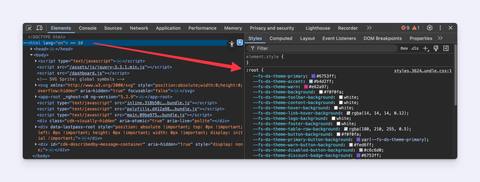
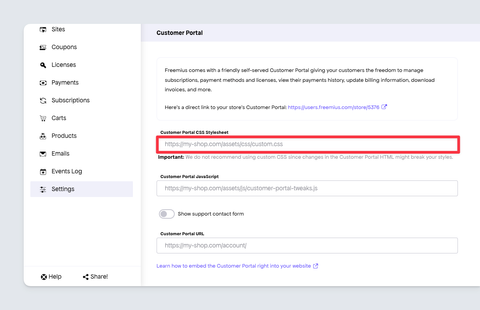
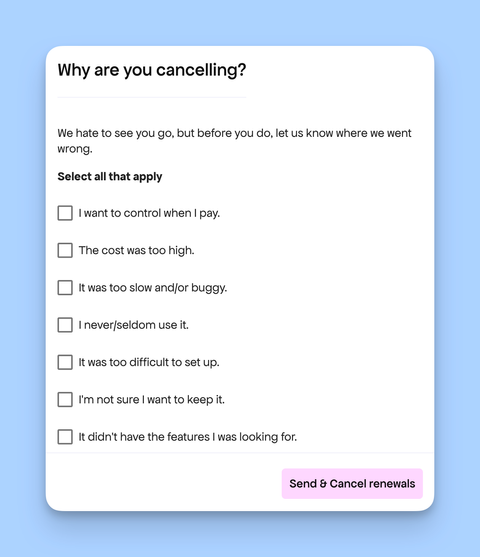
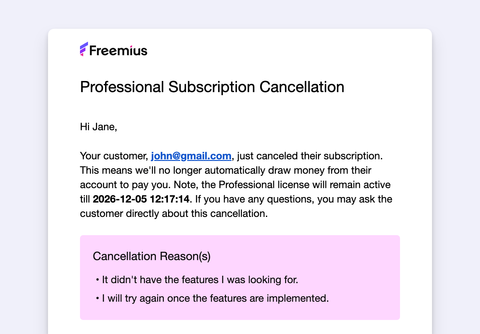
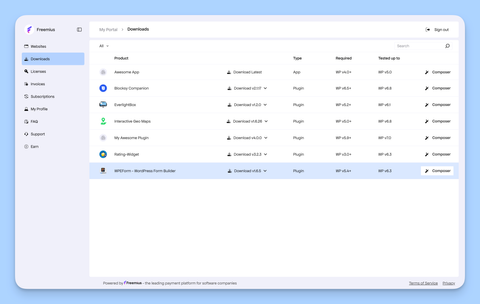
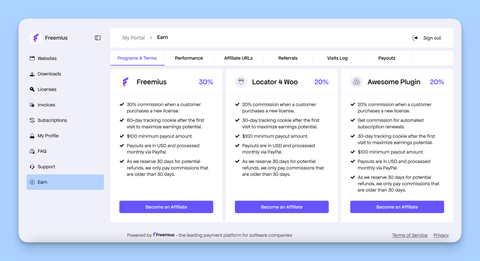
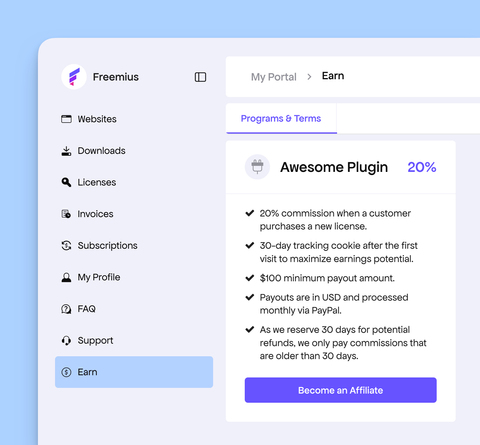
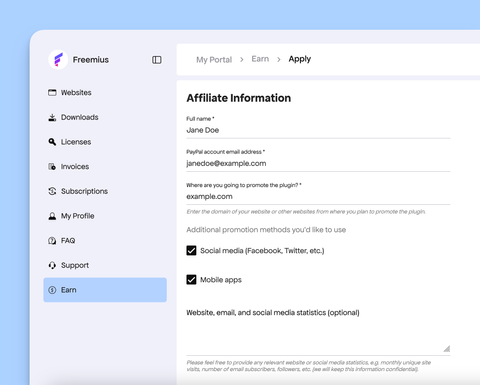
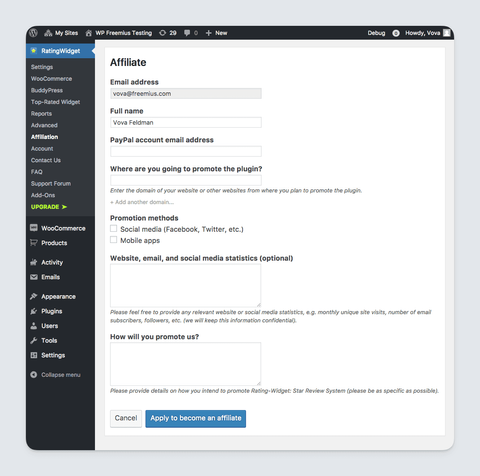
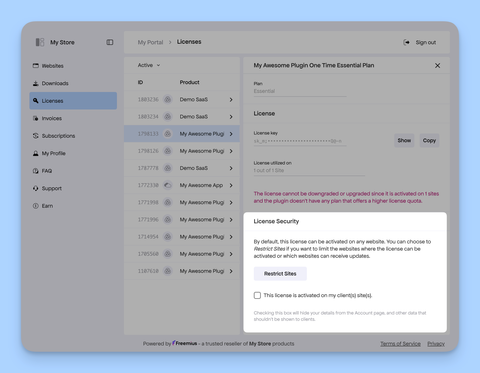
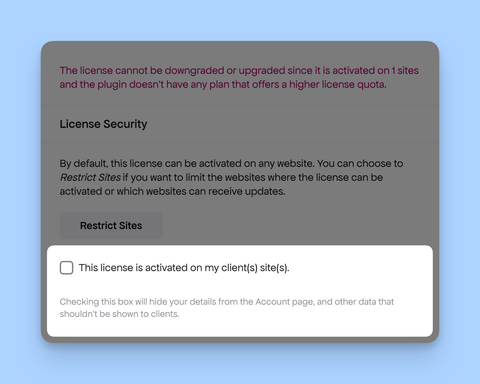
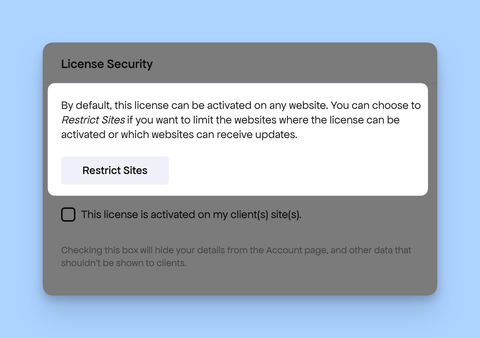
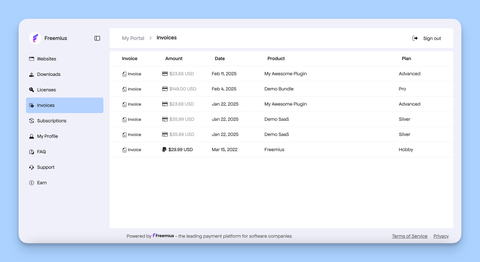
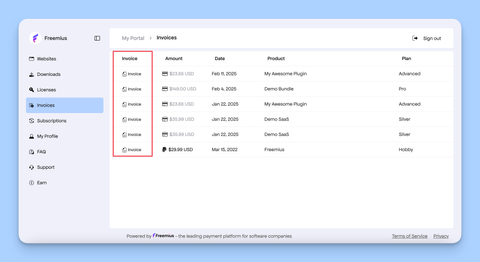
Whatever you want to show when the user is not logged in.

User logged in and has at least one license on Freemius.

User logged in and has at least one ACTIVE license on Freemius.

Whatever you want to show when the user is logged in but does not have any licenses for your product on Freemius.

``` --- # Support Contact Form ## How to enable the Contact Form in the Customer Portal[​](#how-to-enable-the-contact-form-in-the-customer-portal "Direct link to How to enable the Contact Form in the Customer Portal") To activate the contact form, select the relevant store from the ***Stores*** tab. Go to the store’s ***Settings*** and toggle the *Show support contact form* switch on: [](/help/videos/freemius-developer-dashboard-enable-contact-form.mp4) Refresh the Customer Portal, and you should see the new “Support” menu item. ![](/help/assets/ideal-img/freemius-user-dashboard-contact-form.b4e9534.480.png) ## Contextual Categories[​](#contextual-categories "Direct link to Contextual Categories") The contact form dynamically shows different categories according to the selected product and user information. For example, a “Trial Extension” category will only appear for products offering free trials: ![](/help/assets/ideal-img/freemius-user-dashboard-contact-form-free-trial-extension.49cff55.480.png) We plan to keep improving this as we go, making it more intelligent over time. ## FAQ Integration[​](#faq-integration "Direct link to FAQ Integration") Upon a category and subcategory selection, the contact form will automatically reveal the relevant questions and answers from the FAQ, when applicable: ## Refund Policy Integration[​](#refund-policy-integration "Direct link to Refund Policy Integration") When a customer indicates they are contacting support for a refund, a short human-readable summary of the refund policy will reactively appear to remind the customer what they agreed to when purchasing your product: ![](/help/assets/ideal-img/freemius-user-dashboard-refund-request-policy-integration.a4c6fa4.480.png) The commonest refund request is for subscription renewals. So, we hope that the policy reminder, which highlights that renewals are generally not refundable, will reduce the number of customers asking for refunds. ## Help Scout Docs Integration[​](#help-scout-docs-integration "Direct link to Help Scout Docs Integration") If you integrate the contact form with Help Scout Docs, you can auto-populate relevant articles directly from your knowledge base: [](/help/videos/freemius-user-dashboard-contact-form-helpscout-docs.mp4) To enable the integration of the contact form with your Help Scout Docs, head to ***Integrations*** -> ***Help Scout*** in the Developer Dashboard, and set your Docs API Key: ![](/help/assets/ideal-img/freemius-user-dashboard-contact-form-help-scout-docs-integration-api-key.65df409.480.png) More information can be found [here](https://freemius.com/help/help/documentation/integrations/help-scout/.md). note If you are not using Help Scout for your documentation center, we plan to enrich the capability for custom API endpoints to search documents. ## Public Knowledge Base Integration[​](#public-knowledge-base-integration "Direct link to Public Knowledge Base Integration") Whether you use Help Scout Docs or any other publicly available knowledge base, we now encourage users to check your docs while waiting to hear back from support: ![](/help/assets/ideal-img/freemius-user-dashboard-contact-form-check-documentation-while-waiting.d1eed7c.480.png) To enable this extra capability, you’ll need to enable the “Knowledge Base” switch in any of your product’s plans, and include the link to your knowledge base: ![](/help/assets/ideal-img/freemius-developer-dashboard-plans-knowledge-base-url.9dd852b.480.png) ## Freemius Checkout Integration[​](#freemius-checkout-integration "Direct link to Freemius Checkout Integration") If you are not offering free support, you’ll notice that support-related categories highlighted as **PAID ONLY**, making it clear to users that they need to be a paying customer to receive support. If the user chooses to ignore that, all the integrations mentioned above will continue functioning, trying to surface all the relevant data to help the user in a self-served approach. But, if the user pursues a ticket, they’ll be prompted with a dialog box explaining they need to purchase (or renew) a license first. If they choose to get a license, the checkout will be opened right on the spot, offering them an uninterrupted experience until the submission of their ticket without even leaving the page! [](/help/videos/freemius-user-dashboard-contact-form-contextual-upsell.mp4) ## Link to Your Own Support Page[​](#link-to-your-own-support-page "Direct link to Link to Your Own Support Page") If you'd like to link to your own support page instead of using the built-in form, you can configure it from your store settings. 1\. Go to **Store Settings** in the Freemius Developer Dashboard. 2. Under **Support Form**, enter the URL of your external support page. ![](/help/assets/ideal-img/freemius-customer-portal-custom-support-link.a27cf00.480.png) Now, when a customer accesses support from the Customer Portal, they will see a **Continue** button that opens your custom support page in a new tab. ![](/help/assets/ideal-img/freemius-customer-portal-support-form-custom-link.e34672a.480.png) ## Customizations[​](#customizations "Direct link to Customizations") ### How to hide selected categories of the contact form?[​](#how-to-hide-selected-categories-of-the-contact-form "Direct link to How to hide selected categories of the contact form?") Each category of the contact form is assigned with a unique `id` attribute. These attributes allow you to easily hide any category using your custom CSS stylesheet, which you can set in the “My Store” configuration page. For example, the “Technical Support” category’s unique `id` is `contact__technical_issue`: ![](/help/assets/ideal-img/freemius-user-dashboard-contact-form-customizations-by-id-attribute.6b9db81.480.png) Allowing you to hide the category using: ``` #contact__technical_issue { display: none; } ``` Set the custom CSS stylesheet URL in the store’s ***Settings*** page. ![](/help/assets/ideal-img/freemius-user-dashboard-hide-selected-categories-of-the-contact-form.bc28a44.480.png) Learn how to [embed the Customer Portal](https://freemius.com/help/help/documentation/users-account-management/.md) right into your website. --- # WordPress SDK --- # Debugging Freemius has inbuilt options for debugging and logging issues so as to make the integration process easier for developers. Here is how to enable and use these features: ## Access the Freemius Debug Page[​](#access-the-freemius-debug-page "Direct link to Access the Freemius Debug Page") You can access the **Freemius Debug** page directly via `{domain}/wp-admin/admin.php?page=freemius` to get information about the active SDK, Freemius-powered products on the site, users, and more. ![](/help/assets/ideal-img/freemius-sdk-debug-page.d621b0a.480.png) Setting `WP_FS__DEV_MODE` to `true` will enable logging. It will automatically activate the logger that outputs all logs to your browser's debugging console. ![](/help/assets/ideal-img/freemius-sdk-dev-mode-browser-developers-console-logging.57a86e3.480.png) ## Output Logs to Screen[​](#output-logs-to-screen "Direct link to Output Logs to Screen") You can output all logs to the screen by adding `&fs_dbg_echo=true` to the query string. Security Tip Adding `fs_dbg_echo=true` to the query string will only work when Freemius is set to [development mode](https://freemius.com/help/help/documentation/wordpress-sdk/testing/.md#setting-freemius-into-development-mode). Therefore, websites using your product are not at risk of exposing the logs unless an administrator sets `WP_FS__DEV_MODE` to `true` or manually toggles on the debugging switch in the *Freemius Debug* page. ## Debug Bar Integration[​](#debug-bar-integration "Direct link to Debug Bar Integration") Additionally, if you are using [Debug Bar](https://wordpress.org/plugins/debug-bar/), Freemius SDK logging is fully integrated with it to make debugging even easier with its UI. ![](/help/assets/ideal-img/freemius-sdk-dev-mode-wp-debug-bar-integration.409900e.480.png) --- # Filters & Actions Hooks The Freemius WordPress SDK provides a collection of filters and actions that allow developers to customize and extend the functionality of their WordPress plugins or themes. The concept is similar to WordPress’ own filters and actions also known as [hooks](https://developer.wordpress.org/plugins/hooks/). ## Using Freemius Hooks[​](#using-freemius-hooks "Direct link to Using Freemius Hooks") Using the Freemius hooks requires access to the Freemius instance, which is typically available in the main plugin file or wherever the SDK is initialized. ### Direct Usage[​](#direct-usage "Direct link to Direct Usage") In your theme or plugin, you can use the standard `add_action()` or `add_filter()` functions via the Freemius instance, namely; * `my_fs()->add_action()` * `my_fs()->add_filter()` An example using the direct method. ``` my_fs()->add_action( 'after_license_activation', 'my_fs_after_license_activation' ); function my_fs_after_license_activation() { // Handle successful activation. } ``` note Ensure to change `my_fs()` to your actual Freemius instance prefix. ### Unique Hook Names[​](#unique-hook-names "Direct link to Unique Hook Names") Similar to WordPress hooks, you can use a unique hook name for your product to avoid conflicts with other plugins or themes that might be using the same hook name. The naming convention for creating unique hook names is as follows: * The hook starts with `fs_` to identify it as a Freemius SDK hook. * Second, include the action name, e.g., `after_license_change`. * Finally, add the product slug at the end. * For plugins, add `my-plugin-slug`. Replace `my-plugin-slug` with the actual plugin slug. * For themes, add `my-theme-slug-theme`. Replace `my-theme-slug` with the actual theme slug before the suffix `-theme`. Example: A product with the slug `awesome-plugin` using `playground_anonymous_mode` filter hook. ``` add_filter( 'fs_playground_anonymous_mode-awesome-plugin', '__return_false' ); ``` tip The hook priorities and accepted arguments work the same way as in WordPress core e.g., see the [`is_submenu_visible`](#is_submenu_visible) filter hook. ## Filters Hooks[​](#filters-hooks "Direct link to Filters Hooks") Filters allow developers to modify specific data or behavior within the Freemius SDK. To add a filter, use the following method from the Freemius instance: ``` my_fs()->add_filter( string $tag, callable $callback, $priority = 10, $accepted_args = 1 ); ``` The method signature is the same as WordPress' [add\_filter](https://developer.wordpress.org/reference/functions/add_filter/) function. The following filters are available: ### `default_currency`[​](#default_currency "Direct link to default_currency") Set the default currency of the pricing page and checkout within the WP Admin dashboard. ``` function my_fs_default_currency( $currency ) { return 'eur'; } my_fs()->add_filter( 'default_currency', 'my_fs_default_currency' ); ``` ### `connect_url`[​](#connect_url "Direct link to connect_url") Modifies the URL used for the activation screen. ### `trial_promotion_message`[​](#trial_promotion_message "Direct link to trial_promotion_message") Customizes the message in the admin notice promoting trial usage to users. ### `is_long_term_user`[​](#is_long_term_user "Direct link to is_long_term_user") Determines if a user is considered long-term based on custom criteria. The uninstall reasons shown in the deactivation feedback dialog are determined based on this user type. ### `uninstall_reasons`[​](#uninstall_reasons "Direct link to uninstall_reasons") Defines the reasons presented to users in the deactivation feedback dialog during product deactivation. ### `is_plugin_update`[​](#is_plugin_update "Direct link to is_plugin_update") Checks if Freemius was first added in a product update. ### `api_domains`[​](#api_domains "Direct link to api_domains") Specifies API domains to include in an activation error message about domains that need to be whitelisted. ### `support_forum_submenu`[​](#support_forum_submenu "Direct link to support_forum_submenu") Manages the visibility of the support forum submenu. ### `support_forum_url`[​](#support_forum_url "Direct link to support_forum_url") Sets the URL for the support forum link for the product. ``` my_fs()->add_filter( 'support_forum_url', function ( $url ) { return 'https://awesome-plugin.com/support-forum/'; }); ``` ### `pricing_url`[​](#pricing_url "Direct link to pricing_url") Override the default Freemius WordPress SDK pricing page. The \`$url\` parameter can be set to any other link e.g. website. ``` my_fs()->add_filter( 'pricing_url', function ( $url ) { return 'https://awesome-plugin.com/pricing/'; }); ``` ### `connect_message`[​](#connect_message "Direct link to connect_message") Customizes the message displayed during the activation process. ### `connect_message_on_update`[​](#connect_message_on_update "Direct link to connect_message_on_update") Adjusts the connection message shown during the activation process when Freemius was first added in a product update. ### `show_deactivation_subscription_cancellation`[​](#show_deactivation_subscription_cancellation "Direct link to show_deactivation_subscription_cancellation") Disable the subscription cancellation prompt when deactivating the plugin. ``` my_fs()->add_filter( 'show_deactivation_subscription_cancellation', '__return_false' ); ``` ### `uninstall_confirmation_message`[​](#uninstall_confirmation_message "Direct link to uninstall_confirmation_message") Customizes the confirmation message to show in an additional panel within the deactivation feedback dialog before the panel with the deactivation reasons is shown. ### `pending_activation_message`[​](#pending_activation_message "Direct link to pending_activation_message") Customizes the message shown when activation is pending (when it requires completion by clicking an activation link sent via email). ### `is_submenu_visible`[​](#is_submenu_visible "Direct link to is_submenu_visible") Controls the visibility of specific submenus for the product. Here is an example to conditionally show the contact submenu item for customers with a trial or are paying. ``` function my_fs_submenu_visibility_handler( $is_visible, $id ) { if ( 'contact' === $id ) { $is_visible = my_fs()->is_paying_or_trial(); } return $is_visible; } my_fs()->add_filter( 'is_submenu_visible', 'my_fs_submenu_visibility_handler', 10, 2 ); ``` ### `plugin_icon`[​](#plugin_icon "Direct link to plugin_icon") Sets the icon displayed for the product. This affects the icon on the activation page, pricing page, and the updates section. ### `show_trial`[​](#show_trial "Direct link to show_trial") Helps determine whether the Free Trial tab or the trial promotion admin notice should be shown. ### `is_pricing_page_visible`[​](#is_pricing_page_visible "Direct link to is_pricing_page_visible") Controls the visibility of the pricing link for the product. ### `pricing/show_annual_in_monthly`[​](#pricingshow_annual_in_monthly "Direct link to pricingshow_annual_in_monthly") By default, the pricing page shows monthly prices. ![](/help/assets/ideal-img/freemius-wordpress-sdk-pricing-page-monthly-billing.fe38683.480.png) However, this behavior can be changed in the pricing page by including this single line of code in your SDK integration code and the pricing app will show the actual annual amounts. ``` my_fs()->add_filter( 'pricing/show_annual_in_monthly', '__return_false' ); ``` ![](/help/assets/ideal-img/freemius-wordpress-sdk-pricing-page-annual-billing.687f7e2.480.png) ### `checkout/parameters`[​](#checkoutparameters "Direct link to checkoutparameters") Allows you to customize the Checkout with a subset of the options available in the [Checkout JS API](https://freemius.com/help/help/documentation/checkout/freemius-checkout-buy-button/.md). For example, the snippet below enables the refund badge and reviews, and sets the billing cycle selector to a dropdown (bypassing the upsells UI). **Example** ``` my_fs()->add_filter( 'checkout/parameters', function ( $existing_params ) { // You can use the $existing_params to check how the checkout is currently configured. // Everything you return from this callback will override the existing parameters. return [ 'show_refund_badge' => true, 'show_reviews' => true, 'billing_cycle_selector' => 'dropdown', ]; } ); ``` To ensure the core checkout logic is not broken, only a specific set of keys is supported. * [currency](https://freemius.com/help/help/documentation/checkout/freemius-checkout-buy-button/.md#currency) * [default\_currency](https://freemius.com/help/help/documentation/checkout/freemius-checkout-buy-button/.md#default_currency) * [always\_show\_renewals\_amount](https://freemius.com/help/help/documentation/checkout/freemius-checkout-buy-button/.md#always_show_renewals_amount) * [annual\_discount](https://freemius.com/help/help/documentation/checkout/freemius-checkout-buy-button/.md#annual_discount) * [billing\_cycle](https://freemius.com/help/help/documentation/checkout/freemius-checkout-buy-button/.md#billing_cycle) * [billing\_cycle\_selector](https://freemius.com/help/help/documentation/checkout/freemius-checkout-buy-button/.md#billing_cycle_selector) * [bundle\_discount](https://freemius.com/help/help/documentation/checkout/freemius-checkout-buy-button/.md#bundle_discount) * [maximize\_discounts](https://freemius.com/help/help/documentation/checkout/freemius-checkout-buy-button/.md#maximize_discounts) * [multisite\_discount](https://freemius.com/help/help/documentation/checkout/freemius-checkout-buy-button/.md#multisite_discount) * [show\_inline\_currency\_selector](https://freemius.com/help/help/documentation/checkout/freemius-checkout-buy-button/.md#show_inline_currency_selector) - [form\_position](https://freemius.com/help/help/documentation/checkout/freemius-checkout-buy-button/.md#form_position) - [is\_bundle\_collapsed](https://freemius.com/help/help/documentation/checkout/freemius-checkout-buy-button/.md#is_bundle_collapsed) - [layout](https://freemius.com/help/help/documentation/checkout/freemius-checkout-buy-button/.md#layout) - [refund\_policy\_position](https://freemius.com/help/help/documentation/checkout/freemius-checkout-buy-button/.md#refund_policy_position) - [show\_refund\_badge](https://freemius.com/help/help/documentation/checkout/freemius-checkout-buy-button/.md#show_refund_badge) - [show\_reviews](https://freemius.com/help/help/documentation/checkout/freemius-checkout-buy-button/.md#show_reviews) - [title](https://freemius.com/help/help/documentation/checkout/freemius-checkout-buy-button/.md#title) - [show\_monthly](https://freemius.com/help/help/documentation/checkout/freemius-checkout-buy-button/.md#show_monthly) - [show\_upsells](https://freemius.com/help/help/documentation/checkout/freemius-checkout-buy-button/.md#show_upsells) ### `checkout/purchasedCompleted`[​](#checkoutpurchasedcompleted "Direct link to checkoutpurchasedcompleted") Add custom JavaScript code to run after the user has successfully made a purchase. For example ``` my_fs()->add_filter('checkout/purchaseCompleted', function () { return <<add_action( string $tag, callable $function_to_add, $priority = 10, $accepted_args = 1 ); ``` This method signature is similar to WordPress' [add\_action](https://developer.wordpress.org/reference/functions/add_action/) function. The following actions are available: ### `after_license_change`[​](#after_license_change "Direct link to after_license_change") Executed after a license change occurs. ``` my_fs()->add_action( 'after_license_change', 'my_fs_log_after_license_change', 10, 2 ); function my_fs_log_after_license_change( $status, $plan ) { error_log( print_r( 'License status: ' . $status, true ) ); error_log( print_r( 'Plan:', true ) ); error_log( print_r( $plan, true ) ); } ``` ### `after_license_activation`[​](#after_license_activation "Direct link to after_license_activation") Executed after a license activation occurs. Example: ``` my_fs()->add_action( 'after_license_activation', 'my_fs_after_license_activation' ); function my_fs_after_license_activation() { // Handle successful activation. } ``` On execution, this hook returns two arguments: * The status as a string, depending on the license change type (e.g., `changed`). * The plan object with a schema similar to the [retrieve a plan](https://docs.freemius.com/api/plans/retrieve) API endpoint. ### `after_license_deactivation`[​](#after_license_deactivation "Direct link to after_license_deactivation") Executed after a license deactivation occurs. Example: ``` my_fs()->add_action( 'after_license_deactivation', 'my_fs_after_license_deactivation' ); function my_fs_after_license_deactivation( $license ) { if ( ! empty( $license->id ) ) { // Success, do something with the license. } else { // Failure, handle the error. // echo $license->error->code; // echo $license->error->message; } } ``` On execution, the hook provides a license object with a schema similar to the [retrieve a license](https://docs.freemius.com/api/licenses/retrieve) API endpoint. ### `after_plans_sync`[​](#after_plans_sync "Direct link to after_plans_sync") Runs after the product's plans are synchronized with Freemius. ### `after_account_details`[​](#after_account_details "Direct link to after_account_details") Triggered after account details on the “Account” page are outputted (before the billing and payments sections). ### `after_account_user_sync`[​](#after_account_user_sync "Direct link to after_account_user_sync") Executed after user account synchronization. ### `after_account_plan_sync`[​](#after_account_plan_sync "Direct link to after_account_plan_sync") Runs after account plan synchronization. ### `before_account_load`[​](#before_account_load "Direct link to before_account_load") Triggered before an account is loaded. ### `after_account_connection`[​](#after_account_connection "Direct link to after_account_connection") Executed after a successful activation connection (when an account is successfully created). ### `account_email_verified`[​](#account_email_verified "Direct link to account_email_verified") Triggered when an account email address is verified. ### `account_page_load_before_departure`[​](#account_page_load_before_departure "Direct link to account_page_load_before_departure") Executed before finishing the loading of the Account page. ### `before_account_delete`[​](#before_account_delete "Direct link to before_account_delete") Runs before an account is deleted. ### `after_account_delete`[​](#after_account_delete "Direct link to after_account_delete") Executed after an account is deleted. ### `sdk_version_update`[​](#sdk_version_update "Direct link to sdk_version_update") Triggered after the SDK version is updated. ### `plugin_version_update`[​](#plugin_version_update "Direct link to plugin_version_update") Executed after the product version is updated. ### `initiated`[​](#initiated "Direct link to initiated") Runs after the Freemius SDK is initialized. ### `after_init_plugin_registered`[​](#after_init_plugin_registered "Direct link to after_init_plugin_registered") Runs after the Freemius SDK is initialized and the user is registered. ### `after_init_plugin_anonymous`[​](#after_init_plugin_anonymous "Direct link to after_init_plugin_anonymous") Runs after the Freemius SDK is initialized and the user is anonymous. ### `after_init_plugin_pending_activations`[​](#after_init_plugin_pending_activations "Direct link to after_init_plugin_pending_activations") Runs after the Freemius SDK is initialized and the user’s activation is pending confirmation. ### `after_init_addon_registered`[​](#after_init_addon_registered "Direct link to after_init_addon_registered") Runs after the Freemius SDK is initialized for an add-on and the user is registered. ### `after_init_addon_anonymous`[​](#after_init_addon_anonymous "Direct link to after_init_addon_anonymous") Runs after the Freemius SDK is initialized for an add-on and the user is anonymous. ### `after_init_addon_pending_activations`[​](#after_init_addon_pending_activations "Direct link to after_init_addon_pending_activations") Runs after the Freemius SDK is initialized for an add-on and the user’s activation is pending confirmation. ### `after_premium_version_activation`[​](#after_premium_version_activation "Direct link to after_premium_version_activation") Triggered after a premium version of the product is activated. ### `after_free_version_reactivation`[​](#after_free_version_reactivation "Direct link to after_free_version_reactivation") Executed after reactivating the free version of the product. ### `after_uninstall`[​](#after_uninstall "Direct link to after_uninstall") Runs after the product is uninstalled. ### `before_admin_menu_init`[​](#before_admin_menu_init "Direct link to before_admin_menu_init") Runs before the product’s menu and submenus are added. ## More action hooks[​](#more-action-hooks "Direct link to More action hooks") We have more action hooks related to the: * [Opt-In Screen](https://freemius.com/help/help/documentation/wordpress-sdk/opt-in-message/.md#advanced-opt-in-customization-actions) ## Checking if a hook is registered[​](#checking-if-a-hook-is-registered "Direct link to Checking if a hook is registered") Just like in WordPress core, the Freemius SDK instance provides a `has_filter()` method, which you can use to check whether a specific hook has been registered. This works for both actions and filters. The method signature is: ``` my_fs()->has_filter( string $tag, callable|bool $function_to_check ); ``` You can omit the second parameter to check for any registered filter or action. --- # Contributing to the Freemius SDK This guide is intended to help new [Freemius SDK](https://github.com/Freemius/wordpress-sdk) developers get up and running quickly. It contains step-by-step instructions on how to effectively contribute to the SDK via the git command line and GitHub. ## Prerequisites[​](#prerequisites "Direct link to Prerequisites") For some aspects of development you may need [npm](https://www.npmjs.com/) and [Node JS](https://nodejs.org/en/) installed on your system in order to run build scripts. The easiest way to do this is via the [Node installer](https://nodejs.org/en/) which installs both npm and Node via a single installation process. ## Who is This Guide For?[​](#who-is-this-guide-for "Direct link to Who is This Guide For?") This guide is primarily intended for both new Freemius developer core team members, and Freemius partners, looking to set up their local development environment for the first time. It's important that this is done correctly to ensure it's inline with recommended best practices. It's also also useful to refer back to this guide even if you've contributed to the Freemius SDK previously. You may need to review the workflow process from time to time if it's been a while since your last commit, or just to make sure nothing has changed. ## Ways to Contribute[​](#ways-to-contribute "Direct link to Ways to Contribute") To contribute to the Freemius SDK codebase you typically fork the main GitHub repository, and then clone this locally to make the required code changes. The following sections cover the whole process in detail. There are various types of code edits that can be made, including: * Adding new features. * Updating existing features. * Bug and typo fixes. * Adding, or updating, comments. ## Workflow Overview[​](#workflow-overview "Direct link to Workflow Overview") Freemius uses the [Gitflow](https://nvie.com/posts/a-successful-git-branching-model/) branching model for managing contributions to the Freemius SDK repository. In this workflow the main development work is done solely via the `develop` branch. Each new development task is created in a 'feature' branch that is branched directly from `develop`. When a feature branch is ready for review, submit a pull request and wait for feedback. If approved, the pull request will then be merged into the `develop` branch. Otherwise, it is rejected and the feature branch can be modified as required and submitted again, or deleted. Periodically the `develop` branch of the SDK will be merged into the `master` branch and a tag will be created to mark the [release](https://github.com/Freemius/wordpress-sdk/releases). In this guide we'll only be using the command line to work with the Freemius SDK repository but you can use a Git GUI if you prefer. Popular choices are [Sourcetree](https://www.sourcetreeapp.com/) (free) and [Fork](https://git-fork.com/). ## Setting Up For the First Time[​](#setting-up-for-the-first-time "Direct link to Setting Up For the First Time") Before you can clone the Freemius SDK locally you'll need to decide on the location. You have a couple of choices depending on how you plan on working with the SDK. The recommended way is to clone the Freemius SDK repository to a local folder on your hard drive, and then either link to it from each of your plugins/themes, or copy it over via an automated script. To link to the SDK use [symlinks](https://en.wikipedia.org/wiki/Symbolic_link) as these can be used to map any folder to any location on your local computer and are supported via the command line on macOS, Windows, and Linux operating systems. tip If you're on Windows and are having issues with setting up symlinks then try using the [Link Shell Extension](https://schinagl.priv.at/nt/hardlinkshellext/linkshellextension.html) utility. Basic usage is described [here](https://www.howtogeek.com/16226/complete-guide-to-symbolic-links-symlinks-on-windows-or-linux/) (see the 'How to Create Symbolic Links with a Graphical Tool' section). The advantage of using symlinks is that it's very easy to *always* make sure you include the latest version of the SDK with your WordPress products. Every time the local SDK repository is updated it will also be updated (automatically) in each of the plugins/themes that are associated with it (via symlinks). However, if 'sharing' the SDK among several different plugins/themes via symlinks then don't rely on the plugin icon stored in `/freemius/assets/img`. Instead we recommend using the `'plugin_icon'` [Freemius filter](https://freemius.com/help/help/documentation/wordpress-sdk/opt-in-message/.md#opt-in-icon-customization) to override this with the correct icon path. You could also just download the [latest release](https://github.com/Freemius/wordpress-sdk/releases) of the SDK, extract it, and add it manually to each plugin/theme. However, this is rather inefficient and the SDK can quickly become out of date as new versions are released. ### Local WordPress Development Setup[​](#local-wordpress-development-setup "Direct link to Local WordPress Development Setup") When developing with the Freemius SDK as part of an existing plugin or theme you'll need to be running a local WordPress site for testing purposes. There are many different ways you can set up a local live WordPress site but perhaps the easiest all round solution is [Local](https://localwp.com/) by Flywheel, which offers a feature-rich free version. Whatever local WordPress server you use it's recommended that you set it up so that it's easy to debug as follows: 1. Create a **new** WordPress site only for working on the Freemius SDK. 2. Add these PHP constants to your **wp-config.php** file: ``` define( 'WP_DEBUG', true ); define( 'SCRIPT_DEBUG', true ); define( 'COMPRESS_SCRIPTS', false ); define( 'FS_METHOD', 'direct'); define( 'WP_FS__DEV_MODE', true ); ``` 1. Install and activate the [Query Monitor](https://wordpress.org/plugins/query-monitor/) and [Gutenberg](https://wordpress.org/plugins/gutenberg/) plugins. And if you're developing themes then also install the [Theme Check](https://en-gb.wordpress.org/plugins/theme-check/) plugin. 2. For maximum compatibility always make sure you have the latest version of WordPress, and [Gutenberg](https://en-gb.wordpress.org/plugins/gutenberg/) plugin, installed. ### Cloning the Freemius SDK[​](#cloning-the-freemius-sdk "Direct link to Cloning the Freemius SDK") To be able to submit your own custom contributions you'll need to clone it to a suitable location on your local hard drive: ``` git clone [path to repository] ``` If you don’t have commit permissions to the repository, you'll first need to fork the SDK into a separate repository under your own GitHub account as you won't have write permissions to access the SDK repository directly. The forked repository is referred to as the main 'remote' repository, and is usually labelled 'origin' by default during the cloning process. You'll also need to add a reference to the original repository that you created the fork from to be able to keep your local repository up-to-date with the latest changes as they are merged into the codebase. ``` git remote add upstream https://github.com/Freemius/wordpress-sdk.git ``` This additional remote is typically given the label 'upstream' to clearly identify it from the forked repository. You should now have two git remotes set up to allow you to push changes to the forked repository (in order to make pull requests), and to pull changes from the upstream repository (to sync with the latest changes). You can check what remotes are available at any time via the following command: ``` git remote -v ``` ### Create a Freemius Product via the Developer Dashboard[​](#create-a-freemius-product-via-the-developer-dashboard "Direct link to Create a Freemius Product via the Developer Dashboard") To fully test all aspects of the SDK you'll need to integrate it into a working WordPress plugin or theme. This can be very basic though as you're only using it to test the SDK codebase. To complete the [integration process](https://freemius.com/help/help/documentation/getting-started/.md) you'll not only need to set up the plugin code locally, you'll also have to create the associated WordPress product in the Freemius [developer dashboard](https://freemius.com/help/help/documentation/getting-started/explore-the-developer-dashboard/.md). Tip: If you don't have a specific plugin ready to integrate the Freemius SDK with then you can use the Freemius [Hello Dolly](https://github.com/Freemius/hello-dolly) sample plugin as a ready-to-go starter plugin. ## General Workflow Steps[​](#general-workflow-steps "Direct link to General Workflow Steps") This section details the main workflow steps from start-to-finish when contributing to the Freemius SDK. Before submitting any code please make sure your work adheres to the following requirements: * All code should conform to WordPress [coding standards](https://make.wordpress.org/core/handbook/best-practices/coding-standards/) and best practices. * Any development work should always be based off the `develop` branch (via a feature branch). * After a pull request has been submitted it may be approved, rejected, or approved subject to modifications being made. Each pull request is reviewed and assessed individually. * **The less code changes a pull request contains, the quicker it will be reviewed and merged (if accepted).** ### General Set Up[​](#general-set-up "Direct link to General Set Up") Let's take a look now at getting the Freemius GitHub repository set up. 1. [Clone Freemius WordPress SDK](#cloning-the-freemius-sdk) locally to a suitable location on your local hard drive. 2. By default you'll be in the `master` branch but you'll be creating feature branches directly from the `develop` branch so do `git branch develop` and `git checkout develop` to create a local branch and switch to it. ### Developing via a Feature Branch[​](#developing-via-a-feature-branch "Direct link to Developing via a Feature Branch") 1. Locally create and switch to a new feature branch, created directly off the develop branch, to work on a new feature/issue. 1. `git checkout develop` 2. `git branch features/123-bug-fix` . Prefix the branch name with `feature/` and include the GitHub issue ref. number where relevant. 3. `git checkout features/123-bug-fix` 2. First thing to do is to update the SDK version number in the feature branches */freemius/start.php* file. Base this on the existing version number in *start.php* of the **current [develop branch](https://github.com/Freemius/wordpress-sdk/blob/develop/start.php) on GitHub**. For example, if it’s currently 2.4.1, then the version in the new feature branch should be 2.4.1.1, but the version in your documentation comments should be the next release version number (@since 2.4.2). 3. Make changes in the newly created feature branch. When finished **do not merge back into the develop branch**. 4. Instead, add your changes to the staging area and commit to the feature branch in the local repository. e.g. `git commit -am "new commit message"` 5. Then, push the updated feature branch changes to the remote SDK repository. 1. e.g. `git push -u origin feature/123-bug-fix` 2. Note: The `-u` flag (alias of `--set-upstream`) is important here as it allows the remote GitHub repository to track changes. It makes it very easy to update pull requests and submit changes. 6. **Important:** Before creating a pull request make sure you've included the latest changes that may have been merged into the upstream `develop` branch since the feature branch was first created. This will help to avoid merge conflicts for development branches that have become stale. *(see step 3. in the next section for more details)* 7. Go to the main page of the GitHub repository you just pushed to and **select the feature branch**. You should see a message similar to 'This branch is *x* commit(s) ahead, *x* commits behind Freemius :master '. 8. Click either the **Compare & pull request** button or the **Pull request** link and add details about the pull request code changes in the description box on the next page. 9. **Important!** Make sure that you select to merge into the `develop` branch and **not** `master`. Note: If you accidentally select the `master` branch and submit the pull request, you can edit the target branch at any time by opening the pull request in GitHub and clicking the **Edit** button (top right of the pull request). ![](/help/assets/ideal-img/image2.0ad98f9.480.png) 1. Create the pull request and assign it to Leo on GitHub. Also, select Leo as the reviewer *(you may need elevated permissions to be able to do this)*. Leo or Vova will eventually review and approve/reject the pull request. 2. If the pull request needs more work then make the required [code](https://stackoverflow.com/questions/16748115/how-to-modify-github-pull-request) locally and push again to the remote repository to **automatically update the pull request**. a. To do this, check out the feature branch again locally and make the required changes. b. Commit changes locally and push to the remote repository as before. c. The pull request will automatically update to include the new changes. 3. Once the pull request has been resolved then repeat the steps above to create a new feature branch to work on a new issue/feature. Make sure to delete old feature branches that are no longer needed in both the local and remote repositories to keep your development workspace clutter free. ## Keeping in Sync With the SDK Repository[​](#keeping-in-sync-with-the-sdk-repository "Direct link to Keeping in Sync With the SDK Repository") Whenever a feature branch pull request is approved it's then merged into the `develop` branch of the main SDK repository. In reality this actually happens quite often and means that the `develop` branch (and all feature branches) on your local repository soon become out-of-sync, or stale. You can always check the status of the `develop` branch on the remote (forked) GitHub repository as a quick way to see if it is behind the upstream `develop` branch. ![](/help/assets/ideal-img/image1.6ff03a0.480.png) Follow these steps to keep your local `develop` branch up to date with all recent changes to the `develop` branch of the main SDK repository. 1. In your local repository run these git commands to get the recent changes and update your local repository. Note: If there are no changes received by `git fetch` upstream then there's no need to apply step c. 1. `git checkout develop` 2. `git fetch upstream` 3. `git reset --hard upstream/develop` 2. Whenever the local `develop` branch has been updated with changes to the main GitHub repository then you need to add these changes to each of your **active** feature branches as follows. Old unmaintained (stale) feature branches don't need to be updated. 1. `git checkout feature/123-bug-fix` 2. `git merge develop` ## Making Code Changes[​](#making-code-changes "Direct link to Making Code Changes") When committing code changes make sure to add **meaningful commit messages**. We have a very specific structure for commit messages, specifically: 1. It needs to be English sentences, properly capitalized, with correct grammar and punctuation. Including a dot "." at the end of each sentence. 2. We also have a “tagging” system to give a clear context for the commit. For example, if there's a commit related to the license activation logic the commit should look like: * "\[license-activation] Explanation goes here." * If it's a bug fix that is related to license activation: `"[license-activation] [bug-fix] Explanation goes here."` * If it's a new feature related to license activation: `"[license-activation] [new] Explanation goes here."` * For enhancement:` "[license-activation] [enhancement] Explanation goes here."` * For optimization:` "[license-activation] [optimization] Explanation goes here."` * If it's a minor/major bug fix:` "[license-activation] [bug-fix] [major] Explanation goes here."` * If the commit is only including documentation:` "[license-activation] [php-doc] Explanation goes here."` Basically, by looking at the tags the reader should be able to get the context of the logic, the purpose of the commit, and its scope or severity. There are many different tags used in commit messages but you can get a good idea of the ones we use most frequently by browsing through the [recent commits history](https://github.com/Freemius/wordpress-sdk/network). ![](/help/assets/ideal-img/image3.7c70fae.480.png) Here are a few more tag examples used in commit messages: * `[refactor]` * `[cleanup]` * `[localization]` * `[code-convention]` * `[enrich]` * `[new]` * `[revert]` * `[bug-fix]` * `[fix]` * `[ui]` * `[ux]` * `[testing]` * `[debug]` Always update the associated GitHub issue you're working on to explain recent changes. This will help to keep everyone working on the pull request up-to-date with progress. Add proper comment blocks for new classes/functions with your name. Always comment new code, and add missing comments to existing code whenever you come across it. If you're not sure what it does then add a placeholder comment such as "@todo Add comment here". ## Discovered a Bug/Issue?[​](#discovered-a-bugissue "Direct link to Discovered a Bug/Issue?") While working on a particular feature you may from time-to-time come across an unrelated bug or issue in the code. If so then create a new issue in GitHub so it can be worked on via a separate feature branch. ## Resources[​](#resources "Direct link to Resources") * [Gitflow in less than 5-minutes](https://www.youtube.com/watch?v=1SXpE08hvGs). * [Gitflow cheatsheet](https://danielkummer.github.io/git-flow-cheatsheet/). --- # Misc Gists ## Adding new permission to the opt-in[​](#adding-new-permission-to-the-opt-in "Direct link to Adding new permission to the opt-in") ``` 'helpscout', // Unique permission id. 'icon-class' => 'dashicons ', 'label' => __( 'Help Scout', 'my_plugin_slug' ), 'tooltip' => __( 'Get easy access to our support via Help Scout Beacon.', 'my_plugin_slug' ), // Optional tooltip. 'desc' => __( 'Rendering Help Scout\'s beacon for easy support access', 'my_plugin_slug' ), 'priority' => 16, /** * The permission layer is currently only persistent with built-in permissions. * So if you make this permission optional, you won't be able to determine if the user switched it on or off. */ 'is_optional' => false, 'default' => true, ); return $permissions; } my_fs()->add_filter( 'permission_list', 'add_helpscount_permission' ); ``` ``` is_registered() && // Checks if user didn't opt out from tracking. my_fs()->is_tracking_allowed() ) { // Render Help Scout Beacon. require_once( '../path/to/help-scout-beacon.php' ); } ``` ## Customizing the support forum URL for the premium code version[​](#customizing-the-support-forum-url-for-the-premium-code-version "Direct link to Customizing the support forum URL for the premium code version") ``` is_premium() ) { my_fs()->add_filter( 'support_forum_url', 'my_premium_support_forum_url' ); } ``` ## Show the contact submenu item only when the user have a valid non-expired license[​](#show-the-contact-submenu-item-only-when-the-user-have-a-valid-non-expired-license "Direct link to Show the contact submenu item only when the user have a valid non-expired license") ``` can_use_premium_code(); } my_fs()->add_filter( 'is_submenu_visible', 'my_custom_is_submenu_visible', 10, 2 ); ``` ## Add permission for adding Help Scout Beacon[​](#add-permission-for-adding-help-scout-beacon "Direct link to Add permission for adding Help Scout Beacon") ``` 'helpscout', // Unique permission id. 'icon-class' => 'dashicons ', 'label' => __( 'Help Scout', 'my_plugin_slug' ), 'tooltip' => __( 'Get easy access to our support via Help Scout Beacon.', 'my_plugin_slug' ), // Optional tooltip. 'desc' => __( 'Rendering Help Scout\'s beacon for easy support access', 'my_plugin_slug' ), 'priority' => 16, /** * The permission layer is currently only persistent with built-in permissions. * So if you make this permission optional, you won't be able to determine if the user switched it on or off. */ 'is_optional' => false, 'default' => true, ); return $permissions; } my_fs()->add_filter( 'permission_list', 'add_helpscount_permission' ); ``` ``` is_registered() && // Checks if user didn't opt out from tracking. my_fs()->is_tracking_allowed() ) { // Render Help Scout Beacon. require_once( '../path/to/help-scout-beacon.php' ); } ``` ## Controlling the in-dashboard trial promotion in the Freemius WordPress SDK[​](#controlling-the-in-dashboard-trial-promotion-in-the-freemius-wordpress-sdk "Direct link to Controlling the in-dashboard trial promotion in the Freemius WordPress SDK") ``` override_i18n( array( 'hey' => 'Hey', 'trial-x-promotion-message' => 'Thank you so much for using %s!', 'already-opted-in-to-product-usage-tracking' => 'How do you like %s so far? Test all our %s premium features with a %d-day free trial.', 'start-free-trial' => 'Start free trial', // Trial with a payment method required. 'no-commitment-for-x-days' => 'No commitment for %s days - cancel anytime!', // Trial without a payment method. 'no-cc-required' => 'No credit card required', ) ); #---------------------------------------------------------------------------------- #region Show the 1st trial promotion after 7 days instead of 24 hours. #---------------------------------------------------------------------------------- function my_show_first_trial_after_7_days( $day_in_sec ) { // 7 days in sec. return 7 * 24 * 60 * 60; } my_fs()->add_filter( 'show_first_trial_after_n_sec', 'my_show_first_trial_after_7_days' ); #endregion #---------------------------------------------------------------------------------- #region Re-show the trial promotional offer after every 60 days instead of 30 days. #---------------------------------------------------------------------------------- function my_reshow_trial_after_every_60_days( $thirty_days_in_sec ) { // 60 days in sec. return 60 * 24 * 60 * 60; } my_fs()->add_filter( 'reshow_trial_after_every_n_sec', 'my_reshow_trial_after_every_60_days' ); #endregion #---------------------------------------------------------------------------------- #region Add custom action after trial start/expiration #---------------------------------------------------------------------------------- function my_after_license_change_handler( $plan_change_desc, FS_Plugin_Plan $plan) { $plan_name = $plan->name; switch( $plan_change_desc ) { case 'trial_started': // Do something immediately after a trial is started. break; case 'trial_expired': // Do something immediately after a trial expiration. break; } } my_fs()->add_action( 'after_license_change', 'my_after_license_change_handler', 10, 2); #endregion ``` ## EDD to Freemius Pricing Page Override based on URLs / Href[​](#edd-to-freemius-pricing-page-override-based-on-urls--href "Direct link to EDD to Freemius Pricing Page Override based on URLs / Href") ``` ``` ## Freemius submenu items visibility filter[​](#freemius-submenu-items-visibility-filter "Direct link to Freemius submenu items visibility filter") ``` add_filter( 'is_submenu_visible', 'my_is_submenu_visible', 10, 2 ); ``` ## Freemius Purchase Completion JavaScript Callback Filter[​](#freemius-purchase-completion-javascript-callback-filter "Direct link to Freemius Purchase Completion JavaScript Callback Filter") ``` (function() { if ( null == ga ) { // Add code to include GA. } })(); ' . $html; } my_fs()->add_filter('checkout/purchaseCompleted', 'my_after_purchase_js'); my_fs()->add_filter('templates/checkout.php', 'my_checkout_enrich'); ``` ## Freemius Buy Button Code for a Multi-Plans Table[​](#freemius-buy-button-code-for-a-multi-plans-table "Direct link to Freemius Buy Button Code for a Multi-Plans Table") ``` ``` ## Controlling the visibility of admin notices added by the Freemius SDK[​](#controlling-the-visibility-of-admin-notices-added-by-the-freemius-sdk "Direct link to Controlling the visibility of admin notices added by the Freemius SDK") ``` -theme`. * @var string $plugin The product's title. * @var string $wp_user_id An optional WP user ID that this admin notice is for. * } * @return bool */ function my_custom_show_admin_notice( $show, $msg ) { if ('trial_promotion' == $msg['id']) { // Don't show the trial promotional admin notice. return false; } return $show; } my_fs()->add_filter( 'show_admin_notice', 'my_custom_show_admin_notice', 10, 2 ); ``` ## Merging different free and premium product versions into one with Freemius[​](#merging-different-free-and-premium-product-versions-into-one-with-freemius "Direct link to Merging different free and premium product versions into one with Freemius") ``` is_premium() ) { require_once dirname(__FILE__) . 'path/to/free/loader.php'; } if ( my_fs()->is__premium only() ) { if ( my_fs()->can_use_premium_code() ) { require_once dirname(__FILE__) . 'path/to/premium/loader.php'; } } ``` ## Disable deactivation feedback form[​](#disable-deactivation-feedback-form "Direct link to Disable deactivation feedback form") ``` add_filter( 'show_deactivation_feedback_form', '__return_false' ); ``` ## Disable after deactivation subscription cancellation window[​](#disable-after-deactivation-subscription-cancellation-window "Direct link to Disable after deactivation subscription cancellation window") warning A subscription cancellation window will only show up when deactivating a product associated with a license that is only activated on the current site. Over the years, we learned that some users assume a product deactivation is also a cancelation of its subscription, which may cause an unexpected charge that can lead to a dispute. Therefore, we generally recommend keeping the default behavior as it reduces payment reversals and dispute fees. ``` add_filter( 'show_deactivation_subscription_cancellation', '__return_false' ); ``` --- # Gutenberg Block Integration Developing blocks for the Gutenberg editor is quite [straightforward](https://developer.wordpress.org/block-editor/tutorials/create-block/) these days as the project continues to mature; and there are numerous [tutorials](https://www.google.com/search?q=gutenberg+block+development\&oq=gutenberg+block+development\&aqs=chrome..69i57j69i60l3j0l2j0i22i30l2.5615j1j7\&sourceid=chrome\&ie=UTF-8) available to help create almost any type of block you want. However, knowing how to *monetize* a block is not so immediately obvious and requires some approaches that you may not be familiar with. Using the techniques outlined in this guide will help you to overcome any potential issues, you might come across, during the integration process. note Note: It's assumed that you're already familiar with developing blocks for the Gutenberg editor. If not then we highly recommended working through the official [Gutenberg handbook](https://developer.wordpress.org/block-editor/) before attempting integration with the Freemius platform. ## Integrating a Block with Freemius[​](#integrating-a-block-with-freemius "Direct link to Integrating a Block with Freemius") There isn't just one single method available when developing Gutenberg blocks, and each one requires a different approach to complete Freemius integration successfully. We'll look at the common types of block in this section and how you can make them work properly with Freemius. For **paid only** blocks, integration is quite simple as there's no free version at all. Which means there aren't any features that need removing during deployment. This type of block can be structured pretty much as you wish as long as the code to load premium scripts etc., are wrapped with the usual Freemius [licensing logic](https://freemius.com/help/help/documentation/wordpress-sdk/software-licensing/.md). For **freemium** blocks, integration is usually more complicated as the paid features need separating out from the free code. If you've chosen to render block content via PHP then integration is also much easier as paid features can be wrapped with the same logic you're already used to. e.g. ``` if( fs()->can_use_premium_code__premium_only() ) { // paid logic here } ``` Any paid block features written solely in JavaScript should be implemented via (JavaScript) [hooks](https://developer.wordpress.org/block-editor/packages/packages-hooks/) (see next section) so that they can be removed from the free plugin during [deployment to Freemius](https://freemius.com/help/help/documentation/release-management/deployment/.md). To help understand how to effectively add paid features to a block written in JavaScript only, we've added a [new Gutenberg-integrated plugin](https://github.com/Freemius/hello-dolly/tree/master/freemium%20v.3/hello-dolly) to our [Hello Dolly Freemium](https://github.com/Freemius/hello-dolly) repository that contains a fully working block, which monetizes certain features. Specifically, the free features included in the plugin are: 1. One song ('**Hello Dolly**') available. 2. Refresh the displayed lyric for the current song via block inspector controls. ![](/help/assets/ideal-img/hello-dolly-refresh-lyrics.0bc0790.480.png) And the **paid** features are: 1. Choose to display lyrics from three extra songs, depending on the current active plan ('**Summertime**', '**Wonderful World**', or '**Dream a Little Dream**'). ![](/help/assets/ideal-img/hello-dolly-extra-songs.439b4dd.480.png) 2. Optionally show the line number of the current song lyric (available in any paid plan). ![](/help/assets/ideal-img/hello-dolly-show-line-number.5eb61b5.480.png) We'll use snippets of code from [this block plugin](https://github.com/Freemius/hello-dolly/tree/master/freemium%20v.3/hello-dolly) throughout this guide to demonstrate the most relevant techniques you can use when monetizing your own blocks. ## The Need for JavaScript Hooks[​](#the-need-for-javascript-hooks "Direct link to The Need for JavaScript Hooks") When you need to extend a block feature written in JavaScript then hooks are extremely useful and allow you to seamlessly add paid features. They're available in WordPress core so just import them into your block code just like any other package: ``` const { applyFilters, doAction } = wp.hooks; ``` Usage is similar to PHP hooks, where you pass in a default value to a hook: ``` let some_option = applyFilters('some-option', [{ label: 'Some Option' }]); ``` Then the default filter value can be modified elsewhere in the codebase: ``` const { addFilter } = wp.hooks; addFilter('some-option', 'my-plugin/some-option', function (options) { // Add another options object to the array. options.push({ label: 'Another Option' }); return options; }); ``` Normally, all block code (for one or more blocks) is compiled into a single file containing vanilla JavaScript. But when using hooks to implement paid features this isn't really useful as we need the paid features compiled to a *separate* file so it can be conditionally enqueued, and removed from the free version completely during deployment. All you need to do is make sure your build process is set up to produce *separate* files for free and paid features. In the Hello Dolly plugin the [@wordpress/scripts](https://developer.wordpress.org/block-editor/packages/packages-scripts/) package is used to compile the JavaScript code. To make sure code is compiled to separate files a couple of new scripts were added to `[package.json](https://github.com/Freemius/hello-dolly/blob/master/freemium%20v.3/hello-dolly/package.json)` for development and production builds: ``` "build:custom": "wp-scripts build src/blocks/song-lyrics/index.js src/pro/extend-blocks.js", "start:custom": "wp-scripts start src/blocks/song-lyrics/index.js src/pro/extend-blocks.js", ``` ## Localizing Freemius Data[​](#localizing-freemius-data "Direct link to Localizing Freemius Data") To enable/disable paid block features we need to access Freemius license, and plan data, via JavaScript. This isn't directly possible at the moment, but in the future, we plan to provide a richer JavaScript SDK which will handle license-related logic in a similar manner to how our PHP SDK does it. In the meantime though, we can [localize](https://developer.wordpress.org/reference/functions/wp_localize_script/) Freemius data and manually pass it to JavaScript via PHP. Data can be localized as follows: ``` $licensing = array( 'can_use_premium_code' => my_fs()->can_use_premium_code() ); wp_localize_script('my-script', 'my_block_licensing_data', $licensing); ``` Add whatever data to the PHP array that you need to access via JavaScript. This localized data can then be used directly in your block code (as it's automatically available via a global JavaScript object). ``` const licensing = my_block_licensing_data ? my_block_licensing_data : null; if (licensing.can_use_premium_code) { // ... premium only logic ... } ``` The major benefit of this method is that you can fully test paid features locally **before** deploying. Switching licenses that have different active plans will enable that functionality automatically. Or, deactivating the license will just revert the block to free features only. Being able to test block features locally like this can really speed up development time! ## Monetizing JavaScript Rendered Blocks[​](#monetizing-javascript-rendered-blocks "Direct link to Monetizing JavaScript Rendered Blocks") Blocks written purely in JavaScript need extra considerations compared to PHP blocks. Any JavaScript feature can be monetized but the key is *how* it's implemented. Some features are easier to monetize than others because of the way JavaScript blocks are rendered. If your block implements extra features via changes to the [`edit()`](https://developer.wordpress.org/block-editor/developers/block-api/block-edit-save/#edit) function then you won't have any issues. You can go ahead and use JavaScript hooks to separate out paid features as shown in the previous section. But if you're adding paid features that update the blocks [`save()`](https://developer.wordpress.org/block-editor/developers/block-api/block-edit-save/#save) function directly as soon as the license is activated, then (when the block is loaded inside the post editor) you'll almost certainly see a block invalid content warning. ![](/help/assets/ideal-img/hello-dolly-block-invalid-content.9bbc118.480.png) This dialog box does actually allow you to update the block to the new version that includes paid features just by clicking the **Attempt Block Recovery** button. However, the UX is still pretty unfriendly. You wouldn't really want to show this to a user when updating block content directly as it looks like some unidentified error has occurred. There are plans to [address](https://github.com/WordPress/gutenberg/issues/25436) this issue and improve the UX but the proposal has no definite time-frame for implementation. So, until then it's probably best to avoid triggering the block invalid content warning wherever possible. ### Managing Direct Changes to Block Markup[​](#managing-direct-changes-to-block-markup "Direct link to Managing Direct Changes to Block Markup") Fortunately there are other methods you can use to avoid the block invalidation warning. For very small changes to the save content, that are enabled in paid plans, you can simply include the markup in the free version and disable UI controls to access/update them. In the Hello Dolly Freemium plugin this method is used to show the line number of the lyric for the currently selected song: ``` const { applyFilters, doAction, createHooks } = wp.hooks; const { Fragment } = wp.element; export function Markup(props) { const { song, lyric, lineNumber, showLineNumber } = props; return ( {song}: {lyric}{' '} {showLineNumber && ( ({lineNumber}) )} ); } ``` The `showLineNumber` attribute is set to `false` initially so that it doesn't display until you upgrade to a paid plan and enable it. And if the license is downgraded to the free version or is deactivated then `showLineNumber` is reset to `false`. The inspector controls to modify `showLineNumber` status are only shown in the paid version and these are actively stripped out from the free version (see next section). It's important to stress that only the bare minimum content is included with the free version and there is no easy way it can be accidentally enabled. This approach is fine for **very small** changes to the save function, but is not recommended for substantial changes. If you wish to directly modify the rendered save content significantly (e.g. for license status changes) then you'll need to use another method. One way to do this is to use the blocks `componentDidMount()` lifecycle method (or React hook equivalent). If Freemius license/plan data is localized then you could store the current license status and active plan in block attributes and use it to compare against the passed in data every time the editor (re)loads. Then, if the license status (or paid plan) has changed then you could then trigger a block update via `componentDidMount()`. This would **bypass the block invalid content warning** and update the block content automatically to the new version. The only caveat with this method is that a manual post update is required to persist changes (as new block changes have been detected). If you leave the editor without saving changes then the block will be auto-updated the next time it's viewed in the editor. To summarise here are the main choices you have to manage block rendering when the blocks save content has been directly modified: 2. For **very small** markup changes include the bare minimum markup in the blocks save function needed for the paid feature and set the relevant block attribute(s) to `false`. Strip out inspector controls from the free version via JavaScript hooks, and don't forget to manually remove the block source code before deploying to Freemius. 3. Modify the blocks save content via the `componentDidMount()` lifecycle method (or React hook equivalent). A manual post update is required to persist changes. 4. Use PHP to render the save function content. This is about as bullet-proof as you can get and is an ideal solution if you also need to provide a shortcode as well as a block (e.g. to support 3rd party page-builders). However, there are many benefits to coding your blocks in JavaScript with the most obvious being that block changes update in the editor in real-time opposed to a small delay when using PHP as it needs to render on the server. 5. Do nothing! Allow the block invalid content warning message to be displayed when the block's save content is directly updated and leave it to users to update (a manual post update is required with this method too). Until the UX is improved then it's not really recommended that you use this method as you'll probably see a spike in support requests (e.g. reporting the block content is broken etc.)! ### Managing Non-direct Changes to Block Markup[​](#managing-non-direct-changes-to-block-markup "Direct link to Managing Non-direct Changes to Block Markup") Blocks can also be monetized by adding options and controls to the block toolbar, or inspector panel. This involves making changes to the blocks `edit` function via JavaScript hooks. And because altering the `edit` function won't **ever** trigger the block invalid content warning this makes it a completely safe way to add paid block features! In the [Hello Dolly Freemium](https://github.com/Freemius/hello-dolly/tree/master/freemium%20v.3/hello-dolly) block we've added three new songs that become available (depending on the current active plan) as soon as the license is activated. And whenever the license is deactivated the songs are no longer available. To do this a filter was added for the songs available in the block inspector: \[RadioControl.js] ``` let song_options = applyFilters('song-list', [ { label: 'Hello Dolly', value: 'Hello Dolly' }, ]); ``` We can then use the filter to extend the list of songs available: \[extend-blocks.js] ``` addFilter('song-list', 'hello-dolly/song-lyrics', function (songs) { if (!hello_dolly_editor_data) { return 'Error, Freemius data not found!'; } const { can_use_premium_code, plan } = hello_dolly_editor_data; if (can_use_premium_code) { if ( plan === 'summertime' || plan === 'wonderful_world' || plan === 'dream' ) { songs.push({ label: 'Summertime', value: 'Summertime' }); } if (plan === 'wonderful_world' || plan === 'dream') { songs.push({ label: 'Wonderful World', value: 'Wonderful World' }); } if (plan === 'dream') { songs.push({ label: 'Dream a Little Dream', value: 'Dream a Little Dream', }); } } return songs; }); ``` This won't do anything apart from filter which radio buttons are available in the block inspector panel. We also need to actively filter the lyrics for each song so that they're available in the paid plans. First, add the filter as we did before: [\[lyrics.js\]](https://github.com/Freemius/hello-dolly/blob/master/freemium%20v.3/hello-dolly/src/blocks/song-lyrics/lyrics.js#L35) ``` lyrics = applyFilters('song-lyrics', lyrics); ``` And then extend the song lyrics too, similar to how we did before: [\[extend-blocks.js\]](https://github.com/Freemius/hello-dolly/blob/master/freemium%20v.3/hello-dolly/src/pro/extend-blocks.js#L35-L133) ``` addFilter('song-lyrics', 'hello-dolly/song-lyrics', function (lyrics) { if (!hello_dolly_editor_data) { return 'Error, Freemius data not found!'; } const { can_use_premium_code, plan } = hello_dolly_editor_data; if (can_use_premium_code) { if ( plan === 'summertime' || plan === 'wonderful_world' || plan === 'dream' ) { lyrics['Summertime'] = `Summertime and the livin' is easy ... Ah, said it's summertime`; } if (plan === 'wonderful_world' || plan === 'dream') { lyrics['Wonderful World'] = `I see trees of green, red roses, too, ... What a wonderful world`; } if (plan === 'dream') { lyrics['Dream a Little Dream'] = `Stars shining bright above you ... Dream a little dream of me`; } } return lyrics; }); ``` This works really well and all our paid features are completely stripped from the plugin during deployment. You might have noticed that the JavaScript logic to check if the current active plan is valid is a little verbose: ``` if (plan === 'summertime' || plan === 'wonderful_world' || plan === 'dream') { // add lyrics } ``` Compared to it's PHP counterpart: ``` if ( hd_fs()->is_plan( 'summertime' ) ) { // add lyrics } ``` This is because we're localizing *just* the current active plan name and so more manual checks are required in the JavaScript code. We could easily match the PHP logic by passing in more localized data to include specific plan data: ``` $data = array( 'current_plan' => hd_fs()->get_plan_name(), 'can_use_premium_code' => hd_fs()->can_use_premium_code(), 'is_plan_summertime' => hd_fs()->is_plan( 'summertime' ), 'is_plan_wonderful_world' => hd_fs()->is_plan( 'wonderful_world' ), 'is_plan_dream' => hd_fs()->is_plan( 'dream' ), ); wp_localize_script('hello-dolly-block-script', 'hello_dolly_editor_data', $data); ``` And then changed the paid feature code to: ``` addFilter('song-lyrics', 'hello-dolly/song-lyrics', function (lyrics) { if (!hello_dolly_editor_data) { return 'Error, Freemius data not found!'; } const { can_use_premium_code, is_plan_summertime, is_plan_wonderful_world, is_plan_dream, } = hello_dolly_editor_data; if (can_use_premium_code) { if (is_plan_summertime) { lyrics['Summertime'] = `Summertime and the livin' is easy ... Ah, said it's summertime`; } if (is_plan_wonderful_world) { lyrics['Wonderful World'] = `I see trees of green, red roses, too, ... What a wonderful world`; } if (is_plan_dream) { lyrics['Dream a Little Dream'] = `Stars shining bright above you ... Dream a little dream of me`; } } }); ``` The system is quite flexible. You can choose which approach suits you best, you're not restricted to any particular implementation. ## Downgrading Issues[​](#downgrading-issues "Direct link to Downgrading Issues") Sometimes when downgrading from the paid version to free you need to be aware of scenarios that could cause issues and unexpected behaviour in your blocks. For example, in our Hello Dolly Freemium plugin if the currently selected song is only available in the paid version then it will suddenly disappear if the license is deactivated. In this case we need to specifically reset the song and lyrics block attributes to the free one (Hello Dolly). Notice we're also resetting `lineNumber` as we can't guarantee the current line number will exist in Hello Dolly, and `showLineNumber` is reset too as this is a paid only feature. ``` const { attributes: { song, lyric }, setAttributes, } = this.props; // if downgrading and the currently selected song is not available if (!lyrics.hasOwnProperty(song)) { setAttributes({ song: 'Hello Dolly', lyric: lyrics['Hello Dolly'].split(/\n/)[0], lineNumber: 1, showLineNumber: false, }); } ``` ## Deployment to Freemius[​](#deployment-to-freemius "Direct link to Deployment to Freemius") Before deploying the plugin to Freemius make sure that you run the build script to produce compiled and minified block code. Paid block features can be stripped out during deployment using the `@fs_premium_only` Freemius directive. e.g. `@fs_premium_only /build/extend-blocks.js` It's also recommended that you keep all your block source code in a single folder so that it can be easily removed prior to deployment if required. ## Testing the Hello Dolly Freemium Plugin[​](#testing-the-hello-dolly-freemium-plugin "Direct link to Testing the Hello Dolly Freemium Plugin") The [Hello Dolly Freemium](https://github.com/Freemius/hello-dolly/tree/master/freemium%20v.3/hello-dolly) plugin contains a fully working example of a block integrated with the Freemius platform. To install locally, clone the plugin repository: `git clone https://github.com/Freemius/hello-dolly.git` The plugin uses the WordPress SDK as a submodule so you'll need to pull it after cloning using the following command: `git submodule update --init` Then, copy the `freemium v.3\hello-dolly` folder to your local WordPress plugins folder (`/wp-content/plugins/`) and activate. Upon activation we'll be prompted with a license activation screen. Since it's a Freemium plugin, you can click the *Activation Free Version* link to continue, and then choose whether to opt-in to Freemius usage-tracking or not. To test the paid plans you can use the following license keys: * *Summertime* plan license key: `sk_cOG+nk&tsEYLVo74~W*SqwJcLq4;V` * *Wonderful World* plan license key: `sk_4#:r099AfRm8m*QUgN&K%s6Ds_Si5` * *Dream* plan license key: `sk_6&Db*Nn#IVZ2oj7qh=ZHEkZv5H3a6` If you already skipped the license activation prompt, a license can be activated from the plugins page in the WP Admin, by clicking the *Activate License* link under the **Hello Dolly Freemium** plugin. To create and configure your own Hello Dolly Freemium plugin using Freemius from scratch, follow [this video tutorial](https://www.youtube.com/watch?v=gj6aoYG4fUI\&t=101s) that takes you through the entire process step-by-step. If you plan on making changes to blocks then use either of these two commands to recompile the block source code: * Development: `npm run start:custom` * Production: `npm run build:custom` --- # Integration & Configuration Integrating the Freemius SDK into your product is a quick step you need to complete in order to be able to take advantage of all the benefits that come with using Freemius. After completing these instructions your product will be all set up and ready to sell. **Here’s how to do it:** After logging in to your Freemius account and clicking on the **'Add product / bundle'** button at the top left hand corner you will be able to provide some basic settings for your product, including Slug and Title: ![](/help/assets/ideal-img/freemius-dashboard-add-new-product.58262ba.480.png) Upon hitting the **‘Create New’** button, you are then redirected to the **5-minute integration guide**. The next step is to download the ZIP file that contains the Freemius SDK and all of the Freemius magic that comes with it. You can download the latest release from our [GitHub repository](https://github.com/Freemius/wordpress-sdk), unzip it, rename it to ‘freemius’. Move the renamed `freemius` folder as-is in to the root folder of your WordPress theme or plugin. ![](/help/assets/ideal-img/freemius-wordpress-root-sdk-integration-with-product.5196d0a.480.png) With the Freemius SDK folder included in your product, you can complete the quick customization process according to the instructions on the [SDK Integration](https://dashboard.freemius.com) page of the Developer Dashboard. When you’re done, your customized ‘easy SDK access’ function will be auto-generated for you. note Note: This snippet of code initializes the Freemius SDK using an array of key/value pairs that contains specific information about your Freemius product and unlocks the full range of features available. Access to the Freemius SDK features comes via a global variable defined as part of the snippet. For **WordPress plugins**, copy & paste it into the top of your main plugin’s PHP file, right after the plugin’s header comment and `if ( ! defined( 'ABSPATH' ) ) exit;` check. For **WordPress themes**, copy & paste it into the top of your theme’s `functions.php` file. Here’s how the code should look: ![](/help/assets/ideal-img/sdk-integration.a65505e.480.png) Under normal circumstances, we don't recommend editing the snippet directly once it's added to your WordPress product. However, there are times when you may need to tweak it manually. We'll cover when you might want to do this in a [later section](#manually-editing-the-sdk-integration-snippet). However, in all cases, you should begin by copying the snippet from the SDK Integration page of the Developer Dashboard and pasting it into your plugin or theme. Don't be tempted to try and create the snippet from scratch as this method is prone to errors. It's always best to start with the auto-generated snippet and tweak it when necessary. ## Where to Add the SDK Integration Snippet[​](#where-to-add-the-sdk-integration-snippet "Direct link to Where to Add the SDK Integration Snippet") Depending on the structure of your plugin you may wish to add the SDK snippet to another location than your main plugin file. For themes, the SDK relies on the snippet to be placed in `functions.php`, if you place it elsewhere you are risking unexpected behavior - so please don’t do it. Regardless of where it’s added, it's recommended that initialization of the Freemius SDK should be completed as soon as possible and preferably before any other code is executed inside your WordPress product. This will help to minimize issues with trying to access SDK features before they are initialized. Also, SDK initialization should not occur **after** the WordPress `'plugins_loaded'` hook. This is incorrect and will break some of the SDK's logic due to the execution order of other logic contained in WordPress core. If you experience problems when placing the SDK snippet in a file alternative location than the recommended ones, then try adding it back in the main plugin file, to rule out any implementation errors. ## Snippet Settings Reference[​](#snippet-settings-reference "Direct link to Snippet Settings Reference") The array that's passed to `fs_dynamic_init()` consists of key-value pairs, including nested arrays for some settings. All possible values are covered as a reference guide, but not all will necessarily be relevant to your particular plugin or theme. Specific settings will be generated depending on the information entered in the Developer Dashboard. Don't worry if your SDK snippet doesn't include all of the settings. This is perfectly normal. All settings are listed below along with a description. note Note: All settings apply to both plugins and themes unless otherwise stated. `id`[](#id "Direct link to id") number Example: 1234 Auto-generated Freemius product ID which uniquely identifies your plugin or theme. This is created when the product is first created and cannot be changed. `slug`[](#slug "Direct link to slug") string Example: 'my-plugin' Used to create the product folder name during deployment and in the updates mechanism. Also used in dynamically generated URLs (e.g. EULA). `premium_slug`[](#premium_slug "Direct link to premium_slug") string Example: 'my-plugin-pro' Used for freemium products to create the premium product’s version folder name during deployment. This needs to be different from the free version slug. Also used in dynamically generated URLs (e.g. EULA). `type`[](#type "Direct link to type") string Default: `'plugin'` Allowed Values: `'plugin'` | `'theme'` Type of WordPress product. `public_key`[](#public_key "Direct link to public_key") string Example: 'pk\_n56hrjss36joj632vgyy345ggv555' Public key is a unique key prefixed with 'pk\_' specific to the Freemium product. This is typically used for authentication with public Freemius API endpoints. `is_premium`[](#is_premium "Direct link to is_premium") boolean Specify if the product’s codebase is the free or premium version. `premium_suffix`[](#premium_suffix "Direct link to premium_suffix") string Example: 'Pro' Default: `'plugin'` The suffix added to a premium plugin’s paid version title. This option is relevant for freemium products. `is_premium_only`[](#is_premium_only "Direct link to is_premium_only") boolean Default: `false` Specify if the plugin or theme is premium-only (i.e. no free version). This setting is added automatically if the default free plan is deleted and there's at least one paid plan. `has_premium_version`[](#has_premium_version "Direct link to has_premium_version") boolean Default: `false` Does the plugin or theme have a premium version available? `has_addons`[](#has_addons "Direct link to has_addons") boolean Default: `false` Does the plugin or theme have any associated addons? `has_paid_plans`[](#has_paid_plans "Direct link to has_paid_plans") boolean Default: `false` Does the plugin or theme have any paid plans? `is_org_compliant`[](#is_org_compliant "Direct link to is_org_compliant") boolean Default: `true` Is the product’s free version WordPress.org compliant. `has_affiliation`[](#has_affiliation "Direct link to has_affiliation") boolean|string Default: `false` Allowed Values: `'selected'` | `'customers'` | `'users'` This setting is included if the affiliate program for the product is enabled (via the Developer Dashboard [Affiliation page](https://freemius.com/help/../../affiliate-platform/affiliate-program-activation/index)). Its value is determined by the "Who can be an affiliate?" setting. When `customers` is selected, it means the seller only allows customers to become affiliates so the admin notice and menu item will only show up for customers. From the SDK's point of view, `users` and `selected` are identical, since only users will be exposed to the settings of the product in the WordPress admin. `menu`[](#menu "Direct link to menu") array An array that denotes which Freemius pages to display in the WordPress admin menu, and how the plugin settings page menu is handled. See [how to configure for the menu array.](#configuration-for-menu-array) `opt_in_moderation`[](#opt_in_moderation "Direct link to opt_in_moderation") array An associative array containing configuration for opt-in moderation of your product. [More on this later](#configuration_for_opt_in_moderation_array). `secret_key`[](#secret_key "Direct link to secret_key") string Example: 'sk\_84gbhR634gb732vy796h4gTY43' Default: `'plugin'` Secret key is a unique key prefixed with 'sk\_' specific to the Freemium product. When present it enables sandbox mode for development & testing. It also elevates additional permissions that are helpful for development and testing modes. note Note: The secret key is automatically included in the SDK snippet for convenience. As per the comments in the snippet, this should be removed from production code, but don't worry if you forget as the PHP processor removes it automatically in the Deployment mechanism ### Configuration for `'menu'` array[​](#configuration-for-menu-array "Direct link to configuration-for-menu-array") Possible settings for the `'menu'` array are: `slug`[](#slug "Direct link to slug") string Example: 'my-plugin-menu' WordPress admin menu slug used for the plugin settings page. `parent`[](#parent "Direct link to parent") string Example: array('slug' => 'options-general.php') The parent menu slug to use if the plugin settings page is a submenu of another menu. Even though this setting expects an array the `slug` field is the only option currently available. `first-path`[](#first-path "Direct link to first-path") string Example: 'admin.php?page=my-plugin-menu' This is where the plugin, or theme, will redirect to after activation. `contact`[](#contact "Direct link to contact") boolean Default: `true` Display the Freemius **Contact Us** page in the WordPress admin menu for the plugin or theme. `support`[](#support "Direct link to support") boolean Default: `true` Display the Freemius **Support Forum** page in the WordPress admin menu for the plugin or theme. `addons`[](#addons "Direct link to addons") boolean Default: `true` Display the Freemius **Add Ons** page in the WordPress admin menu for the plugin or theme. `affiliation`[](#affiliation "Direct link to affiliation") boolean Default: `false` Display the Freemius **Affiliation** page in the WordPress admin menu for the plugin or theme. `account`[](#account "Direct link to account") boolean Default: `true` If you set this to `false` then the SDK will not include any links to the **Account** page. If you are selling with Freemius the **Account** page is essential, therefore, make sure to manually link to that page from your settings interface using `my_fs()->get_account_url()`. ### Configuration for `'opt_in_moderation'` array[​](#configuration-for-opt_in_moderation-array "Direct link to configuration-for-opt_in_moderation-array") The moderation configuration allows you to control how the Freemius WordPress SDK is activated for your customers. This is particularly useful when integrating the SDK into an existing product with active users, and you prefer not to display the Opt-In screen to all users at once. In such cases, we recommend performing a phased rollout of the integration to identify and resolve any issues before deploying it widely to your user base. Ideally, 1. You control what percentages of new installations will see the [Opt-In screen](https://freemius.com/help/help/documentation/wordpress-sdk/opt-in-message/.md). 2. You can also control what percentage of updated installations will see it. This can be configured with the following parameters: ``` 'opt_in_moderation' => array( 'new' => 100, 'updates' => 0, 'localhost' => true, ), ``` `new`[](#new "Direct link to new") int|boolean Default: `true (as 100%)` An integer from `0` to `100` to control the exposure percentage of the opt-in to new product installs. It also supports a boolean value. When set to `true`, then assume 100% exposure; if set to `false`, then no exposure at all. `updates`[](#updates "Direct link to updates") int|boolean Default: `true (as 100%)` This is the same as the `'new'` parameter, but controls the opt-in exposure for product updates (i.e., what % of websites will see the opt-in after upgrading to a new version with the Freemius SDK, when the previous version didn’t include the SDK). `localhost`[](#localhost "Direct link to localhost") boolean Default: `true` Whether to show the opt-in on localhost sites. note Note: This setting was introduced in [version 2.5.4 of the SDK](https://github.com/Freemius/wordpress-sdk/releases/tag/2.5.4). With the removal of the connectivity test, the moderation capabilities have been transitioned to the SDK settings. You can read more about it in our new [release note](https://freemius.com/blog/release-notes-wordpress-sdk-connectivity-test-stopped). ## Manually Editing the SDK Integration Snippet[​](#manually-editing-the-sdk-integration-snippet "Direct link to Manually Editing the SDK Integration Snippet") There are certain fields that aren't updated or included by default in the auto-generated SDK snippet. Therefore, if you need to support a certain feature exposed by this type of field it will need to be added manually. This is best done after the snippet has been inserted into your WordPress product. It's not usually recommended to edit any fields directly from the auto-generated snippet. Instead, the snippet should be updated by changing the settings for your plugin or theme in the Developer Dashboard. Here's a list of the fields that can be manually inserted/edited: `navigation`[](#navigation "Direct link to navigation") string Allowed Values: `'menu'` | `'tabs'` Enable [tabbed layout](https://freemius.com/help/help/documentation/wordpress-sdk/tabs-navigation/.md) support for Freemius pages rather than display them as menu items. This is a very useful option to reduce clutter in your plugin’s admin menu structure. `pricing`[](#pricing "Direct link to pricing") boolean Default: `true` Turn off all upgrade/pricing links except the account page. To enable this option it needs to be added to the `'menu'` array which is automatically added to the snippet. If, for some reason, this doesn't exist, then you can add it manually and create a single entry for `'pricing'` as follows: `'menu' => array( 'pricing' => false,),`. `has_premium_version`[](#has_premium_version "Direct link to has_premium_version") boolean If your product is a Serviceware (a SaaS wrapped into a plugin or theme), set this option to false. This is an example of an option that is initially set in the auto-generated snippet but can be updated manually. `bundle_id`[](#bundle_id "Direct link to bundle_id") number Example: 1234 Auto-generated Freemius ID which uniquely identifies a specific bundle. `bundle_public_key`[](#bundle_public_key "Direct link to bundle_public_key") string Example: 'pk\_hrjss36joj632vgyy345ggv555' Bundle key is a unique key, and is specific to the Freemium bundle. `bundle_license_auto_activation`[](#bundle_license_auto_activation "Direct link to bundle_license_auto_activation") boolean Default: `false` When set to `true`, an activation of a bundle license key will automatically activate the license key for all the other bundle's paid products installed on the site that are not yet associated with a license key. note The two bundle settings are required for products that are also sold as part of a bundle, when you want to sell the bundle via the WordPress admin instead of just the paid version of that product. **Example:** For a freemium plugin with 10 paid add-ons, and you wish to sell a bundle of the plugin's paid version and 5 of the paid add-ons. Without setting the bundle params in the SDK snippet, the in-dashboard pricing and checkout will be for the paid version of the plugin. On the other hand, when the params are set, the pricing page will show the prices of the bundle in context and that's what the user will purchase if they go through the checkout. `permissions`[](#permissions "Direct link to permissions") array\ Default: `false` This is a key/value array where the key is a string (the permission name), and the value a boolean variable - which determines whether that permission is requested or not. Currently the only supported key is `'newsletter'` and will explicitly ask a permission for "Updates, announcements, marketing, no spam". note Additional permissions may be available in the future to make it easy for you to pick and choose what permission their product needs on opt-in for. It's also possible for you to introduce your own [custom permissions](https://freemius.com/help/help/documentation/wordpress-sdk/opt-in-message/.md) via the `permission_list` Freemius filter. `enable_anonymous`[](#enable_anonymous "Direct link to enable_anonymous") boolean If your plugin is a Serviceware and cannot be used before creating an account, you can set this option to `true` and it will require users to opt-in after activation by removing the option to skip the opt-in. `anonymous_mode`[](#anonymous_mode "Direct link to anonymous_mode") boolean When set to `true` it will automatically simulate a skip of an opt-in. This flag can be useful if you don’t want to ask users to opt-in to your free version or want to create your own custom opt-in interface, yet still utilize the power of the Freemius WordPress SDK (e.g. deactivation feedback form, in-dashboard checkout, etc.). We highly recommend to use the SDK’s high-performing and multi-site network ready default opt-in, except if your product comes with an onboarding wizard and you’d want to custom add the opt-in UI and decision as part of that wizard. To reset the “anonymous mode”, you can programmatically call `my_fs()->connect_again()`, which will also automatically redirect to the opt-in screen after resetting the flag. You can programmatically trigger a skip using `my_fs()->skip_connection()` or an opt-in consent using `my_fs()->opt_in()`. `parallel_activation`[](#parallel_activation "Direct link to parallel_activation") array Use this to support parallel activation of both the free and premium versions of a WordPress plugin. Read more about it [below](#parallel-activation-of-free-and-premium-versions) ### Parallel activation of Free and Premium versions[​](#parallel-activation-of-free-and-premium-versions "Direct link to Parallel activation of Free and Premium versions") By default, our SDK automatically deactivates the free version of a plugin when the premium version is activated. However, you can modify this behavior using the following configuration: ``` 'parallel_activation' => array( 'enabled' => true, 'premium_version_basename' => 'premium-slug/file-name.php', ), ``` With this configuration, the free version will remain active when the premium version is activated. Additionally, the SDK will display the license activation page if the free version has not yet been activated with a license. #### Benefits of Parallel Activation[​](#benefits-of-parallel-activation "Direct link to Benefits of Parallel Activation") Parallel activation allows the “Active installs” counter on WordPress.org to include sites using the paid version without deactivating the free version. This is only useful if you distribute the free version on WordPress.org. If you don’t, this feature won’t provide you any benefits. #### Drawbacks of Parallel Activation[​](#drawbacks-of-parallel-activation "Direct link to Drawbacks of Parallel Activation") This setup can create the perception that users need to manage updates for both the free and paid versions, leading to confusion about which version should be updated first. Additionally, there’s a risk of breaking functionality if major, non-backward compatible changes are made to one version. For this reason, we generally discourage parallel activation from a user experience (UX) perspective. Furthermore, since the typical conversion rate from free to paid is around 2%, the impact on the active installs counter is minimal. note While some of these manual settings may eventually be supported in the auto-generated snippet, for now, they must be added manually if needed. ## Updating the SDK Integration Snippet[​](#updating-the-sdk-integration-snippet "Direct link to Updating the SDK Integration Snippet") Whenever you make changes to your plugin or theme settings in the Developer Dashboard, this may trigger an update to the auto-generated SDK Integration snippet. It's important that whenever this is updated that you manually copy/paste it into your plugin or theme so that your product is always up to date with the latest version. If the SDK integration snippet (minus any manual changes) doesn't match the Developer Dashboard version, then you could run into problems, so it's best to always keep it up-to-date and in sync when changes are made in the Developer Dashboard that affect the snippet. The main reason why we don't recommend manually editing the SDK integration snippet (unless you have to) is because every time the snippet is updated inside your plugin or theme, you'll have to re-apply any manual changes you made previously. This can be tedious and prone to errors. One final thing to remember is that if you have your SDK integration snippet in an alternative location (i.e. other than the main plugin file) then you'll also need to update the path reference to the Freemius SDK `start.php` file every time the snippet is updated. ## Activate Opt-ins[​](#activate-opt-ins "Direct link to Activate Opt-ins") Once you've completed the SDK integration, you can go back to the WordPress admin and activate & opt-in to your product (plugin or theme). If everything was done correctly, you should be able to see the data flowing into your Freemius dashboard in real time. ![](/help/assets/ideal-img/opt-in.8232c5c.480.png) --- # Known License Activation Issues In some cases, a license activation can fail unexpectedly without showing any errors. Typical symptoms: * The license activation page refreshes without anything happening. * The *Activate* button gets "stuck," and nothing happens. * The license remains activated on a site that is no longer accessible, and the activations limit is reached. Here are the most common cases in which this happens, including how to work around the issues: ## 1. License Activations Limit Reached[​](#1-license-activations-limit-reached "Direct link to 1. License Activations Limit Reached") The issue typically arises when a website instance is deleted or becomes inaccessible without the license being deactivated through the standard process, or when the license is already activated on another site. ### Solution[​](#solution "Direct link to Solution") #### Have WordPress Site Access[​](#have-wordpress-site-access "Direct link to Have WordPress Site Access") If you have access to the WordPress site’s `Account` page for the relevant plugin/theme, navigate to it and click the `Deactivate License` link. After that, you can activate the license on another site. ![](/help/assets/ideal-img/wordpress-site-account-page-license-deactivation.5181659.480.jpg) Give Your Customers More Control Additionally, you can ask your customers to restrict the sites that have access to the license by whitelisting those from the self-service [Customer Portal](https://freemius.com/help/help/documentation/users-account-management/license-security/.md#url-whitelisting-aka-license-firewall). #### No WordPress Site Access (Single-Site License)[​](#no-wordpress-site-access-single-site-license "Direct link to No WordPress Site Access (Single-Site License)") If you no longer have access to the WordPress site and your license is for a single site, follow these steps: * Log in to the [Customer Portal](https://customers.freemius.com/). * Navigate to the `Licenses` section (beneath the `Websites` menu item). * Click the `Deactivate` button. ![](/help/assets/ideal-img/user-dashboard-license-deactivation.61bb0dc.480.jpg) #### No WordPress Site Access (Multi-Site License)[​](#no-wordpress-site-access-multi-site-license "Direct link to No WordPress Site Access (Multi-Site License)") If you no longer have access to the WordPress site and your license supports multiple site activations, follow these steps: * Log in to the [Customer Portal](https://customers.freemius.com/). * Navigate to the `Websites` section. * Find the relevant site (you can check the domain). * Click on it to open its details panel. * Scroll down to find the license section and click the `Deactivate` button. ![](/help/assets/ideal-img/user-dashboard-website-license-deactivation.893a012.480.jpg) ## 2. ISP Blockage[​](#2-isp-blockage "Direct link to 2. ISP Blockage") We noticed that some ISPs, especially in Turkey and Russia, are often blocking websites that utilize Cloudflare, which can block connectivity to our API servers. ### Solution[​](#solution-1 "Direct link to Solution") You can activate the license using a proxy by following these simple steps: 1. Go to [us-proxy.org](https://www.us-proxy.org/) 2. Get the 1st proxy details available and add the following code to the `functions.php` of the currently active theme: ``` add_action('http_api_curl', function( $handle ){ curl_setopt($handle, CURLOPT_PROXY, "REPLACE_ME_WITH_PROXY_IP"); curl_setopt($handle, CURLOPT_PROXYPORT, REPLACE_ME_WITH_PROXY_PORT); }, 10); ``` 3. After a successful license-activation, comment out the newly added lines of code to avoid running future cURL requests through a proxy. ## 3. Caching Layer Issue[​](#3-caching-layer-issue "Direct link to 3. Caching Layer Issue") For performance reasons, many in-memory caching solutions like Memcached or Redis require setting a Byte-limit to the values they store, and to optimize performance, all Freemius settings are stored in a single record in the `wp_options` table, which means that if the length of the settings is greater than the configured limit, it may cause one of the following unexpected behaviors: * The settings won't be stored at all * The settings will fail to properly load * The settings will be stored incompletely, causing data corruption This will prevent the settings from properly propagating to (or from) the Database. ### Solution[​](#solution-2 "Direct link to Solution") Try to temporarily disable the caching layer just for the license activation process. ## 4. Database Encoding Issue[​](#4-database-encoding-issue "Direct link to 4. Database Encoding Issue") In some cases, we noticed that misconfigured encoding of the `option_value` column in the `wp_options` table could fail to store the required data after license activation. E.g. - Even though the license gets properly activated, WordPress may not “remember” it. Typically this happens when there are any UTF-8 or UTF-16 characters in the license owner's name or address. ### Solution[​](#solution-3 "Direct link to Solution") Try changing the encoding of the `option_value` column in the `wp_options` table to UTF-8 (or UTF-16) and then try activating the license again. ## 5. Security Layer Blockage[​](#5-security-layer-blockage "Direct link to 5. Security Layer Blockage") Freemius’ license key generator randomly creates 32-char keys using alphanumeric characters and some special characters for enhanced security. We noticed that some security plugins/layers/modules (e.g., ModSecurity) might block a license activation process if the combination of the license’s special characters “look” suspicious. ### Solution[​](#solution-4 "Direct link to Solution") Try to temporarily disable any security plugins/layers/modules you have just for the license activation process. After the license is activated, make sure to reactivate the security components you disabled. --- # Opt-in Screen The Freemius SDK comes with a default opt-in screen that has gone through many improvement iterations to maximize clarity and optimize conversion rate while adhering to the standard WP Admin UI styles. As every plugin/theme is unique, you may want to customize the opt-in screen to better match your product's style/tone/brand and audience. You can leverage one or more of the opt-in hooks [actions & filters](https://developer.wordpress.org/plugins/hooks/) to achieve that. ## Default Opt-In Messages[​](#default-opt-in-messages "Direct link to Default Opt-In Messages") The opt-in message consists of a header and a message and varies according to the state of the admin. Here’s the default opt-in message that **new users** that activate your product will see: ![](/help/assets/ideal-img/freemius-wordpress-plugin-opt-in.ad927a1.480.png) > **Never miss an important update** Opt in to get email notifications for security & feature updates, and to share some basic WordPress environment info. This will help us make the `{product_type}` more compatible with your site and better at doing what you need it to. The default opt-in message that your **existing users** (people who have already had your product activated, prior to updating to Freemius-integrated version) will see is: ![](/help/assets/ideal-img/freemius-wordpress-plugin-opt-in_update.6f37742.480.png) > **Thank you for updating to Awesome Plugin v`{product_version}`!** We have introduced this opt-in so you never miss an important update and help us make the `{product_type}` more compatible with your site and better at doing what you need it to. Opt in to get email notifications for security & feature updates, and to share some basic WordPress environment info. If you skip this, that's okay! **`{product_title}`** will still work just fine. ## Opt-In Message Customization[​](#opt-in-message-customization "Direct link to Opt-In Message Customization") To customize either of these default messages - simply use the following filters we’ve created: * `connect-header_on-update` and `connect_message_on_update` to override the default message **existing users** will see * `connect-header` and `connect_message` to override the default message **new users** will see Here’s an example of how that can be done: ``` function my_fs_custom_connect_header_on_update( $header_html ) { $user = wp_get_current_user(); return sprintf( __( 'Thanks %s for updating to our latest release!', 'my-text-domain' ), $user->user_firstname ); } my_fs()->add_filter( 'connect_header_on_update', 'my_fs_custom_connect_header_on_update' ); function my_fs_custom_connect_message_on_update( $message, $user_first_name, $product_title, $user_login, $site_link, $freemius_link ) { return sprintf( __( 'Please help us improve %2$s! If you opt-in, some data about your usage of %2$s will be sent to %5$s. If you skip this, that\'s okay! %2$s will still work just fine.', 'my-text-domain' ), $user_first_name, '' . $product_title . '', '' . $user_login . '', $site_link, $freemius_link ); } my_fs()->add_filter( 'connect_message_on_update', 'my_fs_custom_connect_message_on_update', 10, 6 ); ``` ## Opt-In Icon Customization[​](#opt-in-icon-customization "Direct link to Opt-In Icon Customization") When you are running your plugin or theme on a localhost environment, if your product is hosted on WordPress.org, the SDK will automatically attempt to download the featured profile icon from WordPress.org and store it in `/freemius/assets/img/{slug}.{png|jpg|gif|svg}`. If it works, all you need is to deploy the zip with the downloaded file and you are good. If you don't have a free product version on WordPress.org or would like to load an alternative icon, the best way is to use the `plugin_icon` filter: ``` function my_fs_custom_icon() { return dirname( __FILE__ ) . '/local/path/to/your/icon.{png|jpg|gif|svg}'; } my_fs()->add_filter( 'plugin_icon', 'my_fs_custom_icon' ); ``` ## Opt-In Button Labels Customization[​](#opt-in-button-labels-customization "Direct link to Opt-In Button Labels Customization") You can easily customize the button labels by using Freemius i18n override function. Example: ``` if ( function_exists( 'fs_override_i18n' ) ) { fs_override_i18n( array( 'opt-in-connect' => __( 'Ok - I am in!', 'your-text-domain' ), 'skip' => __( 'Maybe later', 'your-text-domain' ), ), 'your-slug' ); } ``` This will set the primary opt-in button label to **Ok - I am in!** and replace the default skip label with **Maybe Later**. ## Opt-In Permissions Customization[​](#opt-in-permissions-customization "Direct link to Opt-In Permissions Customization") In addition to the message, the opt-in screen lists in detail all the permissions that will be granted to the product upon an opt-in. ![](/help/assets/ideal-img/freemius-wordpress-plugin-opt-in-expanded.e39a337.480.png) If you'd like to track additional events/data or require additional permissions that are relevant to your product, you can leverage the `permission_list` filter to add custom permissions. Here's an example that shows how to add custom *Newsletter* permission: ``` function add_helpscount_permission( $permissions ) { $permissions['helpscout'] = array( 'icon-class' => 'dashicons ', 'label' => my_fs()->get_text_inline( 'Help Scout', 'helpscout' ), 'desc' => my_fs()->get_text_inline( 'Rendering Help Scout\'s beacon for easy support access', 'permissions-helpscout' ), 'priority' => 16, ); return $permissions; } my_fs()->add_filter( 'permission_list', 'add_helpscount_permission' ); ``` The `'priority'` parameter determines the visual order of the permission on the permissions list. The default permissions priorities are: `5`, `10`, `13`, and `20`. So when using `15`, the SDK will add the permission just before the last one (between permission `13` and `20`). ## License Activation Screen[​](#license-activation-screen "Direct link to License Activation Screen") While the default opt-in screen is shown for the free version of your product, the SDK displays a license activation screen for the premium version. This screen is very similar to the opt-in screen, with the key difference being the inclusion of a license key field and an "Activate License" button. ![](/help/assets/ideal-img/freemius-wordpress-plugin-license-activation.cfcc5b6.480.png) The license activation screen supports the same customization options as the opt-in screen, allowing you to use the same filters. It also shares the same template files. ## Advanced Opt-In Customization Actions[​](#advanced-opt-in-customization-actions "Direct link to Advanced Opt-In Customization Actions") The SDK now supports a collection of advanced actions to allow you to inject text and visual components at various stages of screen rendering. All actions receive a single associative array argument with the opt-in state (check the example below). ### `connect/before`[​](#connectbefore "Direct link to connectbefore") For adding text or visual elements before/above the opt-in container. ``` function add_custom_header( $activation_state ) { if ( $activation_state[ 'is_license_activation' ] ) { // The opt-in is rendered as license activation. } if ( $activation_state[ 'is_pending_activation' ] ) { // The user clicked the opt-in and now pending email confirmation. } if ( $activation_state[ 'is_network_level_activation' ] ) { // A network-level opt-in after network activation of the plugin (only applicable for plugins). } if ( $activation_state[ 'is_dialog' ] ) { // The opt-in is rendered within a modal dialog (only applicable for themes). } return '
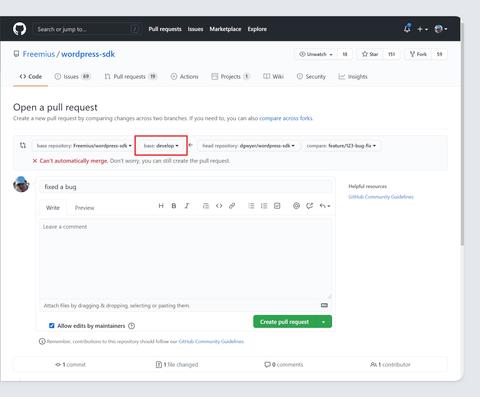
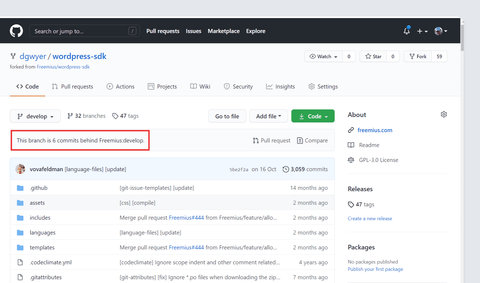
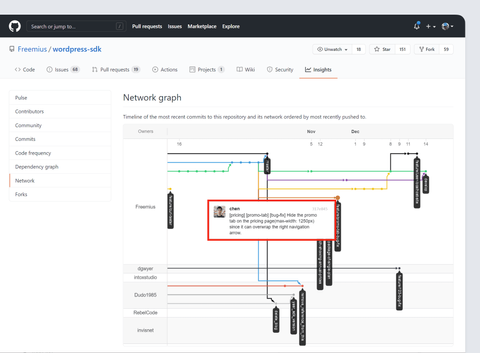
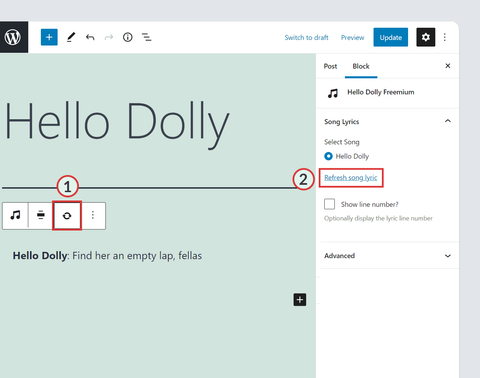
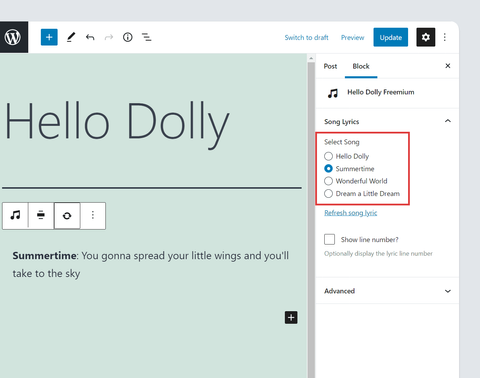
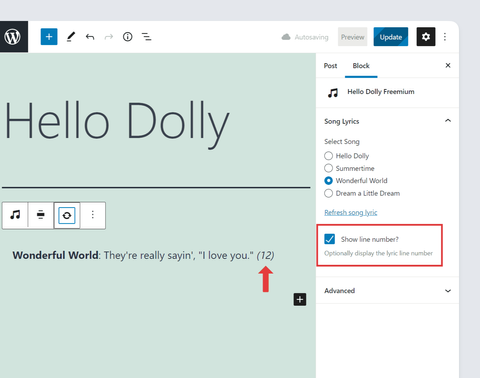
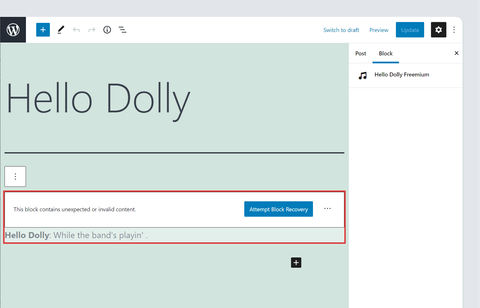
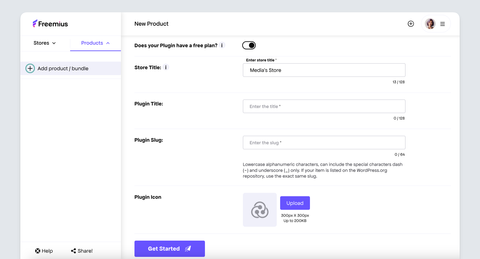
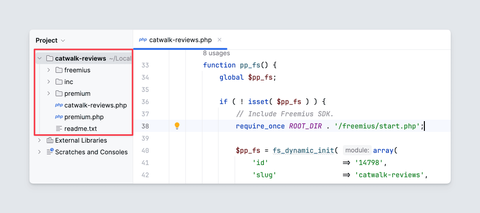
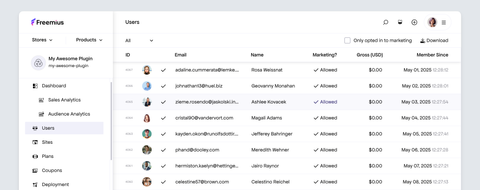
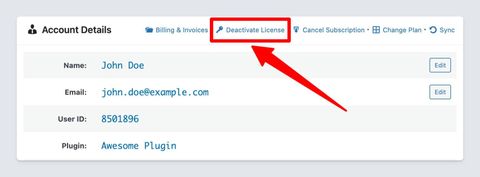
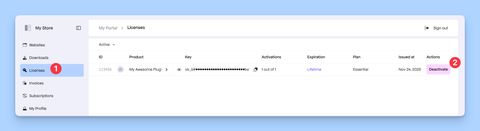
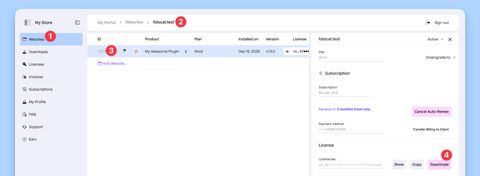
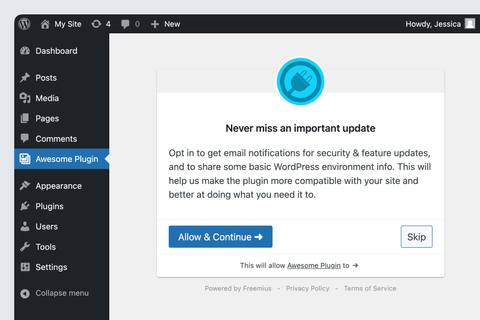
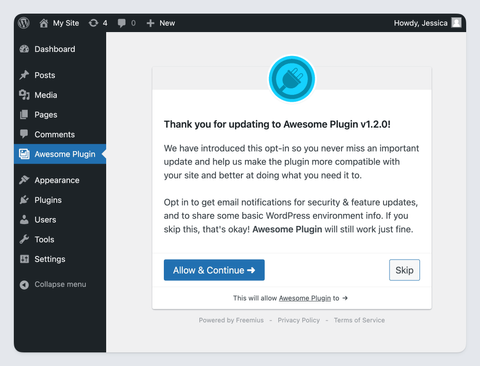
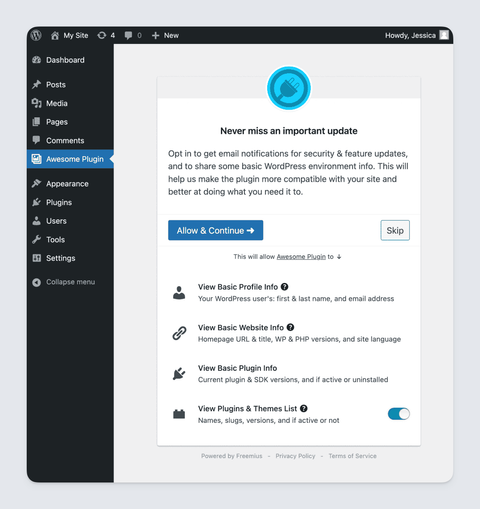
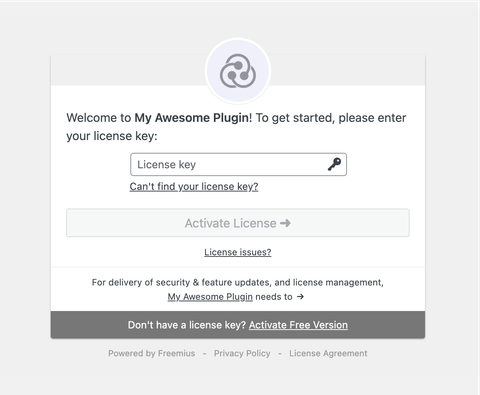
Awesome Plugin
'; } my_fs()->add_filter( 'connect/before', 'add_custom_header' ); ``` ### `connect/after`[​](#connectafter "Direct link to connectafter") For adding text or visual elements after/below the opt-in container. ### `connect/before_message`[​](#connectbefore_message "Direct link to connectbefore_message") For adding text or visual elements before/above the opt-in message header (within the opt-in container). ### `connect/after_message`[​](#connectafter_message "Direct link to connectafter_message") For adding text or visual elements after/below the opt-in message (within the opt-in container). ### `connect/before_actions`[​](#connectbefore_actions "Direct link to connectbefore_actions") For adding text or visual elements before/above the opt-in action buttons. ### `connect/after_actions`[​](#connectafter_actions "Direct link to connectafter_actions") For adding text or visual elements after/below the opt-in action buttons. ## Additional Customization[​](#additional-customization "Direct link to Additional Customization") If the customization options above are still insufficient for your goals, you can leverage the `templates/connect.php` filter, which enables you to filter the HTML of the opt-in screen. If you want to take the customization further, the opt-in template is located under `/freemius/templates/connect.php`. The WordPress SDK is an open-source project, so you are free to modify the file as you wish. However, we strongly recommend you refrain from doing that. Here are some good reasons as to why: 1. The current opt-in UI and behavior was officially approved and is compliant with the WordPress.org guidelines. If you change it, the compliance with the guidelines is under your responsibility. 2. We ran many experiments to optimize the opt-in CTR (Click Through Rate) until we achieved this enhanced variation. There's a good reason why it looks like an OAuth screen - most users have already connected their Facebook or Google to 3rd party services before and are familiar with this UI concept. 3. Freemius is running on hundreds of plugins and themes. Therefore, there's a good chance that a user that installs your product had come across our opt-in before and recognizes the Freemius icon. It's easier to trust a UI people are already familiar with. 4. You'll need to make those modifications again whenever you want to update to a new version of the SDK. --- # Safe Mode & Clone Resolution Upon license key activation, Freemius assigns a unique ID and pair of public/secret keys tied to the website's URL. These are used for securely extending the license expiration date after subscription renewals, checking if there are new plugin/theme updates, and allowing customers to execute other account-related remote (or local) actions that get synced back to a website (or Freemius). ## What is a website clone?[​](#what-is-a-website-clone "Direct link to What is a website clone?") A clone is a website (or a subsite in a multisite network) assigned with an ID and pair of keys identical to another website (or subsite). ## How's a clone created?[​](#hows-a-clone-created "Direct link to How's a clone created?") There are several cases in which a site's URL could change: * The site is updated to use a newly purchased domain name. * A clone of a site from production to staging (or the other way around). * Creation of a subsite by replicating an existing template subsite in a multisite network. * WaaS multisite network environment where users can spin a website that is created by duplicating a template subsite. * A network of websites/brands that are intentionally identical and automatically synced. ## What is the problem with clone websites?[​](#what-is-the-problem-with-clone-websites "Direct link to What is the problem with clone websites?") If two websites are assigned with the same ID and keys, actions on one website will impact the other, potentially triggering unexpected behaviors. For example, when a plugin is deactivated, the Freemius SDK automatically notifies the licensing engine to detach the license from the website to free up the license activations counter for reuse on another website. However, if there's a clone, the license deactivation would propagate to the clone, which will deactivate the license, and therefore, automatic updates will stop working. ## Clone Website Resolution[​](#clone-website-resolution "Direct link to Clone Website Resolution") When a plugin/theme uses SDK v.2.5.0 or higher, it has a built-in clone identification and resolution mechanism. ### Clone Identification[​](#clone-identification "Direct link to Clone Identification") The identification mechanism simply checks for unexpected mismatches between the URL of the website and the URL that is currently linked to the license on our backend (the "source of truth"). ### Automatic Clone Resolution[​](#automatic-clone-resolution "Direct link to Automatic Clone Resolution") Once a clone is identified, the mechanism will attempt to resolve it automatically based on different heuristics and the status of the buyer's account to reduce interruptions to the minimum. For example, we know that it's common to have a template subsite on multisite networks for spinning new subsites using replication. Therefore, when a subsite is a clone of another subsite in the same multisite network, and the license's quota wasn't fully utilized, the clone subsite would be resolved automatically as a new website. It will be issued with a new ID and pair of keys, and the license will be auto-activated in the background. This automatic resolution comes with 3 retries to overcome temporary connectivity issues and other unexpected server problems. ### Programmatic Clone Resolution[​](#programmatic-clone-resolution "Direct link to Programmatic Clone Resolution") If cloning websites is part of your workflow (e.g., using a template for client sites), you can leverage the `FS__RESOLVE_CLONE_AS` flag to programmatically guide the clone resolution mechanism on how to resolve clones in your environment. Simply add the flag with one of the following optional values to your template site’s `wp-config.php` (or `functions.php`): ``` // A temporary duplication for the purpose of testing, staging, or development. define( 'FS__RESOLVE_CLONE_AS', 'temporary_duplicate' ); // The new site is replacing the old one – this will migrate the license activation to the new site to resolve the clone. define( 'FS__RESOLVE_CLONE_AS', 'new_home' ); // The cloned site is a new and different one – this will auto activate the license on the new site to resolve the clone. define( 'FS__RESOLVE_CLONE_AS', 'long_term_duplicate' ); ``` ### Safe Mode[​](#safe-mode "Direct link to Safe Mode") If an automatic resolution isn't possible, the plugin/theme gets into a *Safe Mode*. During *Safe Mode*, data syncing, as well as some account actions, will be temporarily disabled. However, automatic updates will continue working until the actual expiration date of the license or the one stored on the website, whichever comes first. In addition, an admin notice for manual clone resolution will appear in the WP Admin: ### Manual Clone Resolution[​](#manual-clone-resolution "Direct link to Manual Clone Resolution") ![](/help/assets/ideal-img/freemius-sdk-manual-clone-resolution-notice.b36c559.480.png) The clone resolution notice is pretty straightforward and empowers users to choose how to resolve the clone issue. #### Duplicate Website[​](#duplicate-website "Direct link to Duplicate Website") If the website is a duplicate for testing, staging, or development, clicking the "Duplicate Website" will resolve the situation. The plugin/theme will remain fully functional, and automatic updates will be served as usual for 2 weeks (or until license expiration, whichever comes first). In addition, the following dismissible notice will appear to remind about the 2-week period: ![](/help/assets/ideal-img/freemius-sdk-temporary-duplicate-resolution-notice.e081cc7.480.png) Suppose the duplicate testing/staging/development site is required for an extended period. In that case, the notice offers an option to activate a license to keep the paid functionality and automatic updates for more than 2 weeks. If the duplicate website remains active for a long period, the manual resolution notice will reappear after 2 weeks with one difference. Instead of the “Duplicate Website” button a “Long-Term Duplicate” button will appear. ![](/help/assets/ideal-img/freemius-sdk-manual-clone-resolution-notice-long-term.982c552.480.png) Clicking that option will activate a license and enable keeping the paid functionality and automatic updates for as long as the license is valid. #### License Migration[​](#license-migration "Direct link to License Migration") If the new site URL is replacing an old site’s URL, clicking the “Migrate License” (or “Migrate”) will migrate the site’s data, including the license, to the new website. And place the old site, if it still exists, into a safe mode. The most common case for this is taking a site from development (or staging) to production. Cannot Migrate License? If clicking the button triggers a page reload but the clone resolution notice still appears, the migration failed. We are improving the migration process so the WordPress SDK can catch the error and notify users. This can happen if the license cannot be migrated to the new URL, for example, due to [license security settings](https://freemius.com/help/help/documentation/users-account-management/license-security/.md#url-whitelisting-aka-license-firewall) or insufficient [license quota](https://freemius.com/help/help/documentation/wordpress/license-utilization/.md) when migrating from staging to production. #### New Website[​](#new-website "Direct link to New Website") If the new site is separate & standalone, clicking the "Activate License" (or "New Website") will create a new site ID & pair of keys and will activate the license. The most common case for this would be to create a copy of a site from an existing template. #### Taking No Action[​](#taking-no-action "Direct link to Taking No Action") If no action is taken, the plugin/theme will remain fully functional, and automatic updates will be served as usual, for a grace period of 2 weeks (or until license expiration, whichever comes first). --- # Handling Licensing It’s quite easy to be able to have your product support a licensing mechanism with Freemius. All you need to do is add some logic that will help Freemius understand which parts (code blocks) of your product belong to which of your payment plans. Once you have that logic in place Freemius will automatically use it to determine which of your product’s capabilities should be included or excluded on each plan. ## Plan vs. Code Type[​](#plan-vs-code-type "Direct link to Plan vs. Code Type") Before jumping into the code, it's important to understand the difference between a **Plan** and a **Code Type**. ### Plan[​](#plan "Direct link to Plan") Every product on Freemius can have as many plans as you wish. A plan is a set of features or services. Multi-site license offers not considered as additional plans. ### Code Type[​](#code-type "Direct link to Code Type") Every plugin, theme, or add-on on Freemius can have two code types at most: *Free Version* and *Premium Version*. The *Free Version* is the product's code version stripped from ANY of the product's paid features. On the other hand, the *Premium Version* is the product's code version including ALL of the product's code. It doesn't necessarily mean that all the code will be available for use, it just means that all the code included in the *Premium Version*. ## License Related Methods[​](#license-related-methods "Direct link to License Related Methods") `can_use_premium_code()`[](#can_use_premium_code "Direct link to can_use_premium_code") Check if a user is on a trial or has an activated license that enables premium features. `is_free_plan()`[](#is_free_plan "Direct link to is_free_plan") Check if the user is on the free plan of the product. `is_plan($plan, $exact = false)`[](#is_plan "Direct link to is_plan") Check if the user is on a specified plan. If the user is on a trial of that plan the result will be `false`. `is_trial()`[](#is_trial "Direct link to is_trial") Check if the user is on a trial. `is_trial_plan($plan, $exact = false)`[](#is_trial_plan "Direct link to is_trial_plan") Check if the user is on a specific trial plan. `is_plan_or_trial($plan, $exact = false)`[](#is_plan_or_trial "Direct link to is_plan_or_trial") Check if the user is on a specific plan or on that plan's trial. `is_paying()`[](#is_paying "Direct link to is_paying") Check if the user owns an activated and valid (paid) license. `is_not_paying()`[](#is_not_paying "Direct link to is_not_paying") Check if the user has an activated non-expired license that was purchased. Manually issued licenses will return `false`. `is_paying_or_trial()`[](#is_paying_or_trial "Direct link to is_paying_or_trial") Check if the user is paying or on a trial. `is_premium()`[](#is_premium "Direct link to is_premium") Check if user is running the product's *Premium Version*. `is_trial_utilized()`[](#is_trial_utilized "Direct link to is_trial_utilized") Check if the trial has already been used. `is_payments_sandbox()`[](#is_payments_sandbox "Direct link to is_payments_sandbox") Check if user is running payments in sandbox mode. The SDK also comes with several handy license-related methods that in addition to performing their logic, all the logic that will be included within their `if` scope will be automatically stripped from the *Free Version* after the deployment process (by the Freemius' PHP preprocessor). `is__premium_only()`[](#is__premium_only "Direct link to is__premium_only") Check if user is only running the product's *Premium Version* code. `is_paying__premium_only()`[](#is_paying__premium_only "Direct link to is_paying__premium_only") Check if user is on a trial or on the free plan (not paying). `can_use_premium_code__premium_only()`[](#can_use_premium_code__premium_only "Direct link to can_use_premium_code__premium_only") Check if a user is on a trial or has an activated license that enables premium features. `is_plan__premium_only($plan, $exact = false)`[](#is_plan__premium_only "Direct link to is_plan__premium_only") Check if the user is on a specified plan. If the user is on a trial of that plan the result will be `false`. `is_plan_or_trial__premium_only($plan, $exact = false)`[](#is_plan_or_trial__premium_only "Direct link to is_plan_or_trial__premium_only") Check if the user is on a specific plan or on that plan's trial. `is_paying_or_trial__premium_only()`[](#is_paying_or_trial__premium_only "Direct link to is_paying_or_trial__premium_only") Check if the user is paying or on a trial. ### Recommended Methods[​](#recommended-methods "Direct link to Recommended Methods") If your product only has a single paid plan, the primary methods that you'll be using are: * `can_use_premium_code()` * `is__premium_only()` * `can_use_premium_code__premium_only()` If your product has multiple paid plans, the recommended methods to start with are: * `is_plan_or_trial()` * `is__premium_only()` * `is_plan_or_trial__premium_only()` ### Examples[​](#examples "Direct link to Examples") Here are some concrete examples to help clarify this better: warning Note that in the following examples the product's shortcode is referred to as `my_fs` and the paid plan’s name is **professional**. It will obviously be different for you when you come to customize it. To check if a website is eligible to use any of the premium defined logic (if the user is either currently in a trial period or simply owns a valid license), simply use: ``` // This IF block will be auto removed from the Free version. if ( my_fs()->is__premium_only() ) { // This IF will be executed only if the user in a trial mode or have a valid license. if ( my_fs()->can_use_premium_code() ) { // ... premium only logic ... } } ``` Alternatively, you can use the following code which is equivalent: ``` // This IF block will be auto removed from the Free Version and will only get executed if the user on a trial or have a valid license. if ( my_fs()->can_use_premium_code__premium_only() ) { // ... premium only logic ... } ``` Here’s how you can add customized **marketing content** to encourage your users to upgrade from your **free** to your your **paid** version: ``` if ( my_fs()->is_not_paying() ) { echo '
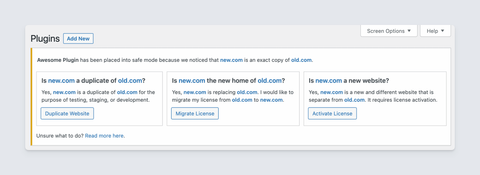
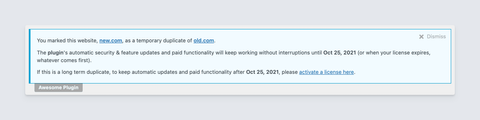
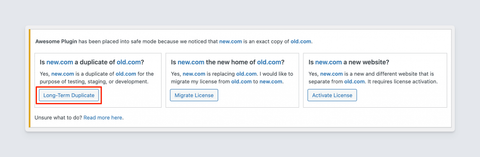
' . esc_html__('Awesome Professional Features', 'my-text-domain') . '

'; echo '' . esc_html__('Upgrade Now!', 'my-text-domain') . ''; echo '
'; } ``` Here’s an easy way for you to add logic which will only be available in your premium plugin version: ``` // This "if" block will be auto removed from the Free version. if ( my_fs()->is__premium_only() ) { // ... premium only logic ... } ``` To add a function which will only be available in your premium plugin version, simply add ***premium\_only*** as a suffix to the function’s name. Make sure that all lines that call that method either directly, or by using hooks, are also wrapped in the **premium only** logic: ``` class My_Plugin { function init() { ... // This "if" block will be auto removed from the free version. if ( my_fs()->is__premium_only() ) { // Init premium version. $this->admin_init__premium_only(); add_action( 'admin_init', array( &$this, 'admin_init_hook__premium_only' ); } ... } // This method will be only included in the premium version. function admin_init__premium_only() { ... } // This method will be only included in the premium version. function admin_init_hook__premium_only() { ... } } ``` Here’s how you can add logic which will only be executed for customers on one of your paid plans. Simply switch the string `professional` with whatever name you gave the plan you wish to apply this logic to: ``` if ( my_fs()->is_plan('professional', true ) ) { // .. logic related to professional plan only ... } ``` Add logic which will only be executed for customers on a specific plan you choose, OR any **higher tier**. Simply switch the string `professional` with whatever name you gave your plan: ``` if ( my_fs()->is_plan('professional') ) { // ... logic related to professional plan and higher plans ... } ``` Add logic which will only be executed for customers on a specific plan you choose, AND any **higher tier**. Simply switch the string `professional` with whatever name you gave your plan: ``` // This "if" block will be auto removed from the Free version. if ( my_fs()->is_plan('professional') ) { // ... logic related to professional plan and higher plans ... } ``` Add logic which will only be executed for customers on a specific plan you choose, AND any **higher tier**. Simply switch the string `professional` with whatever name you gave your plan: ``` // This "if" block will be auto removed from the Free version. if ( my_fs()->is_plan__premium_only('professional') ) { // ... logic related to professional plan and higher plans ... } ``` Add logic only for users in a **trial period:** ``` if ( my_fs()->is_trial() ) { // ... logic for users in trial ... } ``` Add logic for any specified paid plan. Simply switch the word `professional` with whatever name you gave your plan: ``` // This "if" block will be auto removed from the Free version. if ( my_fs()->is__premium_only() ) { if ( my_fs()->is_plan( 'professional', true ) ) { // ... logic related to professional plan only ... } else if ( my_fs()->is_plan( 'business' ) ) { // ... logic related to Business plan and higher plans ... } } ``` ## Excluding files and folders from the free plugin version:[​](#excluding-files-and-folders-from-the-free-plugin-version "Direct link to Excluding files and folders from the free plugin version:") There are two ways to exclude files from your **free version**: 1. Add ***premium\_only*** just before the file extension. For example: **functions\_\_premium\_only.php** will be only included in the premium plugin version. *This works for all type of files, not only PHP.* 2. Add `@fs_premium_only`, a special meta tag, to the plugin's main PHP file header. Example: ``` /** * Plugin Name: My Very Awesome Plugin * Plugin URI: http://my-awesome-plugin.com * Description: Create and manage Awesomeness right in WordPress. * Version: 1.0.0 * Author: Awesomattic * Author URI: http://my-awesome-plugin.com/me/ * License: GPLv2 * Text Domain: myplugin * Domain Path: /langs * * @fs_premium_only /lib/functions.php, /premium-files/ */ if ( ! defined( 'ABSPATH' ) ) { exit; } // ... my code ... ``` The file `/lib/functions.php` and the directory `/premium-files/` will be removed from the free plugin version. ## WordPress.org Compliance[​](#wordpressorg-compliance "Direct link to WordPress.org Compliance") FInally, regarding **WordPress.org Compliance:** Based on [WordPress.org Guidelines](https://wordpress.org/plugins/about/guidelines/) you are not allowed to submit a plugin that has premium code in it: > "All code hosted by WordPress.org servers must be free and fully-functional. If you want to sell advanced features for a plugin (such as a "pro" version), then you must sell and serve that code from your own site, we will not host it on our servers." Therefore, if you want to deploy your free plugin's version to WordPress.org, make sure you wrap all your premium code with an `if` statement like so: ``` if ( my_fs()->is__premium_only() ) { // ... my premium only logic ... } ``` or use the other methods provided to exclude premium features & files from the free version. ## Handling Licensing in JavaScript[​](#handling-licensing-in-javascript "Direct link to Handling Licensing in JavaScript") If you need to control licensing in your JavaScript files, you can easily do that by applying the following approach: ``` 'tabs', ``` warning **Important:** This currently has to be done manually as it isn't automatically added when the SDK integration snippet is generated. Don't forget to re-add this whenever your SDK integration code snippet changes. This displays Freemius pages as tabs instead of menu items. ![](/help/assets/ideal-img/freemius-sdk-tabs-enabled-default-look.4dd9f13.480.png) By default, your plugin settings won't be displayed inside a dedicated tab. This needs to be added manually. ## Adding a Custom Tab[​](#adding-a-custom-tab "Direct link to Adding a Custom Tab") To blend your plugin settings page in with the Freemius tabs you can add a custom tab with a little custom HTML. warning **Important:** For the tabs to work correctly you need to make sure your plugin settings are contained in a `div.wrap` element, which is considered [standard practice](https://developer.wordpress.org/plugins/settings/custom-settings-page/). Modify your existing plugin settings markup to include the following HTML. Make sure you replace the placeholder link with a full link to your plugin settings page. ``` ``` ![](/help/assets/ideal-img/freemius-sdk-tabs-enabled-default-look-settings.37f622d.480.png) As you can see Freemius automatically adds styles needed to blend in with core Freemius tabs (as long as you include the CSS classes in the snippet above). You might notice that when you click on a Freemius tab (e.g. **Contact Us**) a submenu item is displayed under the plugin settings menu to indicate which tab is currently visible. No submenu is displayed for the main plugin settings page. ![](/help/assets/ideal-img/freemius-sdk-tabs-enabled-default-look-contact-us.f0acd99.480.png) If you need to fit the tabs with your own styling you do have some flexibility. The minimum markup needed to integrate with Freemius tabs is: ``` ``` Depending on the size and complexity of your plugin settings page you might occasionally see a slight 'blip' when the tabs are rendered. This can be due to the custom tab being displayed immediately, whereas the Freemius tabs are added via JavaScript a few milliseconds later. This is not normally an issue but if it's noticeable then you can try hiding the tabs initially with CSS, and displaying via JavaScript once the Freemius tabs have finished loading. CSS (add as inline style or via style sheet) ``` h2.nav-tab-wrapper { display: none; } ``` JavaScript (enqueue in footer) ``` jQuery(document).ready(function ($) { document.querySelector('h2.nav-tab-wrapper').style.display = 'block'; }); ``` ## Adding a Custom Tab Via JavaScript[​](#adding-a-custom-tab-via-javascript "Direct link to Adding a Custom Tab Via JavaScript") It's also possible to add a custom tab purely via JavaScript instead of HTML which has some inherent advantages. Namely, it avoids the 'blip' issue completely when adding a custom tab with HTML as all tabs are rendered to the DOM *before* they're displayed. And almost no alterations are necessary to your existing plugin settings page markup. The JavaScript code should be enqueued to run in the page footer (to ensure it runs after the Freemius tabs JavaScript), and *only* on the plugin settings page and Freemius pages (Account, Contact Us, Upgrade). To help whitelist admin pages you can use the [Freemius Menu Slugs](https://github.com/Freemius/wordpress-menu-slugs-plugin) plugin to find the menu slugs. Here's an example snippet to add a custom tab via JavaScript: ``` jQuery(document).ready(function ($) { // add a 'Settings' tab via JS const navTabWrapper = $('.nav-tab-wrapper'); const currentTabs = $('.nav-tab-wrapper a'); let activeTab = ''; if (!currentTabs.hasClass('nav-tab-active')) { activeTab = ' nav-tab-active'; } navTabWrapper.prepend( 'Settings' ); }); ``` Again, make sure you replace the placeholder link with a full link to your plugin settings page. It's also recommended that you add the `fs-section fs-full-size-wrapper` classes to the `div.wrap` element to your plugin settings page to help blend in with Freemius tabs. ## Clearing the Freemius Cache[​](#clearing-the-freemius-cache "Direct link to Clearing the Freemius Cache") When editing custom tab code you might occasionally come across your tab changes not being updated as expected for core Freemius tab pages (Account, Contact Us, Upgrade, etc.). This is usually due to Freemius caching the page markup. To solve this simply clear the cache via the Freemius [debugging admin page](https://freemius.com/help/help/documentation/wordpress-sdk/debugging/.md). ![](/help/assets/ideal-img/freemius-sdk-development-mode-wp-admin-menu-item.81b9077.480.png) --- # Testing your product before releasing to production After integrating the Freemius SDK into your WordPress product, you should test it to ensure everything works properly before releasing a version to production. Here is what Freemius recommends for testing the functionality and integration: ## Setting Freemius into Development Mode[​](#setting-freemius-into-development-mode "Direct link to Setting Freemius into Development Mode") During development and testing, add the following constant to your testing environment's `wp-config.php` file to display the **Freemius Debug** menu item. ``` /* Set Freemius into development mode */ define( 'WP_FS__DEV_MODE', true ); ``` tip These definitions are added under the **WordPress debugging mode** section before the *WordPress Engine* starts, i.e. before `/* That is all, stop editing! Happy blogging. */` comment. When you refresh the WP Admin, you should notice a new top-level menu item. If you click it, you will be able to see all the Freemius data associated with your local environment. ![](/help/assets/ideal-img/freemius-sdk-development-mode-wp-admin-menu-item.81b9077.480.png) Important Warning Activating development mode also sets the SDK for debugging, which, among other things, will turn the SDK's logging system on: * Logs are stored in the DB, so activating logging on a highly-active production site can quickly fill up the DB storage. * Logs are also printed out to the console log, so if a highly-active site utilizes a filesystem caching plugin while running in debug mode, the site’s disk may fill up quickly. Therefore, do not forget to turn development mode off after completing troubleshooting. ## Testing User Opt-in[​](#testing-user-opt-in "Direct link to Testing User Opt-in") The [opt-in screen](https://freemius.com/help/help/documentation/wordpress-sdk/opt-in-message/.md) appears only during product activation. ![](/help/assets/ideal-img/freemius-wordpress-plugin-opt-in.0c89781.480.png) After opting in or skipping the process, the screen will not appear again. ### Reset Opt-in after Opting in[​](#reset-opt-in-after-opting-in "Direct link to Reset Opt-in after Opting in") To display the opt-in screen after opting in initially, you will need to [delete the installation from Freemius](https://freemius.com/help/help/documentation/wordpress-sdk/wp-admin-account/.md#deactivate-a-license-from-the-website) under the **Account** submenu item. ![](/help/assets/ideal-img/freemius-sdk-account-submenu-item.3470511.480.png) ### Reset Opt-in after Skipping[​](#reset-opt-in-after-skipping "Direct link to Reset Opt-in after Skipping") To display the opt-in screen after skipping it initially, follow these steps: 1. Enable the [Freemius debugging](https://freemius.com/help/help/documentation/wordpress-sdk/debugging/.md) page. 2. Then clear Freemius data in the admin dashboard by selecting the **Delete All Accounts** button. ![](/help/assets/ideal-img/freemius-sdk-development-mode-wp-admin-menu-item.81b9077.480.png) ## Skipping Email Activation[​](#skipping-email-activation "Direct link to Skipping Email Activation") For security and data integrity reasons, if an already opted-in user attempts to opt in to Freemius again, you will first receive an activation email to complete the process. This helps prevent users from hijacking other user accounts. However, this step might slow down the development and testing process. To skip it, add the following constant to your testing environment's `wp-config.php` file in addition to the previously added constants: ``` /* Skip email activation when a user with the same email already opted-in */ define( 'WP_FS__SKIP_EMAIL_ACTIVATION', true ); ``` ## Sandbox Payments[​](#sandbox-payments "Direct link to Sandbox Payments") The Freemius WordPress SDK embeds a full checkout system that allows you to monetize your products via the **Upgrade** or pricing page. This checkout process can be fully tested in a sandbox environment before going live. To set Freemius Checkout to sandbox payment mode, make sure your `wp-config.php` file contains the following constant with your secret key: ``` /* Set Freemius into development mode */ define( 'WP_FS__DEV_MODE', true ); /* * Set your plugin / theme Freemius secret key for super powers! * 1. Replace `my-slug` with your product's lowercase slug. * 2. Replace `sk_mySecretKey` with your product's secret key. */ define( 'WP_FS__my-slug_SECRET_KEY', 'sk_mySecretKey' ); ``` With this setup, choose the desired plan from the pricing page. When the Checkout appears, complete the payment using these [credit cards](https://freemius.com/help/help/documentation/checkout/testing/.md#testing-credit-cards) and [PayPal](https://freemius.com/help/help/documentation/checkout/testing/.md#testing-paypal-accounts) accounts in sandbox mode. --- # Text & Strings Customization All the SDK's text and strings are customizable. Every string has its own unique key which you can use to override it. You can use the `fs_override_i18n()` function as following: ``` fs_override_i18n( array( 'opt-in-connect' => __( "Yes - I'm in!", '{your-text_domain}' ), 'skip' => __( 'Not today', '{your-text_domain}' ), ), '{your_slug}' ); ``` Or the `override_i18n()` public method of the `Freemius` class: ``` my_fs()->override_i18n( array( 'opt-in-connect' => __( "Yes - I'm in!", '{your-text_domain}' ), 'skip' => __( 'Not today', '{your-text_domain}' ), ) ); ``` --- # WP Admin Account By utilizing the [WordPress SDK](https://freemius.com/help/help/documentation/wordpress-sdk/.md) an account section will be automatically added to your plugin/theme settings right within the WP Admin dashboard. ![](/help/assets/ideal-img/freemius-sdk-account-submenu-item.c57691c.480.png) tip If your **Account** menu item isn't available, you can access it via `/wp-admin/admin.php?page=my-slug-account`. ## Managing your account[​](#managing-your-account "Direct link to Managing your account") The in-dashboard Account page allows users to manage their profile, license, subscription, and billing, right within the comfort of the WP Admin dashboard. ![](/help/assets/ideal-img/freemius-sdk-account-debug-mode-scaled.a21c6ea.480.jpg) note If the license is white-labeled, sensitive information like billing details and license key will be hidden, and user actions will be restricted. A license holder can unlock all options by clicking the **Start Debug** link and entering the license key. ### Deactivate a license from the website[​](#deactivate-a-license-from-the-website "Direct link to Deactivate a license from the website") To deactivate a license from the website, an admin can click the **Deactivate License** link. ![](/help/assets/ideal-img/freemius-sdk-deactivate-account.5bdf4ce.480.jpg) Users can go further by clicking the **Disconnect** link to disconnect the site completely from Freemius and remove it from their User Dashboard. ![](/help/assets/ideal-img/freemius-sdk-disconnect-account.eb1aaf2.480.png) ![](/help/assets/ideal-img/freemius-sdk-account-debug-mode-confirm-deactivation.d94a407.480.png) ## White Label Mode[​](#white-label-mode "Direct link to White Label Mode") Freelancers and agencies often use multi-site licenses when working on client sites, where revealing sensitive account information or allowing client access to certain account actions may be undesirable. To address this, Freemius offers a built-in license white-labeling feature. This feature can be easily activated by users via the WP Admin dashboard and User Dashboard, or by you, the product owner, through the Developer Dashboard. ### How to activate white-label mode for a license?[​](#how-to-activate-white-label-mode-for-a-license "Direct link to How to activate white-label mode for a license?") #### White-label mode via WP Admin Dashboard[​](#white-label-mode-via-wp-admin-dashboard "Direct link to White-label mode via WP Admin Dashboard") Upon license activation, an admin notice will appear, allowing users to enable white-label mode directly from the WP Admin dashboard before handing over a site to their clients. ![](/help/assets/ideal-img/freemius-sdk-wp-admin-notification-click-here-to-white-label-this-sites-account-settings-area.51a125b.480.png) #### White-label mode via User Dashboard[​](#white-label-mode-via-user-dashboard "Direct link to White-label mode via User Dashboard") Your customers can also activate [white-label mode through the User Dashboard](https://freemius.com/help/help/documentation/users-account-management/license-security/.md#white-label-mode) by: * Logging into their accounts * Selecting **Licenses** from the menu * Choosing the relevant license to open its editing panel: ![](/help/assets/ideal-img/url-whitelisting.750c1bc.480.png) * Checking the white-labeling box to hide confidential account and license information: ![](/help/assets/ideal-img/license-security-and-url-whitelisting.1d93d0e.480.png) #### White-label mode via Developer Dashboard[​](#white-label-mode-via-developer-dashboard "Direct link to White-label mode via Developer Dashboard") As a product owner, you can also enable white-label mode for a customer’s license from the Developer Dashboard: * Navigate to the **Licenses** section. * Locate the desired license. * Toggle the white-labeling switch for that license: ![](/help/assets/ideal-img/freemius-developer-dashboard-license-white-labeling.f2af771.480.png) ### What exactly is hidden in white-label mode?[​](#what-exactly-is-hidden-in-white-label-mode "Direct link to What exactly is hidden in white-label mode?") When a license is set to white-label mode, the following information is hidden: * License owner information * Billing details and invoices * License key * Pricing page * Add-on prices (if you sell add-ons) * Contact Us page Additionally, these actions will be unavailable on the WP Admin account page in white-label mode: * Subscription cancelation * Plan changes * License owner name and email edits --- # Setup for WordPress Integrating Freemius into your WordPress plugin or theme is fast and easy. This section will walk you through everything you need to get started: setting up products and plans, integrating your code with the Freemius WP SDK, and configuring key features like the opt-in prompt, licensing, automatic updates, and deployments. You’ll also learn how to sell bundles, memberships, add-ons, and extensions. On top of that, we’ll cover in-dashboard payments, free trials, and creating a smooth upgrade path, so your users can buy without friction. If you’re a WordPress developer aiming to turn your plugin or theme into a reliable revenue stream, this is the place to start. --- # Deployment Process With the integration process completed, you're ready to [Deploy](https://freemius.com/help/help/documentation/release-management/deployment/.md) your plugin or theme to the Freemius Developer Dashboard. First, compress (Zip) the root folder of your product that will be uploaded to the Freemius Developer Dashboard. Begin the deployment process by: 1. Going to ***Deployment*** page 2. Click the ***Add New Version*** button. 3. Then upload the product ZIP file. 4. The product code will then be parsed and checked before the final free/premium versions of the product are generated and compressed into production ready Zip files. ![](/help/assets/ideal-img/freemius-dashboard-deployment.893f2f9.480.png) For products that have a free plan defined, Freemius generates both free and premium versions of your WordPress product directly from the Zip you upload. Code wrapped in premium-only conditional logic (in the previous step) will only be included in the premium version. It will be stripped out entirely from the free version. The free version can be downloaded manually and uploaded to WordPress.org via SVN. The premium version, along with all future updates, will be served directly from the Developer Dashboard to paying customers with an active license (they'll see update notifications via the WP Admin). Once you've integrated your WordPress product with Freemius and deployed it, you're ready to start selling! --- # Offering Free Trials The Freemius WordPress SDK allows you to seamlessly offer free trials for your freemium WordPress plugins and themes. This enables potential customers to experience your premium features before making a purchase. ![](/help/assets/ideal-img/freemius-wordpress-sdk-trial-pricing-page.271f7da.480.png) The image above shows how the built-in pricing page looks when a trial is available for a product plan. ## Offering Free Trials[​](#offering-free-trials "Direct link to Offering Free Trials") ![](/help/assets/ideal-img/activating-trial-option-freemius-plan.170a44b.480.png) If you haven't already, please follow our [documentation](https://freemius.com/help/help/documentation/selling-with-freemius/set-up-trials/.md) to activate and configure trials from your Freemius Developer Dashboard. ## Integrating with the Freemius WordPress SDK[​](#integrating-with-the-freemius-wordpress-sdk "Direct link to Integrating with the Freemius WordPress SDK") If you haven't yet integrated the Freemius WordPress SDK into your product, get started [here](https://freemius.com/help/help/documentation/wordpress-sdk/integrating-freemius-sdk/.md). If you are using the [licensing methods](https://freemius.com/help/help/documentation/wordpress-sdk/software-licensing/.md) `is_plan()` or `is_plan__premium_only()` in your integration with the WP SDK, then transition to the `is_plan_or_trial()` and `is_plan_or_trial__premium_only()` methods accordingly. Finally, you need to update the SDK integration snippet in your product to enable trial support. This is done by adding a `trial` array to the integration snippet, as follows: ``` 'trial' => array( 'days' => 14, 'is_require_payment' => false, ), ``` The exact code will differ based on your product's configuration. The best way to get the correct code snippet is to copy it from the [Freemius Developer Dashboard](https://freemius.com/help/help/documentation/wordpress/integration-with-sdk/.md#insert-the-auto-generated-sdk-integration-snippet). Now the SDK will automatically handle trial related logic and UI. ### Trial Admin Notice[​](#trial-admin-notice "Direct link to Trial Admin Notice") For a freemium product integrated with the Freemius WordPress SDK, a dismissible admin notice with a trial offer will automatically appear in the WP admin dashboard **24 hours after installing the free product (plugin/theme) version**. ![](/help/assets/ideal-img/free-trial-alert.7b208b9.480.png) In addition to the admin notice, the Upgrade submenu item changes its label to **Start Trial**, and its color matches the blue of the promotional admin notice: ![](/help/assets/ideal-img/start-trial-submenu-item.c39e4bb.480.png) Clicking the **Start Trial** button redirects the user to the product's in-dashboard pricing page with the option to start a trial for any of the plans. Once the user selects a plan and starts the trial, the premium version becomes securely accessible through a download link that appears in an admin notice and in an automated customer email. ![](/help/assets/ideal-img/trial-activation-download-link.836f0cd.480.png) ### Product Admin Menu Item[​](#product-admin-menu-item "Direct link to Product Admin Menu Item") If you have a top-level menu item, the SDK will automatically add a counter to attract additional attention: ![](/help/assets/ideal-img/trial-notification-on-top-level-menu-item.429da28.480.png) ### Custom Trial Upgrade Links[​](#custom-trial-upgrade-links "Direct link to Custom Trial Upgrade Links") Since the Freemius WordPress SDK automatically handles the trial offer display and logic, you can easily add links to the trial page in your free product version. You might want to add such links in various locations, such as under the plugins menu or in your plugin's settings page. ![](/help/assets/ideal-img/freemius-wordpress-sdk-trial-usage-link.15df4fd.480.png) The SDK includes a built-in method to provide the trial upgrade link, which you can wrap in your HTML anchor tags. ``` // Make sure to change my_fs() to your Freemius instance name. my_fs()->get_trial_url(); ``` You need to replace `my_fs()` with your actual Freemius instance name. ## Customizing the Free Trial Notice[​](#customizing-the-free-trial-notice "Direct link to Customizing the Free Trial Notice") The free trial promotional offer includes default text and descriptions. ![](/help/assets/ideal-img/free-trial-alert.7b208b9.480.png) These strings are customizable using the following filters: ``` override_i18n( array( 'hey' => 'Hey', 'trial-x-promotion-message' => 'Thank you so much for using %s!', 'already-opted-in-to-product-usage-tracking' => 'How do you like %s so far? Test all our %s premium features with a %d-day free trial.', 'start-free-trial' => 'Start free trial', // Trial with a payment method required. 'no-commitment-for-x-days' => 'No commitment for %s days - cancel anytime!', // Trial without a payment method. 'no-cc-required' => 'No credit card required', ) ); ``` ## Customizing the Free Trial Offer Timing[​](#customizing-the-free-trial-offer-timing "Direct link to Customizing the Free Trial Offer Timing") ### Initial Display Timing[​](#initial-display-timing "Direct link to Initial Display Timing") Instead of the notice appearing the default 24 hours after installation, you can control when it appears using the following filter: ``` // Show the 1st trial promotion after 7 days instead of 24 hours. function my_show_first_trial_after_7_days( $day_in_sec ) { // 7 days in sec. return 7 * 24 * 60 * 60; } my_fs()->add_filter( 'show_first_trial_after_n_sec', 'my_show_first_trial_after_7_days' ); ``` ### Resurfacing the Free Trial Offer[​](#resurfacing-the-free-trial-offer "Direct link to Resurfacing the Free Trial Offer") Customers who have dismissed the free trial offer admin notice can be shown the offer again after a certain period. By default, this period is set to 30 days. You can customize this period using the following filter: ``` function my_reshow_trial_after_every_60_days( $thirty_days_in_sec ) { // 60 days in sec. return 60 * 24 * 60 * 60; } my_fs()->add_filter( 'reshow_trial_after_every_n_sec', 'my_reshow_trial_after_every_60_days' ); ``` --- # Freemius for WordPress If you are using WordPress with the Block Editor, the Freemius for WordPress plugin enables you to integrate the Freemius checkout directly and quickly while building landing/sales pages for your Freemius product. No JavaScript, theme hacking, or coding required! ![](/help/assets/ideal-img/freemius-for-wordpress-block-button-settings-checkout-options.f155e16.480.png) Not using the Block Editor? See how to use the [overlay checkout](https://freemius.com/help/help/documentation/checkout/freemius-checkout-buy-button/.md) or the [hosted checkout](https://freemius.com/help/help/documentation/checkout/hosted-checkout/.md). Out of the box, Freemius for WordPress gives you: * **Native Block Editor support (Gutenberg):** Drop checkout buttons or pricing tables directly into your page layouts - just like adding any other block. *For example: Add a "Buy Now" button to your landing page in seconds.* * **Dynamic pricing tables:** Display different plans with clear comparisons and calls-to-action. *Example: Showcase "Starter / Pro / Agency" tiers side by side, with checkout built in.* * **Plan switching and trials:** Let customers upgrade, downgrade, or start with a free trial seamlessly. *Example: Offer a 14-day free trial that auto-converts to a paid plan without extra coding.* * **Full compatibility with modern WordPress block themes and plugins:** Works out of the box with your existing WordPress block site setup - no theme hacks required. * **100% free and open source:** Transparent, community-driven, and extensible. *Example: Extend the plugin with your own block variations, or contribute improvements back to the repo.* ## Resources[​](#resources "Direct link to Resources") * [Download from WordPress.org](https://wordpress.org/plugins/freemius/). * [GitHub repo](https://github.com/Freemius/freemius-wp-plugin). * ️[Test now on Playground](https://wordpress.org/plugins/freemius/?preview=1). * [Features, roadmap and the changelog](https://wordpress.org/plugins/freemius/#developers). ## How do I set up a Freemius checkout button?[​](#how-do-i-set-up-a-freemius-checkout-button "Direct link to How do I set up a Freemius checkout button?") 1. [Download](https://wordpress.org/plugins/freemius/), install, and activate the plugin on your WordPress site. 2. Add a button block to your page or post, then enable the Freemius checkout option in the button settings. 3. Configure your product details, and the button will automatically handle the checkout process. Here is a quick video demonstrating how to set up a Freemius checkout button: ## FAQs[​](#faqs "Direct link to FAQs") ### Can I customize the checkout experience?[​](#can-i-customize-the-checkout-experience "Direct link to Can I customize the checkout experience?") Yes, you can customize various aspects of the checkout process through the plugin settings, including product details, pricing, and the checkout flow. --- # Integration with SDK The [Freemius WordPress SDK](https://github.com/Freemius/wordpress-sdk) contains an impressive set of features to help you sell your plugins and themes, and it's regularly updated with [new features](https://github.com/Freemius/wordpress-sdk/releases) and improvements. tip To get notified about new SDK releases, it is recommended to **Watch** the GitHub repository. You can also **Star** the repository to bookmark it on your GitHub account. After setting up your product’s plans and pricing, go to the ***SDK Integration*** page to add the latest WordPress SDK into your Product. ![](/help/assets/ideal-img/freemius-dashboard-sdk-integration.b9b31d7.480.png) This part of the integration process involves adding Freemius specific code to your plugin or theme. This is split into three parts: * [Add the core Freemius WordPress SDK](#add-the-core-freemius-wordpress-sdk). * Add an auto-generated snippet of code to your product’s main PHP file. * Wrap your product’s premium code with the proper SDK logic. ## Add the core Freemius WordPress SDK[​](#add-the-core-freemius-wordpress-sdk "Direct link to Add the core Freemius WordPress SDK") * Download the newest version of the [WordPress SDK](https://github.com/Freemius/wordpress-sdk/archive/master.zip) and extract the ZIP file. * Rename the `wordpress-sdk-master` extracted folder to `freemius`. * Create a new directory called `vendor` (if it does not exists). * Move the renamed `freemius` folder as-is into the vendor folder of your WordPress theme or plugin. ![](/help/assets/ideal-img/freemius-wordpress-sdk-integration-with-product.89bff92.480.png) ## Fill out the SDK Integration Form[​](#fill-out-the-sdk-integration-form "Direct link to Fill out the SDK Integration Form") With the WordPress SDK inside your plugin or theme, fill out all the form fields in the **Init SDK** section. It's pretty straightforward as each field is self-explanatory, but if you have questions, please email us or ask for details in the `#integration` channel in our Freemius Slack. ![](/help/assets/ideal-img/freemius-dashboard-plugin-sdk-Integration.5826fe5.480.png) note Note: The SDK integration page screenshot above is for a plugin and is very similar to the one for the theme, as you can see in the screenshot below. ![](/help/assets/ideal-img/freemius-dashboard-theme-sdk-Integration.c6af113.480.png) note Note: There is no save button on the SDK integration page because ALL changes are auto-saved when any field is edited, which regenerates the SDK code snippet on demand. ## Insert the Auto-Generated SDK Integration Snippet[​](#insert-the-auto-generated-sdk-integration-snippet "Direct link to Insert the Auto-Generated SDK Integration Snippet") Once you've filled out the fields and created your pricing plans, the next step is to add the auto-generated SDK integration snippet to the plugin’s main file or theme’s `function.php` file. ![](/help/assets/ideal-img/freemius-dashboard-sdk-integration-code-snippet.d6b1e9f.480.png) ## Designate Your Premium Only Code[​](#designate-your-premium-only-code "Direct link to Designate Your Premium Only Code") The last step in the integration process is to designate sections of your code that are premium-only so that Freemius knows what features are associated with each plan. The benefit of this is that you can manage a single codebase and use the deployment feature to effectively “strip” premium-only features out of your Free version for easy deployment on WordPress.org. This way, you don’t have to manage two versions of your product separately. There are [various methods available](https://freemius.com/help/help/documentation/wordpress-sdk/software-licensing/.md) to specify your premium code. For PHP, JavaScript and CSS code you can wrap specific sections of code with the corresponding premium logic. This is usually in the form of conditional statements for PHP code and special meta comments for JavaScript and CSS. You can also choose to exclude entire files and folders from specific plans. This gives you a lot of flexibility in how to define premium-only features in your plugin or theme. In addition, you can selectively ignore individual files and entire folders that should be included in all plans. This is ideal for 3rd party libraries (e.g. your `vendor` folder). You can view the full range of functionality for designating premium-only sections of code with Freemius logic [here](https://freemius.com/help/help/documentation/release-management/deployment/.md). Once completed, this step forms the full premium version of your plugin or theme. This deployment logic is a powerful tool that results in a very efficient workflow, allowing you to maintain a single codebase. This tool is core to the Freemius concept, enabling a natural workflow of development and release cycles for both free and premium versions of your product. tip If you already developed free and premium versions that are fundamentally different, you can either [merge the versions into a single code base](https://freemius.com/help/help/documentation/wordpress-sdk/gists/.md#merging-different-free-and-premium-product-versions-into-one-with-freemius) or ignore the free version generated by Freemius. If you go with the 2nd option, make sure also to integrate the SDK into your free version and set the `is_premium` flag to `false` to indicate the SDK that it is running in the scope of the free version. --- # License Recovery Tool for WordPress Customers Sometimes, customers may misplace their license keys or download links for your WordPress plugins or themes. While this information can be found in [their account](https://customers.freemius.com), to help them recover this information quickly and easily using only their email address, Freemius offers a License Recovery Self-Service tool. ![](/help/assets/ideal-img/freemius-customer-license-recovery-form.7a415af.480.png) ## How It Works[​](#how-it-works "Direct link to How It Works") When a customer submits the form, Freemius automatically sends them an email on your behalf, containing download links for their purchased products along with all associated license keys. ![](/help/assets/ideal-img/freemius-license-recovery-email.6c73e67.480.png) This lightweight recovery flow gives your buyers a quick way to help themselves, which can significantly reduce routine support tickets. ## Setting Up Links[​](#setting-up-links "Direct link to Setting Up Links") We offer two types of links to the license recovery tool. ### Product-Specific License[​](#product-specific-license "Direct link to Product-Specific License") For a specific product, create a button or link using the URL pattern below: ``` https://dashboard.freemius.com/license-recovery/{product_id}/{product_slug}/ ``` For example, using a product with ID `11707` and slug `my-awesome-plugin`, the URL would be: ``` https://dashboard.freemius.com/license-recovery/11707/my-awesome-plugin/ ``` We recommend adding these links to your product's FAQ or support pages for easy access. Where to Find Your Product ID and Slug You can find the `product_id` and `product_slug` in your [Developer Dashboard](https://dashboard.freemius.com/) under the **Settings** page of the desired product. * To get your `product_slug`, select the **Information** tab and check the `slug` field. * To get your `product_id`, select the **API & Keys** tab and check the `ID` field under the **Product Keys** section. ### Developer Account-Wide License[​](#developer-account-wide-license "Direct link to Developer Account-Wide License") If you prefer offering a unified recovery page for your entire developer account, use: ``` https://dashboard.freemius.com/license-recovery/{developer_id}/ ``` Where to Find Your Developer ID Your `developer_id` is available via [your Profile page](https://dashboard.freemius.com/#!/profile/). Scroll to the bottom of the page under the **Keys** section. --- # License Utilization ## Using One License for Live / Production, Staging, Dev and Localhost Sites[​](#using-one-license-for-live--production-staging-dev-and-localhost-sites "Direct link to Using One License for Live / Production, Staging, Dev and Localhost Sites") When creating a new plan, by default, generated licenses can be activated on localhost/staging/dev environments without the need to purchase any additional licenses. ![](/help/assets/ideal-img/freemius-developer-dashboard-generate-local-development-licenses.fd878ff.480.png) If you keep that option set as recommended, one license should keep your customers covered. Localhost, staging and development environments won't get counted toward the license’s maximum allowed sites if its domain name is clearly a dev or staging site. ### TLDs that are considered as dev or staging:[​](#tlds-that-are-considered-as-dev-or-staging "Direct link to TLDs that are considered as dev or staging:") * `*.dev` * `*.dev.cc` (DesktopServer) * `*.test` * `*.local` * `*.staging` * `*.example` * `*.invalid` ### Subdomains that are considered as dev or staging:[​](#subdomains-that-are-considered-as-dev-or-staging "Direct link to Subdomains that are considered as dev or staging:") * `local.*` * `dev.*` * `test.*` * `stage.*` * `staging.*` * `stagingN.*` (SiteGround; `N` is an unsigned int) * `*.myftpupload.com` (GoDaddy) * `*.cloudwaysapps.com` (Cloudways) * `*.wpsandbox.pro` (WPSandbox) * `*.ngrok.io` (tunneling) * `*.mystagingwebsite.com` (Pressable) * `*.tempurl.host` (WPMU DEV) * `*.wpmudev.host` (WPMU DEV) * `*.websitepro-staging.com` (Vendasta) * `*.websitepro.hosting` (Vendasta) * `*.instawp.co` (InstaWP) * `*.instawp.link` (InstaWP) * `*.instawp.xyz` (InstaWP) * `*.wpengine.com` (WP Engine) * `*.wpenginepowered.com` (WP Engine) * `dev-*.pantheonsite.io` (Pantheon) * `test-*.pantheonsite.io` (Pantheon) * `staging-*.kinsta.com` (Kinsta) * `staging-*.kinsta.cloud` (Kinsta) * `*-dev.10web.site` (10Web) * `*-dev.10web.cloud` (10Web) Additionally, if your domain is `localhost` (with any port), it will also be treated as a localhost domain. If your customer wants to utilize a license on a dev site that doesn’t fit the criteria listed above, they can deactivate the license from within the Account page in their WP Admin dashboard, and then reuse the license. ### Custom Staging / Development / Testing / Localhost Patterns[​](#custom-staging--development--testing--localhost-patterns "Direct link to Custom Staging / Development / Testing / Localhost Patterns") If a customer uses custom URL/pattern for their staging/development/testing/localhost environment, you can now easily add the URL/pattern in their profile on the Developer Dashboard in the **Custom localhost URLs** section: ![](/help/assets/ideal-img/freemius-dashboard-custom-localhost-urls.1b013a0.480.png) warning The *Custom localhost URLs* section is only available for customers who have at least one purchased & non-expired license from your store. ## Multisite Networks / WaaS[​](#multisite-networks--waas "Direct link to Multisite Networks / WaaS") [Freemius WordPress SDK](https://freemius.com/help/help/documentation/wordpress-sdk/.md) comes with an advanced multisite network integration that can simplify the license activation experience for customers with multisite networks. ### How to activate the multisite network integration?[​](#how-to-activate-the-multisite-network-integration "Direct link to How to activate the multisite network integration?") To activate the network-level integration, go to the product's ***SDK Integration*** page in the Freemius Dashboard, where you’ll notice a new checkbox to activate the network integration: ![](/help/assets/ideal-img/freemius-dashboard-multisite-network-integration-activation.6b77c1d.480.png) ### Network-Level License Activation[​](#network-level-license-activation "Direct link to Network-Level License Activation") Once the multisite network integration is enabled, super-admins can activate a license across their entire network, delegate the license activation to site admins, or handpick which subsites to activate the license for: ![](/help/assets/ideal-img/freemius-network-level-license-activation.b64667a.480.png) ### Multisite Network License Utilization[​](#multisite-network-license-utilization "Direct link to Multisite Network License Utilization") When using the Freemius WordPress SDK, by default, each subsite in a multisite setup requires an activation. Therefore, if for example, a user with a 20-subsite network would like to activate a license for their entire network, they'll need to purchase a license that can be activated on at least 20 sites, or multiple licenses whose combined activations limit is 20 or more. #### Why a license activation on a multisite network isn't considered as a single activation?[​](#why-a-license-activation-on-a-multisite-network-isnt-considered-as-a-single-activation "Direct link to Why a license activation on a multisite network isn't considered as a single activation?") Multisite networks are way more complex than standard WordPress installations, have significantly more edge cases, and a higher chance for conflicts as subsites in the network can run different combinations of plugins and themes. Also, multisite-networks are largely used by bigger entities like agencies, boutique hosting providers and WaaS, who generate revenue from their networks and therefore, have higher financial bandwidth. Consequently, it's only fair to charge them more for protecting your business from the potentially increased support load and allowing you to offer even better support for those customers. ### Network-Level Management[​](#network-level-management "Direct link to Network-Level Management") Super-admins that didn’t delegate the activation to the site admins will now have an Account page on the network WP Admin, enabling them to manage the Account on the network level without the need to open the page for every subsite: ![](/help/assets/ideal-img/freemius-sdk-network-account-management.00043d1.480.png) --- # Next Steps You now have all the information needed to get started with Freemius! It's time for action: Open an account if you haven't already done so and you can start integrating. Before you know it, you'll have the Freemius platform working with your own WordPress plugin or theme. Let's recap the steps for a successful integration: 1. Open a Freemius account. 2. Add a new plugin, theme, or bundle. 3. Create your pricing plans. 4. Add the auto-generated SDK snippet and the core Freemius WordPress SDK to your plugin or theme. 5. Wrap premium only code in Freemius’ conditional logic or use special meta comments. 6. Deploy your WordPress product to the Developer Dashboard. 7. Release the auto-generated free/premium versions to your users. Once your new product has been released, there are a few more things to consider that may prove useful in ensuring a [successful product launch](https://freemius.com/blog/100k-wordpress-product-launch/). * Introduce yourself to the Freemius community via the `#general` Freemius Slack channel - and announce your first integration and product launch. We have special `#product-launches` and `#upvoters-mafia` channels to help get the word out and celebrate! * Get started on [marketing](https://freemius.com/blog/marketing-plugin-theme-developers/) and [promoting](https://freemius.com/blog/ultimate-sites-promote-wordpress-plugins-themes/) your product. Our [Blog](https://freemius.com/blog/) has plenty of useful advice, tips, and tricks to help you on your road to success. * Make sure to read the remaining sections where we talk about where to get help, advanced topics, and other essential resources. --- # Selling Add-Ons / Extensions Historically, many WordPress developers chose to monetize with the add-ons/extensions freemium business model, trying to replicate the success of popular products like WooCommerce. In most cases, the add-ons model is actually not a good fit and we are seeing a market shift towards plans and add-on bundles (similar to plans). Therefore, if you are just starting out, don’t rush into add-ons only because you see others doing it. Be certain it makes sense for your product first. tip We wrote an in-depth article "[Premium vs. Add-ons - Which is the best monetization model for your plugin?](https://freemius.com/blog/premium-vs-add-ons-which-is-the-best-monetization-model-for-your-wordpress-plugin/)" that will give you a solid insight before you make your decision. If you’d like to see an example of a plugin that sells add-ons, check out [RatingWidget](https://wordpress.org/plugins/rating-widget/). ## How to Sell Add-Ons with Freemius?[​](#how-to-sell-add-ons-with-freemius "Direct link to How to Sell Add-Ons with Freemius?") Freemius fully supports the add-ons business model, and the integration only takes a few minutes. You can sell add-ons for plugins and themes. tip Freemius also supports [selling bundles](https://freemius.com/help/help/documentation/wordpress/selling-bundles-and-memberships/.md) which is particularly useful when selling add-ons. 1. Login to your [Freemius dashboard](https://dashboard.freemius.com/). 2. If you already created your “parent” product on Freemius, skip to #4. If not, create your “parent” plugin or theme by clicking the **Add product / bundle** button on the left side nav: ![](/help/assets/ideal-img/add-plugin-theme.433f0a3.480.png) 3. Follow the instructions to complete the “parent” product creation. (We will integrate the SDK later). 4. In the “parent” product menu, click on the ***Add Ons*** menu item: ![](/help/assets/ideal-img/freemius-dashboard-add-ons-menu-item.7f5df47.480.png) 5. Click the **Create Add-On** button and fill in all the required details ![](/help/assets/ideal-img/dashboard-add-on-product-setup.b12ba18.480.png) 6. Click the **Get Started** button. This will create the add-on product. 7. Unlike in your parent product, you’ll need to add some marketing material like: description, selling points, screenshots, and visual banners. These can be added via the ***Settings*** of the add-on product. ![](/help/assets/ideal-img/freemius-developer-dashboard-add-on-product-settings.302c625.480.png) 8. After you fill up the marketing related material, head over to the add-on ***Plans*** and create your plans, pricing, and features list: ![](/help/assets/ideal-img/freemius-dashboard-plans-menu-item.f8d85ec.480.png) You can price your plans based on monthly, annual, as well as lifetime prices (we recommend using all of them). Here are some well researched and helpful articles if you’re not experienced with pricing: * [Careful! This Simple Pricing Experiment Cost Us $2,000 in Revenue](https://freemius.com/blog/wordpress-plugin-monthly-pricing-experiment/) * [Lifetime license for WordPress plugins – the right way!](https://freemius.com/blog/lifetime-license-for-wordpress-plugins-the-right-way/) You can also leverage our [trials functionality](https://freemius.com/help/help/documentation/wordpress/free-trials/.md) to offer potential customers to try out your add-on before committing. ## Preparing the Add-On for Sale[​](#preparing-the-add-on-for-sale "Direct link to Preparing the Add-On for Sale") To ensure your add-on is ready for sale in production, verify the following: 1. Under the **Plans** page of the add-on, the "Release plans to users" toggle is turned on. ![](/help/assets/ideal-img/release-plans.0f578ad.480.png) 2. Under the **Settings** page of the add-on, the "Show add-on in the WP Admin Add-Ons marketplace" toggle is turned on. ![](/help/assets/ideal-img/release-addon.5018cbb.480.png) While you're developing and testing the add-on, you can keep these toggles off and put the SDK in [testing mode](https://freemius.com/help/help/documentation/wordpress-sdk/testing/.md) until you are ready to go live. tip If your "parent" product is already in the wild, we recommend disabling the add-on until the code has been deployed and you are ready to sell the product. For this you can just turn off the "Show add-on in the WP Admin Add-Ons marketplace" toggle in the add-on settings. ## Selling Add-Ons from Your Website[​](#selling-add-ons-from-your-website "Direct link to Selling Add-Ons from Your Website") Selling the add-on from your site is a piece of cake. * Go back to the ***Plans*** page, and click on **Get Checkout Code** the button to get the checkout JavaScript snippet: ![](/help/assets/ideal-img/freemius-dashboard-checkout-code.8d34e76.480.png) * Copy the code and paste it into the add-on’s marketing page source on your site, and you are pretty much ready to go. ## Selling Add-Ons from within the WP Admin Dashboard[​](#selling-add-ons-from-within-the-wp-admin-dashboard "Direct link to Selling Add-Ons from within the WP Admin Dashboard") Now it’s time to integrate! 1. Switch back to your parent product’s context, and go to the ***SDK Integration*** section: ![](/help/assets/ideal-img/freemius-dashboard-sdk-integration-menu-item.deb1369.480.png) 2. Follow the [SDK integration](https://freemius.com/help/help/documentation/wordpress/integration-with-sdk/.md) process carefully, step by step. If you already integrated Freemius into the parent product, you’ll need to update the generated SDK snippet (you'll notice a new flag named `has_addons` added). Copy the new snippet and replace the one you’ve integrated previously. 3. To verify the new snippet, install the plugin or theme on your development environment, and check if a new submenu item is added under your product’s menu item: ![](/help/assets/ideal-img/wp-admin-addons-menu-item.1040376.480.png) 4. Clicking on the “Add Ons” menu item in your testing environment should show a mini-marketplace with all the product’s add-ons and you should already be able to test the purchase process ![](/help/assets/ideal-img/wp-admin-addons-marketplace.b4c3b34.480.png) 5. After validating the parent’s product integration, it’s time to integrate the SDK with your add-on. Switch the context to the add-on by clicking on the **Products** tab under the Freemius logo and select the add-on by name. Then, go to the ***SDK Integration***, and follow the integration steps. 6. When your add-on is ready for production, deploy it via the ***Deployment*** section. 7. And when you are ready to show the add-ons marketplace to your users simply release a new version of the plugin/theme with the updated SDK integration snippet. tip Whenever you want to release a new add-on just create it in the dashboard as described and it will appear automatically in the add-ons marketplace inside the admin dashboard. There is no need to update the parent product to make changes in the add-ons collection. note The in-dashboard add-ons marketplace has a 24-hours caching while running in production. Therefore, if you release a new add-on, it may take up to 24-hours until your users see it live. --- # Selling Bundles & Memberships ## Bundle vs Membership: What is the difference?[​](#bundle-vs-membership-what-is-the-difference "Direct link to Bundle vs Membership: What is the difference?") A **bundle** license grants access only to the specific products that were included in the bundle at the time of purchase. If the product maker adds new products to the bundle later, the original license will not cover those additions. While a **membership** license is more dynamic and allows ongoing access. If the maker adds new products to the membership, existing licenses automatically gain access to these products. This model supports a continuously evolving product offering under a single license. ## Create a bundle “product” on Freemius[​](#create-a-bundle-product-on-freemius "Direct link to Create a bundle “product” on Freemius") To showcase how you can start selling bundles, let’s assume that you have: A freemium Core Plugin called **Freemius Starter Bundle** with 2 paid plans (Starter: $100 per year; Professional: $150 per year), and two add-ons: * **Catwalk Addon 1** - a freemium add-on with one Pro plan for $50 per year. * **Catwalk Addon 2** - a premium only add-on for $50 per year. For a customer to access **Freemius Starter Bundle** Starter plan with the 2 paid add-on versions, the total annual price would be $200 per year. However, we can create a bundle of all the products together for $150 (a $50 / 25% discount). ### The process[​](#the-process "Direct link to The process") Click the **Add product / bundle** button in the top left section under ***Products***: [](/help/videos/freemius-dashboard-bundle-creation.mp4) Switch the product type to **Bundle** Enter your bundle’s title (e.g. *Starter Bundle*), optionally upload a featured icon and hit the **Get Started** button: ![](/help/assets/ideal-img/freemius-dashboard-new-bundle.438c715.480.png) You’ll be automatically redirected to the bundle Product’s page. ![](/help/assets/ideal-img/freemius-dashboard-new-bundle-product.0c1167b.480.png) Click the **Go to Products** button or click the ***Products*** button on the left hand menu section. Click the **Add Product** button and choose the addon products to add to the bundle: Your browser does not support the video tag. tip Every bundle can have multiple plans and can include a subset of products. Once all the products are added, the ***Products*** page should look like this: ![](/help/assets/ideal-img/freemius-dashboard-bundle-products-collection.5a274a1.480.png) Next, go to the ***Plans*** page to set the bundle's plans and prices (just like you would for a plugin or a theme): [](/help/videos/freemius-dashboard-bundle-product-addition.mp4) The next step would be choosing which products and their plans to include in the bundle’s plan: [](/help/videos/freemius-dashboard-new-paid-plan-creation.mp4) Finally, let’s set the plan’s price to $200 per year, as we originally intended: ![](/help/assets/ideal-img/freemius-dashboard-bundle-product-annual-price.82e8638.480.png) That’s it! The bundle is ready for sale. Set up a [checkout link](https://freemius.com/help/help/documentation/getting-started/making-your-first-sale/.md#hosted-checkout) any website or use the [Buy Button JavaScript API](https://freemius.com/help/help/documentation/checkout/freemius-checkout-buy-button/.md). ## Configuring a Membership[​](#configuring-a-membership "Direct link to Configuring a Membership") As explained in the [first part](#bundle-vs-membership-what-is-the-difference) of this documentation, you can include future software products in your bundle. Any existing subscriptions or licenses will automatically gain access to these products, regardless of when they were purchased. This configuration is applied per plan within your bundle, offering greater flexibility in how you structure plans and pricing. To enable this, go to the desired plan and select the **Membership** option: ![](/help/assets/ideal-img/freemius-dashboard-membership-plan.1a02c45.480.png) ## Selling Bundles from the WP Admin Dashboard[​](#selling-bundles-from-the-wp-admin-dashboard "Direct link to Selling Bundles from the WP Admin Dashboard") Integrating with [Freemius WordPress SDK](https://freemius.com/help/help/documentation/wordpress-sdk/integrating-freemius-sdk/.md) will automatically include a pricing page within the WP Admin of your users. By default, the rendered pricing page is associated with the plugin or theme the SDK integrated with. Suppose you're using the add-ons architecture and selling bundles/memberships to your add-ons collection. In that case, it's highly recommended to configure the SDK to render the pricing of your bundle/membership. You can easily achieve that by setting the `'bundle_id'` and `'bundle_public_key'` arguments in the SDK integration snippet. You can learn more about these parameters and `'bundle_license_auto_activation'` [here](https://freemius.com/help/help/documentation/wordpress-sdk/integrating-freemius-sdk/.md). When a bundle is configured, it replaces the upgrade pricing view with the bundle pricing. You can either show the premium core product pricing options or bundles, but not both at the same time. If your core plugin/theme is free, make sure to add the core free product in the bundle's *Products* section and update the SDK integration snippet by setting the value of `'has_paid_plans'` to `true` for the pricing page to show up. tip You can save customers the hassle of manually activating a bundle license for every add-on by adding `'bundle_license_auto_activation' => true,` to your SDK integration snippet. --- # WordPress Product Plans & Pricing In this guide, we'll walk you through setting up pricing plans for your WordPress plugin or theme using Freemius. You can create multiple plans with different pricing options, features, and license counts to cater to various user needs. note For SaaS pricing setup, see [set up SaaS](https://freemius.com/help/help/documentation/saas/saas-plans-pricing/.md). ## Creating Your First Plan[​](#creating-your-first-plan "Direct link to Creating Your First Plan") Go to the **Plans** page in the Developer Dashboard to create your first plan. ![](/help/assets/ideal-img/freemius-dashboard-plans.58d423b.480.png) note If you're adding a paid-only product, make sure to delete the Free plan. If it's your first commercial WordPress product, the [freemium business model](https://freemius.com/blog/freemium-business-model-wordpress/) can greatly benefit you by giving you the opportunity to [market your free product on WordPress.org](https://freemius.com/blog/seo-on-new-plugin-repository/), giving you access to a large number of potential users who can convert into paying customers. The WordPress SDK includes various sub-menu items that allow users to upgrade to your paid plans directly within the WP Admin dashboard (also known as "In-Dashboard Checkout"). Click **Add Plan** to create a new plan. Enter a unique name and specify a title. For example, 'pro' and 'Pro'. Creating a new plan will immediately update the SDK’s integration snippet. For your convenience, the updated snippet appears in a pop-up window. tip You can close the pop-up window for now, as this is covered in the [Integration with SDK](https://freemius.com/help/help/documentation/wordpress/integration-with-sdk/.md) section. When you're comfortable with the integration steps, it's helpful to copy the updated snippet directly from the **Plans** page without having to go back to the **SDK Integration** page. ## Setup Pricing for the Plan[​](#setup-pricing-for-the-plan "Direct link to Setup Pricing for the Plan") Now we'll create different pricing options for the plan. A pricing option refers to a specific number of licenses or sites the configuration applies to. Each pricing option can have different billing cycles, such as monthly, annual, or lifetime. For example, you can create a **5-Site** pricing option, meaning that after purchasing it, users will be able to activate the product on up to 5 different WordPress sites. More information can be found in the [License utilization](https://freemius.com/help/help/documentation/wordpress/license-utilization/.md) guide. To get started, enter information about the plan, such as pricing for the **Single Site** option. ![](/help/assets/ideal-img/create-single-site-pricing.f975154.480.png) In the example above, you can see that we created pricing for monthly, annual, and lifetime billing cycles. You can choose to create pricing for any combination of these billing cycles. You can also create pricing options for plans that offer more than one license activation for multiple sites. To do this, click **Add Bulk** and select the number of sites, then enter the relevant pricing options. ![](/help/assets/ideal-img/freemius-dashboard-pricing-plans.05d3623.480.png) In the example above, we entered $49 as the price for an annual single-site license and added an additional option for a 3-site annual license at $79. tip If you are new to pricing, we recommend checking out our guide on [How to Price Your WordPress Plugin](https://freemius.com/blog/price-wordpress-plugin/). The pricing plans will be displayed in the [Freemius Checkout](https://freemius.com/help/help/documentation/checkout/freemius-checkout-buy-button/.md) when customers purchase your product, as seen here: ![](/help/assets/ideal-img/freemius-checkout.907e552.480.png) You can also customize your plans with additional settings, such as [additional currency](https://freemius.com/help/help/documentation/selling-with-freemius/multi-currency/.md), [free trials](https://freemius.com/help/help/documentation/selling-with-freemius/set-up-trials/.md), support channels, and whether features are blocked after license expiration. Release Plans for Freemium Products If you've been using Freemius to manage only the free version of your product without any paid plans, make sure to [release the plans to users](#release-the-plans-to-users) after creating your paid plans so that your users can see and purchase them. ## Configure a Plan's Support Channels[​](#configure-a-plans-support-channels "Direct link to Configure a Plan's Support Channels") Each created plan can enable support to your customers through a number of channels available in the Freemius Developer Dashboard. ![](/help/assets/ideal-img/freemius-dashboard-plan-support-channels.e557288.480.png) These can be set up by: 1. Navigating to the **Plans** page. 2. Click the relevant plan to edit its details. 3. Scroll down to the **Support** section. 4. Enable the appropriate channels. 5. Set the corresponding link details. note The email address configured here will be included in the post-purchase emails sent to your product users as a support contact. For more reliable email delivery and management, we recommend setting up dedicated [support email addresses](https://freemius.com/help/help/documentation/marketing-automation/email-settings/.md). ## Configure a Plan's Features[​](#configure-a-plans-features "Direct link to Configure a Plan's Features") The plan's features can be listed in the **Features** section by scrolling down. Type the name of the feature and click the **\[+]** button or press Enter to add it to the plan. Repeat this step until you've added all the required features. ![](/help/assets/ideal-img/freemius-dashboard-plan-features.a46b5ee.480.png) A typical freemium WordPress product contains a free and a pro plan, but you can create multiple plans if you wish. tip If your plugin or theme contains a fixed number of features across all paid plans and the only difference is the number of licenses, this is best handled with a single plan. ## Release the Plans to Users[​](#release-the-plans-to-users "Direct link to Release the Plans to Users") Finally, to make sure your plans are visible to users for purchase and license activations, toggle the **Release plans to users** option at the top right of the **Plans** page. ![](/help/assets/ideal-img/release-plans.0f578ad.480.png) Having this option disabled will prevent your users from purchasing or activating licenses for your product. If you're testing Freemius integration with an existing product, you can keep this option disabled until you're ready to go live. In such cases, to test the purchase and license activation flows, you can put the SDK in [testing mode](https://freemius.com/help/help/documentation/wordpress-sdk/testing/.md). Having this option disabled is also useful for products already in the wild. You can integrate your product with the Freemius SDK today and start deploying the code to your users without affecting their experience. Once you're ready to start selling, you can simply enable this option to make the plans available for purchase and license activations. --- # Setup Recommended Refund Policy for your WordPress Products You can tailor the refund policy for your WordPress products sold through Freemius to help build trust with your customers and reduce purchase anxiety. The refund policy settings are accessible via the **Plans** page. Click the **Refund Policy** tab to reveal the settings. ![](/help/assets/ideal-img/freemius-developer-dashboard-wp-plans-refund-policy.c481bc1.480.png) To learn more about the available refund policy options visit our [Refund Policy Guide](https://freemius.com/help/help/documentation/selling-with-freemius/refund-policy/.md). Here are our recommendations for your product: ## For Plugin Makers[​](#for-plugin-makers "Direct link to For Plugin Makers") A **[money-back guarantee](https://freemius.com/help/help/documentation/selling-with-freemius/refund-policy/.md#strict---money-back-guarantee)** is widely known to increase conversion rates for plugins, especially for first-time buyers who want to reduce purchase risk. For most plugins, we recommend offering a **14 to 30 day refund period**, which gives users enough time to install, test, and confirm that the plugin fits their needs. However, refunds are **not always recommended** for plugins that deliver value immediately or are designed for short-term or one-time use. Examples include database export tools, migration plugins, backup utilities, cleanup tools, or similar solutions where the user can receive full value shortly after installation. In these cases, offering refunds may significantly increase the risk of abuse, with limited upside in conversion gains. ## For Theme Makers[​](#for-theme-makers "Direct link to For Theme Makers") While money-back guarantees can increase conversions in general, we **do not recommend offering refunds for themes**. Themes are visual products that can usually be evaluated in advance through demos, screenshots, and live previews. Once downloaded, themes can also be copied, reused, or modified with minimal effort, which makes refund abuse more likely. For these reasons, a no-refund policy for themes tends to strike a better balance between protecting the maker and setting clear buyer expectations, without materially hurting conversion rates. Disputes & Chargebacks In the event, the buyer disputes a charge, see how we handle [disputes and chargebacks](https://freemius.com/help/help/documentation/selling-with-freemius/refund-policy/.md#disputes--chargebacks). --- # Software Updates and Distribution The [WordPress SDK](https://freemius.com/help/help/documentation/wordpress-sdk/.md) includes a complete software updates mechanism out-of-the-box, and is integrated with the [Software Licensing](https://freemius.com/help/help/documentation/wordpress-sdk/software-licensing/.md) engine, and the rest of Freemius suite of products. ![](/help/assets/ideal-img/freemius-wp-sdk-new-software-update-version.8fd8e27.480.png) warning The software updates mechanism is only included for paid plugins and themes. Freemius doesn't support free products distribution, for now. The auto updates mechanism is seamlessly integrated with the WP Core updates mechanism, but can only work when the product, plugin or theme, is actually active (otherwise, the custom code can't be executed). ## Who Is Eligible for Software Updates?[​](#who-is-eligible-for-software-updates "Direct link to Who Is Eligible for Software Updates?") Only users who are within a trial period, or customers holding a valid (and non-expired) license, activated on the WordPress site in context, will get access to premium software updates. ## Software Updates in a Multisite Network Environment[​](#software-updates-in-a-multisite-network-environment "Direct link to Software Updates in a Multisite Network Environment") Since the updates mechanism only works when the product is active - if the plugin or theme is active on a single site in a multisite network - only that site can execute the updates logic. However, since the updates mechanism is in a network environment, it's only triggered in the network admin scope. The updates mechanism will not work just by checking for updates in the network admin. So, to get updates on that specific use-case, you must follow these steps: 1. Open the WP Admin of the site where the product is active. 2. Navigate to the product's *Account* page. 3. If you're eligible for updates and there's a pending update, you will see the `Install Update Now []` button. You can click that button to perform an immediate update. note Only a super-admin can update plugins and themes in a network environment. 4. After visiting the *Account* page, the network updates transient/cache will be updated with the required data for the product's update. 5. At this point, if you visit **WP Network Admin → Dashboard → Updates**, or the network plugins page, the update should be available. --- # All ## Is Freemius a WordPress.org Compliant?[​](#is-freemius-a-wordpressorg-compliant "Direct link to Is Freemius a WordPress.org Compliant?") Mos-def! If you are familiar with the [guidelines](https://wordpress.org/plugins/about/guidelines/), you already know that “phoning home” is not allowed without the user’s consent. Therefore, we don’t capture any information without user opt-in. We probably have the most strict opt-in form in the wp.org repo. ## What makes Freemius WordPress.org compliant?[​](#what-makes-freemius-wordpressorg-compliant "Direct link to What makes Freemius WordPress.org compliant?") We’ve built a special PHP preprocessor that looks into your project’s PHP files and uses the SDK calls in your code as annotations to understand what parts of it should be excluded from the free product version. Then, the preprocessor automatically generates a free version of your plugin by striping away all of its premium code. The free version is the version that should be uploaded to WordPress.org, in order to comply with the [WordPress.org guidelines](https://developer.wordpress.org/plugins/wordpress-org/detailed-plugin-guidelines/). ## Can I use Freemius Insights with EDD or WooCommerce?[​](#can-i-use-freemius-insights-with-edd-or-woocommerce "Direct link to Can I use Freemius Insights with EDD or WooCommerce?") Absolutely YES! There’s no collision nor interaction between [Freemius Insights](https://freemius.com/wordpress/insights/) and other eCommerce solutions. [Freemius Insights](https://freemius.com/wordpress/insights/) does not depend on on our monetization solutions. You can add [Freemius Insights](https://freemius.com/wordpress/insights/) to both your free and premium plugin versions. ## Can I use Freemius Insights on CodeCanyon and ThemeForest?[​](#can-i-use-freemius-insights-on-codecanyon-and-themeforest "Direct link to Can I use Freemius Insights on CodeCanyon and ThemeForest?") Yes! It’s compliant with the marketplace rules. In fact, a similar analytics product, called *PressTrends*, was widely adapted by *ThemeForest* and *CodeCanyon* developers in early 2014. ## Can I use Insights in my Premium only plugin or theme?[​](#can-i-use-insights-in-my-premium-only-plugin-or-theme "Direct link to Can I use Insights in my Premium only plugin or theme?") Yes, you can! In addition, since you are not obligated to any guidelines, you can capture all the information and skip the opt-in screen. If you do so, you would need to explicitly mention that part in your privacy and terms of use. Having said that, since no one actually reads the privacy and terms, we recommend using the opt-in screen as an ethical transparency act. ## Can I use Freemius with my theme?[​](#can-i-use-freemius-with-my-theme "Direct link to Can I use Freemius with my theme?") Yes! *Freemius* is now fully integrated with themes! ## Will you share the captured emails with someone else?[​](#will-you-share-the-captured-emails-with-someone-else "Direct link to Will you share the captured emails with someone else?") Your data is safe and sound. We will never-ever, never-ever share your captured user emails with any 3rd party. ## What payment methods can I accept with Freemius?[​](#what-payment-methods-can-i-accept-with-freemius "Direct link to What payment methods can I accept with Freemius?") We use iDeal (Netherlands), Stripe and PayPal, and therefore accept all major credit cards and PayPal payments. See the list of [supported countries](https://freemius.com/help/documentation/selling-with-freemius/supported-countries/). ## Can I customize the opt-in screen?[​](#can-i-customize-the-opt-in-screen "Direct link to Can I customize the opt-in screen?") We have crafted special filters to customize the messaging and buttons of the opt-in screen. You can also completely edit the PHP template file in the SDK. Make sure you keep it clear about what information is being captured and that it’s sent to *Freemius*. Otherwise, it won’t be compliant with the [WordPress.org guidelines](https://wordpress.org/plugins/about/guidelines/). ## Do I need to set up a gateway to sell with Freemius?[​](#do-i-need-to-set-up-a-gateway-to-sell-with-freemius "Direct link to Do I need to set up a gateway to sell with Freemius?") Nope. No need for that because Freemius serves as your reseller. ## What currencies do you support?[​](#what-currencies-do-you-support "Direct link to What currencies do you support?") With Freemius you can sell and receive payments in USD (US dollars), GBP (British pounds), and EUR (Euros). See the list of [supported countries](https://freemius.com/help/documentation/selling-with-freemius/supported-countries/). ## Does Freemius store customer credit card numbers on Freemius servers?[​](#does-freemius-store-customer-credit-card-numbers-on-freemius-servers "Direct link to Does Freemius store customer credit card numbers on Freemius servers?") We aren’t crazy 🙂 Credit Cards do not even “touch” our servers and “speak” directly to Stripe, a well trusted and secure gateway. ## Is Freemius Checkout PCI compliant?[​](#is-freemius-checkout-pci-compliant "Direct link to Is Freemius Checkout PCI compliant?") Yes, we are PCI compliant; we use PayPal Express Checkout and Stripe.js, and our checkout is secured with an HTTPS protocol. ## Is Freemius In-App/Dashboard checkout PCI compliant?[​](#is-freemius-in-appdashboard-checkout-pci-compliant "Direct link to Is Freemius In-App/Dashboard checkout PCI compliant?") Yes. Whether the housing site runs securely over HTTPS or not, our In-Dashbord Checkout is loaded securely via a PCI compliant HTTPS iframe. ## Can I customize the in-dashboard pricing and checkout pages?[​](#can-i-customize-the-in-dashboard-pricing-and-checkout-pages "Direct link to Can I customize the in-dashboard pricing and checkout pages?") The pricing page is automatically generated and styled by Freemius, following WordPress admin dashboard design practices. We make sure it looks natural and optimized for best conversation results. We have years of experience optimizing conversion, and we use data to continuously improve on the pricing page. We do provide an option to add custom CSS stylesheets to enable personalization. You can add those stylesheets in ***Plans*** -> **Customization**: ![](/help/assets/ideal-img/plans.b1dc295.480.png) > Note: For now, we do not recommend using custom CSS since changes in the page HTML structure might break your styles. We’ll try to communicate any changes in the HTML DOM. Having said that, and for the sake of agile development, we do not guarantee notifying you about any changes – it’s up to you to monitor changes. ## Do you support coupons?[​](#do-you-support-coupons "Direct link to Do you support coupons?") Yes – we support absolute amounts and percentage based [coupons](https://freemius.com/help/documentation/marketing-automation/special-coupons-discounts/). You can set up the effective date range of a coupon’s validity, whether the discount should apply for all payments or only for the initial payment, and multiple customization options. ## Does Freemius support EU VAT?[​](#does-freemius-support-eu-vat "Direct link to Does Freemius support EU VAT?") Yes. Avoid the hassles of EU VAT compliance by having Freemius handle VAT collection, compliance and payments. Utilize support for real-time VAT ID validation and exemption when selling to businesses. ## How much do I have to generate in order volume using Freemius before I can get paid?[​](#how-much-do-i-have-to-generate-in-order-volume-using-freemius-before-i-can-get-paid "Direct link to How much do I have to generate in order volume using Freemius before I can get paid?") The minimum account balance required for payment is $100.00. ## Can I refund my customers?[​](#can-i-refund-my-customers "Direct link to Can I refund my customers?") You can refund transactions up to 30 days after the transaction was successfully processed and payment was created. We currently only offer full refunds (no partial refunds). If you’d like to refund a customer after the 30 days refund window is over, we recommend resolving the refund request with your own payment services. ## Do you offer automated recurring/subscription-based billing?[​](#do-you-offer-automated-recurringsubscription-based-billing "Direct link to Do you offer automated recurring/subscription-based billing?") We support automatic renewals, and encourage software makers to sell subscriptions to build long term sustainable businesses. It increases renewal rate, removes the hassle of payment renewal and increases your bottom line. Freemius monthly and annual plans are both automatically renewed. ## How long will it take until the customer sees the refund?[​](#how-long-will-it-take-until-the-customer-sees-the-refund "Direct link to How long will it take until the customer sees the refund?") While some refunds may be instantaneous, credit refunds can take 5–10 business days to show up in their customer’s credit card statement. ## What happens if a customer disputes a payment / chargeback?[​](#what-happens-if-a-customer-disputes-a-payment--chargeback "Direct link to What happens if a customer disputes a payment / chargeback?") The payment amount will be temporarily be held and we’ll contact you ASAP, giving you the chance to resolve the dispute directly with the customer. If the dispute isn’t resolved, we’ll step inup and handle each case individually. * If the dispute is resolved in your favor, you are all good. * If the dispute is resolved in favor of the customer, the held amount will be refunded to the customer. * If it was a bank dispute (via Stripe), chargebacks incur a fee of $15 which will be deducted from your balance. ## Do you offer specialized pricing for micro-transactions like on Apple’s App Store or Google’s Android Market?[​](#do-you-offer-specialized-pricing-for-micro-transactions-like-on-apples-app-store-or-googles-android-market "Direct link to Do you offer specialized pricing for micro-transactions like on Apple’s App Store or Google’s Android Market?") The recommended minimum price per transaction is $3.99. Otherwise, your processing fee will be as high as 30%-50% due to the minimum per transaction rates charged by Stripe and PayPal. [Email us](https://freemius.com/cdn-cgi/l/email-protection#4c3f393c3c233e380c2a3e29292125393f622f2321) to discuss your specific situation. ## How do you handle downloads and file hosting?[​](#how-do-you-handle-downloads-and-file-hosting "Direct link to How do you handle downloads and file hosting?") We securely deliver reliable downloads to valid license holders through our API, utilizing S3 hosting on AWS. ## What provision is there for users to export their data if they wanted to leave the platform?[​](#what-provision-is-there-for-users-to-export-their-data-if-they-wanted-to-leave-the-platform "Direct link to What provision is there for users to export their data if they wanted to leave the platform?") Many marketplaces choose to hide their customers’ data from developers and “lock them” inside the platform. We believe that the data belongs to the developers. If a developer decides to leave the platform for any reason whatsoever, he/she can easily download their user-list from our dashboard with one click, and they can access all of their data by leveraging our RESTful API for migration purposes. ## Can I customize the ‘From’ addresses of the email messages sent by Freemius?[​](#can-i-customize-the-from-addresses-of-the-email-messages-sent-by-freemius "Direct link to Can I customize the ‘From’ addresses of the email messages sent by Freemius?") Yep – you can do that in the ‘Email Addresses’ section. ## Do you support affiliates?[​](#do-you-support-affiliates "Direct link to Do you support affiliates?") Yes we do! Freemius comes with a fully-featured [Affiliation Platform](https://freemius.com/help/documentation/affiliate-platform/) which you can utilize to onboard and manage affiliates. ## What does the license renewal process look like for customers?[​](#what-does-the-license-renewal-process-look-like-for-customers "Direct link to What does the license renewal process look like for customers?") All plans (besides lifetime / one-time plan) are automatically renewed. For annual plans, the customer will receive a friendly reminder email a month prior to the renewal date, giving them enough time to cancel the subscription, if they wish to do so. ## How can I send emails to my users and customers?[​](#how-can-i-send-emails-to-my-users-and-customers "Direct link to How can I send emails to my users and customers?") We don’t provide a custom emailing mechanism. We might offer this option in the future as an additional paid package. For now, the best way is to either download the ‘users list’ file from the ***Users*** section in the dashboard, ![](/help/assets/ideal-img/freemius-developer-dashboard-download-users-list.cb2836e.480.png) or leverage our [webhooks mechanism](https://freemius.com/help/documentation/marketing-automation/events-webhooks/) by pushing users’ details, including emails addresses, to mailing platforms such as MailChimp or Customer.io. ## Does Freemius support prorating?[​](#does-freemius-support-prorating "Direct link to Does Freemius support prorating?") Proration handles the increase or decrease to the subscription price when a price changes during any period of a subscription. By default, [Freemius prorates plan updates](https://freemius.com/help/documentation/selling-with-freemius/proration/) (upgrades or downgrades). ## Can I offer a free trial to my users?[​](#can-i-offer-a-free-trial-to-my-users "Direct link to Can I offer a free trial to my users?") Yes. You can set a [trial period](https://freemius.com/help/documentation/selling-with-freemius/free-trials/) in your plan settings. Just make sure to turn the “Require Credit Card or PayPal” option off. ## How do trials work if I have a free version on WordPress.org?[​](#how-do-trials-work-if-i-have-a-free-version-on-wordpressorg "Direct link to How do trials work if I have a free version on WordPress.org?") If you have a free version, after 24 hours, a dismissable admin notice with a trial offer will automatically appear in the WP admin dashboard. ![](/help/assets/ideal-img/free-trial-alert.7eb9d2f.480.png) Clicking on the “Start free trial” button will redirect the user to the plugin’s in-dashboard pricing page with the option to start a trial with any of the plans. Once the user selects a plan and starts the trial, the premium version is securely accessible through a download link which will appear in an admin notice and in an automated email. ## Can I offer a paid trial to my users?[​](#can-i-offer-a-paid-trial-to-my-users "Direct link to Can I offer a paid trial to my users?") Yes. You can offer a [Free Trial with a required payment method](https://freemius.com/help/documentation/selling-with-freemius/free-trials/) by setting a trial period in your plan settings and then turning on the “Require Credit Card or PayPal” option. ## Is your SDK RTL compliant?[​](#is-your-sdk-rtl-compliant "Direct link to Is your SDK RTL compliant?") Yes, it is. ## Under the “Sites” menu, what is the difference between “Plan” and “Is Premium”?[​](#under-the-sites-menu-what-is-the-difference-between-plan-and-is-premium "Direct link to Under the “Sites” menu, what is the difference between “Plan” and “Is Premium”?") If you name your paid plan as **“Premium”** you might get a little confused with the terminology. The data under the plan column shows the current plan of the install. **“Is Premium”** tells if that site is running the *free* or the *premium* code version of your module. ## Will selecting “deactivate license” under user account in WordPress cancel the billing / subscription?[​](#will-selecting-deactivate-license-under-user-account-in-wordpress-cancel-the-billing--subscription "Direct link to Will selecting “deactivate license” under user account in WordPress cancel the billing / subscription?") Deactivating the license will not cancel the subscription. It’s there for cases in which the customer wants to migrate a license to a different installation (for example, when migrating to a different host or domain). ## What languages is your WordPress SDK translated to?[​](#what-languages-is-your-wordpress-sdk-translated-to "Direct link to What languages is your WordPress SDK translated to?") You can check out all of the supported languages and help us translate the SDK (we know you want to be on our hall of fame 😉 ) on our [Transifex translations manager](https://www.transifex.com/freemius/wordpress-sdk/). ## How to switch the language on the pricing and checkout pages in the dashboard?[​](#how-to-switch-the-language-on-the-pricing-and-checkout-pages-in-the-dashboard "Direct link to How to switch the language on the pricing and checkout pages in the dashboard?") This is a work in progress. Currently, the pricing and checkout pages are only in English. Making them translatable is part of our roadmap. ## Can I protect my premium offering if the user cancels the trial or if the trial is over and the user didn’t upgrade?[​](#can-i-protect-my-premium-offering-if-the-user-cancels-the-trial-or-if-the-trial-is-over-and-the-user-didnt-upgrade "Direct link to Can I protect my premium offering if the user cancels the trial or if the trial is over and the user didn’t upgrade?") If a user got your premium code via a trial but never paid for a license, you can block the premium logic and protect yourself from trial abuse by using the following code: ``` If ( my_fs()->can_use_premium_code() ) { // … premium code ... } ``` By default, all trials are “blocking” to prevent trial abusement. So if the trial is over/expired and the user didn’t upgrade (or canceled the trial), the premium features will be blocked even if you set your plan to keep the features and only block updates and support: ![](/help/assets/ideal-img/keep-features-switch.6f9dbec.480.png) ## Can I offer a discount on license renewals?[​](#can-i-offer-a-discount-on-license-renewals "Direct link to Can I offer a discount on license renewals?") Yes, you can. Keep in mind though, that our annual and monthly plans renew automatically. This means that customers don’t have to take any proactive action to renew the license. In other words, you don’t need to convince the customer to renew. The decision is whether to cancel the license or continue. Unless a customer is unhappy with your plugin or has stopped using it, a renewal discount has no significant effect on that decision. Therefore, as a rule of thumb, we do not recommend setting a discount for renewals unless your plugin does not provide a continued value (e.g. a migration plugin, or any one-time action plugin). In that case, maybe it is worth setting up a [lifetime price](https://freemius.com/blog/lifetime-license-for-wordpress-plugins-the-right-way/). ## Can I upsell multi-site licenses?[​](#can-i-upsell-multi-site-licenses "Direct link to Can I upsell multi-site licenses?") Yes. You can set up custom *monthly*, *annual* and *lifetime* pricing for any amount of licenses. ## Are there any additional fees for receiving payments through PayPal?[​](#are-there-any-additional-fees-for-receiving-payments-through-paypal "Direct link to Are there any additional fees for receiving payments through PayPal?") PayPal payment transfers to U.S.-based accounts are free. For payment transfers to non-U.S. accounts, PayPal incorporates a 2% fee (maximum of $20 USD). ## What will my customers see on their Credit-Card and PayPal statement?[​](#what-will-my-customers-see-on-their-credit-card-and-paypal-statement "Direct link to What will my customers see on their Credit-Card and PayPal statement?") Customers who purchase your product through Freemius will receive a credit card statement showing your product’s name. For PayPal transactions, the store name will appear as your product’s name. However, PayPal email notifications will state Freemius and include your product description in the plan details. Unfortunately, PayPal does not offer a way to customize this further. ## I received a subscription notification without a payment notification, what’s going on?[​](#i-received-a-subscription-notification-without-a-payment-notification-whats-going-on "Direct link to I received a subscription notification without a payment notification, what’s going on?") Due to the way PayPal’s recurring profiles mechanism works, it can take up to 24 hours until Freemius receives the approval notification for the subscriptions’ initial payment. To keep a smooth purchase experience for customers, Freemius will email the license key and the download link to the paid product – right away. To mitigate potential abuse, when a customer subscribes to your product the system will issue a 24-hour blocking license. Once we receive the payment notification from PayPal, the license will be extended based on the subscription billing cycle, and the blocking state of the license will be auto-adjusted based on the plan’s configuration. We could have designed the upgrade process slightly differently, emailing the downloadable product only after the payment approval, but we decided that we aren’t going to “break” a proper subscription UX just because of a small group of trolls that can abuse this PayPal flaw. ## How can I get paid? How do I get my earnings?[​](#how-can-i-get-paid-how-do-i-get-my-earnings "Direct link to How can I get paid? How do I get my earnings?") There are currently four payment methods available for you to collect your earnings from Freemius: 1. PayPal (Default payment, using PayPal MassPay) 2. Payoneer 3. Wire Transfer (International and Domestic / IBAN) 4. TransferWise International wires can be converted to your local currency. Due to our high volumes we’ve managed to negotiate great terms with our bank for currency conversion-rates and a complete fee waiver on foreign-currency international wire. ## Why is the active installs metric on WordPress.org different than the one on Freemius?[​](#why-is-the-active-installs-metric-on-wordpressorg-different-than-the-one-on-freemius "Direct link to Why is the active installs metric on WordPress.org different than the one on Freemius?") There’s a fundamental difference in the way WordPress.org and Freemius count active installs. Based on publicly available responses from key people in the WordPress meta team, the WordPress.org active installs counter relies on the WordPress.org updates mechanism, which is sampled on a weekly basis. Updates are triggered only when there’s traffic to the site, so if a site installed your plugin or theme and did not get any traffic during that sampling period OR, if the updates mechanism is blocked (or turned off), this site will not get counted. Also, we suspect that the WordPress.org sampling relies on domains and not on IPs. In that case, for example, all of the VVV installs that installed your product will only be counted as a single site. On the other hand, Freemius uses real actions such as an explicit opt-in or deactivation/uninstall events. One fallback of that tracking methodology is if a user hard-deletes the product from the filesystem, using FTP/SSH, it is still considered active. --- # Analytics & Insights ## Can I use Insights in my Premium only plugin or theme?[​](#can-i-use-insights-in-my-premium-only-plugin-or-theme "Direct link to Can I use Insights in my Premium only plugin or theme?") Yes, you can! In addition, since you are not obligated to any guidelines, you can capture all the information and skip the opt-in screen. If you do so, you would need to explicitly mention that part in your privacy and terms of use. Having said that, since no one actually reads the privacy and terms, we recommend using the opt-in screen as an ethical transparency act. ## Can I customize the opt-in screen?[​](#can-i-customize-the-opt-in-screen "Direct link to Can I customize the opt-in screen?") We have crafted special filters to customize the messaging and buttons of the opt-in screen. You can also completely edit the PHP template file in the SDK. Make sure you keep it clear about what information is being captured and that it’s sent to *Freemius*. Otherwise, it won’t be compliant with the [WordPress.org guidelines](https://wordpress.org/plugins/about/guidelines/). ## Can I use Freemius Insights on CodeCanyon and ThemeForest?[​](#can-i-use-freemius-insights-on-codecanyon-and-themeforest "Direct link to Can I use Freemius Insights on CodeCanyon and ThemeForest?") Yes! It’s compliant with the marketplace rules. In fact, a similar analytics product, called *PressTrends*, was widely adapted by *ThemeForest* and *CodeCanyon* developers in early 2014. ## Can I use Freemius Insights with EDD or WooCommerce?[​](#can-i-use-freemius-insights-with-edd-or-woocommerce "Direct link to Can I use Freemius Insights with EDD or WooCommerce?") Absolutely YES! There’s no collision nor interaction between [Freemius Insights](https://freemius.com/wordpress/insights/) and other eCommerce solutions. [Freemius Insights](https://freemius.com/wordpress/insights/) does not depend on on our monetization solutions. You can add [Freemius Insights](https://freemius.com/wordpress/insights/) to both your free and premium plugin versions. ## Why is the active installs metric on WordPress.org different than the one on Freemius?[​](#why-is-the-active-installs-metric-on-wordpressorg-different-than-the-one-on-freemius "Direct link to Why is the active installs metric on WordPress.org different than the one on Freemius?") There’s a fundamental difference in the way WordPress.org and Freemius count active installs. Based on publicly available responses from key people in the WordPress meta team, the WordPress.org active installs counter relies on the WordPress.org updates mechanism, which is sampled on a weekly basis. Updates are triggered only when there’s traffic to the site, so if a site installed your plugin or theme and did not get any traffic during that sampling period OR, if the updates mechanism is blocked (or turned off), this site will not get counted. Also, we suspect that the WordPress.org sampling relies on domains and not on IPs. In that case, for example, all of the VVV installs that installed your product will only be counted as a single site. On the other hand, Freemius uses real actions such as an explicit opt-in or deactivation/uninstall events. One fallback of that tracking methodology is if a user hard-deletes the product from the filesystem, using FTP/SSH, it is still considered active. --- # Emails ## How can I send emails to my users and customers?[​](#how-can-i-send-emails-to-my-users-and-customers "Direct link to How can I send emails to my users and customers?") We don’t provide a custom emailing mechanism. We might offer this option in the future as an additional paid package. For now, the best way is to either download the ‘users list’ file from the ***Users*** section in the dashboard, ![](/help/assets/ideal-img/freemius-developer-dashboard-download-users-list.cb2836e.480.png) or leverage our [webhooks mechanism](https://freemius.com/help/documentation/marketing-automation/events-webhooks/) by pushing users’ details, including emails, to mailing platforms such as MailChimp or Customer.io. ## Can I customize the ‘From’ addresses of the email messages sent by Freemius?[​](#can-i-customize-the-from-addresses-of-the-email-messages-sent-by-freemius "Direct link to Can I customize the ‘From’ addresses of the email messages sent by Freemius?") Yep – you can do that in the ‘Email Addresses’ section. ## Will you share the captured emails with someone else?[​](#will-you-share-the-captured-emails-with-someone-else "Direct link to Will you share the captured emails with someone else?") Your data is safe and sound. We will never-ever, never-ever share your captured user emails with any 3rd party. --- # Freemius SDK ## What languages is your WordPress SDK translated to?[​](#what-languages-is-your-wordpress-sdk-translated-to "Direct link to What languages is your WordPress SDK translated to?") You can check out all of the supported languages and help us translate the SDK (we know you want to be on our hall of fame 😉 ) on our [Transifex translations manager](https://www.transifex.com/freemius/wordpress-sdk/). ## Is your SDK RTL compliant?[​](#is-your-sdk-rtl-compliant "Direct link to Is your SDK RTL compliant?") Yes, it is. ## What makes Freemius WordPress.org compliant?[​](#what-makes-freemius-wordpressorg-compliant "Direct link to What makes Freemius WordPress.org compliant?") We’ve built a special PHP preprocessor that looks into your project’s PHP files and uses the SDK calls in your code as annotations to understand what parts of it should be excluded from the free product version. Then, the preprocessor automatically generates a free version of your plugin by striping away all of its premium code. The free version is the version that should be uploaded to WordPress.org, in order to comply with the [WordPress.org guidelines](https://developer.wordpress.org/plugins/wordpress-org/detailed-plugin-guidelines/). --- # Licensing ## Can I upsell multi-site licenses?[​](#can-i-upsell-multi-site-licenses "Direct link to Can I upsell multi-site licenses?") Yes. You can set up custom *monthly*, *annual* and *lifetime* pricing for any amount of licenses. ## Can I offer a discount on license renewals?[​](#can-i-offer-a-discount-on-license-renewals "Direct link to Can I offer a discount on license renewals?") Yes, you can. Keep in mind though, that our annual and monthly plans renew automatically. This means that customers don’t have to take any proactive action to renew the license. In other words, you don’t need to convince the customer to renew. The decision is whether to cancel the license or continue. Unless a customer is unhappy with your plugin or has stopped using it, a renewal discount has no significant effect on that decision. Therefore, as a rule of thumb, we do not recommend setting a discount for renewals unless your plugin does not provide a continued value (e.g. a migration plugin, or any one-time action plugin). In that case, maybe it is worth setting up a [lifetime price](https://freemius.com/blog/lifetime-license-for-wordpress-plugins-the-right-way/). ## Will selecting “deactivate license” under user account in WordPress cancel the billing / subscription?[​](#will-selecting-deactivate-license-under-user-account-in-wordpress-cancel-the-billing--subscription "Direct link to Will selecting “deactivate license” under user account in WordPress cancel the billing / subscription?") Deactivating the license will not cancel the subscription. It’s there for cases in which the customer wants to migrate a license to a different installation (for example, when migrating to a different host or domain). ## Can I offer a paid trial to my users?[​](#can-i-offer-a-paid-trial-to-my-users "Direct link to Can I offer a paid trial to my users?") Yes. You can offer a [Free Trial with a required payment method](https://freemius.com/help/documentation/selling-with-freemius/free-trials/) by setting a trial period in your plan settings and then turning on the “Require Credit Card or PayPal” option. ## Can I offer a free trial to my users?[​](#can-i-offer-a-free-trial-to-my-users "Direct link to Can I offer a free trial to my users?") Yes. You can set a [trial period](https://freemius.com/help/documentation/selling-with-freemius/free-trials/) in your plan settings. Just make sure to turn the “Require Credit Card or PayPal” option off. ## Does Freemius support prorating?[​](#does-freemius-support-prorating "Direct link to Does Freemius support prorating?") Proration handles the increase or decrease to the subscription price when a price changes during any period of a subscription. By default, [Freemius prorates plan updates](https://freemius.com/help/documentation/selling-with-freemius/proration/) (upgrades or downgrades). ## What does the license renewal process look like for customers?[​](#what-does-the-license-renewal-process-look-like-for-customers "Direct link to What does the license renewal process look like for customers?") All plans (besides lifetime / one-time plan) are automatically renewed. For annual plans, the customer will receive a friendly reminder email a month prior to the renewal date, giving them enough time to cancel the subscription, if they wish to do so. ## Can I protect my premium offering if the user cancels the trial or if the trial is over and the user didn’t upgrade?[​](#can-i-protect-my-premium-offering-if-the-user-cancels-the-trial-or-if-the-trial-is-over-and-the-user-didnt-upgrade "Direct link to Can I protect my premium offering if the user cancels the trial or if the trial is over and the user didn’t upgrade?") If a user got your premium code via a trial but never paid for a license, you can block the premium logic and protect yourself from trial abuse by using the following code: ``` If ( my_fs()->can_use_premium_code() ) { // … premium code ... } ``` By default, all trials are “blocking” to prevent trial abusement. So if the trial is over/expired and the user didn’t upgrade (or canceled the trial), the premium features will be blocked even if you set your plan to keep the features and only block updates and support: ![](/help/assets/ideal-img/keep-features-switch.6f9dbec.480.png) ## How do trials work if I have a free version on WordPress.org?[​](#how-do-trials-work-if-i-have-a-free-version-on-wordpressorg "Direct link to How do trials work if I have a free version on WordPress.org?") If you have a free version, after 24 hours, a dismissable admin notice with a trial offer will automatically appear in the WP admin dashboard. ![](/help/assets/ideal-img/free-trial-alert.7eb9d2f.480.png) Clicking on the “Start free trial” button will redirect the user to the plugin’s in-dashboard pricing page with the option to start a trial with any of the plans. Once the user selects a plan and starts the trial, the premium version is securely accessible through a download link which will appear in an admin notice and in an automated email. ## How do you handle downloads and file hosting?[​](#how-do-you-handle-downloads-and-file-hosting "Direct link to How do you handle downloads and file hosting?") We securely deliver reliable downloads to valid license holders through our API, utilizing S3 hosting on AWS. ## Do you offer automated recurring/subscription-based billing?[​](#do-you-offer-automated-recurringsubscription-based-billing "Direct link to Do you offer automated recurring/subscription-based billing?") We support automatic renewals, and encourage software makers to sell subscriptions to build long term sustainable businesses. It increases renewal rate, removes the hassle of payment renewal and increases your bottom line. Freemius monthly and annual plans are both automatically renewed. ## I received a subscription notification without a payment notification, what’s going on?[​](#i-received-a-subscription-notification-without-a-payment-notification-whats-going-on "Direct link to I received a subscription notification without a payment notification, what’s going on?") Due to the way PayPal’s recurring profiles mechanism works, it can take up to 24 hours until Freemius receives the approval notification for the subscriptions’ initial payment. To keep a smooth purchase experience for customers, Freemius will email the license key and the download link to the paid product – right away. To mitigate potential abuse, when a customer subscribes to your product the system will issue a 24-hour blocking license. Once we receive the payment notification from PayPal, the license will be extended based on the subscription billing cycle, and the blocking state of the license will be auto-adjusted based on the plan’s configuration. We could have designed the upgrade process slightly differently, emailing the downloadable product only after the payment approval, but we decided that we aren’t going to “break” a proper subscription UX just because of a small group of trolls that can abuse this PayPal flaw. --- # My Account ## Are there any additional fees for receiving payments through PayPal?[​](#are-there-any-additional-fees-for-receiving-payments-through-paypal "Direct link to Are there any additional fees for receiving payments through PayPal?") PayPal payment transfers to U.S.-based accounts are free. For payment transfers to non-U.S. accounts, PayPal incorporates a 2% fee (maximum of $20 USD). ## How to switch the language on the pricing and checkout pages in the dashboard?[​](#how-to-switch-the-language-on-the-pricing-and-checkout-pages-in-the-dashboard "Direct link to How to switch the language on the pricing and checkout pages in the dashboard?") This is a work in progress. Currently, the pricing and checkout pages are only in English. Making them translatable is part of our roadmap. ## Do you support affiliates?[​](#do-you-support-affiliates "Direct link to Do you support affiliates?") Yes we do! Freemius comes with a fully-featured [Affiliation Platform](https://freemius.com/help/documentation/affiliate-platform/) which you can utilize to onboard and manage affiliates. ## What provision is there for users to export their data if they wanted to leave the platform?[​](#what-provision-is-there-for-users-to-export-their-data-if-they-wanted-to-leave-the-platform "Direct link to What provision is there for users to export their data if they wanted to leave the platform?") Many marketplaces choose to hide their customers’ data from developers and “lock them” inside the platform. We believe that the data belongs to the developers. If a developer decides to leave the platform for any reason whatsoever, he/she can easily download their user-list from our dashboard with one click, and they can access all of their data by leveraging our RESTful API for migration purposes. --- # Sales ## What payment methods can I accept with Freemius?[​](#what-payment-methods-can-i-accept-with-freemius "Direct link to What payment methods can I accept with Freemius?") We use iDeal (Netherlands), Stripe and PayPal, and therefore accept all major credit cards and PayPal payments. See the list of [supported countries](https://freemius.com/help/documentation/selling-with-freemius/supported-countries/). ## Do you support coupons?[​](#do-you-support-coupons "Direct link to Do you support coupons?") Yes – we support absolute amounts and percentage based [coupons](https://freemius.com/help/documentation/marketing-automation/special-coupons-discounts/). You can set up the effective date range of a coupon’s validity, whether the discount should apply for all payments or only for the initial payment, and multiple customization options. ## Do I need to set up a gateway to sell with Freemius?[​](#do-i-need-to-set-up-a-gateway-to-sell-with-freemius "Direct link to Do I need to set up a gateway to sell with Freemius?") Nope. No need for that because Freemius serves as your reseller. ## What currencies do you support?[​](#what-currencies-do-you-support "Direct link to What currencies do you support?") With Freemius you can sell and receive payments in USD (US dollars), GBP (British pounds), and EUR (Euros). See the list of [supported countries](https://freemius.com/help/documentation/selling-with-freemius/supported-countries/). ## Does Freemius store customer credit card numbers on Freemius servers?[​](#does-freemius-store-customer-credit-card-numbers-on-freemius-servers "Direct link to Does Freemius store customer credit card numbers on Freemius servers?") We aren’t crazy 🙂 Credit Cards do not even “touch” our servers and “speak” directly to Stripe, a well trusted and secure gateway. ## Is Freemius Checkout PCI compliant?[​](#is-freemius-checkout-pci-compliant "Direct link to Is Freemius Checkout PCI compliant?") Yes, we are PCI compliant; we use PayPal Express Checkout and Stripe.js, and our checkout is secured with an HTTPS protocol. ## Is Freemius In-App/Dashboard checkout PCI compliant?[​](#is-freemius-in-appdashboard-checkout-pci-compliant "Direct link to Is Freemius In-App/Dashboard checkout PCI compliant?") Yes. Whether the housing site runs securely over HTTPS or not, our In-Dashbord Checkout is loaded securely via a PCI compliant HTTPS iframe. ## Does Freemius support EU VAT?[​](#does-freemius-support-eu-vat "Direct link to Does Freemius support EU VAT?") Yes. Avoid the hassles of EU VAT compliance by having Freemius handle VAT collection, compliance and payments. Utilize support for real-time VAT ID validation and exemption when selling to businesses. ## How much do I have to generate in order volume using Freemius before I can get paid?[​](#how-much-do-i-have-to-generate-in-order-volume-using-freemius-before-i-can-get-paid "Direct link to How much do I have to generate in order volume using Freemius before I can get paid?") The minimum account balance required for payment is $100.00. ## How can I get paid? How do I get my earnings?[​](#how-can-i-get-paid-how-do-i-get-my-earnings "Direct link to How can I get paid? How do I get my earnings?") There are currently four payment methods available for you to collect your earnings from Freemius: 1. PayPal (Default payment, using PayPal MassPay) 2. Payoneer 3. Wire Transfer (International and Domestic / IBAN) 4. TransferWise International wires can be converted to your local currency. Due to our high volumes we’ve managed to negotiate great terms with our bank for currency conversion-rates and a complete fee waiver on foreign-currency international wire. ## Do you offer specialized pricing for micro-transactions like on Apple’s App Store or Google’s Android Market?[​](#do-you-offer-specialized-pricing-for-micro-transactions-like-on-apples-app-store-or-googles-android-market "Direct link to Do you offer specialized pricing for micro-transactions like on Apple’s App Store or Google’s Android Market?") The recommended minimum price per transaction is $3.99. Otherwise, your processing fee will be as high as 30%-50% due to the minimum per transaction rates charged by Stripe and PayPal. [Email us](https://freemius.com/cdn-cgi/l/email-protection#eb989e9b9b84999fab8d998e8e86829e98c5888486) to discuss your specific situation. ## Can I customize the in-dashboard pricing and checkout pages?[​](#can-i-customize-the-in-dashboard-pricing-and-checkout-pages "Direct link to Can I customize the in-dashboard pricing and checkout pages?") The pricing page is automatically generated and styled by Freemius, following WordPress admin dashboard design practices. We make sure it looks natural and optimized for best conversation results. We have years of experience optimizing conversion, and we use data to continuously improve on the pricing page. We do provide an option to add custom CSS stylesheets to enable personalization. You can add those stylesheets in ***Plans*** -> **Customization**: ![](/help/assets/ideal-img/plans.b1dc295.480.png) > Note: For now, we do not recommend using custom CSS since changes in the page HTML structure might break your styles. We’ll try to communicate any changes in the HTML DOM. Having said that, and for the sake of agile development, we do not guarantee notifying you about any changes – it’s up to you to monitor changes. ## Can I refund my customers?[​](#can-i-refund-my-customers "Direct link to Can I refund my customers?") You can refund transactions up to 30 days after the transaction was successfully processed and payment was created. We currently only offer full refunds (no partial refunds). If you’d like to refund a customer after the 30 days refund window is over, we recommend resolving the refund request with your own payment services. ## How long will it take until the customer sees the refund?[​](#how-long-will-it-take-until-the-customer-sees-the-refund "Direct link to How long will it take until the customer sees the refund?") While some refunds may be instantaneous, credit refunds can take 5–10 business days to show up in their customer’s credit card statement. ## What happens if a customer disputes a payment / chargeback?[​](#what-happens-if-a-customer-disputes-a-payment--chargeback "Direct link to What happens if a customer disputes a payment / chargeback?") The payment amount will be temporarily be held and we’ll contact you ASAP, giving you the chance to resolve the dispute directly with the customer. If the dispute isn’t resolved, we’ll step inup and handle each case individually. * If the dispute is resolved in your favor, you are all good. * If the dispute is resolved in favor of the customer, the held amount will be refunded to the customer. * If it was a bank dispute (via Stripe), chargebacks incur a fee of $15 which will be deducted from your balance. ## Do you support affiliates?[​](#do-you-support-affiliates "Direct link to Do you support affiliates?") Yes we do! Freemius comes with a fully-featured [Affiliation Platform](https://freemius.com/help/documentation/affiliate-platform/) which you can utilize to onboard and manage affiliates. ## Does Freemius support prorating?[​](#does-freemius-support-prorating "Direct link to Does Freemius support prorating?") Proration handles the increase or decrease to the subscription price when a price changes during any period of a subscription. By default, [Freemius prorates plan updates](https://freemius.com/help/documentation/selling-with-freemius/proration/) (upgrades or downgrades). ## Under the “Sites” menu, what is the difference between “Plan” and “Is Premium”?[​](#under-the-sites-menu-what-is-the-difference-between-plan-and-is-premium "Direct link to Under the “Sites” menu, what is the difference between “Plan” and “Is Premium”?") If you name your paid plan as **“Premium”** you might get a little confused with the terminology. The data under the plan column shows the current plan of the install. **“Is Premium”** tells if that site is running the *free* or the *premium* code version of your module. ## Can I upsell multi-site licenses?[​](#can-i-upsell-multi-site-licenses "Direct link to Can I upsell multi-site licenses?") Yes. You can set up custom *monthly*, *annual* and *lifetime* pricing for any amount of licenses. ## Are there any additional fees for receiving payments through PayPal?[​](#are-there-any-additional-fees-for-receiving-payments-through-paypal "Direct link to Are there any additional fees for receiving payments through PayPal?") PayPal payment transfers to U.S.-based accounts are free. For payment transfers to non-U.S. accounts, PayPal incorporates a 2% fee (maximum of $20 USD). ## What will my customers see on their Credit-Card and PayPal statement?[​](#what-will-my-customers-see-on-their-credit-card-and-paypal-statement "Direct link to What will my customers see on their Credit-Card and PayPal statement?") Customers who purchase your product through Freemius will receive a credit card statement showing your product’s name. For PayPal transactions, the store name will appear as your product’s name. However, PayPal email notifications will state Freemius and include your product description in the plan details. Unfortunately, PayPal does not offer a way to customize this further. ---