

Testing the Freemius Checkout via Sandbox
You can use the Freemius Checkout in Sandbox mode to test your product's checkout process before going live. This mimics exactly how the live production environment works, allowing you to verify that everything functions as expected without processing real payments.
For example, you can use the Overlay Checkout's callback functions or Hosted Checkout's redirect after a successful purchase to ensure your integration is working correctly. In addition, our system will also create sandbox licenses, subscriptions, and payments and fire relevant webhooks to help you test your license management and subscription handling processes.
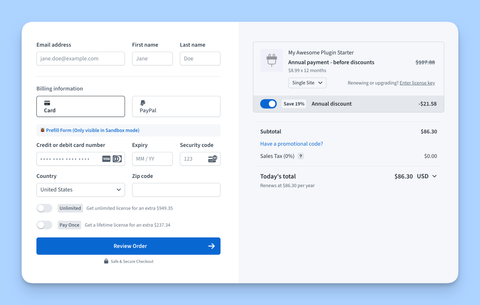
Learn below about the different methods to generate a sandbox environment and how to test payments within it.
Quick Sandbox Testing
The easiest way to test the Freemius Checkout in Sandbox mode is to use the generated hosted sandbox link from the Freemius Developer Dashboard.
- Log in to the Freemius Developer Dashboard for your product.
- Navigate to the Plans page.
- Click the Get Checkout button next to the desired plan.
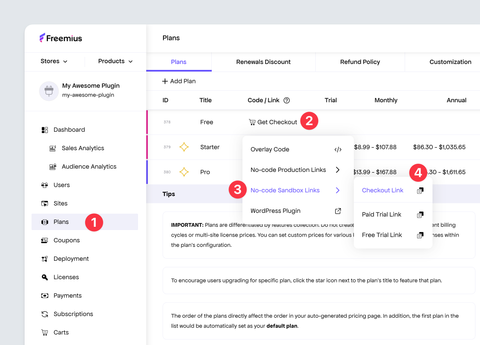
- Hover over the No-code Sandbox Links option.
- Select the Checkout Link option. Click the copy icon to copy the generated URL, or click the link to open the Checkout in a new tab.
This generates a link that will work with your login. So you can test this while being logged in to your Freemius account. Others, however, will not be able to access the sandbox environment using this link.
To generate a proper sandbox token that can be accessed by anyone, please read on.
Generating Sandbox Tokens
To generate sandbox tokens programmatically you can use the following methods.
- JS
- PHP
See JS SDK for more details. Here's a quick example:
import { Freemius } from '@freemius/sdk';

const freemius = new Freemius({
    productId: process.env.FREEMIUS_PRODUCT_ID!,
    apiKey: process.env.FREEMIUS_API_KEY!,
    secretKey: process.env.FREEMIUS_SECRET_KEY!,
    publicKey: process.env.FREEMIUS_PUBLIC_KEY!,
});

const sandboxParams = await freemius.checkout.getSandboxParams();
$product_id = getenv('FREEMIUS_PRODUCT_ID');
$product_public_key = getenv('FREEMIUS_PUBLIC_KEY');
$product_secret_key = getenv('FREEMIUS_SECRET_KEY');

$ctx = time(); // Or any random unique string
$sandbox_token = md5(
  $ctx .
  $product_id .
  $product_secret_key .
  $product_public_key .
  'checkout'
);

$sandbox_params = array(
  'token'  => $sandbox_token,
  'ctx'    => $ctx,
);
The methods above will generate an object with the following shape:
{
  "token": "generated_sandbox_token",
  "ctx": "generated_context_string"
}
Now you can pass this object to the Checkout to open it in Sandbox mode.
Overlay Checkout
Use the sandbox option when opening the Overlay Checkout.
checkout.open({
  sandbox: sandboxParams,
});
The object matches the shape returned from the methods above.
Hosted Checkout
If you're using the Hosted Checkout then you need to pass the generated sandbox parameters in the checkout URL as query parameters.
sandbox- The generated sandbox token.s_ctx_ts- The generated context string.
Here are some sample code snippets for different languages:
- JS
- PHP
// Build the base checkout URL
const baseUrl = `https://checkout.freemius.com/product/${productId}/${planId}/`;

// Add sandbox parameters as query strings
const sandboxToken = encodeURIComponent(sandboxParams.token);
const sandboxContext = encodeURIComponent(sandboxParams.ctx);

// Construct the final checkout URL
const checkoutUrl = `${baseUrl}?sandbox=${sandboxToken}&s_ctx_ts=${sandboxContext}`;
// Build the base checkout URL
$base_url = "https://checkout.freemius.com/product/{$product_id}/{$plan_id}/";

// Add sandbox parameters as query strings
$sandbox_token = urlencode($sandbox_params['token']);
$sandbox_context = urlencode($sandbox_params['ctx']);

// Construct the final checkout URL
$checkout_url = "{$base_url}?sandbox={$sandbox_token}&s_ctx_ts={$sandbox_context}";
Sandbox Payments
When the checkout is opened in Sandbox mode, you can test payments using test credit card numbers and PayPal sandbox accounts.
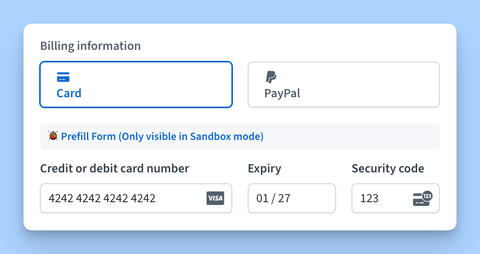
Clicking the Prefill Form (Only visible in Sandbox Mode) link item in the sandbox checkout allows you to quickly populate the checkout form with test data, making it easier to test the checkout process without manually entering information each time.
However, you can also manually enter any of the test credit card numbers and PayPal sandbox accounts listed below.
Testing credit cards
| Card Number | Card Type |
|---|---|
| 4242 4242 4242 4242 | Visa |
| 4000 0566 5566 5556 | Visa (debit) |
| 5555 5555 5555 4444 | MasterCard |
| 5200 8282 8282 8210 | MasterCard (debit) |
| 5105 1051 0510 5100 | MasterCard (prepaid) |
| 3782 8224 6310 005 | American Express |
| 6011 1111 1111 1117 | Discover |
| 3056 9309 0259 04 | Diners Club |
| 3530 1113 3330 0000 | JCB |
Testing PayPal accounts
To test PayPal payments in the Freemius Sandbox environment, first you need to choose the PayPal option in the checkout, then click the "Continue to PayPal" button. Use one of the following credentials in the new pop-up to log in:
| Type | Password | |
|---|---|---|
| Personal | [email protected] | freemius |
| Business | [email protected] | freemius |
To see the account activity, use the same credentials from above to log in to a PayPal Sandbox.
WordPress In-Dashboard Purchases
To test payments for WordPress products embedded with the Freemius WordPress SDK in Sandbox mode, please refer to our WP SDK Testing guide.