

Deploying your Files
Creating a release is the only step required to make your template files available for download after a successful purchase. Follow the steps below to deploy your template files:
- First, ensure to create a ZIP file containing your template files. This ZIP file will be downloaded by your customers after a successful purchase.
Release Notes
We recommend including a
readme.txtorreadme.mdfile in your ZIP file that contains release notes for the version you are releasing. This will help your customers understand what changes or updates are included in the new version or how to use the template files effectively. - Navigate to the Deployment page in the Freemius Developer Dashboard.
- Click the Add New Version button.
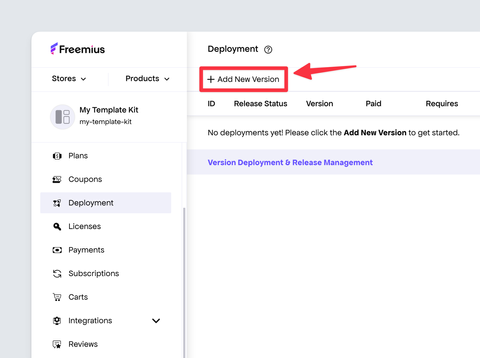
- Add the version number and the required platform version. The version number should follow the Semantic Versioning so as to make it easier to manage updates and compatibility.
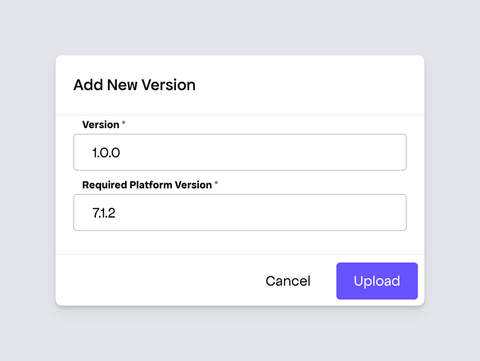
- The dialog box will prompt you to upload a ZIP file containing your template files. Select the right file and upload it.
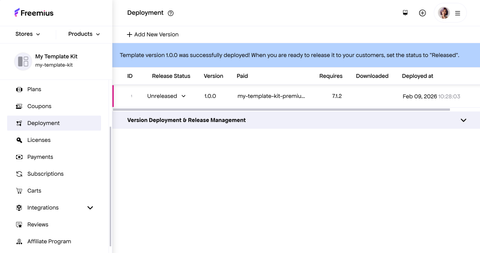
- Once the upload is complete, by default, the zip has an
Unreleasedtag.Unreleased TagThe zip is not available for the customers to download, however, this allows you to download the files and test.
- Once everything is set, change the status from
UnreleasedtoReleasedto make the files available for download after a successful purchase for your customers.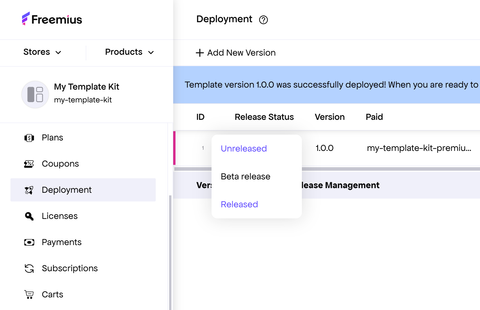
Once the release is made, your customers will be able to download the template files after a successful purchase. Learn more about distributing your templates and providing updates. If you wish to test the checkout flow here how you can make a sandbox purchase.