

Configure Plans & Pricing for Your WordPress Product
You can create multiple plans for your WordPress product with different pricing options, features, and license counts to cater to various user needs.
For SaaS pricing setup, see set up SaaS.
Creating Your First Plan
- Log in via the Freemius Developer Dashboard and select the relevant product.
- Go to the Plans page.
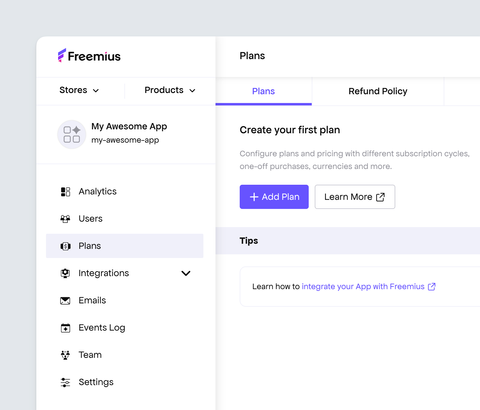
- Click Add Plan to create a new plan.
- Add a unique name and specify a title. For example, 'pro' and 'Pro' to the respective fields.
- Click the "Create New" button.
Freemium Products
The Free plan is required to generate the free version during the deployment process. Please leave the Free plan as is if you want to have a freemium product with a free version available on WordPress.org.
Premium-only Products
If you're creating a premium-only product, make sure to delete the Free plan that is generated by default when you create a new product. This will ensure that only the paid plans are available for purchase and license activation, and users won't see a free option when they go to purchase your product. To delete the Free plan, simply click the "Delete" button at the end of the plan's row.
The freemium business model can greatly benefit you by giving you the opportunity to market your free product on WordPress.org, giving you access to a large number of potential users who can convert into paying customers.
Setup Pricing for the Plan
The plan can have different pricing options for the plan.
A pricing option refers to a specific number of licenses or sites the configuration applies to. Each pricing option can have different billing cycles, such as monthly, annual, or lifetime.
For example, you can create a 5-Site pricing option, meaning that after purchasing it, users will be able to activate the product on up to 5 different WordPress sites.
Single Site Pricing Options
To get started;
- Fill in the description information about the plan (optional).
- Then scroll down to the Pricing section.
- Fill in the price for the Single Site option choosing combination of the billing cycles (monthly, annual, lifetime) depending on the plan offering.

Bulk Pricing Options
You can also create pricing options for plans that offer more than one license activation for multiple sites. To do this;
- Scroll down to the "Bulk Pricing" section.

- Click Add Bulk and select the desired number of sites from the dropdown, then enter the relevant pricing options.
In the example above, we entered $49 as the price for an annual single-site license and added an additional option for a 3-site annual license at $79.
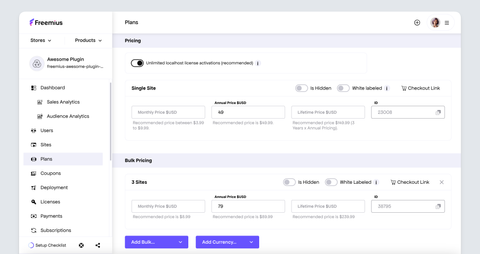
The pricing can also be setup in multiple currencies purchases.
If you are new to pricing, we recommend checking out our guide on How to Price Your WordPress Plugin.
Localhost License Activations
If you want to allow users to activate their licenses on localhost/development environments, leave the localhost license activations toggle on. This is useful for development and testing purposes, allowing users to test the product without consuming their license activations. See the License utilization guide.
Customize Plan Settings
You can also customize your product's plans with additional settings, such as:
- Additional currencies
- Free trials
- Support channels
- Blocking/Supporting premium features after license expiration
Configure a Plan's Support Channels
Each created plan can enable support to your customers through a number of channels available in the Freemius Developer Dashboard. To set up the support channels:
- Under the relevant plan, scroll down to the Support section.
- Enable the appropriate channels.
- Set the corresponding link details.
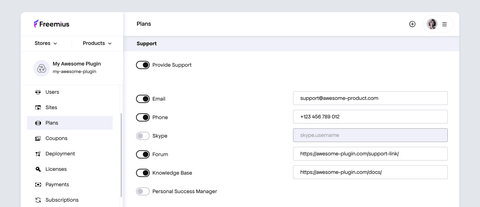
The email address configured here will be included in the post-purchase emails sent to your product users as a support contact. For more reliable email delivery and management, we recommend setting up dedicated support email addresses.
Configure a Plan's Features
- Scroll down the Features section, the plan's features can be listed.
- Fill in the name of the feature and add the other relevant details.
- Click the [+] button or press Enter to add it to the plan.
- Repeat the steps above until you've added all the required features.
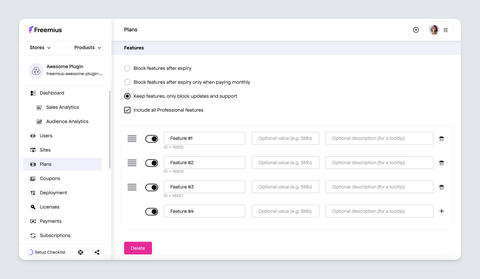
The saved features here can be accessed through the Freemius API. See the API documentation for more details on how to retrieve the plan's features.
If your WordPress product contains a fixed number of features across all paid plans and the only difference is the number of licenses, this is best handled with a single plan.
Generating Checkout Links
You can generate checkout links for each of your plans and pricing options to share on your website and marketing channels. This allows customers to easily access the purchase page for the specific plan they are interested in. For more information on generating checkout links, see the guide on
When the customers go to purchase your product, they will see the pricing plans displayed in the Freemius Checkout like this.

Renewals Discount
For products with recurring billing, you can set up a discount for customers who renew their subscription. This is a great way to incentivize customers to continue using your product and reward their loyalty.

As a rule of thumb, we do not recommend setting a discount for renewals unless your app does not provide a continuous value to users, such as a one-time-use product like migration plugins. In such cases, maybe it is worth setting up a lifetime pricing by adding a value to the lifetime price input field.
Release the Plans to Users
Ensure your plans are visible to users to facilitate purchases and license activations.
Toggle the "Release plans to users" option at the top right of the Plans page to enable this.
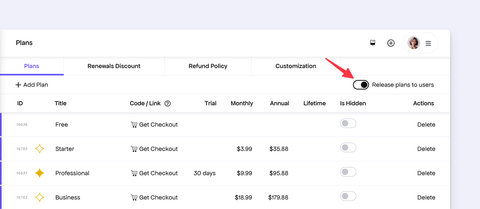
Disabling this option can also be useful for:
- Testing new plans and pricing options before making them available to users, ensuring that everything works correctly before going live. In such cases, you can put the SDK in testing mode to test the purchase and license activation flows.
- Retiring products already in the wild allowing you to manage the transition smoothly without affecting existing customers while closing the product to new customers.