
User & Websites Data
If you have been developing for WordPress.org for a while, you probably know that there is almost no user data available to you.
Now, WordPress developers can make data-driven decisions about their products using Freemius Insights advanced analytics.
After integrating the Freemius SDK into your product, Freemius Insights automatically becomes operational and begins capturing data from your product's users.
Data from every user who opts in is saved and displayed on your Freemius dashboard to help identify user tendencies and behaviors, as well as issues users may be experiencing with your product.
Here are some examples of the things you will be able to learn about your users right out of the gate:
Your Users
When a user opts in, you can immediately see the following details in your 'Users' table:
- Email address + Gravatar (if they have one)
- Whether they have verified their email address
- Their name
- Any payments they’ve made
- Registration date
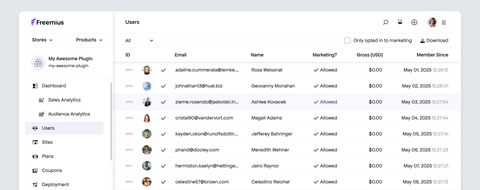
You can easily dive deeper into each user’s profile and learn even more about them, as well as edit their data.
Learning who is using your product is crucial for its growth and improvement. Knowing your user base helps you improve their experience more effectively and adjust your strategy if your actual users are different from those you initially expected.
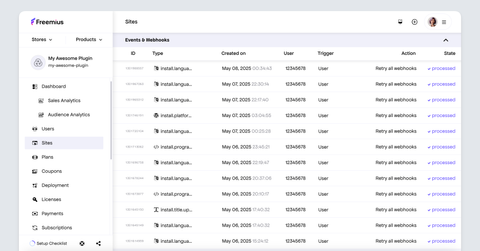
Click the user's name to inspect their page. You will be able to:
- See & edit name + email address + location
- See details about their websites, licenses, and versions
- See all events and webhooks that were triggered by them. You can also retry those webhooks if necessary.
- See all user-related keys (public / secret)
Your Sites
Under the 'Sites' tab, you can see a table listing the websites where your plugin or theme was installed and activated. You will be able to see the following:
- The website's URL
- Their chosen plan
- Date of installation
- License type (with a link to more details)
- Plugin/theme version
- Payments from this website
- Premium or free
You can choose to filter the table to have it not display any local environments by checking the Only Production checkbox.
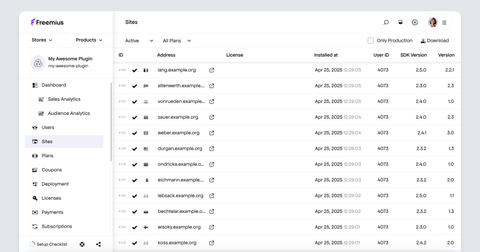
You can easily dive deeper into each website to learn more about it and manage its registered data. Click the website's address to inspect its page. On each website page, you will be able to:
- See the website plan and product version
- Change the site status: deactivated / activated / uninstalled
- Edit site URL and add a title to the site (for easier management)
- View WordPress version / PHP version / Product version / Country / Language / Charset
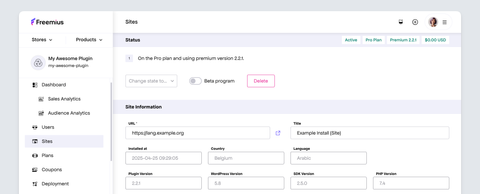
- See site owner details, such as email address and name
- License and plan details
- Trial period data
- Upgrade or downgrade manually
- See all website-related keys (public / secret)
- See all events and webhooks that were triggered by the website. You can also retry those webhooks if necessary.