

Sell in Local Languages and Currencies with Automatic Detection
Freemius Checkout supports multiple languages and currencies, helping you provide a localized buying experience for customers worldwide.
For example, if a customer from Germany accesses the checkout, you can configure it to display in German automatically and show prices in euros.
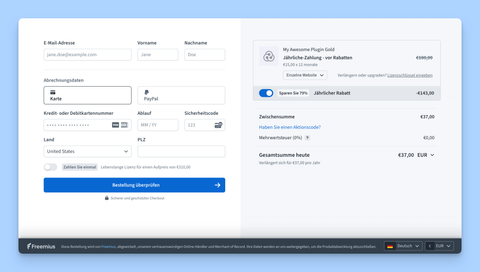
Customization Options
By default, the checkout loads in English and uses USD. Buyers can always change these settings using the dropdowns at the bottom of the checkout.
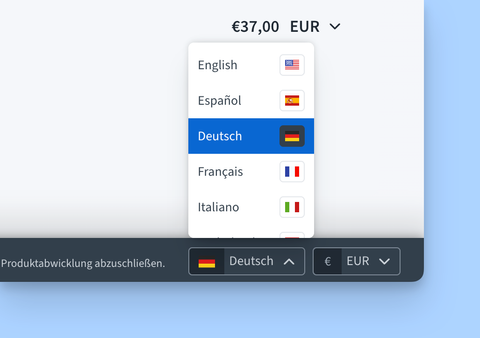
The currency selector also appears near the total price.
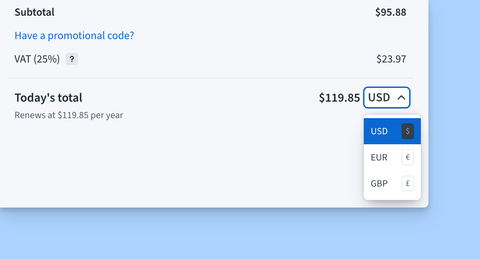
If you want to preload the checkout with a specific language or currency, you can do so by using the appropriate parameters when initializing the checkout.
Language
Use the language parameter. The following values are currently supported:
- Automatic - auto - (Recommended) Automatically detects the best language for the customer based on their location.
- English - en
- Spanish / Español - es
- French / Français - fr
- German / Deutsch - de
- Italian / Italiano - it
- Dutch / Nederlands - nl
- Croatian / Hrvatski - hr
Here are some examples of how to set the language for both the overlay checkout and the hosted checkout:
- Overlay Checkout
- Hosted Checkout
const checkout = new FS.Checkout({
  product_id: '<productID>',
  plan_id: '<planID>',
  language: 'de', // Set the language to German
});
https://checkout.freemius.com/plugin/12196/plan/36392/?language=de
Currency
Set the currency parameter. Freemius Checkout supports three different currencies, provided you have already set up multi-currency pricing for your products:
- Automatic - auto - (Recommended) Automatically detects the best currency for the customer based on their location.
- United States Dollar - usd
- Euro - eur
- British Pound Sterling - gbp
Here are some examples of how to set the currency for both the overlay checkout and the hosted checkout:
- Overlay Checkout
- Hosted Checkout
const checkout = new FS.Checkout({
  product_id: '<productID>',
  plan_id: '<planID>',
  currency: 'eur', // Set the currency to Euro
});
https://checkout.freemius.com/plugin/12196/plan/36392/?currency=eur
Freemius pays out your earnings separately for each currency you sell in. Learn more here.
Best Practices
If you're selling globally, we recommend using automatic detection for both language and currency settings.
- Overlay Checkout
- Hosted Checkout
const checkout = new FS.Checkout({
  product_id: '<productID>',
  plan_id: '<planID>',
  currency: 'auto',
  language: 'auto',
});
https://checkout.freemius.com/plugin/12196/plan/36392/?currency=eur&language=auto
This ensures that your customers see the best language and currency for their location, providing a more personalized and localized buying experience that can lead to higher conversion rates.
Checkout Geo API
While Freemius Checkout can automatically detect the best language and currency for your customers, you can also leverage the same API to get the customer's location and set the appropriate language and currency on your own pricing page. Here's how it works:
- From your pricing page, make a GET request to the following endpoint: https://checkout.freemius.com/geo.json.
- The API returns a JSON object containing the customer's country and currency information.
- Use this information to set the appropriate language and currency for your customers on your pricing page or custom checkout.
fetch('https://checkout.freemius.com/geo.json')
  .then((response) => response.json())
  .then((data) => {
    console.log(data);
    // Use the data to set the appropriate language and currency
  })
  .catch((error) => {
    console.error('Error fetching geo data:', error);
  });
The API provides an object similar to the one below:
{
  "country": {
    "name": "India",
    "code": "in"
  },
  "currency": {
    "code": "usd",
    "symbol": "$"
  }
}
If you want to see more languages and currencies in checkout, please use our feature request board and let us know which ones you would like to see. This helps us prioritize development and better meet customer needs.